The Billing Dashboard gives sub-account users one place to manage subscriptions, payment methods, billing information, invoices, transaction history, and wallet balances. It also supports saved-card management and SaaS V2 primary-card synchronization for the sub-account's active SaaS subscription. Use this guide to understand each billing area and manage common billing tasks.
Learn how to manage subscriptions and payment methods, delete saved cards, update billing information, review invoices and transactions, and monitor wallet balances from the sub-account Billing Dashboard.
What Is the Billing Dashboard?
The Billing Dashboard is the central location for managing financial activity within a HighLevel sub-account. Keeping billing settings in one place makes it easier to review current subscriptions, payment methods, invoices, transaction history, and wallet funds.
From the Billing Dashboard, you can manage:
- Subscriptions
- Payment methods
- Billing information
- Charges, invoices, and transaction history
- Wallet balances
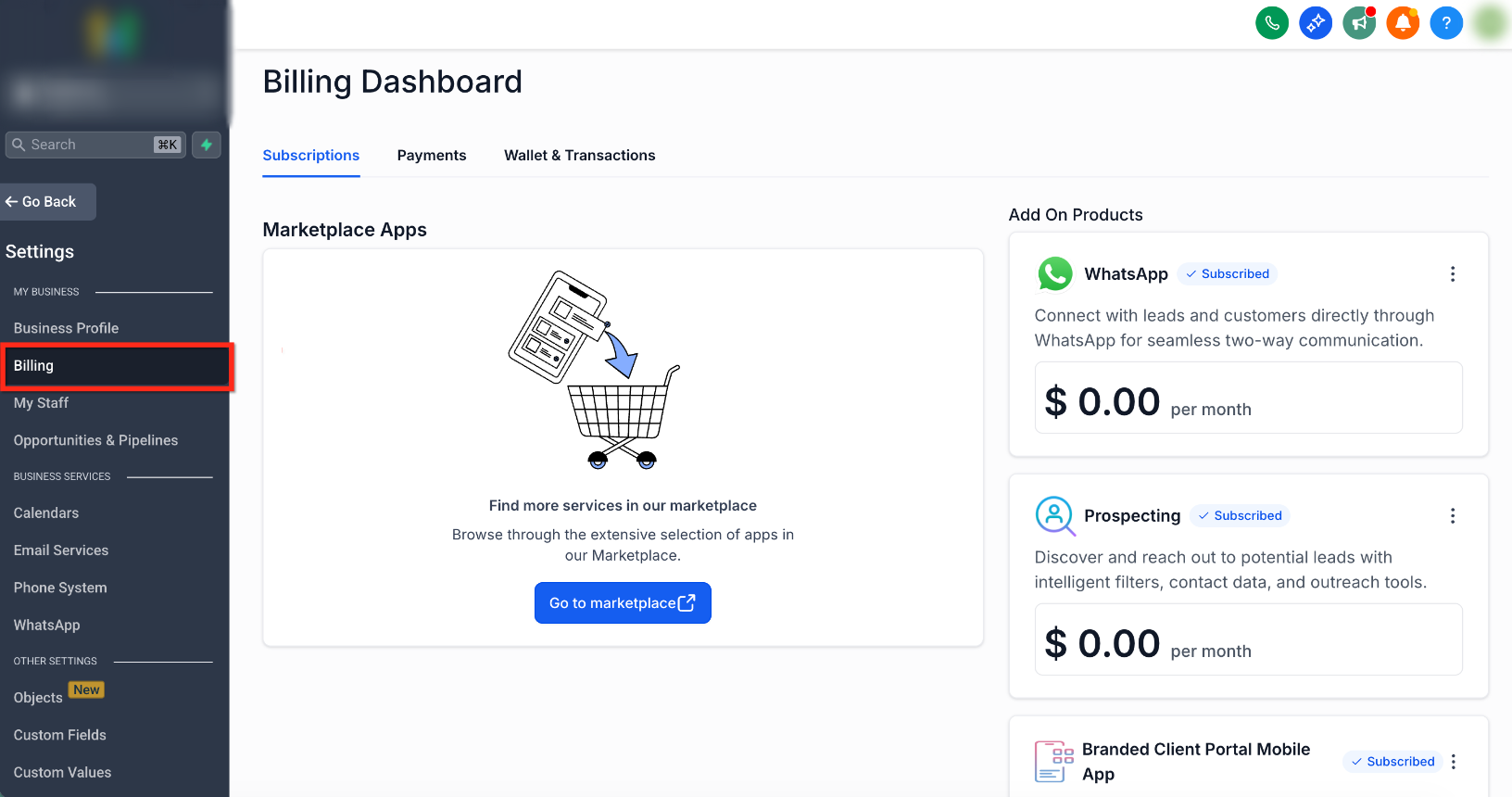
To open the Billing Dashboard, go to Settings > Billing in the sub-account.
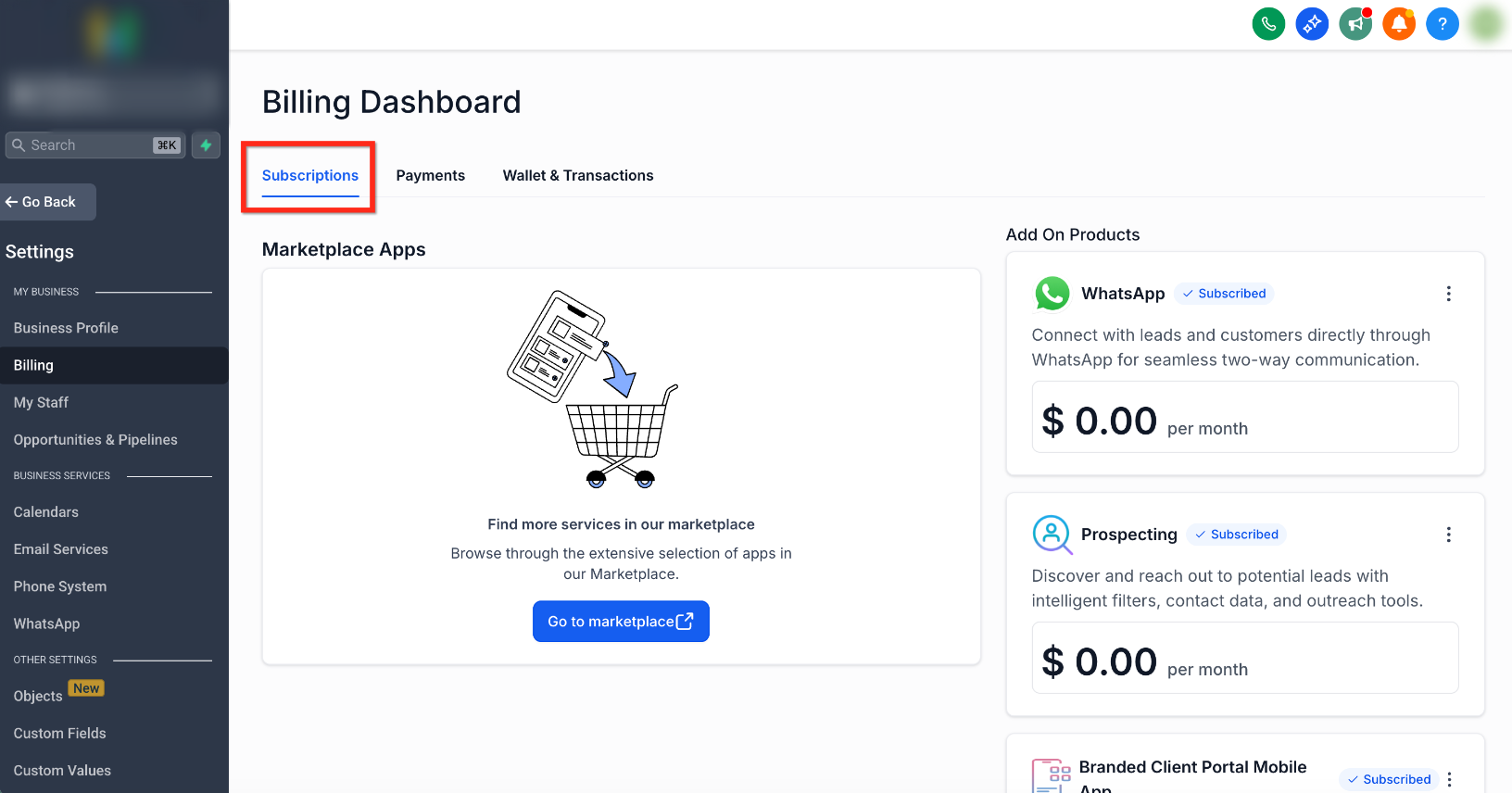
Manage Subscriptions
The Subscriptions area provides a consolidated view of recurring services connected to the sub-account so you can monitor the billing relationships that are currently active.
- SaaS subscriptions: Manage software-as-a-service subscriptions associated with the sub-account.
- Reselling subscriptions: Review subscriptions related to resold services.
- Marketplace app subscriptions: Oversee subscriptions for Marketplace applications connected to the account.
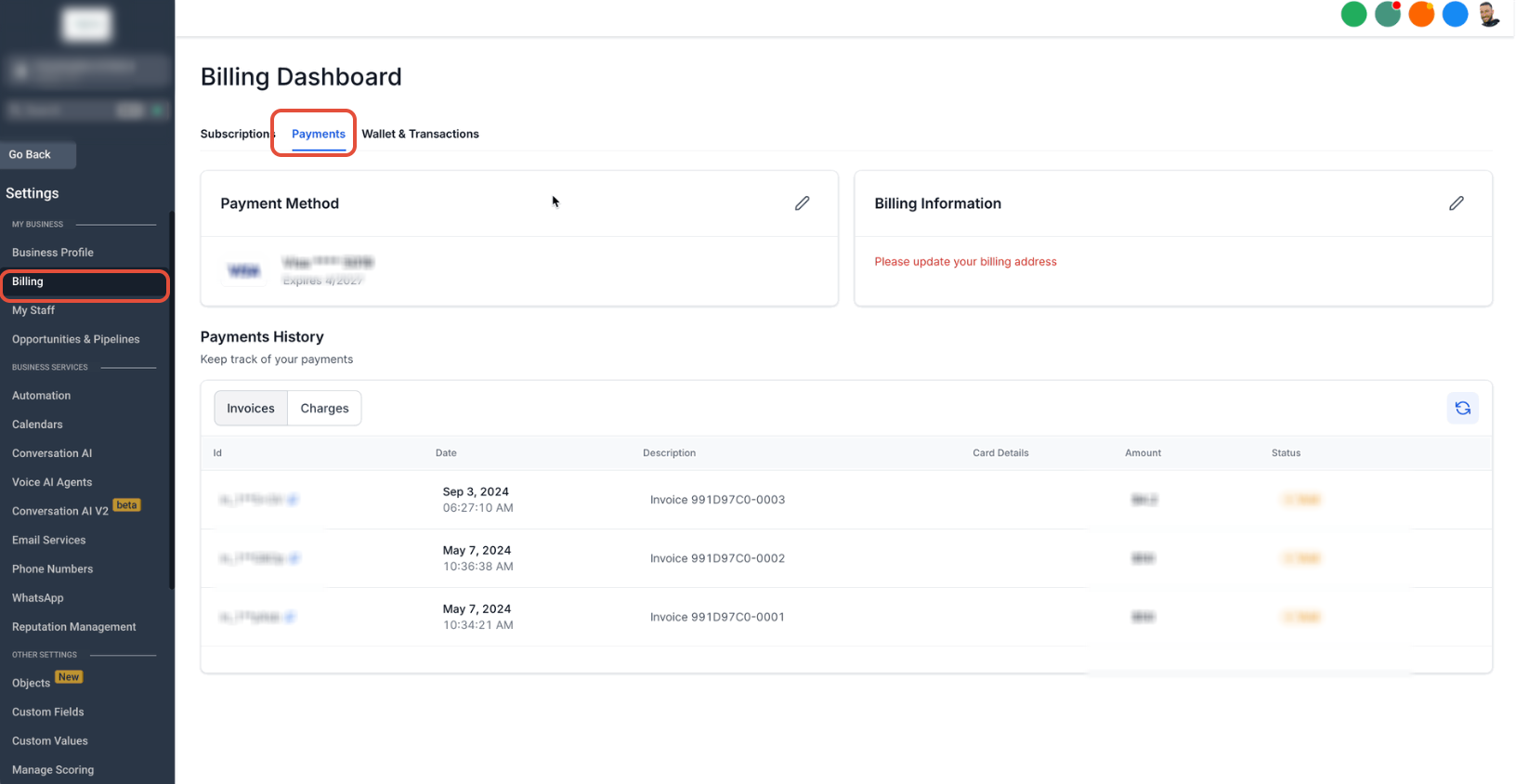
Payment Methods
Payment Methods controls which saved cards are available for supported billing activity. Keeping the primary card current helps reduce interruptions to wallet recharges and, for eligible SaaS V2 accounts, keeps the active SaaS subscription aligned with the selected primary card.
- Add New Cards: Add a new payment method when another card is needed.
- Delete Existing Cards: Remove outdated or unused saved payment methods.
- Set Primary Card: Choose the default card used for supported billing activity.
| Billing Use | Primary Card Behavior |
|---|---|
| SaaS V2 | For an active SaaS V2 subscription, changing the sub-account's primary card also updates the payment method used for that sub-account's SaaS subscription. Other subscriptions associated with the same contact are not updated. |
| Wallet recharges | For SaaS V2 sub-accounts, the primary card continues to be used for wallet recharges. |
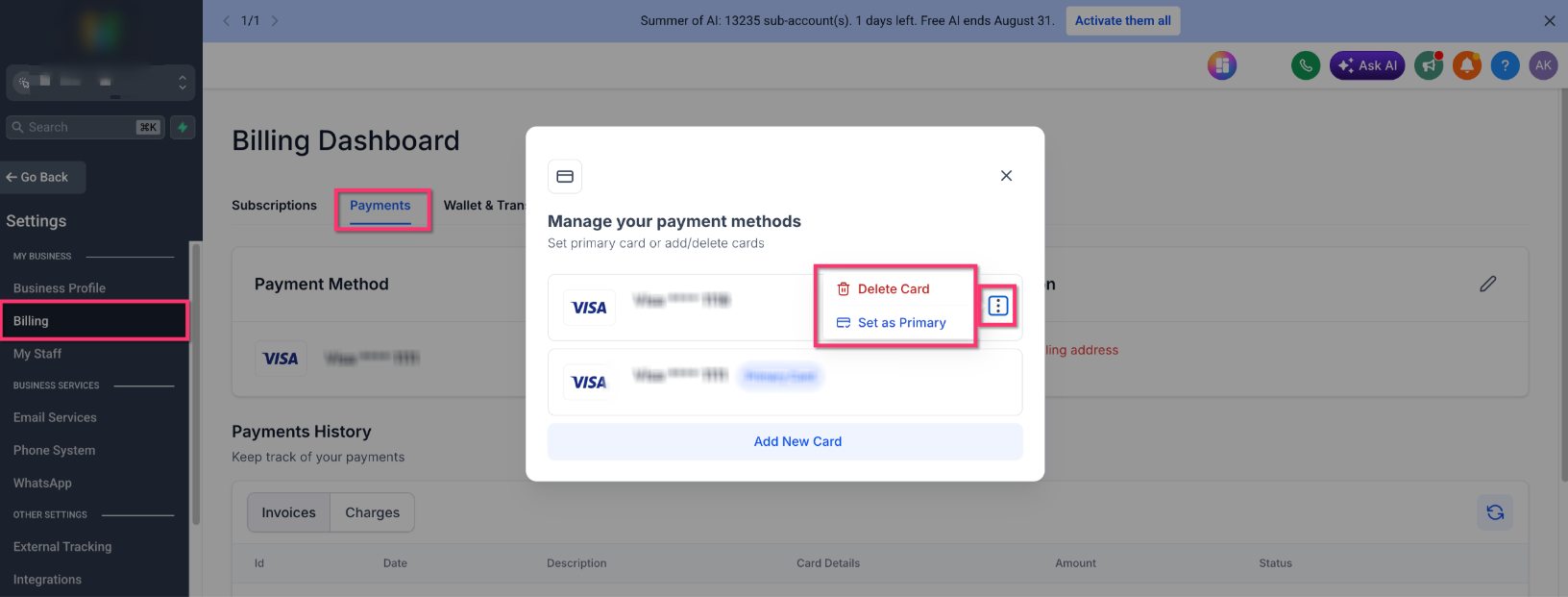
Delete a Saved Payment Method
Removing unused cards keeps the Billing Dashboard organized and reduces the chance that a user selects an outdated payment method. SaaS V2 sub-accounts can delete saved payment methods directly from the Billing Dashboard.
- From the Sub-Account view, select Settings in the left menu.
- Select Billing.
- Select the Payments tab.
- Open Manage your payment methods from the Payment Method area.
- Locate the saved card you want to remove.
- Click the three dots (⋮) next to the card.
- Select Delete Card.
- Review the deletion confirmation.
- Click Delete Now to remove the saved payment method, or click Not now to cancel.
Important: HighLevel may display a warning when the selected card funds active subscriptions. Review and update those subscriptions before deleting the card to reduce the risk of future payment failures.
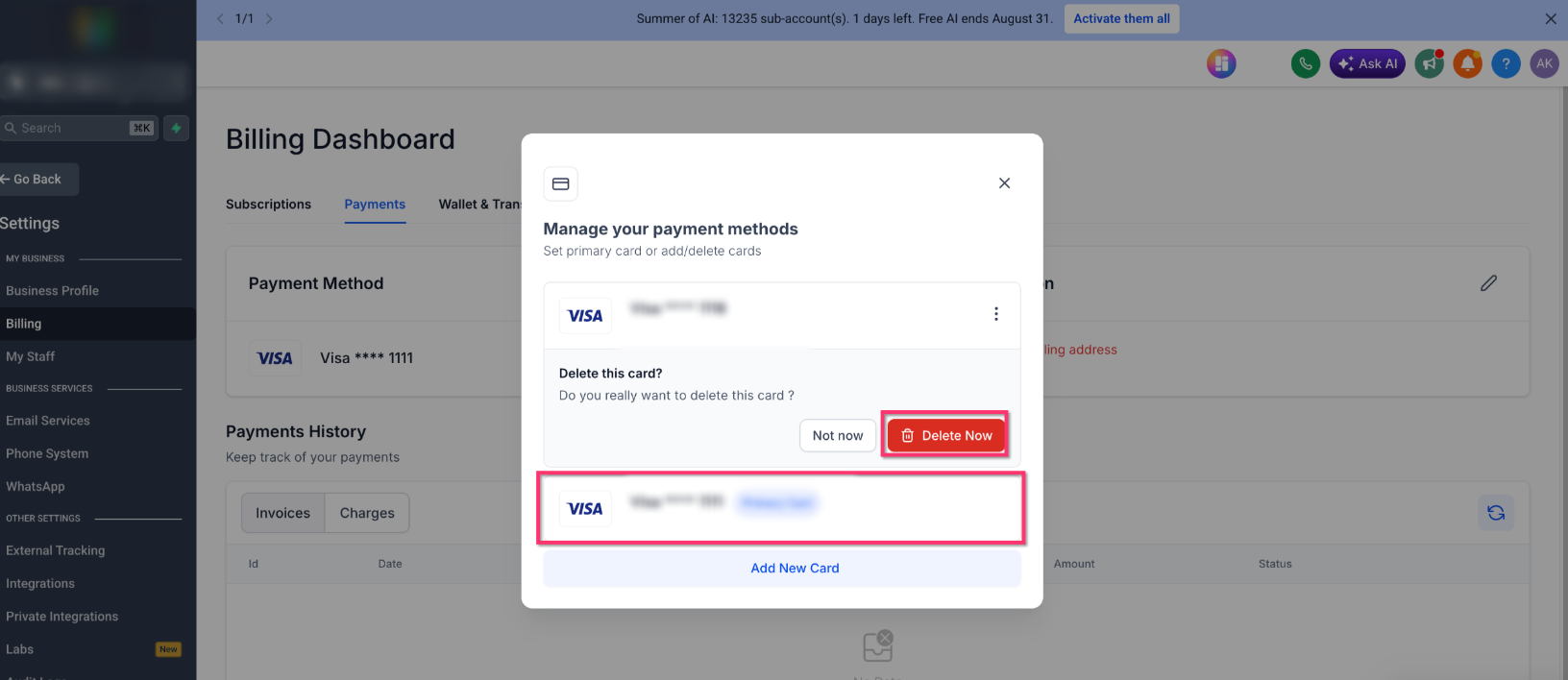
Note: Saved payment method deletion is available to SaaS V2 sub-accounts. SaaS V1 already supported saved-card deletion.
Update Billing Information
Accurate billing information supports successful transactions and helps meet billing requirements in regions where a current billing address is required for recurring products.
- Update Billing Address: Edit the billing address to keep the account's billing information current.
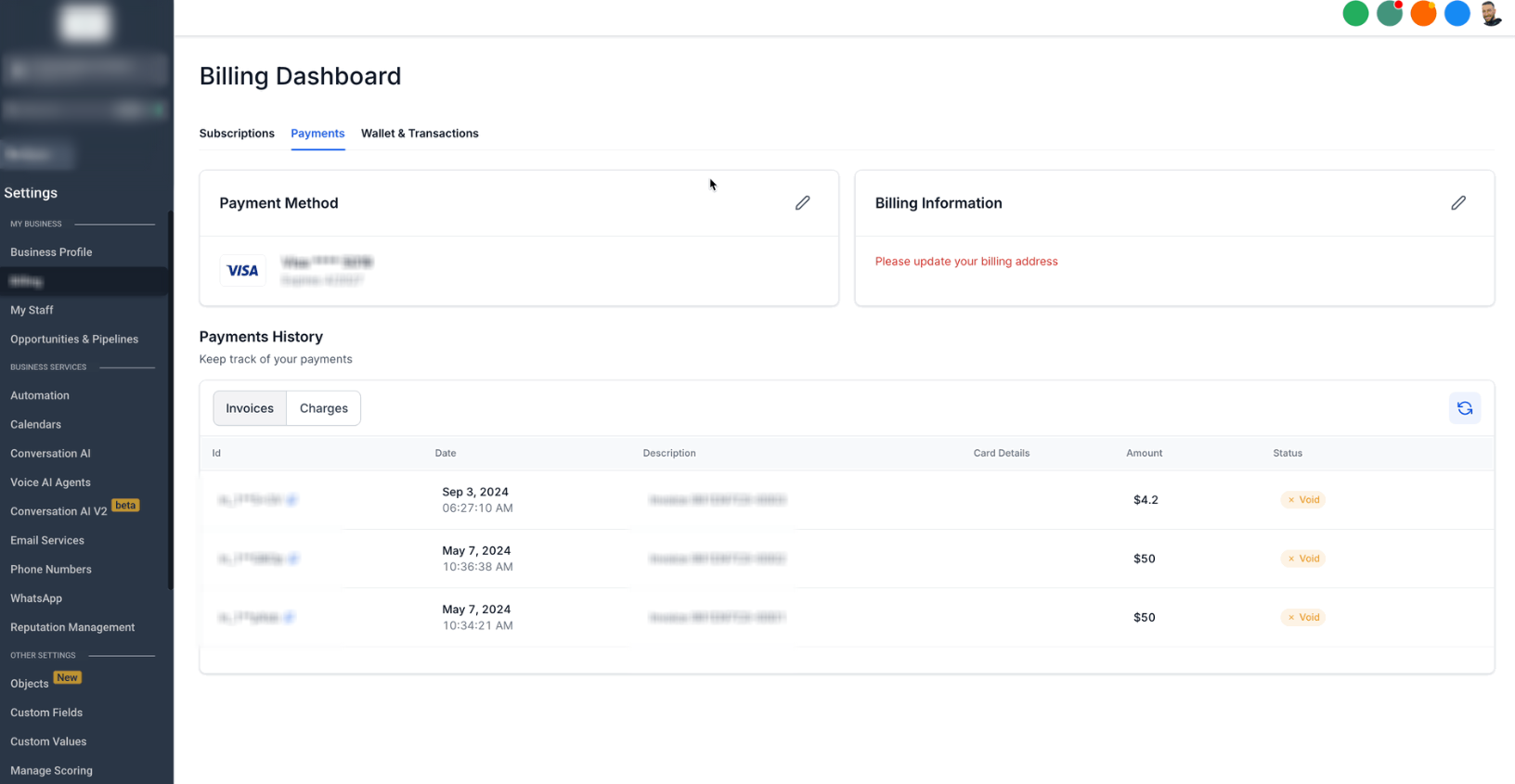
View Charges and Transaction History
Charges and transaction history provide visibility into what the sub-account has been billed for and make it easier to identify invoices, products, transaction IDs, and external charges.
- Detailed Charges Overview: Review a list of charges associated with the account.
- Invoices: View invoice details, identify products connected to each charge, and download invoices when needed.
- Transaction History: Review past transactions to monitor account spending.
View and Manage Invoices
The invoice list provides enough context to understand each charge before you open or download the invoice.
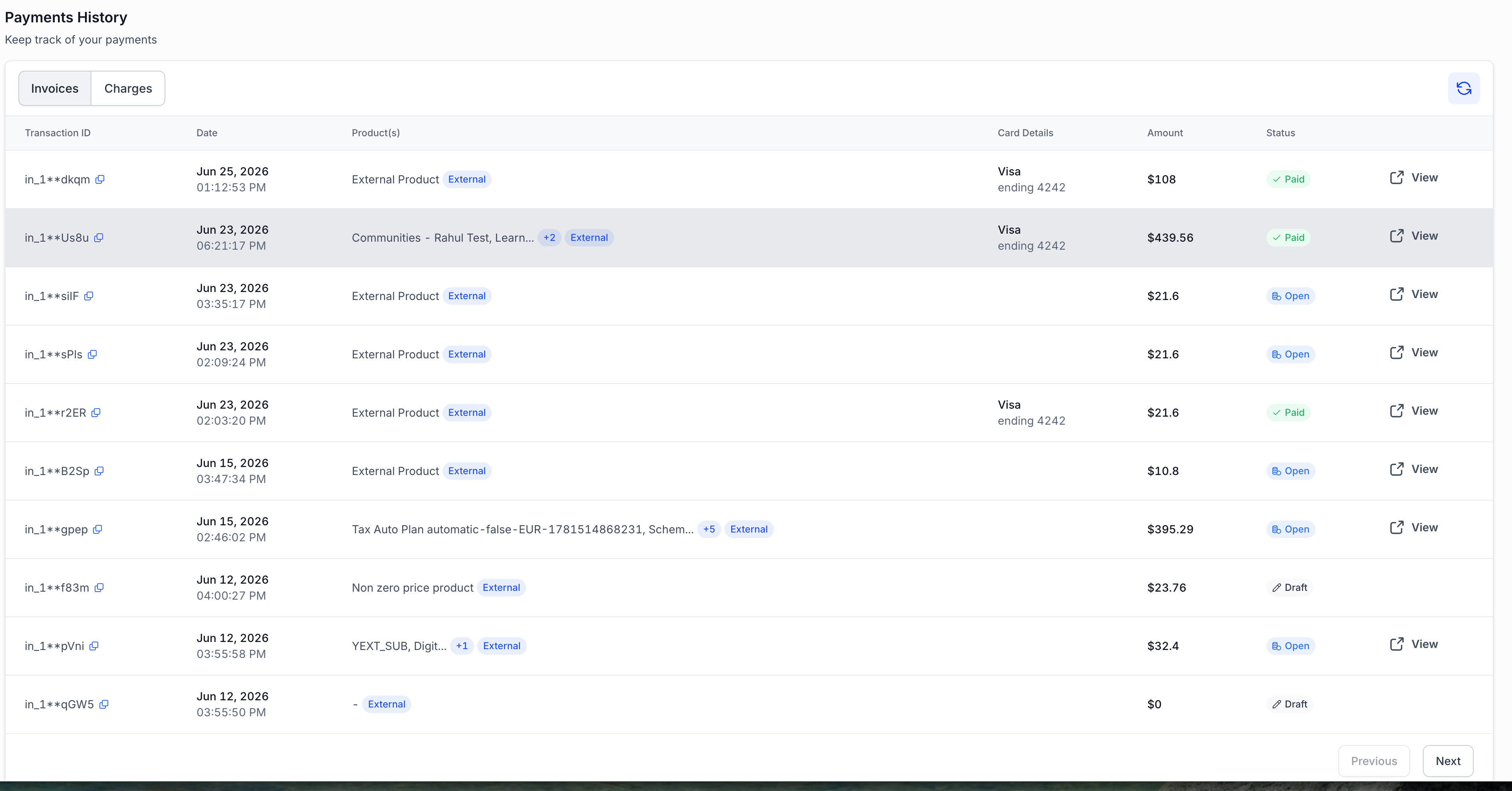
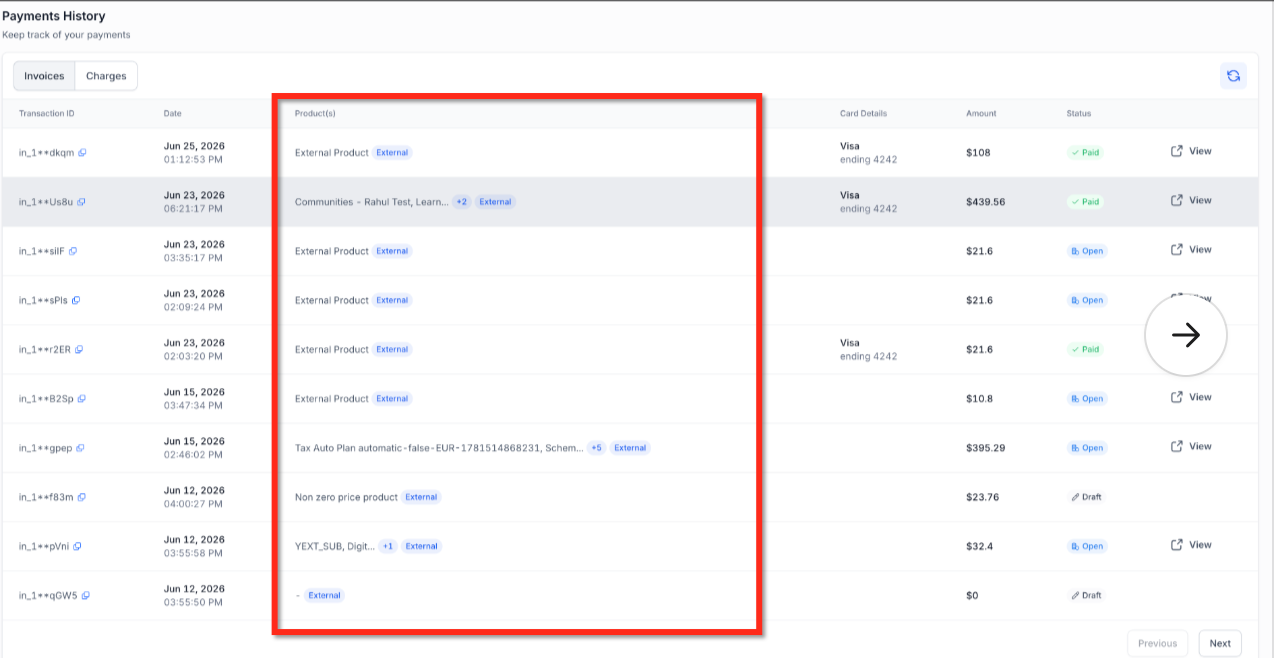
Identify Products on an Invoice
The Products column helps you identify which products contributed to a charge before opening the invoice.
For an invoice with multiple products, the first product name appears with a +n badge showing the number of additional products. Hover over the badge to view all product names included on the invoice. Invoices containing one product show only the product name, and long product names may be truncated with an ellipsis.
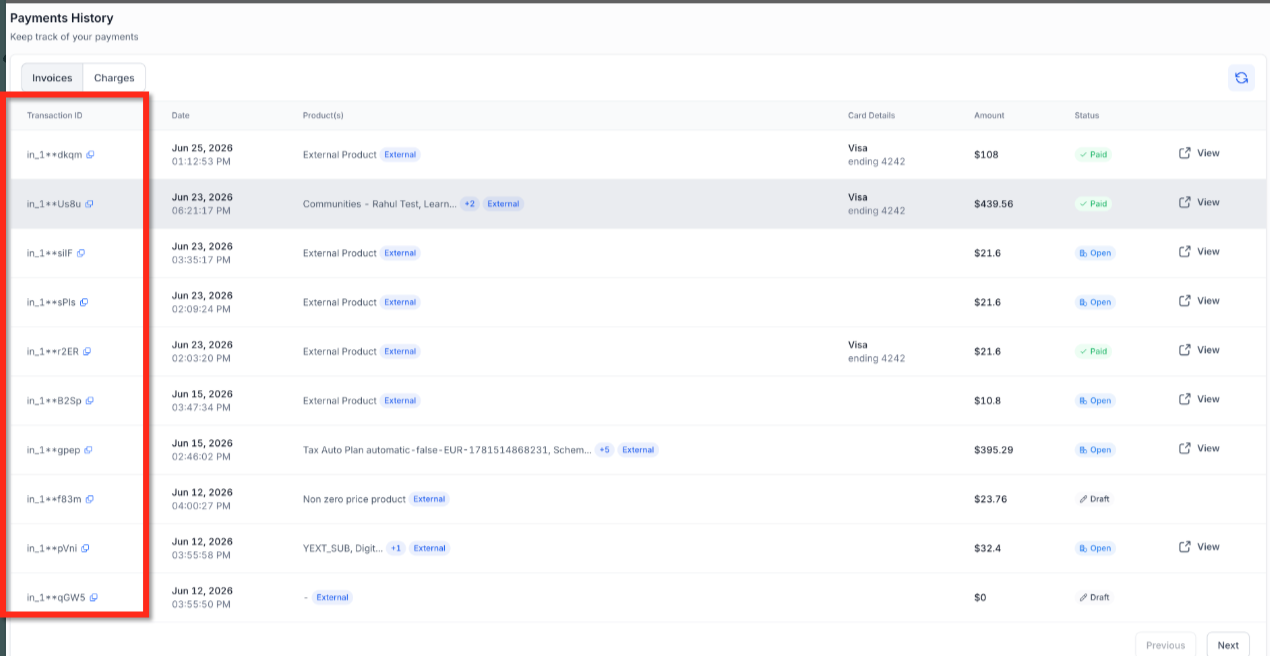
View and Copy the Transaction ID
Transaction IDs help identify individual invoice rows when you need to reference a specific billing event.
The Transaction ID appears truncated in the table. Click the copy icon next to the Transaction ID to copy the full ID to your clipboard. You can also view the full Transaction ID from the invoice details.
View Invoice Details
Invoice details provide a focused view of the charge without automatically downloading the invoice PDF.
Click View for an invoice to open details that include:
- Invoice ID
- Invoice type
- Date
- Amount
- Card
- Status
- Products
Close the invoice details by clicking the X or clicking outside the modal.
View or Download an Invoice
Invoice actions let you either continue into Stripe for more details or download a PDF copy for your records.
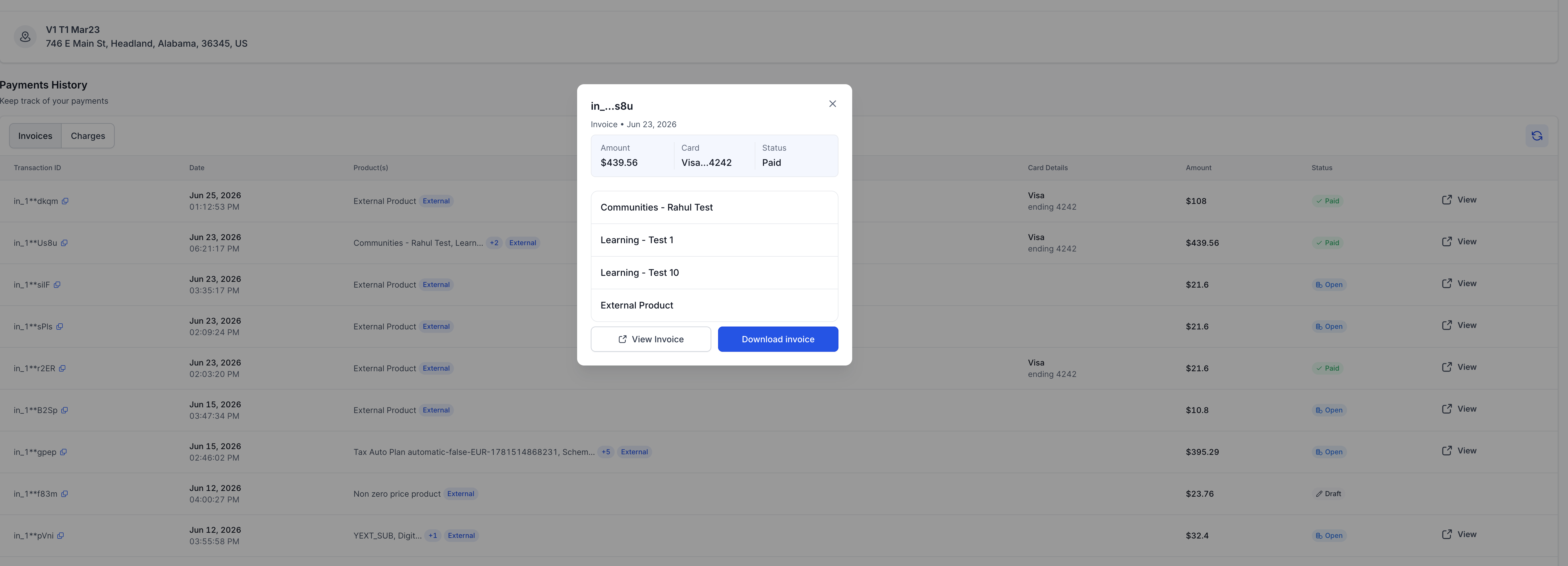
- View in Stripe: Opens the Stripe invoice in a new browser tab.
- Download Invoice: Downloads the invoice as a PDF.
Identify External Charges
Invoices and products originating outside the HighLevel platform display an External badge in the invoice list and invoice details. Use the badge to distinguish external charges from charges originating within HighLevel.
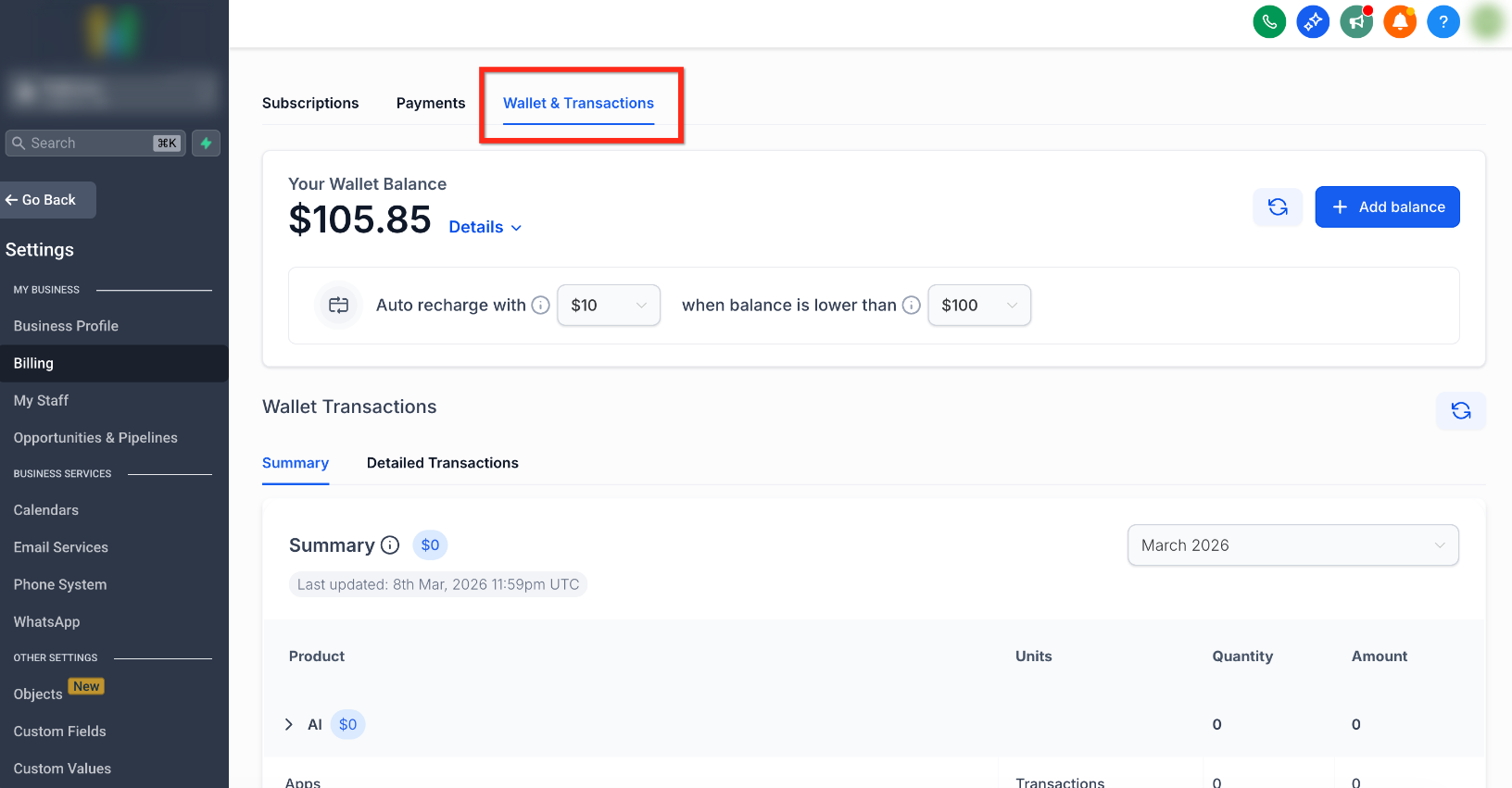
Understanding Wallet Balances
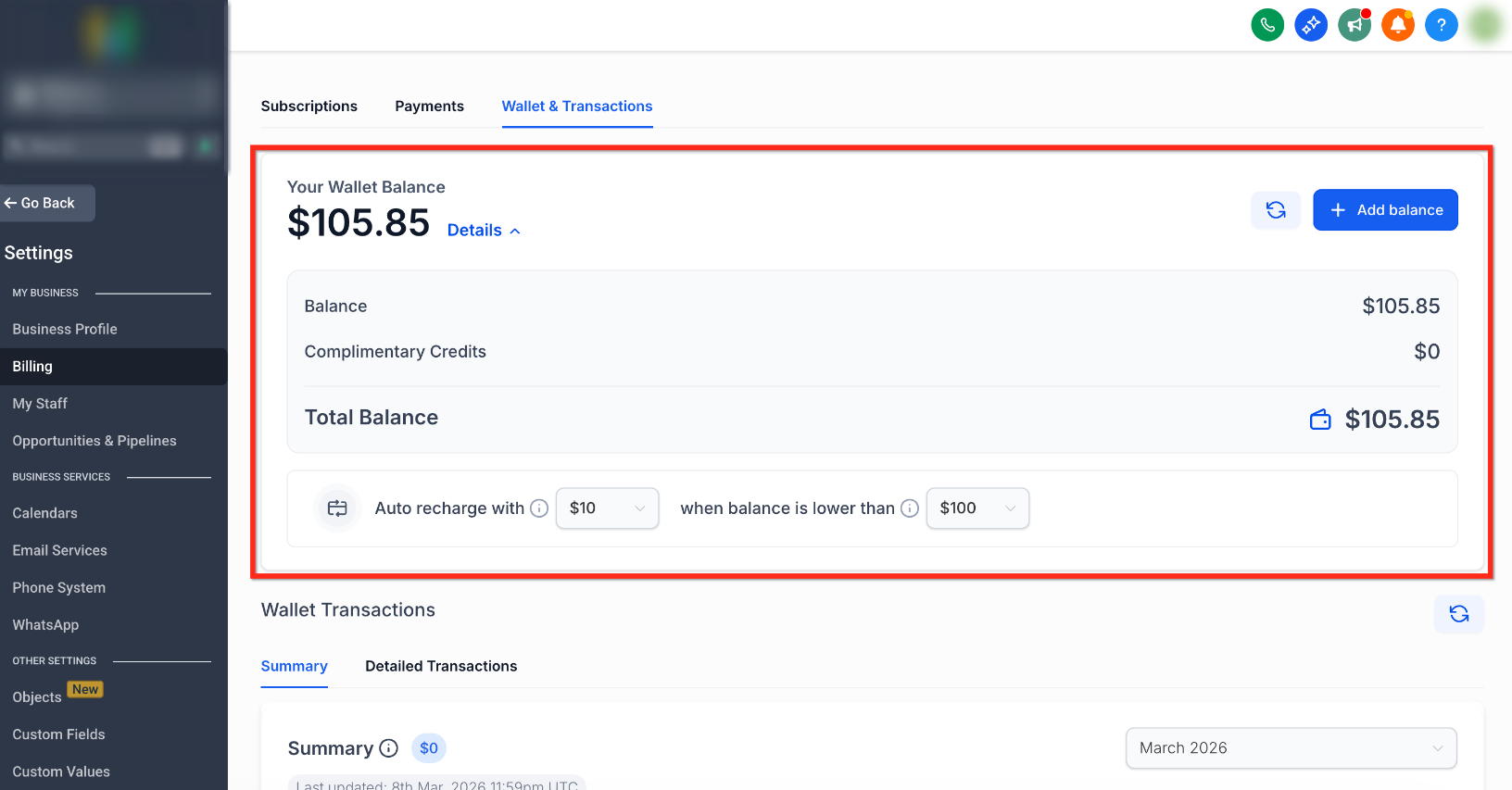
The Wallet lets a sub-account add funds in advance and use those funds as credits for paid services. Auto-recharge helps maintain the wallet balance so supported services can continue without interruption when credits fall below the configured threshold.
When wallet credits drop below the configured amount, the default card is automatically charged and additional credits are added to the wallet.
- View Current Balance: See available wallet funds at a glance.
- Monitor Complimentary Credits: Track complimentary credits provided to the account.
- Manage Funds: Add funds to help keep supported paid services running.
Frequently Asked Questions
Was this article helpful?
That’s Great!
Thank you for your feedback
Sorry! We couldn't be helpful
Thank you for your feedback
Feedback sent
We appreciate your effort and will try to fix the article