The Task Reminder workflow trigger in HighLevel allows you to automate actions based on upcoming or overdue task reminders. This trigger helps teams stay organized, ensures deadlines are not missed, and reduces manual work by activating workflows at key moments before or after a task’s due date.
TABLE OF CONTENTS
- What is the Task Reminder Trigger?
- Key Benefits of the Task Reminder Trigger
- Task Reminder Trigger Filters
- How to Set Up the Task Reminder Trigger
- Frequently Asked Questions
What is the Task Reminder Trigger?
The Task Reminder trigger activates a workflow when a reminder is scheduled in relation to a task’s due date. It ensures tasks receive timely attention by allowing automation to run before or after a due date. This is helpful for notifying users, escalating important deadlines, or updating task statuses automatically.
The trigger requires a task with a due date. If a task is completed and if it matches the trigger condition, it would fire the workflow and if it's deleted before the reminder time, the trigger will not fire. If a task’s due date changes, the reminder timing adjusts based on the new date.
Key Benefits of the Task Reminder Trigger
These benefits help explain how the trigger supports automation, improves efficiency, and enhances task management across teams.
- Automated reminders: Reduce manual follow-up by triggering workflows before or after a task is due.
- Better deadline management: Keep users informed about important upcoming or overdue tasks.
- Flexible timing: Choose whether the workflow runs before or after the task due date.
- Improved internal communication: Use workflow actions to notify team members or update task records automatically.
- Reduced missed deadlines: Ensure tasks don’t go unnoticed when they’re nearing due dates or become overdue.
Task Reminder Trigger Filters
Filters determine the exact timing of when the workflow should run in relation to a task’s due date. Understanding these options helps you configure reminders based on your team’s workflow needs.
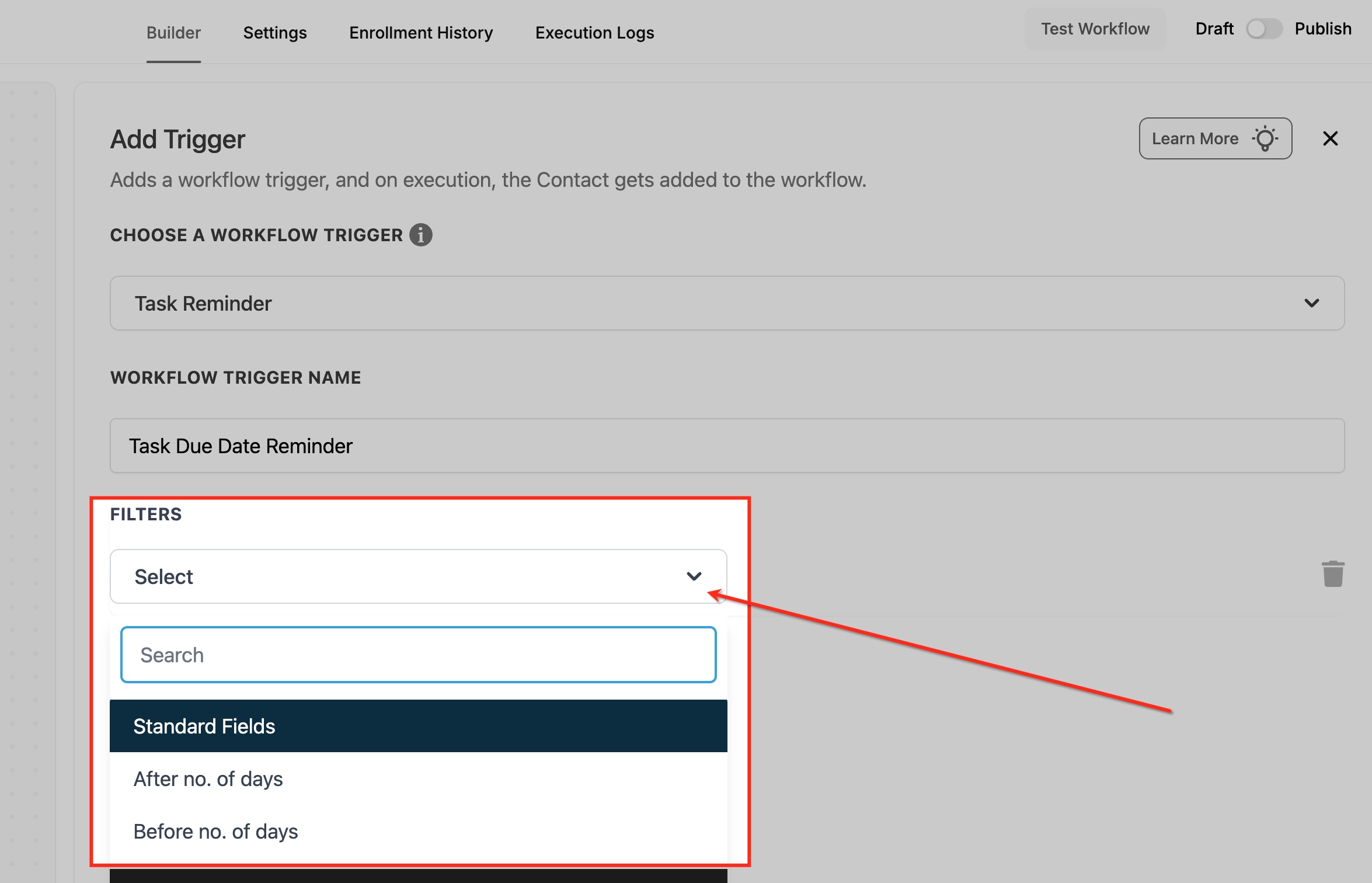
Available Filters
After no. of days
Triggers the workflow a set number of days after the task’s due date.
Useful for overdue task follow-ups or escalation workflows.
Before no. of days
Triggers the workflow a set number of days before the task’s due date.
Ideal for advance notifications or internal reminders.
How to Set Up the Task Reminder Trigger
Follow these steps to correctly configure the trigger and ensure your workflow activates at the right time.
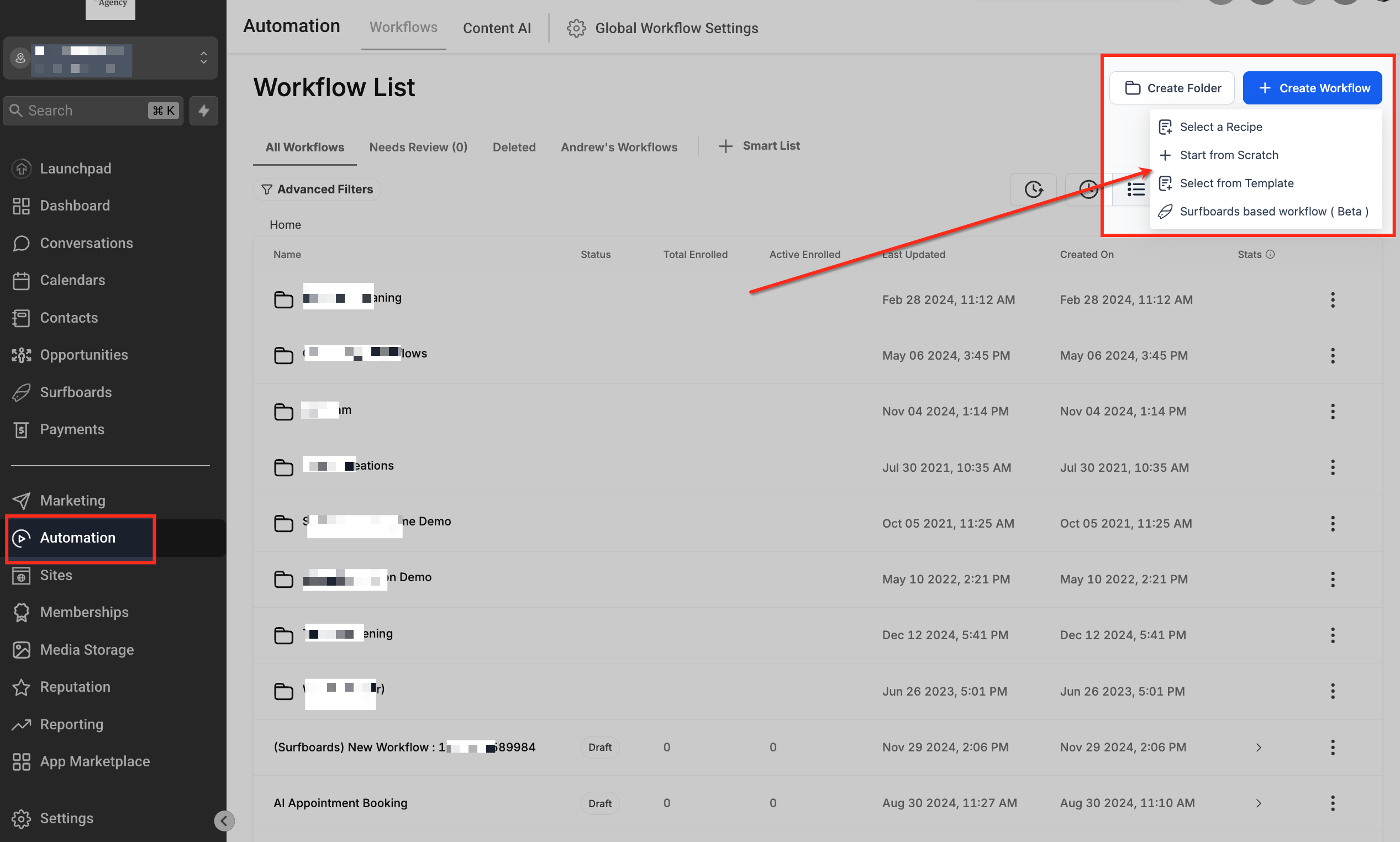
Open Automation
Go to the Automation section in your HighLevel account to view all existing workflows. In the top-right corner, click Create Workflow to begin building a new automation.
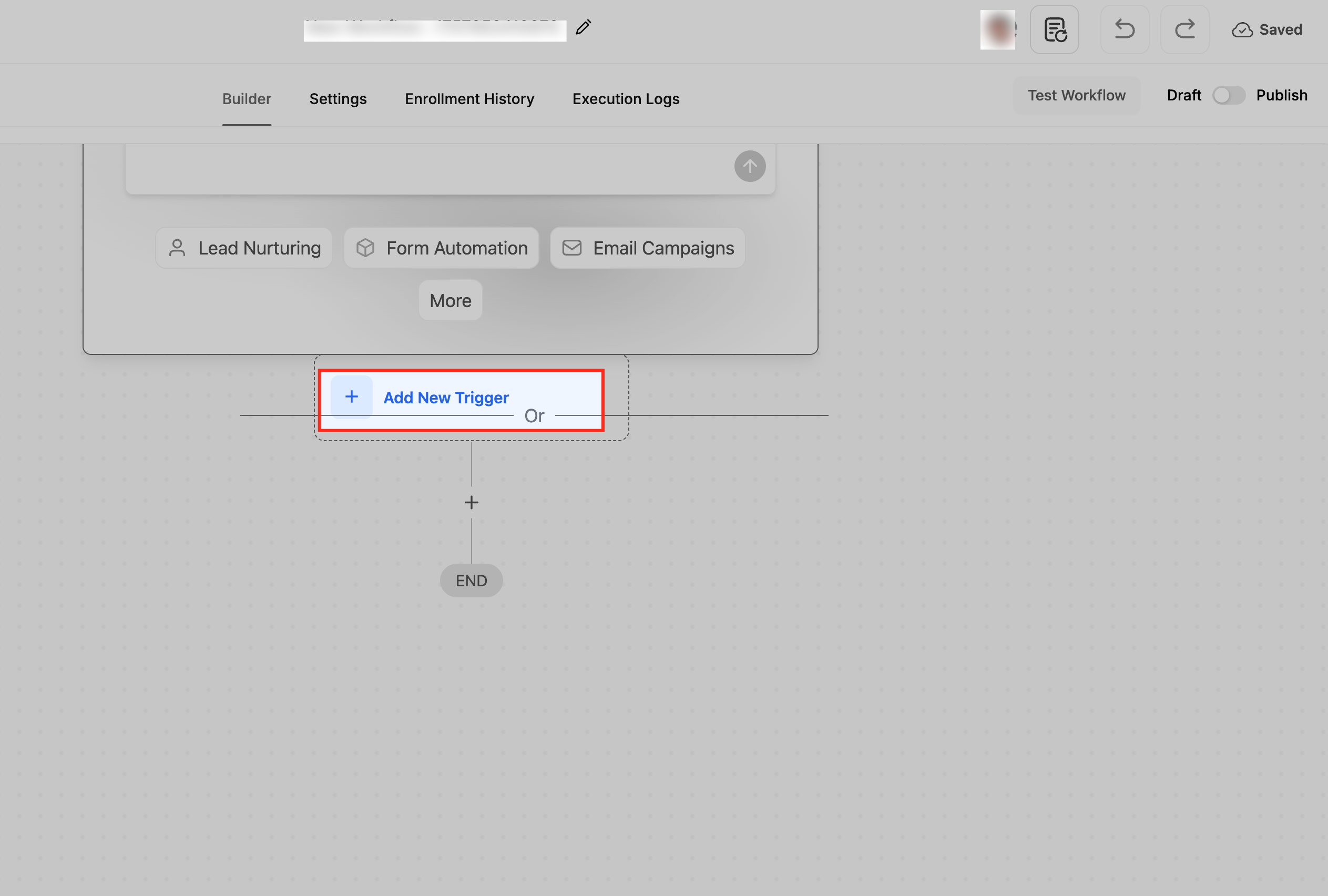
Add New Trigger
In the workflow builder, locate the starting point where triggers are added. Click Add New Trigger to choose the event that will enroll contacts into the workflow.
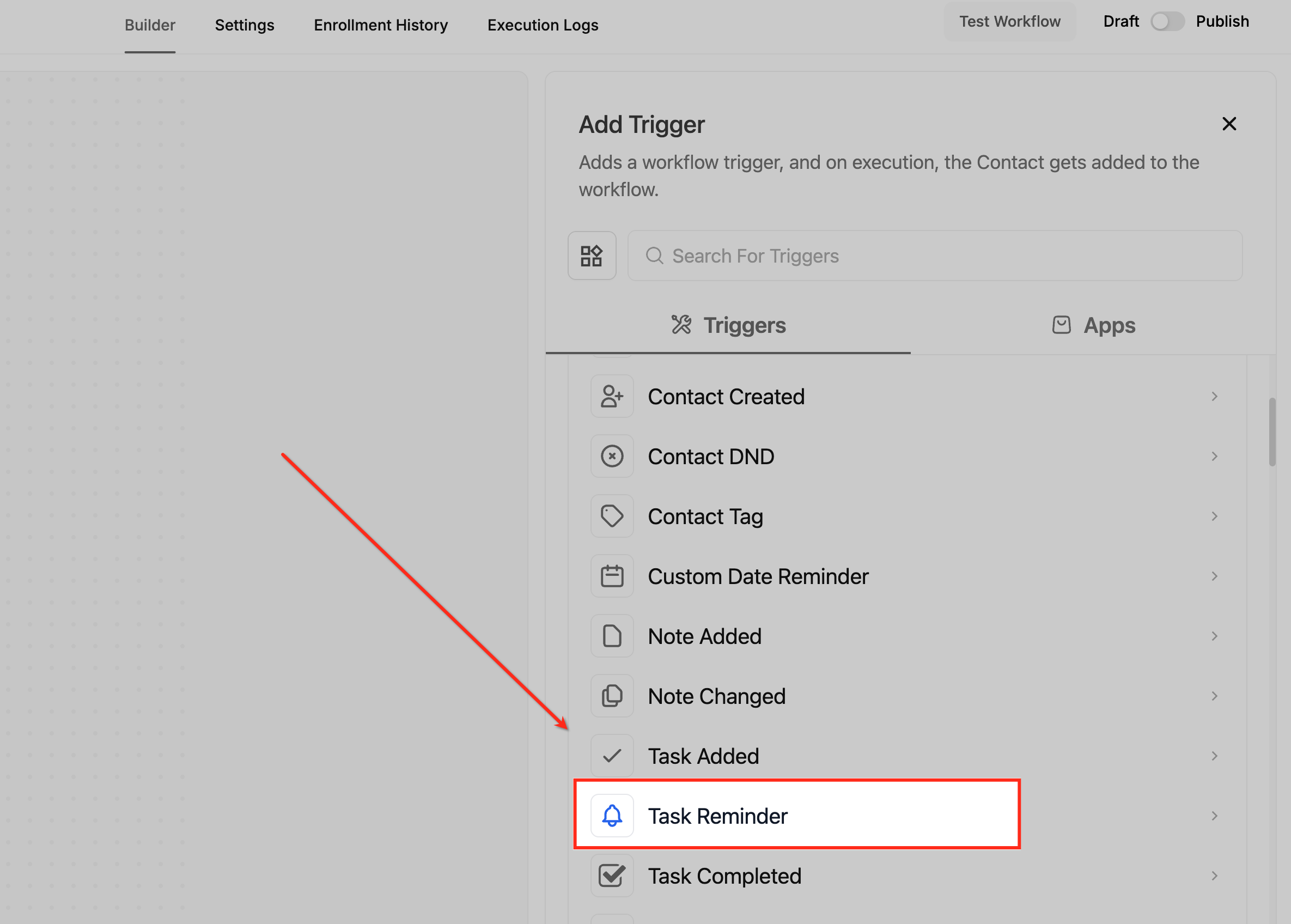
Select Task Reminder
From the trigger list, scroll until you locate Task Reminder under task-related triggers. Select it to build a workflow that activates based on upcoming or overdue task reminders.
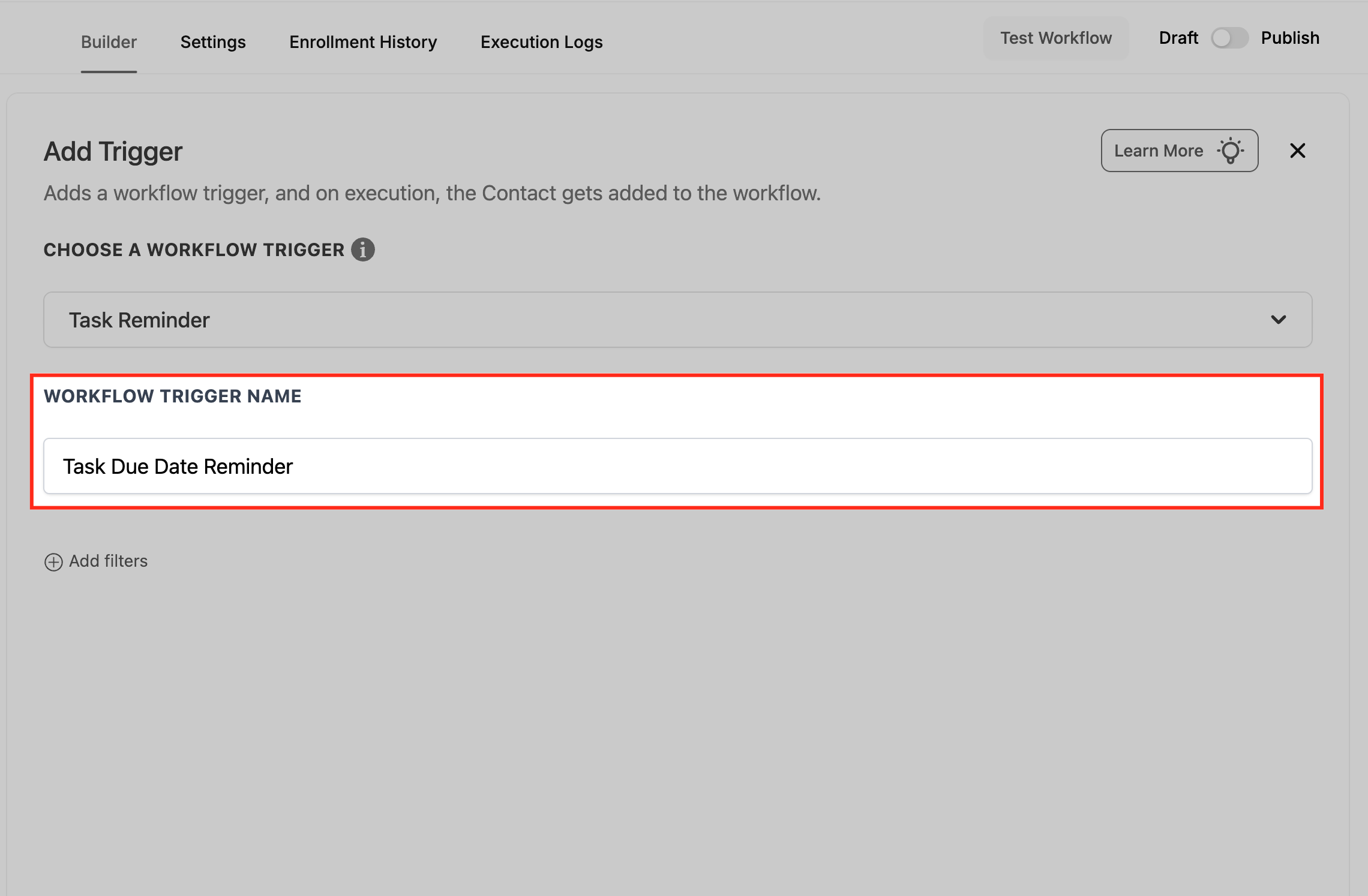
Name the Trigger
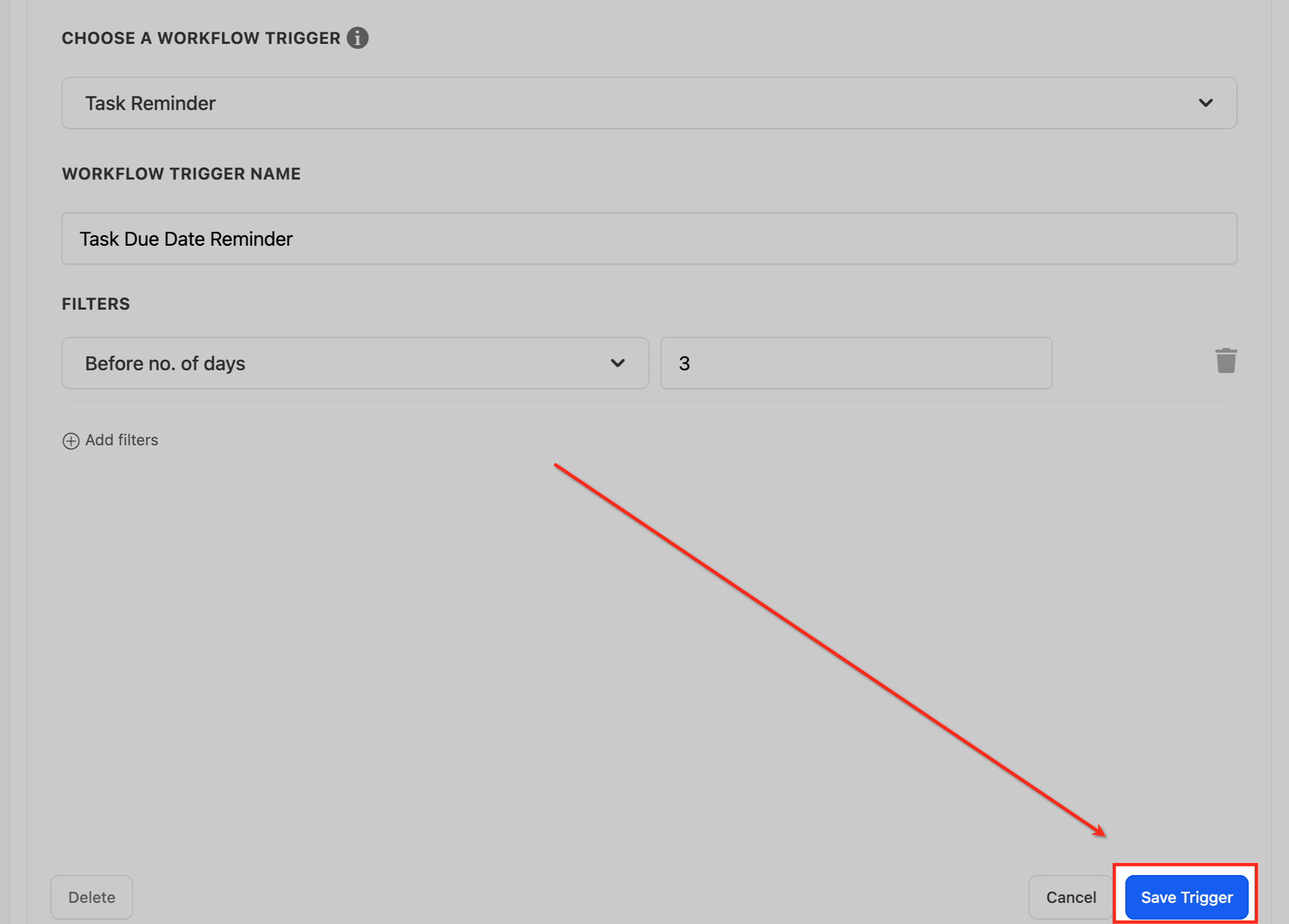
After selecting Task Reminder, enter a clear and descriptive trigger name, such as Task Due Date Reminder. Naming your trigger helps you quickly identify its purpose when managing multiple workflow triggers.
Open Filter Options
In the trigger configuration area, click the Select dropdown under Filters to open the list of available reminder timing options. These filters allow you to define exactly when the reminder should activate the workflow.
Save Trigger
Choose either Before no. of days or After no. of days depending on when you want the workflow to run in relation to the task due date. Enter the number of days, then click Save Trigger to apply your settings.
Frequently Asked Questions
Q. Does the trigger work without a task due date?
No. A due date is required for reminder timing.
Q. Does the reminder fire if the task is completed early?
Yes. The trigger will run for completed tasks if it matches the criteria.
Q. Can I set both a “Before” and “After” reminder?
Yes. Each will trigger separately based on the timing entered.
Q. Does changing a task’s due date affect the reminder?
Yes. The reminder recalculates based on the updated due date.
Q. Will the trigger fire if the task is deleted?
No. Deleted tasks do not trigger workflows.
Q. Does this trigger notify the assigned user automatically?
Only if you add workflow actions that send notifications.
Q. Will reassigning the task change how the reminder behaves?
Reassignment does not affect the reminder timing.
Was this article helpful?
That’s Great!
Thank you for your feedback
Sorry! We couldn't be helpful
Thank you for your feedback
Feedback sent
We appreciate your effort and will try to fix the article