This article explains the Contact Tag Workflow Trigger in HighLevel, detailing how it can automate workflows when tags are added or removed from a contact. Learn how to set it up, explore advanced use cases, and troubleshoot common issues.
TABLE OF CONTENTS
- What is the Contact Tag Workflow Trigger?
- Key Benefits of Using Contact Tag Triggers
- How to Set Up the Contact Tag Trigger
- Ways Contact Tags Can Be Added or Removed
- Advanced Use Cases
- Common Errors and Troubleshooting
- Frequently Asked Questions
- Related Articles
What is the Contact Tag Workflow Trigger?
The Contact Tag Workflow Trigger allows you to automate workflows in HighLevel whenever a contact tag is added or removed. Tags are labels you assign to contacts to help you organize, categorize, and take action based on their attributes or behavior.
For example, adding a "New Customer" tag can trigger an automated welcome email, while removing a "Lead" tag can update sales team notifications.
Key Benefits of Using Contact Tag Triggers
- Automation: Streamlines your workflow by automating actions based on tags.
- Organization: Helps maintain a clean, actionable database of contacts.
- Targeted Engagement: Allows you to segment customers and deliver personalized messaging.
- Scalability: Works seamlessly across campaigns, pipelines, and multiple teams.
How to Set Up the Contact Tag Trigger
Access the Workflow Builder
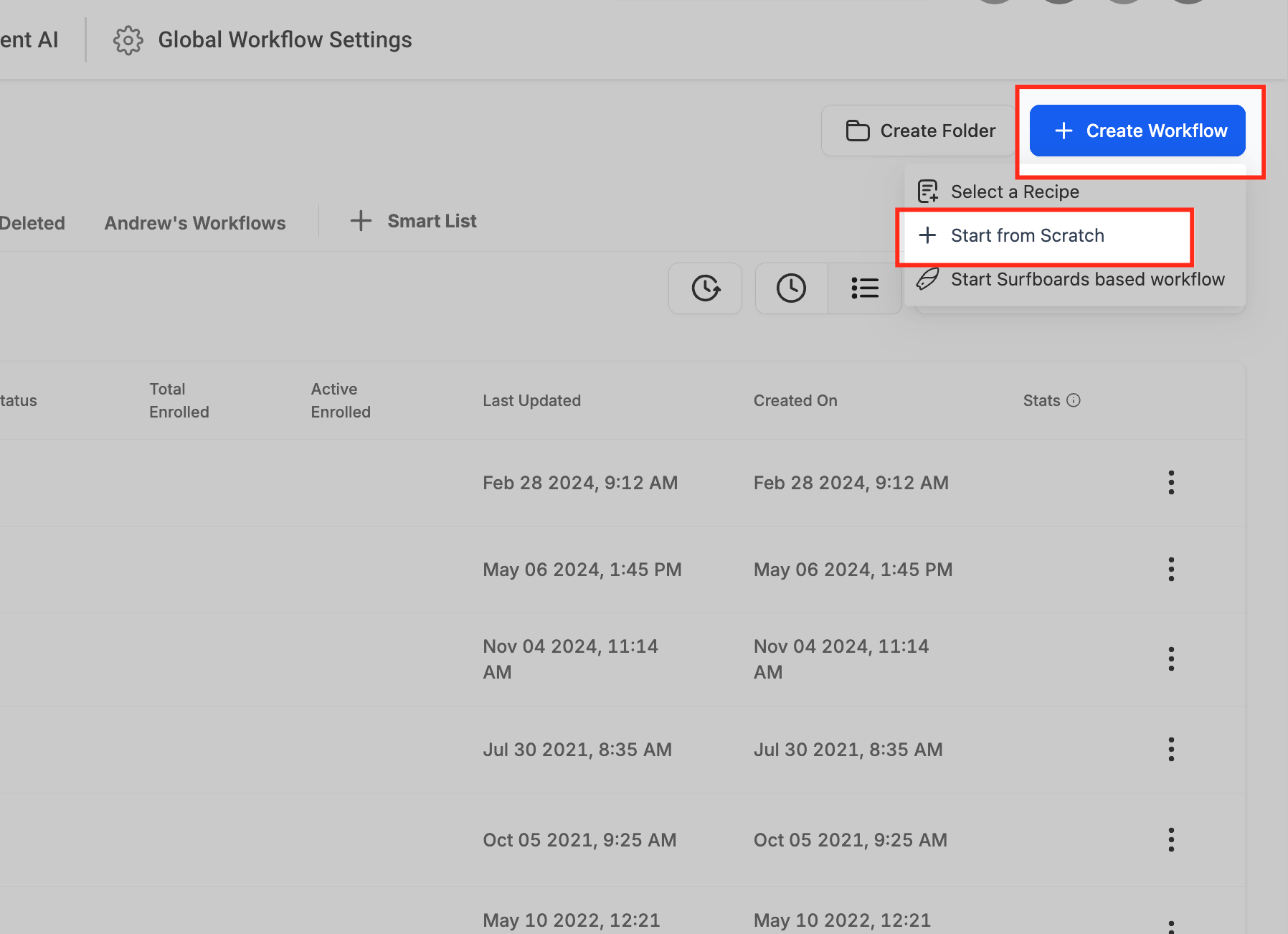
Navigate to Automations in HighLevel and select Workflows. Click Create Workflow and choose a blank workflow or a template
Add the Trigger
In the workflow builder, click Add Trigger and search for Contact Tag.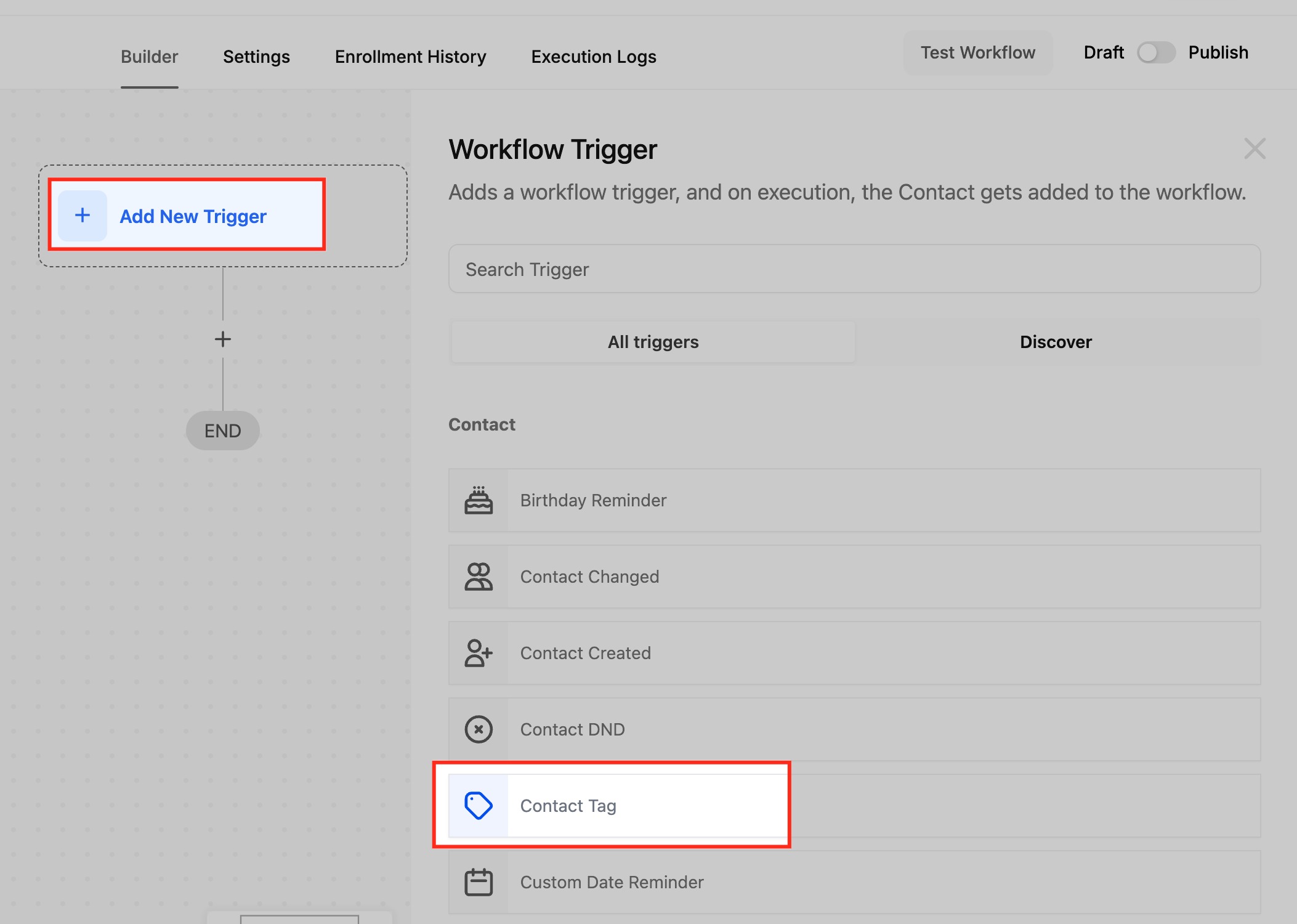
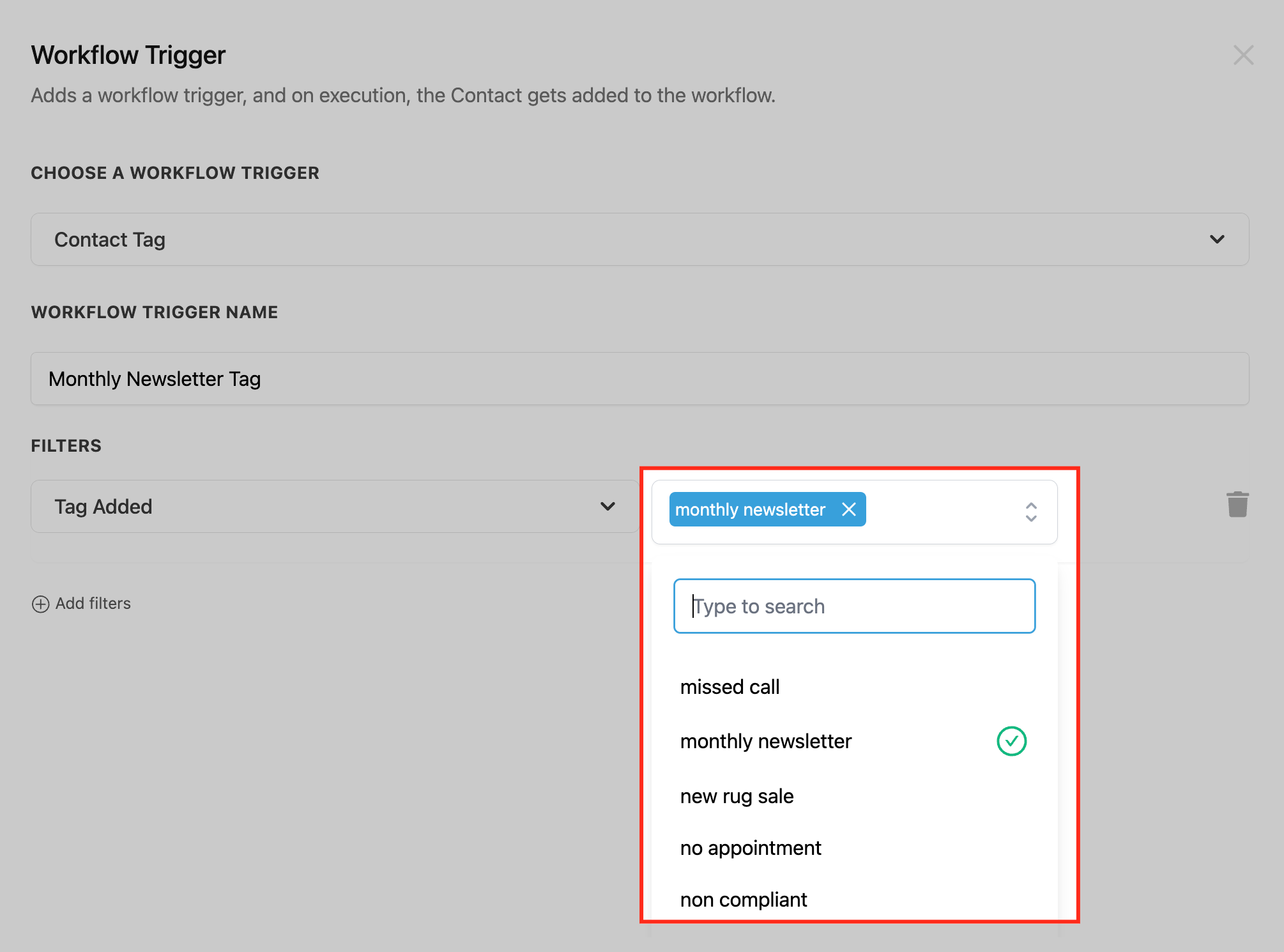
Workflow Trigger Name: Give your trigger a descriptive name, like “Tag Added - Interested.”
 Select whether the workflow should be triggered by a tab being Added or Removed.

Note: In the contact tag selector, selecting or deselecting tags does not apply changes until you confirm them (for example, by clicking Apply). Workflows using the Contact Tag trigger fire after the tag update is actually applied.
Specify the Tag: Choose the tag (e.g., “Interested,” “Newsletter Subscriber”) that will activate the trigger.
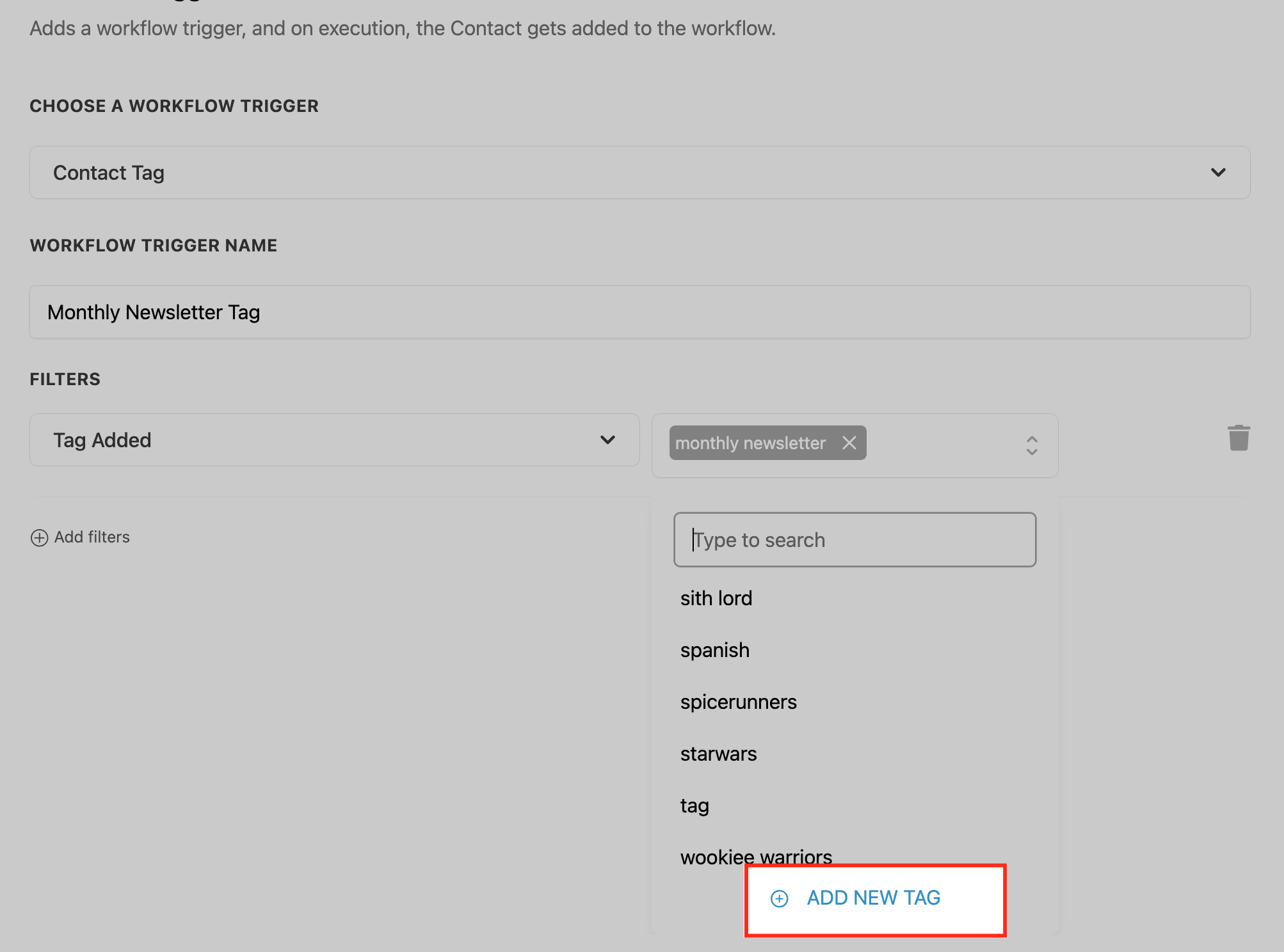
Add New Tag : You can use "+ Add New Tag" option to instantly create a new tag from scratch and start using the tag right there in the workflow you are creating.
Define Tags
Add the specific tag(s) that will trigger this workflow.Use clear, consistent naming conventions (e.g., "VIP Customer" or "Cold Lead").Add Workflow Actions
After setting the trigger, configure the actions you want the workflow to perform. Common actions include:- Sending an email or SMS.
- Assigning tasks to team members.
- Updating the contact's pipeline stage.
Save and Test
Save the workflow and test it by tagging a contact to ensure the desired actions are triggered.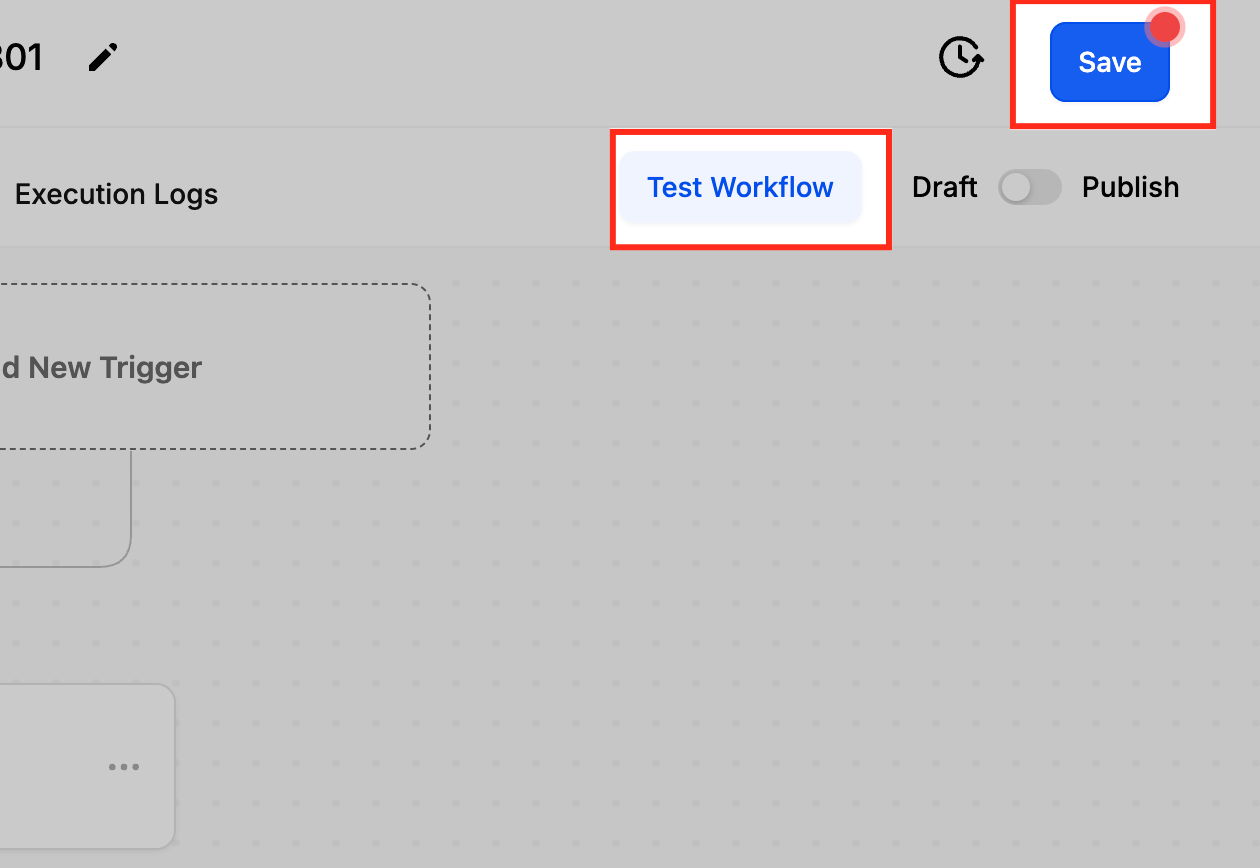
Ways Contact Tags Can Be Added or Removed
Contact tags can be added or removed through several methods in HighLevel, including manual updates, bulk actions, workflow actions, integrations, and CSV imports. These changes can activate a published Contact Tag workflow when its trigger filters and enrollment conditions are satisfied. Use the linked Knowledge Base articles for detailed instructions on each method.
| Method | Description | Related Article |
|---|---|---|
| Individual Contacts | Manually apply or remove tags from a contact record. | Contacts – All-New Contact Detail Page |
| Bulk Actions | Add or remove tags for multiple contacts at once. | Adding Tags to Multiple Contacts / Removing Contact Tags From Multiple Contacts |
| Workflow Actions | Automatically apply or remove tags as contacts move through workflows. | Workflow Action - Add Contact Tag / Workflow Action - Remove Contact Tag |
| Third-Party Integrations | Connect external apps using services such as Zapier. Available tag operations depend on the integration's supported actions. | How to Connect a HighLevel Sub-Account with Zapier |
| CSV Imports | Assign tags using a Tags column in a CSV file or during the import review process. | Importing Contacts and Opportunities via CSV |
Example Use Cases
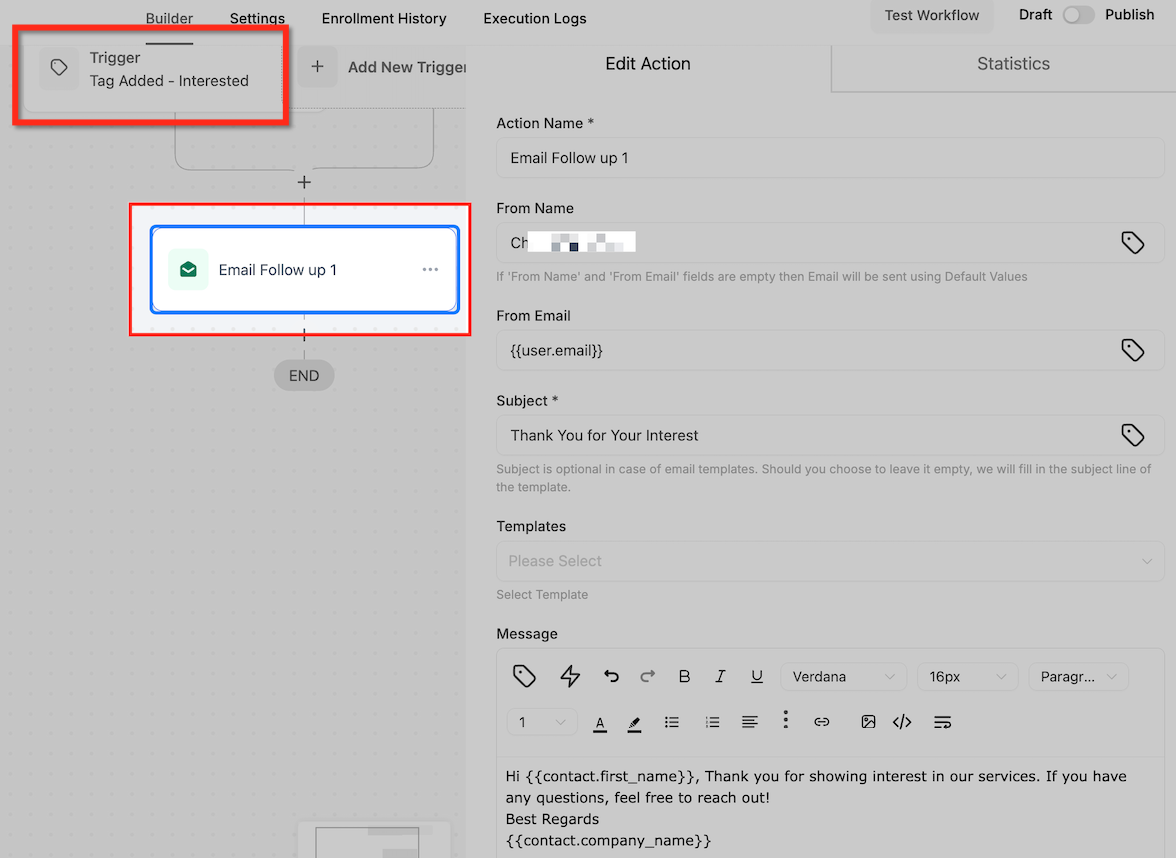
Actions for Tag Added
Send an Email or SMS: Example: When the “Interested” tag is added, send a follow-up email:
Subject: “Thank You for Your Interest!”
Body: Hi {{contact.first_name}}, Thank you for showing interest in our services. If you have any questions, feel free to reach out! Best regards, [Your Company Name]
Notify Your Team: Send an internal notification to your sales team: “A new contact tagged as ‘Interested’ needs follow-up. Contact details: {{contact.details}}.”

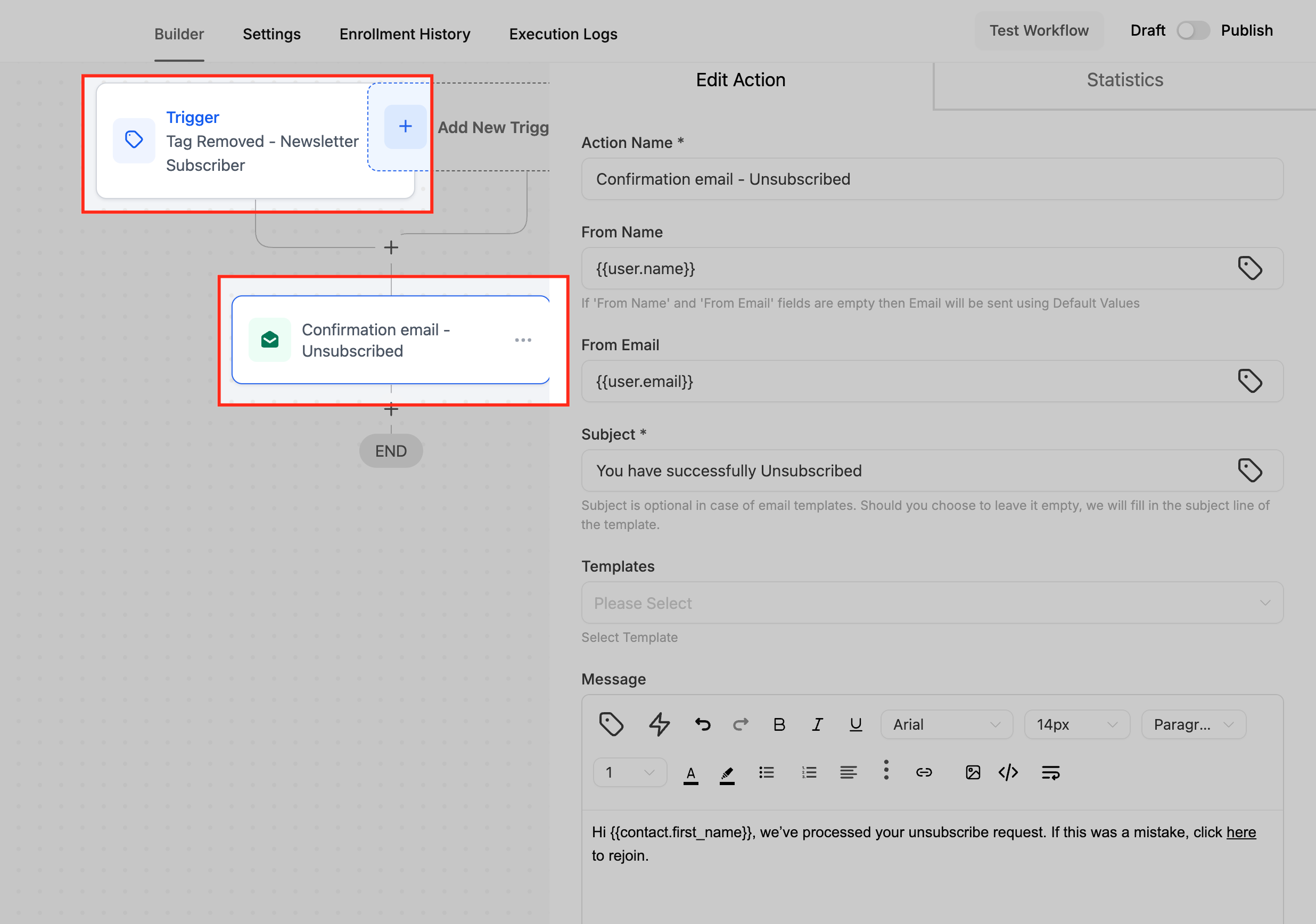
Actions for Tag Removed
Send a Re-Engagement Email or SMS: Example: When the “Newsletter Subscriber” tag is removed, send this message: “Hi {{contact.first_name}}, we’ve processed your unsubscribe request. If this was a mistake, click here to rejoin.”
Ask for Feedback: Send a survey or feedback request to understand why the tag was removed.
Advanced Use Cases
Combining Multiple Triggers
- Use "Contact Created" and "Contact Tag" triggers together to welcome new leads and assign them to specific sales teams.
- Use "Contact Created" and "Contact Tag" triggers together to welcome new leads and assign them to specific sales teams.
Flowchart Example: Contact Created ➔ Tag Added ➔ Workflow Triggered.
Dynamic Customer Segmentation
- Automatically update tags based on customer behavior (e.g., purchases, website visits) to personalize marketing campaigns
Common Errors and Troubleshooting
- Duplicate Tags: Ensure tags are unique and descriptive to avoid confusion in workflows.
- Inactive Workflow: Double-check that your workflow is published and active.
- Missing Actions: Verify that all actions linked to the trigger are correctly configured.
- Overlapping Workflows: Avoid setting up multiple workflows with the same trigger to prevent unintended actions.
Frequently Asked Questions
Q: Can tags trigger workflows retroactively?
No, tags trigger workflows only when they are added or removed after the workflow is active.
Q: How do I manage a large number of tags?
Use clear naming conventions and periodically review your tags to remove duplicates or inactive tags.
Q: What happens if multiple workflows use the same tag as a trigger?
All workflows with the same trigger will activate simultaneously. Plan triggers carefully to avoid unintended overlaps.
Q: Can tags be used across multiple automations?
Yes, tags can be used in various workflows, campaigns, and pipeline stages for seamless integration.
Related Articles
Was this article helpful?
That’s Great!
Thank you for your feedback
Sorry! We couldn't be helpful
Thank you for your feedback
Feedback sent
We appreciate your effort and will try to fix the article