The Site and Funnel Analytics dashboard empowers you to quickly understand performance across funnels, websites, blogs, webinars, forms, surveys and QR codes. You can effortlessly track and analyze key metrics, optimize online presence and drive results with graph-based visual insights.
TABLE OF CONTENTS
- What is the Site and Funnel Analytics Dashboard
- Key Benefits of Site and Funnel Analytics
- Key Metrics in Site and Funnel Analytics
- Select Asset Type
- Filter by Date Range and Asset
- Interactive KPI Cards
- How to Use Site Analytics
- Frequently Asked Questions
- Related Articles
What is the Site and Funnel Analytics Dashboard
Site & Funnel Analytics is the central workspace for measuring how your web assets attract, engage, and convert visitors. It provides a single, consistent place to review KPIs and charts without hopping between individual funnels, pages, or tools.
You choose one asset type to analyze (such as Funnels or Websites), optionally narrow to a specific asset, and set a date range. The dashboard then summarizes results with clear KPI cards and visuals. Because the KPIs and visuals are tailored to the asset type you select, the view stays focused on the metrics that matter most while still giving you a fast path to explore deeper.
Key Benefits of Site and Funnel Analytics
This feature aims to save you time and effort, allowing you to focus on what matters most, growing your business.
- User-Friendly Interface: Navigate through your data with ease, thanks to our intuitive design.
- Actionable Insights: Make informed decisions to optimize your funnels and websites for better performance.
- Efficient: Quickly identify trends and patterns without the hassle of manual data compilation.
Key Metrics in Site and Funnel Analytics
- Page Views: See how many times any funnel, website or other asset was visited, along with insights on unique page views.
- Page Views by Step: Click any funnel, website, or webinar in the Page Views chart to drill down into step-level performance.
- Opt-in: Number of conversions in your funnel/website (e.g. purchased a product OR submitted a form/survey OR booked appointment).
- Time on Page: Length of time the user stayed.
- Sales: Revenue generated by your funnel/website.
- Opt-in Conversion Rate: Opt-ins divided by unique page views.
For information on additional metric definitions, see: Funnel & Website Stats Definitions.Select Asset Type
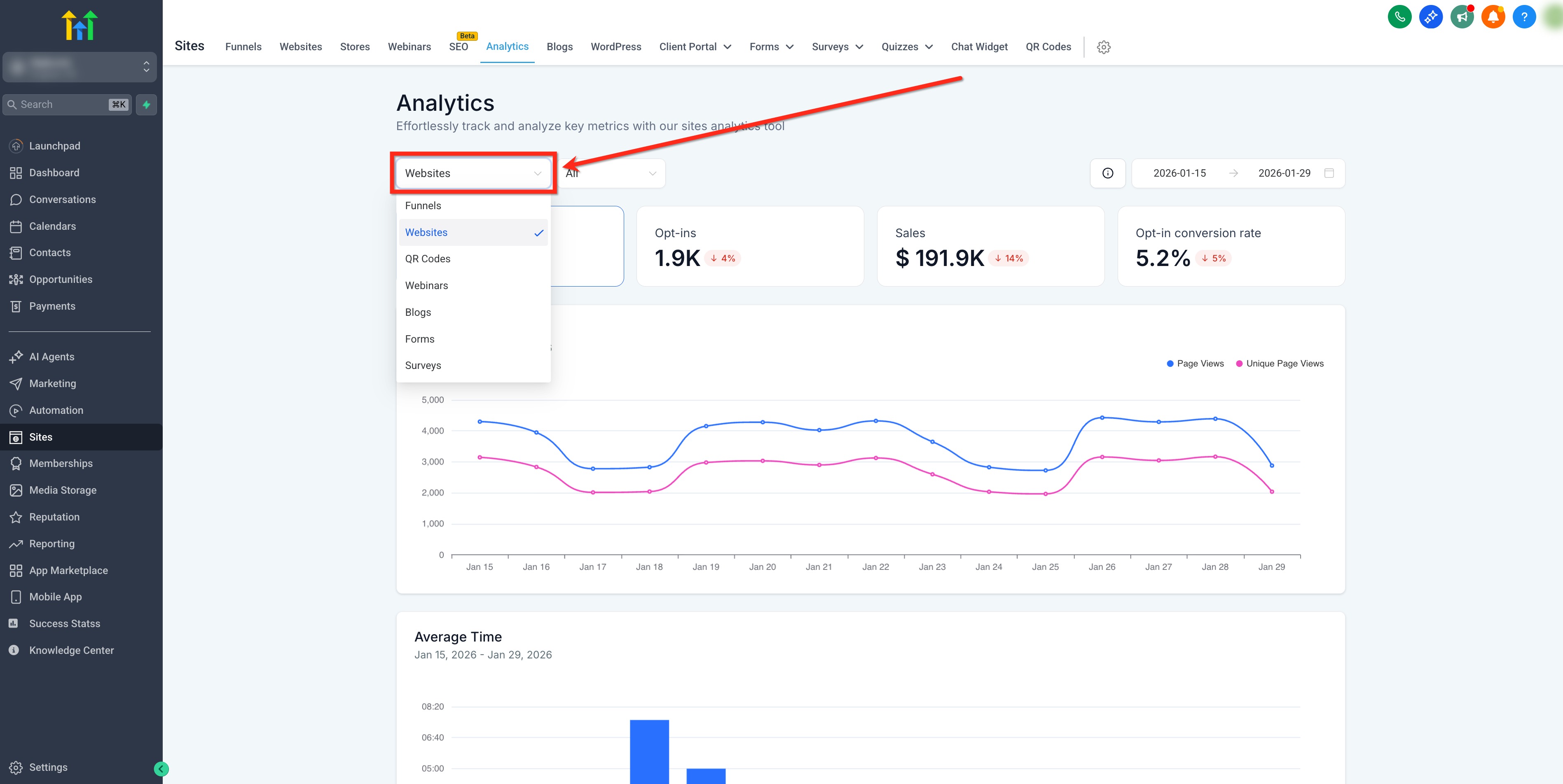
Start by choosing the asset family you want to analyze. This selection is required and only one asset type can be active at a time. This selection determines which KPI cards and charts appear in the dashboard.
Use the dropdown to choose one asset type from the following options: Funnels, Websites, Blogs, Webinars, Forms, Surveys, QR Codes, or External Tracking.
Note: The metrics shown in the dashboard change based on the selected asset type.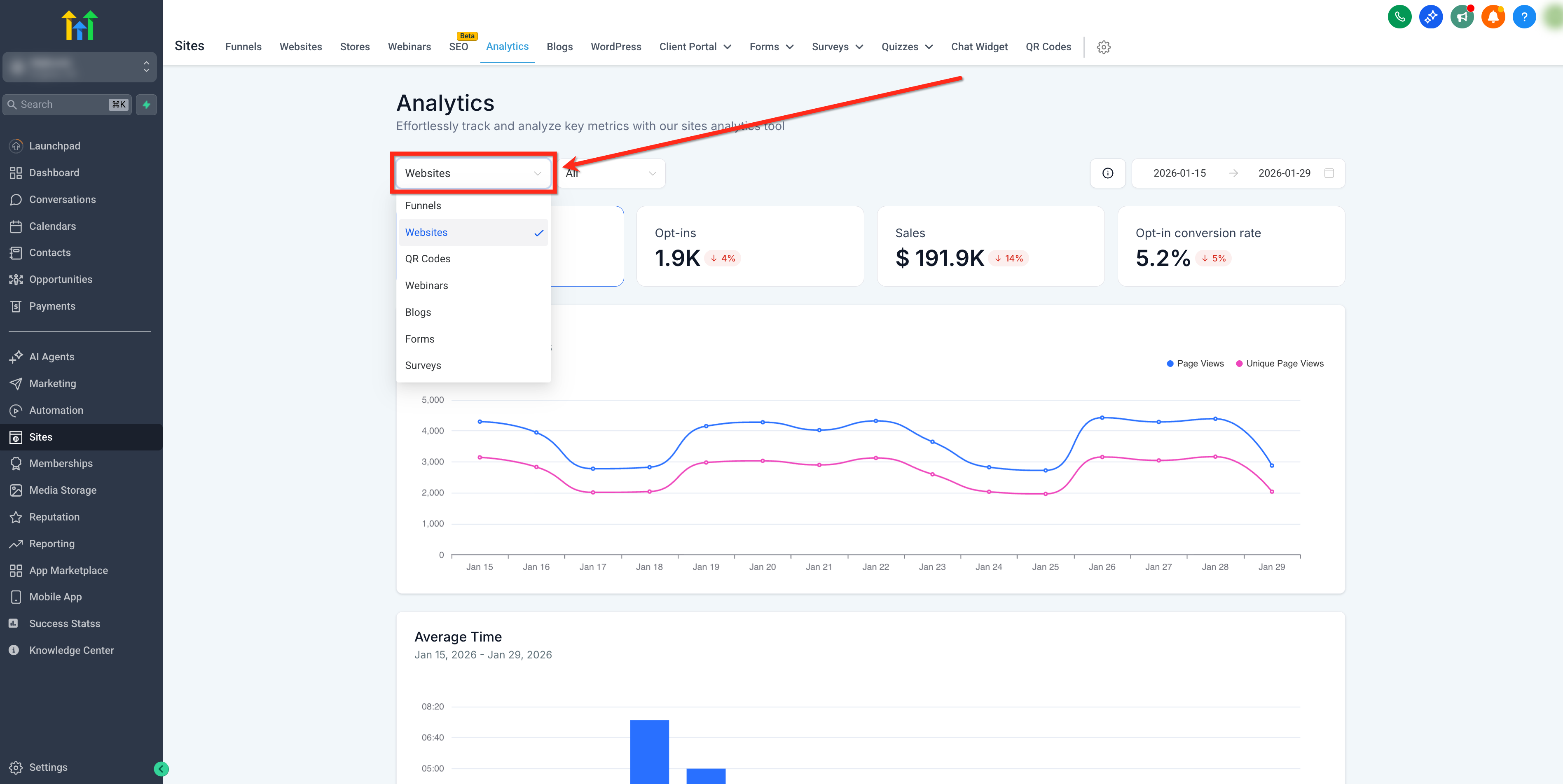
Filter by Date Range and Asset
Focus your analysis by applying two filters: pick a specific asset and set a date range.
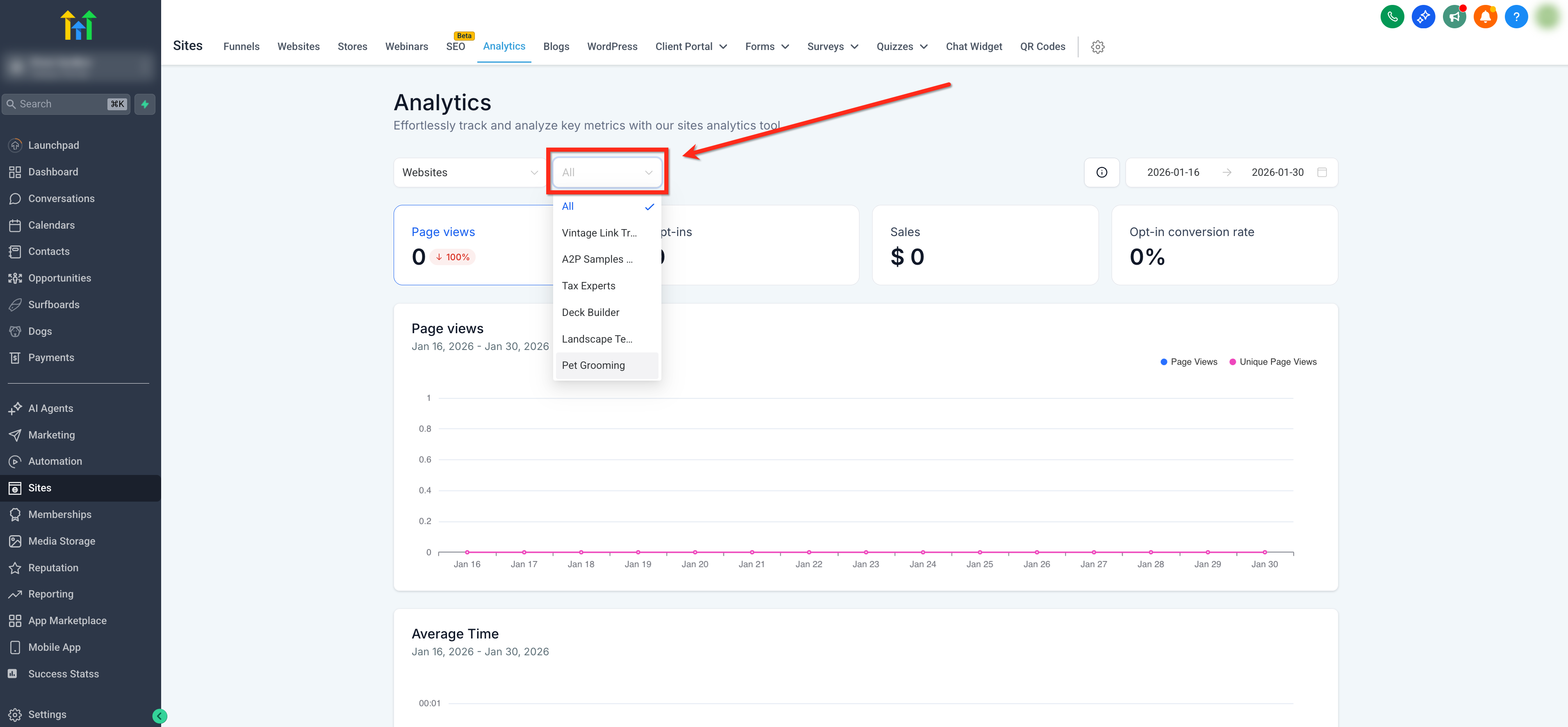
Filter by Specific Asset (Optional)
Choose a single asset within the currently selected asset type (e.g., a specific funnel, website, blog, webinar, form, survey, or QR code). Leaving this set to All aggregates results for all assets in that type. Changing the Asset Type resets this filter to All.
Filter by Date Range
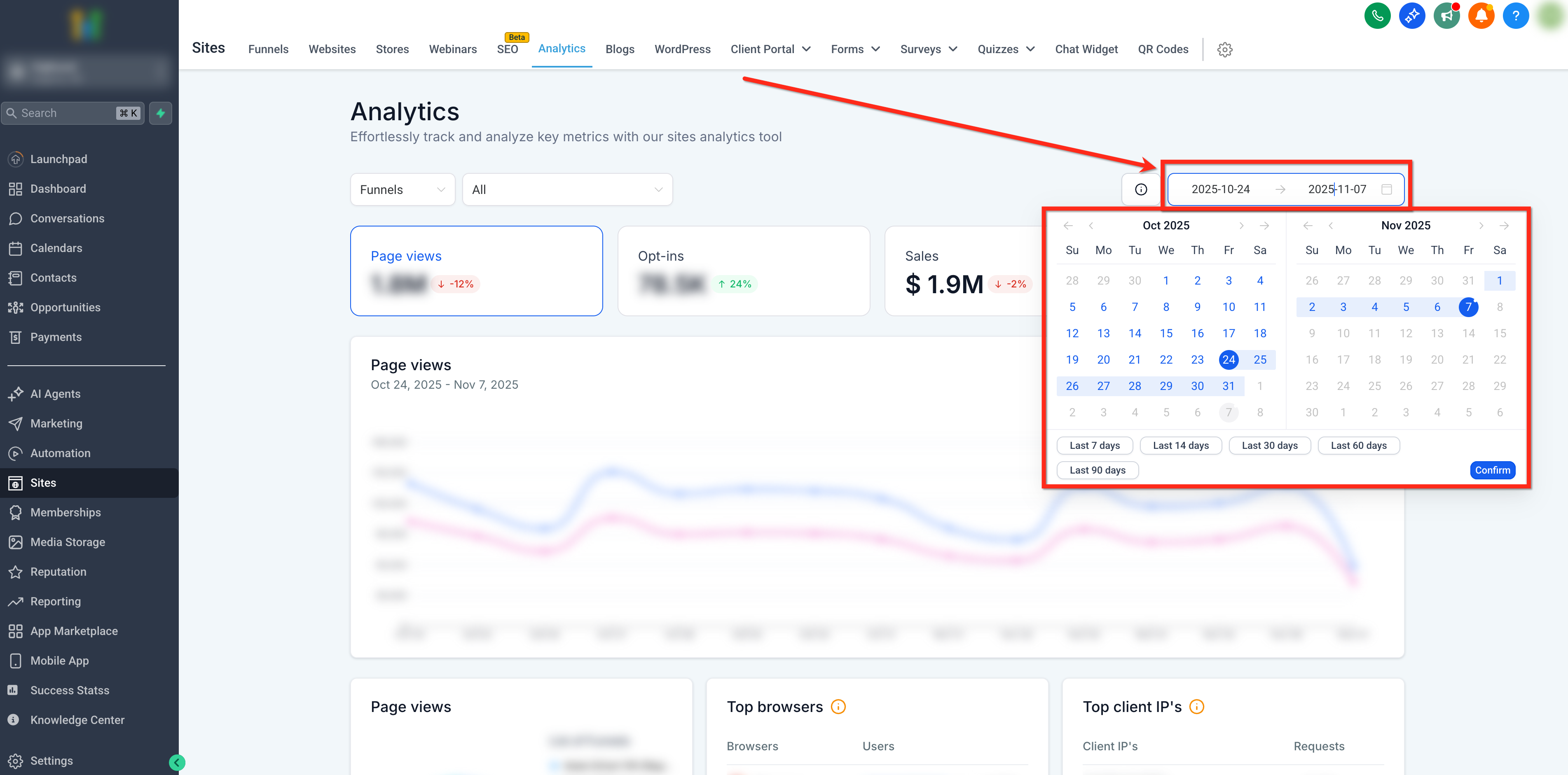
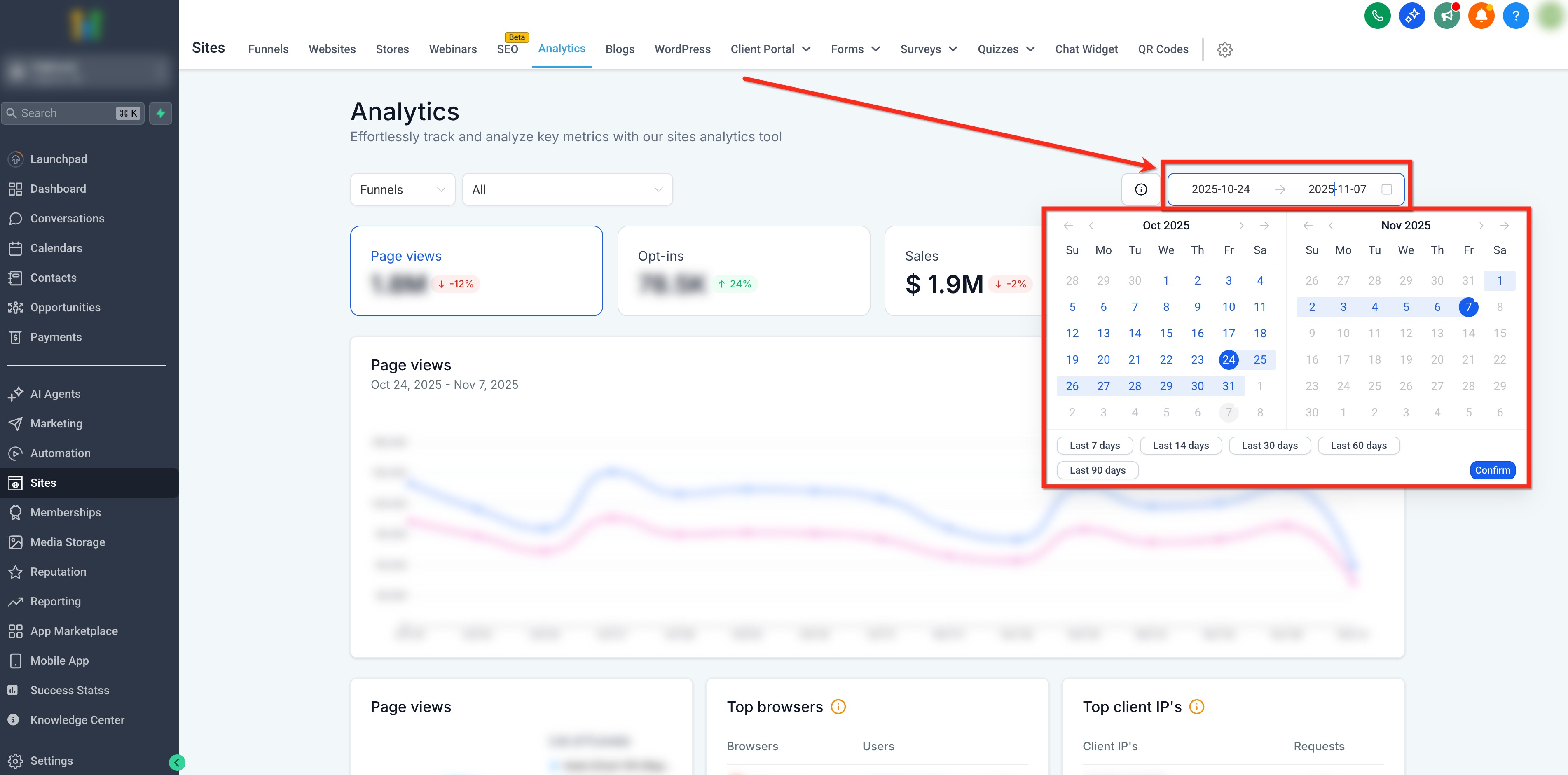
Use the date range picker in the upper-right to select a time period to filter the data. This allows you to view detailed timelines of page views, opt-ins, sales, and order conversion rates for your chosen duration. The dashboard compares data from this time period to the immediately previous matching period.
The date range defaults to Last 14 days.
Interactive KPI Cards
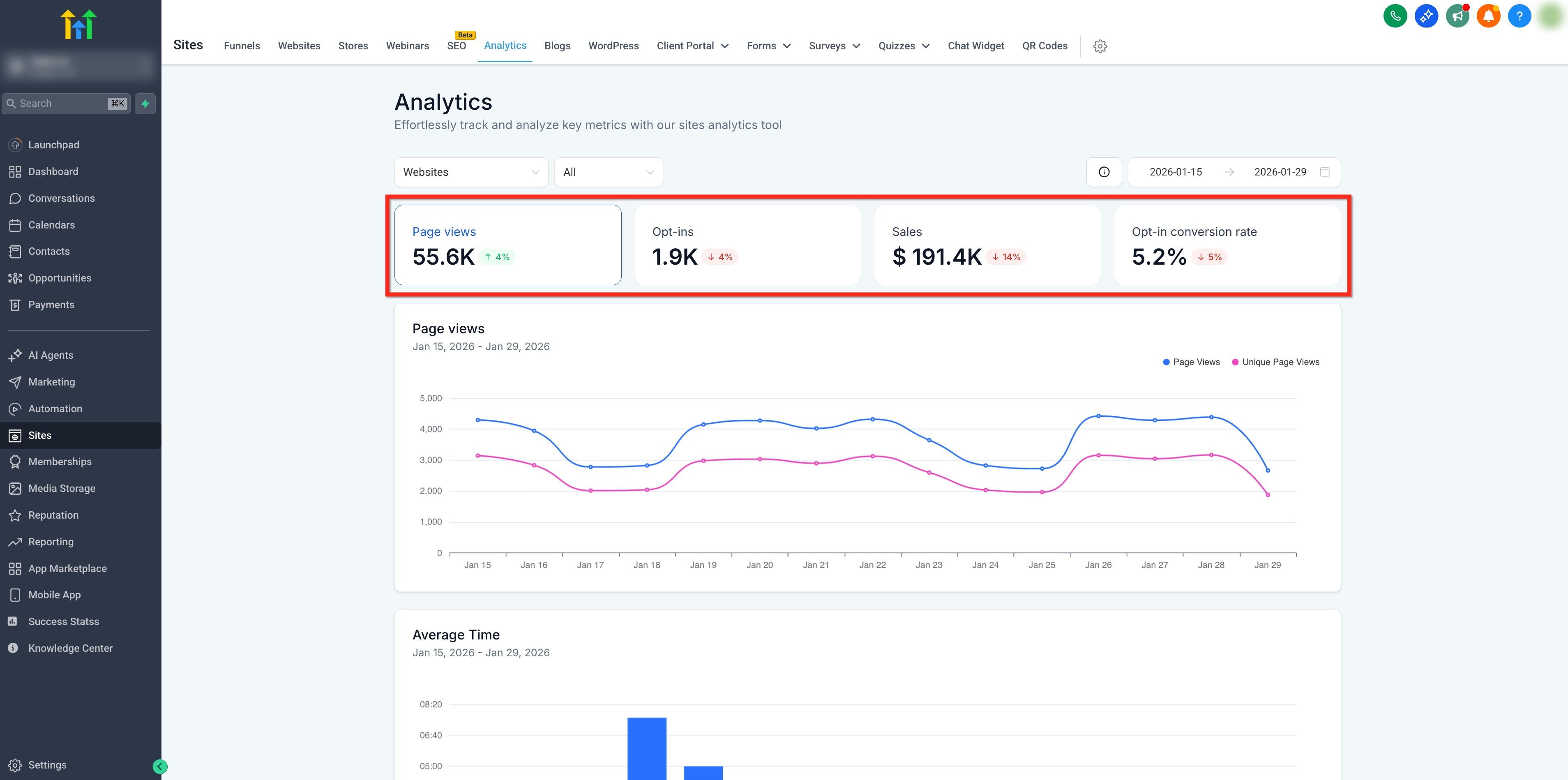
KPI cards act like tabs. Selecting a KPI card updates the charts and breakdowns below to explore that metric in depth. Some asset types have fewer (or zero) KPI cards.
Note: The metrics shown in the dashboard change based on the selected KPI card.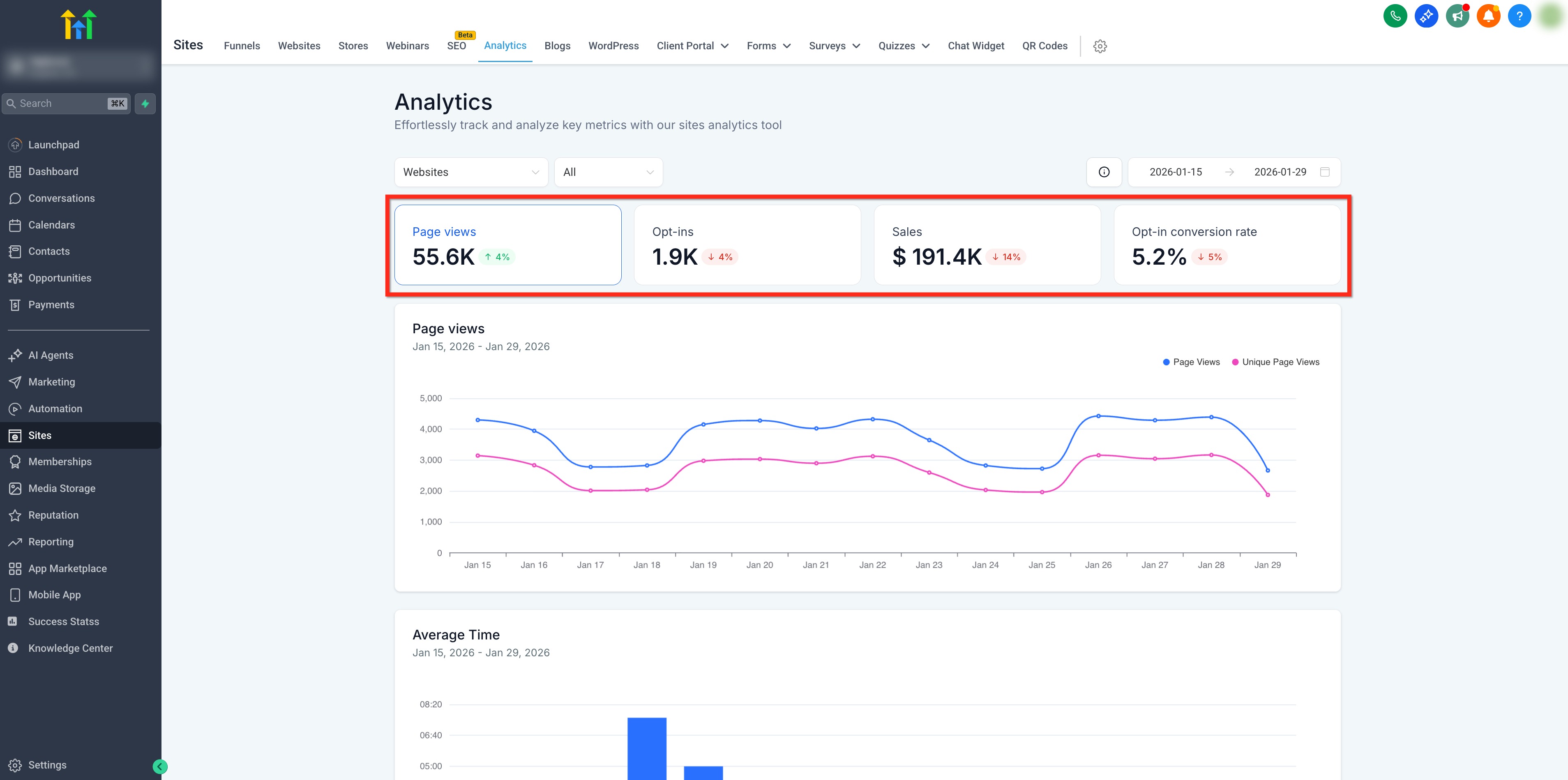
How to Use Site Analytics
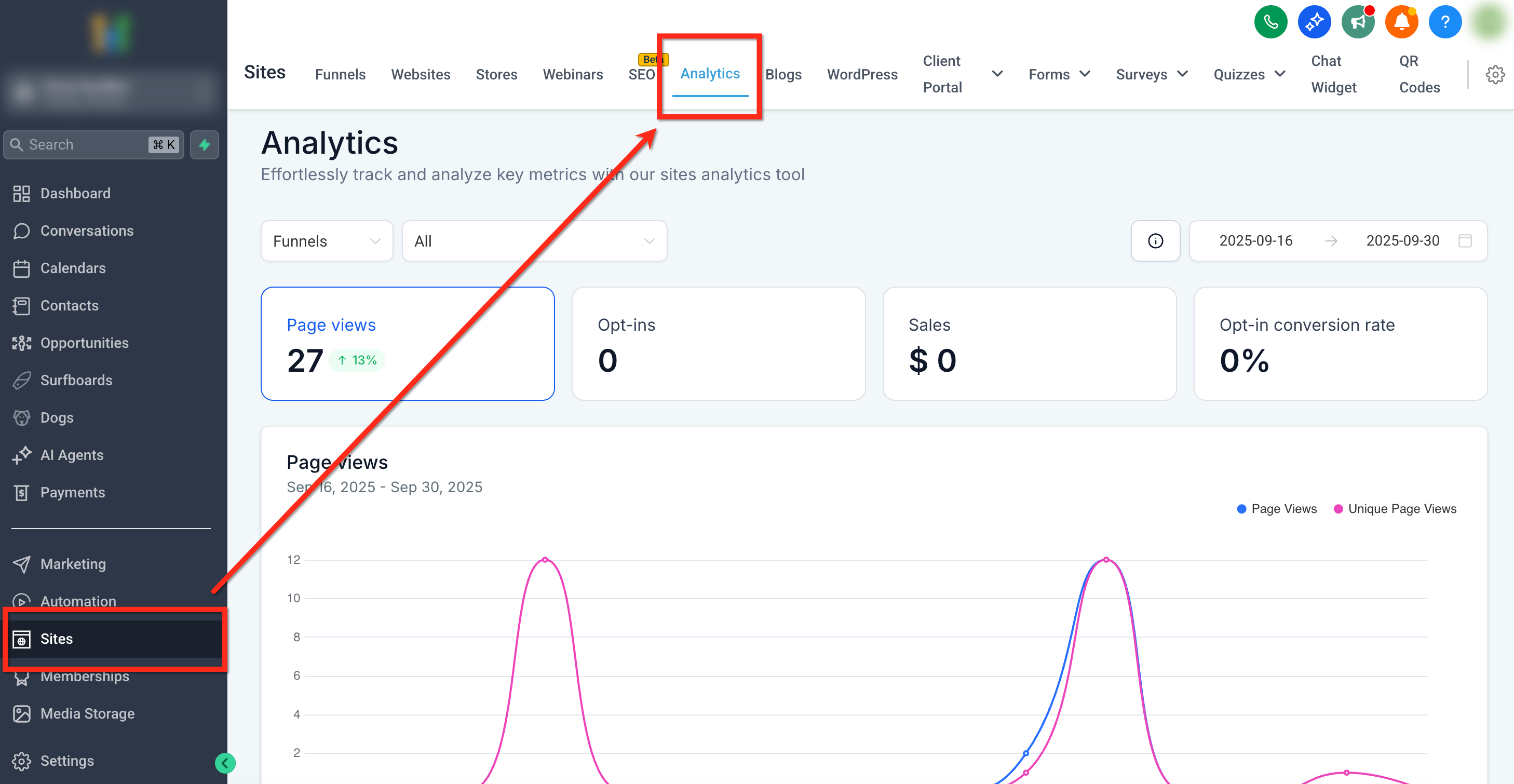
Step 1: Navigate to Analytics
From your location dashboard, use the left-side navigation bar to go to Sites. Select the Analytics tab from the top navigation ribbon.
Step 2: Select Asset Type
Use the dropdowns to select an asset type (e.g. Funnels) and optionally choose a specific asset to narrow the focus.
Step 3: Set Date Range
Choose a Date Range that matches your goals.
Step 4: Explore Your Data
Click KPI cards to refocus charts, scan trends and breakdowns. Repeat as needed for other asset types, assets or time frames.
Frequently Asked Questions
Q: Why don’t I see KPI toggles for QR Codes?
QR Codes provide a simplified view (total scans and scans by code). KPI card toggles are not available for this asset type.
Q: How is the previous‑period % calculated?
The dashboard compares your selected range to the immediately prior period of equal length (e.g., last 14 days vs. the 14 days before).
Q: What affects data availability for External Tracking?
The External Tracking script must be installed and functioning on the external site. If missing or blocked, views/submissions won’t appear.
Q: Can I see page views for a specific step of a funnel?
Click an item in Page Views to view step-level performance and engagement metrics.
Related Articles
Was this article helpful?
That’s Great!
Thank you for your feedback
Sorry! We couldn't be helpful
Thank you for your feedback
Feedback sent
We appreciate your effort and will try to fix the article