If you created blog posts using HighLevel's older blogging experience in Funnels or Websites, you can move them from Default Blog to the newer Blog experience. This article explains what changes when you migrate, how to move your existing posts, and what to check afterward.
TABLE OF CONTENTS
- What Happens to Old Blogs and Blog Posts?
- New Blog Flow - How it Works
- How to Move from Old Blog to New Blog
- What to Check After Migration
- Related Articles
What Happens to Old Blogs and Blog Posts?
Blog posts created using HighLevel's legacy blogging experience are available under Default Blog in Sites > Blogs. Existing legacy blogs can continue to work, but they use the older blog setup and do not have all the URL-management and SEO improvements available in the newer Blog experience.
Moving posts to the newer Blog experience helps you use its updated blog management, URL organization, canonical URL settings, and sitemap features. For details about creating and managing blogs in the newer experience, see Getting Started with Blogs and Blog Posts.
Important: Moving a blog post changes its original URL. Record the URLs of your published posts before migrating so you can set up redirects where needed.
New Blog Flow - How it Works
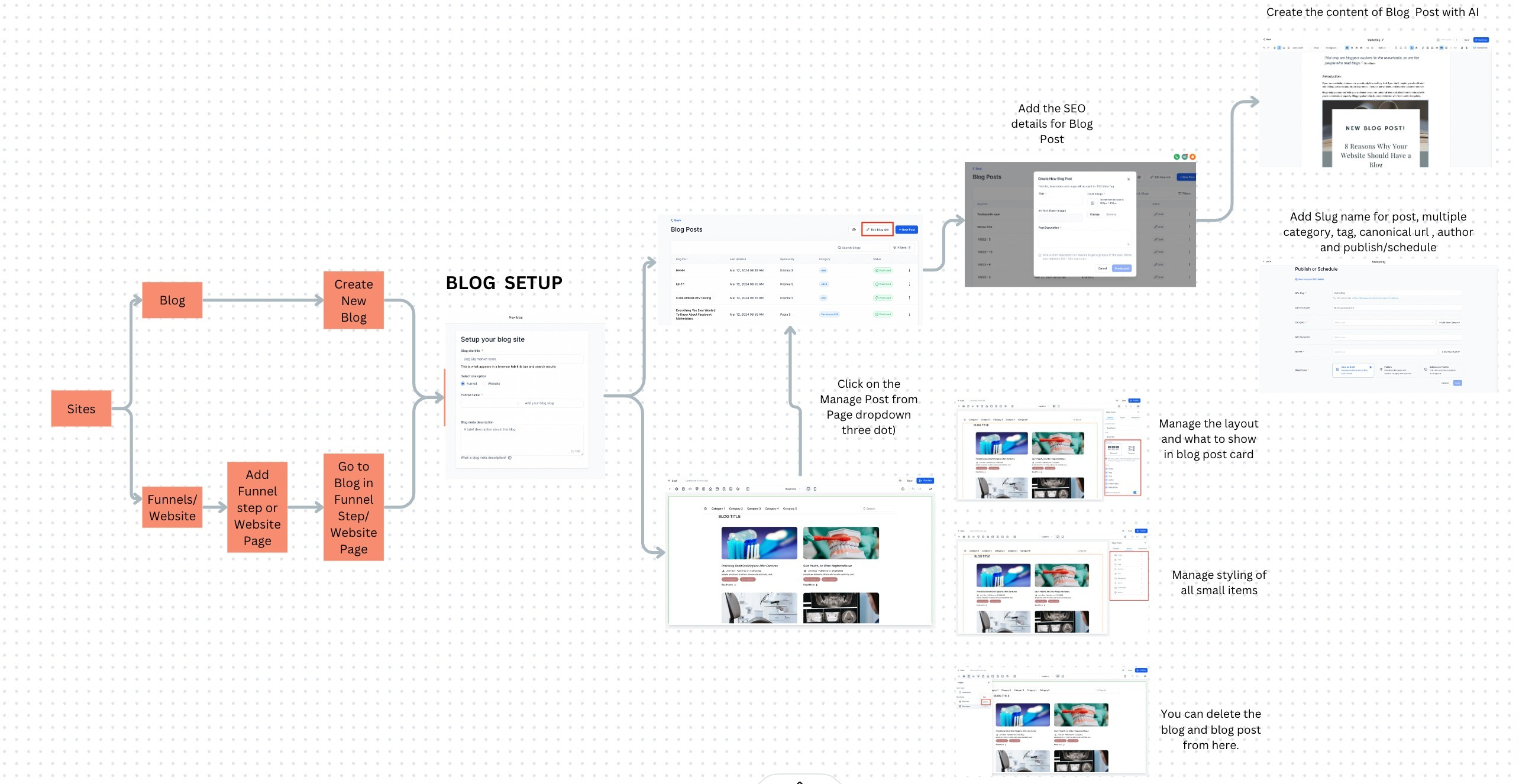
How to Move from Old Blog to New Blog
- Go to Sites > Blogs.
- Open Default Blog, which contains blog posts from the older Funnels and Websites blogging experience.
- Review the existing blog posts in Default Blog.
- Select the checkbox next to each blog post you want to move.
- Click Move Blog to move the selected posts to the newer Blog experience.
Note: The original blog post URLs will no longer point to the migrated posts after their URLs change. Review the new URLs and configure 301 redirects for previously published links, if needed.


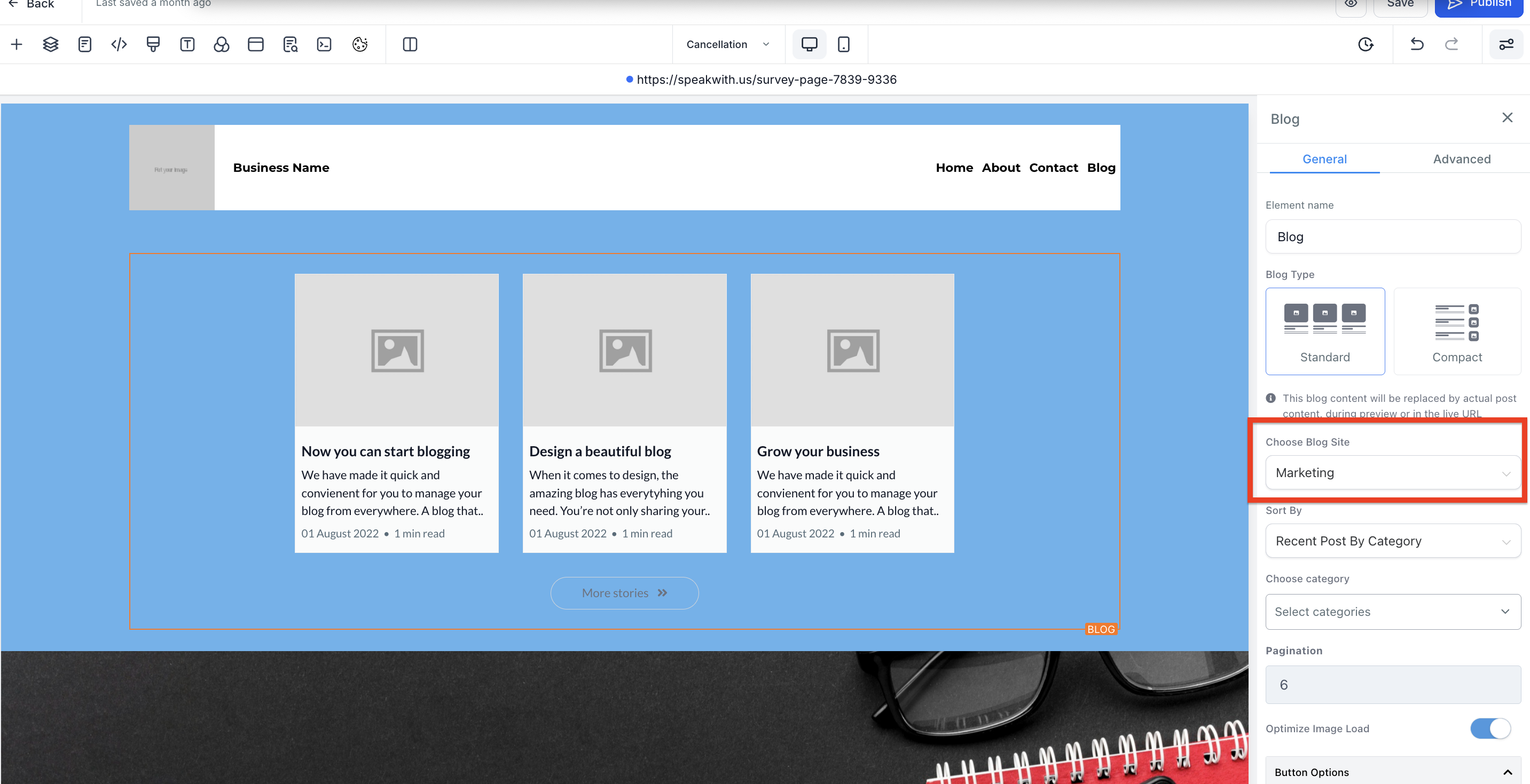
- Optional: If your funnel or website uses a Blog Post List (Blog Posts) element, edit the element, select the new blog, and republish the funnel or website page.
What to Check After Migration
- Review migrated posts: Open the destination blog and confirm that the posts you moved are available and display correctly.
- Check the new URLs: Open each migrated post at its new URL. If an old published URL has changed, create a 301 redirect from the old path to the new post URL. See How to Setup 301 URL Redirects.
- Check website and funnel pages: If you use a Blog Post List element, make sure it references the new blog and that the page has been republished. See Add Blog Post Element in Funnel Step or Website Page.
Related Articles
Was this article helpful?
That’s Great!
Thank you for your feedback
Sorry! We couldn't be helpful
Thank you for your feedback
Feedback sent
We appreciate your effort and will try to fix the article