A/B testing helps you compare different versions of an email campaign before sending the strongest-performing variation to the rest of your audience. In HighLevel, you can test either email subject lines or email content across multiple variations. HighLevel measures performance using unique open rate or unique click rate, then sends the winning variation to the remaining recipients.
TABLE OF CONTENTS
What is A/B Testing in Email Campaigns?
A/B testing, also known as split testing, lets you compare variations of an email by sending them to different groups within your audience. This helps you measure how changes to the subject line or email content affect recipient engagement.
HighLevel sends each variation to the same percentage of contacts included in the test group. After the configured test duration ends, HighLevel determines the winner using the selected performance criterion. The winning variation is then sent to the contacts who were not included in the initial test group.
Prerequisites and Limitations
- The campaign must contain at least 40 contacts before you can send an A/B test.
- You can test either Email Subject or Email Content in a campaign. You cannot test the subject and content simultaneously in the same A/B test.
- A/B test campaigns can be only sent via using send now or scheduling the campaign. It will not work for batch schedule or RSS schedule.
How A/B Testing Works
A/B testing uses part of your campaign audience to compare email variations before sending the strongest-performing version to the remaining contacts.
The process works in four stages:
Create variations: HighLevel prepares multiple versions of either the email subject or email content.
Send the test: Each variation is sent to an equal share of the contacts included in the test audience.
Measure performance: HighLevel compares the variations using the winning criterion selected for the campaign.
Send the winner: When the test period ends, the winning variation is sent to the contacts who were not included in the initial test.
The winner is based on either Unique Open Rate or Unique Click Rate. If the selected metric produces no result during the test period, HighLevel selects the first variation as the winner.
How To Set Up A/B Testing in an Email Campaign
Configure the test in the Email Builder by choosing what to compare, creating the variations, defining the test audience, and selecting how HighLevel determines the winner.
- From the Sub-Account view, navigate to Marketing → Email → Campaigns.
- Open the email campaign you want to test.
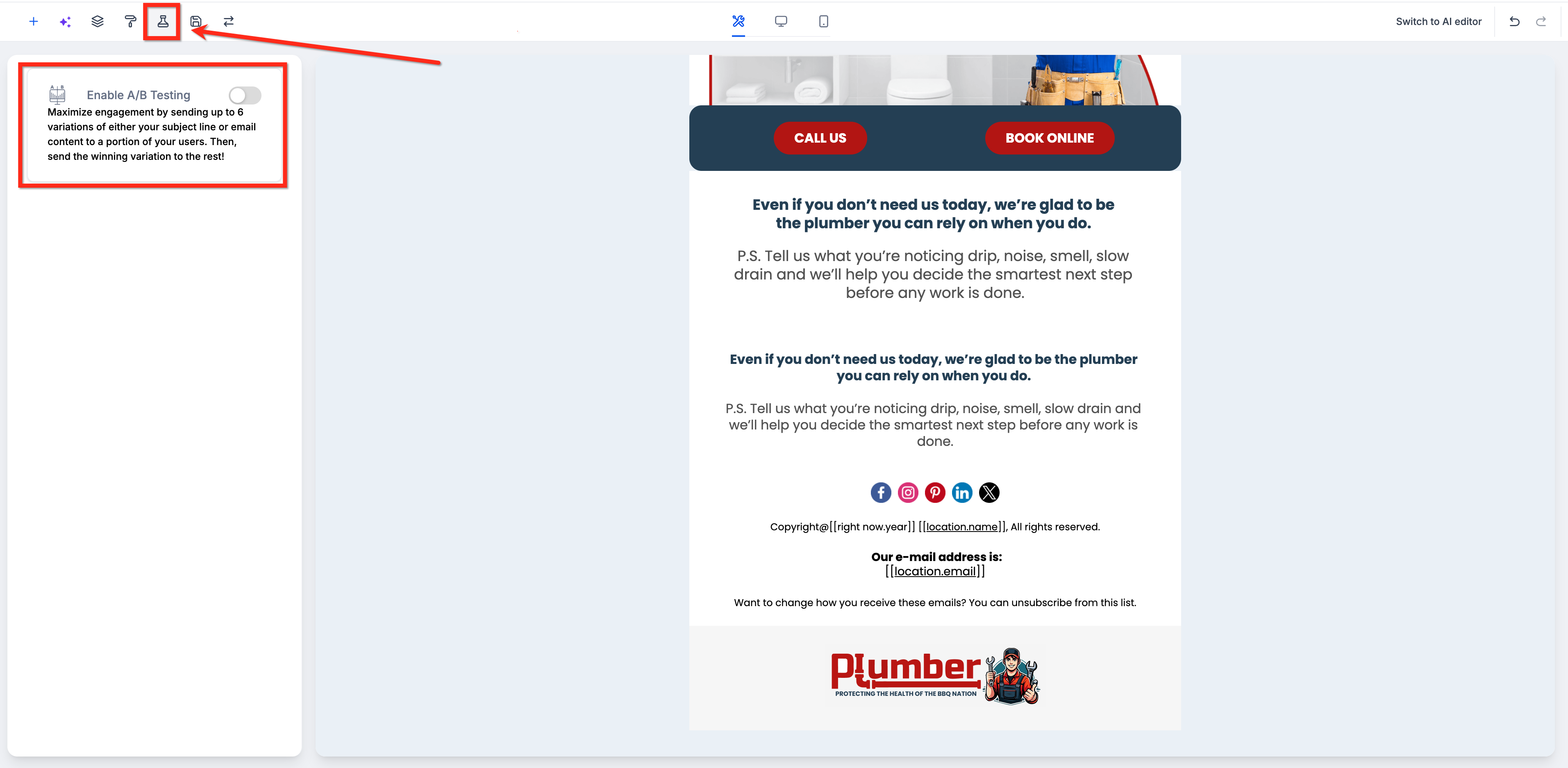
- In the Email Builder, select the A/B testing tab and turn on Enable A/B testing.
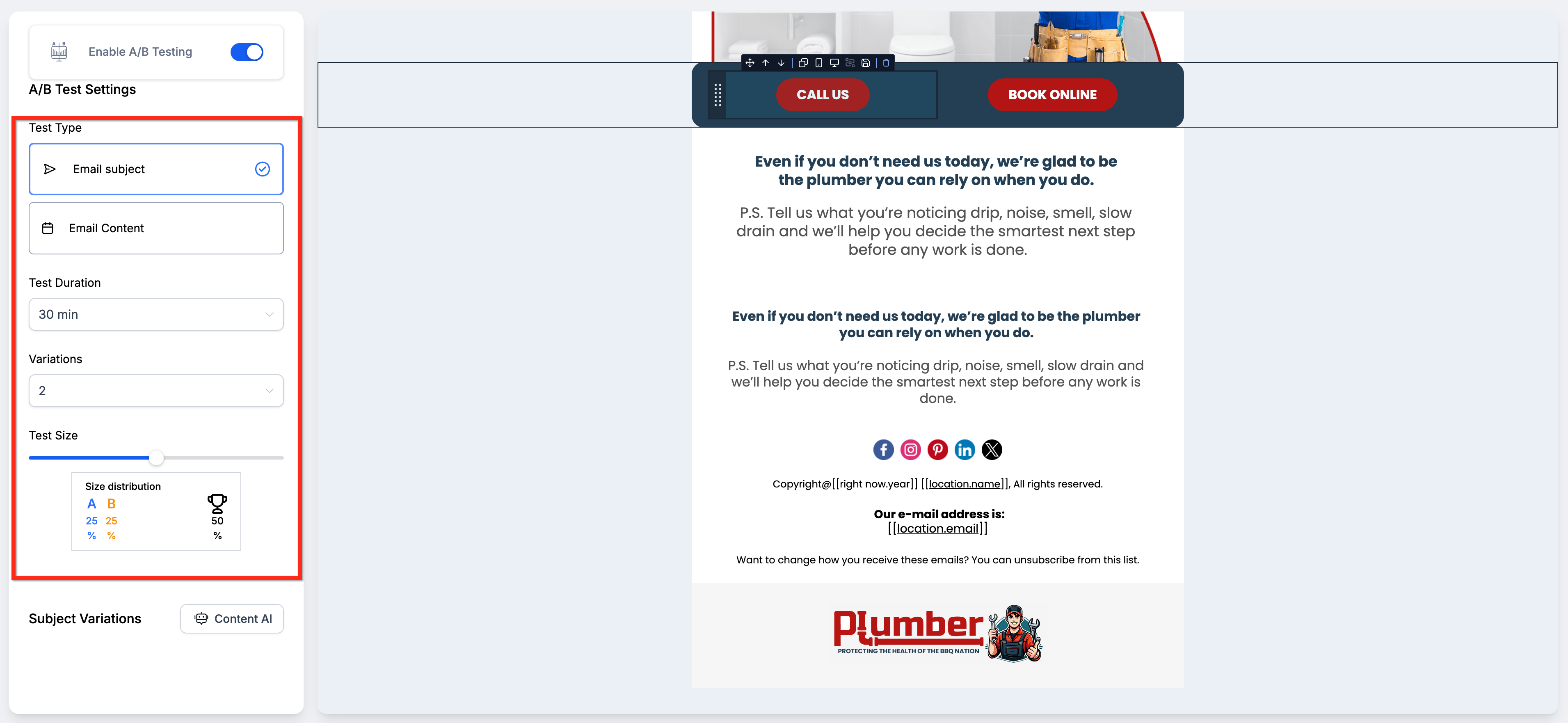
- Select the test type:
- Email Subject: Enter a different subject line for each variation. The email content remains the same across all variations.
- Email Content: The subject line remains the same. Select the variation letters at the top of the Email Builder, then edit the email body for each variation.
- Email Subject: Enter a different subject line for each variation. The email content remains the same across all variations.
- Set the test duration between 30 minutes and 24 hours.
- Select the number of variations you want to test, up to six.
- Use the test size slider on the left side of the Email Builder to set how much of your audience participates in the initial test.
- Create the subject or content variations you want to compare.
Choose Email Subject when you want to compare different subject lines while keeping the email content consistent.
Choose Email Content when you want to compare different versions of the email body while keeping the subject line the same.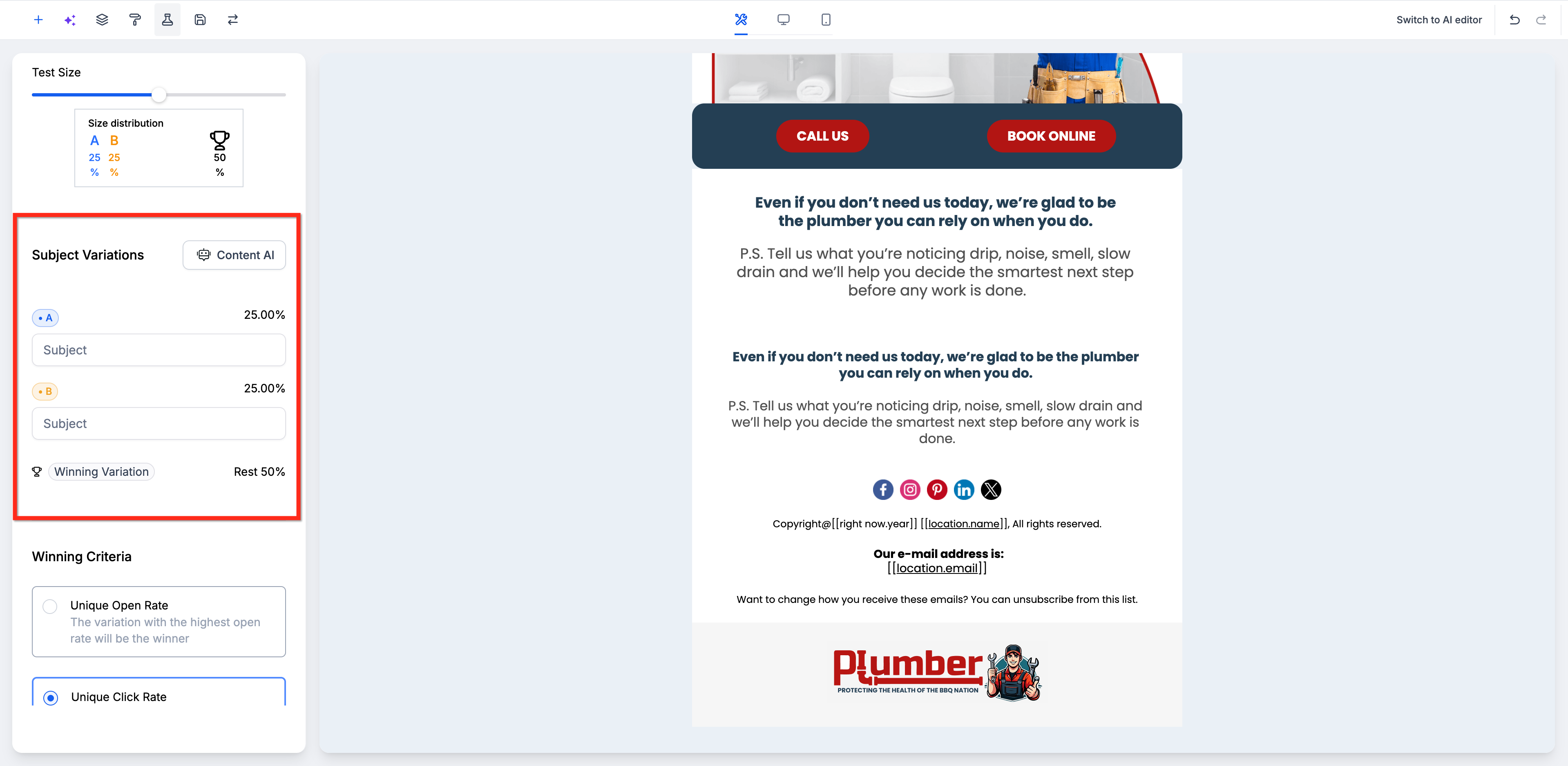
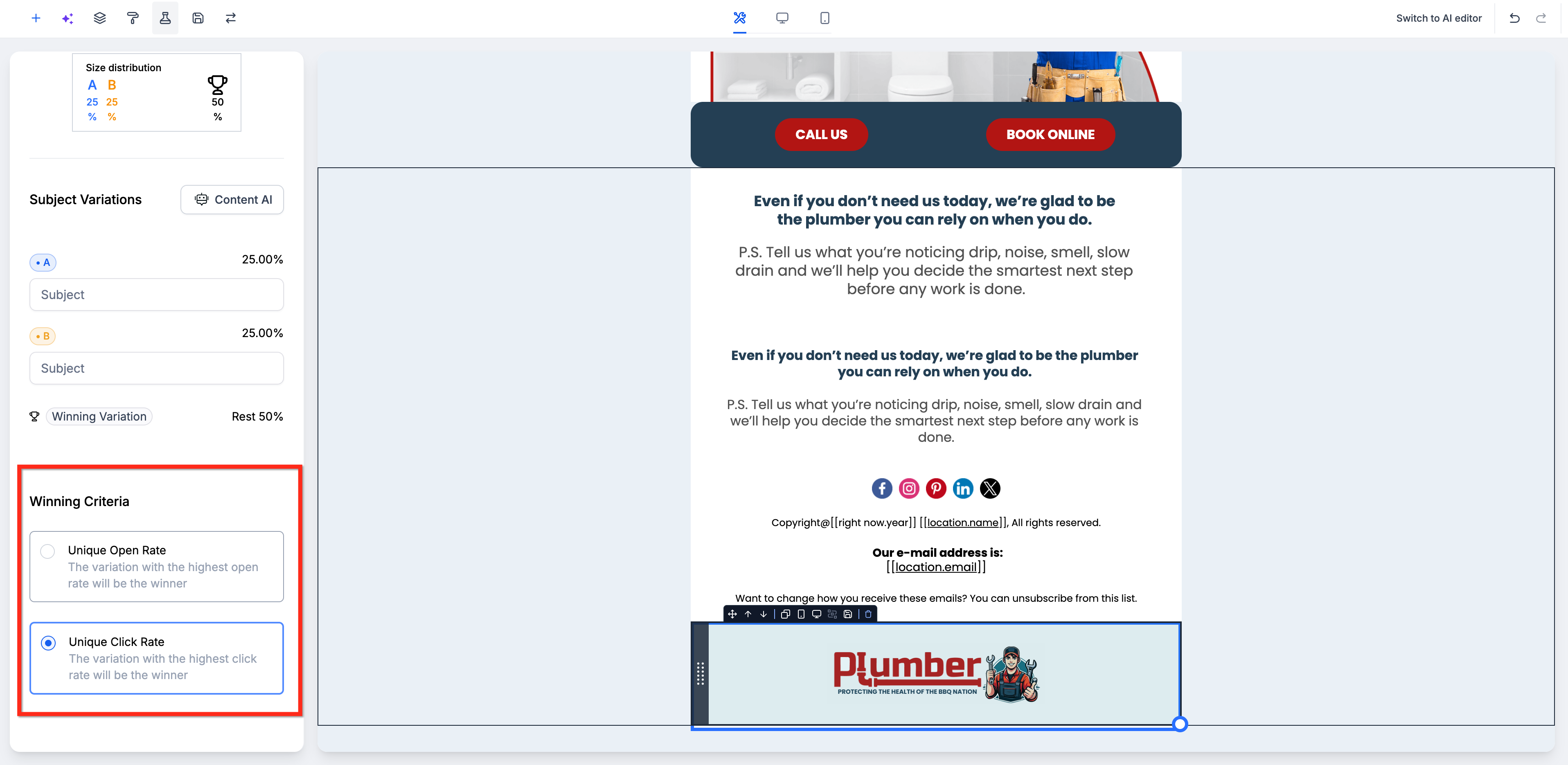
- Select the winning criterion: Unique Open Rate or Unique Click Rate.
- Click Save. Then when the campaign is ready, click Send and Schedule.
Related Articles
Was this article helpful?
That’s Great!
Thank you for your feedback
Sorry! We couldn't be helpful
Thank you for your feedback
Feedback sent
We appreciate your effort and will try to fix the article