Google has updated the Reserve with Google setup process for Local Services Ads. Businesses must now configure Google Organic Booking in HighLevel and link the correct Google Business Profile to their Local Services Ads account. This allows customers to discover services on Google and continue directly to the appropriate HighLevel booking experience.
TABLE OF CONTENTS
- What Is Reserve with Google for Local Services Ads?
- Key Benefits of Reserve with Google
- Before You Begin
- Google Organic Booking Feeds
- How to Set Up Reserve with Google for LSA
- How Booking Activation Works
- Frequently Asked Questions
- Related Articles
What Is Reserve with Google for Local Services Ads?
Reserve with Google connects a business’s Google presence to its online booking experience. Google Organic Booking, also called Booking Redirect, provides the booking destinations that Google can display on a Google Business Profile.
The updated setup requires you to:
- Configure Google Organic Booking feeds in HighLevel.
- Link the Local Services Ads account to the correct Google Business Profile.
- Wait for Google to review and publish the booking feeds.
After the required connections are approved, LSA booking is enabled automatically.
Key Benefits of Reserve with Google
Reserve with Google gives customers a direct path from finding a business on Google to booking an appointment. Businesses can publish a main booking destination, individual services, or both.
- Direct booking access: Customers can begin booking from the business’s Google Business Profile.
- Service-level booking: Individual services can appear with their own Book buttons.
- Centralized scheduling: Appointments continue through the selected HighLevel calendars.
- Fewer booking steps: Customers can move from discovery to scheduling without searching for a separate booking page.
- Flexible presentation: Businesses can publish a Service Menu, Calendar Group, individual calendars, or a combination of these.
- Automatic activation: LSA booking is enabled after Google approves the feeds and the correct Google Business Profile is linked.
Before You Begin
Accurate business and service information helps Google validate the submitted feeds. Complete the required calendar and Google account setup before uploading your booking information.
Confirm the following:
- You have access to the correct HighLevel subaccount.
- The required HighLevel calendars have been created.
- A Service Menu or Calendar Group is available for the Primary Action Feed.
- Each calendar selected as a service has a clear name and description.
- Calendar descriptions closely match the corresponding service names.
- The correct Google Business Profile is active and accessible.
- The Local Services Ads account can be linked to the correct Google Business Profile.
- Business and location details are consistent across HighLevel and Google.
Important: Inconsistent service names, descriptions, or location details may delay approval or prevent booking actions from appearing.
Google Organic Booking Feeds
Google Organic Booking feeds determine which booking destinations appear on the Google Business Profile. HighLevel supports a main booking destination and individual service destinations.
Primary Action Feed
The Primary Action Feed creates the main Book Online action on the Google Business Profile. It should direct customers to a page where they can review and select available services.
The Primary Action Feed uses one of the following:
- A Calendar Service Menu
- A Calendar Group
When customers select Book Online, they are redirected to the Service Menu or Group selected in HighLevel.
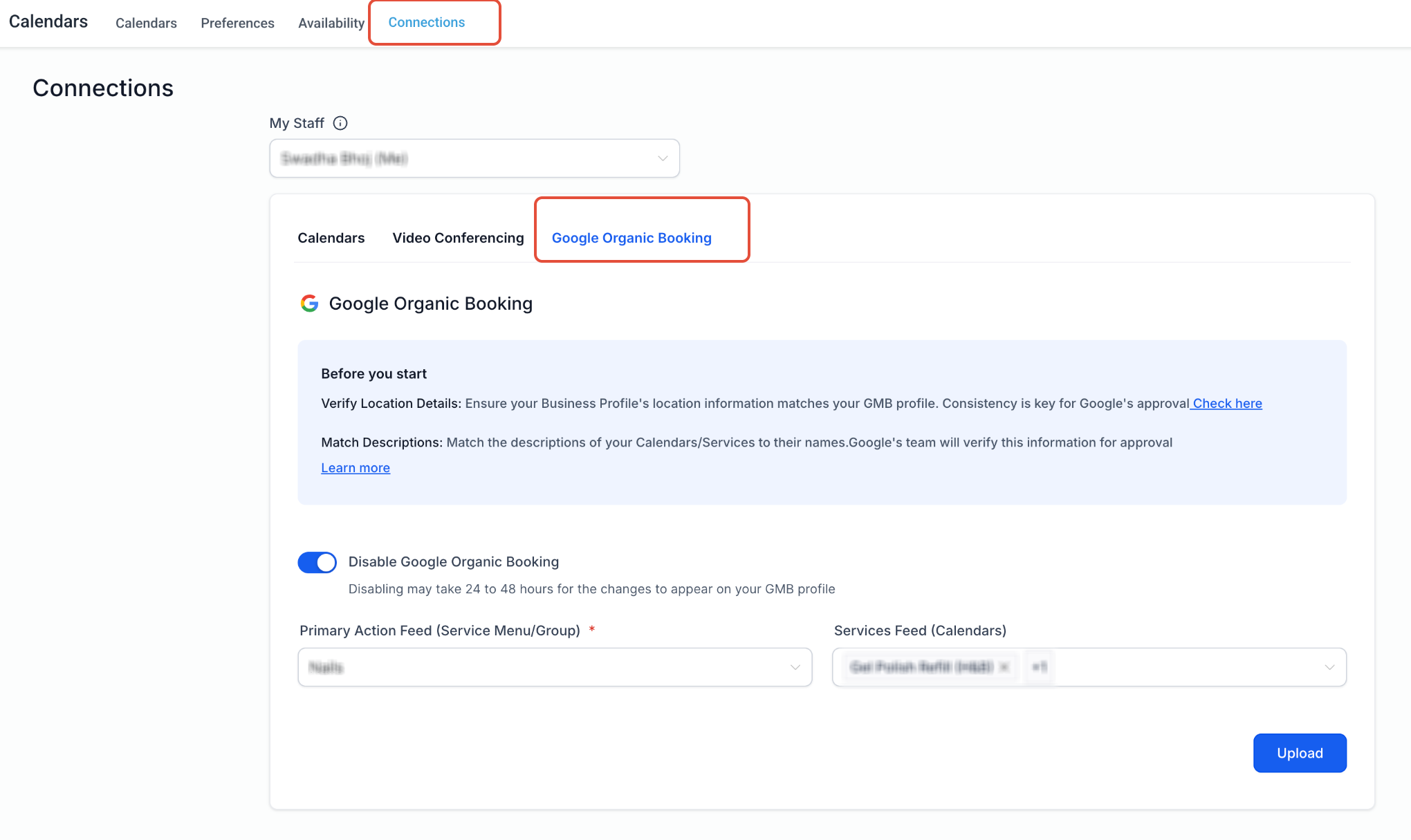
Services Feed
The Services Feed submits individual HighLevel calendars to Google as separate services. Approved services may appear on the Google Business Profile with their own Book buttons.
For each selected calendar:
- Use a clear, customer-facing service name.
- Add a description that accurately reflects the service.
- Keep the description consistent with the calendar or service name.
- Confirm that the calendar is configured for customer booking.
- Review staff, availability, duration, and scheduling settings.
Google controls whether and how each service appears on the Google Business Profile.
How to Set Up Reserve with Google for LSA
The updated setup is completed from Calendar Settings in the HighLevel subaccount. Follow the steps in order to submit the correct booking feeds and connect them to the appropriate Google Business Profile.
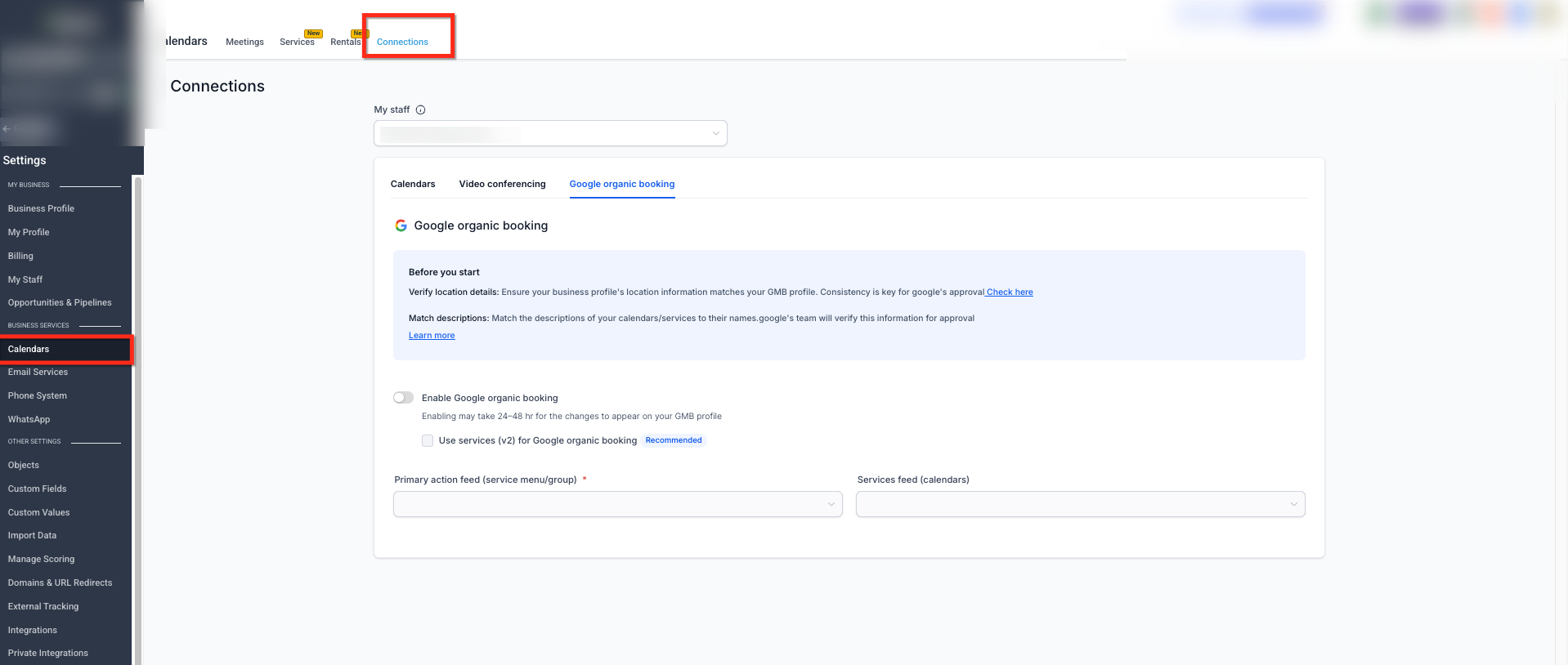
Step 1: Open Google Organic Booking Settings
Google Organic Booking is managed from the Connections area in Calendar Settings.
- Open the appropriate HighLevel subaccount.
- Go to Calendars.
- Open Calendar Settings.
- Select Connections.
- Choose the appropriate user from the My Staff dropdown, if applicable.
- Open the Google Organic Booking tab.
Step 2: Configure the Primary Action Feed
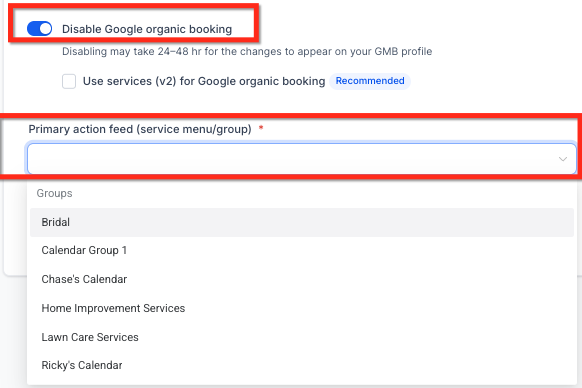
The Primary Action Feed controls the main booking destination displayed on the Google Business Profile.
- Locate Primary Action Feed (Service Menu/Group).
- Open the dropdown.
- Select the appropriate Service Menu or Calendar Group.
- Confirm that the selected destination contains the correct services and booking links.
The Primary Action Feed is required in the current HighLevel interface.
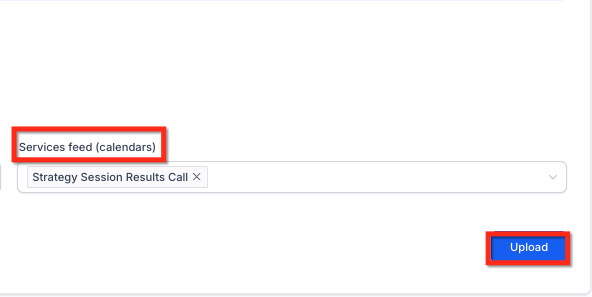
The Services Feed allows Google to display individual calendars as separate bookable services.
- Locate Services Feed (Calendars).
- Open the dropdown.
- Select the calendars you want to publish.
- Review the name and description of each selected calendar.
- Confirm that each description clearly matches the service name.

Uploading sends the selected Primary Action Feed and Services Feed to Google for review.
- Review the Primary Action Feed.
- Review the calendars selected in the Services Feed.
- Click Upload.
- Allow Google time to review and publish the feeds.
Google typically takes one to two weeks to verify and publish booking feeds.
The Local Services Ads account must be associated with the correct Google Business Profile. This connection allows Google to match the advertiser, business location, and booking experience.
In Google Ads:
- Sign in to the Google Ads account associated with the business.
- Click the Tools icon.
- Open Data Manager.
- Find Google Business Profile under Connected products.
- Select Manage & link.
- Review linked profiles and pending invitations.
- Link or confirm the correct Google Business Profile.
- Verify that the correct business location is selected.
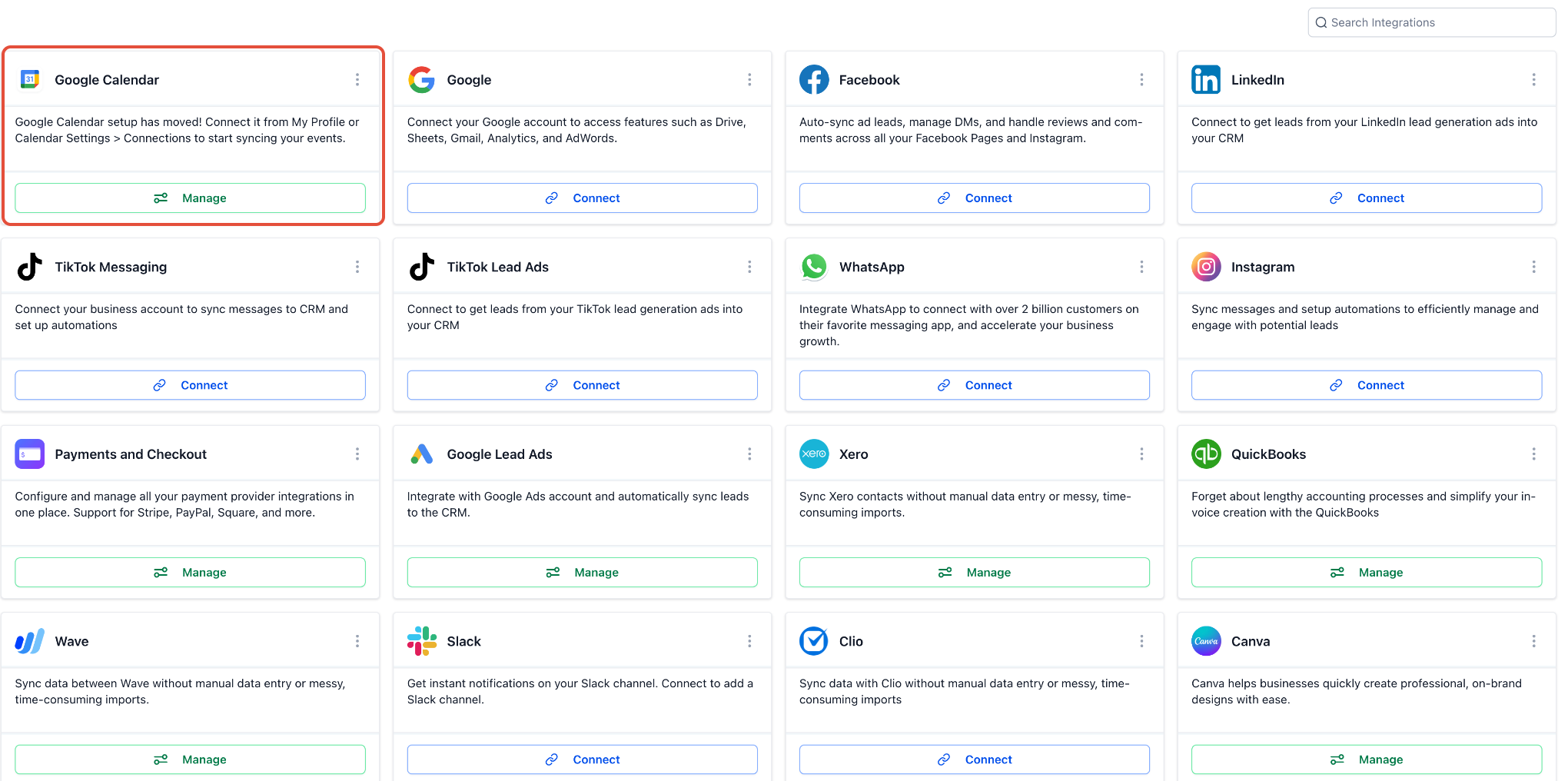
Step 6: Wait for Automatic Activation
LSA booking is enabled automatically after Google approves the feeds and the correct Google Business Profile is linked.
After setup:
- Google reviews the uploaded booking feeds.
- Google validates the business and service information.
- Approved booking actions are published to the Google Business Profile.
- Google associates the profile with the Local Services Ads account.
- LSA booking becomes available automatically.
No separate Start Integration action is required in HighLevel.
How Booking Activation Works
The updated process depends on both the HighLevel booking feeds and the Google account connection. Completing only one part of the setup will not activate LSA booking.
Google Organic Booking in HighLevel
Google Organic Booking controls:
- The main Book Online destination
- Individual service booking destinations
- The calendars and service pages submitted to Google
Google Business Profile Link in Google
The Google Business Profile link confirms:
- Which profile represents the advertiser
- Which business location should display booking actions
- Which LSA account should use the booking experience
Google Calendar Integration
Google Calendar integration is used for event synchronization, availability, and conflict management.
Connecting Google Calendar does not publish booking actions to a Google Business Profile.
Google Business Profile Integration With HighLevel
Connecting a Google Business Profile to HighLevel may support reputation management and other profile-related features.
This is separate from linking the Google Business Profile to the Local Services Ads or Google Ads account.
Disabling Google Organic Booking
Disabling Google Organic Booking stops HighLevel from publishing the associated feeds.
Removal may take 24 to 48 hours to appear on the Google Business Profile. This removal period is separate from the one-to-two-week review and publication timeline.
Frequently Asked Questions
Q: Is Google Organic Booking required for LSA booking?
Yes. Under the updated process, Google Organic Booking must be configured before Local Services Ads booking can activate.
Q: What is the difference between the Primary Action Feed and the Services Feed?
The Primary Action Feed creates the main Book Online destination using a Service Menu or Calendar Group. The Services Feed submits individual calendars so Google can display separate services with their own booking actions.
Q: Why must the calendar description match the service name?
Google uses the submitted name and description to validate the service. Missing, unclear, or unrelated descriptions may delay or prevent publication.
Q: How long does it take for booking actions to appear?
Google typically takes one to two weeks to verify and publish booking feeds.
Q: Why is the Book Online button not appearing?
Confirm that the feeds were uploaded, the correct Google Business Profile is linked, business and location details match, and the service names and descriptions are accurate.
Q: Why does the main Book Online button appear while individual services do not?
The Primary Action Feed and Services Feed may be reviewed separately. The main destination may be approved while individual services remain under review or are not approved.
Q: Do I need to connect Google Calendar?
Google Calendar synchronization is separate from Google Organic Booking. It may be useful for availability and conflict management, but it does not publish booking actions.
Q: Should I upload the feeds again after changing a service?
Yes. After changing a service name, description, calendar, Service Menu, or Calendar Group, return to Google Organic Booking and upload the updated feeds.
Related Articles
- Google Organic Booking
- How to Create Service Calendars
- Integrating Google With HighLevel Calendars
- How to Integrate Google Business Profile With HighLevel
Was this article helpful?
That’s Great!
Thank you for your feedback
Sorry! We couldn't be helpful
Thank you for your feedback
Feedback sent
We appreciate your effort and will try to fix the article