Learn how to connect Google Ads, map and enable lead forms, automate new submissions, and test the integration.
What Are Google Lead Forms?
Google Lead Forms are lead capture forms associated with Google Ads. When a Google Ads account is connected to HighLevel, submissions from enabled and properly mapped lead forms can create contacts in the CRM.
Important: Google Lead Forms are different from Google Forms. Google Forms uses a separate HighLevel integration.
How to Connect Google Ads
Connect the Google Ads account that contains the lead forms you want to sync with HighLevel.
- Open the appropriate HighLevel sub-account.
- Go to Settings → Integrations.
- Find Google Ads and click Manage.
- On the integration page, click Install.
- Sign in with a Google account that has access to the Google Ads account.
- Complete the Google authorization process.
- Select the Google Ads account or accounts you want to connect.
After the connection is complete, the lead forms associated with the selected accounts appear with their campaign names and sync status.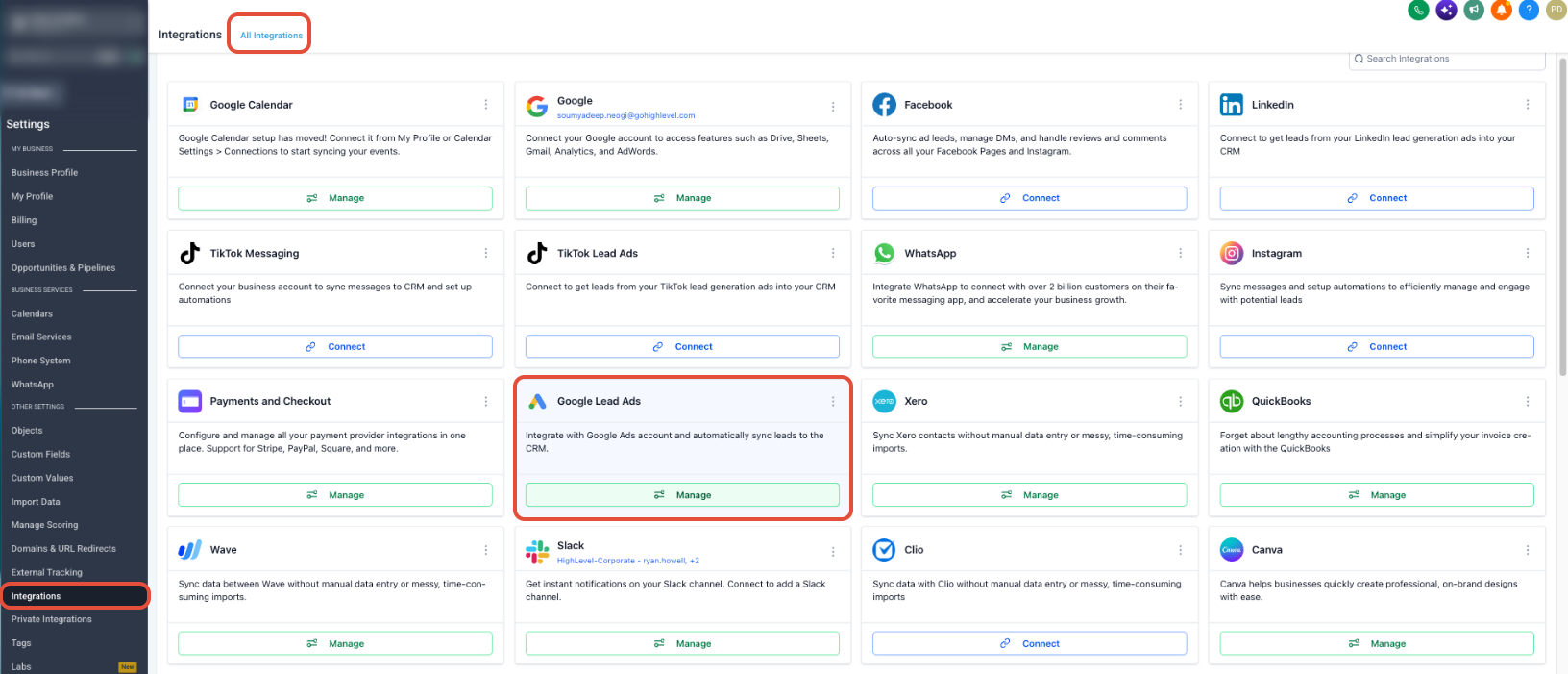
How to Map and Enable a Google Lead Form
Field mapping connects information collected by the Google Lead Form to the appropriate HighLevel CRM fields.
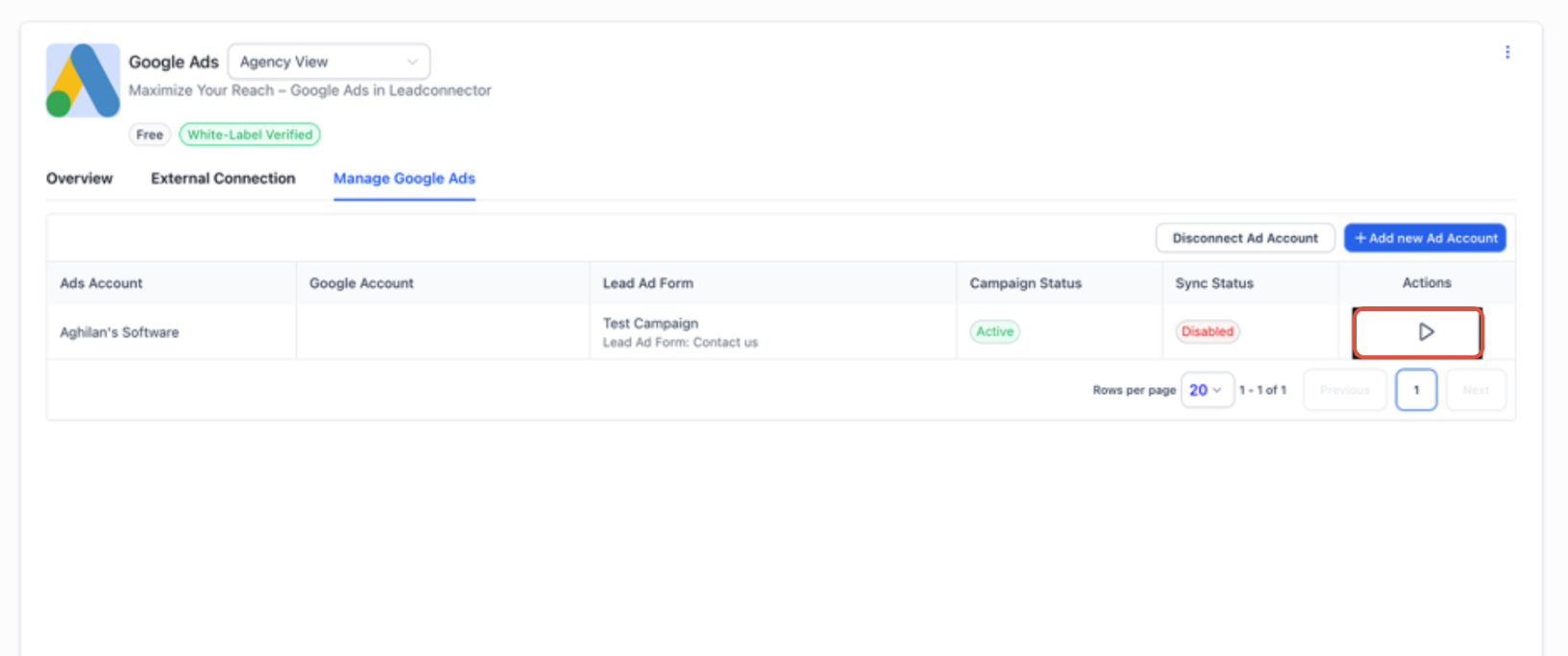
- Locate the lead form you want to sync.
- Click the Play/Edit icon for the form.
- Select Map Fields.
- Match the Google Lead Form fields to the appropriate HighLevel CRM fields.
- Complete the mapping and activate lead syncing.
- Confirm the sync status shows Active.
To stop receiving leads from a form: Click the Pause icon.
How to Automate Google Lead Form Submissions
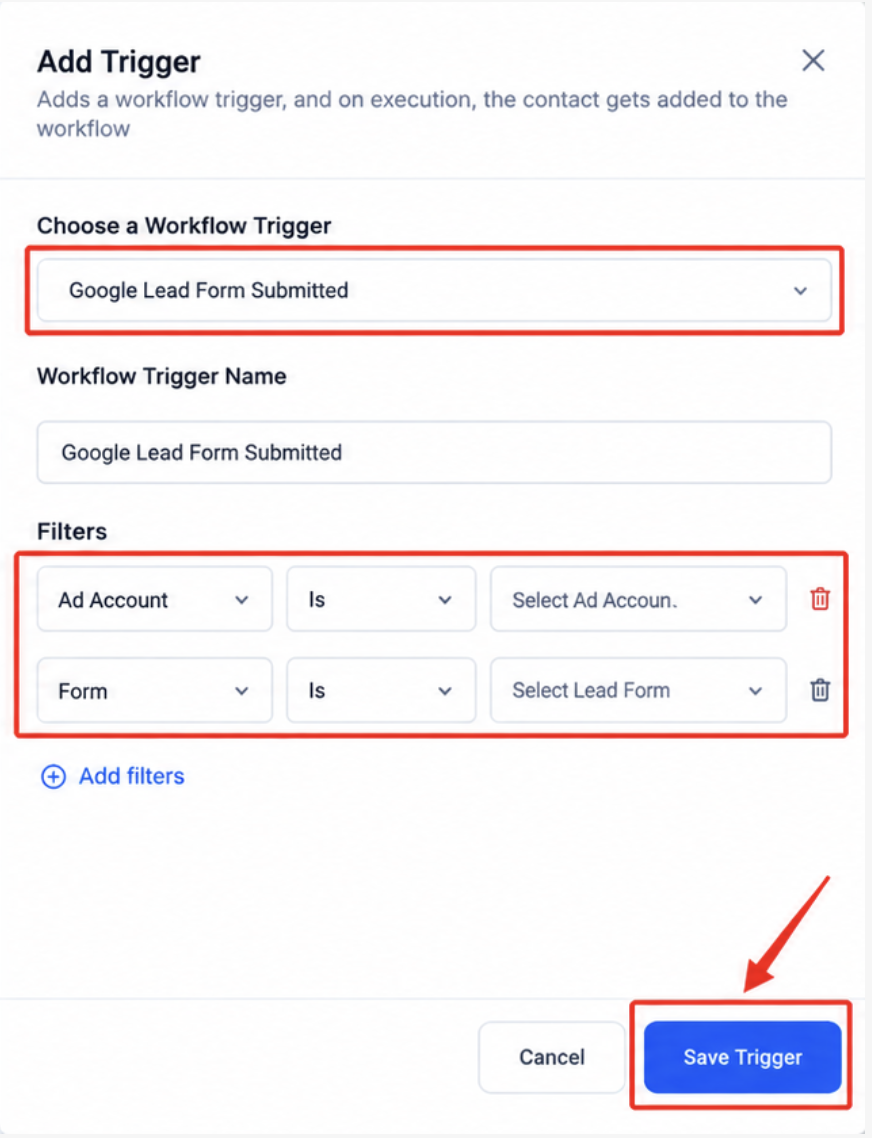
Use the Google Lead Form Submitted workflow trigger to start an automation when HighLevel receives a Google Ads lead form submission.
- Go to Automations → Workflows.
- Create a workflow or open an existing one.
- Add a new workflow trigger.
- Select Google Lead Form Submitted.
- Add Ad Account or Lead Form filters when needed.
- Add the workflow actions you want to run after the submission.
- Save and publish the workflow.
How to Test the Connection
Use Google Ads test data to confirm that the connected lead form is sending information through the integration.
- Open Google Ads Manager.
- Open the campaign containing the connected lead form.
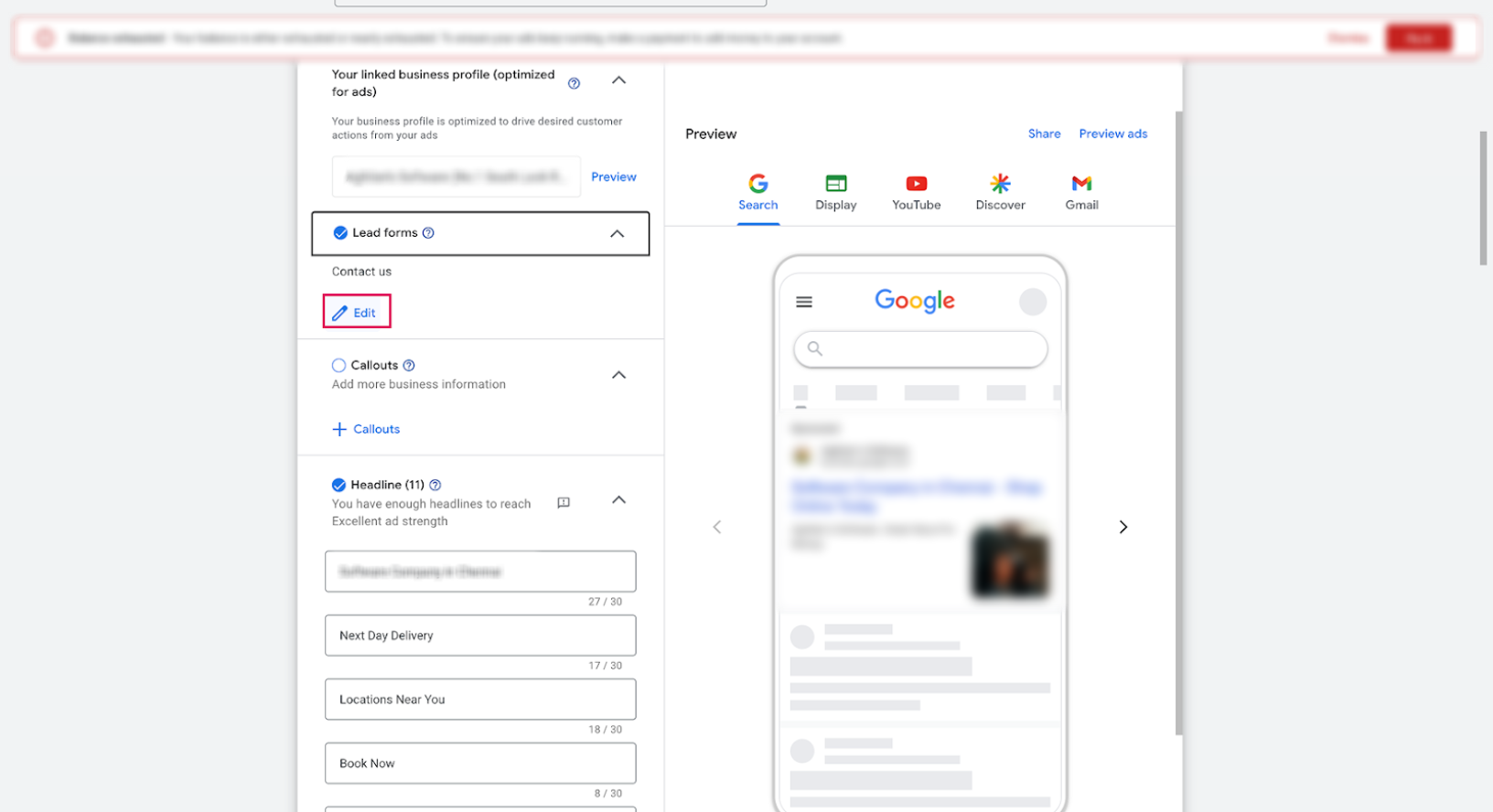
- From the campaign details, go to the Lead Form section and click Edit.
- Open the form linked to the campaign.
- Click Send Data to send a test submission.
- Check HighLevel to confirm the expected lead was received.
Note: Google Ads may display a warning during this test. HighLevel's current integration documentation states that the warning can be ignored for the test.
Frequently Asked Questions
Was this article helpful?
That’s Great!
Thank you for your feedback
Sorry! We couldn't be helpful
Thank you for your feedback
Feedback sent
We appreciate your effort and will try to fix the article