HighLevel lets you upload a custom audio recording for company voicemail, individual user voicemail, or a voicemail drop in a workflow. For reliable playback, prepare the recording in a supported format and test it after uploading.
TABLE OF CONTENTS
- Audio File Requirements
- Set Up Company Voicemail
- Set Up User Voicemail
- Add a Voicemail Drop to a Workflow
- Prepare Your Recording
- Test and Troubleshoot Your Voicemail
- Frequently Asked Questions
- Related Articles
Audio File Requirements
Before uploading a voicemail recording, use the following recommended settings:
| Requirement | Recommended Setting |
|---|---|
| File format | MP3 or WAV |
| Audio quality | 64 kbps |
| Content | Clear, pre-recorded voice message |
Important: Higher-quality audio is not always better for voicemail delivery. If the recording does not play correctly, convert or export it at 64 kbps, upload it again, and retest.
Set Up Company Voicemail
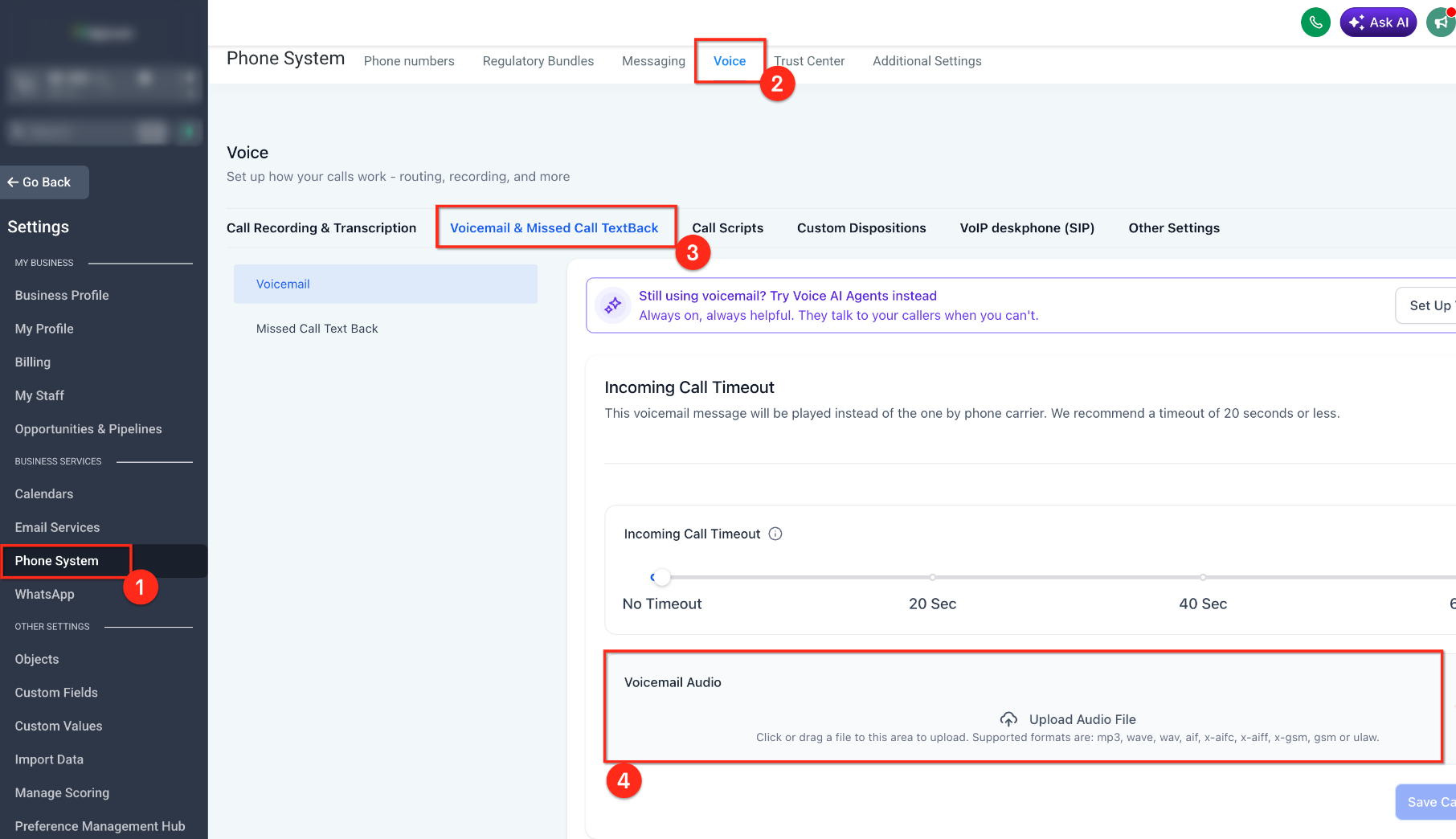
Use company voicemail when you want a default voicemail recording for the Sub-Account.
- Go to Sub-Account → Settings → Phone System.
- Scroll to Call & Voicemail Settings.
- Upload the MP3 or WAV voicemail file.
- Save your changes.
- Call the HighLevel phone number from another phone and allow the call to reach voicemail.
Set Up User Voicemail
You can configure a separate voicemail recording for an individual user.
- Go to Sub-Account → Settings → Users.
- Open the applicable user.
- Open the user's call and voicemail settings.
- Upload the MP3 or WAV voicemail file.
- Save the user's settings and test the call flow.
When creating a user from Users, available setup options can include call-forwarding defaults and voicemail configuration.
A user's voicemail can take precedence when the contact or phone number is assigned to that user.
Add a Voicemail Drop to a Workflow
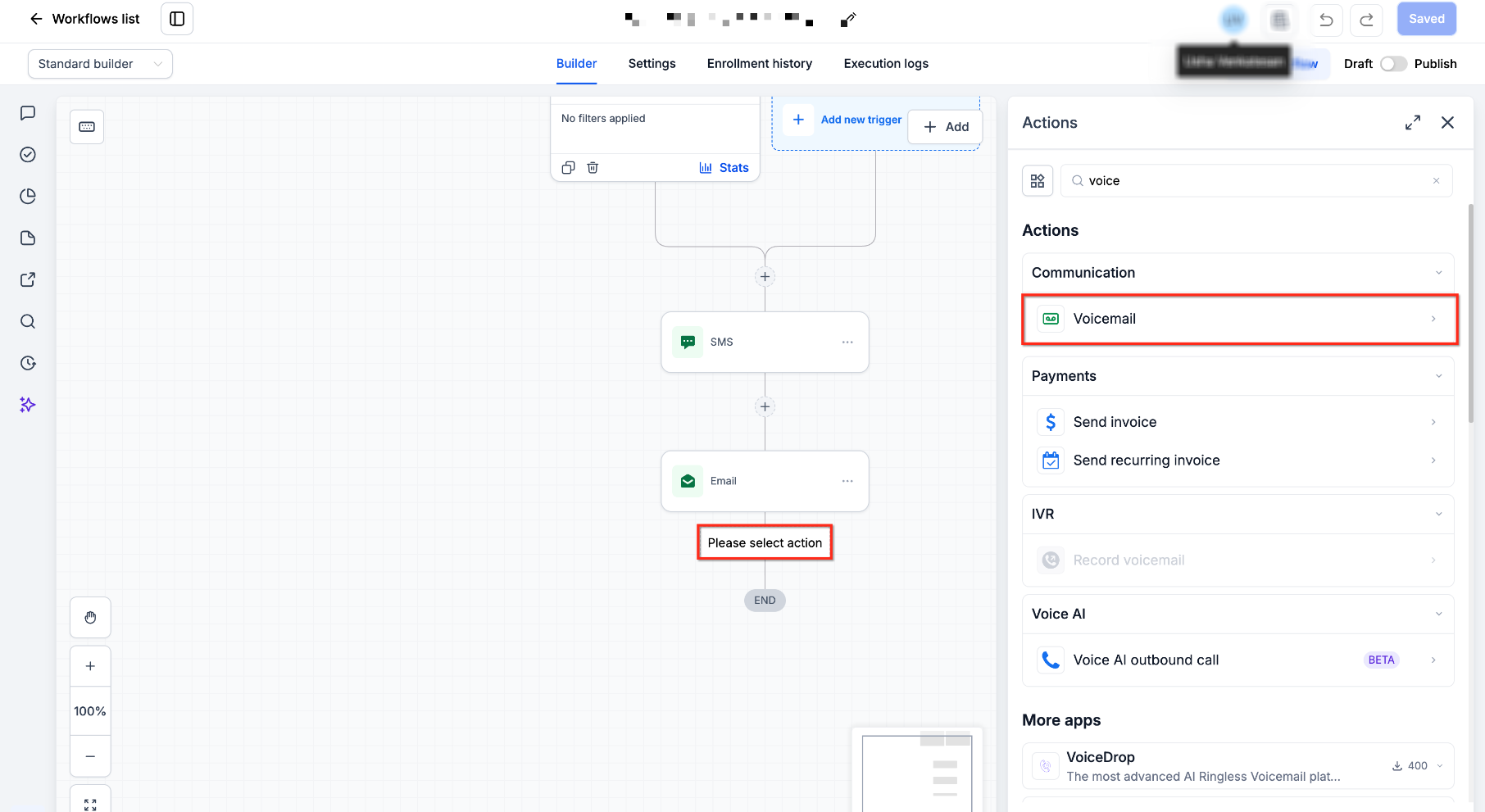
Use the Voicemail workflow action when you want to deliver a pre-recorded voicemail through automation.
- Open the appropriate Workflow.
- Click the + button to add an action.
- Search for and select Voicemail.
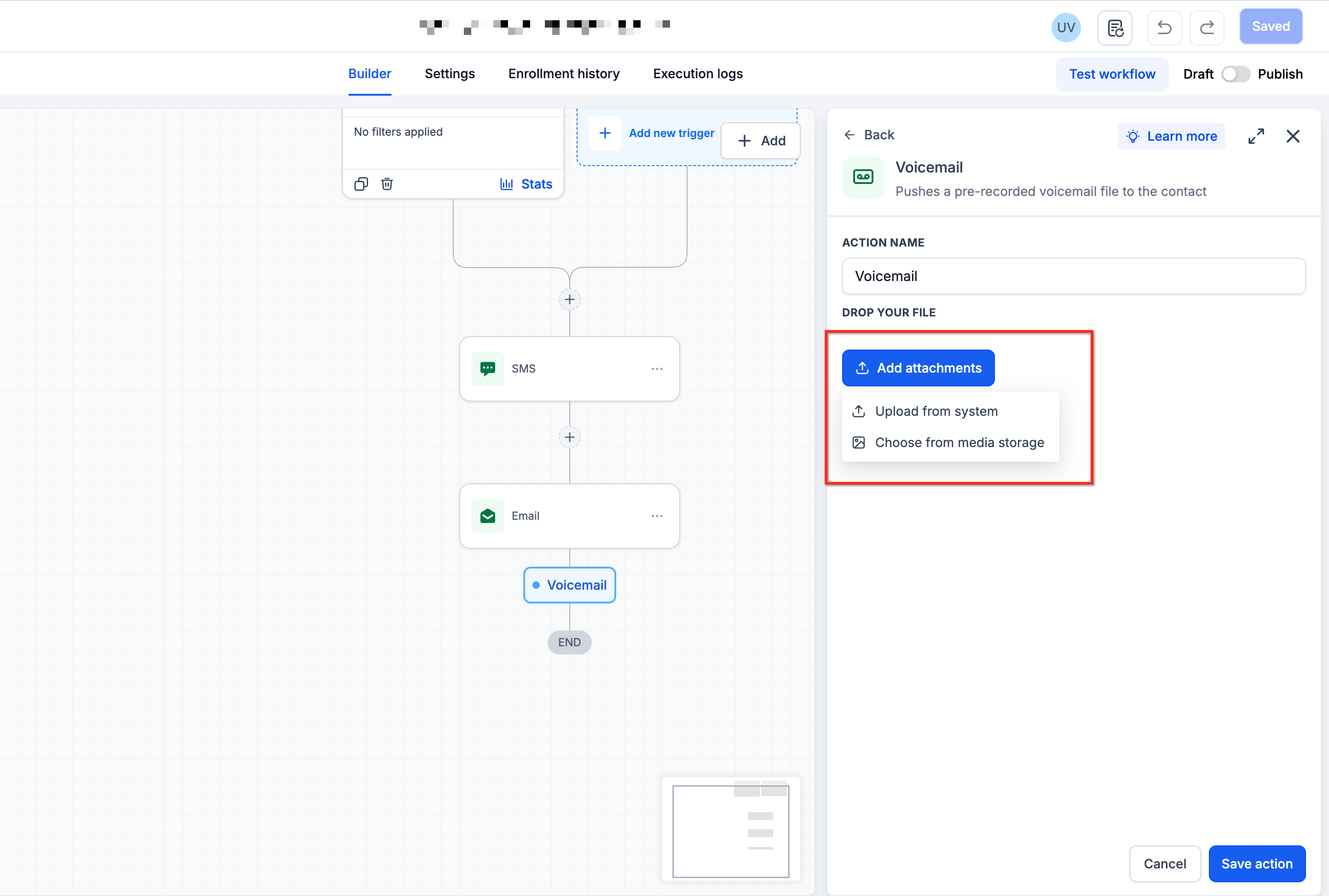
- Upload the pre-recorded MP3 or WAV file. For best compatibility, use 64 kbps.
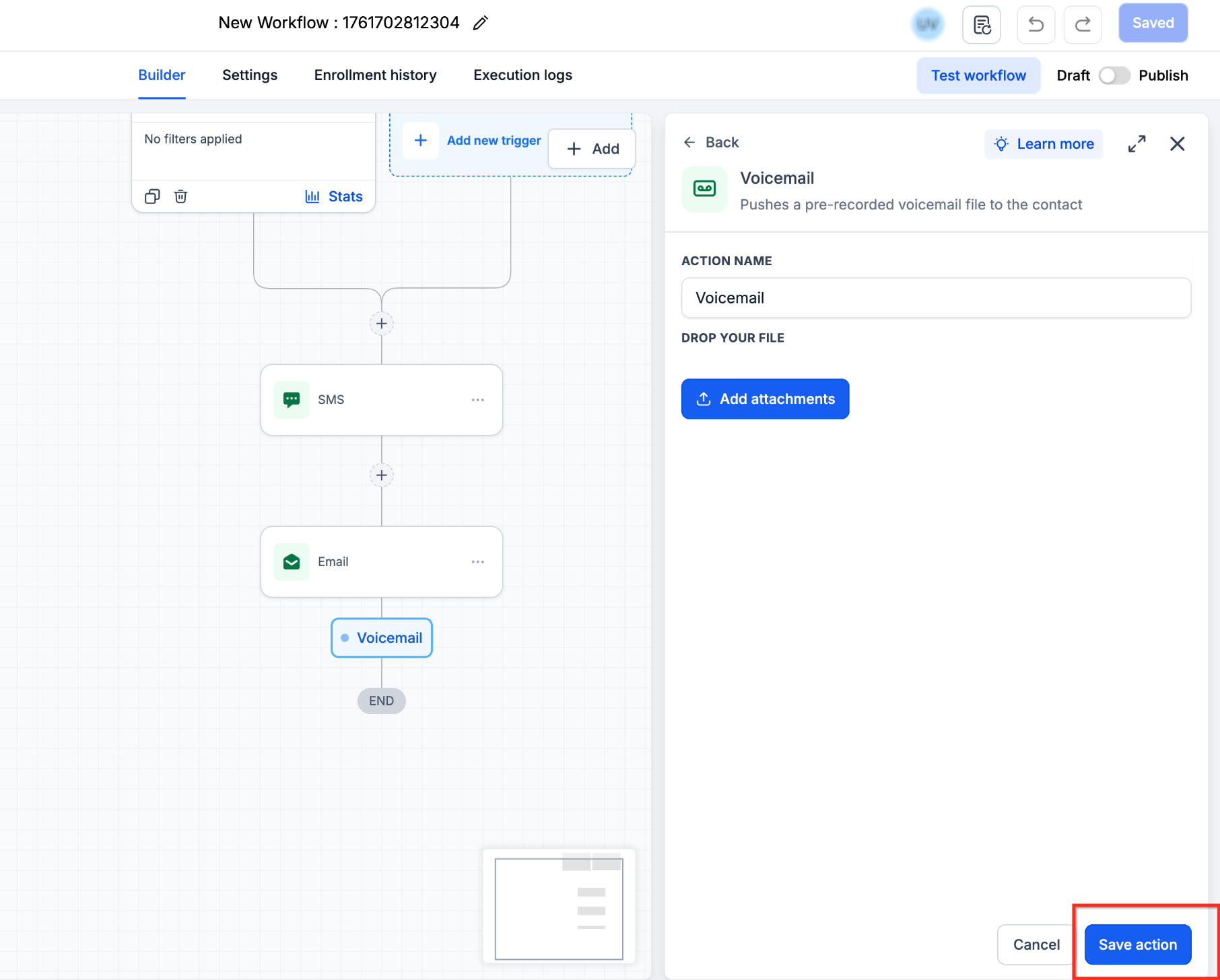
- Click Save Action.
- Save or publish the workflow as appropriate.
Test the workflow with a test contact before using the voicemail drop with your intended audience.
Prepare Your Recording
You can create the voicemail with any recording or audio-editing tool that can export a compatible file.
- Record in a quiet environment.
- Speak clearly and at a consistent volume.
- Keep background noise to a minimum.
- Export the recording as MP3 or WAV.
- Use 64 kbps for voicemail compatibility.
If you already have a recording, you do not need to record it again. Convert or export the existing file to the recommended format and quality when necessary.
Third-party audio tools can be used for recording or conversion. HighLevel does not require a specific external tool.
Test and Troubleshoot Your Voicemail
Test Company or User Voicemail
- Call the HighLevel phone number from a different phone.
- Allow the call to reach voicemail.
- Confirm that the correct recording plays.
- Listen for distortion, unusually low volume, or playback problems.
Test a Workflow Voicemail Drop
Run the workflow with a test contact and confirm that the expected recording is delivered.
If the Audio Does Not Play Correctly
- Confirm the file is MP3 or WAV.
- Convert or re-export the recording at 64 kbps.
- Upload the new file.
- Save your changes.
- Test the call or workflow again.
For company or user voicemail, also review the Incoming Call Timeout. If the timeout is too long, a forwarding number's carrier voicemail may answer before the uploaded HighLevel voicemail can play.
Frequently Asked Questions
Q: What file format should I use for voicemail?
Use an MP3 or WAV file. For reliable voicemail playback, 64 kbps is recommended.
Q: Why does my voicemail file upload successfully but not play correctly?
The audio encoding or quality may not be compatible with reliable carrier playback. Re-export the recording at 64 kbps, upload it again, and retest.
Q: Can an individual user's voicemail override the company voicemail?
Yes. A user's voicemail can take precedence when the contact or phone number is assigned to that user.
Q: Where do I configure voicemail for an individual user?
Go to Sub-Account → Settings → Users, open the applicable user, and access the available call and voicemail settings.
Q: Can I use the same recording for a voicemail greeting and a workflow voicemail drop?
Yes, provided the file meets the supported format and audio-quality requirements for the intended use.
Related Articles
- Ringless Voicemail & Voicemail Drops Setup Guide
- Workflow Action - Voicemail
- Overview of Phone Number Configuration Options
- Phone Number Edit Configuration: Incoming Call Settings
Was this article helpful?
That’s Great!
Thank you for your feedback
Sorry! We couldn't be helpful
Thank you for your feedback
Feedback sent
We appreciate your effort and will try to fix the article