You can upload your own audio recording in HighLevel to use as a custom voicemail greeting or voicemail drop.
For reliable playback across carriers, prepare your recording in a supported format and quality before uploading it to HighLevel.
TABLE OF CONTENTS
Audio File Requirements
Before uploading your recording, make sure your audio file meets these requirements:
| Requirement | Recommended Setting |
|---|---|
| File format | MP3 or WAV |
| Audio quality | 64 kbps |
| Content | Clear, pre-recorded voice message |
Important: Higher-quality audio is not always better for voicemail delivery. If your recording does not play correctly, convert or export it at 64 kbps and try uploading it again.
Where Will You Use the Audio File?
The upload location depends on how you want to use the recording.
Company Voicemail
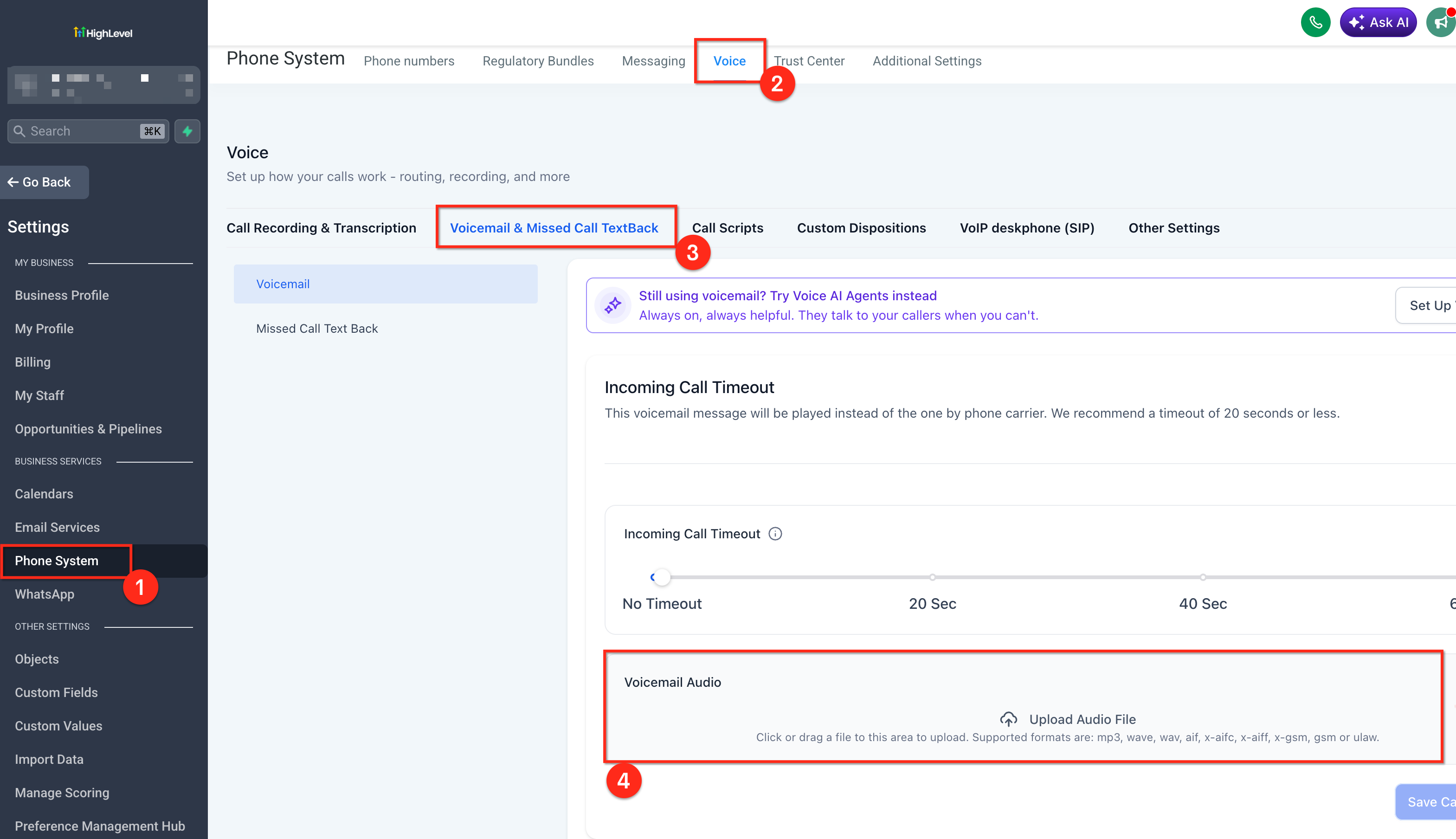
To use the recording as the default voicemail for your sub-account:
Go to Sub-Account → Settings → Phone System.
Scroll to Call & Voicemail Settings.
Upload your MP3 or WAV voicemail file.
Save your changes.
Call your HighLevel number from another phone to test the voicemail.
User Voicemail
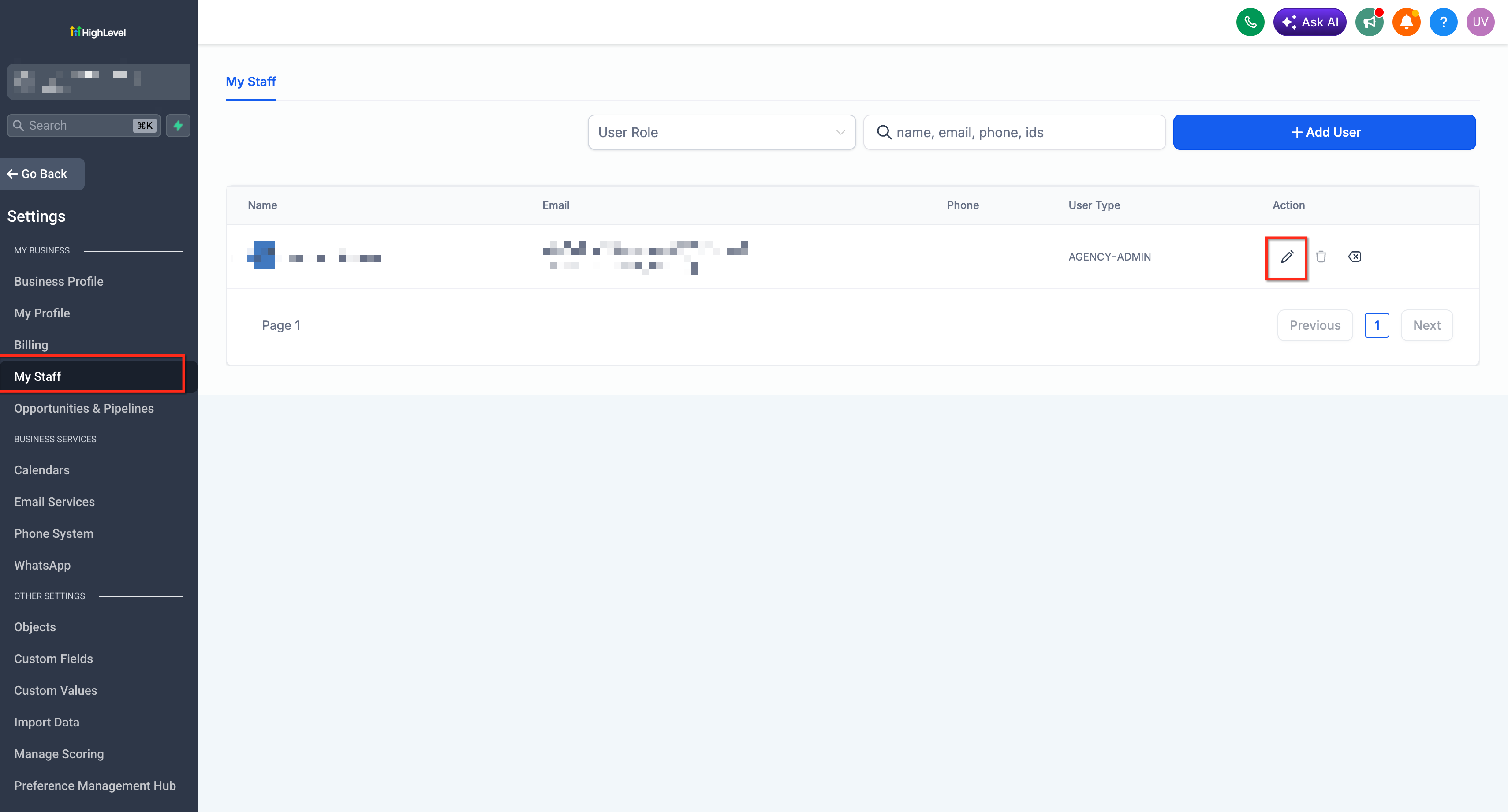
To configure a voicemail recording for an individual user:
Go to Sub-Account → Settings → My Staff.
Select and edit the appropriate user.
Expand Call & Voicemail Settings.
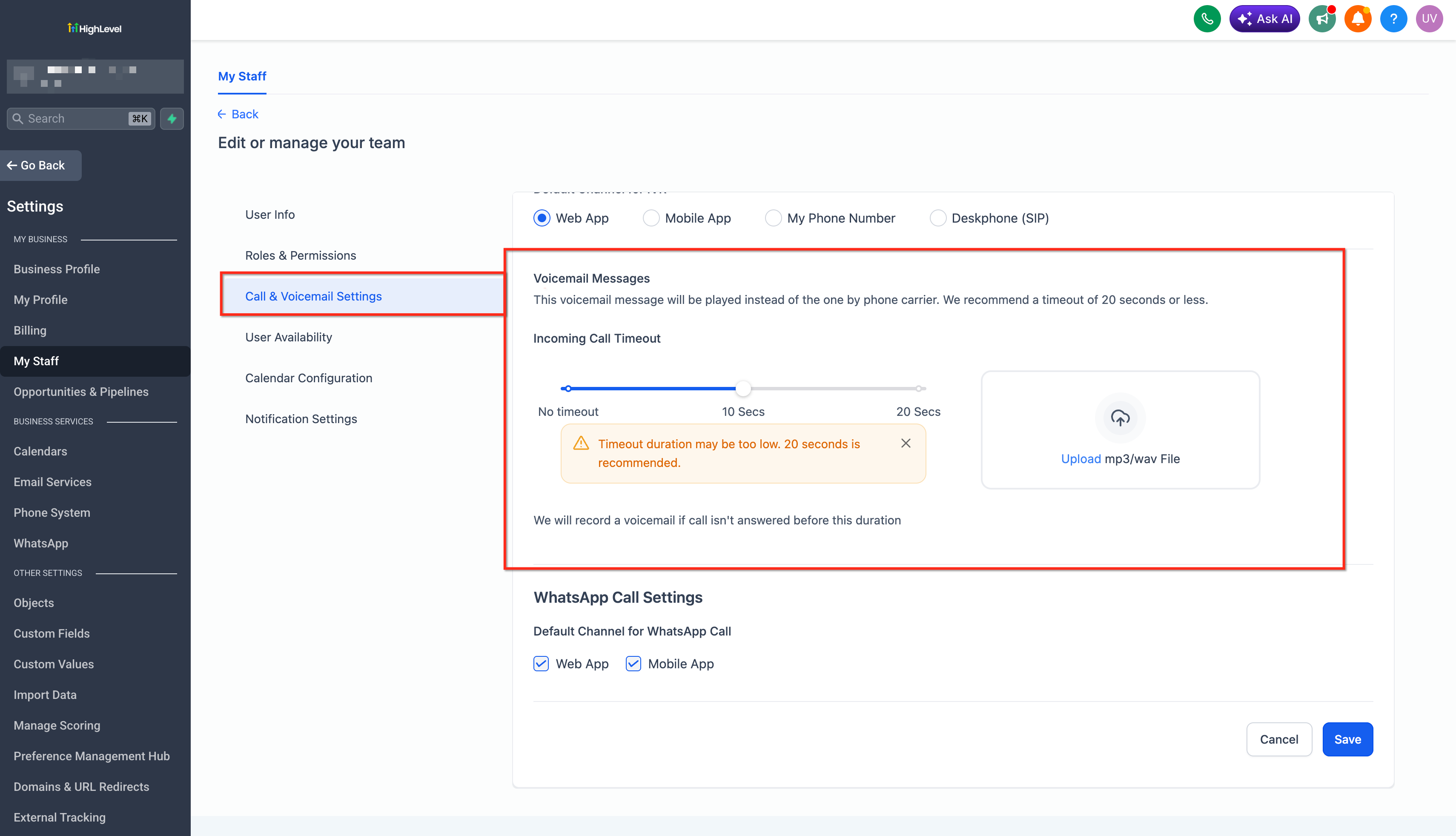
Upload the MP3 or WAV file.
Save your changes and test the user's call flow.
A user's voicemail can take precedence when the contact or phone number is assigned to that user.
Voicemail Drop in a Workflow
To use your recording as a voicemail drop:
Open the appropriate Workflow.
Click the + button to add an action.
Search for and select Voicemail.
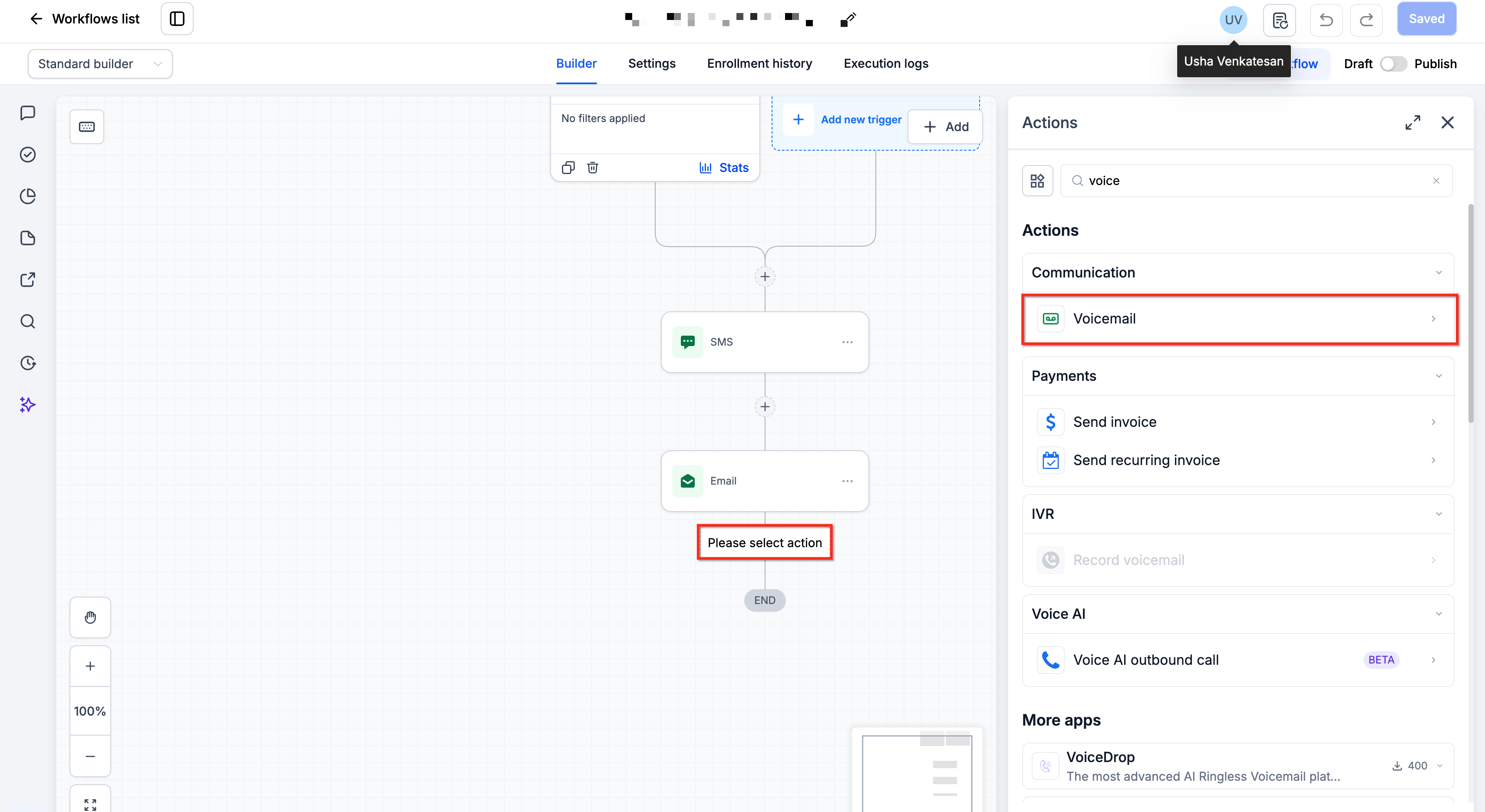
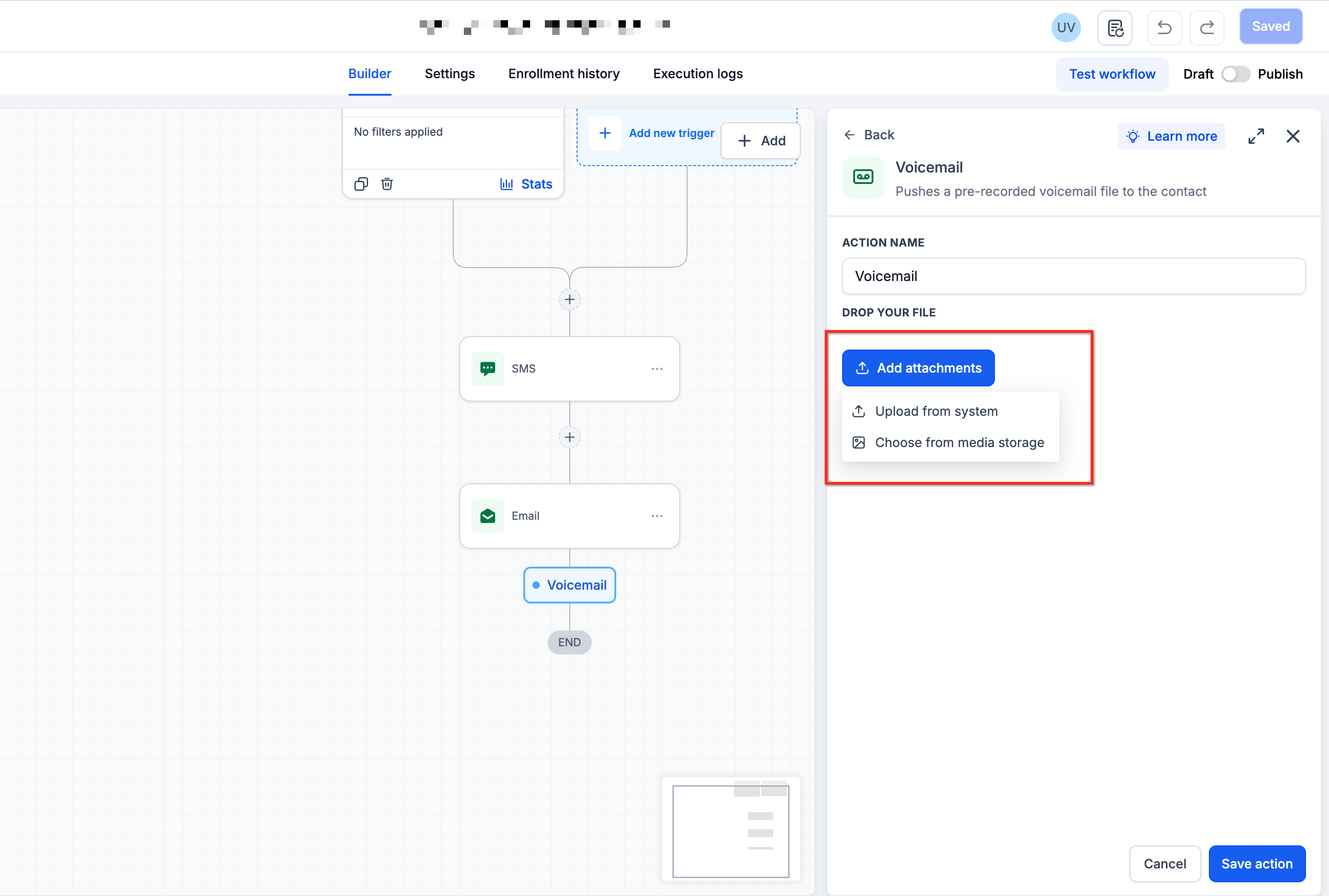
Upload your pre-recorded MP3 or WAV (64 kbps) audio file.
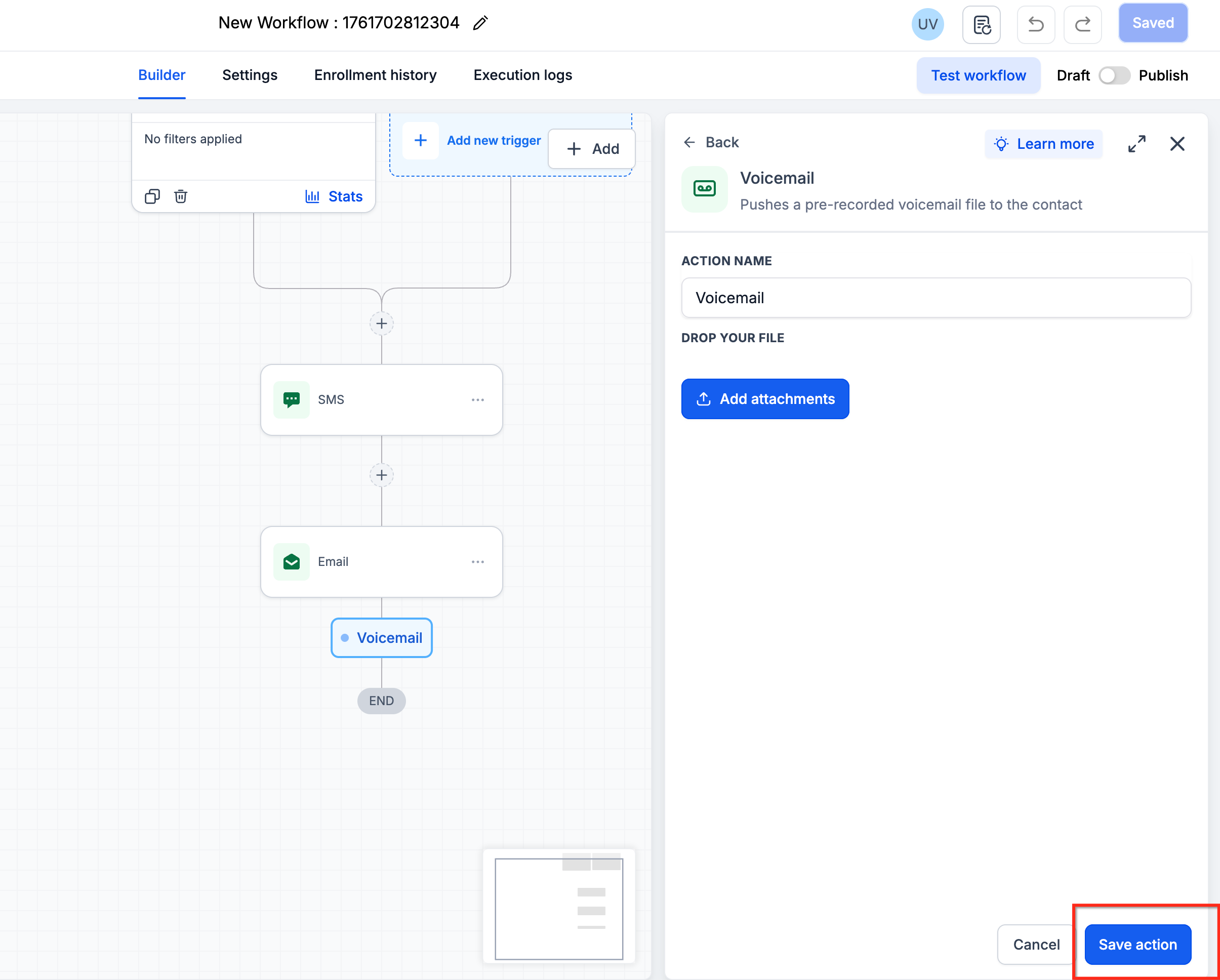
Click Save Action.
Save or publish the workflow as appropriate.
Test the workflow with a test contact before using the voicemail drop with your intended audience.
Create or Prepare Your Recording
You can create the recording with any audio recorder that allows you to save or export the finished recording in a compatible format.
For best results:
Record in a quiet environment.
Speak clearly and at a consistent volume.
Keep background noise to a minimum.
Export the finished recording as MP3 or WAV.
Use 64 kbps audio quality for voicemail compatibility.
If you already have an audio recording, you do not need to record it again. Convert or export the existing file to the supported format and quality if necessary.
Optional: Using Third-Party Recording or Conversion Tools
You may use third-party audio recording or conversion software to prepare your file. HighLevel does not require a specific third-party tool—the important part is that the resulting audio file meets the supported voicemail requirements.
For example, a desktop audio editor such as Audacity can be used to record, resample, and export audio.
Note: Third-party tools and websites are maintained independently of HighLevel. Their availability, functionality, pricing, and interfaces may change. Refer to the provider's current documentation when using an external service.Example: Preparing a WAV File in Audacity
If you're using Audacity:
Open or import your audio file.
Set the project rate to 8000 Hz.
Resample the track to 8000 Hz, if needed.
Export the recording as a WAV file using U-Law encoding.
Upload the exported file to the appropriate voicemail destination in HighLevel.
Test Your Audio After Uploading
Always test the recording after uploading it. For a company or user voicemail:
Call the HighLevel phone number from a different phone.
Allow the call to reach voicemail.
Confirm that the correct recording plays.
Listen for distortion, unusually low volume, or playback issues.
For a voicemail drop, run the workflow with a test contact and confirm that the expected recording is delivered.
If the Audio Doesn't Play Correctly
If your voicemail file doesn't work as expected:
Confirm that the file is MP3 or WAV.
Convert or re-export the recording at 64 kbps.
Upload the new version to HighLevel.
Save your changes.
Test the call or workflow again.
If you're configuring a standard company or user voicemail, also verify your Incoming Call Timeout settings. The forwarding number's own voicemail may answer before HighLevel can play the uploaded voicemail if the timeout is too long.
Related Articles
Was this article helpful?
That’s Great!
Thank you for your feedback
Sorry! We couldn't be helpful
Thank you for your feedback
Feedback sent
We appreciate your effort and will try to fix the article