Ringless Voicemail Setup Guide for Workflows
Ringless Voicemail, also called Voicemail Drop, lets you deliver a pre-recorded voicemail to a contact through a workflow without requiring a live conversation. It can be used for follow-ups, appointment reminders, lead nurturing, and re-engagement when the contact has provided the required consent.
This guide explains the prerequisites, setup process, delivery behavior, testing steps, and common troubleshooting scenarios.
What is Ringless Voicemail?
Ringless Voicemail is a workflow action that delivers a pre-recorded audio message directly to a contact's voicemail without triggering a traditional phone call. The contact's phone does not ring, and no live conversation is required. This makes it useful for automated follow-ups, appointment reminders, lead nurturing campaigns, and re-engagement workflows where you have obtained the required consent.
The feature is also referred to as Voicemail Drop and is configured as an action within HighLevel workflows.
Ringless Voicemail is an outbound workflow action that delivers a pre-recorded message to a contact. Company and User Voicemail are inbound call-routing features used when callers reach voicemail after dialing your HighLevel number.
How Ringless Voicemail Works
Ringless Voicemail uses an automated calling sequence designed to route a pre-recorded message to the recipient's voicemail without requiring a live conversation. Understanding this behavior helps explain why delivery can vary by carrier, device, and voicemail configuration.
For a detailed technical explanation, see Voicemail Drop: How It Works and Why It Matters.
Ringless Voicemail delivery is not guaranteed. Delivery can vary based on the recipient's carrier, device, voicemail configuration, network behavior, and other provider-level factors. Always test your workflow before using it with a larger audience.
Key Benefits
Ringless Voicemail offers several advantages for automated communication workflows when used with appropriate consent and compliance measures.
Prerequisites
Before setting up a Ringless Voicemail workflow, confirm that you have the following:
- An active LC Phone or connected Twilio number in the sub-account.
- A pre-recorded MP3 or WAV file prepared at 64 kbps.
- Required consent for prerecorded or automated calls.
- A workflow trigger that identifies when the voicemail should be sent.
- A valid phone number on the contact record.
- A test contact for validating the workflow before publishing.
For guidance on creating and formatting audio files, see Create an Audio File for Voicemail and Voicemail Drops.
Ringless Voicemail may be subject to federal, state, provincial, carrier, and industry-specific rules governing prerecorded or automated calls. Obtain the required consent before sending and confirm that your use case complies with applicable regulations.
How to Set Up Ringless Voicemail
Follow these steps to add a Ringless Voicemail action to a workflow. This example assumes you have already created a workflow and are ready to add the Voicemail action.
Go to Automation → Workflows and open the workflow where you want to add the Voicemail action.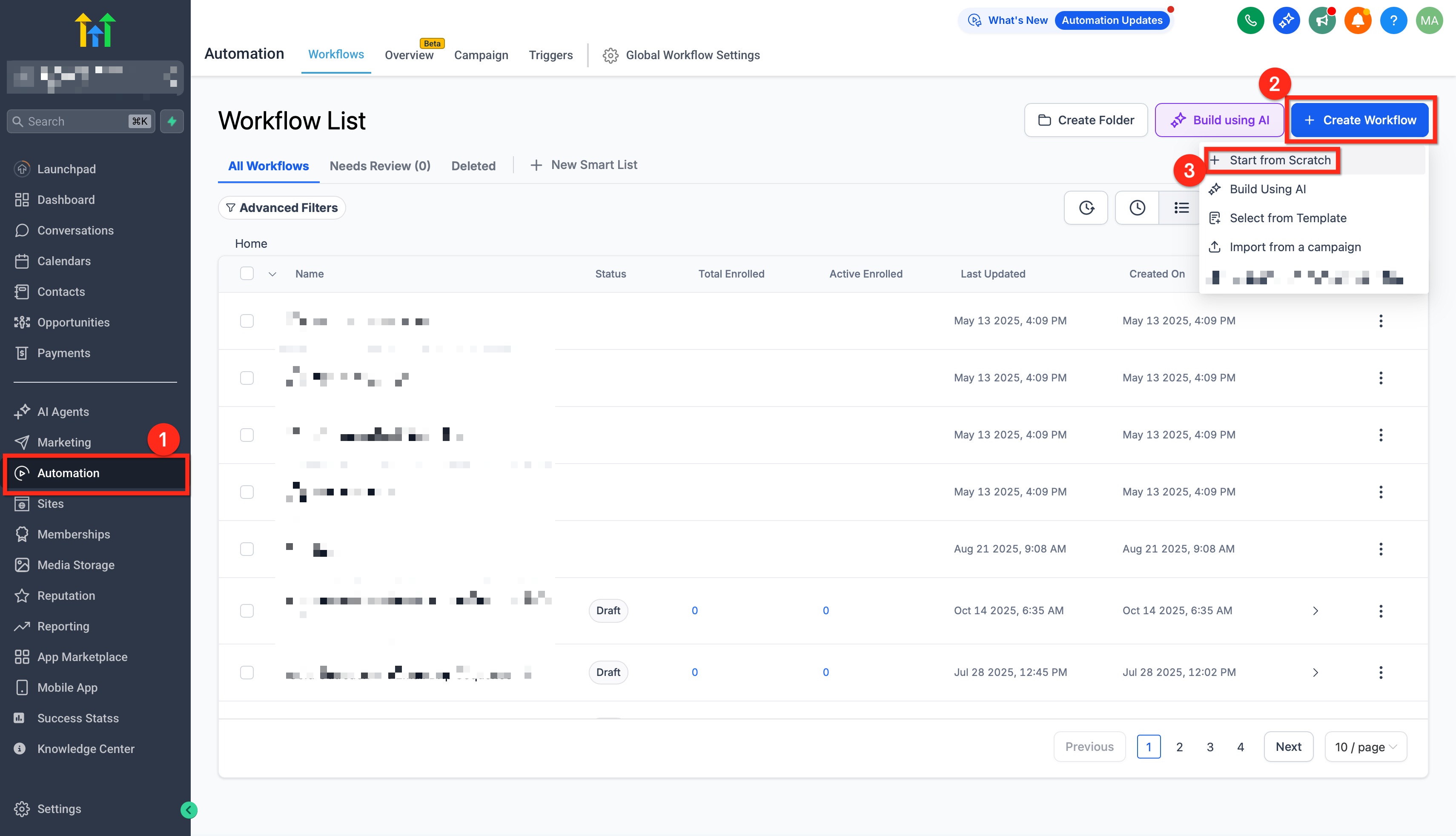
Click the + button where you want to insert the action, select Voicemail from the action list, and click Done.
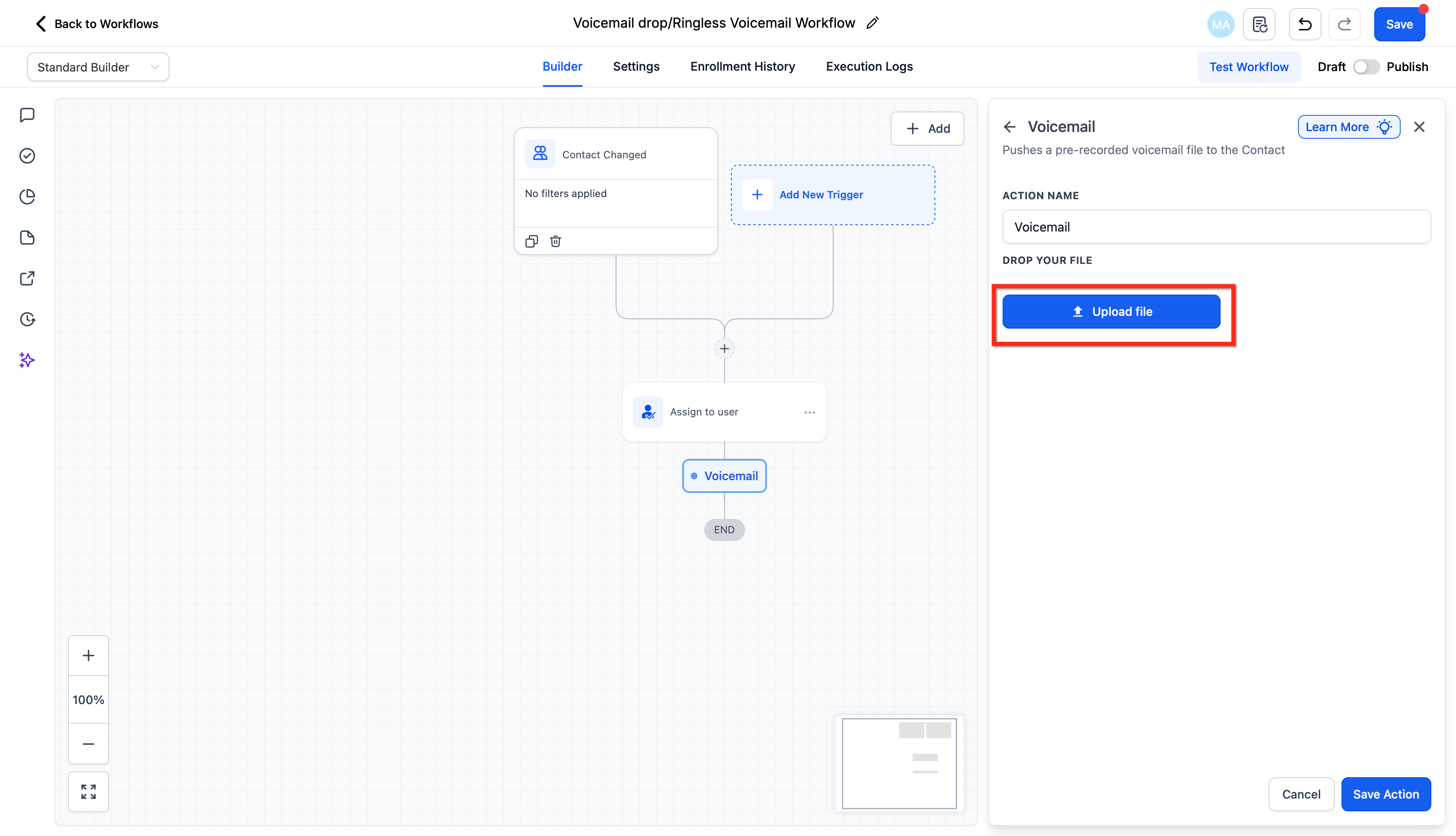
In the Action Name field, enter a descriptive label for internal reference. This name appears in the workflow builder and helps you identify the action's purpose.
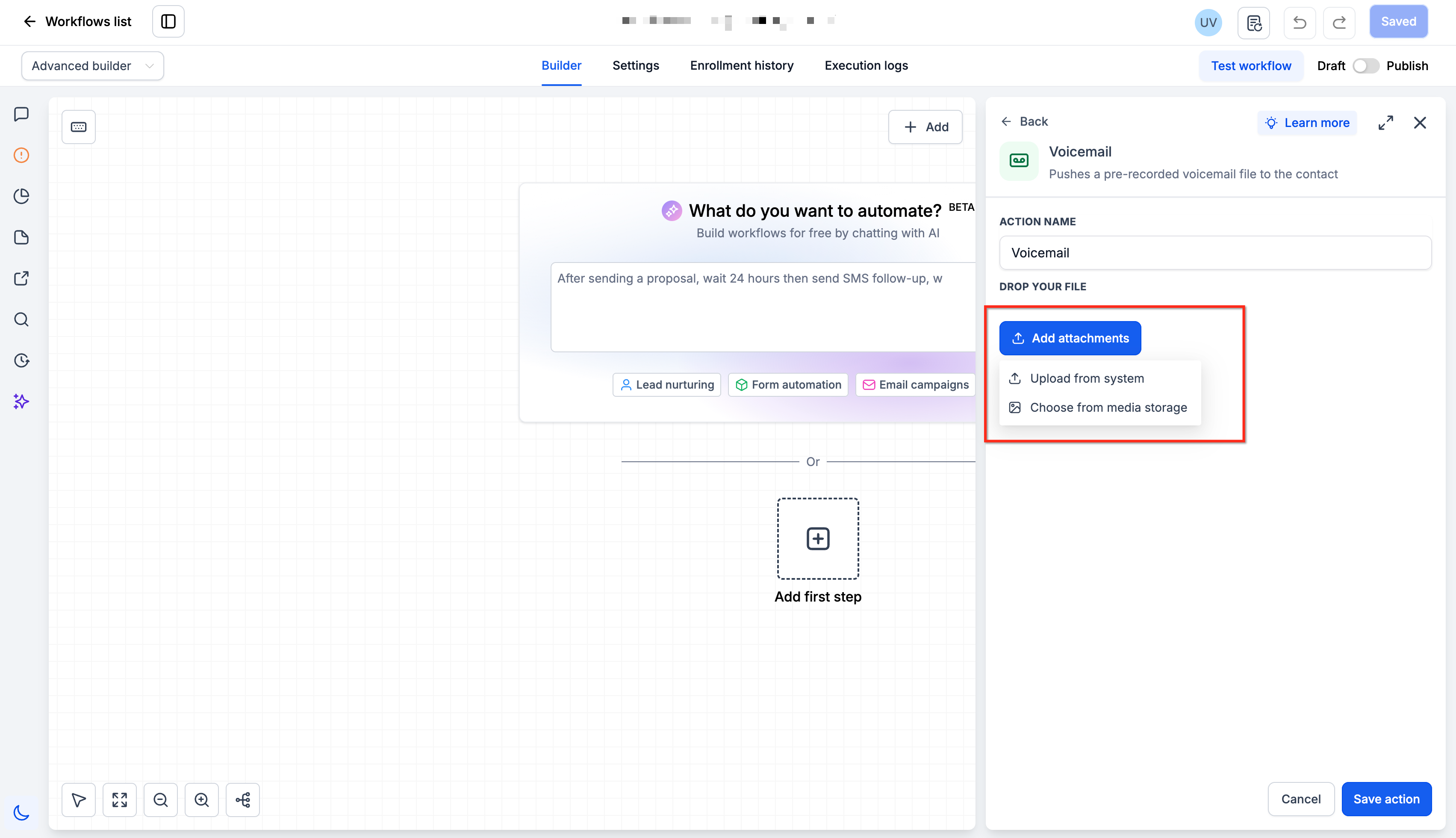
Click Add Attachments to upload a new file, or select an existing recording from the dropdown menu.
Confirm that the file is in MP3 or WAV format and exported at 64 kbps.
Assigning the contact to a user is optional and can help associate the contact with a specific team member before the voicemail is sent. Use this only when contact ownership is part of your workflow logic.
Leave this field blank if user assignment is not needed.
Click Save to add the Voicemail action to your workflow.
Testing Your Voicemail Drop Workflow
Before publishing the workflow for real contacts, run it with a test contact and confirm that the expected behavior occurs.
- The correct voicemail file is used.
- The audio plays clearly.
- The workflow triggers at the expected time.
- The message reaches voicemail as expected.
If the test does not succeed, see the Troubleshooting Ringless Voicemail section.
Troubleshooting Ringless Voicemail
Delivery problems can come from the audio file, contact phone number, workflow configuration, carrier behavior, or voicemail availability. Check the basics before changing the workflow or contacting Support.
- Confirm the contact has a valid phone number.
- Confirm the workflow actually enrolled the contact.
- Confirm the Voicemail action was reached.
- Confirm the uploaded file is MP3 or WAV at 64 kbps.
- Re-upload or re-export the audio if playback fails.
- Test the workflow with another contact or phone number.
- Confirm the destination has voicemail enabled.
- Check whether the account has reached its voicemail-drop limit.
Understanding Voicemail Sending Limits
Voicemail Drop sending limits may increase as the account establishes usage history. If you reach the current limit or need additional capacity, contact HighLevel Support.
These limits are subject to change and may vary based on account activity and carrier requirements.
Frequently Asked Questions
Was this article helpful?
That’s Great!
Thank you for your feedback
Sorry! We couldn't be helpful
Thank you for your feedback
Feedback sent
We appreciate your effort and will try to fix the article