The User Signup (Client Portal / Memberships) workflow trigger in HighLevel automatically starts workflows when a new user successfully registers through the Client Portal. Use it to send welcome emails, initiate onboarding sequences, and assign follow-up tasks without manual effort.
This helps businesses engage new users immediately and deliver a consistent onboarding experience.
TABLE OF CONTENTS
- What is the User Signup Workflow Trigger for Client Portal?
- Key Benefits of the User Signup Workflow Trigger
- How the User Signup Workflow Trigger Works
- User Signup vs. Other Membership Workflow Triggers
- How to Set Up the User Signup Workflow Trigger
- Frequently Asked Questions
- Related Articles
What is the User Signup Workflow Trigger for Client Portal?
The User Signup (Client Portal / Memberships) trigger starts a published workflow when a new user successfully registers through the Client Portal. It connects new registrations to automated onboarding, welcome communications, and follow-ups.
For example, a workflow can send a welcome email and assign a follow-up task to a team member after signup.
Key Benefits of the User Signup Workflow Trigger
Automating new registrations helps businesses welcome users faster, reduce repetitive work, and provide a consistent onboarding experience.
Automated Onboarding: Start onboarding workflows immediately after successful registration.
Welcome Communications: Send personalized emails and instructions to new users.
Reduced Manual Work: Eliminate manual signup tracking and follow-ups.
Personalized Engagement: Build tailored onboarding sequences using workflow actions.
Team Coordination: Assign follow-up tasks to team members automatically.
How the User Signup Workflow Trigger Works
The trigger connects successful Client Portal registrations to workflow actions, enabling businesses to engage users as soon as they sign up.
A new user opens the Client Portal signup page.
The user enters the required details and completes registration.
A successful signup activates the published workflow.
The configured actions execute, such as sending emails or assigning tasks.
Example: A business configures the trigger with an Email action to automatically send onboarding instructions after registration. Additional actions can be added for follow-ups or longer onboarding journeys.
User Signup vs. Other Membership Workflow Triggers
HighLevel offers different triggers for Client Portal registrations, course signups, and membership access. Choosing the right trigger ensures workflows respond to the intended event.
User Signup (Client Portal / Memberships): Runs when a new user successfully registers through the Client Portal.
Courses New Signup: Runs when a customer signs up for a qualifying course, membership offer, service, or product.
Offer Access Granted: Runs when a contact receives access to a membership offer.
Use the User Signup trigger specifically for Client Portal registration automation. For other events, refer to Workflow Trigger - Courses New Sign Up or Workflow Trigger - Offer Access Granted.
How to Set Up the User Signup Workflow Trigger
To automate onboarding after registration, add the signup trigger, configure the required actions, and publish the workflow.
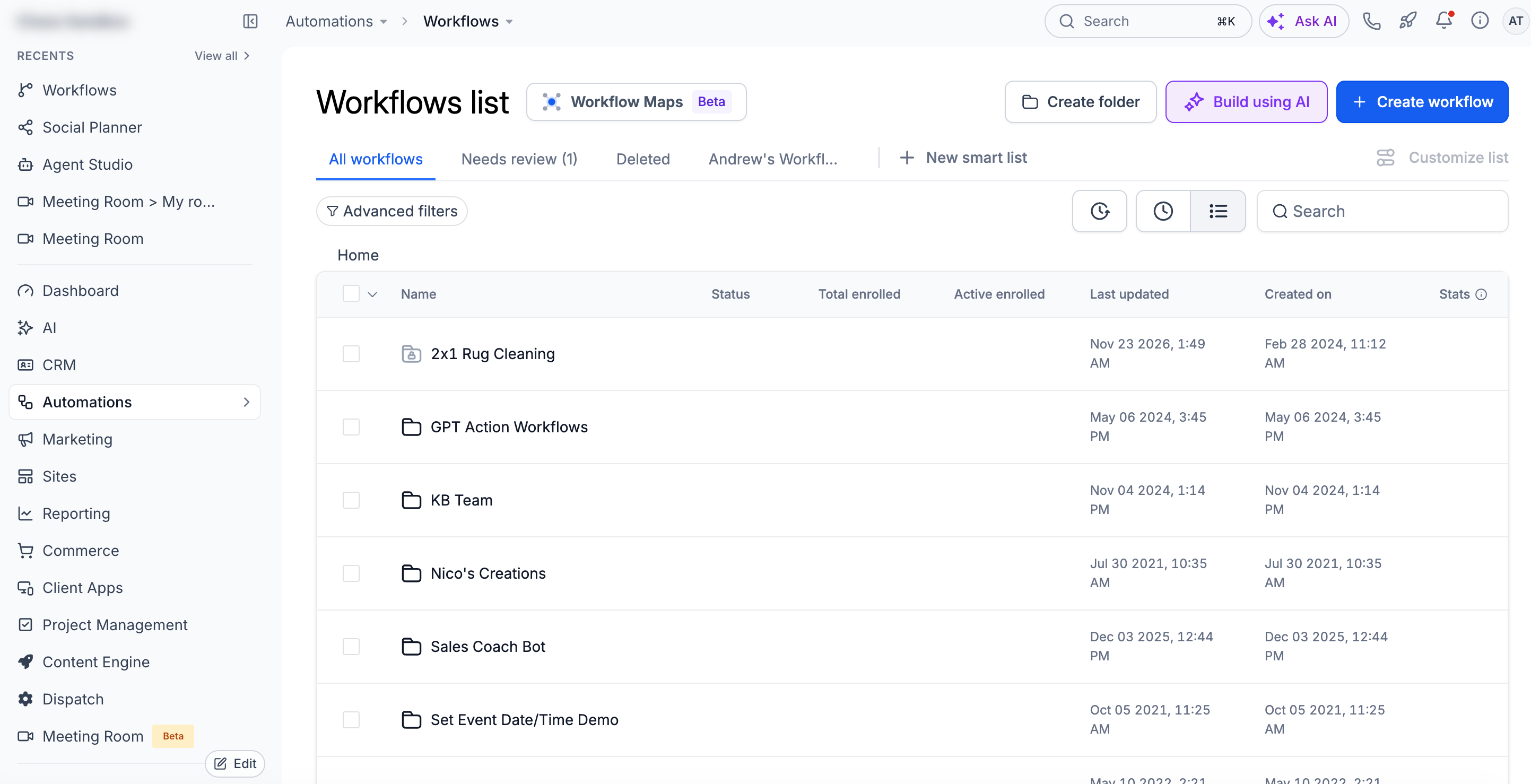
Step 1: Open the Workflow Builder
Go to Automation → Workflows.
Create a new workflow or open an existing one.
Open the workflow builder.
Step 2: Add the User Signup Trigger
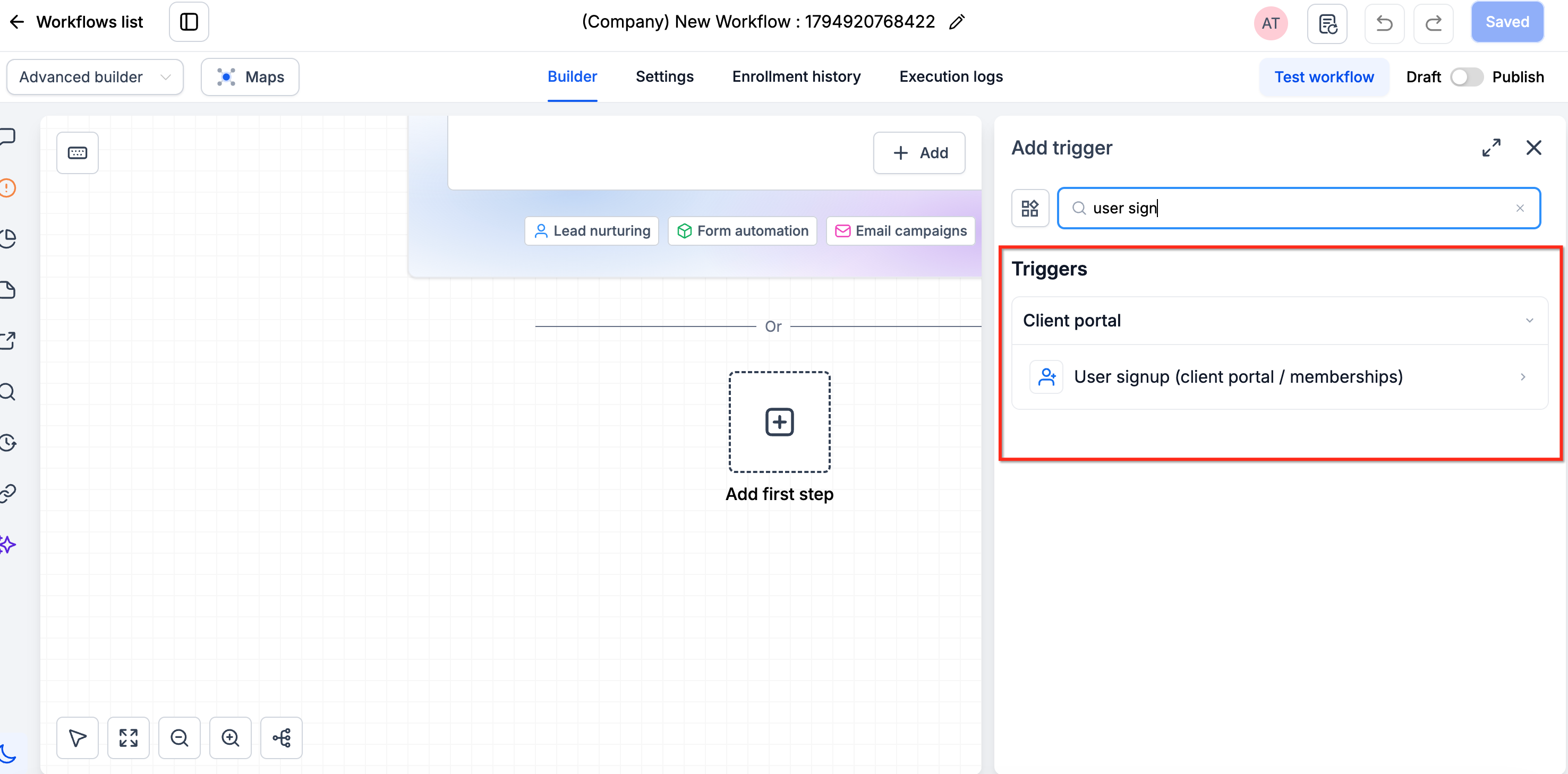
Click Add New Trigger.
Search for User Signup (Client Portal / Memberships).
Select the trigger.
Step 3: Configure Workflow Actions
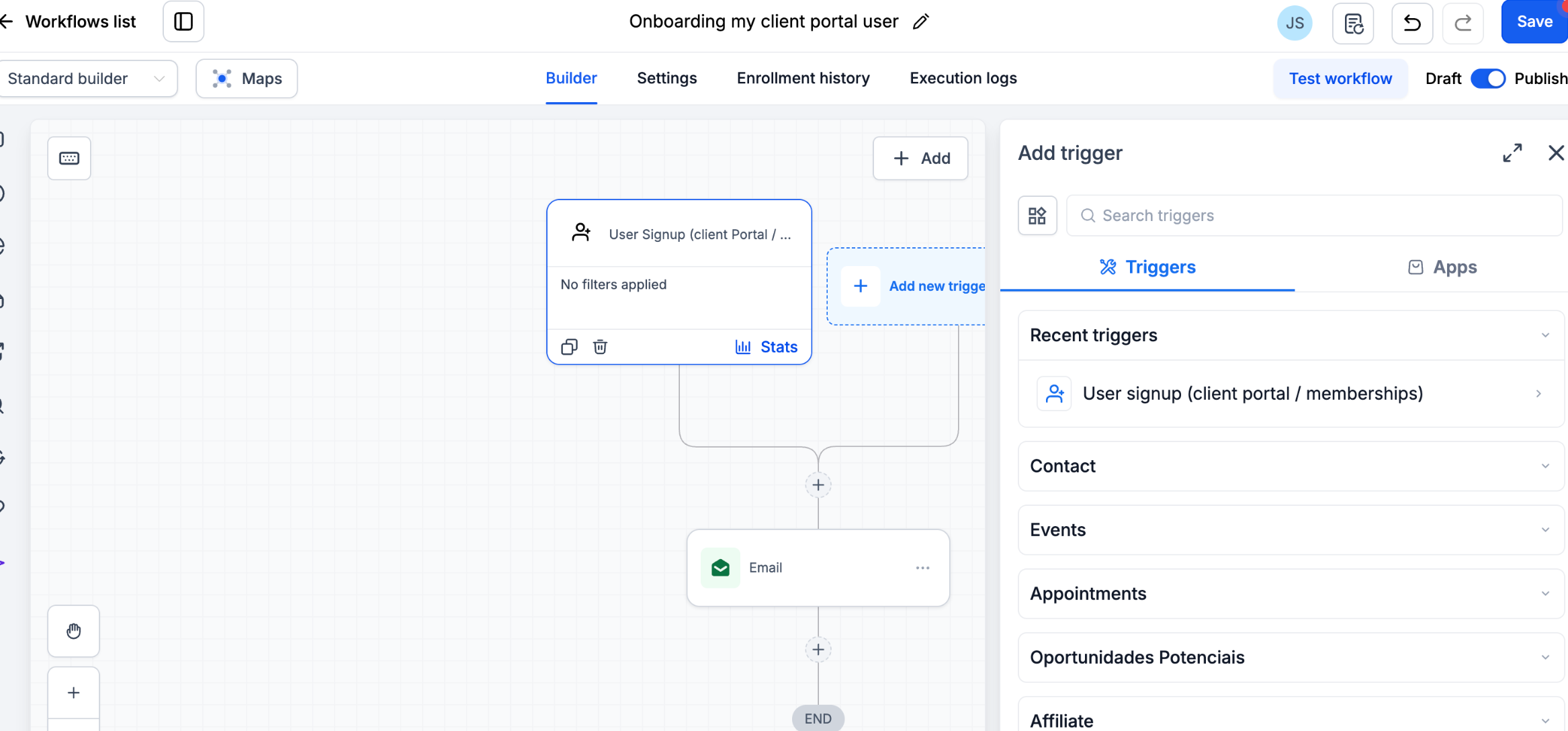
Click the + icon below the trigger.
Select and configure an action.
Add additional actions as needed.
Examples include:
Email: Send welcome emails and onboarding instructions.
Task Assignment: Create follow-up tasks for team members.
Additional Onboarding Actions: Build communication and follow-up sequences.
Step 4: Save and Publish
Review the trigger and actions.
Click Save.
Enable the Publish toggle.
Once published, the workflow is ready to execute whenever a new user successfully signs up through the Client Portal.
Step 5: Verify the Workflow
Confirm the workflow is saved and published.
Open the Client Portal signup page and complete a new user registration.
Check Enrollment History and Execution Logs for workflow activity.
Confirm the configured actions executed successfully.
For additional workflow configuration and troubleshooting guidance, see the Workflow Builder Walkthrough.
Frequently Asked Questions
Q: Can I automate actions other than welcome emails?
Yes. You can add multiple workflow actions, including onboarding sequences and follow-up tasks.
Q: Will the workflow run if it is saved but remains in Draft mode?
No. The workflow must be published. Saving alone does not activate it.
Q: Does this trigger replace existing membership welcome emails?
No. Workflow-based onboarding emails and existing membership welcome emails are separate functionalities.
Q: Will the trigger activate when an existing user logs in?
The trigger is intended for successful new registrations, not ordinary logins. Behavior involving existing accounts has not been confirmed.
Q: How do I troubleshoot a workflow that does not execute?
Confirm the workflow is published and properly configured. Review Enrollment History and Execution Logs. See the Workflow Builder Walkthrough for additional guidance.
Q: Does the trigger support filters?
Filter availability is not specified in the release documentation. The provided example shows the trigger without filters.
Related Articles
Was this article helpful?
That’s Great!
Thank you for your feedback
Sorry! We couldn't be helpful
Thank you for your feedback
Feedback sent
We appreciate your effort and will try to fix the article