This article explains how to use the AI Analyze Video action in workflows to understand videos with AI. You’ll find step-by-step configuration instructions, the video URLs that work, how to use the output, practical use cases, and answers to common questions.
Note: This is a premium action. Using this action will incur additional charges per execution.
Table of Contents
- What is AI Analyze Video Action in Workflows?
- Key Benefits of AI Analyze Video Action
- Action Details
- How to Use the AI Analyze Video Action
- Video URL Requirements
- Using the Output in Downstream Actions
- Use Cases
- Tips for Better Results
- Pricing
- Frequently Asked Questions
- Related Articles
What is AI Analyze Video Action in Workflows?
The AI Analyze Video action, available under AI Actions in Workflows, uses Google Gemini models to watch a video and return a text response. You provide the video URL and a prompt describing what you want the AI to look for, and the action returns its analysis as text you can use in downstream actions.
The model looks at the scenes and also listens to the audio. This is useful for summarizing videos, describing scenes, pulling out spoken or on-screen information, and listing what appears in a video with timestamps – giving your workflows the ability to understand video content rather than just pass a link along.
Key Benefits of AI Analyze Video Action
- Video Summaries: Turn a long video into a few bullet points that your team or your contacts can read in seconds.
- Scene and Speech Understanding: The model uses both the picture and the sound, so it can describe what happens and what is said.
- Timestamps: Ask for timestamps to find the exact moment a product, a person, or a topic appears.
- YouTube Links Supported: Analyze public YouTube videos, including youtu.be and Shorts links, as well as direct video file links.
- Flexible Prompting: Ask the AI anything about the video – the prompt controls exactly what it looks for and how it responds.
- Pairs with Video Generation: Combine with the AI Video Generation action to describe or check a video your workflow just created.
Action Details
| Field | Description |
|---|---|
| Action Name | A custom name for the action, used to identify it on the workflow canvas and in execution logs. |
| Model | The Google Gemini model used for analysis. Two models are available: Gemini 3.8 Flash (default) and Gemini 3.5 Flash Lite. |
| Video | Required. A public HTTPS URL of the video to analyze: a public YouTube link or a direct link to a video file (MP4, MOV, WebM, MPEG, FLV, WMV, or 3GP). Supply it from a previous step or a custom value, or type it in. See Video URL Requirements below. |
| Analysis Prompt | Required. Instructions telling the AI what to look for in the video and how to respond. Supports custom values for dynamic prompts. |
How to Use the AI Analyze Video Action
Step 1: Add the Action
- Go to Automation > Workflows.
- Create a new workflow or edit an existing one.
- Click the + icon to add a new action. Search for “analyze video” or open AI Actions, then select AI analyze video.
- Give the action a clear, descriptive name so it’s easy to identify on the canvas.
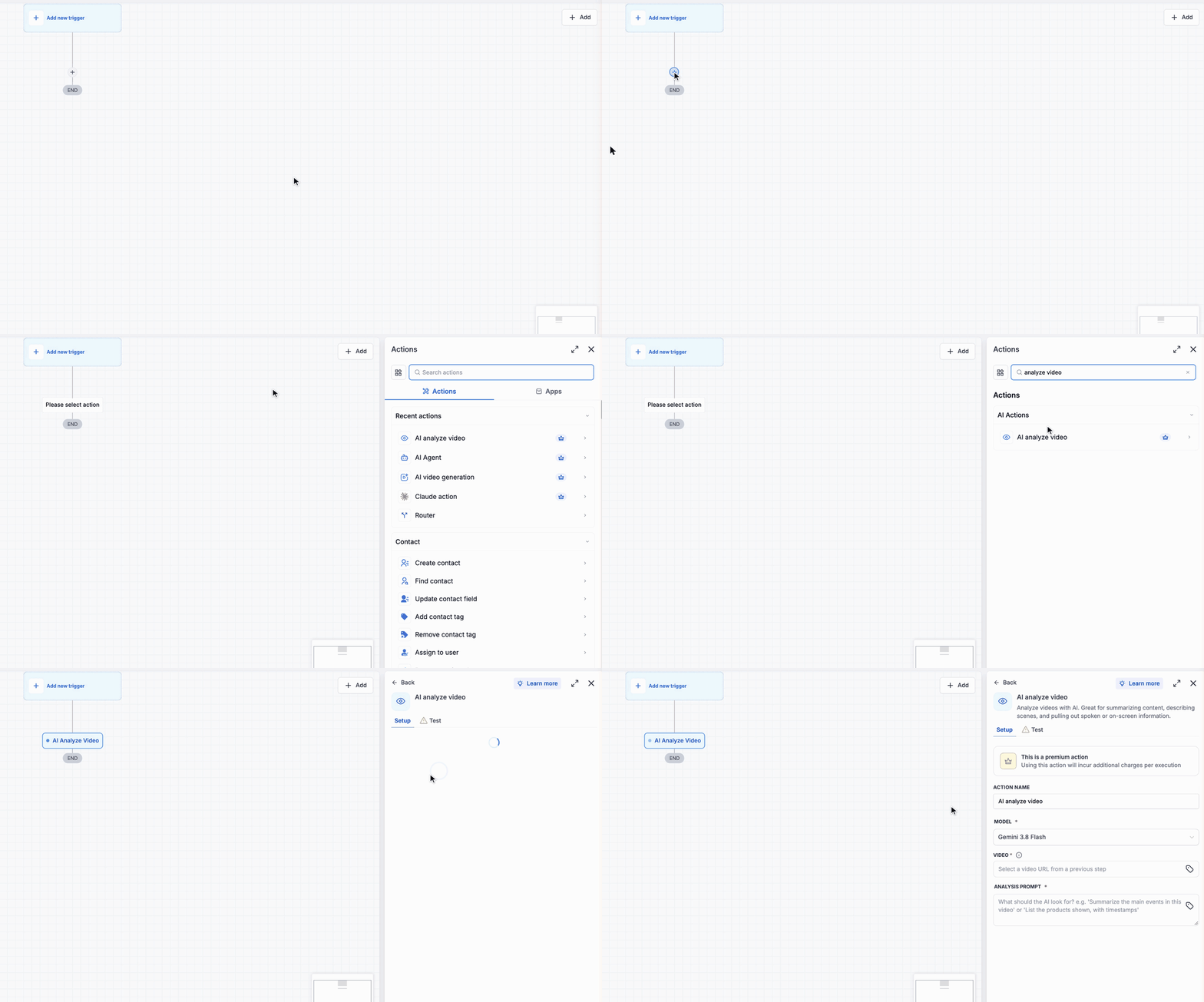
Adding the AI Analyze Video action from AI Actions
Step 2: Select the Model
Choose the Gemini model to use for analysis. Two models are available:
- Gemini 3.8 Flash (default)
- Gemini 3.5 Flash Lite
If you’re unsure which to use, run the same video and prompt through both and compare the responses before publishing the workflow.
Step 3: Provide the Video URL
Enter the URL of the video you want to analyze. You can type or paste a link, or click the tag icon to insert a value:
- Previous steps – a video URL produced by an earlier step in the workflow, for example the output of an AI Video Generation action or a value from an inbound webhook.
- Custom values – a contact field or other custom value that holds a video URL.
The URL must be a public HTTPS link. Hover over the info icon next to the field label to see the supported file formats.
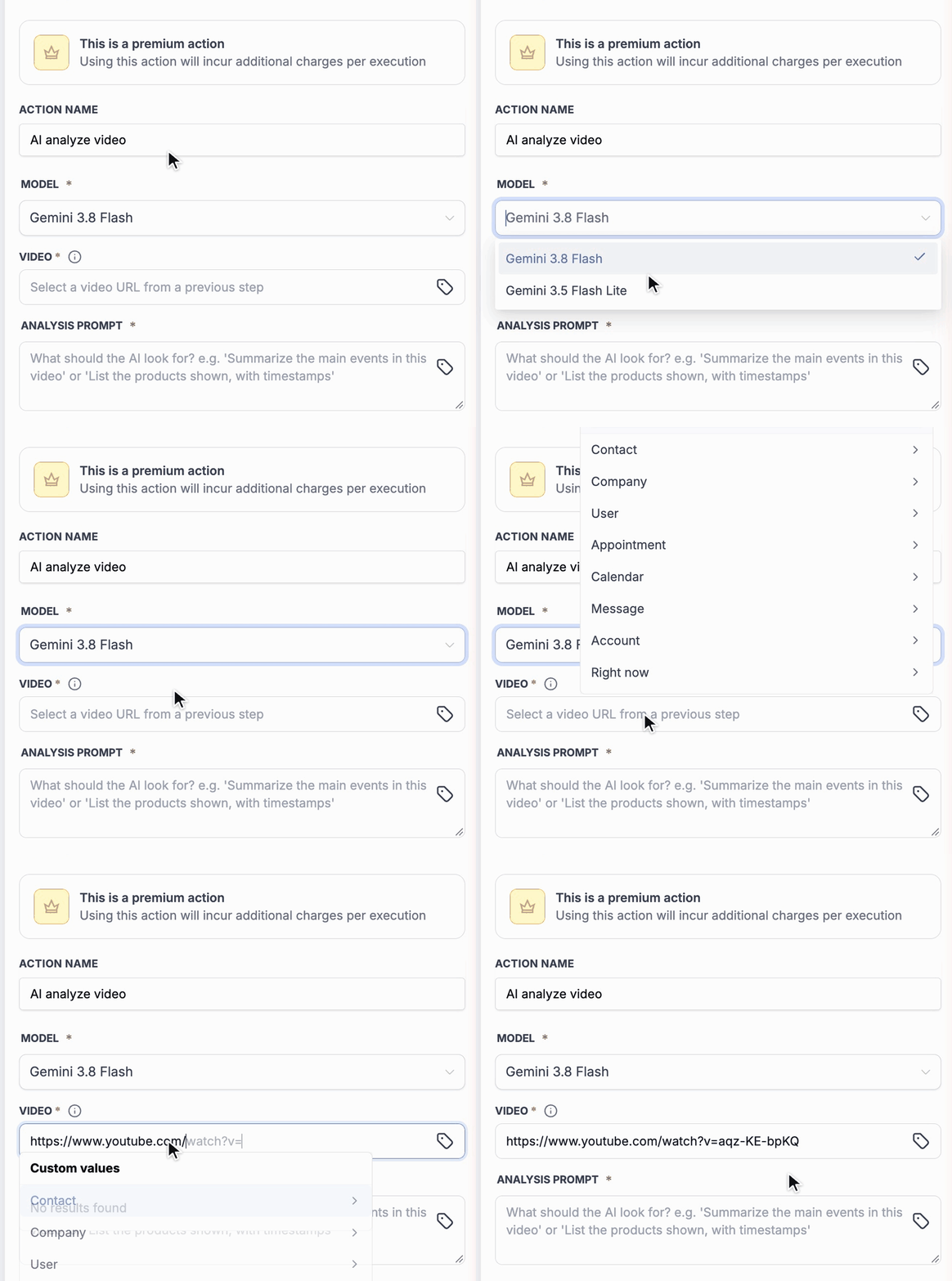
Choosing the model and adding a YouTube video URL
Step 4: Enter the Analysis Prompt
Write a prompt telling the AI what to look for in the video and how to respond. The more specific your prompt, the more useful the output.
Examples:
- Summarize the main events in this video in 3 bullet points.
- List the products shown, with timestamps.
- Write down everything the speaker says about pricing.
- Read any text shown on screen and return it as a list.
The prompt field supports custom values, so you can build the prompt dynamically from contact fields, webhook data, or earlier action output.
Step 5: Save the Action
Click Save action. The analysis output will be available as a variable in all downstream actions once the workflow executes.
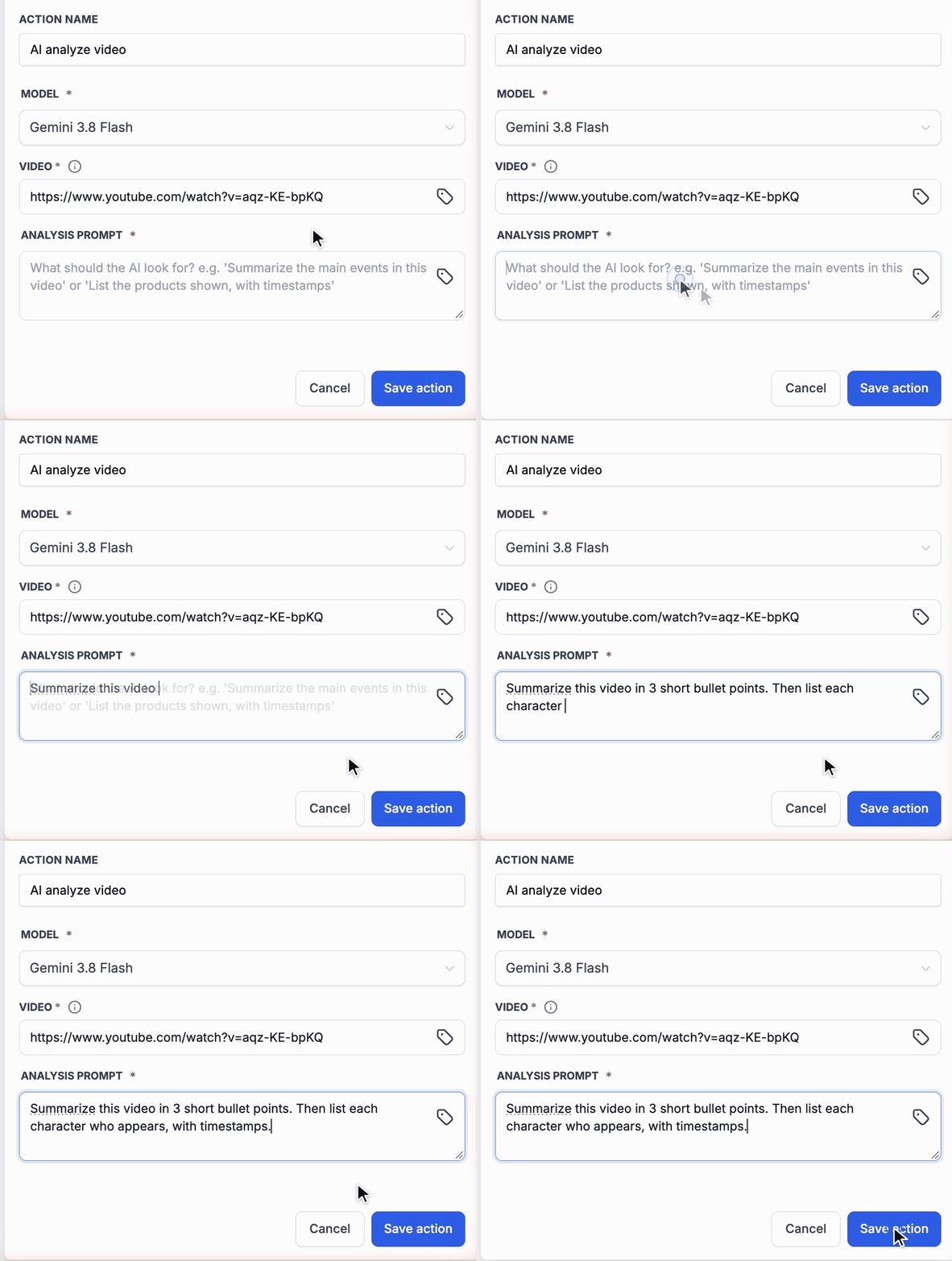
Writing the analysis prompt and saving the action
Step 6: Test the Action (Optional)
You can test the AI Analyze Video action directly from the builder and see the AI’s answer before you publish the workflow. The test runs with data from your trigger, so test the trigger first.
- Open the Test tab. The Input view shows the values the action will use, such as the video URL and the prompt.
- Click Test Action (or Retest if the action was tested before).
- When the run finishes, the Output view shows the result. Click the Response value to read the AI’s full answer.
A test can take some time for long videos. In our tests, a 10 minute YouTube video took about 30 seconds. A test run analyzes the real video and is billed like a normal execution.
In the example below, the video is the public YouTube short film Big Buck Bunny, and the prompt asks for a 3 bullet summary.

The example video: Big Buck Bunny (© Blender Foundation, CC BY 3.0)
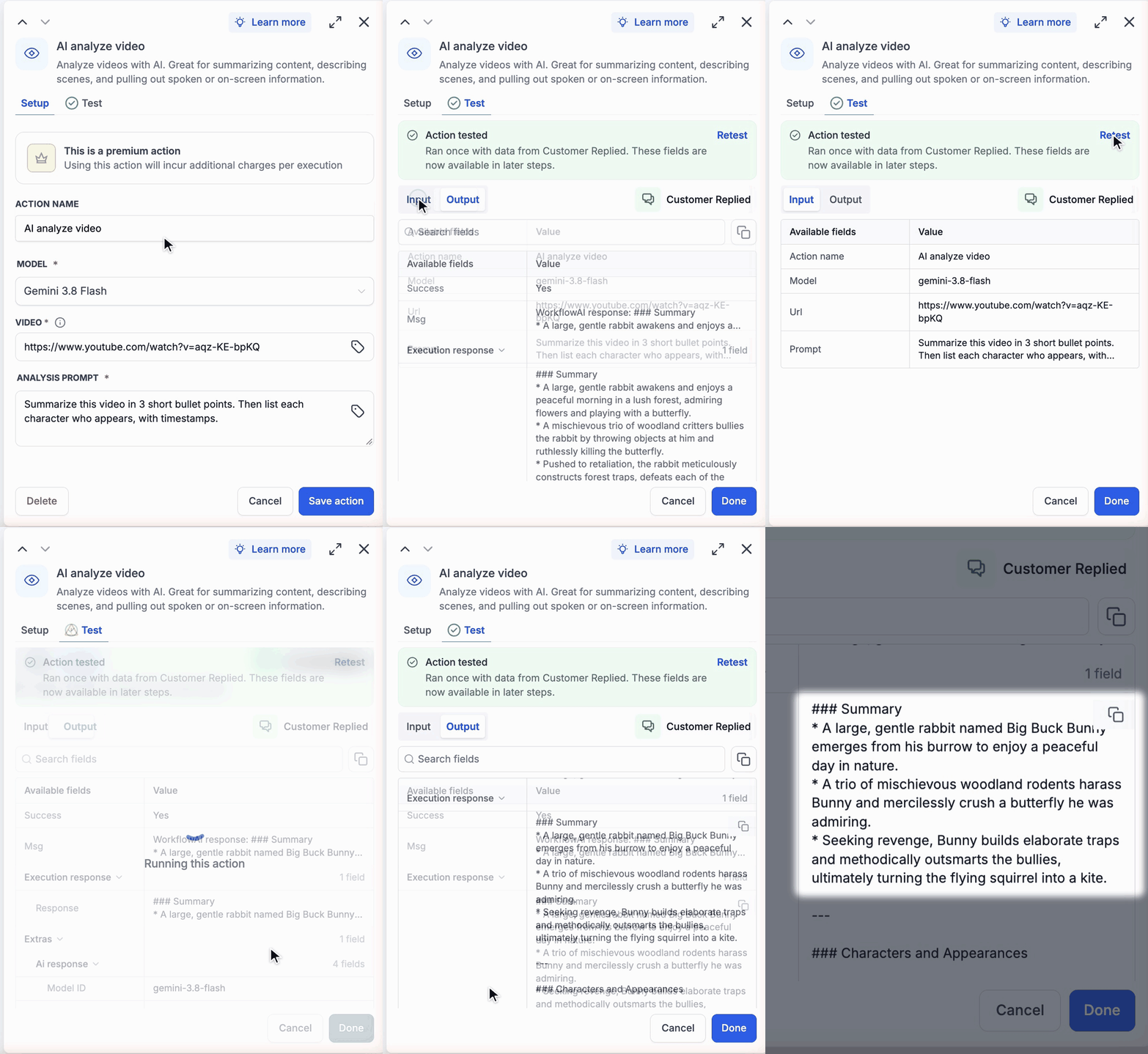
Testing the action and reading the summary in the Response
Video URL Requirements
The AI model fetches the video directly from the URL. The URL must be public: anyone must be able to open it without signing in.
| Video link | Works? | Notes |
|---|---|---|
| Public YouTube video (youtube.com/watch, youtu.be, and Shorts links) | Yes | Paste the normal share link. The video must be public. |
| Direct link to a video file (ends in .mp4, .webm, .mov, and so on) | Yes | The link must open or download the file itself without a login. |
| Media Storage video, including videos created by AI Video Generation | Yes | |
| Vimeo, TikTok, and other video platform pages | No | These sites block automated access, so the model cannot fetch the video. |
| Links that need a login, a password, or a share permission | No | For example a private cloud drive link or an expired signed link. |
| A web page that is not a video | No | Use a link to the video itself, not to a page that shows the video. |
Tip: Open the URL in a private or incognito browser window. If the video plays or downloads without signing in, the action can usually reach it. For hosted platforms other than YouTube, use a direct file link instead of the page link.
Important: Always point the action at a real video. If the URL is a normal web page, the action may still return a response, and that response will not describe a real video.
Common Errors
| Error message | What it means | What to do |
|---|---|---|
| Cannot fetch content from the provided URL. The URL is blocked by robots.txt rules. | The website does not allow automated access. Vimeo and TikTok pages return this error. | Use a public YouTube link or a direct video file link instead. |
| Cannot fetch content from the provided URL. Please ensure the URL is valid and accessible. Status: URL_ERROR_ERROR_OTHER | The URL could not be opened, for example because it needs a login or no longer exists. | Open the URL in a private browser window and make sure the video loads. |
| Cannot fetch content from the provided URL. Status: URL_REJECTED_REJECTED_SCHEDULE_TIME_OVER_DEADLINE | The video took too long to fetch. | Run the action again. If it keeps failing, use a smaller file or a YouTube link. |
Using the Output in Downstream Actions
Once the action executes, its response is available in any subsequent action through the custom value picker. Open the picker, go to Previous steps, select AI analyze video, select the step, and choose Response.
The output is a text value containing the AI’s answer to your prompt – a summary, a transcript, a list with timestamps, or whatever else your prompt asked for. The response can include Markdown formatting such as headings (###) and bullets (*). If you need plain text, ask for it in the prompt, for example “Return plain text with no Markdown.”
Because the output is text, you can use it anywhere a text value is accepted: save it to a contact custom field, include it in an email or SMS, pass it to an outbound webhook, or feed it into another AI action for further processing.
Use Cases
1. Summarizing Videos Shared by Leads
Scenario: Leads send you a YouTube link to a property tour, a product demo, or a problem they need help with. Your team wants a short summary on the contact record instead of watching every video.
Setup:
- Trigger: Form Submitted (with a video link field)
- Action 1: AI Analyze Video – Video from the form field. Prompt: “Summarize this video in 3 bullet points.”
- Action 2: Update Contact Field – Save the Response to a custom field for review.
2. Checking a Generated Video
Scenario: Your workflow creates a video with the AI Video Generation action, and you want a check on what was produced before it goes out to a customer.
Setup:
- Action 1: AI Video Generation – Generate the video from your prompt.
- Action 2: AI Analyze Video – Use the Video URL output from the previous action. Prompt: “Describe this video. Does it show a coffee cup on a wooden table? Answer Yes or No first.”
- Action 3: If/Else or Internal Notification – Route the workflow based on the answer, or send it to your team for a quick check before delivery.
3. Content Notes from Webinar Recordings
Scenario: Recordings arrive from an external system as direct video links. You want show notes, key points, and timestamps for each one.
Setup:
- Trigger: Inbound Webhook (carrying the video URL)
- Action 1: AI Analyze Video – Prompt: “List the key topics discussed, each with a timestamp.”
- Action 2: Outbound Webhook or Send Email – Send the notes to your content team.
More Ideas
- Testimonial review: Pull out the strongest quotes from customer testimonial videos.
- Submission checks: Confirm a submitted video shows what was asked for, such as a completed install or an unboxing.
- Video tagging: Ask the model to return a short list of topics or categories, then use that output to tag contacts or route the workflow.
- Transcripts: Ask for a written record of what the speaker says, then send it to your team or store it on the contact.
Tips for Better Results
- Be specific about the output you want. “Return only the product names, one per line” gives you a usable value. “Tell me about this video” gives you a long paragraph.
- Ask for timestamps when you need to find a moment in the video.
- Use public YouTube links or direct file links. Page links from other video platforms are often blocked.
- Ask for a consistent format if you plan to store the output in a custom field or use it in an If/Else branch.
- Test with a few real videos before running the workflow at volume.
Pricing
Video analysis is billed per execution.
Your actual cost per analysis will vary depending on how you configure the action. The main factors are:
- Model – the Gemini model you select.
- Video length – a longer video gives the model more to process and costs more than a short clip.
- Response length – a long, detailed answer costs more than a short one.
Frequently Asked Questions
Q: Can I use a YouTube link?
Yes. Public YouTube videos work, including youtube.com/watch, youtu.be, and YouTube Shorts links. Paste the normal share link.
Q: Can I use any public video URL?
Not every one. Public YouTube links and direct links to a video file work. Page links from platforms such as Vimeo and TikTok do not work, because these sites block automated access. For those, use a direct file link if the platform gives you one.
Q: Which video formats are supported?
MP4, MOV, WebM, MPEG, FLV, WMV, and 3GP.
Q: What happens if the video URL is behind a login?
The action fails. The AI model fetches the video directly from the URL, so it must be public without a login, token, or permission check. Open the URL in a private browser window to confirm it loads for anyone.
Q: Does the AI listen to the audio?
Yes. The model uses both the picture and the sound, so you can ask about what is said in the video as well as what is shown.
Q: How long can the video be?
In our tests, a 10 minute YouTube video worked and took about 30 seconds.
Q: Which model should I choose?
Two Gemini models are available: Gemini 3.8 Flash (default) and Gemini 3.5 Flash Lite. If you’re unsure, run the same video and prompt through both and compare the responses before publishing the workflow.
Q: What format is the output in?
The output is a text value named Response. It can include Markdown formatting, such as headings and bullets. Ask for plain text in your prompt if you need it.
Q: Why did the action fail with a timeout error?
The video took too long to fetch. Run the action again. If it keeps failing, use a smaller file or a YouTube link.
Q: Can I use this together with the AI Video Generation action?
Yes. Add AI Analyze Video after an AI Video Generation step and pass in the generated Video URL. This lets you describe or check what was produced before the video is sent onward.
Q: Can I analyze more than one video in a single action?
Each AI Analyze Video action processes one video URL. To analyze several videos in a workflow, add a separate action for each, and reference each action’s output individually in your downstream steps.
Related Articles
- Workflow Action – AI Video Generation
- Workflow Action – AI Analyze Image
- Workflow Action – AI Image Generation
- Workflow Action - AI Agent
Was this article helpful?
That’s Great!
Thank you for your feedback
Sorry! We couldn't be helpful
Thank you for your feedback
Feedback sent
We appreciate your effort and will try to fix the article