Branded App AI Review Automation makes it faster and easier to prepare your Branded Mobile App for submission in HighLevel. Instead of waiting up to five days for a manual review, you can receive automated feedback on your app details in seconds.
The updated Branded Mobile App Builder helps you configure branding, enter app information, resolve verification issues, and submit your app through a guided process. This reduces avoidable submission errors and helps move your app toward publication faster.
TABLE OF CONTENTS
- What is Branded App AI Review Automation?
- Branded Mobile App Builder Overview
- Branding Requirements
- App Setup Details
- AI Verification Checks
- Understanding Verification Results
- How to Set Up and Verify Your Branded Mobile App
- Frequently Asked Questions
- Related Articles
What is Branded App AI Review Automation?
Branded App AI Review Automation is an automated verification process built into HighLevel's Branded Mobile App Builder. It checks required app information before submission, helping identify missing details, inaccessible URLs, credential issues, and other problems that could delay the app publishing process.
Previously, app details underwent a manual review that could take up to five days. With AI-powered verification, users receive results in seconds and can correct flagged issues immediately.
The new Verification tab displays the results of each check, identifies issues requiring attention, and provides direct actions to resolve them. Once all required checks pass, the app can be submitted for the next stage of the app-building and store setup process.
After submission, HighLevel uses its automated system, Pilot, to streamline store setup without requiring the previous manual review.
Note: AI verification takes place before app submission. Apple and Google maintain their own app review processes, and passing HighLevel's checks does not guarantee approval by either store.
Branded Mobile App Builder Overview
The Branded Mobile App Builder provides a centralized workspace for preparing and submitting your app. Its guided interface helps you track progress, complete required information, and understand what happens between purchasing the app and making it available to users.
Navigate to Sites → Client Portal → Branded Mobile App in your HighLevel sub-account to access the builder.
The interface contains four main tabs:
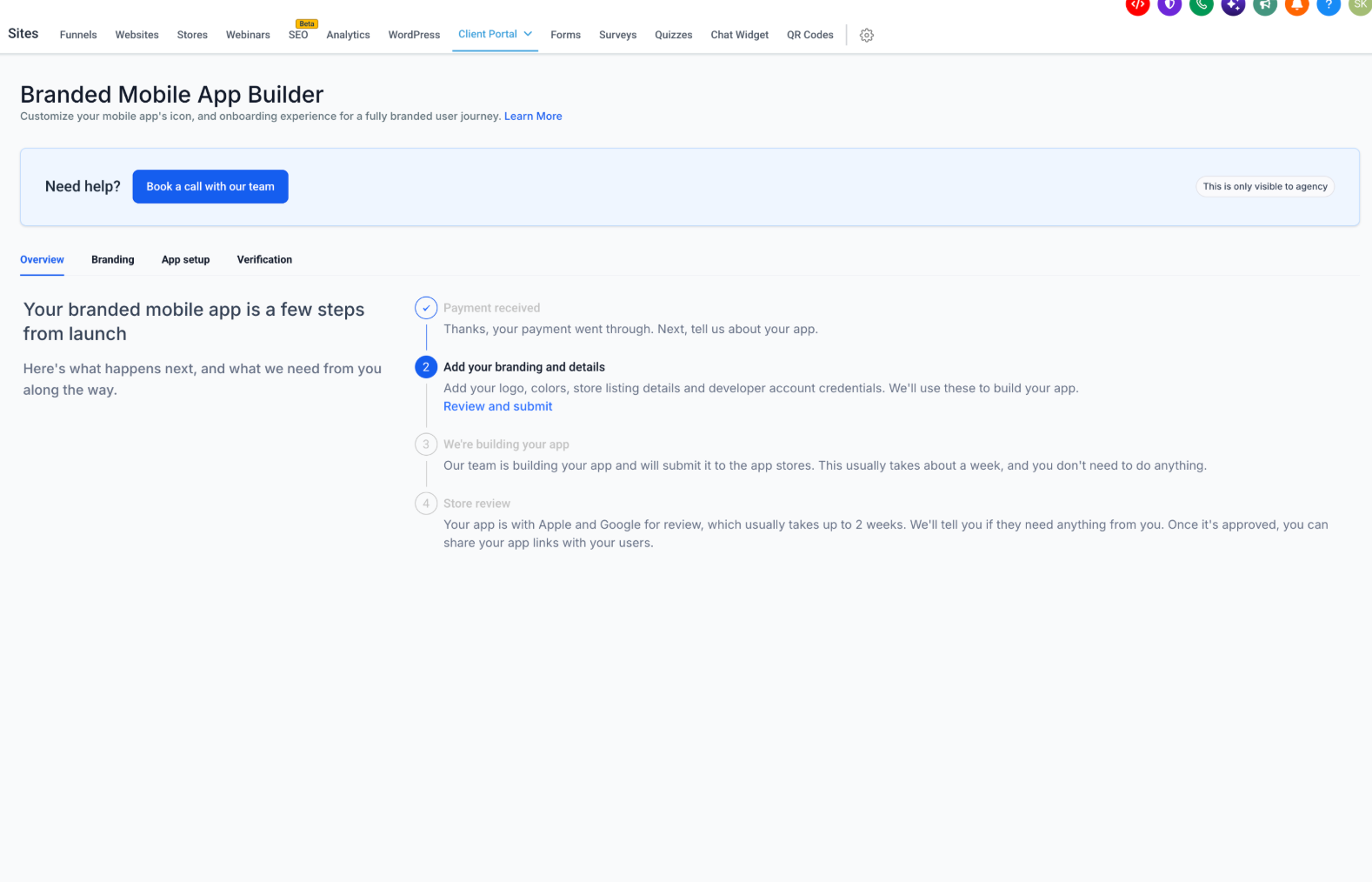
Overview: Displays your app's launch progress and the steps remaining before publication.
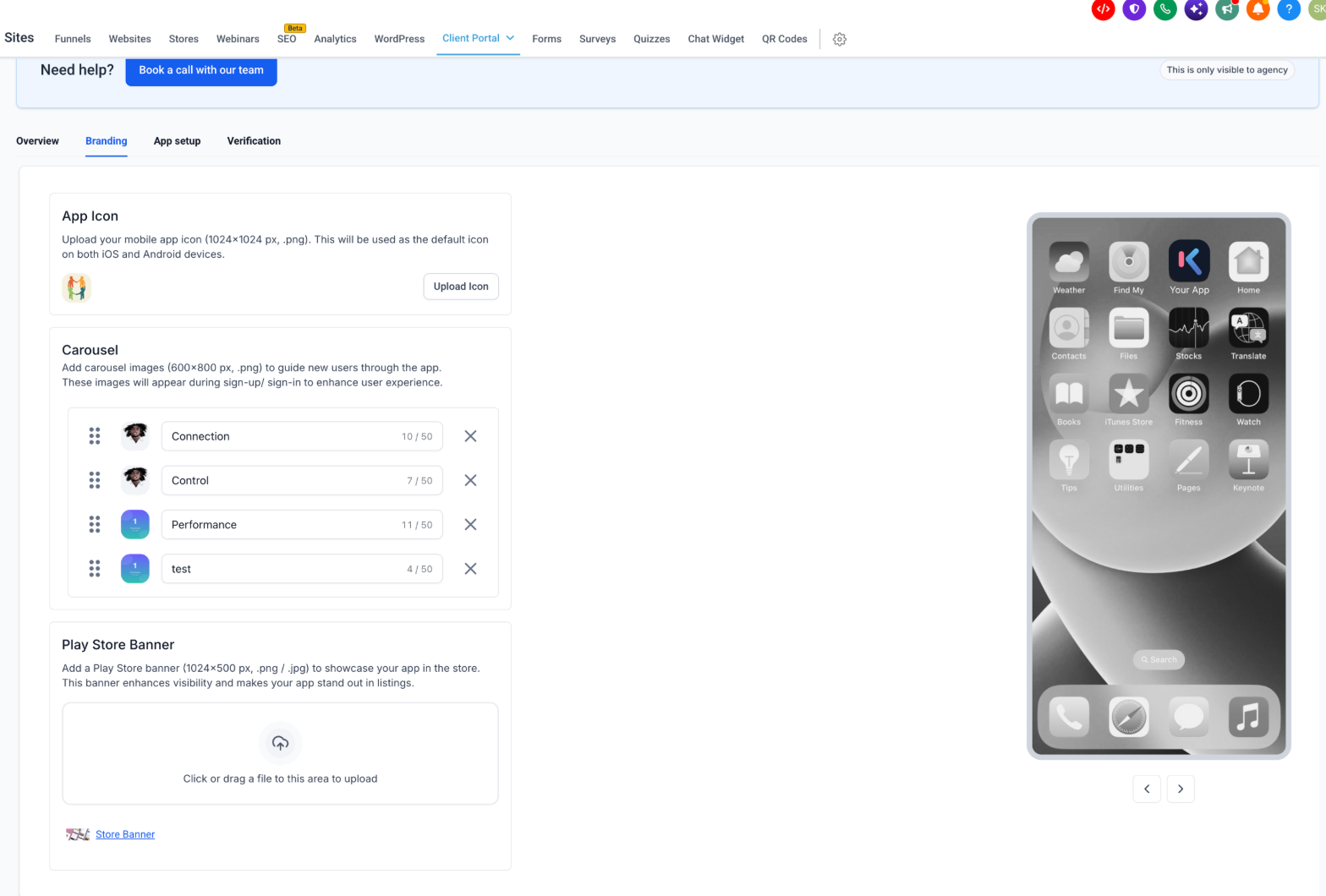
Branding: Lets you upload and configure app icons, carousel images, and the Play Store banner.
App setup: Collects personal information, app details, and developer account information.
Verification: Runs automated checks and highlights issues that must be resolved before submission.
The Overview page also displays the overall app launch journey:
Payment received: Confirms successful payment for the Branded Mobile App.
Add your branding and details: Requires you to complete the information needed to build and submit your app.
We're building your app: Indicates that HighLevel is building the app and preparing its submission to the app stores.
Store review: Indicates that the app has reached the Apple or Google review stage.
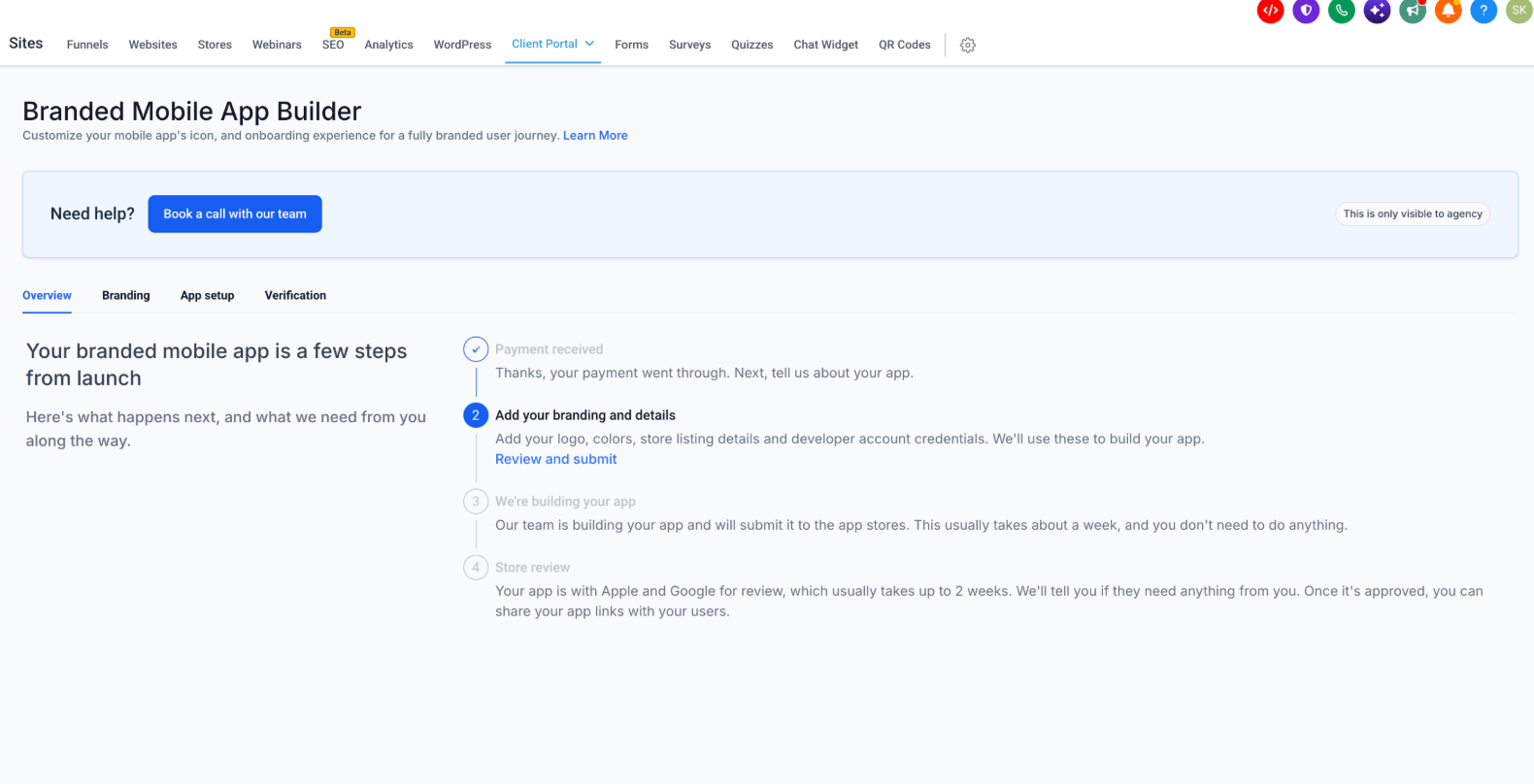
Note: The Book a call with our team option is available to eligible agency users who need assistance with the setup process. It is not part of the automated verification requirements.
Branding Requirements
Your app's branding determines how it appears on mobile devices and in app store listings. Providing images in the required dimensions and formats helps ensure your branding displays consistently and can pass the applicable verification checks.
Open the Branding tab to configure the following assets.
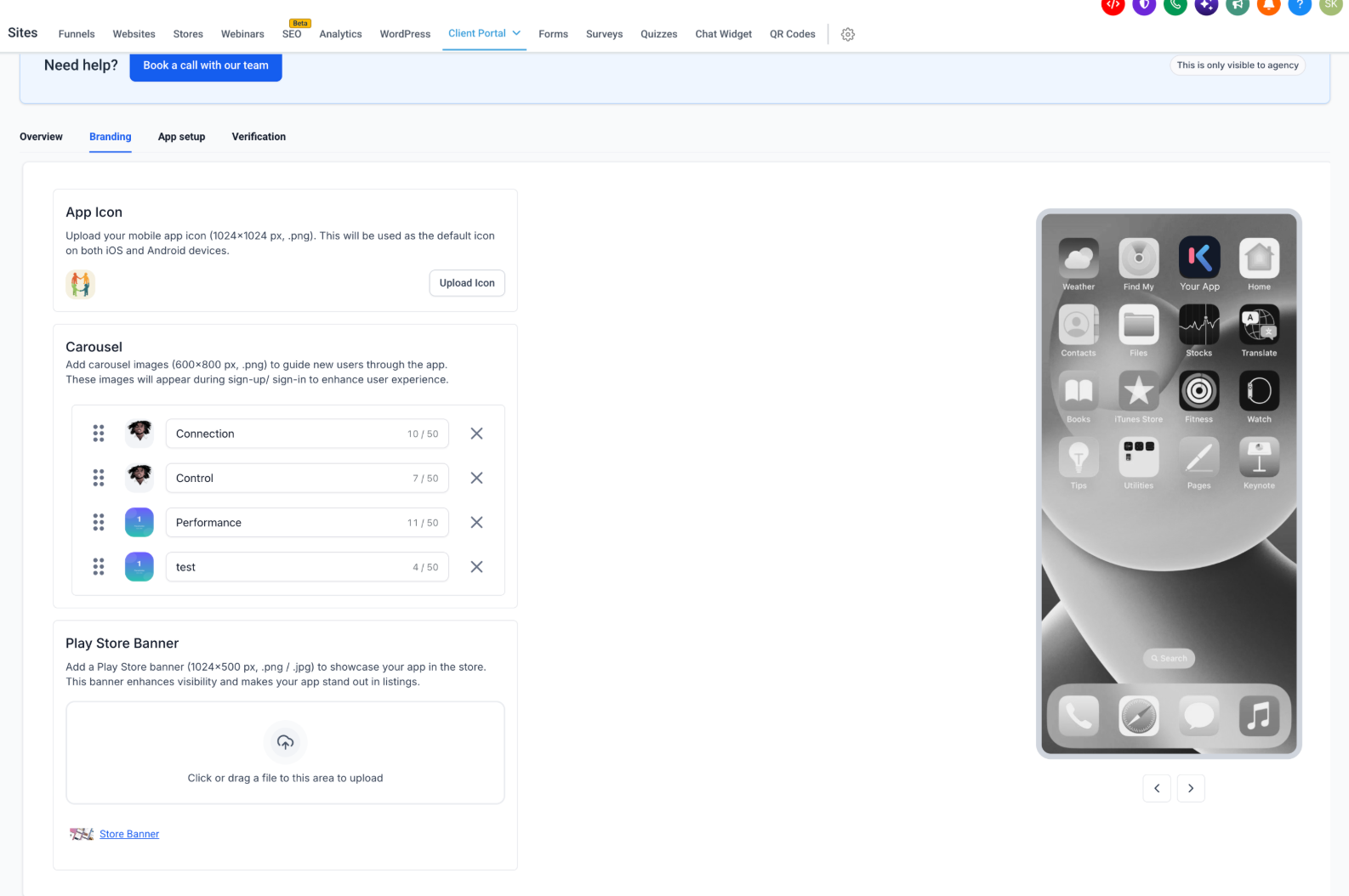
App Icon
The app icon represents your brand on iOS and Android devices.
Upload an icon that meets these requirements:
Dimensions: 1024 × 1024 pixels
File format: PNG
Usage: Default app icon for iOS and Android devices
Click Upload Icon to select your image.
Carousel
Carousel images appear during the app's signup or sign-in experience. They help introduce users to your brand and highlight important features.
The displayed upload requirements are:
Dimensions: 600 × 800 pixels
File format: PNG
For each carousel item, you can configure an image and title. The interface displays a 50-character counter for each title.
You can also rearrange carousel items using their drag handles or remove items using the X icon.
The updated branding experience uses a more compatible image format to provide consistent carousel appearance across supported devices.
Play Store Banner
The Play Store banner helps showcase your app in its Google Play listing.
The displayed requirements are:
Dimensions: 1024 × 500 pixels
File formats: PNG or JPG
Click the upload area or drag a supported image into it.
The mobile preview on the right side of the Branding page helps you review how your app branding appears on a device.
App Setup Details
App setup collects the business, app listing, and developer information required to prepare your Branded Mobile App. Completing these details accurately helps the automated verification process validate your submission and reduces the likelihood of corrections later.
The App setup tab contains three stages:
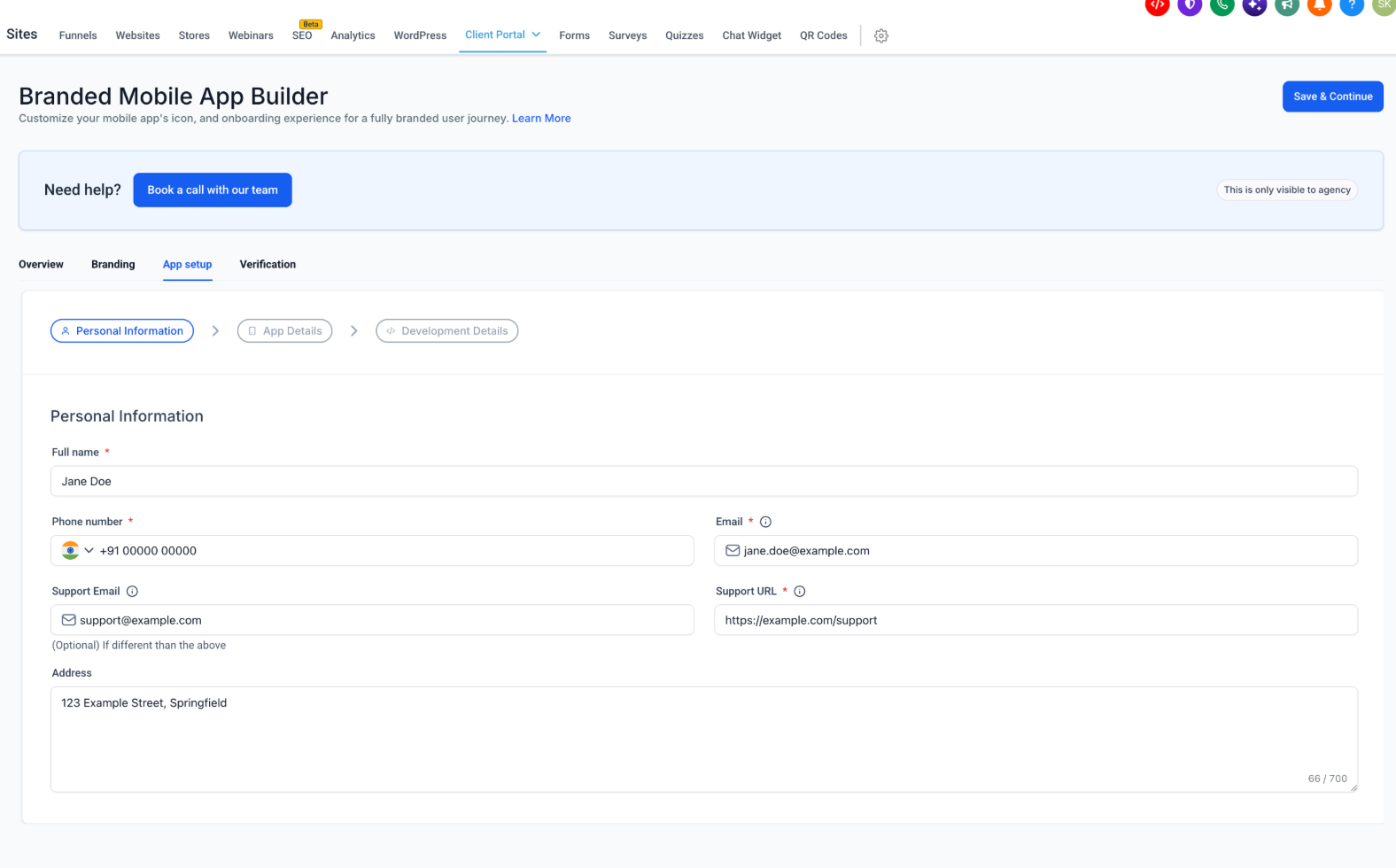
Personal Information
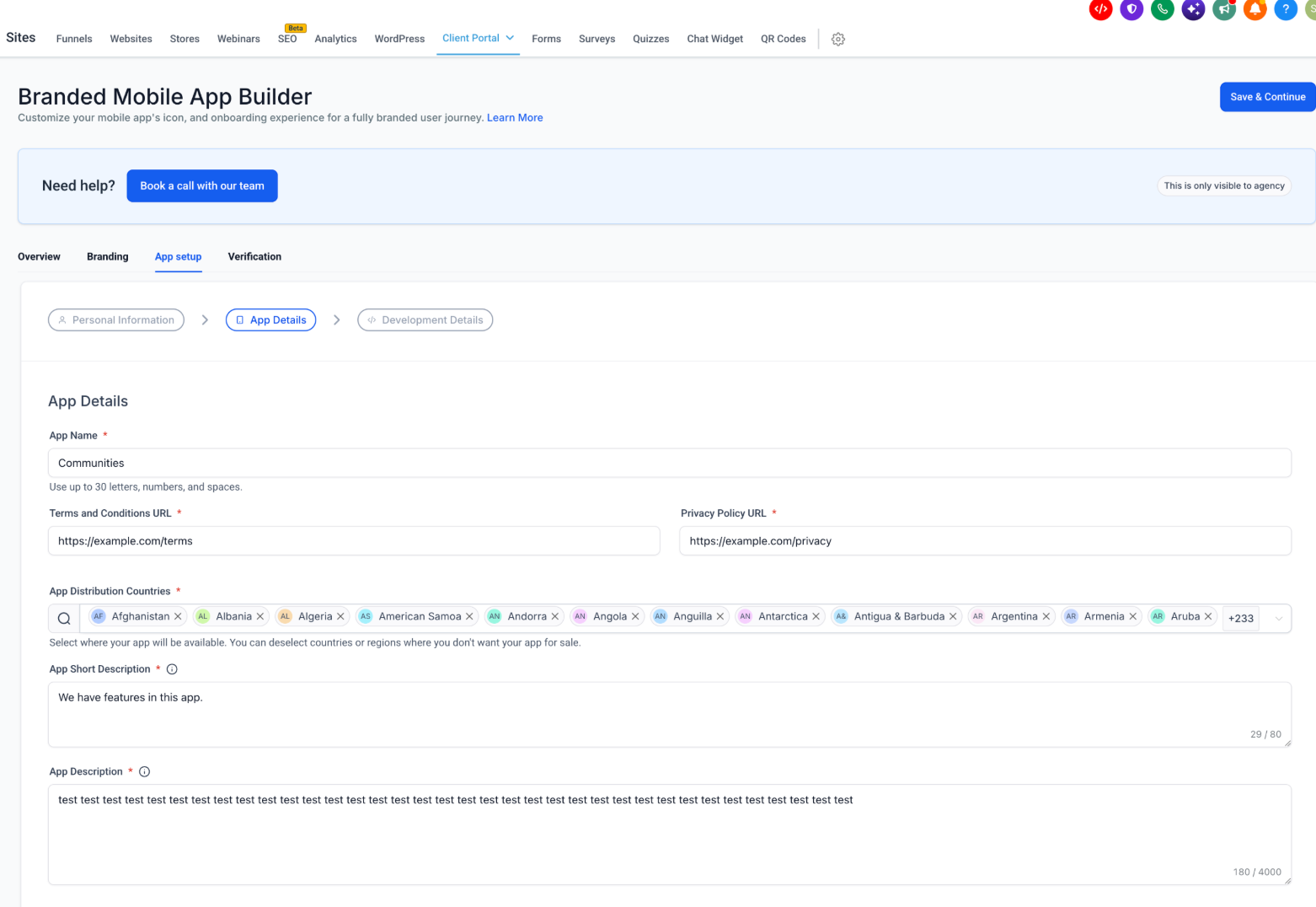
App Details
Development Details
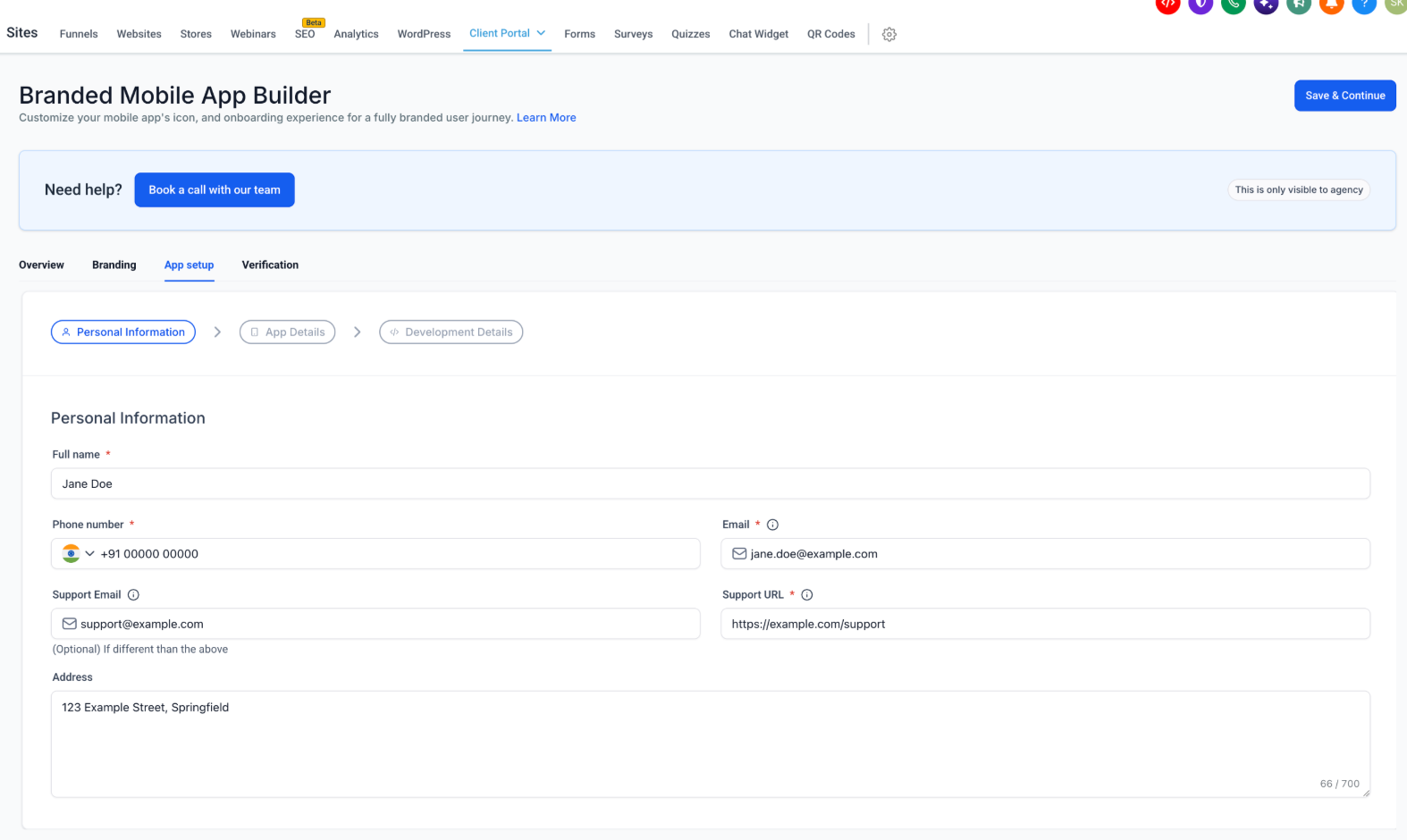
1. Personal Information
Personal Information identifies the contact responsible for the app and provides users with a way to access support.
Complete the following fields:
| Field | Description |
|---|---|
| Full name | Name of the person responsible for the app submission. |
| Phone number | Contact phone number, including the appropriate country code. |
| Primary contact email address. | |
| Support Email | Support email address, if different from the primary email. |
| Support URL | Web address where users can access app support. |
| Address | Contact or business address associated with the app. |
Fields marked with a red asterisk (*) are required.
Make sure the Support URL is publicly accessible and loads correctly. An inaccessible support page can cause verification to fail.
2. App Details
App Details define how users discover and understand your app in the app stores.
Provide the following information:
| Field | Description |
|---|---|
| App Name | The name displayed for your Branded Mobile App. |
| Terms and Conditions URL | Publicly accessible page containing your app's terms and conditions. |
| Privacy Policy URL | Publicly accessible page describing how user information is handled. |
| App Distribution Countries | Countries or regions where your app should be available. |
| App Short Description | Brief summary of your app's purpose and functionality. |
| App Description | Detailed explanation of your app and its features. |
The interface displays these character limits:
App Name: Up to 30 characters, using letters, numbers, and spaces.
App Short Description: Up to 80 characters.
App Description: Up to 4,000 characters.
Select the countries where you want your app to be available. You can also deselect countries or regions where you do not want the app distributed.
When entering your legal page URLs, make sure the pages load successfully and contain appropriate content. Automated verification can review legal pages in different languages.
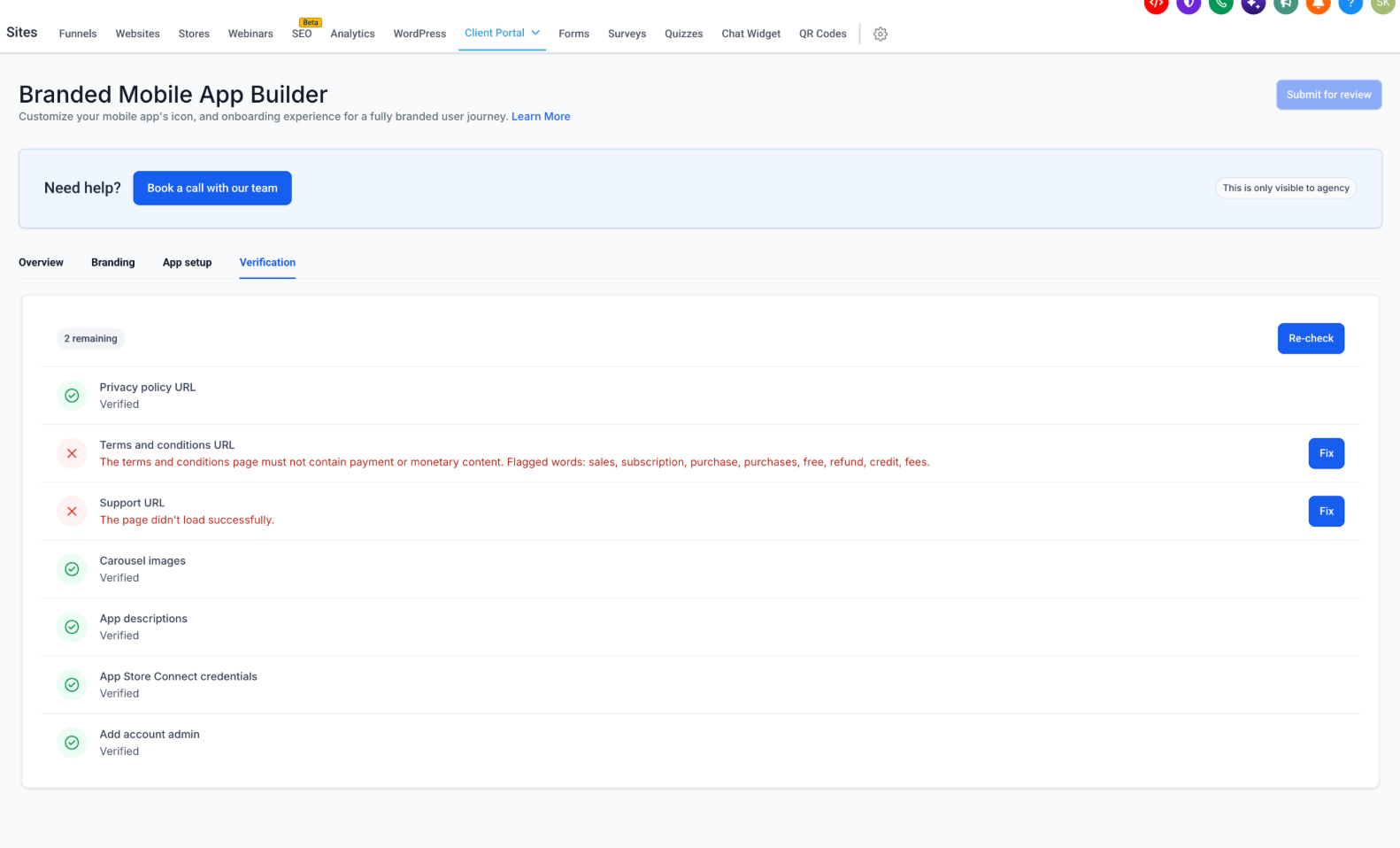
The verification process may flag specific content in legal pages. For example, the provided interface shows a Terms and Conditions page flagged for payment-related terminology. Follow the displayed error message to determine what needs correction.
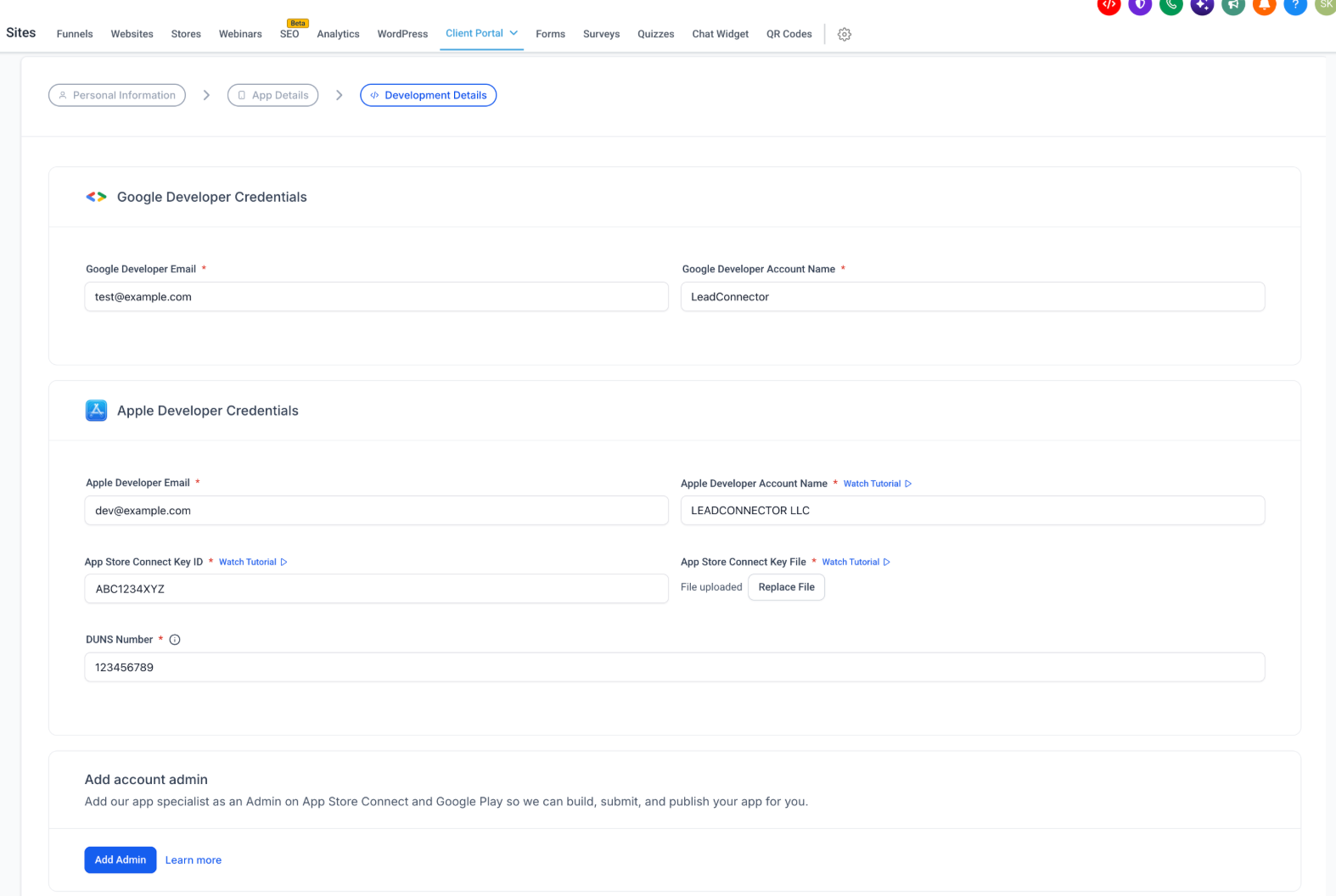
3. Development Details
Development Details connect the information needed for Apple and Google app publishing. The updated process reduces setup friction by removing the requirement to provide Apple and Google account passwords.
Complete the applicable fields under Google Developer Credentials and Apple Developer Credentials.
Google Developer Credentials
Google Developer Email: Email address associated with your Google Play developer account.
Google Developer Account Name: Name of the Google Play developer account.
Apple Developer Credentials
Apple Developer Email: Email address associated with your Apple Developer account.
Apple Developer Account Name: Name of your Apple Developer account.
App Store Connect Key ID: Identifier associated with the required App Store Connect key.
App Store Connect Key File: Key file uploaded for the App Store Connect integration.
DUNS Number: Business identifier requested for the developer account.
Add Account Admin
The Add account admin area lets you provide the required account access for HighLevel's app specialist.
Click Add Admin and follow the provided instructions to grant the necessary access to App Store Connect and Google Play.
The interface also provides tutorial links beside certain Apple credential fields and a Learn more link for administrator access.
Important: Developer account information and appropriate administrator access remain necessary even though Apple and Google account passwords are no longer required.
AI Verification Checks
AI verification reviews the information supplied during app setup and highlights issues that require correction before submission. Understanding these results helps you address problems immediately rather than waiting for a separate manual review.
Open the Verification tab to view the pre-submission checklist.
The verification page checks the following information:
| Verification check | What it evaluates |
|---|---|
| Privacy policy URL | Whether the submitted privacy policy page meets applicable validation requirements. |
| Terms and conditions URL | Whether the legal page is accessible and its content passes the automated checks. |
| Support URL | Whether the submitted support page loads successfully. |
| Carousel images | Whether the configured carousel images pass verification. |
| App descriptions | Whether the submitted app descriptions pass verification. |
| App Store Connect credentials | Whether the supplied Apple developer connection information passes verification. |
| Add account admin | Whether the required account administrator access passes verification. |
Understanding Verification Results
The Verification page displays the status of each check.
Green checkmark — Verified: The information has passed the corresponding verification check.
Red X — Failed: The information requires attention before submission.
Remaining count: Indicates how many checks still need to be resolved.
Failed checks display an explanation of the problem and a Fix button that takes you to the relevant configuration area.
For example:
A Terms and Conditions URL may fail because its content includes restricted payment-related terminology identified by the checker.
A Support URL may fail because the page could not be loaded successfully.
After correcting the issues, use Re-check to run the automated checks again.
The Submit for review button remains unavailable while required verification issues are outstanding.
How to Set Up and Verify Your Branded Mobile App
Completing each stage in the correct order ensures your branding, app information, and developer credentials are available for automated verification. Reviewing the results and resolving outstanding issues before submission helps avoid unnecessary delays in the app publishing process.
Step 1: Open the Branded Mobile App Builder
Log in to your HighLevel sub-account.
Navigate to Sites → Client Portal → Branded Mobile App.
Open the Overview tab.
Review the launch progress and confirm that payment has been received.
Proceed to Branding to begin configuring your app.
Step 2: Configure Your App Branding
Open the Branding tab.
Upload your App Icon in the required format and dimensions.
Add your Carousel images and their titles.
Arrange the carousel images in your preferred order.
Upload your Play Store Banner.
Review your configured branding using the device preview.
Step 3: Complete Personal Information
Open the App setup tab.
Select Personal Information.
Enter your full name, phone number, and email address.
Provide a Support Email if applicable.
Enter your publicly accessible Support URL.
Provide your address.
Click Save & Continue.
Step 4: Configure App Details
Select App Details.
Enter your app name.
Provide your Terms and Conditions URL.
Provide your Privacy Policy URL.
Select your App Distribution Countries.
Enter an App Short Description.
Complete the full App Description.
Click Save & Continue to proceed.
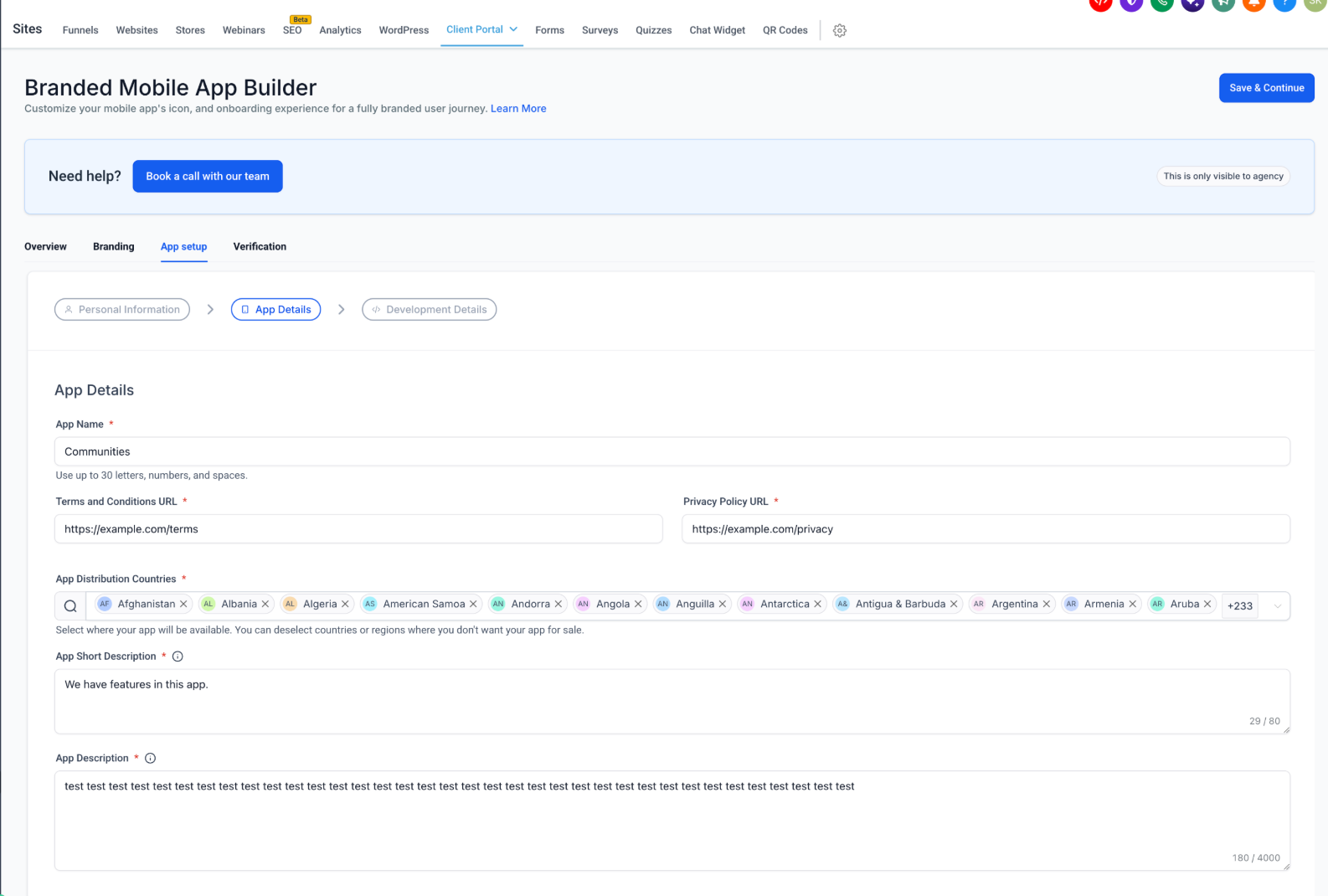
Make sure your descriptions comply with the displayed character limits and accurately represent your app's functionality.
Step 5: Complete Development Details
Select Development Details.
Enter your Google Developer Email and Account Name.
Enter your Apple Developer Email and Account Name.
Provide the required App Store Connect Key ID.
Upload your App Store Connect Key File.
Enter your DUNS Number.
Locate Add account admin and click Add Admin.
Follow the provided instructions to grant the required developer account access.
Save your completed information using the available setup controls.
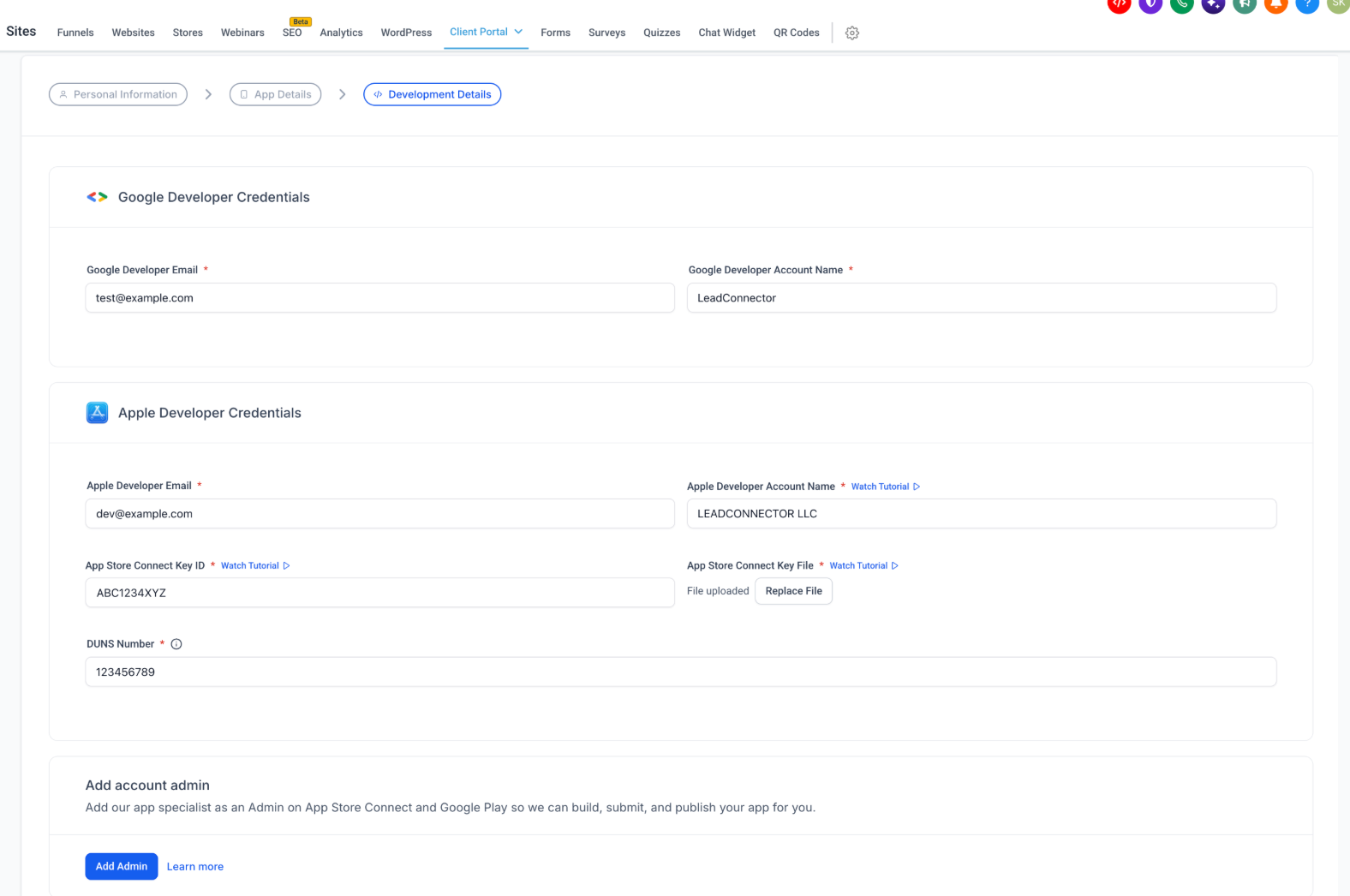
You do not need to provide Apple or Google account passwords as part of the updated process.
Step 6: Review AI Verification Results
Open the Verification tab.
Review the automated checklist.
Identify any items marked with a red X.
Read the error message for each failed check.
Click Fix beside an issue to navigate to the relevant field.
Update the information causing the failure.
Save your changes.
Return to Verification.
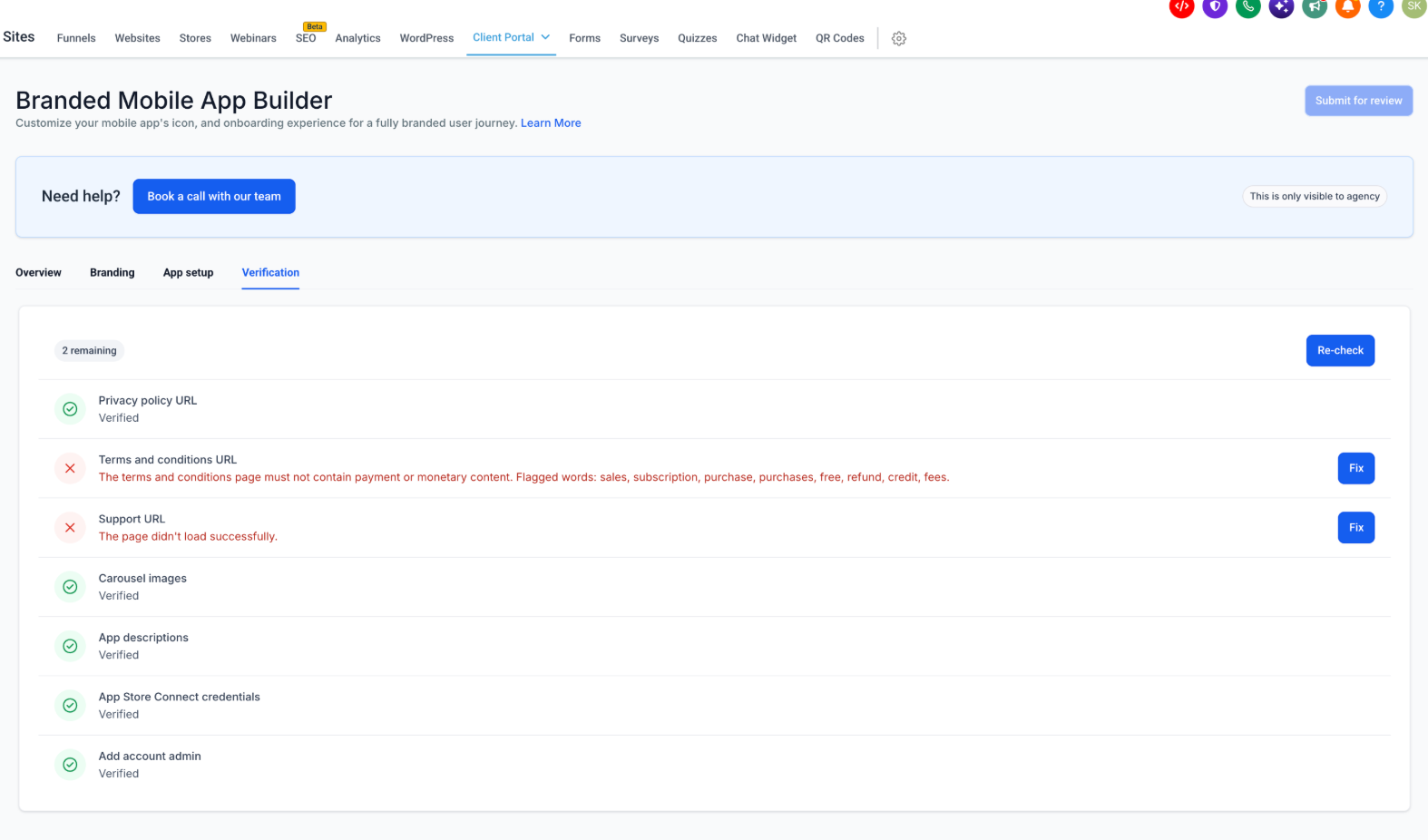
Step 7: Re-run Verification
On the Verification page, click Re-check.
Wait for the automated checks to complete.
Review the updated verification results.
Repeat the correction and re-check process if issues remain.
Confirm that all required checks show successful results.
AI verification is designed to provide results in seconds, although actual completion time may vary.
Step 8: Submit Your Branded Mobile App
Confirm that all required verification checks have passed.
Review your branding and app details for accuracy.
Click Submit for review once the button becomes available.
Follow any final submission prompts displayed in the interface.
After submission, HighLevel's automated Pilot system handles the store setup workflow without the previous manual pre-submission review.
Your app will still need to go through the applicable Apple and Google store review processes before becoming publicly available.
Important: Review all submitted details carefully. The existing Branded Mobile App documentation states that changes cannot be made after submission, so make sure your information is accurate before proceeding.Frequently Asked Questions
Q: How long does AI verification take?
AI verification is designed to complete in seconds. This replaces the previous manual review process, which could take up to five working days. Actual verification times may vary.
Q: Does passing AI verification guarantee that my app will be approved by Apple or Google?
No. AI verification checks your submission before it enters the app store publishing process. Apple and Google perform their own reviews and may request changes or reject an app based on their guidelines.
Q: What should I do if my Terms and Conditions URL fails verification?
Read the error message displayed beside the failed check. The automated review may identify specific content that requires attention. Use Fix to locate the relevant URL field, review the linked page, make appropriate corrections, and run Re-check. Ensure any changes to legal content remain accurate and compliant with applicable requirements.
Q: Why is my Support URL failing verification even though I entered a valid-looking link?
The page may be unavailable, restricted, or failing to load correctly. Open the URL in a browser and confirm it can be accessed without requiring a login. Correct the URL or page availability issue, then run verification again.
Q: Do I need to share my Apple or Google developer account password?
No. The updated process does not require Apple or Google account passwords. You must still provide the requested developer account information and grant the appropriate administrator access.
Q: Can the AI verify legal pages written in languages other than English?
Yes. The release supports AI verification of privacy policies, terms and conditions, and support page content in multiple languages.
Q: What happens if the Submit for review button is disabled?
Check the Verification page for outstanding issues. The button remains unavailable when required checks have not passed. Resolve the flagged items and click Re-check to update the results.
Q: Can I modify my app details after submitting the app?
The existing Branded Mobile App setup documentation warns that submitted details cannot be changed afterward. Carefully review all information before submission and contact the appropriate support team if changes are needed later.
Q: Do I still need to schedule a manual review appointment?
The release replaces the previous manual pre-submission review with automated AI verification and removes the requirement to provide Apple and Google account passwords. Complete the developer administrator access steps shown in your current setup interface. Any account-specific access requests should be followed as displayed.
Related Articles
Client Portal Branded Mobile App: Setting up branding of your app
Client Portal Branded Mobile App - Full Setup Guide for Agency
Setting up an Apple Developer Account for your Whitelabel Mobile App
Setting up a Google Developer Account for your Whitelabel Mobile App
Was this article helpful?
That’s Great!
Thank you for your feedback
Sorry! We couldn't be helpful
Thank you for your feedback
Feedback sent
We appreciate your effort and will try to fix the article