Block Shipping at Checkout When No Rate Is Available
This article explains how the Block Shipping at Checkout feature helps store owners control order fulfillment by preventing checkout when no valid shipping rate exists for the customer's delivery address.
You'll learn how to enable the setting, understand how shipping validation works across Checkout and Upsell pages, and customize the error message appearance to match your store branding.
What is Block Shipping at Checkout?
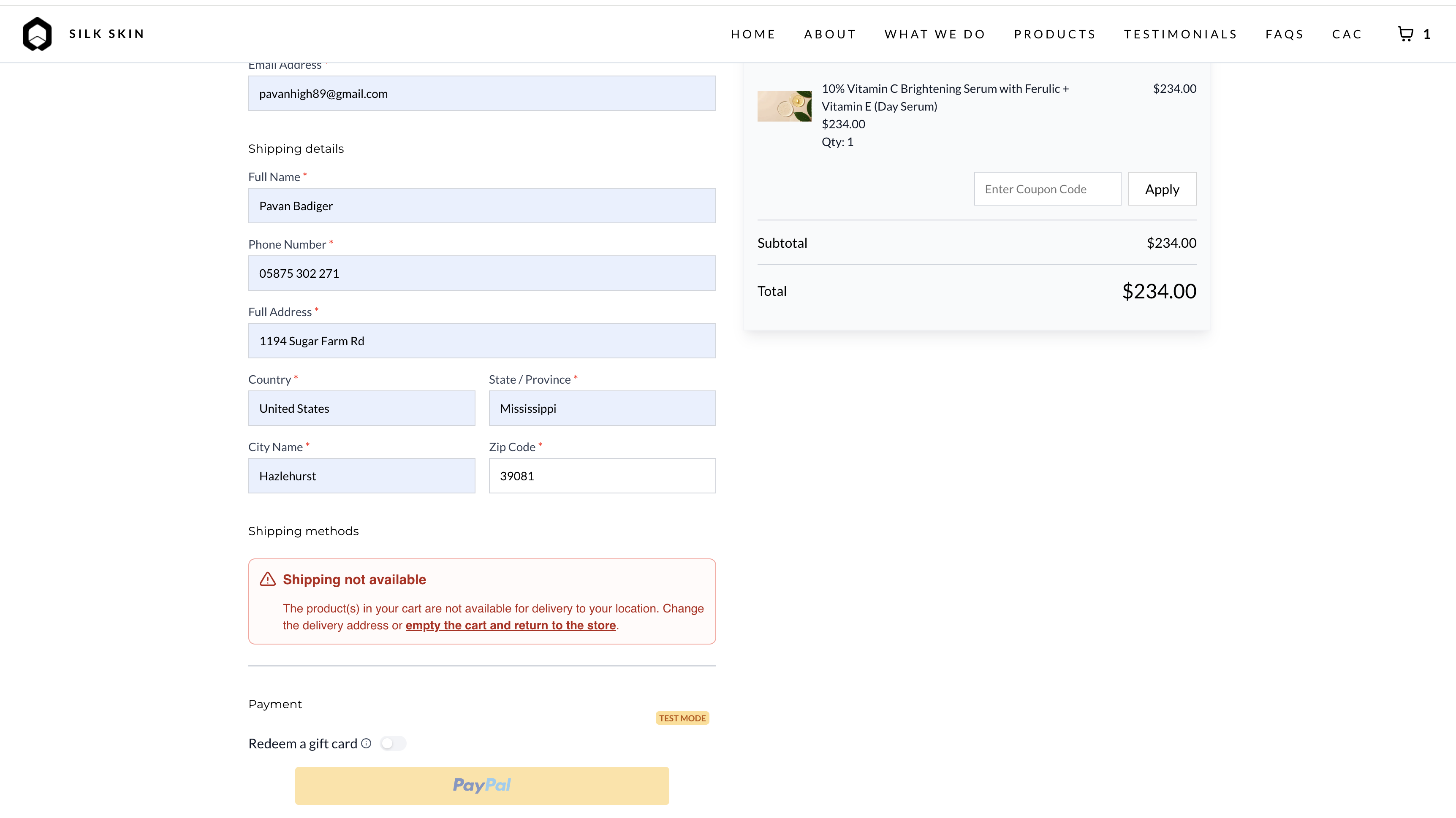
Block Shipping at Checkout is a setting that prevents customers from completing an order when no valid shipping method is available for their delivery address. This helps you avoid fulfillment issues caused by orders placed to locations you cannot ship to or orders that might receive unintended free shipping due to missing rate conditions.
The setting is located under Settings → Shipping & Delivery and is OFF by default. When enabled, the checkout process is blocked if the system successfully calculates shipping but finds no applicable rate for the customer's cart and delivery location.
Key Benefits
Enabling Block Shipping at Checkout provides control over order fulfillment and helps maintain accurate shipping cost calculations.
How Shipping Validation Works
When Block Shipping is enabled, HighLevel validates shipping availability at two key points in the customer journey to ensure a consistent experience.
When the customer enters their delivery address on the Checkout page, the system calculates available shipping methods. If no valid rate is found for the cart and address combination, the checkout process is blocked and a "Shipping not available" message is displayed.
If the customer accepts an upsell offer, the system re-validates shipping for the updated cart contents. If adding the upsell item makes the cart undeliverable to the customer's address, the "Shipping not available" message is shown and the order cannot proceed.
Checkout is blocked only when shipping calculation succeeds but returns no applicable rate. If shipping calculation fails due to a system error, checkout is not blocked by this setting.
Dynamic Cart Actions and Address Updates
When checkout is blocked due to unavailable shipping, customers have options to resolve the issue depending on their cart contents.
If the cart contains multiple items and only some cannot be shipped to the delivery address, customers can remove the undeliverable items to proceed with the remaining shippable items.
Customers can clear their entire cart and start over, allowing them to select different products or change their delivery address before adding items again.
When the customer changes their delivery address in the checkout form, HighLevel automatically re-evaluates shipping availability. If the new address matches a configured shipping rate, the checkout block is lifted and the customer can complete their order.
Digital-only carts are not affected by this setting, as shipping is not required for digital products. Checkout proceeds normally when all items in the cart are digital.
Customizing Error Message Appearance
Store owners can customize the color of the "Shipping not available" error message to match their store's branding. This customization applies to both the Checkout page and the Upsell element, ensuring a consistent visual experience.
To customize the error message color, access your store's theme settings and modify the error text color value. The selected color will be applied wherever the shipping error message appears during the checkout process.
[Screenshot: Theme customization panel showing error message color picker for shipping validation messages]
How to Enable Block Shipping at Checkout
Follow these steps to enable the Block Shipping setting and configure your store to prevent checkout when no valid shipping rate is available.
In your HighLevel account, go to Payment > Settings > Shipping & Delivery to access your store's shipping configuration.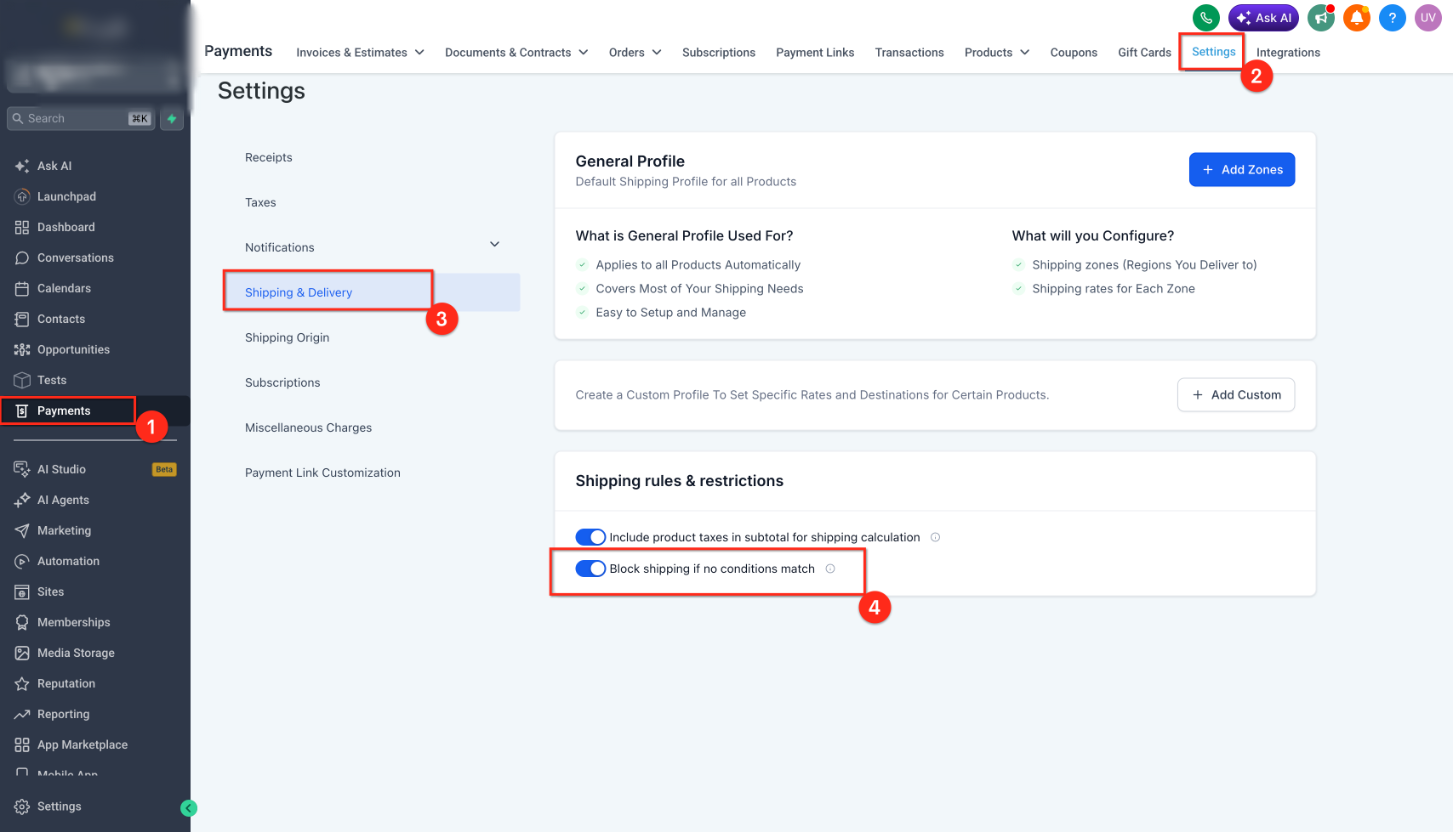
Locate the Block Shipping toggle and enable it. This activates checkout blocking when no valid shipping method is available for the customer's delivery address.
Set up your shipping zones, profiles, and rate conditions to define where you can ship and what rates apply. Ensure your configuration covers all regions you intend to serve.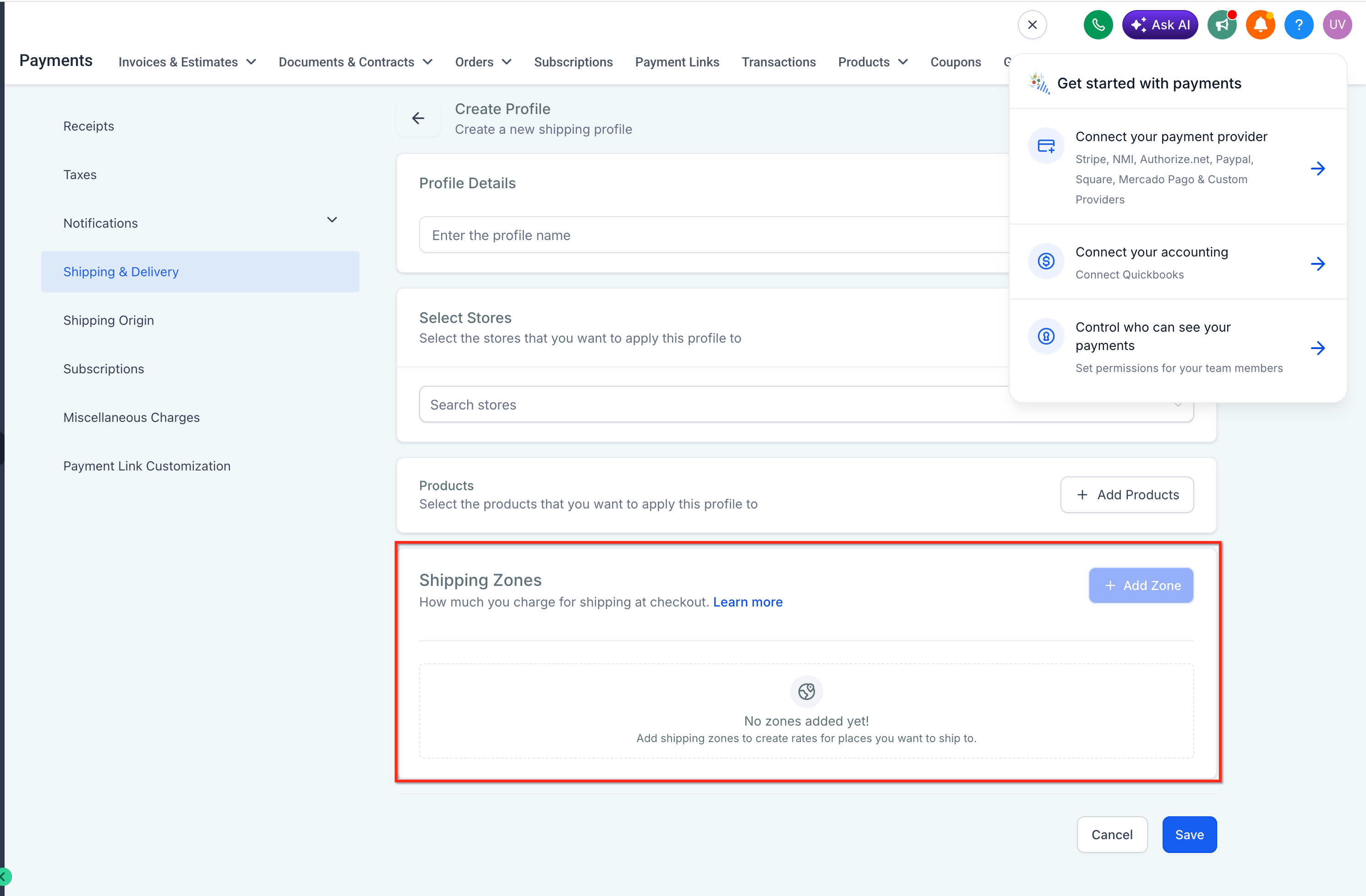
Save your changes and publish your store to apply the Block Shipping setting to your live checkout pages. Publishing clears the cache and ensures the latest configuration is active.
If the setting does not appear to take effect immediately on your live store, republish the page or site to force a cache refresh and apply the latest configuration.
Related Articles
Frequently Asked Questions
Was this article helpful?
That’s Great!
Thank you for your feedback
Sorry! We couldn't be helpful
Thank you for your feedback
Feedback sent
We appreciate your effort and will try to fix the article