This article explains how to run multiple Managed Agent conversations in parallel, monitor active work from the Activity tab, and switch between conversations without losing context or progress.
TABLE OF CONTENTS
- What are Parallel Conversations in Managed Agents?
- Key Benefits of Parallel Conversations
- Running Multiple Conversations in Parallel
- Background Processing
- Monitoring Conversations from the Activity Tab
- Independent Conversation State
- Conversation-Specific Composer
- Recent Conversations
- Consistent Media Display
- How to Use Parallel Conversations in Managed Agents
- Frequently Asked Questions
- Related Articles
What are Parallel Conversations in Managed Agents?
Parallel conversations in Managed Agents let you work on multiple agent tasks at the same time instead of waiting for one conversation to finish before starting another.
You can run up to 10 conversations simultaneously, switch between them freely, and monitor active work from the Activity tab. Each conversation maintains its own thread and state, making it easier to manage several independent jobs without losing your place.
Managed Agents, formerly called Super Agents, are AI agents in HighLevel that can perform CRM and business tasks through natural-language instructions. Parallel conversations extend that experience by allowing multiple independent chat sessions to remain active at once, so long-running work no longer blocks you from starting something else.
Key Benefits of Parallel Conversations
Parallel conversations make it easier to delegate several tasks to a Managed Agent while keeping every job organized and independent.
Run multiple jobs at once: Start up to 10 Managed Agent conversations in parallel instead of processing tasks one at a time.
Keep work running in the background: Switch to another conversation while an existing task continues processing.
Monitor active work: Use the Activity tab beside the chat to see work that is currently running and review outcomes as runs settle.
Return without losing your place: Each conversation maintains its own messages, scroll position, loading state, and errors.
Identify active jobs quickly: Running conversations receive their own headings so you can distinguish one task from another.
Keep writing while other work runs: The composer remains available for the conversation you are currently viewing, even when other conversations are still processing.
Resume recent work faster: The 20 most recent conversations remain readily available so you can return to them without waiting for the conversation to reload.
View media consistently: Chat, the builder test panel, and preview use a shared media-rendering experience.
Running Multiple Conversations in Parallel
Each Managed Agent conversation operates as an independent workspace. This allows you to give the same agent several unrelated jobs without mixing their messages, progress, or conversation history.
You can run up to 10 conversations at the same time.
For example, you could use separate conversations to:
Draft a newsletter.
Pull information for a report.
Work with a contact.
Prepare campaign content.
Research or complete another agent-supported task.
Starting another conversation does not require the previous conversation to finish first.
10 Active Conversations vs. 20 Recent Conversations
The limits for active and recent conversations refer to two different parts of the experience:
10 parallel conversations refers to the number of conversations that can be running at the same time.
20 recent conversations refers to the most recent conversations that remain readily available for fast access.
Keeping these concepts separate helps distinguish active processing capacity from recent conversation availability.
Background Processing
Background processing allows an active Managed Agent conversation to keep working after you switch to another conversation. This removes the need to keep one conversation open while waiting for a longer task to finish.
After starting a task, you can open another conversation and continue working there. The original run continues processing independently.
When you reopen the active conversation, you return to its live stream and can continue from the same conversation context.
Monitoring Conversations from the Activity Tab
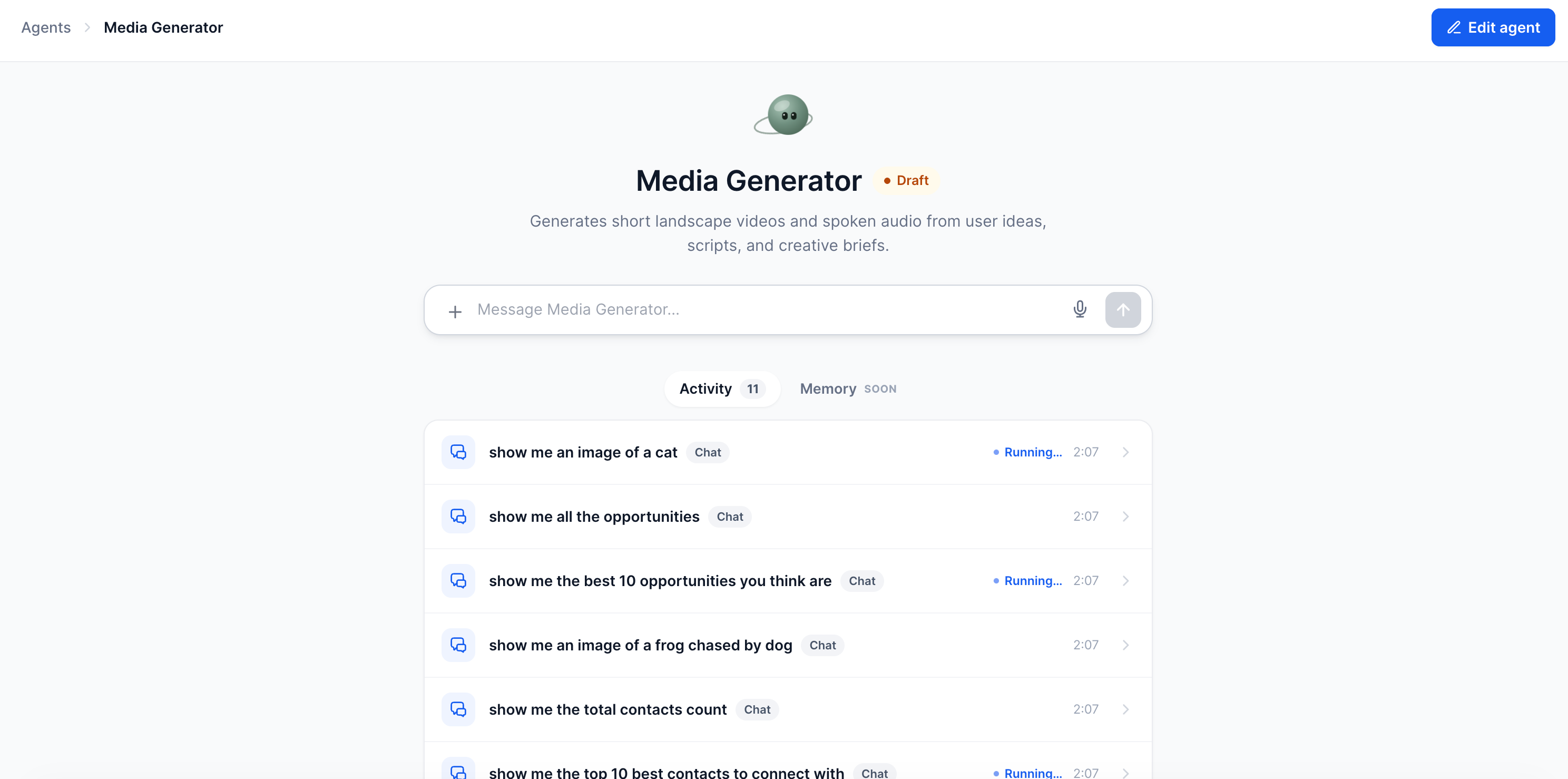
The Activity tab provides visibility into Managed Agent runs so you can see what is currently processing and review completed outcomes without keeping every conversation open. Existing Managed Agent Activity Feed functionality also provides execution details for chat and automated runs.
While parallel conversations are running:
Active work appears with a visual running indicator.
In-progress activity uses a gently pulsing status indicator.
Run outcomes become visible after processing finishes.
Individual conversation headings help identify which task each run belongs to.
For more detailed execution information, including step-level activity and debugging, see Managed Agent Activity Feed: Monitor & Debug AI Agents.
Screenshot description: Show the Activity tab beside the Managed Agent chat with multiple runs listed, including at least one active run displaying its in-progress indicator and one completed run.
Independent Conversation State
Independent conversation state keeps simultaneous jobs separated from one another. Switching conversations does not replace the thread or viewing position of another conversation.
Each conversation tracks its own:
Messages and conversation history
Scroll position
Loading state
Error state
Because these states are stored separately, you can move between conversations and return to the same place you previously left.
Conversation-Specific Composer
The conversation composer remains tied to the conversation you are currently viewing. This makes it possible to continue sending messages in one conversation while other conversations are processing independently.
For example, if one conversation is generating a lengthy report, you can switch to another conversation and submit a new request without waiting for the report task to finish.
This behavior helps prevent long-running jobs from blocking additional work.
Recent Conversations
Recent conversation availability makes it faster to return to work you have already started. The 20 most recent conversations remain ready for quick access, reducing the need to reload recent chat sessions.
Returning to a recent conversation restores its individual thread and viewing state, allowing you to continue working from the context you previously established.
Consistent Media Display
A shared media-rendering experience keeps supported media looking consistent across different Managed Agent testing and chat surfaces.
The same media renderer is now used across:
Managed Agent chat
The builder test panel
Preview
This creates a more consistent experience when reviewing media-related agent responses across different stages of building and using an agent.
How to Use Parallel Conversations in Managed Agents
Using separate conversations for independent tasks helps keep agent work organized while allowing multiple jobs to progress simultaneously.
Log in to your HighLevel sub-account.
Navigate to AI Agents > Agent Studio.
Open the Managed Agents area and select the Managed Agent you want to use. The current Managed Agents setup documentation uses this navigation path.
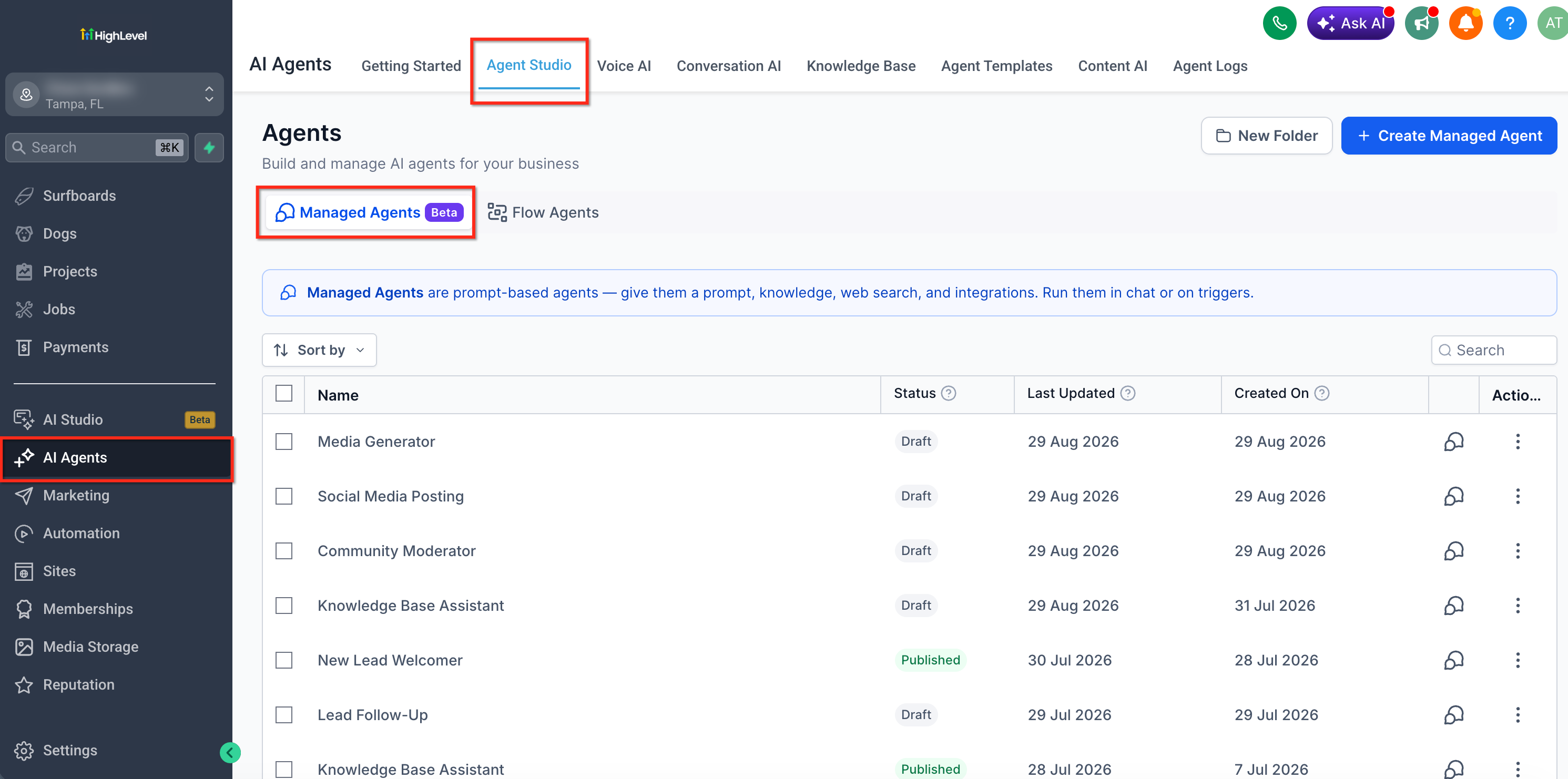
Open a conversation with the Managed Agent.
Enter your first request and send it.
While the first task is still processing, open another conversation.
Enter the next request and send it.
Repeat as needed, with up to 10 conversations running in parallel.
Use the Activity tab beside the chat to monitor active runs and their outcomes.
Select any conversation to return to its thread. The conversation's messages, scroll position, loading state, and error state remain separate from other conversations.
Continue using the composer in whichever conversation you are currently viewing, even while other conversations are still running.
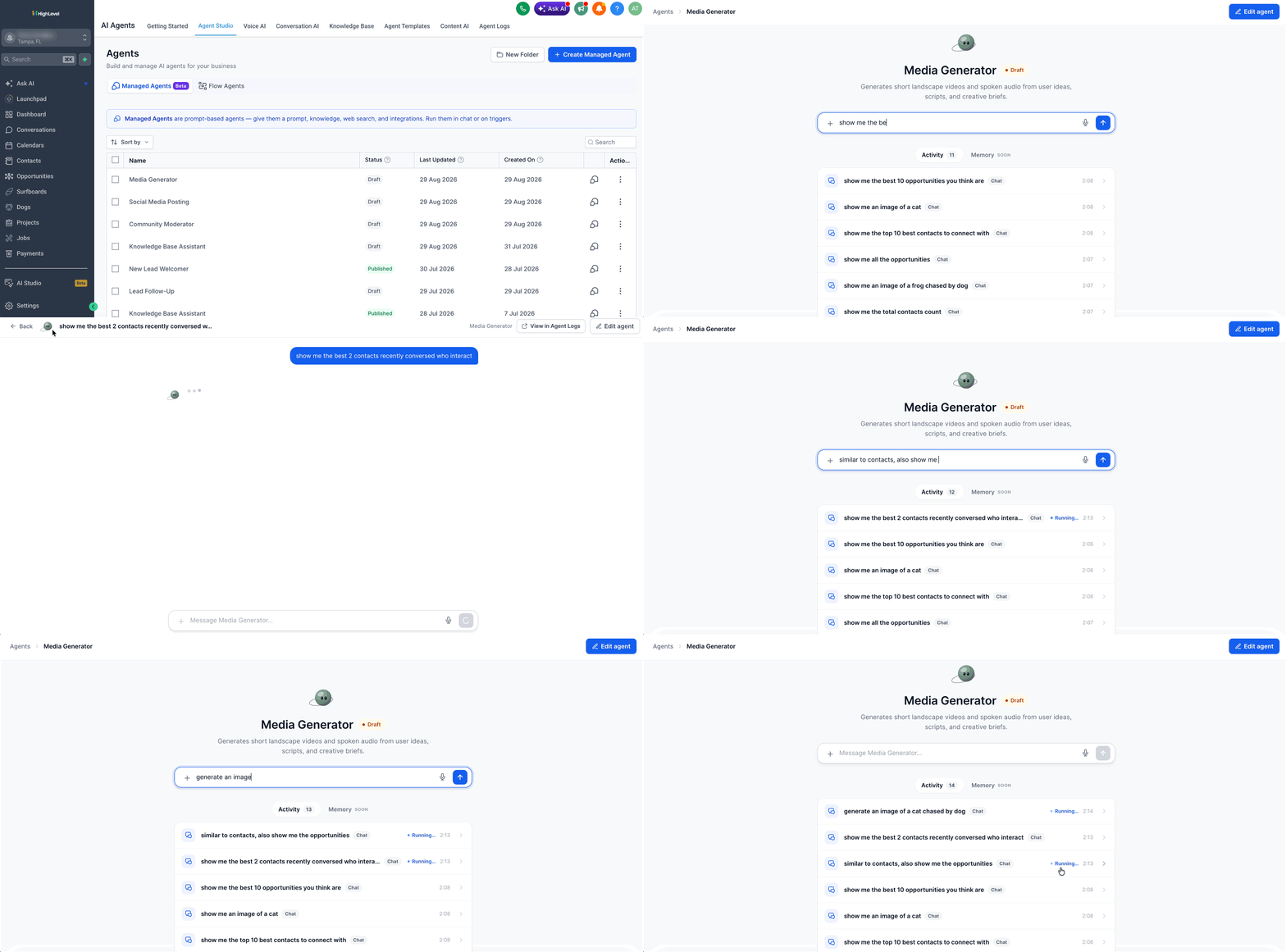
IMPORTANT: Check this loom for more, https://www.loom.com/share/67dfcd4b8ab2427aa45ef1ebbadef096
Frequently Asked Questions
Q: Are 10 parallel conversations and 20 recent conversations the same limit?
No. Up to 10 conversations can run in parallel, while the 20 most recent conversations remain readily available for quick access. One limit relates to simultaneous processing, while the other relates to recent conversation availability.
Q: Do I need to wait for one Managed Agent conversation to finish before starting another?
No. You can start another conversation while an existing conversation is still processing, up to the supported parallel-conversation limit.
Q: Does switching conversations stop the task that is already running?
No. An active run continues processing when you switch to another conversation. Reopening the original conversation returns you to its live stream.
Q: How can I tell which conversations are still running?
Use the Activity tab beside the chat to monitor active runs. Work that is still in progress displays a running indicator, and the result becomes visible after the run settles.
Q: Will messages from different conversations get mixed together?
No. Each conversation maintains its own thread, history, scroll position, loading state, and errors.
Q: Can I send a message in one conversation while another conversation is still processing?
Yes. The composer belongs to the conversation currently being viewed, so you can continue typing and sending requests while other conversations run independently.
Q: Where can I review detailed information about what a Managed Agent did during a run?
The Managed Agent Activity Feed provides execution information for live chat and automated runs, including run status and execution details. See Managed Agent Activity Feed: Monitor & Debug AI Agents.
Q: Is this the same as Ask AI multi-threading?
No. Ask AI has its own multi-threading experience and documentation. Parallel Managed Agent conversations apply to the Managed Agent chat experience in Agent Studio. HighLevel documents Ask AI multi-threading separately.
Related Articles
Was this article helpful?
That’s Great!
Thank you for your feedback
Sorry! We couldn't be helpful
Thank you for your feedback
Feedback sent
We appreciate your effort and will try to fix the article