Conversation AI can reply to messages that come through supported apps installed from the HighLevel App Marketplace. You can choose which of these apps each bot can use, so your bot only responds through the channels you want. This gives you more control when your business uses messaging apps outside HighLevel’s built-in channels.
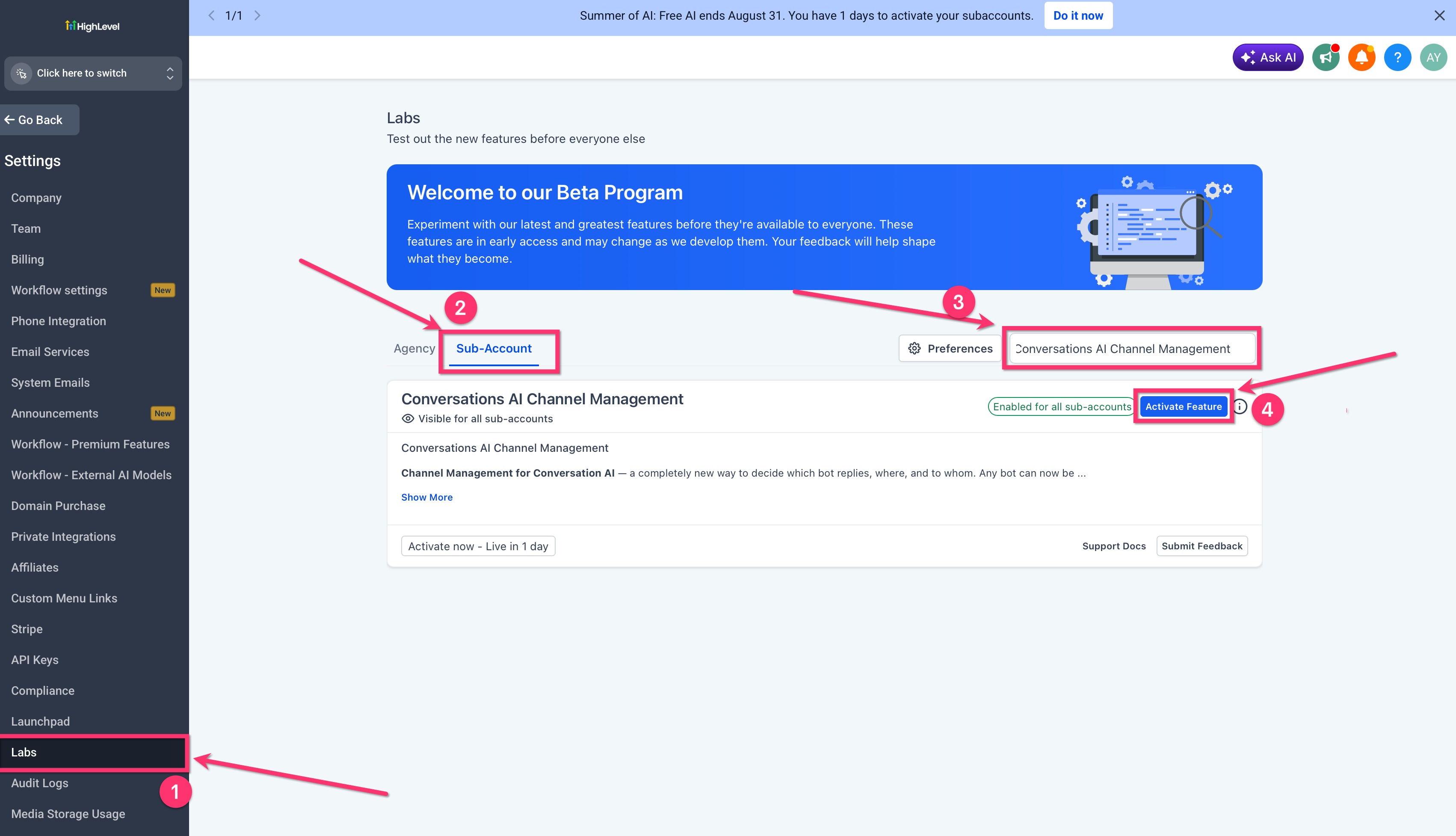
Labs feature: To use custom Marketplace channels with Conversation AI, turn on Conversations AI Channel Management in Settings > Labs. If this Labs feature is turned off, the custom channel options may not appear.
TABLE OF CONTENTS
- What are Custom Conversation Providers for Conversation AI?
- Key Benefits of Custom Conversation Providers
- Turn On Conversations AI Channel Management in Labs
- What You Need Before You Start
- Where Custom Messaging Apps Appear
- How Contact Tags Can Control Replies
- What Changed?
- How Conversation AI Replies Through a Marketplace App
- How To Set Up a Custom Conversation Provider for Conversation AI
- Step 1: Turn On Conversations AI Channel Management in Labs
- Step 2: Install a Supported Marketplace App
- Step 3: Open Your Conversation AI Bot
- Step 4: Add the Marketplace Messaging App
- Step 5: Check the Channel and Save
- Troubleshooting Custom Conversation Providers
- Frequently Asked Questions
- Related Articles
What are Custom Conversation Providers for Conversation AI?
Custom Conversation Providers let a Conversation AI bot reply through supported messaging apps from the HighLevel App Marketplace. This is useful when your business talks to customers through messaging services that are not already built into HighLevel.
A Custom Conversation Provider is simply a Marketplace app that adds another messaging channel to HighLevel.
HighLevel already includes channels such as:
SMS
Email
Facebook
Instagram
WhatsApp
TikTok
Live Chat
Chat Widget
A supported Marketplace app can add another messaging channel that your Conversation AI bot can use.
Once the app is installed and added to your bot, the bot can reply to customer messages that come through that app.
Key Benefits of Custom Conversation Providers
Custom Conversation Providers make it easier to decide where your Conversation AI bot can respond. This gives you more control when your business uses several messaging apps.
More messaging options: Use Conversation AI with supported Marketplace messaging apps.
Choose apps for each bot: Decide which messaging apps each bot can use.
Simple setup: Add supported apps from the bot's Deploy tab.
Separate controls: Each added messaging app can be turned on or off by itself.
Contact filters: Use contact tags to control which contacts the bot can reply to.
Existing setups keep working: Messaging apps that were already connected continue working after this update.
Turn On Conversations AI Channel Management in Labs
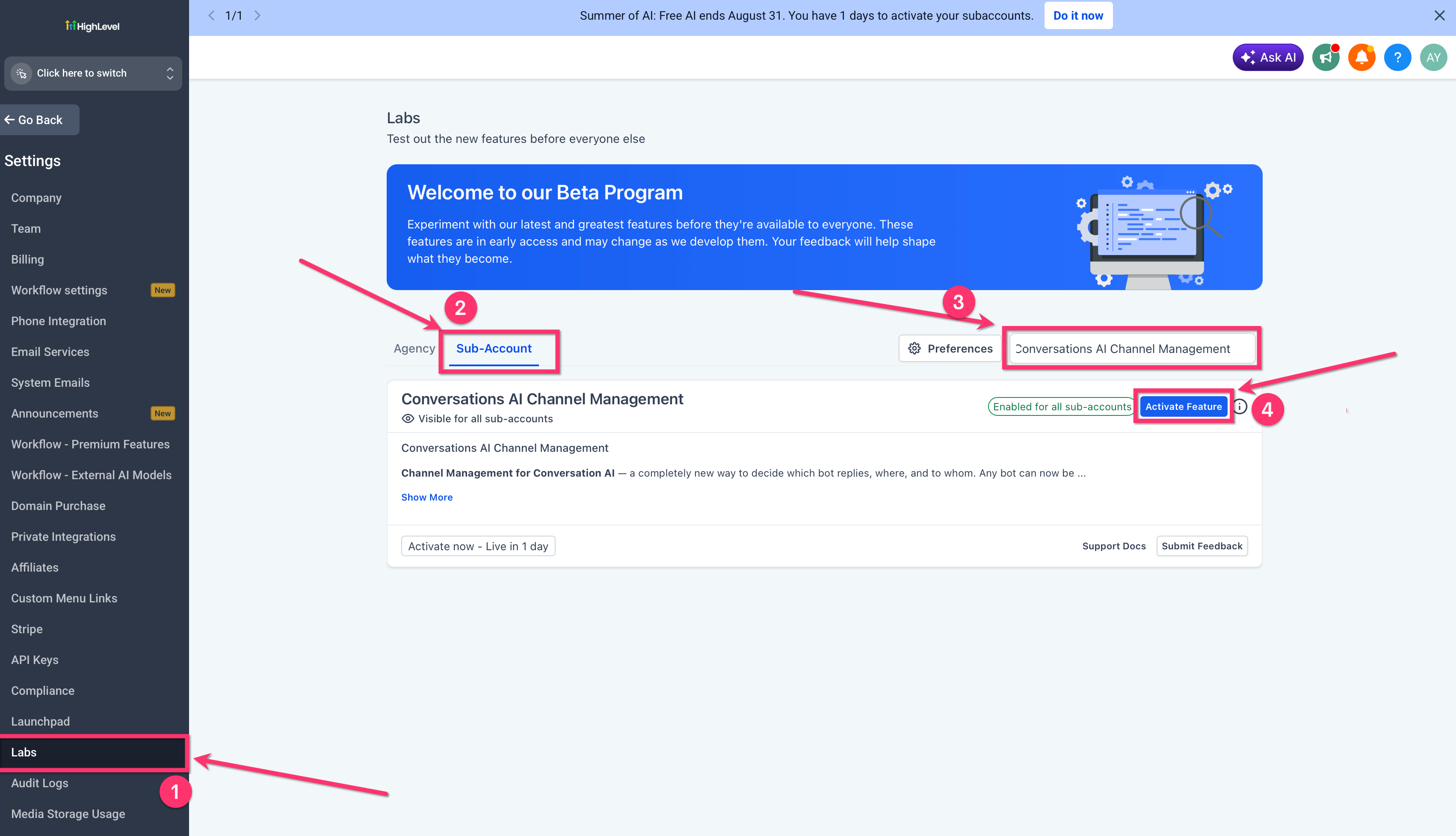
The Conversations AI Channel Management Labs feature must be turned on before you can add custom Marketplace messaging apps to a Conversation AI bot. If this feature is off, the options shown in this article may not appear in your account.
Before doing anything else:
Go to Settings.
Open Labs.
Find Conversations AI Channel Management.
Turn the feature on.
Return to your Conversation AI bot.
Important: This Labs setting is required for the custom channel setup described in this article.
What You Need Before You Start
A few things need to be ready before you can connect a Marketplace messaging app to your bot. Checking these items first can help prevent missing options later.
Make sure you have:
Conversations AI Channel Management turned on in Labs.
A Conversation AI bot already created.
A Marketplace app that supports Conversation Provider.
The Marketplace app installed for the correct subaccount.
The app connected and active.
Not every app in the Marketplace can be used for Conversation AI messages.
The app must specifically support Conversation Provider. Only supported apps that are already installed will appear in the list when you add a new channel.
Where Custom Messaging Apps Appear
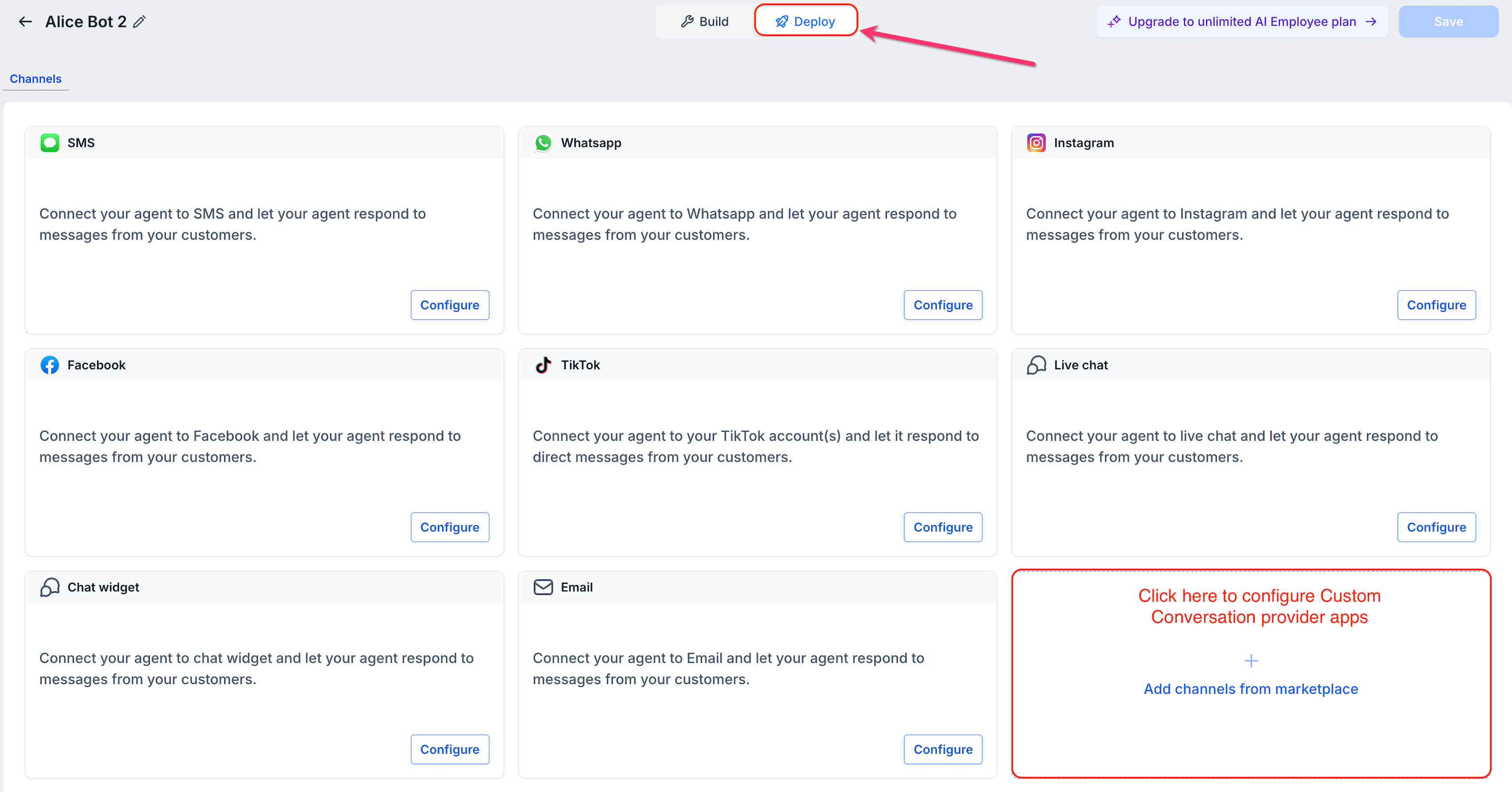
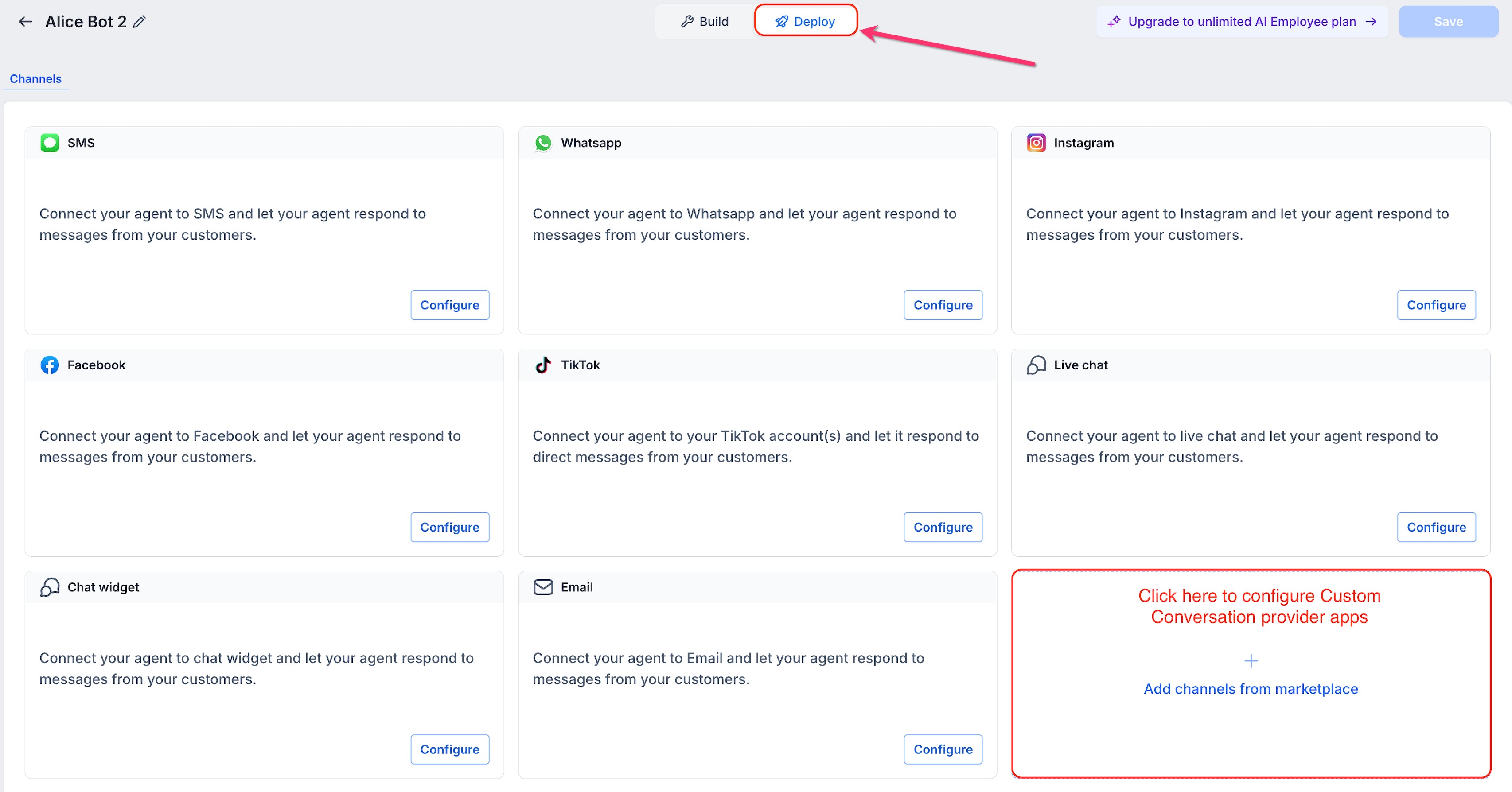
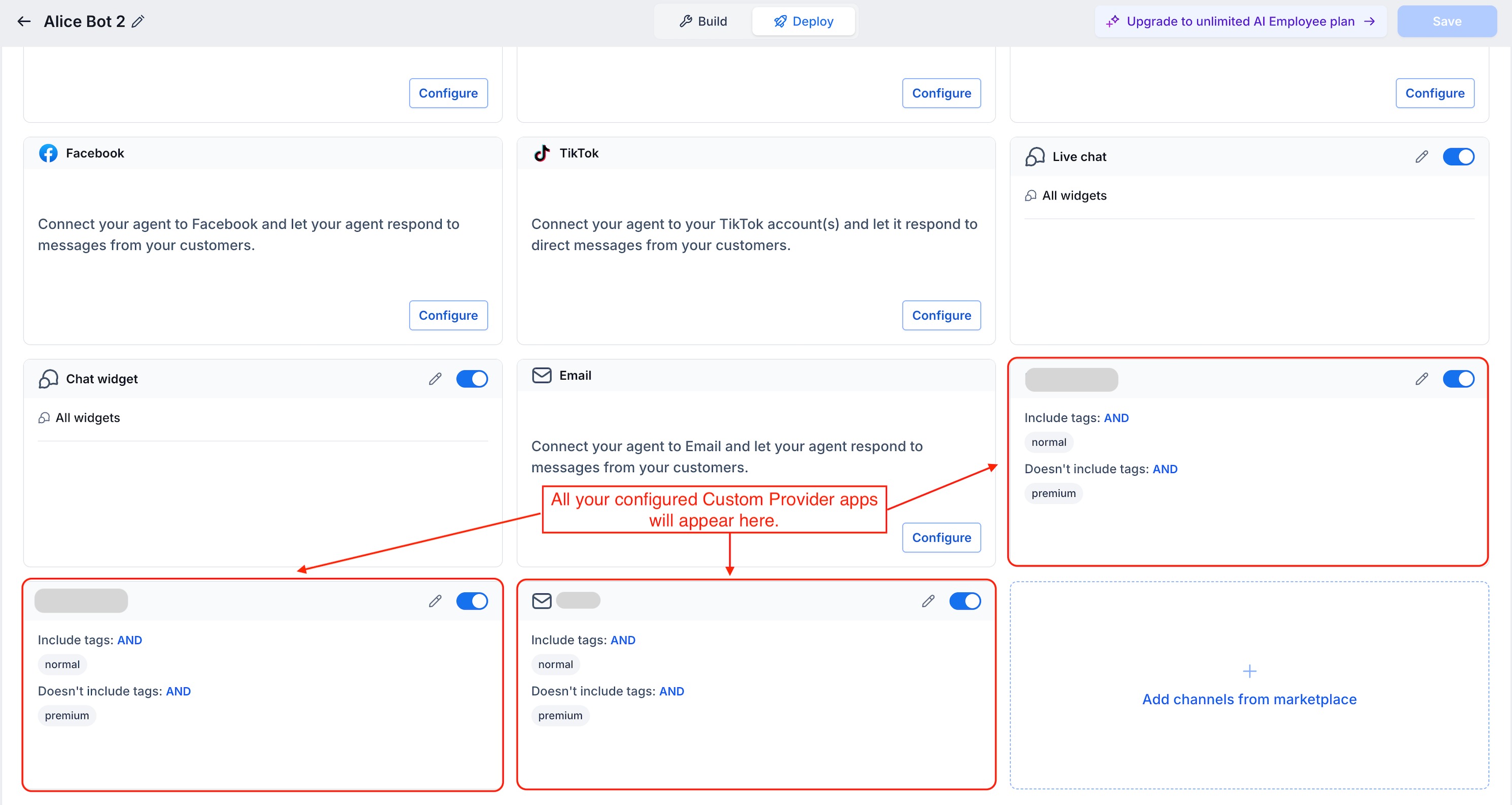
The Deploy tab shows the messaging channels your bot can use. This is where you can add supported Marketplace apps and control whether the bot can respond through them.
On the Deploy tab, you may already see HighLevel channels such as:
SMS
WhatsApp
Instagram
Facebook
TikTok
Live Chat
Chat Widget
Email
You will also see Add channels from marketplace.
Use this option to add a supported Marketplace messaging app to your bot.
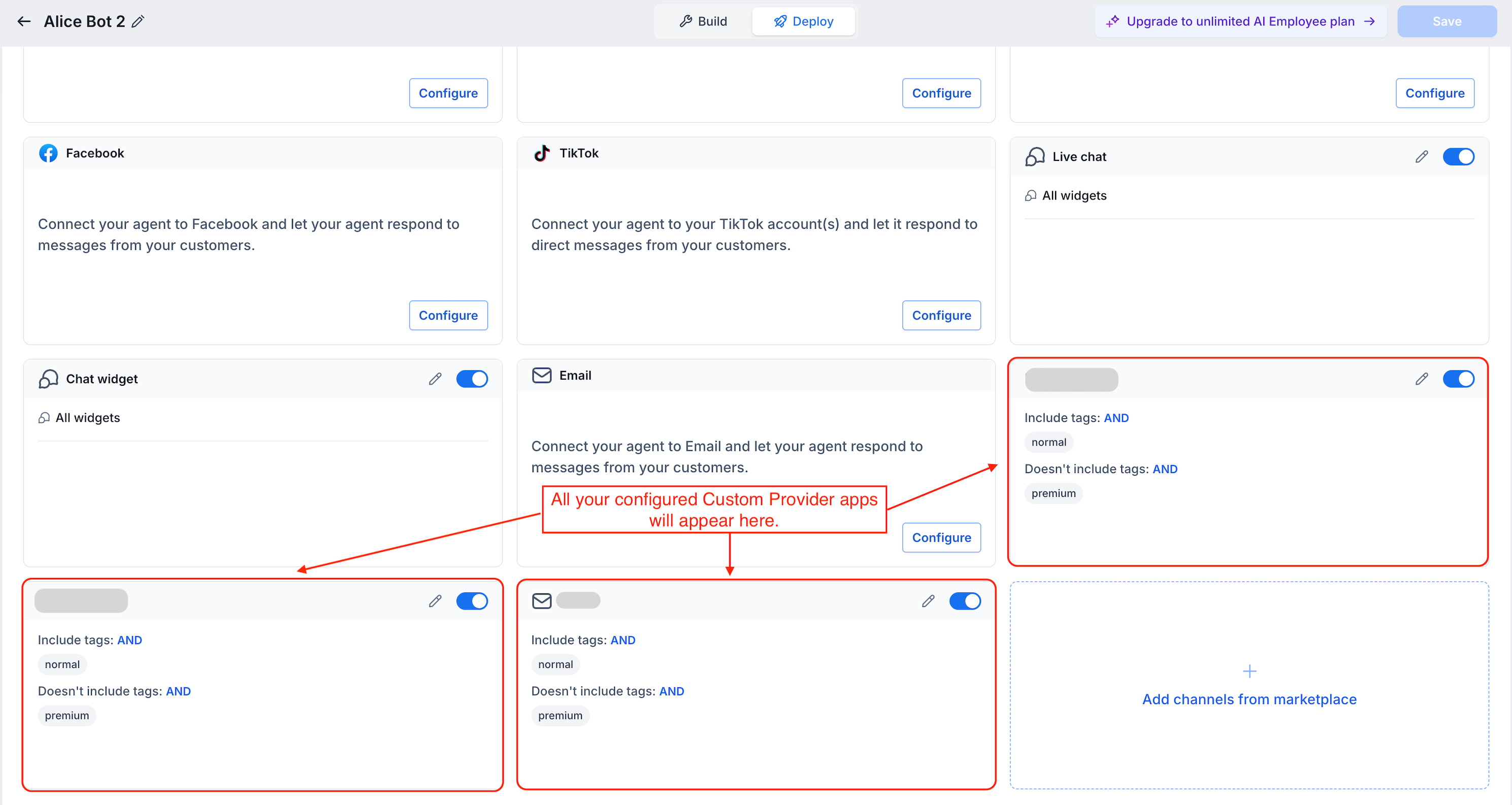
Once an app is added, it appears as its own card on the Deploy screen.
How Contact Tags Can Control Replies
Contact tags can help you decide which contacts the bot should or should not reply to through a specific messaging app. These rules are optional.
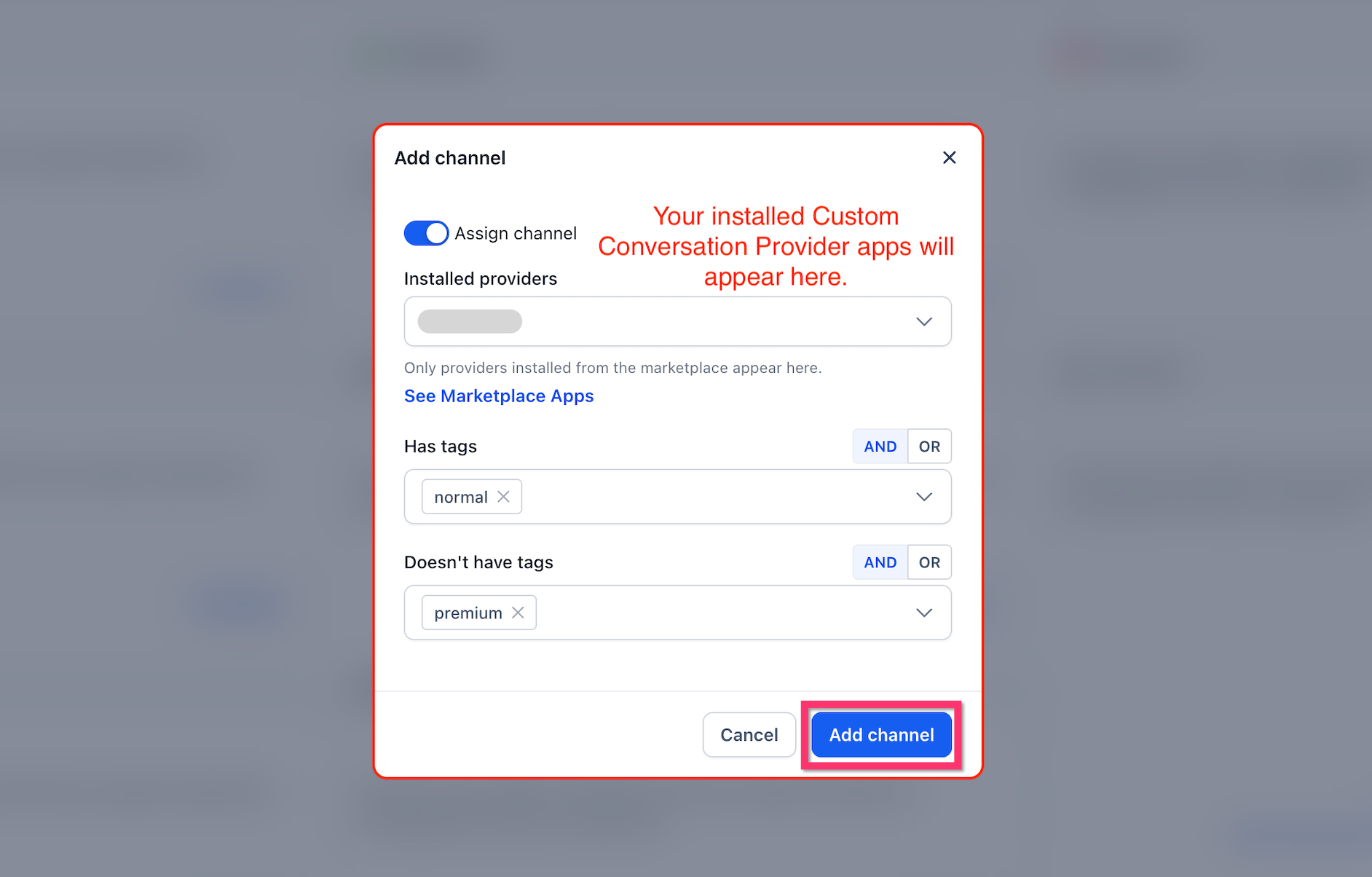
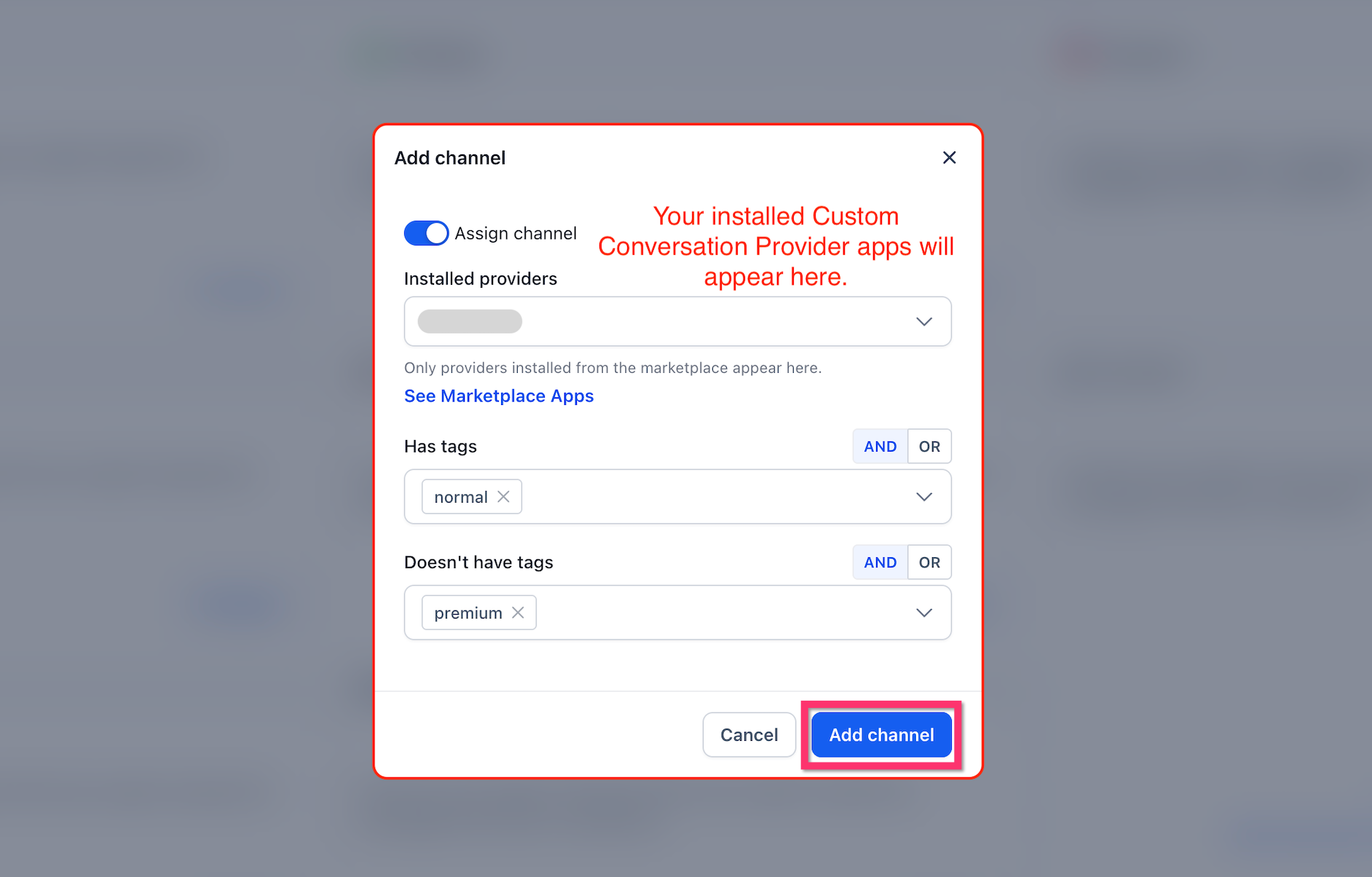
When adding a Marketplace messaging app, you may see:
Has tags
Doesn't have tags
AND
OR
Here is what they mean:
Has tags: The bot can use this channel only for contacts that have the selected tag.
Doesn't have tags: The bot will not use this channel for contacts that have the selected tag.
AND: All selected tag rules must match.
OR: At least one selected tag rule must match.
For example, you could allow the bot to respond to contacts with the normal tag but not contacts with the premium tag.
You may also see an Assign channel switch when adding the app. Use the settings shown in your account when connecting the messaging app.
What Changed?
Custom Marketplace messaging apps are now easier to control because each one appears separately on the Deploy tab. This makes it easier to choose exactly where your bot can respond.
Before this update, custom messaging apps depended on the SMS or Email settings.
That meant:
Turning on SMS or Email could also allow replies through connected custom apps.
You could not easily choose each custom app separately.
Now:
Each custom messaging app appears on the Deploy tab.
You can choose which apps each bot can use.
Each app has its own settings.
Each app can be turned on or off separately.
Existing custom app setups continue working.
Apps that were already active appear automatically on the Deploy tab.
How Conversation AI Replies Through a Marketplace App
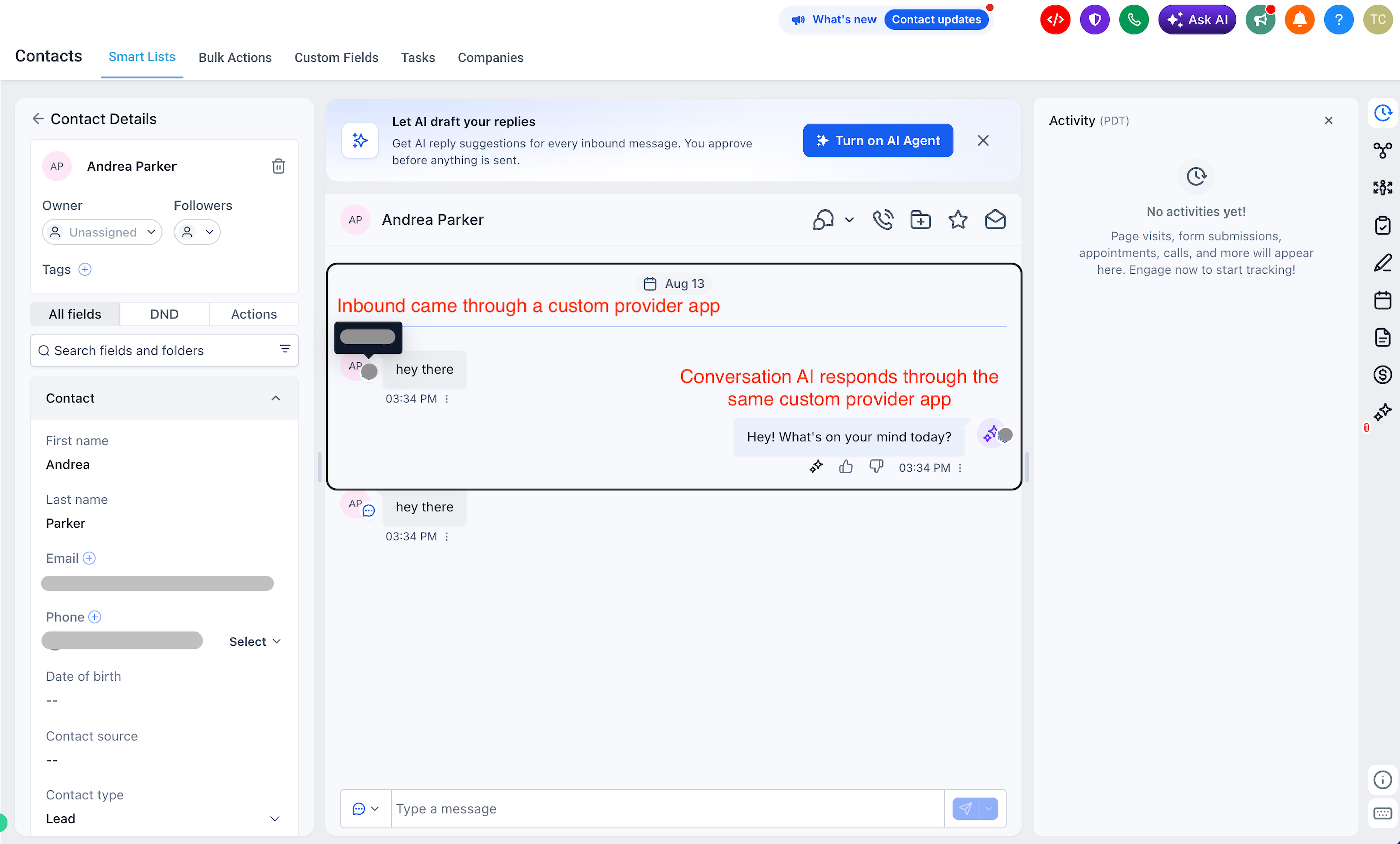
Once a supported Marketplace app is added and turned on, Conversation AI can reply to messages that come through that app. The reply goes back through the same messaging app the customer used.
For example:
A customer sends a message through the connected Marketplace app.
HighLevel receives the message.
The Conversation AI bot reads the message.
The bot creates a reply.
The reply is sent back through the same Marketplace app.
The bot will only reply if:
the app is added to the bot,
the app is turned on,
the bot is saved,
and any contact tag rules are met.
How To Set Up a Custom Conversation Provider for Conversation AI
Setting up the feature in the correct order helps make sure the messaging app appears and the bot can reply through it. Start by turning on the required Labs feature, then install the app and connect it to your bot.
Step 1: Turn On Conversations AI Channel Management in Labs
This step is required.
Go to Settings.
Open Labs.
Find Conversations AI Channel Management.
Turn it on.
If this setting is not enabled, you may not see the custom channel options on the Deploy tab.
Step 2: Install a Supported Marketplace App
The app must be installed before it can be added to your bot.
Open the App Marketplace.
Find the messaging app you want to use.
Make sure it supports Conversation Provider.
Install the app for the correct subaccount.
Complete the app's setup.
Make sure the app is active.
If the app does not support Conversation Provider, it will not appear in the list later.
Step 3: Open Your Conversation AI Bot
The Deploy tab is where you choose which messaging channels the bot can use.
Go to AI Agents > Conversation AI.
Open the bot you want to update.
Click Deploy.
Step 4: Add the Marketplace Messaging App
Now you can connect the installed app to your bot.
Click Add channels from marketplace.
Open the Installed providers dropdown.
Select the app you want to use.
Add contact tag rules if needed.
Choose AND or OR if you are using more than one tag rule.
Click Add channel.
If the app is missing from the list, check that:
it is installed,
it is active,
it is installed for the correct subaccount,
and it supports Conversation Provider.
Step 5: Check the Channel and Save
Review the setup before saving to make sure the bot is using the correct messaging app.
Confirm that the new app appears on the Deploy screen.
Make sure the app is turned on.
Review any contact tag rules.
Check the bot's other active channels.
Click Save.
Troubleshooting Custom Conversation Providers
Most setup problems happen because the Labs feature is off, the Marketplace app is not supported, or the channel was not saved. Checking these items can quickly identify why the bot is not responding.
The Marketplace app does not appear
Check that:
Conversations AI Channel Management is turned on in Labs.
The app is installed.
The app is installed for the correct subaccount.
The app supports Conversation Provider.
The app is active.
The bot is not replying
Check that:
The custom messaging app was added to the bot.
The app is turned on.
The bot was saved after the change.
The contact matches any tag rules you added.
The Marketplace app itself is connected correctly.
The bot replies to some contacts but not others
Review the Has tags and Doesn't have tags rules. A contact may not meet the rules you set for that messaging app.
Frequently Asked Questions
Q: Do I have to turn on a Labs feature first?
A: Yes. Conversations AI Channel Management must be turned on in Labs before you can use the custom channel setup described in this article.
Q: Why don't I see my Marketplace app in the list?
A: Only installed apps that support Conversation Provider appear. Make sure the app is installed, active, and supports this feature.
Q: Can every Marketplace app be used with Conversation AI?
A: No. The app must support Conversation Provider.
Q: Will my existing custom messaging setup stop working?
A: No. Existing setups continue working. Apps that were already active should appear automatically on the Deploy tab.
Q: Do custom messaging apps still depend on SMS or Email settings?
A: With the new Channel Management experience, supported custom apps can be managed directly from the Deploy tab.
Q: Why is the bot not replying through my custom app?
A: Make sure the app is added, turned on, saved, and connected correctly. Also check whether contact tag rules are blocking the reply.
Q: Can I control which contacts the bot replies to?
A: Yes. You can use Has tags and Doesn't have tags rules when setting up the channel.
Q: Can different bots use different Marketplace messaging apps?
A: Yes. You choose the channels separately from each bot's Deploy tab.
Related Articles
Was this article helpful?
That’s Great!
Thank you for your feedback
Sorry! We couldn't be helpful
Thank you for your feedback
Feedback sent
We appreciate your effort and will try to fix the article