The Count available days only toggle changes how your Date Range is calculated. Instead of counting every calendar day — including weekends or days you don't work — the system counts only the days in your availability schedule. Bookers always see the full number of days you've set, starting after your minimum scheduling notice period ends.
TABLE OF CONTENTS
What is the Count Available Days Only Toggle?
The Date Range setting controls how far into the future your booking widget is open. By default it counts every calendar day, including weekends and days you are not available. This means a business open Monday through Friday with a 2-day range can appear to have no availability when a customer visits on a Friday — Saturday and Sunday consume the window before Monday is reached.
The Count available days only toggle fixes this. When enabled, the system skips days outside your availability schedule when counting the date range, and starts counting from the day after your minimum scheduling notice period ends. Bookers see the exact number of working days you have configured — not a blank calendar.
Important: This toggle reads directly from your Availability settings. If your availability schedule is not configured, the booking widget will show no available dates when the toggle is on.How to Enable It
Go to Calendars → Calendar Settings and click Edit on the calendar you want to update.
Select Booking Rules in the left menu.
Find the Date Range field.
Toggle on Count available days only directly below the Date Range input.
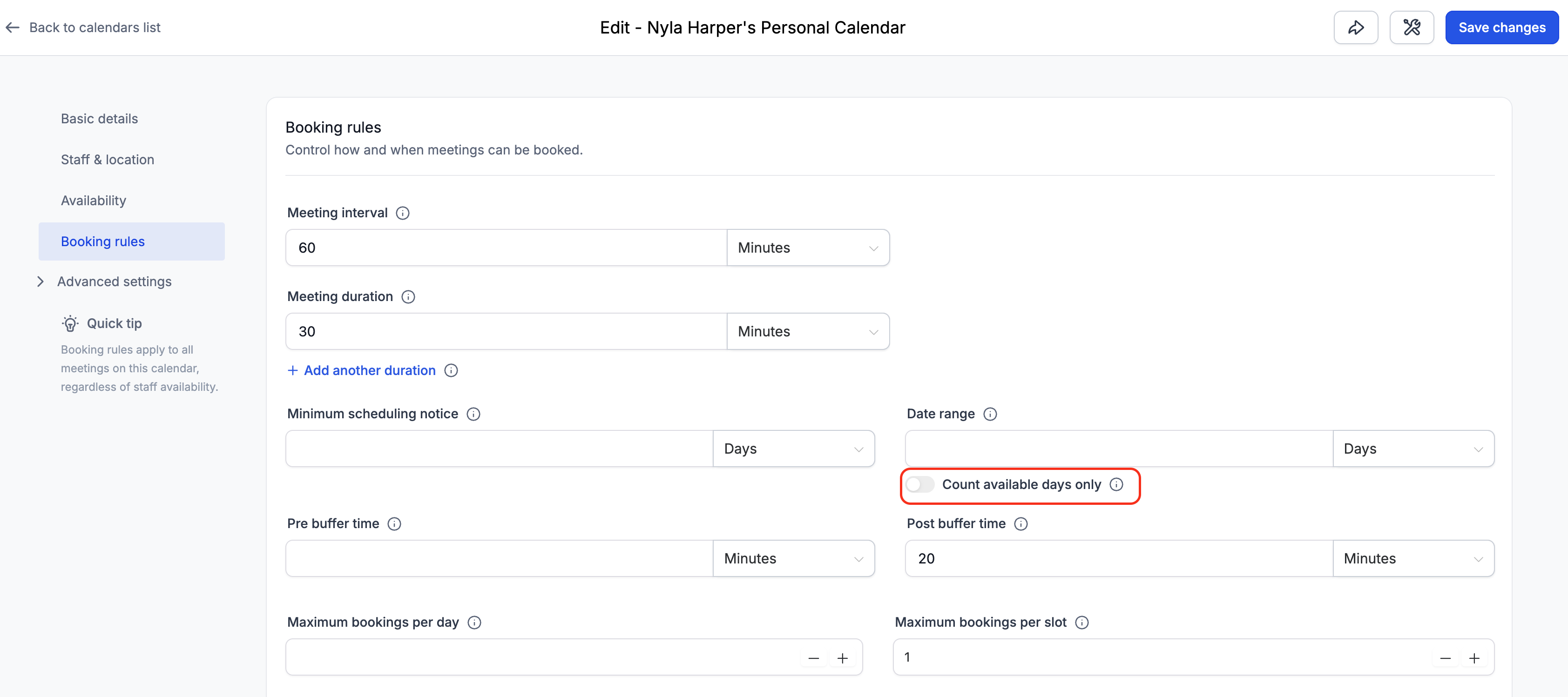
The toggle is off by default for all existing calendars. Turning it on does not change your Date Range number — it only changes how that number is counted.
How It Works
Toggle Off
The date range counts every calendar day from today, including weekends and days with no availability. The booking window ends exactly X calendar days from today regardless of your schedule.
Example
Today: Friday, 15 Aug
Date Range: 2 Days
Availability: Monday–Friday
Toggle: Off
The system counts Saturday (16 Aug) and Sunday (17 Aug). Neither has availability, but both are counted. The widget shows no available days.
Toggle On — Count Available Days Only
The date range counts only days in your availability schedule. The system scans forward past days with no availability until the configured number of available days is found. The calendar end date will naturally fall further out in calendar time for businesses with fewer working days per week — this is expected behavior.
Example
Today: Friday, 15 Aug
Date Range: 2 Days
Availability: Monday–Friday
Toggle: On
Saturday and Sunday are skipped. The system counts Monday (1) and Tuesday (2).
Widget shows: Monday 18 Aug and Tuesday 19 Aug.
Example — Sparse schedule
Today: Monday, 11 Aug
Date Range: 5 Days
Availability: Monday, Wednesday, Friday only
Toggle: On
Widget shows: 11, 13, 15, 18, 20 Aug.
How It Works with Minimum Scheduling Notice
Minimum scheduling notice and the date range are two independent settings. Notice determines when the booking window begins. The date range determines how many available days are visible from that point.
When Count available days only is on, the system applies the notice period first, then counts available days starting from the first day after notice ends. Bookers always see the full number of days configured in the date range.
Example
Today: Wednesday, 12 Aug
Minimum Scheduling Notice: 2 days
Availability: Monday–Friday
Date Range: 5 days
Toggle: On
The notice period is applied first. The system then counts 5 available days from the first available day after notice ends:
Widget shows: 15, 16, 19, 20, 21 Aug — all 5 available days visible.
Example — Notice period falls on non-working days
Today: Thursday, 14 Aug
Minimum Scheduling Notice: 2 days
Availability: Monday–Friday
Date Range: 3 days
Toggle: On
The notice period ends on Saturday. The first available day after notice is Monday:
Widget shows: 18, 19, 20 Aug.
Note: Minimum scheduling notice always counts calendar days — not working days. Saturday and Sunday count toward the notice period even if your business is closed on those days. Notice represents real elapsed time needed to prepare for an appointment, not days the business is actively working.
How It Works with Date-Specific Hours
Date-Specific Hours override your Weekly Working Hours for individual dates. The Count available days only toggle respects these overrides when deciding which days to count.
A day not in the weekly schedule but with date-specific hours added → counts as an available day
Weekly schedule: Monday–Friday
Date-specific hours added for Saturday, 16 Aug (e.g., for a special event)
Toggle: On
Saturday 16 Aug is counted as an available day for that specific date
A day in the weekly schedule but marked unavailable via date-specific hours → not counted
Weekly schedule: Monday–Friday
Date-specific hours for Monday, 18 Aug set to unavailable (e.g., a holiday)
Toggle: On
Monday 18 Aug is skipped in the count
Example
Today: Friday, 15 Aug
Availability: Tuesday, Wednesday, Thursday (weekly)
Date-specific hours: Monday 18 Aug added as available
Date Range: 4 days
Toggle: On
Widget shows: 18, 19, 20, 21 Aug.
How It Works with Round Robin Calendars
For round robin and collective calendars, a day counts as an available day if at least one assigned team member has availability configured on that day.
Example
Date Range: 4 days
Toggle: On
Team member A: available Monday and Wednesday
Team member B: available Tuesday and Thursday
Widget shows all four days, with each day showing only the slots of the team member available that day.
If no team member has availability on a given day, that day is skipped in the count just as it would be on a personal calendar.
Edge Cases
Fully booked days still count toward the window
The toggle reads from your availability schedule, not from whether slots are taken. If a day is in your schedule but all slots are fully booked, it still counts as one of your available days. It will appear on the widget but show no bookable time slots.
If availability is not configured
If your Availability section has no days set up and the toggle is on, the booking widget will show no available dates. Set up your availability schedule first for the toggle to work correctly.
Frequently Asked Questions
Q: Does turning this on change my existing date range number?
No. The toggle only changes how the number is counted. A setting of 5 days still means 5 days — they are now counted from your availability schedule instead of as calendar days.
Q: What happens if I update my availability schedule after enabling the toggle?
The toggle reads your availability in real time. Any changes to your availability schedule are reflected immediately on the booking widget with no additional action needed.
Q: Does minimum scheduling notice count available days or calendar days?
Calendar days always. Notice represents real elapsed time, not days the business is open.
Was this article helpful?
That’s Great!
Thank you for your feedback
Sorry! We couldn't be helpful
Thank you for your feedback
Feedback sent
We appreciate your effort and will try to fix the article