WordPress File Manager
The WordPress File Manager brings essential file management capabilities directly into HighLevel, giving you full control over your site's filesystem without needing external tools or FTP clients.
This article explains how to navigate, upload, edit, organize, and manage permissions for your WordPress files and folders through an intuitive, unified interface.
What is the WordPress File Manager?
The WordPress File Manager is a built-in tool that provides direct access to your WordPress site's filesystem from within HighLevel. It eliminates the need for external FTP clients or cPanel access by offering a comprehensive interface for managing files and folders.
With the File Manager, you can browse your site's directory structure, upload and download files, edit file contents, create and delete folders, manage archives, and update file permissions—all from a single location. This integrated approach streamlines WordPress site maintenance and gives you faster access to critical file operations.
The File Manager supports essential workflows like theme customization, plugin modifications, troubleshooting, and content management, making it an indispensable tool for WordPress site administrators.
Key Benefits
The WordPress File Manager simplifies site administration by consolidating file operations into an intuitive, accessible interface. Key advantages include:
File Manager Capabilities
The WordPress File Manager provides comprehensive file and folder management tools designed for efficient WordPress site administration. Each capability is built to streamline common workflows and reduce dependency on external applications.
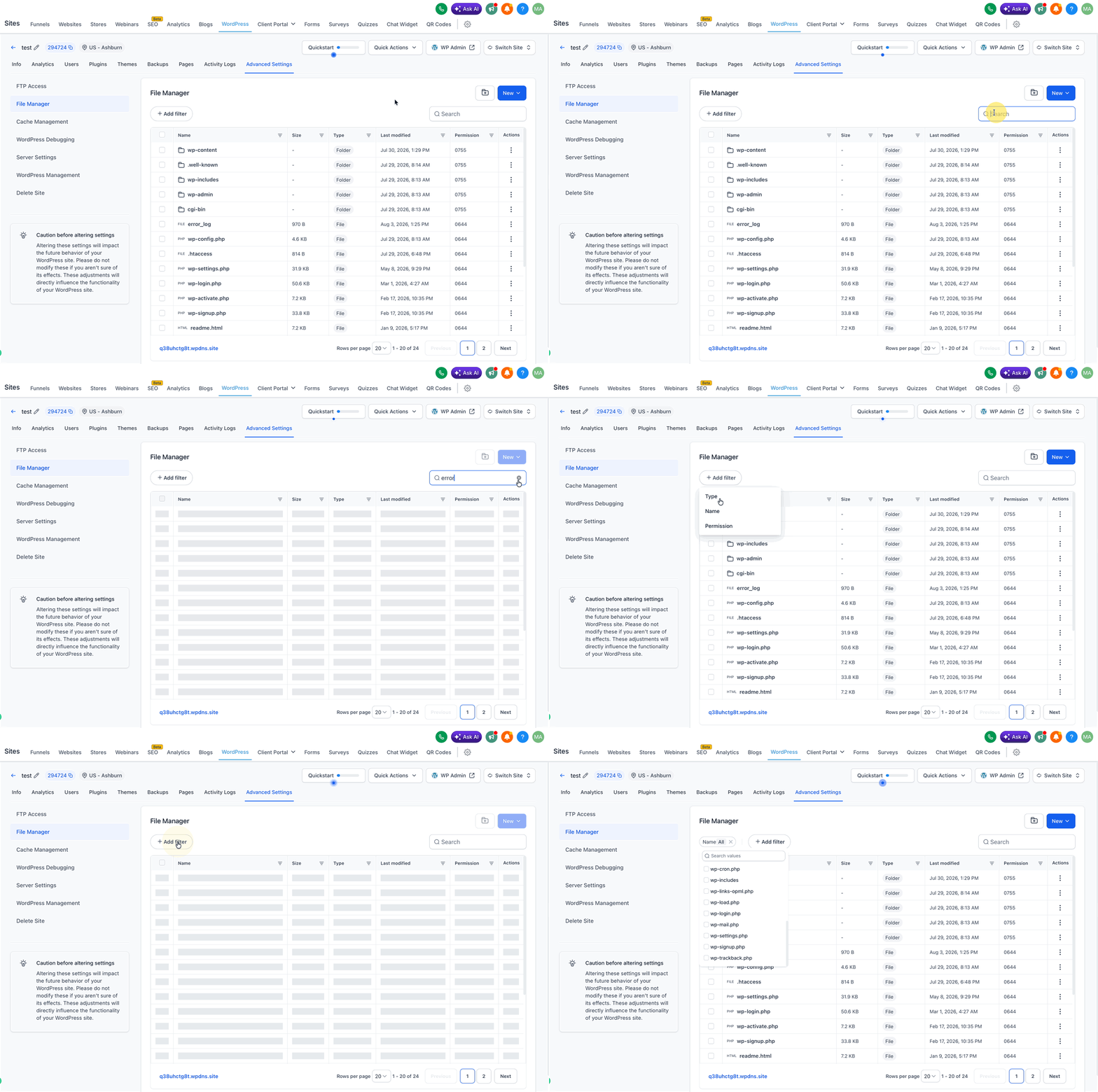
Quickly explore your WordPress directory structure with powerful navigation tools. Use the built-in search to locate specific files, apply filters to narrow results, sort files by name or date, and navigate large directories with pagination. This makes it easy to find and access any file on your site.
Upload files in supported formats directly to any folder on your WordPress site. Download files whenever needed for backup, editing offline, or sharing with collaborators. This eliminates the need for FTP clients and simplifies file transfers.
Preview file contents before making changes to ensure you're editing the correct file. Edit and save files directly in the File Manager with conflict-safe protection that helps prevent overwriting newer updates made by other users or processes. This safeguard reduces the risk of accidental data loss.
Execute essential file and folder operations with ease:
- Create new files and folders to organize your site structure
- Delete unnecessary files and folders to free up space
- Compress files and folders into archive formats for backup or distribution
- Extract archive files to restore backups or unpack plugins and themes
Modify file and folder permissions to control access and security settings. Where supported by your hosting environment, you can update chmod values to ensure proper read, write, and execute permissions for WordPress core files, themes, plugins, and uploads.
How to Use the WordPress File Manager
Follow these steps to access and use the WordPress File Manager to manage your site's files and folders.
Navigate to your WordPress management section within HighLevel. Locate and click on the File Manager option to open the file browser interface.
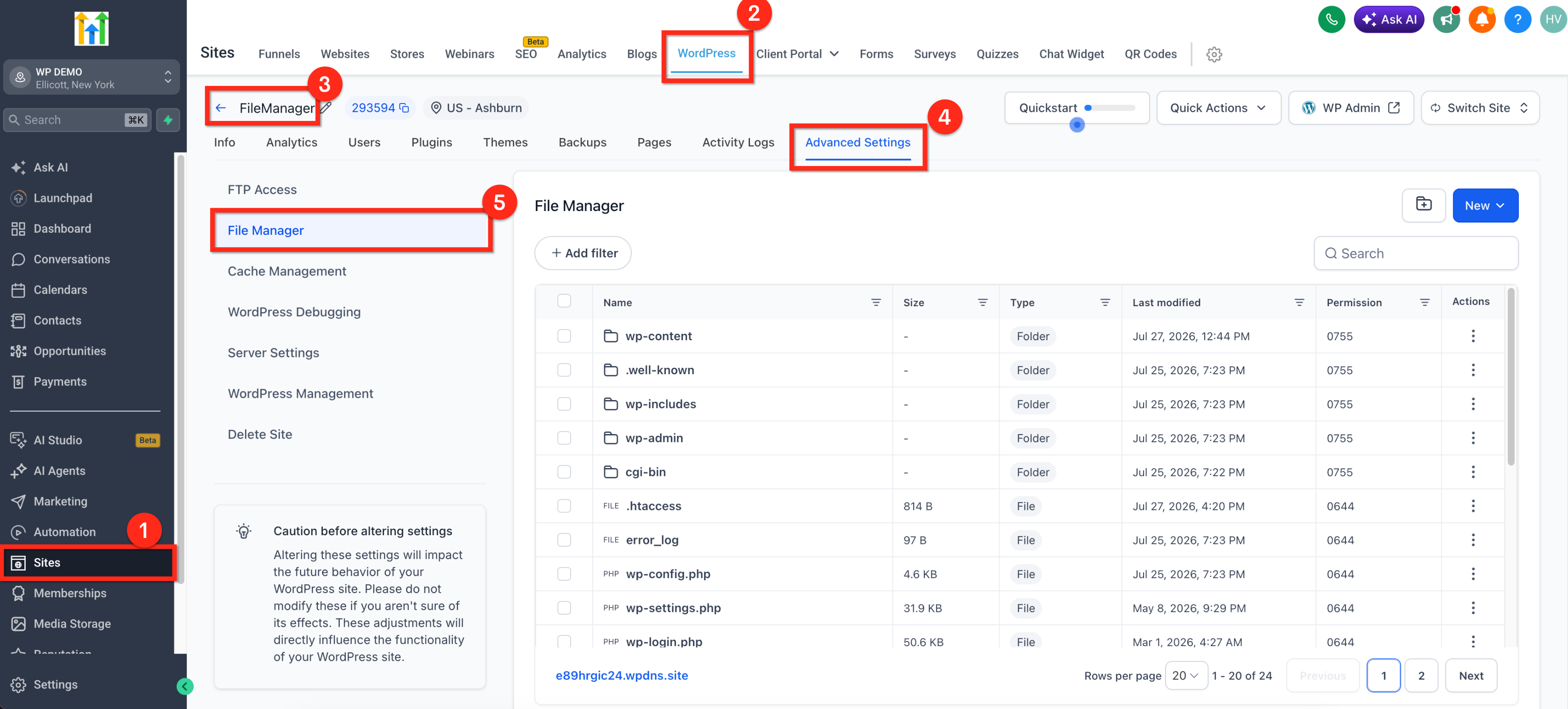
Use the file browser to navigate through your site's directory structure. Click on folders to expand them. Use the search bar to find specific files, apply filters to narrow results, or sort files by name or modification date. Pagination controls help you navigate large directories efficiently.
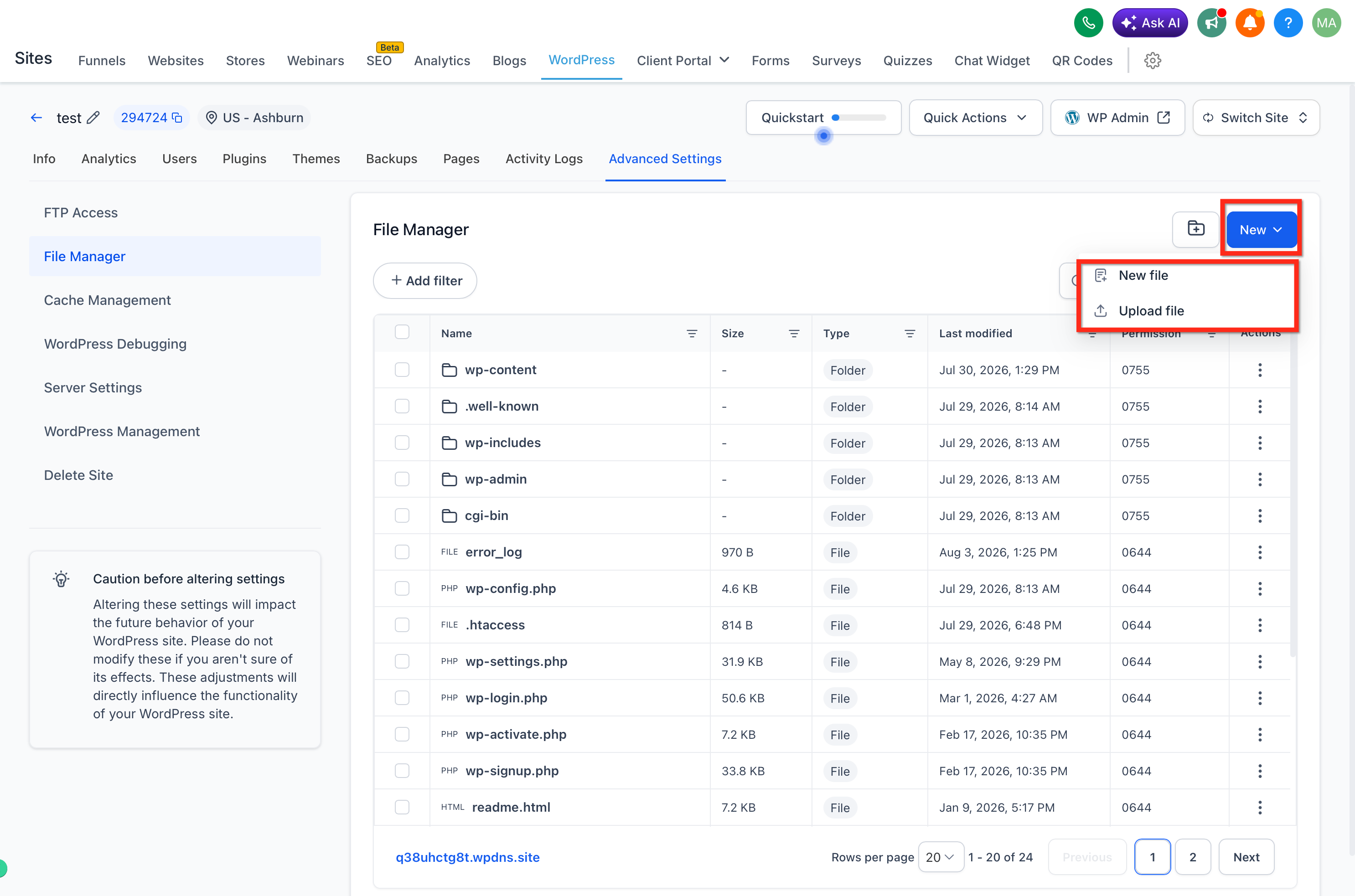
To upload files:
- Navigate to the target folder
- Click the Upload button
- Select files from your computer in supported formats
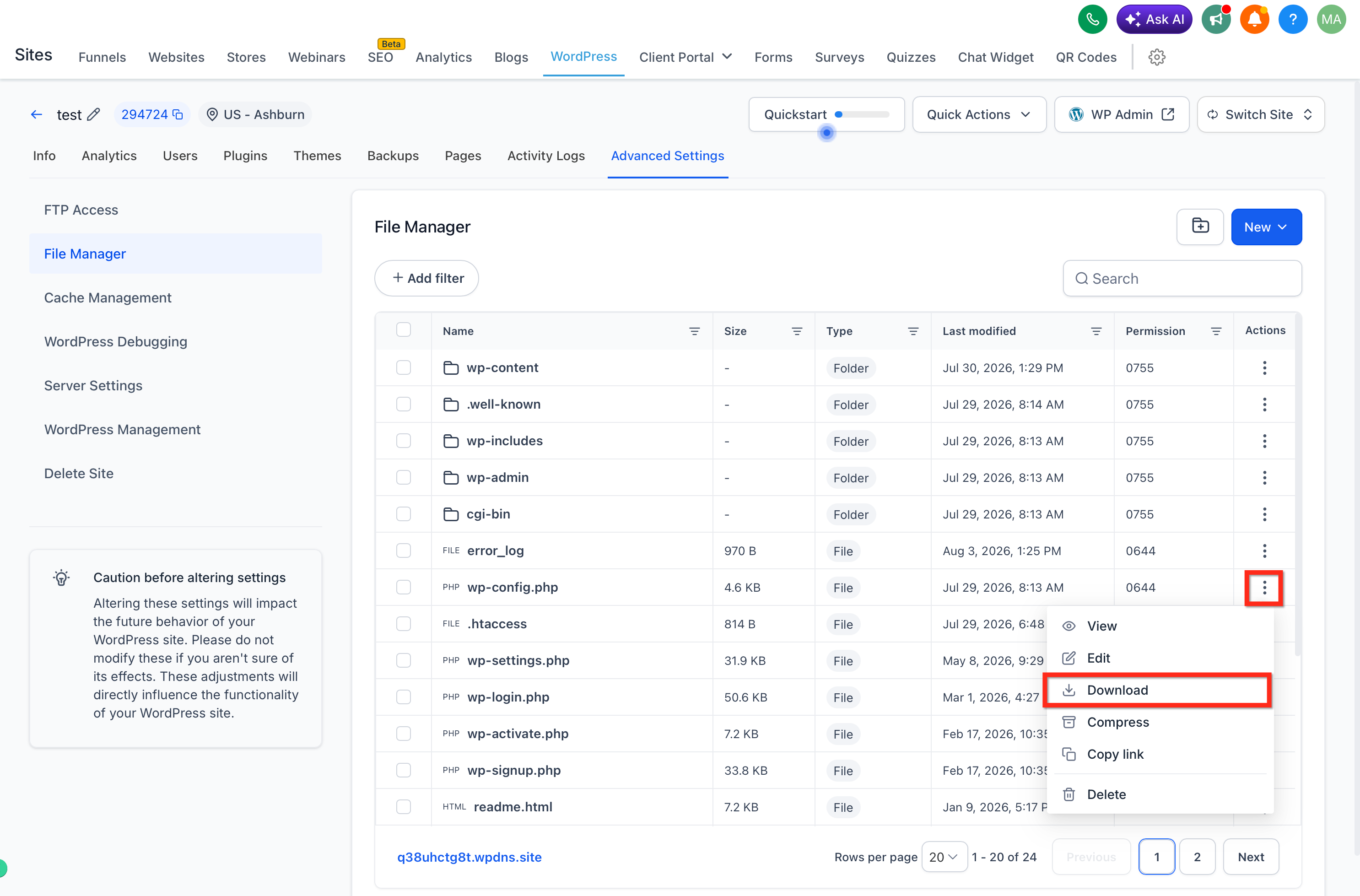
To download files:
- Select the file or folder you want to download
- Click the Download button
- The file will be saved to your local device
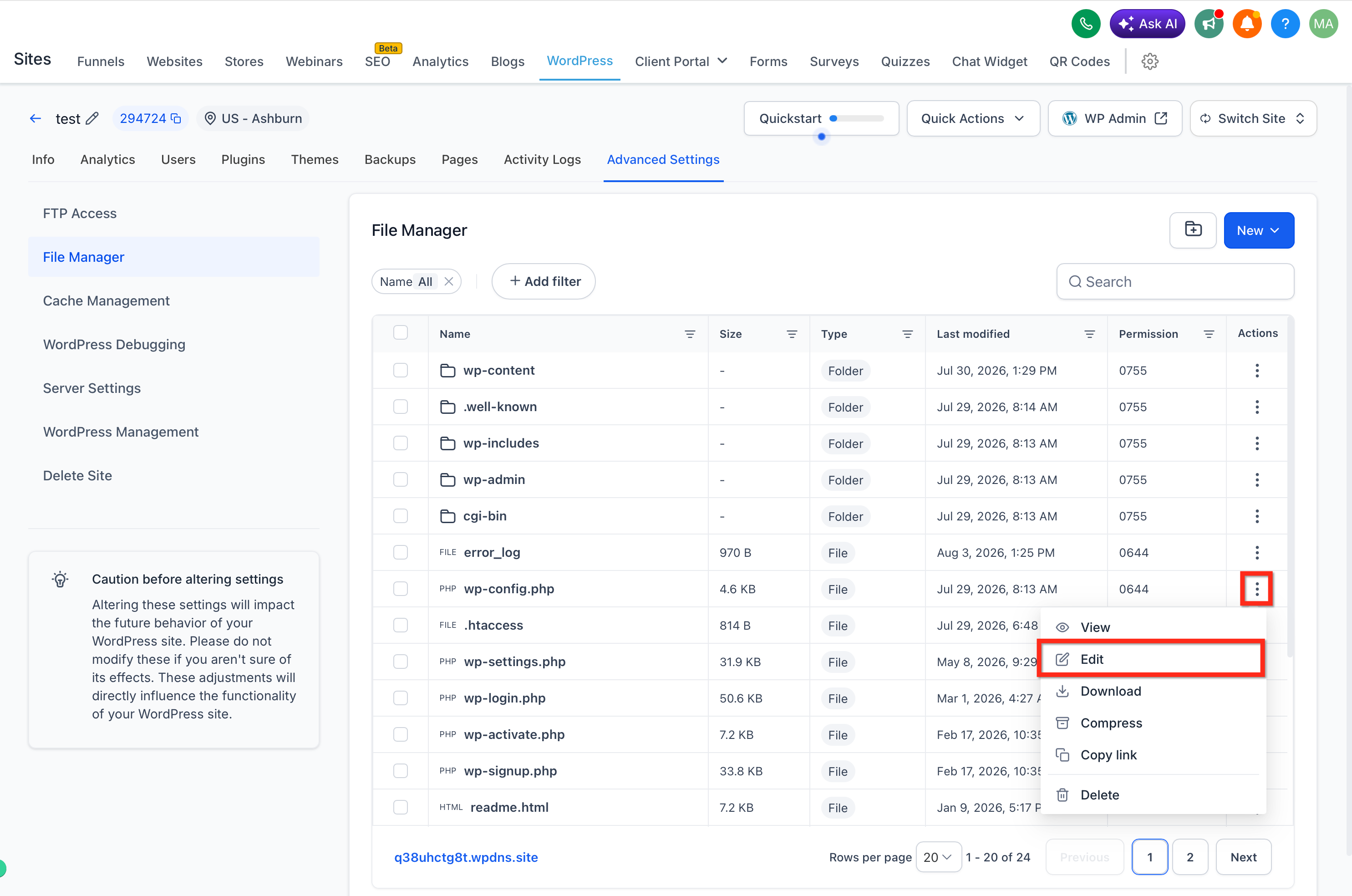
To edit a file:
- Select the file you want to edit
- Click the Edit button to view file contents
- Make your changes in the editor
- Click Save to apply changes
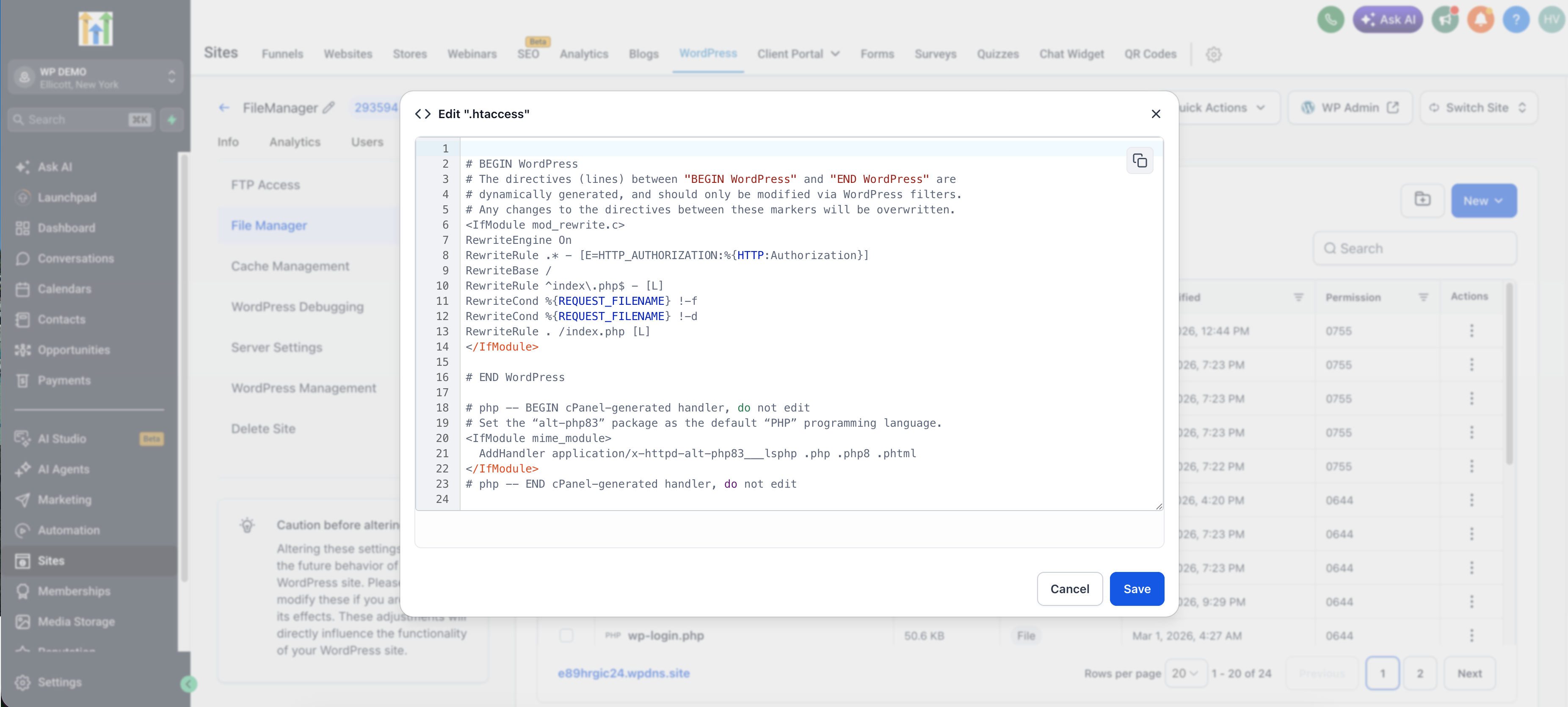
The File Manager includes conflict-safe protection that alerts you if the file has been modified by another user or process since you opened it, helping prevent accidental overwrites.
Always preview file contents before editing critical files like wp-config.php or .htaccess to ensure you're modifying the correct file and understand its current state.
Perform common file operations using the File Manager toolbar and context menus:
- Create: Click the New File or New Folder button to create new items in the current directory
- Delete: Select files or folders and click the Delete button to remove them from your site
- Compress: Select files or folders and click the Compress button to create an archive (e.g., .zip)
- Extract: Select an archive file and click the Extract button to unpack its contents
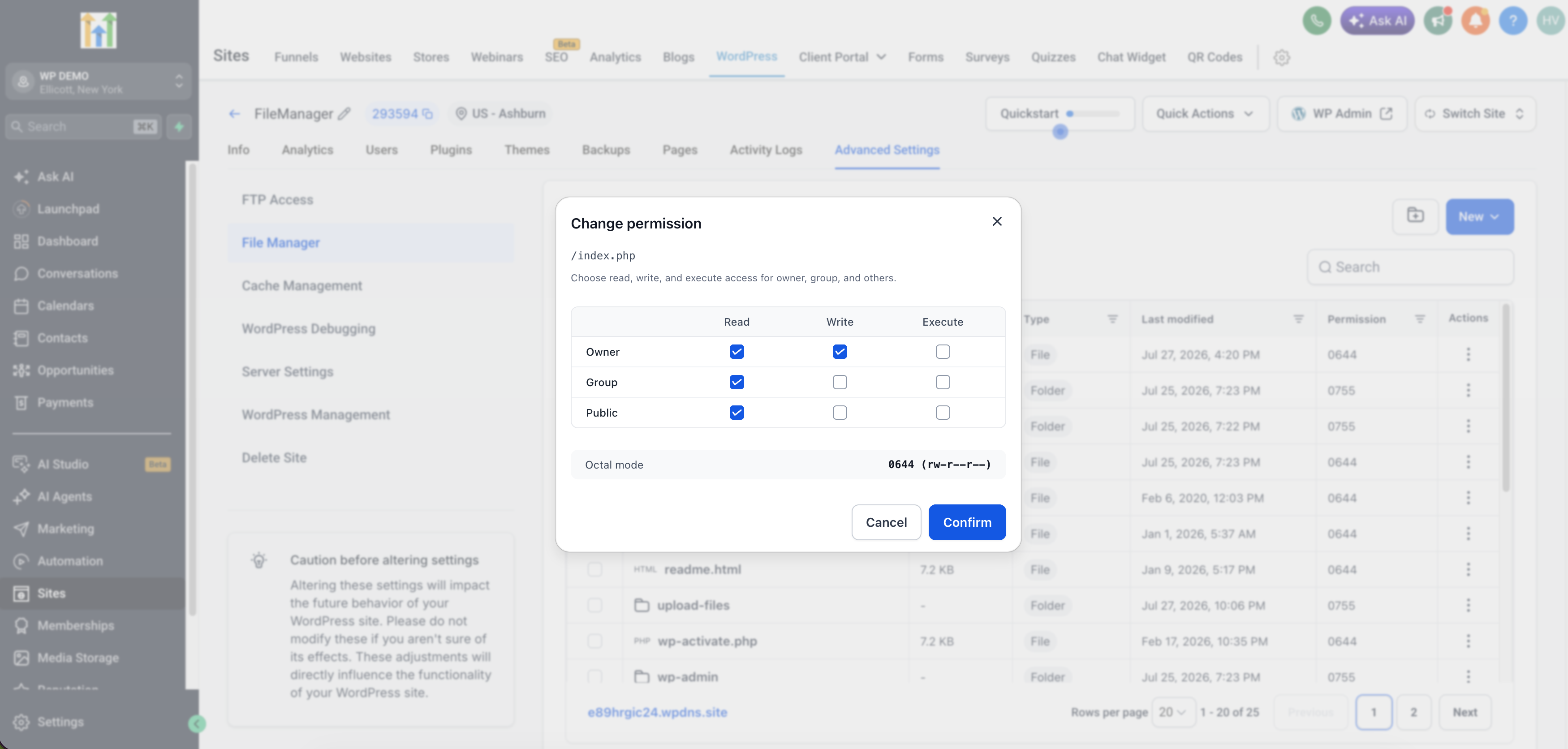
To modify file or folder permissions:
- Select the file or folder
- Click the Permissions or Properties button
- Adjust the permission settings (read, write, execute) for owner, group, and others
- Click Save to apply the new permissions
Note that permission management depends on your hosting environment's support for chmod operations. If this feature is unavailable, consult your hosting provider.
Incorrect file permissions can compromise site security or break functionality. Always verify recommended permission settings for WordPress core files, themes, and plugins before making changes.
Frequently Asked Questions
Was this article helpful?
That’s Great!
Thank you for your feedback
Sorry! We couldn't be helpful
Thank you for your feedback
Feedback sent
We appreciate your effort and will try to fix the article