HighLevel WordPress Hosting lets agencies create, migrate, and manage WordPress websites for client sub-accounts directly inside HighLevel.
This article explains how to create a WordPress site, give the appropriate users access, manage domains, backups, and advanced settings, and understand which features are available to agency users versus client users.
LeadConnector plugin (auto-installed on new hosted sites)
If your WordPress site is newly provisioned via HighLevel Hosting, HighLevel automatically installs the LeadConnector (LC) plugin during setup.
Use the Plugin Status indicator in your HighLevel WordPress dashboard to confirm whether the plugin is Connected or Disconnected.
Setting up a new WordPress Site
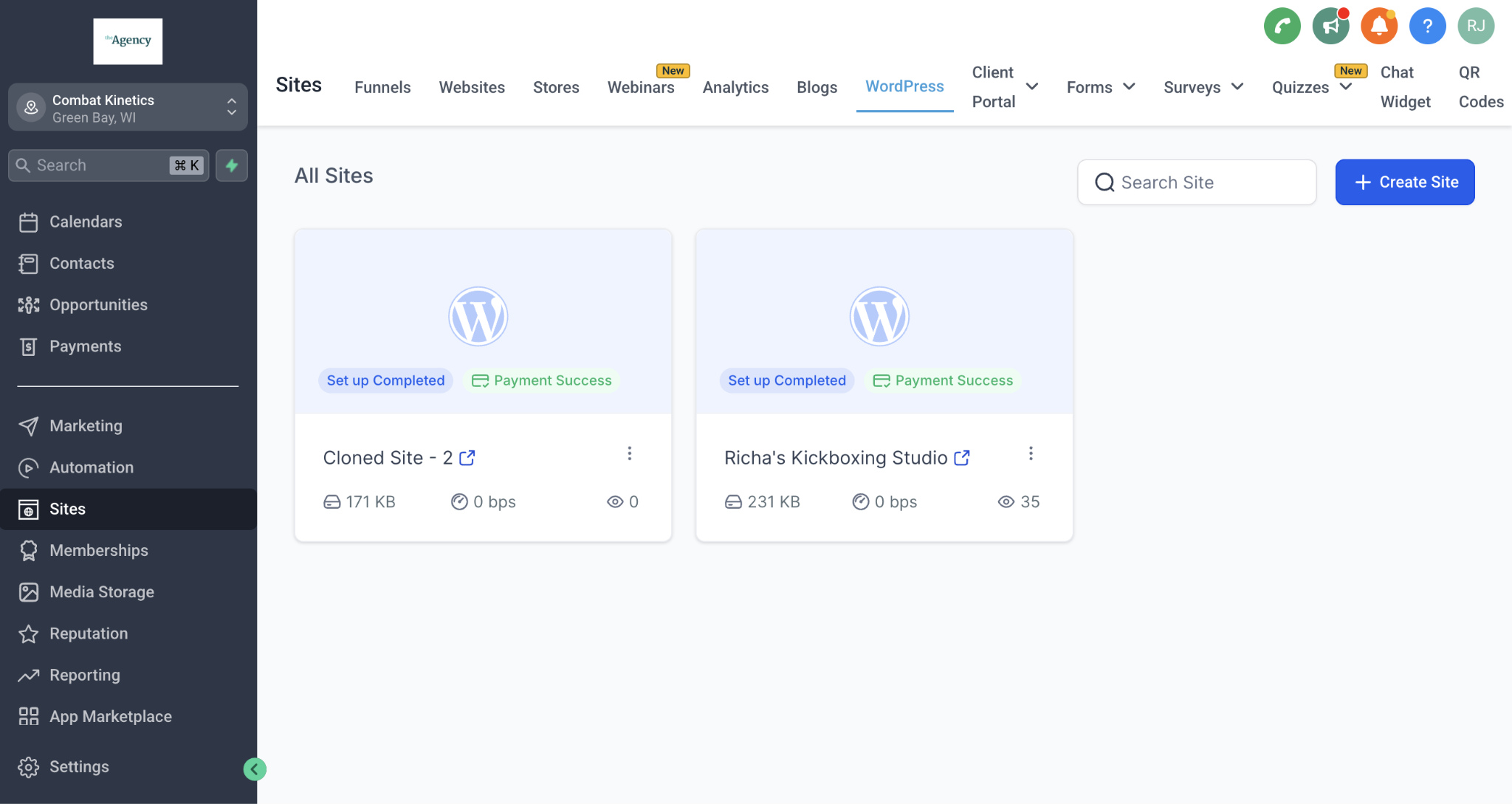
To set up your WordPress site, you need to have purchased the WordPress hosting feature under the Sites tab. Once this has been done, you can get started by clicking the "+ Create Site" button.
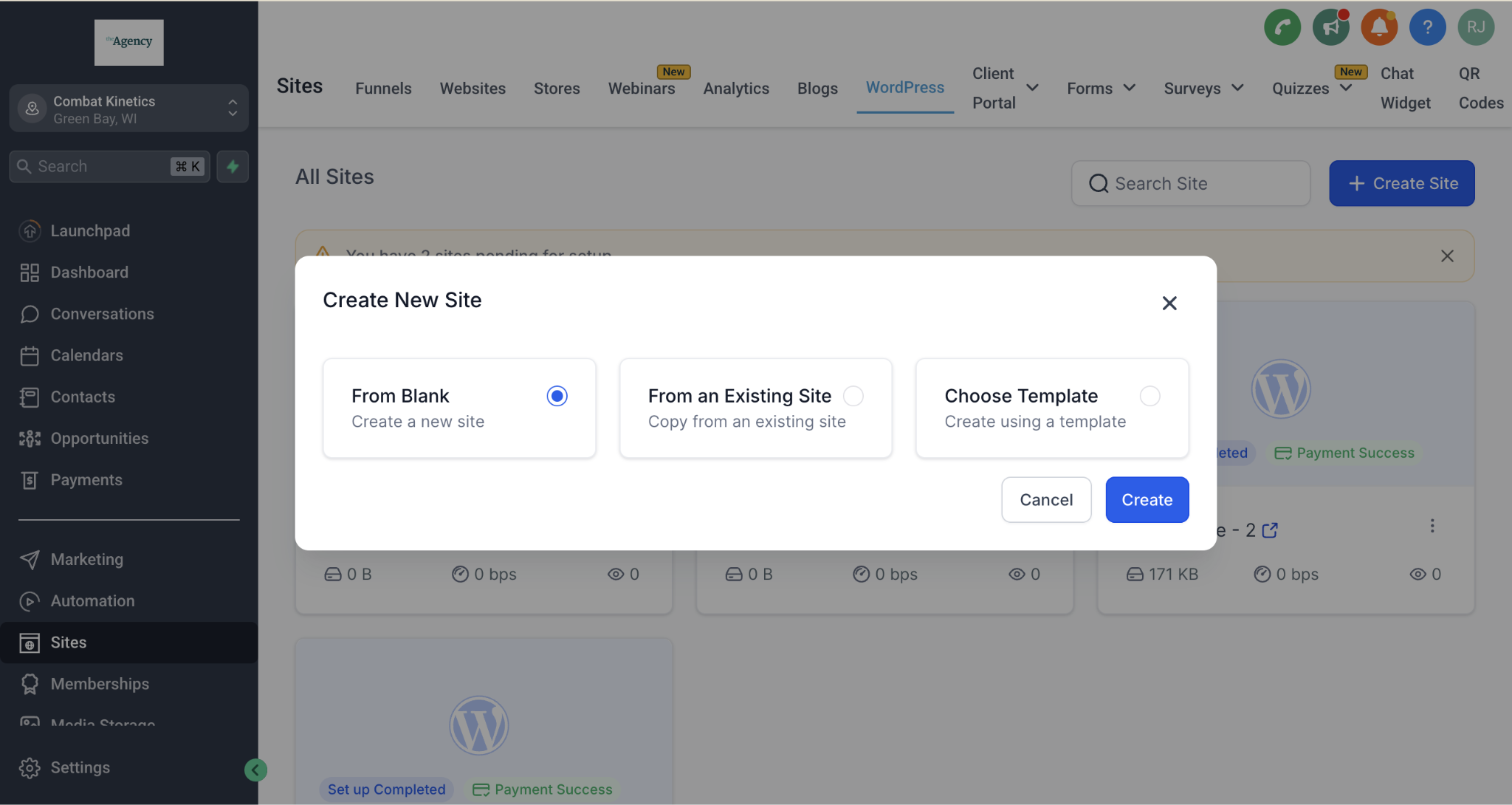
Choose if you wish to create a site from scratch, using a template, or clone an existing site
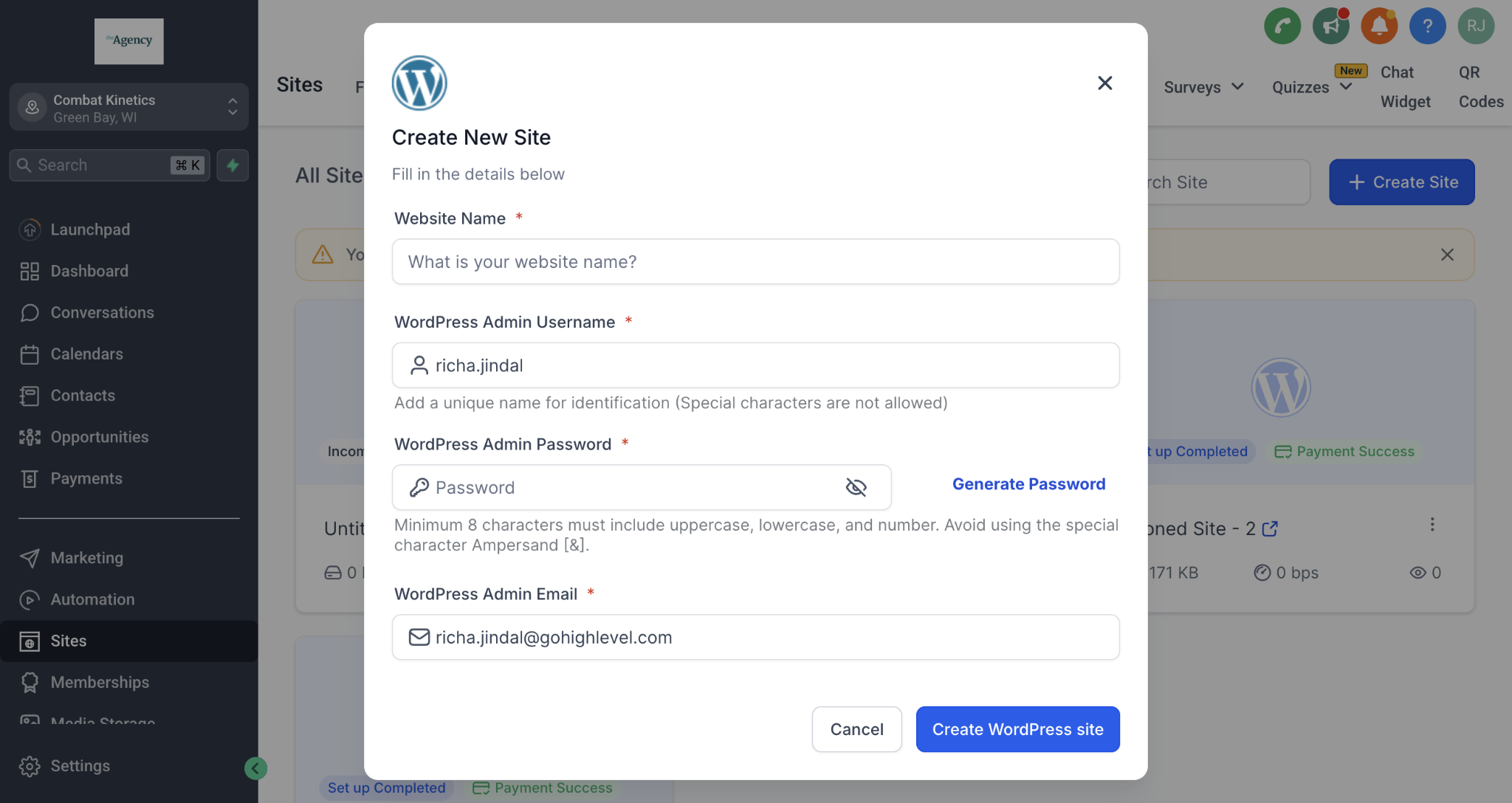
Fill in the Site and User details.
Wait for 2-5 minutes till the installation is complete.
After the installation is complete, you will have access to the WordPress dashboard, user management, backup & restore, and some additional settings.
The WordPress Dashboard
Here you can access your site and admin portal, as well as manage your Additional Domains & Primary Domain.
Moving an existing site? Import an existing WordPress site seamlessly using our proprietary LC Migrator plugin, or take advantage of our free white-glove migration assistance.
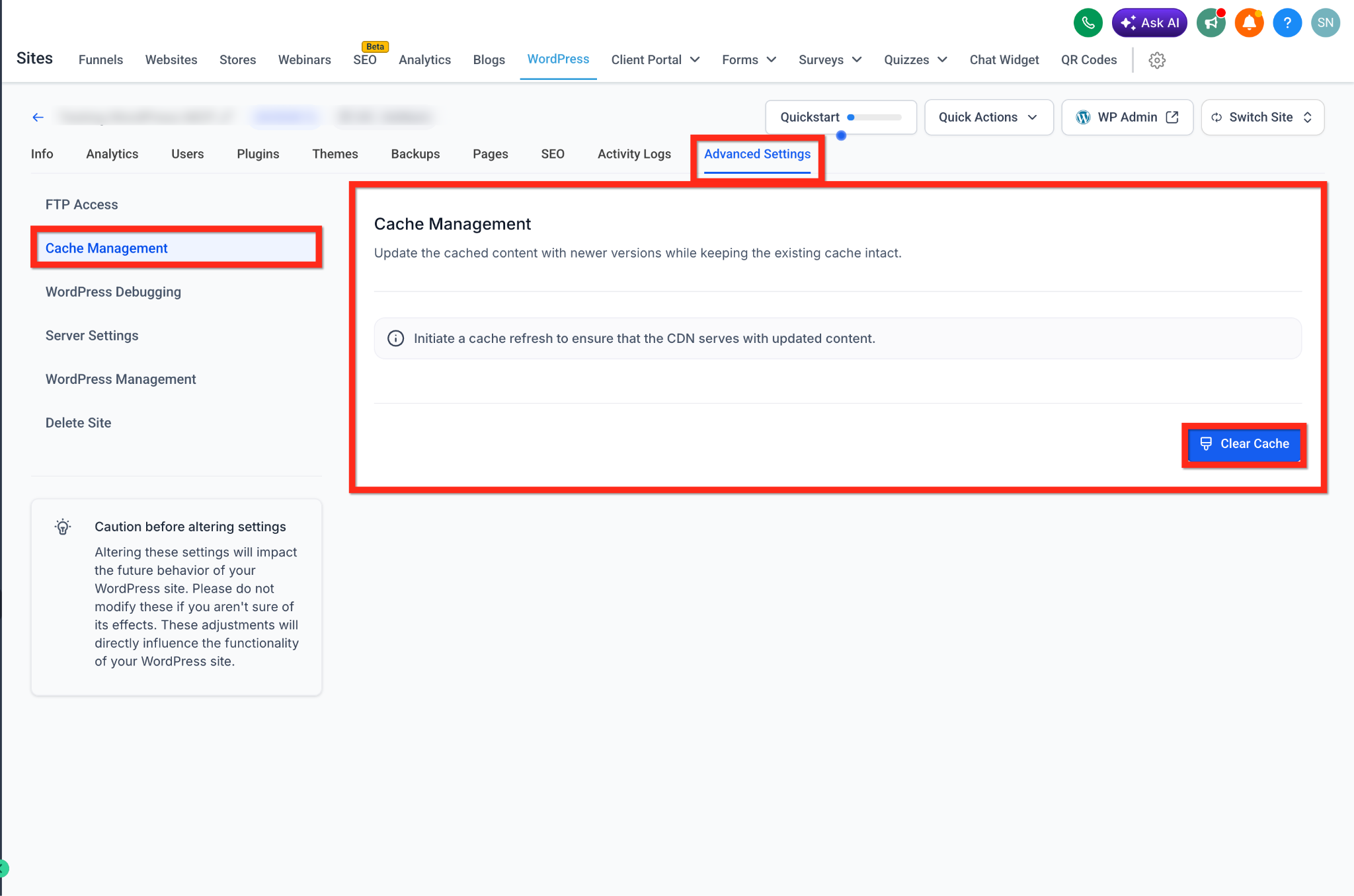
You can also effortlessly Refresh Cache for the WordPress Site directly from this dashboard.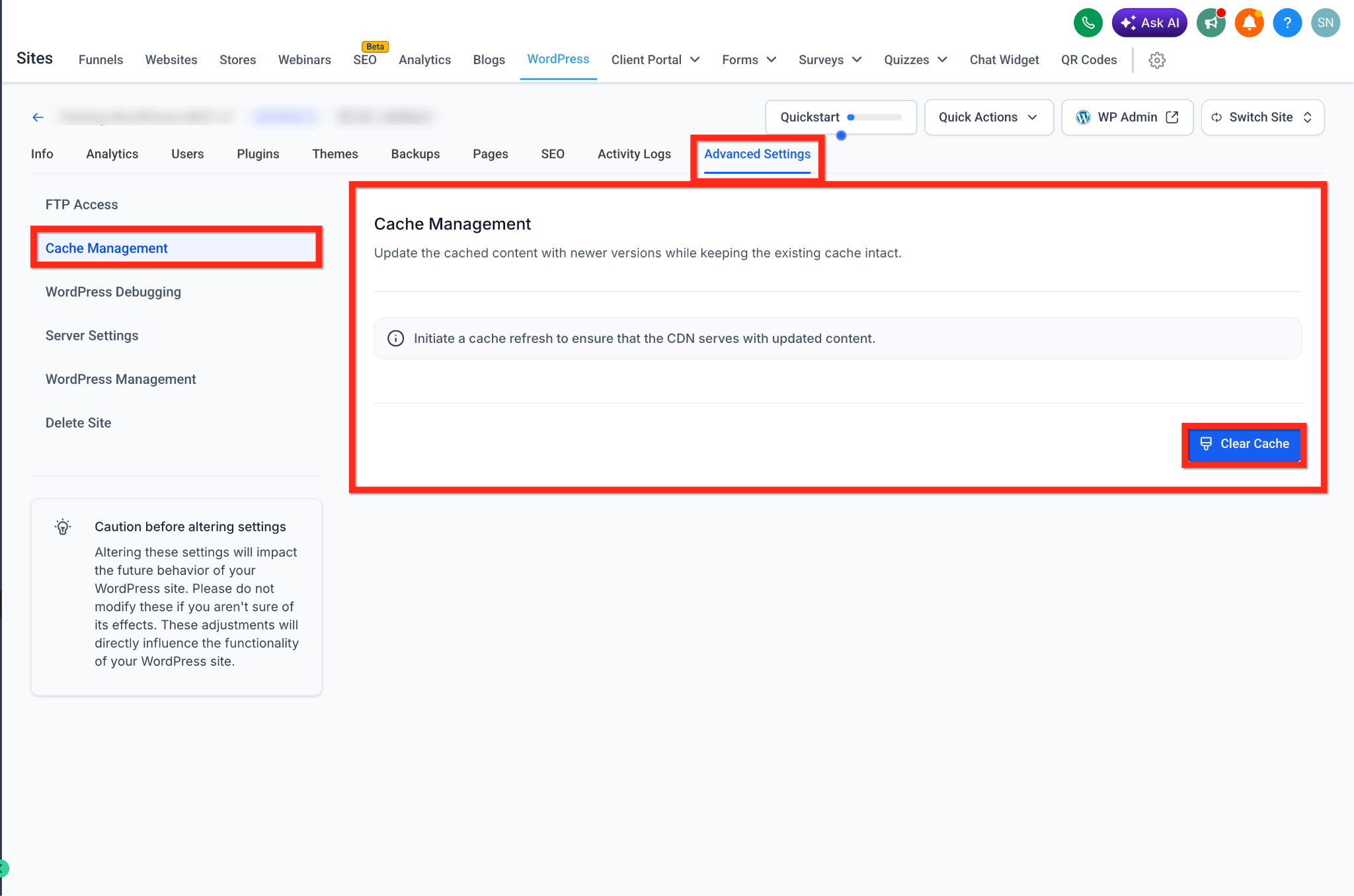
User Management
Here you can manage all users for the site.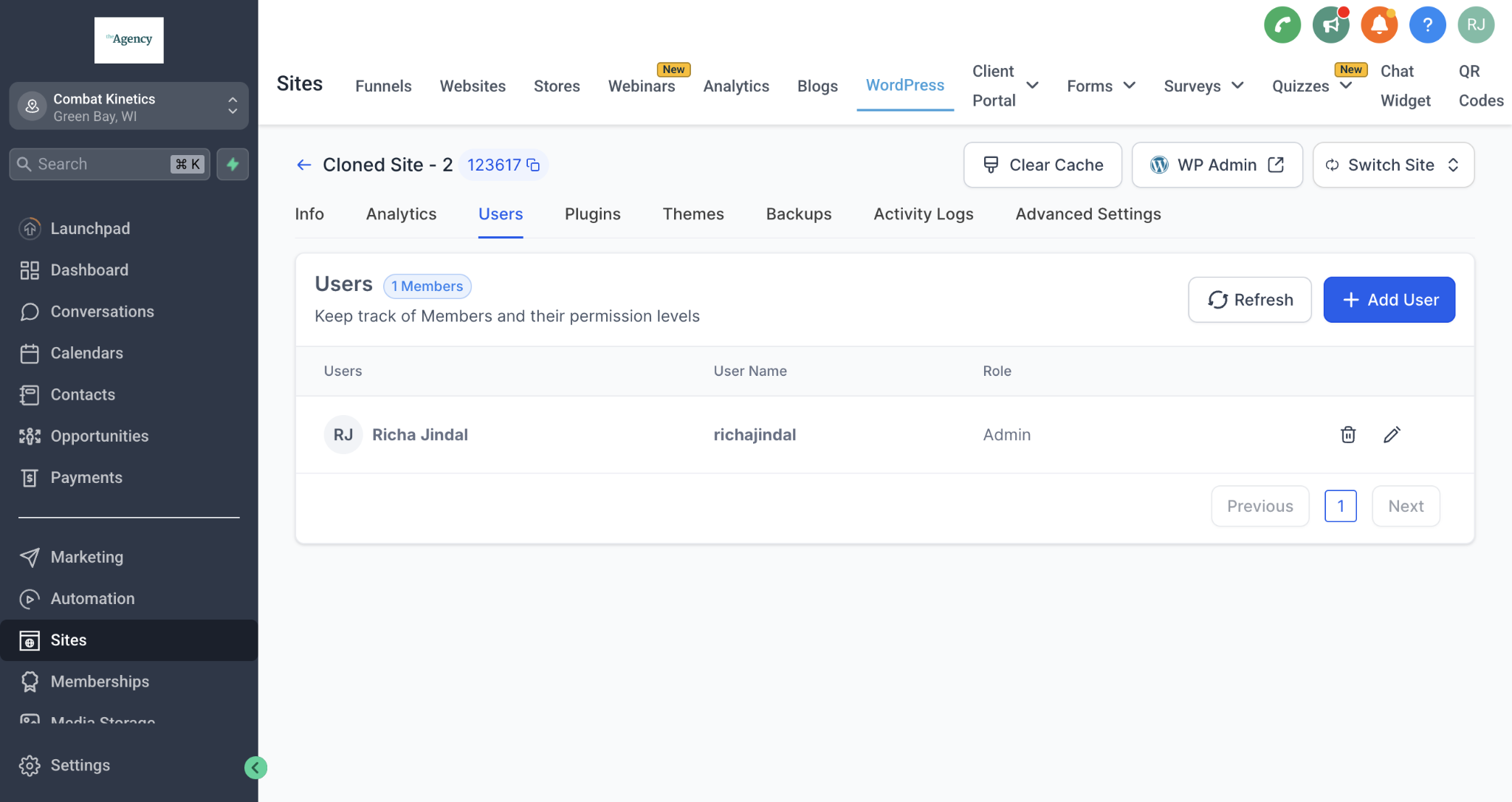
Backup & Restore
Here you will see the backups for the last 30 days. Backups happen daily at 05:00 AM CST.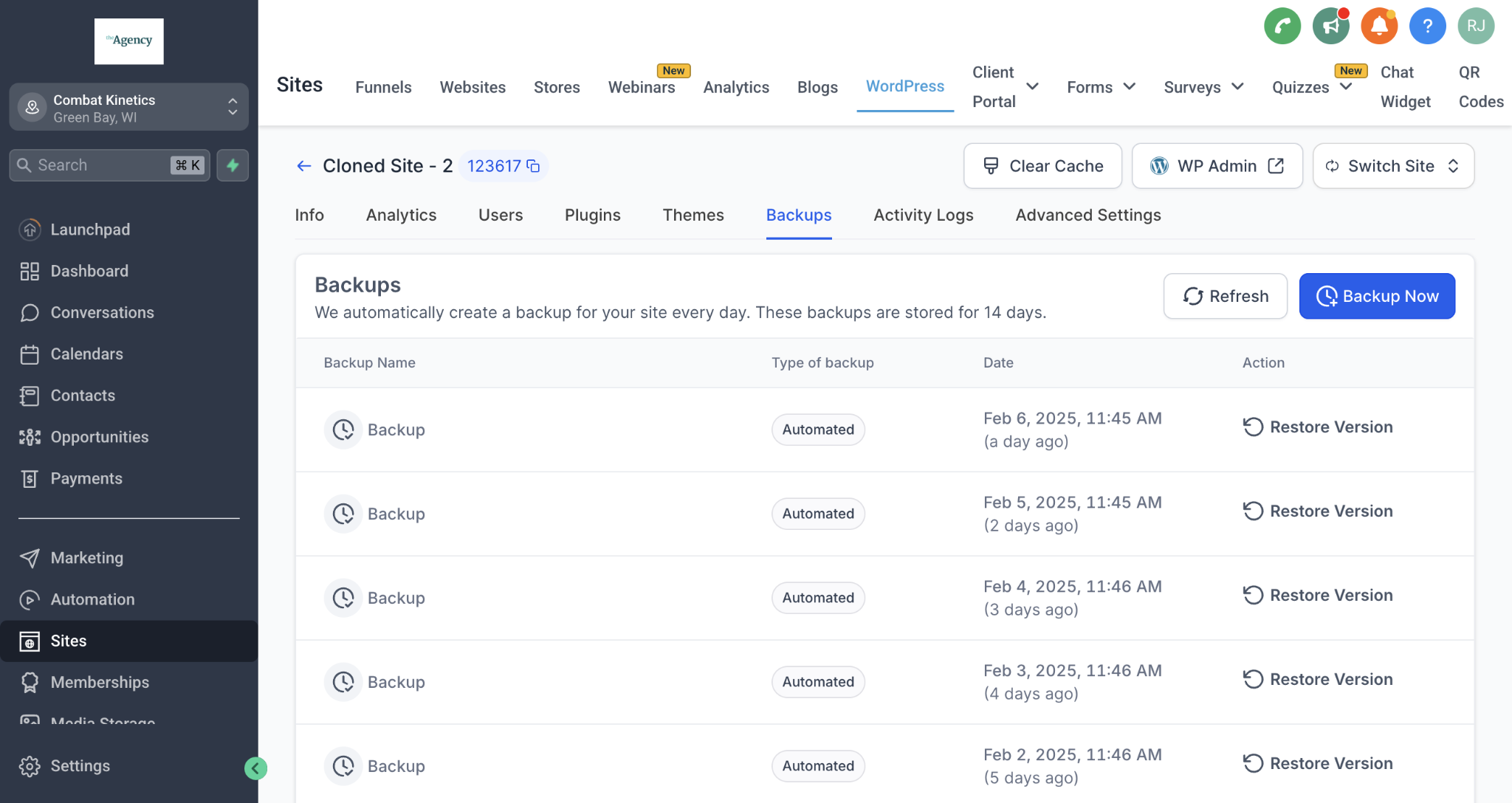
You can also initiate manual backups as needed as shown in the video below:
More Tutorials from the Community:
https://youtu.be/zvfav4EXnE4
https://youtu.be/7z9A0d4Ml4c
https://youtu.be/ROQLp8_D8Vc
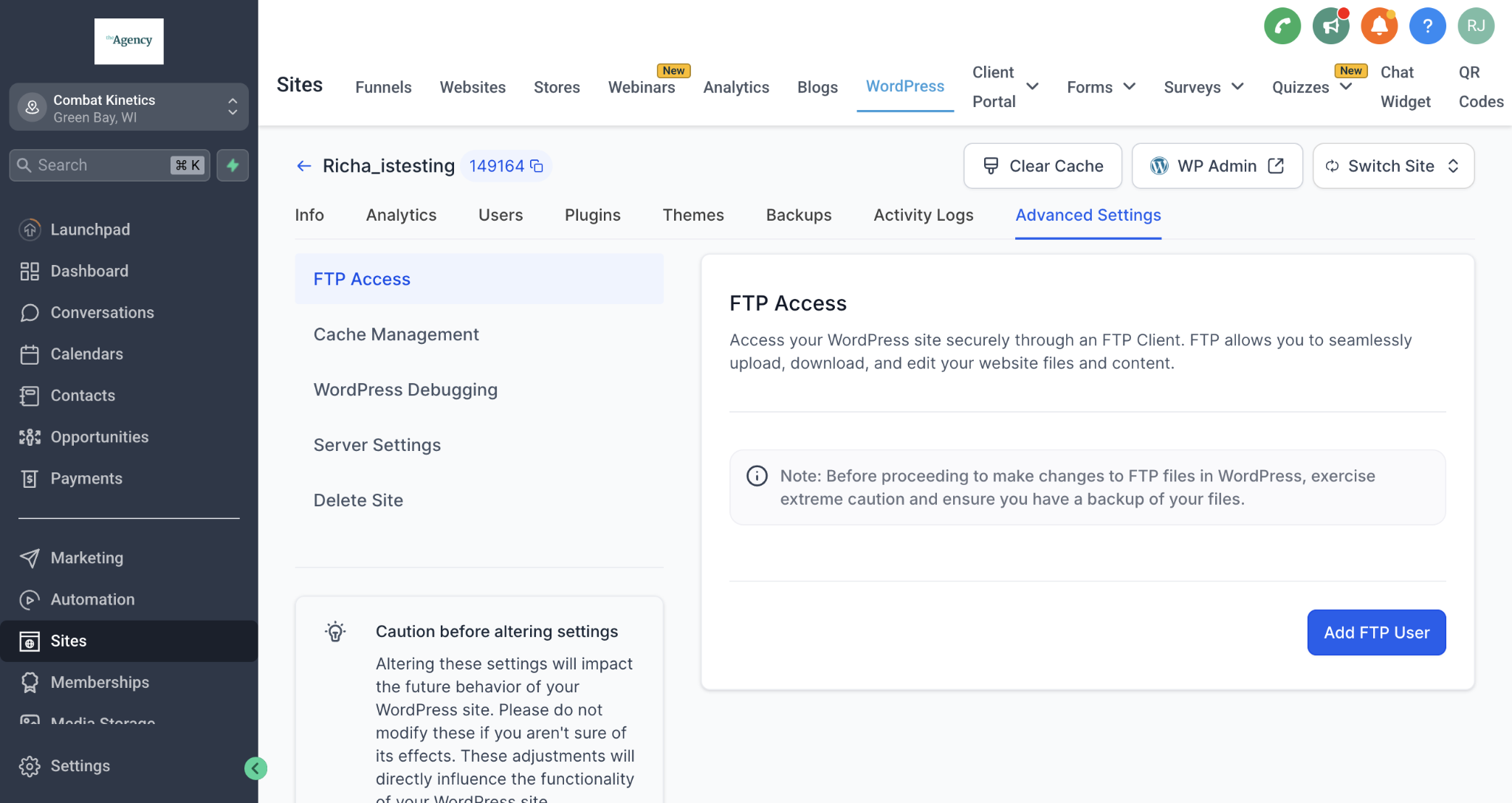
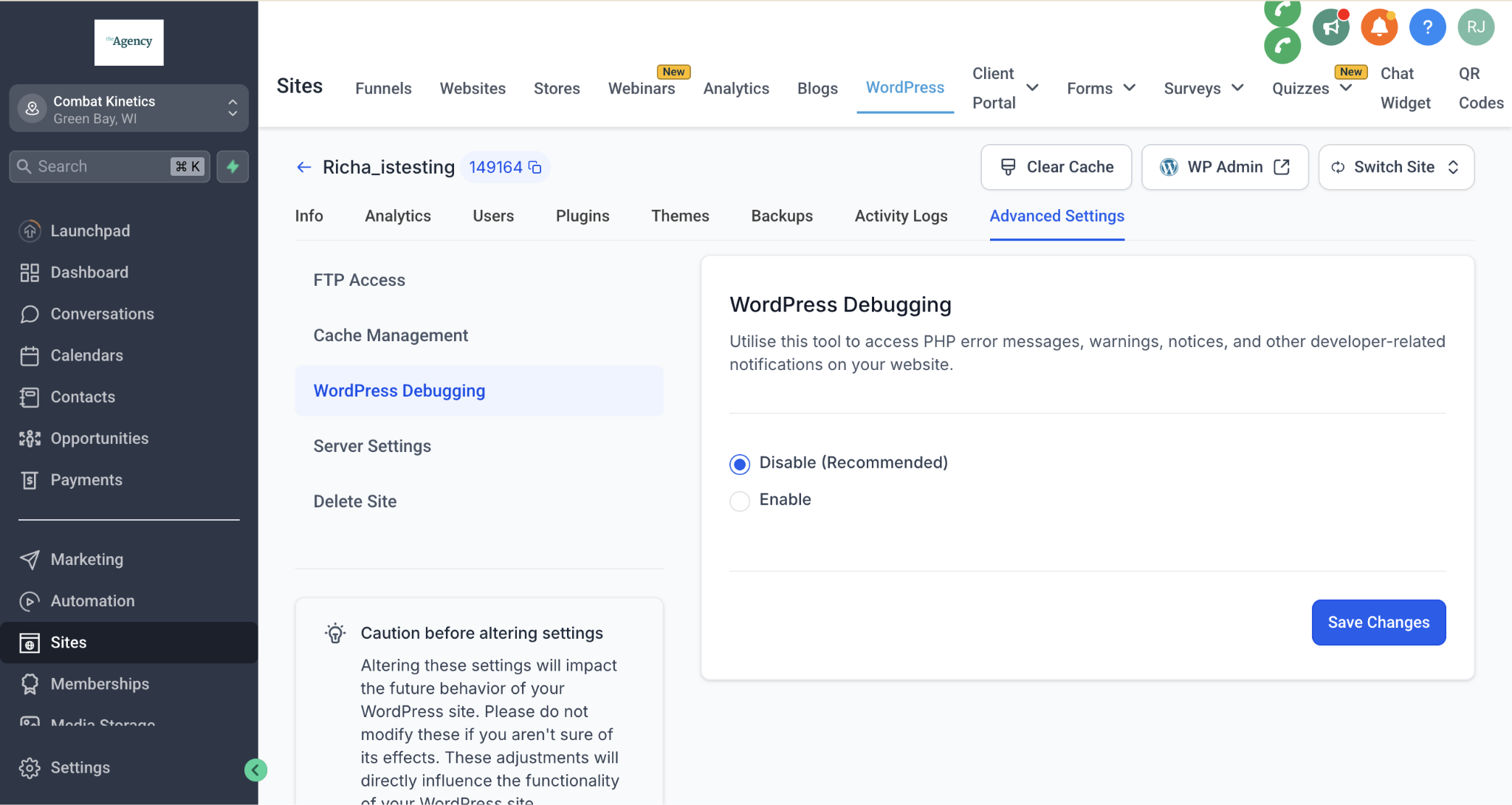
Advanced Settings
You can manage FTP Access and Communication Settings here.
Cache Management can be accessed from Advanced Settings.
Enable or disable WordPress Debugging: Utilize this tool to access PHP error messages, warnings, notices, and other developer-related notifications on your website.
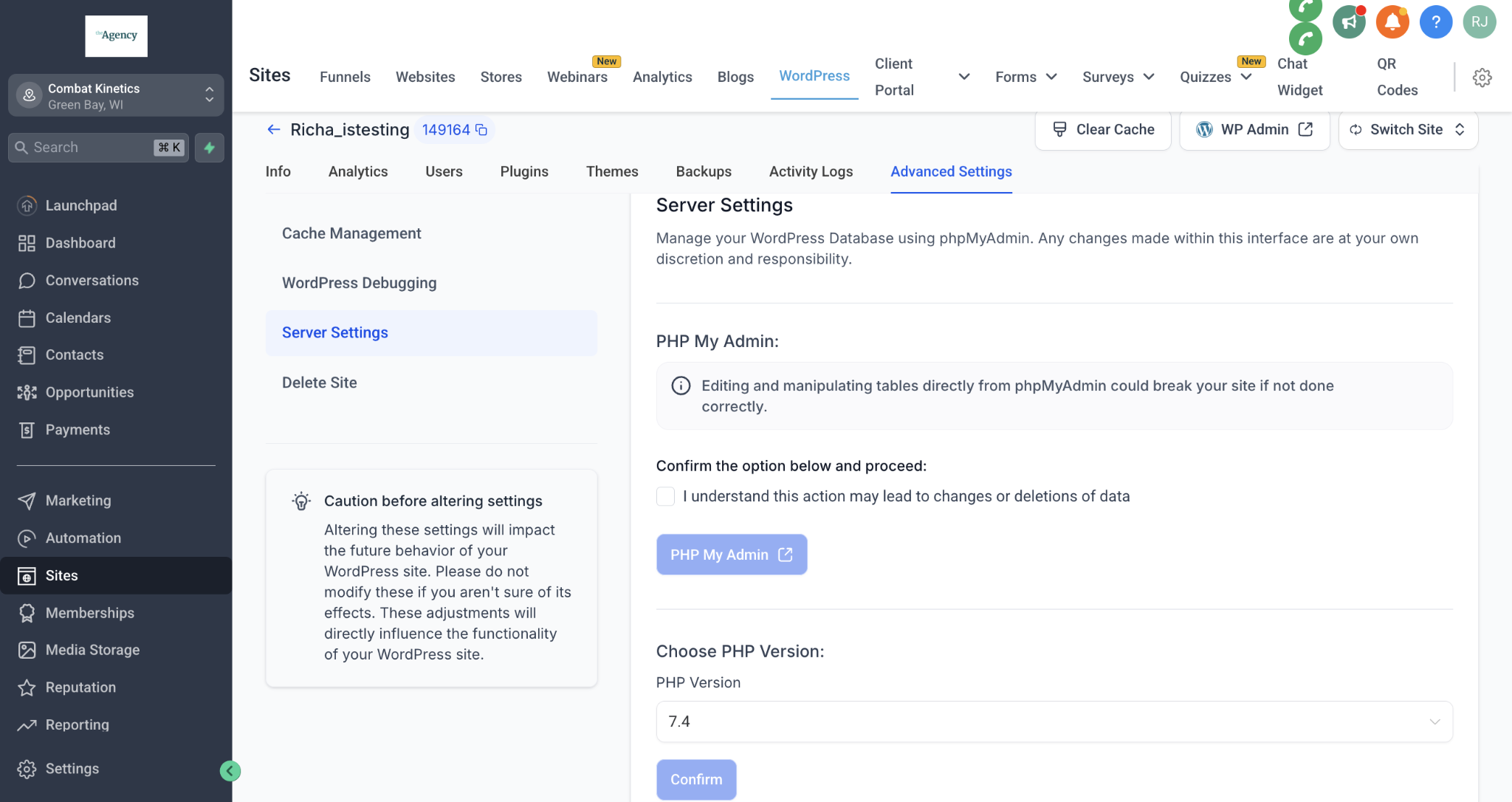
Server Settings: Manage your WordPress Database using phpMyAdmin.
Adding an Additional Domain
Once your site is ready to publish, you can connect your domain to the WordPress site.
Please follow our dedicated article for instructions on connecting your domain with the WordPress site.
Common Issues & Troubleshooting
1. Plugin not installing
Confirm you have admin access
Check hosting restrictions
2. Site not displaying widgets
Clear cache (plugin/server/CDN)
Disable conflicting plugins temporarily
3. Connection errors
Recheck credentials
Ensure the correct location/account is selected in HighLevel
Frequently Asked Questions
Q: I'm unable to add the same domain to my other subaccount/location.
A: The same domain/subdomain can't be used in 2 locations simultaneously.
Q: Why can't I update my primary domain?
A: The primary domain can be updated if you have successfully added an additional domain first.
Q: I've added the A / CNAME record, but the domain is still not being added.
A: This can happen due to a few reasons:
There is a typo in your domain name: In this scenario, fixing the typo will resolve your issue.
Your DNS changes haven't been propagated yet: In this case, you must wait longer and try again after a few hours or the next day to see if it works.
Your DNS configuration is not set up correctly: Please get in touch with your Domain Provider and discuss the errors with their support team.
Multiple conflicting records: Maybe you have conflicting records for the same subdomain (for example, if blog.mydomain.com has a CNAME record pointing to wp3.msgsndr.com but it also has an A record pointing to some other provider). In such cases, removing the duplicate record will fix your issue.
Q: I can't connect my root domain (ex., mydomain.com).
A: Please make sure there are no additional A, AAAA, TXT records, etc. if you plan to use that slug/root domain for WordPress.
Q: How many WordPress sites can I have per sub-account?
A: You can have as many sites as you wish under a single account, there are no limitations! :)
Q: How can I request to cancel a client's WordPress subscription?
A: To begin a WordPress Cancellation Request, you must navigate to "Delete Site" under the Advanced settings of your WordPress Dashboard.
Was this article helpful?
That’s Great!
Thank you for your feedback
Sorry! We couldn't be helpful
Thank you for your feedback
Feedback sent
We appreciate your effort and will try to fix the article