Opportunity Score for Meta Campaigns
Opportunity Score gives you a pre-publish health check of your Meta campaign by analyzing audience, budget, creative, and tracking configuration. You'll see a readiness percentage, status label, and priority recommendations that guide you to the exact campaign builder section where you can make improvements.
This guide explains what Opportunity Score evaluates, how to interpret your score, and how to apply click-to-fix recommendations before launching your Facebook and Instagram campaigns.
What is Opportunity Score for Meta Campaigns?
Opportunity Score is a pre-publish readiness indicator that analyzes your Meta campaign setup on the Review screen in HighLevel Ad Manager. It provides a simple percentage score and priority recommendations so you can quickly understand how launch-ready your campaign is and where to improve before going live.
The score reviews key areas of your Meta campaign—such as audience, budget, creative, and tracking—and then:
Opportunity Score is available only for Meta campaigns (Facebook and Instagram) and appears before publishing, on the campaign Review screen. It is designed as a guidance tool—it does not guarantee performance and does not make automatic changes to your campaign.
Key Benefits
Opportunity Score reduces guesswork at launch time and makes campaign reviews faster, clearer, and more actionable. By using it as part of your standard review process, you can improve campaign quality and avoid common setup mistakes.
Pre-publish Opportunity Score
Pre-publish Opportunity Score gives you a simple, visual indicator of how ready your Meta campaign is before you hit Publish. It is tightly integrated into the existing Review flow inside Ad Manager so you can treat it as your final sense-check.
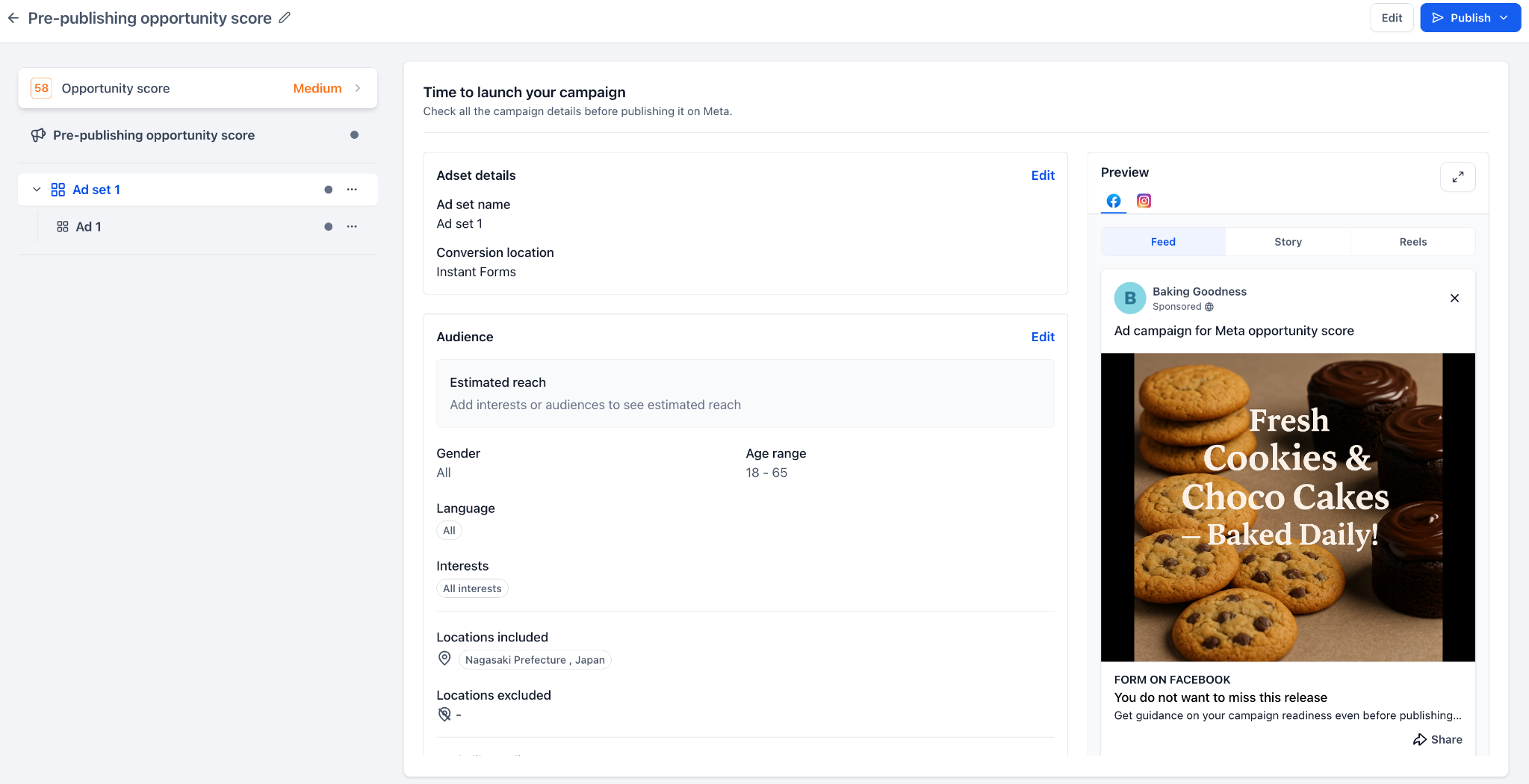
Campaign setup looks strong. You may still see optional improvements, but no critical blockers are detected.
Campaign can likely run but has several improvements recommended to help delivery, learning, or tracking accuracy.
Campaign is at risk of underperforming or failing to deliver properly due to missing or weak setup elements; review and fix recommendations before launch.
Exact thresholds and internal scoring rules may evolve over time as HighLevel refines the model, so always rely on the status and recommendations together, not just the number alone.
Detailed Improvement Suggestions
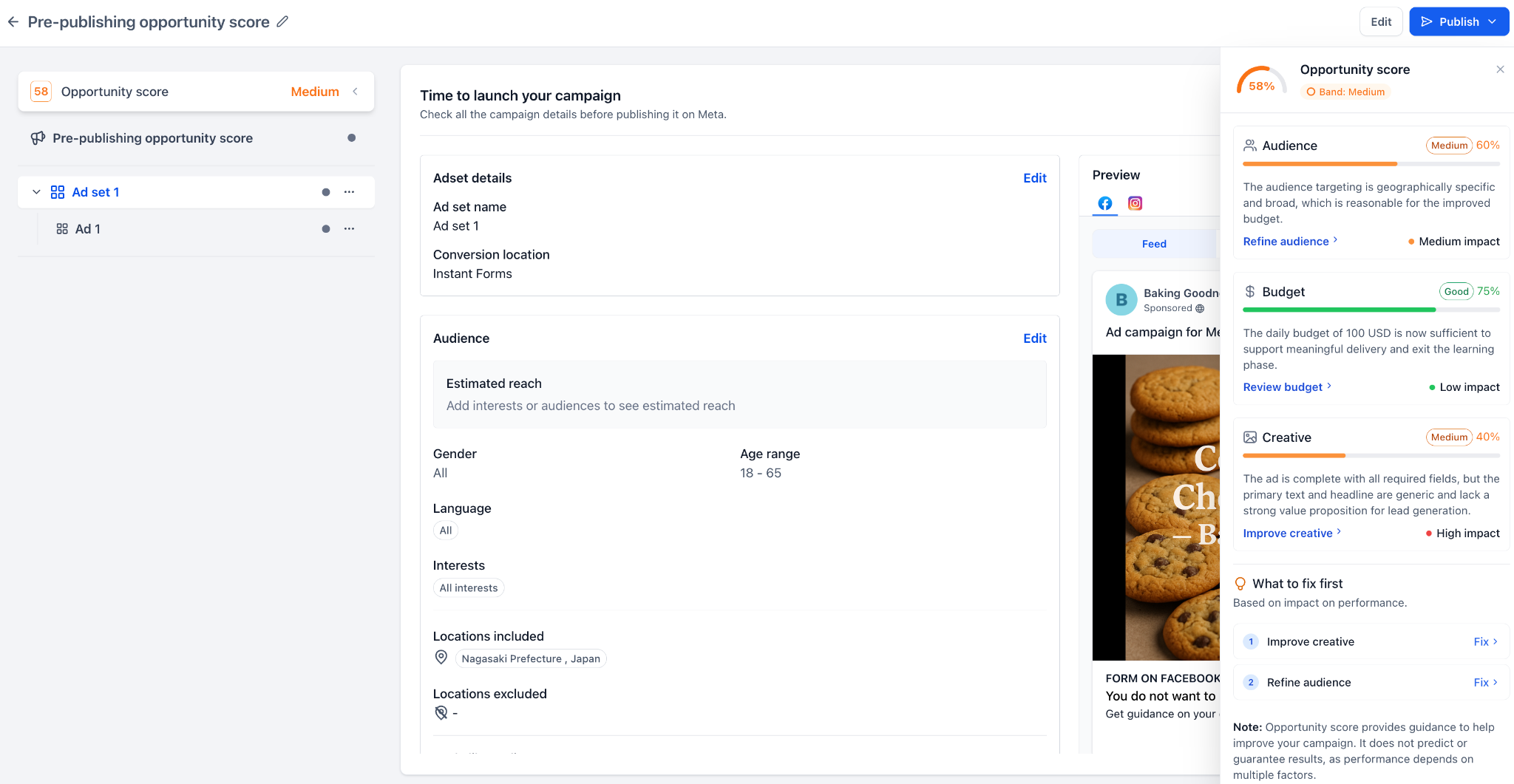
Detailed improvement suggestions break your Opportunity Score down into concrete, actionable insights across core campaign components. This helps you understand why your score looks the way it does and exactly what you can do to improve it.
The panel evaluates four main areas for Meta campaigns:
- Too narrow (may limit delivery or scale).
- Too broad (may waste spend or dilute targeting).
- Missing important details such as location, age, or critical filters.
- "Refine audience to avoid overly broad targeting."
- "Add at least one location to your audience."
- Is sufficient for delivery and learning.
- Aligns with your objective and optimization goal.
- "Increase daily budget to support learning phase."
- "Review budget relative to campaign schedule and goal."
- Ad copy and headlines.
- Media (image/video) presence.
- CTA button configuration.
- Destination URLs or lead form selection.
- "Add media to your ad to improve performance."
- "Check the destination URL for missing or invalid links."
- Pixel or Conversions API events mapped to your primary conversion goal.
- Standard vs. custom conversion setup.
- Event destination (website, lead form, etc.).
- "Connect a tracking event to your primary conversion."
- "Verify Meta Conversion API events for this campaign."
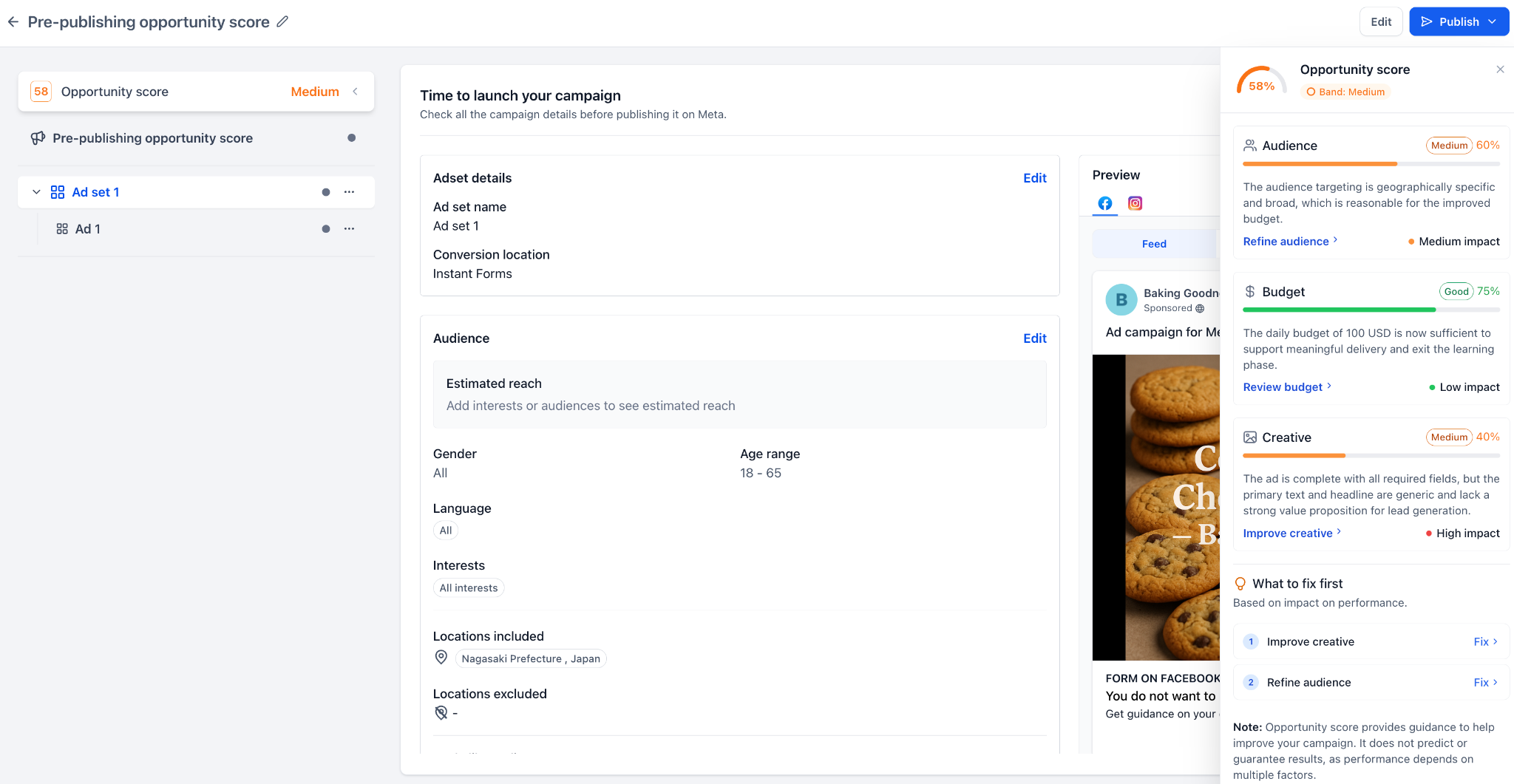
These suggestions are informational only—they never change your campaign automatically. You decide which recommendations to apply and when.
Click-to-fix Navigation
Click-to-fix navigation turns each Opportunity Score recommendation into a one-click shortcut, so you can go from "problem identified" to "problem resolved" without hunting through every tab of the campaign builder.
When you click a recommendation such as Improve creative, Refine audience, or Review budget:
Prioritized Guidance Before Publishing
Prioritized guidance helps you focus on what to fix first by surfacing improvements in order of potential impact on campaign readiness. This ensures you spend time on the changes most likely to affect delivery and tracking, rather than minor optimizations.
For example, missing conversion tracking or no selected audience will appear ahead of optional creative refinements.
Recommendations within Audience, Budget, Creative, and Tracking are arranged so critical configuration problems come before nice-to-have improvements.
You can work top-to-bottom through the list, clicking each recommendation, fixing it, and then re-checking the score after you update the campaign.
As HighLevel evolves Opportunity Score, prioritization logic may be further refined to better account for edge cases like multiple ad sets and multiple ads in a single campaign.
Where Opportunity Score Appears & Current Limitations
Knowing exactly where Opportunity Score is available—and what it does not do—helps you apply it correctly in your workflow and set the right expectations with your team and clients.
Go to Marketing → Ad Manager from the left menu in your sub-account.
Meta campaigns only (Facebook and Instagram).
Displayed on the Review screen before publishing a Meta campaign.
How to Use Opportunity Score for Meta Campaigns
Opportunity Score is automatically available for eligible Meta campaigns in Ad Manager; there is nothing to "install." However, ensuring the right prerequisites and following a consistent campaign creation flow will help you get the most accurate and useful recommendations.
Before using Opportunity Score, make sure:
- Ad Manager is enabled for your agency and sub-account — Agency admins can enable and, if desired, resell Ad Manager at the account level using the steps in the How to Enable and Resell Ad Manager guide.
- Meta integration is connected — Ensure your Meta Business Manager, ad account, and Facebook/Instagram pages are correctly set up and connected to HighLevel as described in How to create a Meta Business Manager and Ad account?
Once prerequisites are in place, you can use Opportunity Score on any new or existing Meta campaign.
- Navigate to Marketing → Ad Manager in your sub-account.
- Click Create Campaign (or open an existing Meta campaign to edit).
- Choose Meta as the platform and select your objective and basic settings.
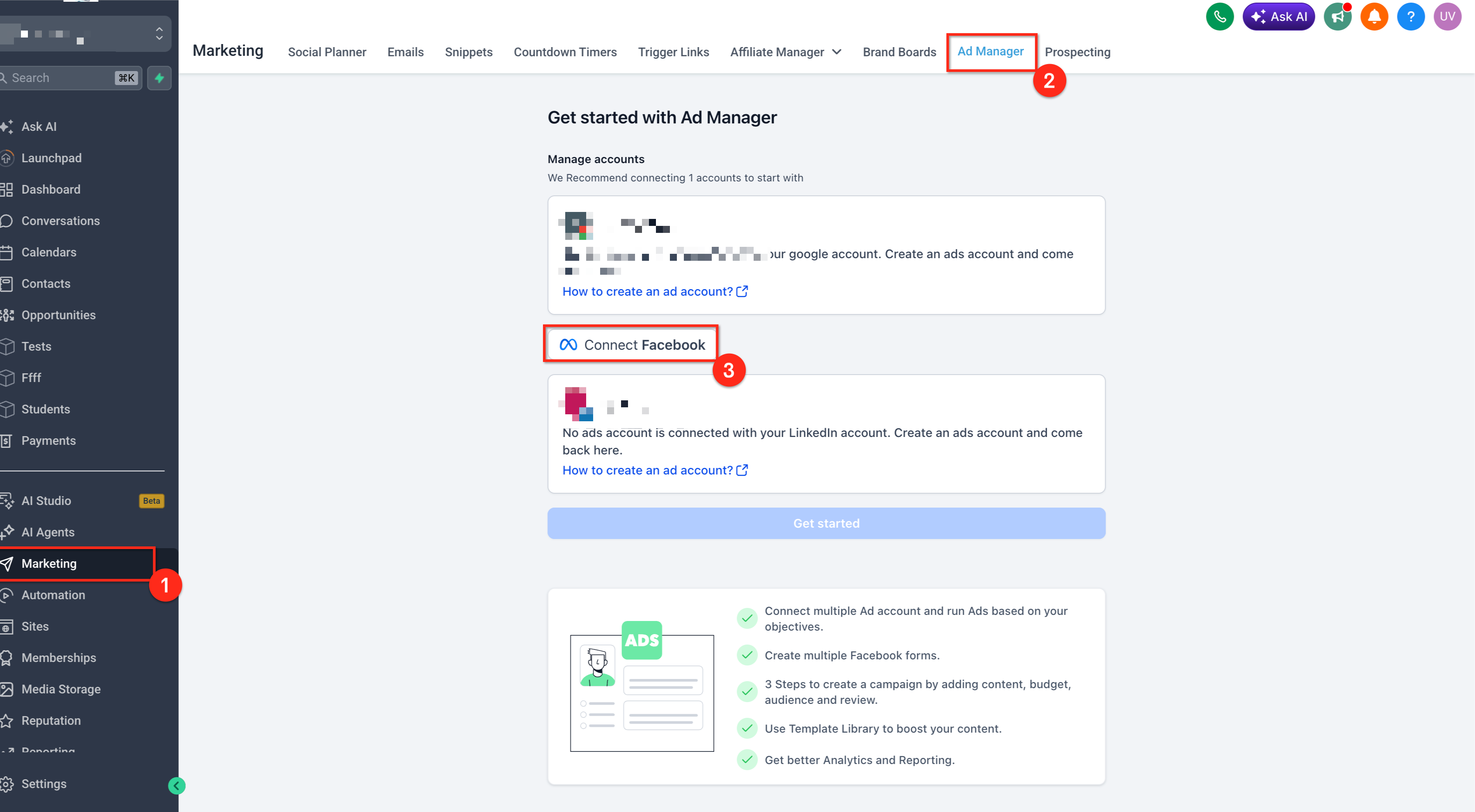
The more completely you configure your campaign, the more meaningful your Opportunity Score will be.
For each step of the Meta campaign builder:
Campaign level
- Confirm objective, name, and any special settings (e.g., Advantage+ options where applicable).
Ad Set level
- Define your Audience (locations, demographics, interests, custom audiences, etc.).
- Set Budget & schedule (daily or lifetime, start/end dates).
- Choose placements if applicable.
Ad level
- Add creative: images/videos, primary text, headline, description.
- Configure CTA button and destination (website URL or lead form).
- Confirm tracking events and data sources (pixel or Conversions API where applicable).
After your setup is complete:
- Click Review to move to the final step before publishing.
- Locate the Opportunity Score card or panel on the Review screen.
- Note the percentage and status (Low / Medium / High).
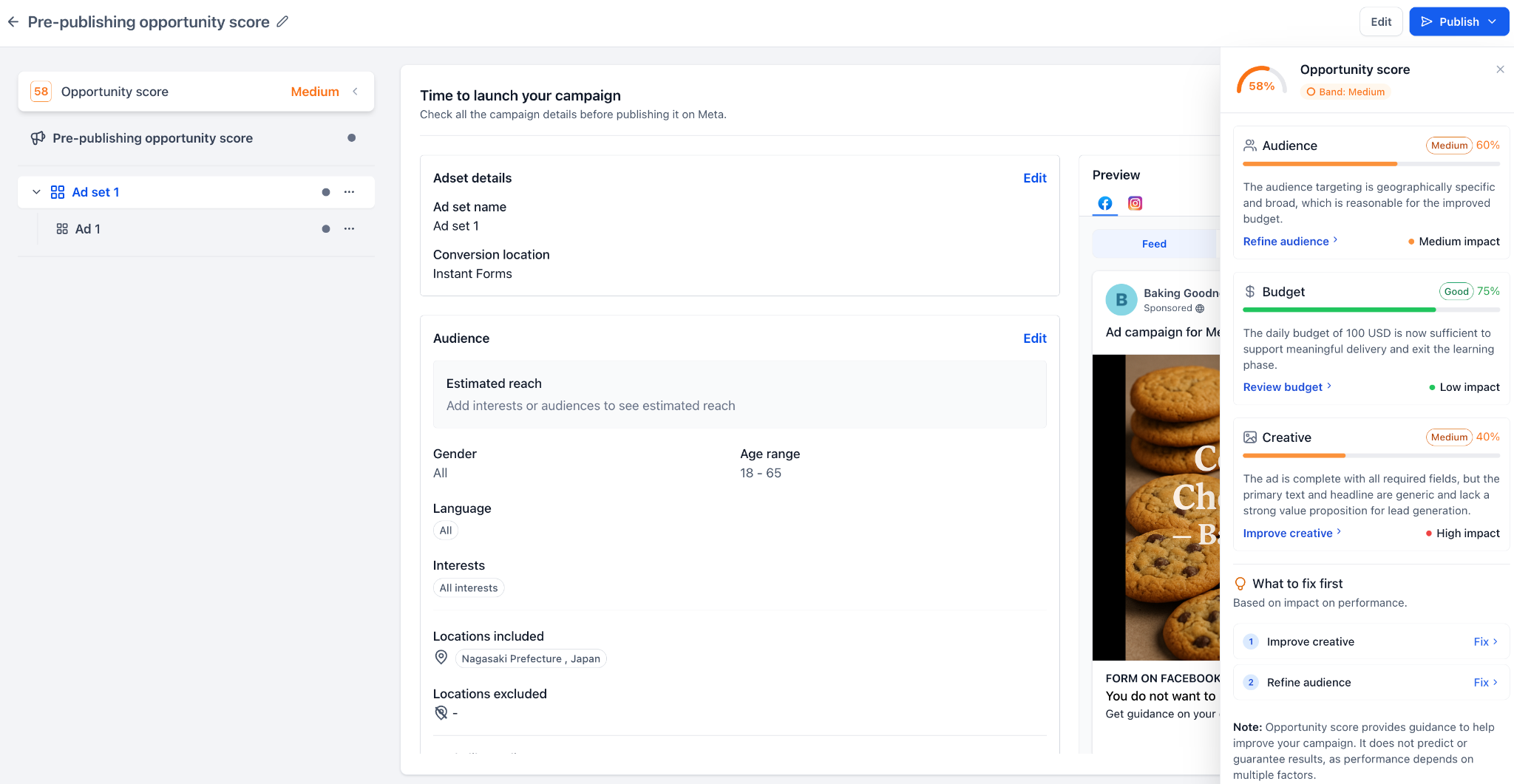
If you've just made significant changes, give the system a moment to update the score. Future product improvements will continue to refine score refresh timing and visual loading states.
To see detailed suggestions:
- Click the Opportunity Score card or an associated "View details" or "See recommendations" link.
- Review the categorized recommendations under Audience, Budget, Creative, and Tracking.
- Pay close attention to items near the top of the list, as these are surfaced as higher-priority improvements.
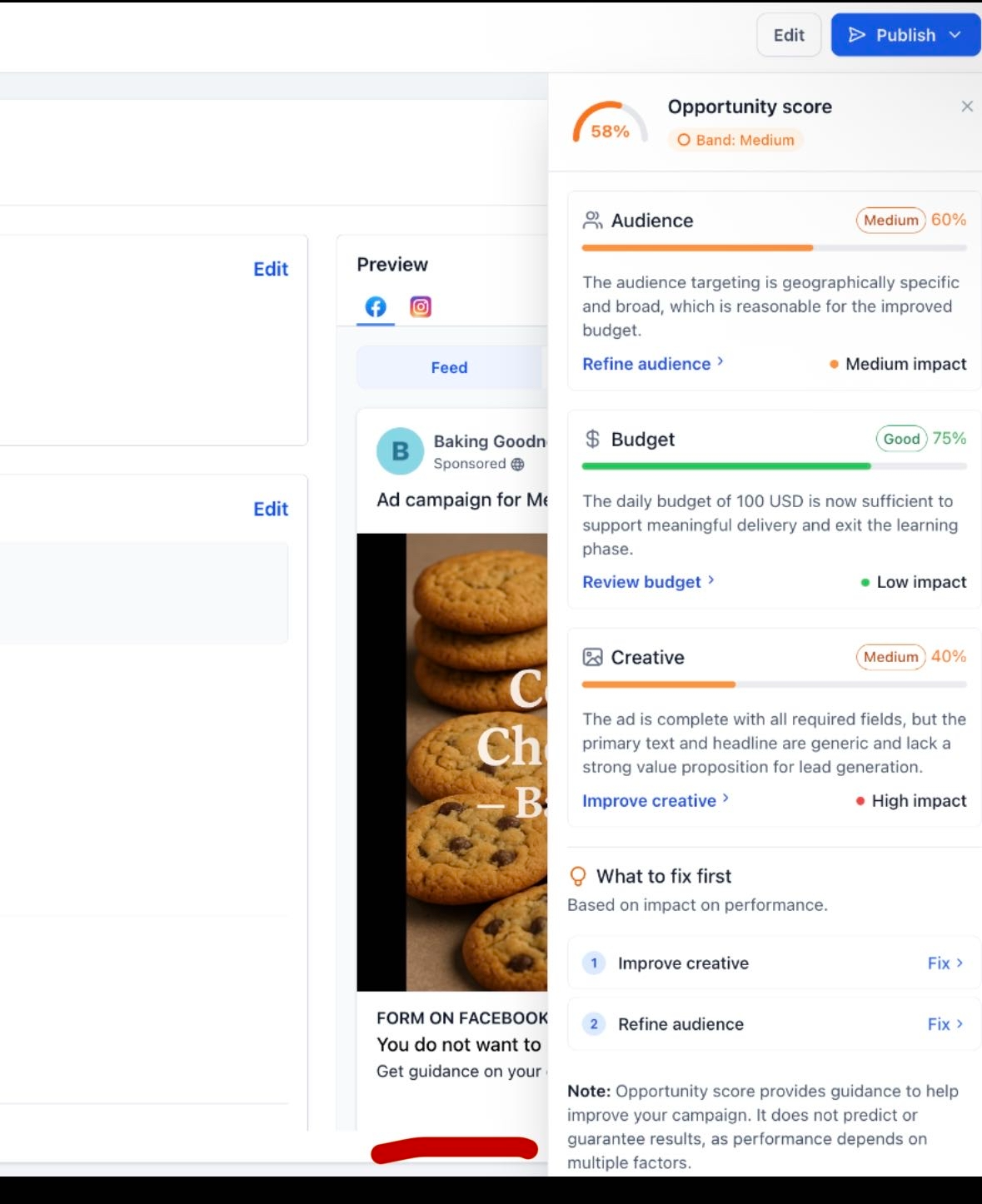
Turn recommendations into changes directly from the panel:
- Click a recommendation such as Refine audience, Improve creative, or Review budget.
- HighLevel automatically opens the relevant part of the campaign builder.
- Make your updates (for example, expanding audience age range, increasing budget, or fixing a broken URL).
- Save your changes and return to the Review screen.
You can repeat this process, working from top-priority items downward, until you're comfortable with the score and setup.
Once you've applied your desired changes:
- Refresh or reopen the Review screen to see your updated Opportunity Score.
- Confirm that critical recommendations have been resolved or intentionally accepted as-is.
- When satisfied, click Publish to launch your Meta campaign.
A High Opportunity Score does not guarantee performance; it simply indicates that your setup follows strong configuration practices and that no major gaps have been detected. Ongoing monitoring via dashboards and reports is still essential.
Was this article helpful?
That’s Great!
Thank you for your feedback
Sorry! We couldn't be helpful
Thank you for your feedback
Feedback sent
We appreciate your effort and will try to fix the article