Kickstart your Facebook and Instagram advertising directly from HighLevel Ad Manager. This guide explains how to create a Meta campaign, understand the Campaign → Ad Set → Ad structure, manage multiple variations, and publish with confidence.
TABLE OF CONTENTS
- What is Facebook Campaign Creation in HighLevel Ad Manager?
- Key Benefits of Facebook Campaign Creation
- How to Create a Meta Business Portfolio
- Few Prerequisite for Ad Manager
- Campaign structure (Meta)
- How To Create a Meta Campaign in HighLevel Ad Manager
- Frequently Asked Questions
- Related Articles
What is Facebook Campaign Creation in HighLevel Ad Manager?
Note: Ensure your Facebook integration is connected before you begin. See Connect Facebook with Ad Manager.Facebook campaign creation in HighLevel lets you build and launch Meta ads without leaving your CRM. You select a goal, define your audience and budget, add creatives, and publish—all from a streamlined interface that mirrors Meta’s structure while simplifying common tasks.
Meta campaigns created in HighLevel are sent to your connected Meta ad account and follow Meta’s publishing and review policies.
Key Benefits of Facebook Campaign Creation
Speed: Build campaigns, ad sets, and ads from one place in HighLevel.
Clarity: Stay organized using Meta’s hierarchy for clean testing and reporting.
Scalability: Add up to 10 ad sets and 10 ads to expand tests without starting from scratch.
Consistency: Reuse audiences, creatives, and forms to keep brand and data quality high.
Control: Publish, pause, duplicate, and edit with simple ellipsis (⋮) menus at each level.
How to Create a Meta Business Portfolio
To connect Facebook to HighLevel Ad Manager, you need access to a Meta Business Portfolio (formerly Business Manager), a Meta ads account, and a Facebook Page.
If you do not have a Meta Business Portfolio, follow Meta’s official guide to create one. Meta manages the Business Portfolio creation process, and the setup experience may change over time. For the latest steps, refer to Create a business portfolio in Meta Business Suite.
Once created, make sure the required Facebook Page and ads account are added and that you have the appropriate access.
Few Prerequisite for Ad Manager
1. Selection of a pricing model from Agency view > Reselling is the first step in the Ad Manager journey. It is best to set the reselling offer of Ad Manager to sub-accounts before proceeding further.
2. Toggling ON/OFF Ad Manager for a sub-account will ensure the visibility of Ad Manager tab under sub-account > marketing. It is ON by default for all the sub-accounts.
3. Ad Manager can be enabled for the sub-account by the agency and for every user, it can be enabled from staff > permissions of Ad Manager.
4. In Ad Manager, the first step is to connect your Meta Ad account, multiple Facebook pages by logging into your Facebook account via LeadConnector App. Ad Manager allows connecting multiple Facebook pages and one ad account.

Campaign structure (Meta)
Meta campaigns in HighLevel Ad Manager follow a three-level hierarchy: Campaign → Ad Set → Ad.
When you create a campaign, Ad Manager automatically creates 1 ad set and 1 ad to help you get started.
Limits:
- Up to 10 ad sets per campaign
- Up to 10 ads per ad set
How To Create a Meta Campaign in HighLevel Ad Manager
This guided workflow follows the exact order of controls in HighLevel. Move step by step, then review settings before publishing for a clean, policy‑ready submission.
Step 1: Create a Campaign
- Go to Marketing > AdManager.
- On the Ad Manager home screen, click on the + Create Campaign button and from the following screen select the platform to publish your ad campaign, i.e. Facebook.
- On click of Next you can select to either Start from Scratch or use the Ad Manager templates (refer the following help article to learn more on How to create Ad campaigns using Templates) to create a Facebook ad campaign.
- Click Next to start defining your ad campaign.

Step 2: Select Campaign Objective & Special Ad Category
- Objective: Your campaign objective is the goal you want to achieve with your ads. The goal objective with Lead Generation is achieved using the Facebook form integration, the user can create their new forms or utilise the other forms. [Learn How to create the Facebook Form in Ad Manager]
- Special Ad Category: If your ad falls under special categories, ensure to select an appropriate category from the list to comply with local laws and regulations for smooth campaign review. If not, select the NOT APPLICABLE option.
Facebook's Special Ad Category has limited targeting options, including restrictions on the following audiences:

Lookalike audiences: These are not allowed for Special Ad Category ads. However, you can create a Lookalike audience outside of Facebook and upload it as a custom audience.

Saved audiences: These are not allowed for Special Ad Category ads.

Zip codes or postal codes: These are not allowed for Special Ad Category ads. If you select specific locations, they will include a minimum of a 15-mile or 25km radius.

Detailed targeting: Most demographic, behaviour, and interest options are not available.

Other restrictions for Special Ad Category ads include:
Age defaults to 18-65+ and can't be edited.
Gender includes all genders only and can't be edited.
Step 3: Configure Ad Set Level Details
Note: You can add up to 10 ad sets per campaign.- Give a Name for your Ad Set.
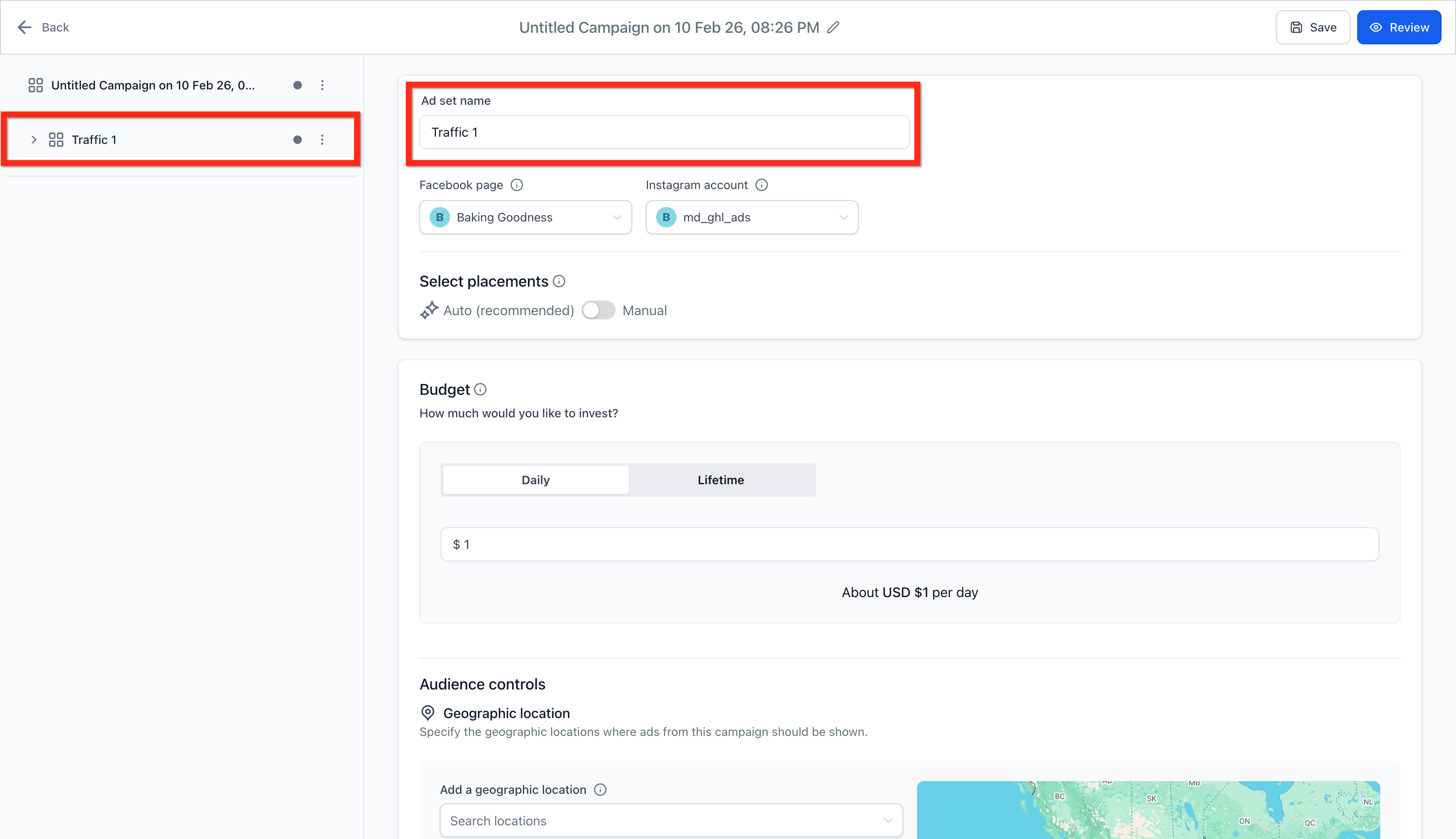
- Choose Facebook Page (Your Facebook page or Instagram account represents your business in ads)
- Choose Instagram Account. (Choose an Instagram account for your ad. If it's not connected, the ad will use your Facebook Page name, profile picture, description, and follower count.)

- Select Placement: The places where you can run your ads are called placements. Automatic placements enable us to get the best results available from across all default placements based on budget allocated and help control costs. Manual placements allows user to select the places where they would like to show the ads for brand safety and optimisation.
The user can enable the toggle to get the Manual placement selection options.Note: Available manual placements depend on the placements currently supported by Meta. Instagram Explore Feed is no longer available as a selectable ad placement. For existing draft campaigns that previously included Instagram Explore Feed, the placement is removed automatically when the ad set is saved. No user action is required.

- Choose Budget: The average amount that you want to spend on this ad campaign by selecting either daily or lifetime budget. It will be charged from the card added to your Meta Ad account. Lifetime budgets can be increased or decreased by pausing and editing a campaign.
You can select the start and end date and time for lifetime budgets using the date pickers.
Note: The currency shown will be the one that's setup in your connected Ad account and the start-end date timezone will be the timezone you're in while creating the campaign.
- Configure Audience Controls:
Geographic Location - Campaign can be adjusted to run for specific location or can exclude a specific location in certain country/state.
Note: Choosing a broad area to show your ads within can improve results. For example, by adding a country instead of several cities.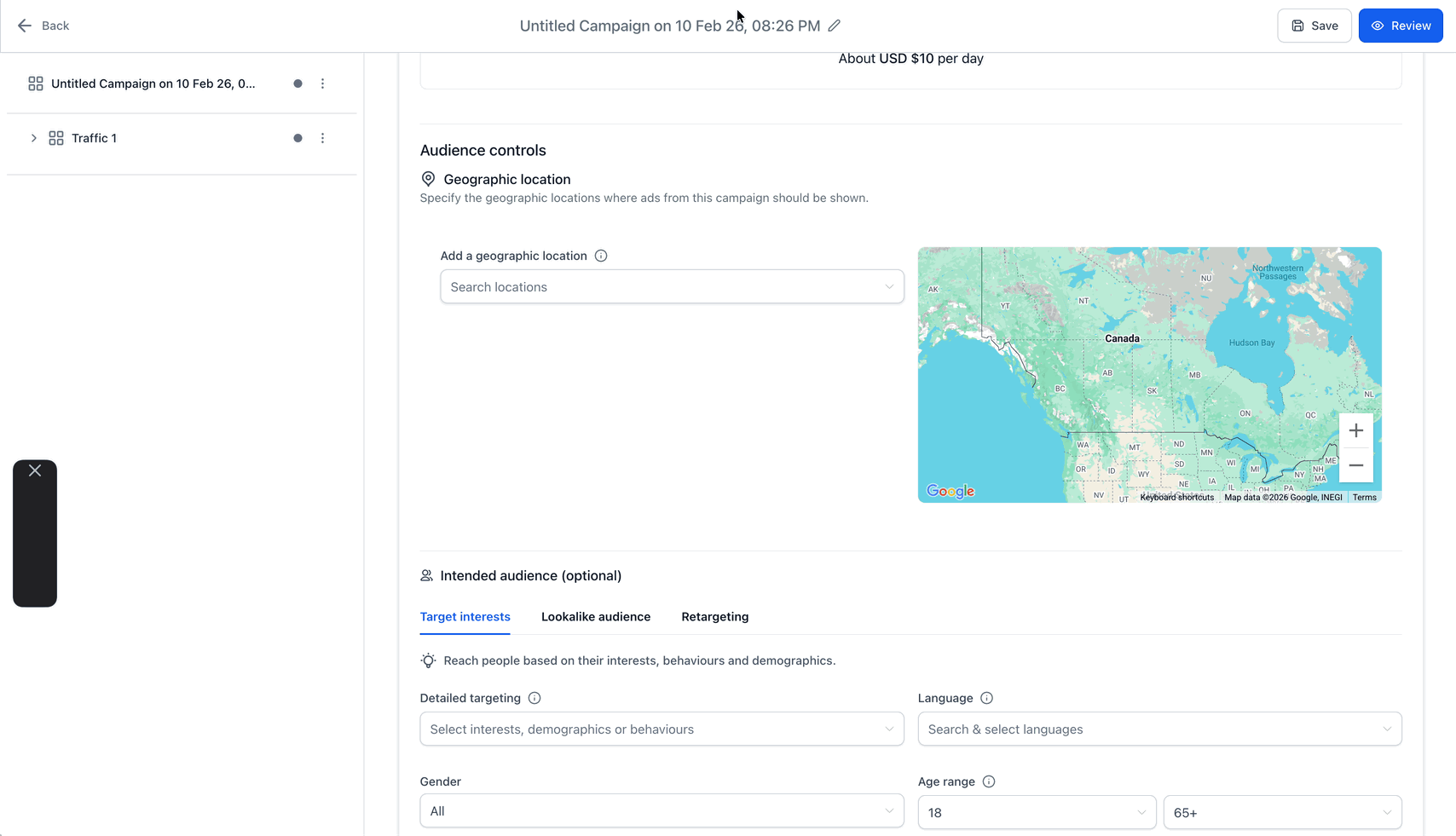
Optional Settings of Intended Audience can be defined to narrow down the audience - The user can add more specific setup for each option.
Note: More details on the Intended audience section can be found in this article.
Step 4: Configure Ad Level Details
Note: You can add up to 10 ads per ad set.- Give a Name for your Ad.

- You will be asked to choose between Website URL, Facebook Lead Form, Conversation Form depending on the Objective you selected at Campaign Level (Lead Generation, Website Traffic, Engagement, Sales.)

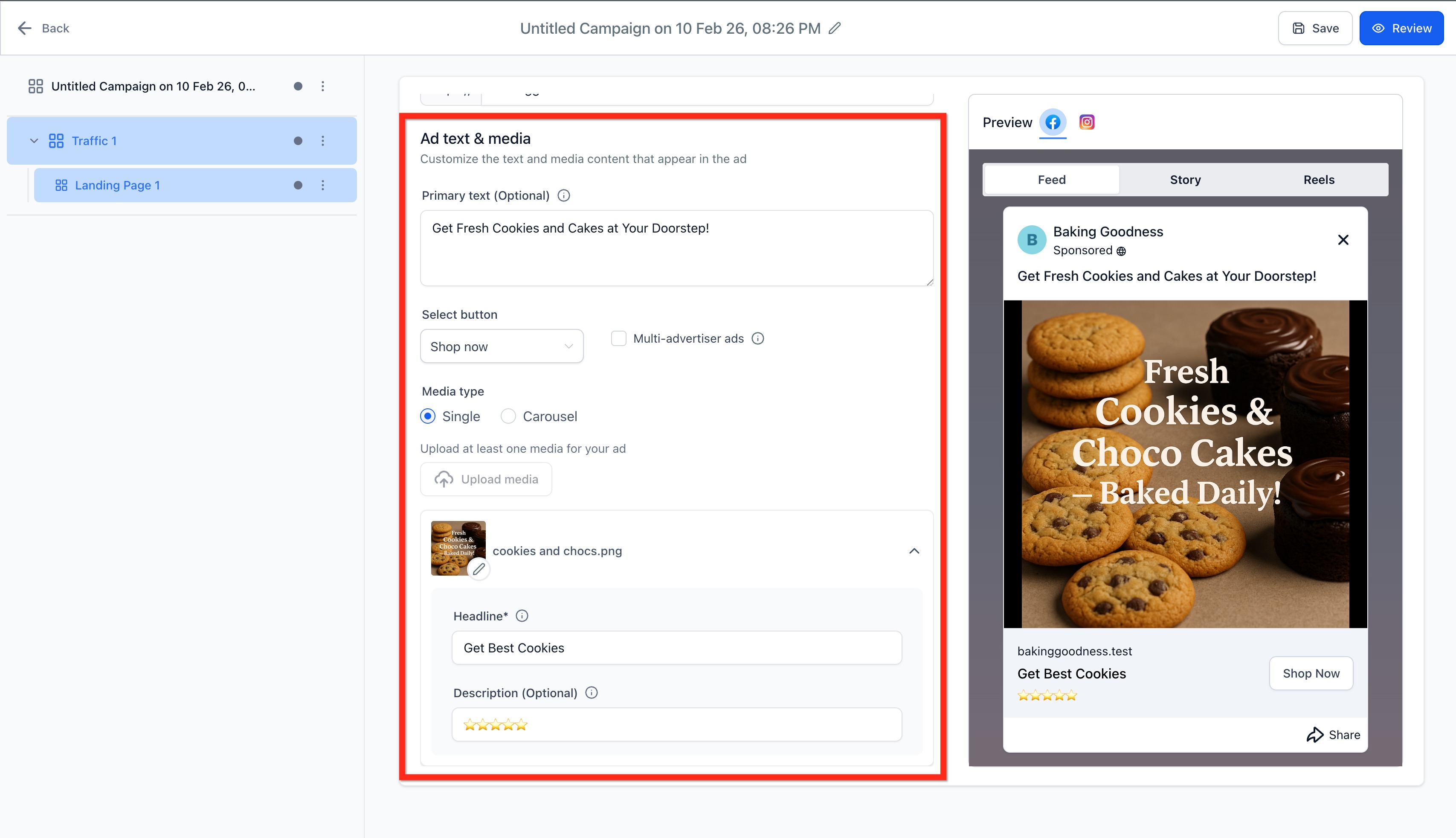
- Ad Text & Media: It will allow user to add the primary text, headline, description and media like image(s) and video(s) both in single and carousel mode.
- Primary text is optional, the recommended character is 125 characters.
- Select Button. (Learn More, Buy Now, Contact Us, etc.) Get Offer CTA for Lead Gen Ads is available.
- Multi-advertiser ads: These ads in Meta are a type of advertising format that allows multiple advertisers to showcase their products or services within the same ad space. This checkbox is checked by default and can be turned off by the publisher.
An explanation on how it works: When a potential shopper interacts with an ad, a multi-advertiser carousel may appear below it that displays products from other businesses. The products in the carousel are usually related to the ad that the user engaged with.
Using this can results in increased reach, cost efficiency and cross promotion amongst other benefits.
Note: Multi-advertiser ads may not be a fit for all types of campaigns, especially if there’s a need for clear brand separation or unique messaging for each business. - Upload Single or Carousel of Images or Single Video. Images are allowed up to 8MB and Video are allowed up to 1GB.
- Headline is required field for ad campaign, the recommended character is 40characters.
- Description is optional, the recommended character is 30characters.
- Primary text is optional, the recommended character is 125 characters.
Step 5: Review and Publish
- Click on the Review button. Verify all the details of aesthetics, media, content, budget and other options before taking your campaign live.
- Click on the Publish Campaign Now button.
- Click on Confirm.

Frequently Asked Questions
Q: Where can I put my budget—at the campaign or ad set level?
Use the ad set’s budget controls in HighLevel for the clearest mapping between audience tests and spend.
Q: How many ad sets and ads can I create?
Up to 10 ad sets per campaign and 10 ads per ad set.
Q: My ad is rejected—what should I check first?
Verify Special Ad Category, content compliance, and destination quality. Adjust and resubmit.
Q: Can I clone Ad Sets and Ads?
Yes.
Q: How can I edit a published or in‑review campaign?
Checkout our article on Editing a Published or In‑Review Meta Ad Campaigns.
Related Articles
Was this article helpful?
That’s Great!
Thank you for your feedback
Sorry! We couldn't be helpful
Thank you for your feedback
Feedback sent
We appreciate your effort and will try to fix the article