TABLE OF CONTENTS
- Overview
- Available Contacts Widgets
- Group By Options
- Date Properties
- Filtering Contacts Widgets (Conditions)
- Where to Use Contacts Widgets
- Frequently Asked Questions (FAQs)
Overview
Contacts Widgets let you visualize and analyze your contact data directly inside your dashboards and custom reports. Whether you want a quick count of total contacts, a breakdown by source or type, or a trend over time, Contacts Widgets give you that at a glance — no exports or spreadsheets needed.
All Contacts Widgets support multiple chart types and can be filtered using conditions to narrow results to exactly the segment you care about.
Available Contacts Widgets
There are 17 Contacts Widgets available. Each widget opens with a default chart type but can be switched to any supported chart type from within the widget settings.
| # | Widget Name | Default Chart | What It Shows | Default Date Scope |
|---|---|---|---|---|
| 1 | Contacts Count | Number | Total number of contacts | Dashboard Date Range |
| 2 | Contacts Count (Logged in user) | Number | Contacts assigned to the currently logged-in user | Dashboard Date Range |
| 3 | Contacts Count Over Time | Line | How contact additions trend over a time period | Dashboard Date Range |
| 4 | Contacts Counts by Activity | Donut | Number of contacts with a specific activity within the date range | Dashboard Date Range |
| 5 | Contacts Counts by Tags | Donut | How contacts are distributed across tags | Dashboard Date Range |
| 6 | Contacts Counts by Type | Donut | How contacts are distributed by contact type | Dashboard Date Range |
| 7 | Contacts by Assigned User | Donut | How contacts are mapped across team members | Dashboard Date Range |
| 8 | Contacts by Company Name | Donut | Contact distribution across company names | Dashboard Date Range |
| 9 | Contacts by Medium | Donut | Contact distribution by attribution medium | Dashboard Date Range |
| 10 | Contacts by Source | Donut | Contact distribution by attribution source | Dashboard Date Range |
| 11 | Contacts with Email | Number | Count of contacts that have an email address on file | Dashboard Date Range |
| 12 | Contacts with Phone Number | Number | Count of contacts that have a phone number on file | Dashboard Date Range |
| 13 | Contacts without Email | Number | Count of contacts with no email address | Dashboard Date Range |
| 14 | Contacts without Phone Number | Number | Count of contacts with no phone number | Dashboard Date Range |
| 15 | Top Sources for Contacts Created | Bar | Ranked list of sources driving the most new contacts | Dashboard Date Range |
| 16 | Total Contacts Count (This Month) | Number | Total contacts created in the current calendar month | This Month (fixed) |
| 17 | Total Contacts Count (Till Date) | Number | Cumulative total contacts created from the beginning | Till Date (fixed) |
Note: Widgets #16 and #17 use a fixed date scope and do not follow the dashboard's global date range selector.
Note: Widgets #9 (Contacts by Medium), #10 (Contacts by Source), and #15 (Top Sources) include a built-in Latest Attribution filter. This means they show attribution data based on the most recent touchpoint for each contact.
Supported Chart Types
All 17 Contacts Widgets can be switched to any of these chart types from within widget settings:
| Chart Type | Best For |
|---|---|
| Number | Single KPI / quick count |
| Donut | Distribution / breakdown by category |
| Bar | Comparing values across categories |
| Line | Trends over time |
| Horizontal Bar | Comparing many categories with long labels |
| Table | Detailed row-level breakdown |
Group By Options
Widgets that support a breakdown dimension (has_group_by = TRUE) can be grouped by the following fields. Grouping is available on widgets #3–#10 and #15.
| Group By Option | What It Groups By |
|---|---|
| Assignee | The user assigned to each contact |
| Source | The source where it got generated |
| Tags | Tags applied to the contact |
| Followers | Users following the contact |
| Company Name | The company the contact is linked to |
| Contact Type | The type classification of the contact |
| Country | The contact's country |
| Activity | The activity type associated with the contact |
| Session Source | The session-level traffic source (e.g. Organic Search, Paid Social) |
| Medium | The attribution medium (e.g. Form, Facebook, Calendar) |
Tip: Group By options work on top of any active Conditions filters. Apply a condition first to narrow the data set, then group by a dimension to see the breakdown within that segment.
Date Properties
Contacts Widgets can be measured against the following date fields. The date property determines which timestamp is used when applying the dashboard date range.
| Date Property | Description |
|---|---|
| Created On | When the contact record was created (default for most widgets) |
| Updated On | When the contact record was last modified |
| Birth Date | The contact's date of birth |
| Last Activity | The date of the most recent activity recorded on the contact |
Filtering Contacts Widgets (Conditions)
Every Contacts Widget supports filtering via Conditions in the widget settings panel. Conditions let you scope the widget to a specific subset of contacts — for example, only contacts in a specific country, or only contacts with a particular attribution source.
There are 24 condition fields available, split into standard fields and attribution fields.
Standard Filters
| Condition Field | Data Type | Available Operators | Value Input |
|---|---|---|---|
| Assigned User | Enum | Is / Is not / Is one of / Is none of / Is empty / Is not empty | User/Reference lookup |
| Tags | Enum | Is / Is not / Is one of / Is none of / Is empty / Is not empty / Is all of | User/Reference lookup |
| Company Name | Enum | Is / Is not / Is one of / Is none of / Is empty / Is not empty | User/Reference lookup |
| Followers | Enum | Is / Is not / Is one of / Is none of / Is empty / Is not empty | User/Reference lookup |
| Contact Type | Enum | Is / Is not / Is one of / Is none of / Is empty / Is not empty | User/Reference lookup |
| Country | Enum | Is / Is not / Is one of / Is none of / Is empty / Is not empty | Dropdown (enum) |
| Address | String | Is / Is not / Is empty / Is not empty | Text input |
| String | Is / Is not / Is empty / Is not empty | Text input | |
| Phone Number | String | Is / Is not / Is empty / Is not empty | Text input |
| Birth Date | Date | Is / In month / On date / In range / Is empty / Is not empty | Date picker |
| Custom Fields | Custom (per field type) | Varies by custom field type | User/Reference lookup |
| Source | Enum | Is / Is not | Text input |
Attribution Filters
Attribution filters unlock additional sub-filters once the parent Attribution field is set. Select either First Attribution or Latest Attribution first — the child fields below then become available.
| Condition Field | Parent Required | Available Operators | Value Input |
|---|---|---|---|
| Attribution | — | Is | First Attribution / Latest Attribution |
| Medium | Attribution | Is / Is not / Is one of / Is none of | Form / Survey / Calendar / Chat Widget / CSV Import / Manual / API / Order Form / Two Step Order Form / Facebook / TikTok / Membership / Conversation / Zapier / Other |
| Session Source | Attribution | Is one of / Is none of | Direct Traffic / Organic Search / Paid Search / Social Media / Paid Social / Referral / Third Party / CRM UI / Email Marketing / Trigger Links / Other |
| UTM Medium | Attribution | Contains | Text input |
| UTM Source | Attribution | Contains | Text input |
| UTM Campaign | Attribution | Contains | Text input |
| UTM Campaign ID | Attribution | Is / Is not | Text input |
| UTM Keyword | Attribution | Contains | Text input |
| UTM Content | Attribution | Contains | Text input |
| UTM Matchtype | Attribution | Contains | Text input |
| UTM Ad ID | Attribution | Is / Is not | Text input |
| UTM Ad Group ID | Attribution | Is / Is not | Text input |
How Attribution filtering works:
- In the Conditions panel, set Attribution to either First Attribution or Latest Attribution.
- Once set, the Medium, Session Source, and all UTM fields become available.
- All child fields apply against whichever attribution touchpoint you selected (first or latest).
Where to Use Contacts Widgets
All 17 Contacts Widgets are available in both surfaces:
- ✅ Dashboards — for always-on monitoring and daily check-ins
- ✅ Custom Reports — for scheduled delivery and client-ready exports
Exception: Widgets #2 (Contacts Count – Logged in user) is scoped to the currently authenticated user. When this widget is included in a scheduled report sent to a recipient, it will reflect the data of the user who owns the report, not the recipient.
Frequently Asked Questions (FAQs)
Q: Why are "Contacts by Source" and "Contacts by Medium" showing only a subset of my contacts?
These widgets include a built-in Latest Attribution filter. They only show contacts that have attribution data recorded. Contacts added via CSV import or created manually without a tracked session may not appear unless attribution was assigned at import.
Q: Can I remove the "Latest Attribution" default filter on Contacts by Source?
The attribution default filter is baked into the widget definition. You can switch to the General widget category and build a custom contacts breakdown using Group By if you need a version without that filter.
Q: Can I group Contacts widgets by Source?
Yes. The Group By → Source option is now available for Contacts widgets. Add or edit a Contacts widget, open the Group By dropdown in widget settings, and select Source to bucket your contacts by where they came from.
Q: What is the difference between "Source" (condition field) and "Session Source" (Group By / condition)?
- Source is the raw
sourcefield on the contact record — typically set at the point of creation (e.g. "Facebook Lead Ad", "Manual"). - Session Source is an attribution-level field (
attributions.utm_session_source) that reflects the traffic channel of the session that drove the conversion (e.g. "Paid Social", "Organic Search"). It requires Attribution to be set as a parent filter.
Q: Do Contacts Widgets work with Quick Filters on the dashboard?
Yes. Dashboard-level Quick Filters apply on top of any widget-level Conditions. If a widget already has a condition set (e.g. Country = US), the Quick Filter will further narrow the results within that scope.
Q: Why does "Total Contacts Count (This Month)" not change when I update the dashboard date range?
This widget uses a fixed date scope (This Month). It is not controlled by the dashboard's global date range. Use Contacts Count (widget #1) instead if you need a date-range-responsive count.
Q: Can I use custom fields as filter conditions on Contacts Widgets?
Yes. Custom Fields appear as a condition option in the widget settings panel. The available operators depend on the custom field's type (text, number, date, dropdown, etc.).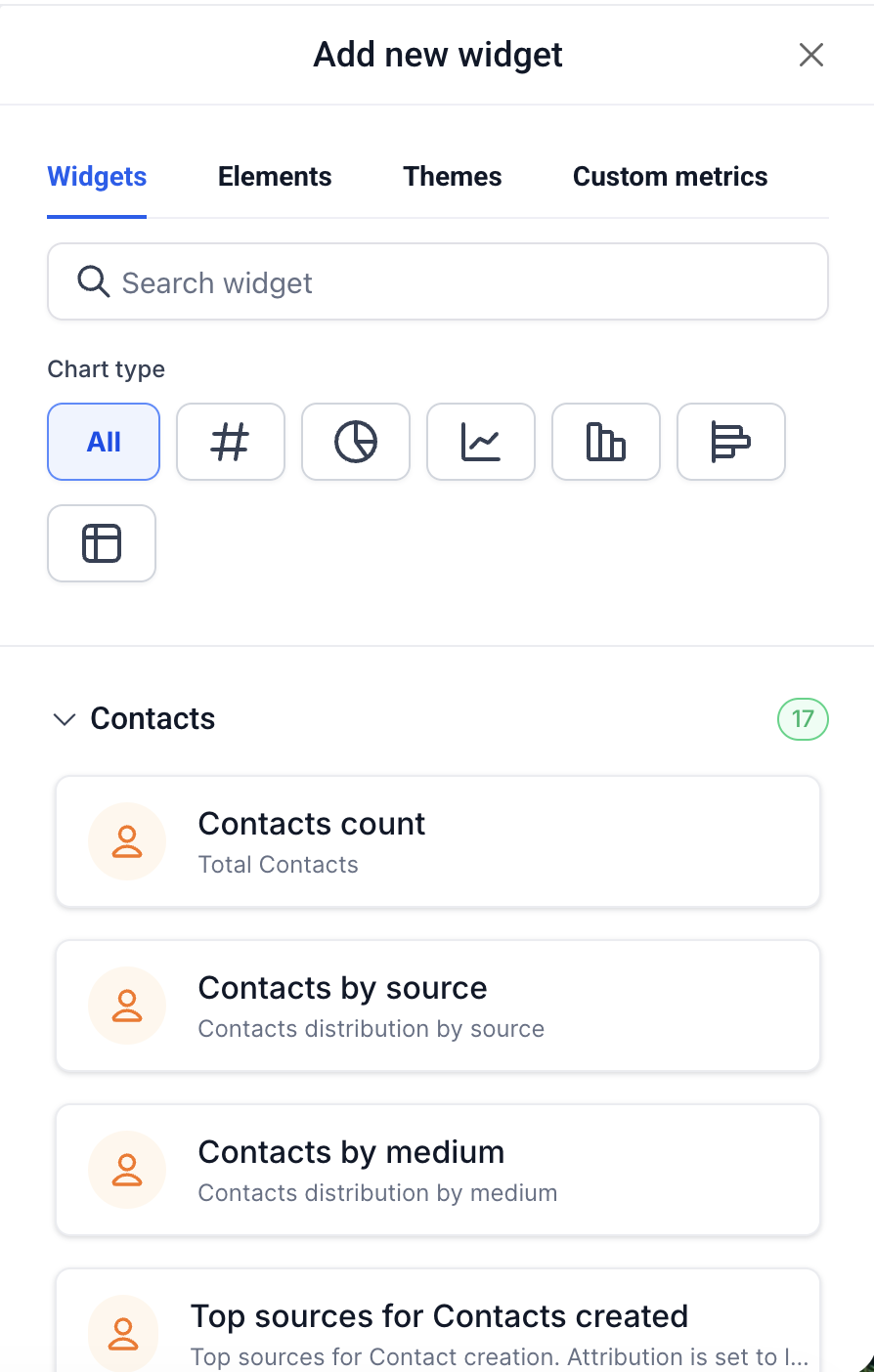
For related articles, see:
Was this article helpful?
That’s Great!
Thank you for your feedback
Sorry! We couldn't be helpful
Thank you for your feedback
Feedback sent
We appreciate your effort and will try to fix the article