Company Smart Lists help you save and reuse customized company smart lists. Instead of rebuilding the same setup every time, you can save your filters, sorting, and field configuration as a Smart List and open it whenever you need it.
TABLE OF CONTENTS
- Overview
- What Are Company Smart Lists?
- Key Benefits
- How to Create a Smart List
- What Gets Saved in a Smart List
- How to Edit an Existing Smart List
- How to Duplicate a Smart List
- How to Export a Smart List
- How to Manage All Smart Lists
- How to Share a Smart List
- Delete a Smart List
- Frequently Asked Questions
Overview
Company Smart Lists give users a faster way to work with Companies by saving a configured list for future use.
A Smart List can include:
- Advanced Filters
- Sort order
- Selected visible fields
This is especially useful for teams that repeatedly work from the same filtered account views — for example, account managers reviewing renewals, CS teams tracking churn-risk accounts, or sales leaders monitoring top-tier customers.
What Are Company Smart Lists?
A Company Smart List is a saved company view.
It allows you to create a repeatable setup based on how you want to view company records. For example, you might create a Smart List for:
- companies not updated recently
- high-value accounts (e.g., MRR above a threshold)
- accounts in a specific industry or tier
- companies assigned to a specific owner or team
- enterprise accounts due for renewal
Each Smart List can be reused later without reapplying filters, sort settings, or field selections manually.
Key Benefits
- Save time by reusing common company smart lists
- Keep account list configurations organized
- Standardize account views across users
- Share useful smart lists with the right team members
- Export filtered company records when needed
How to Create a Smart List
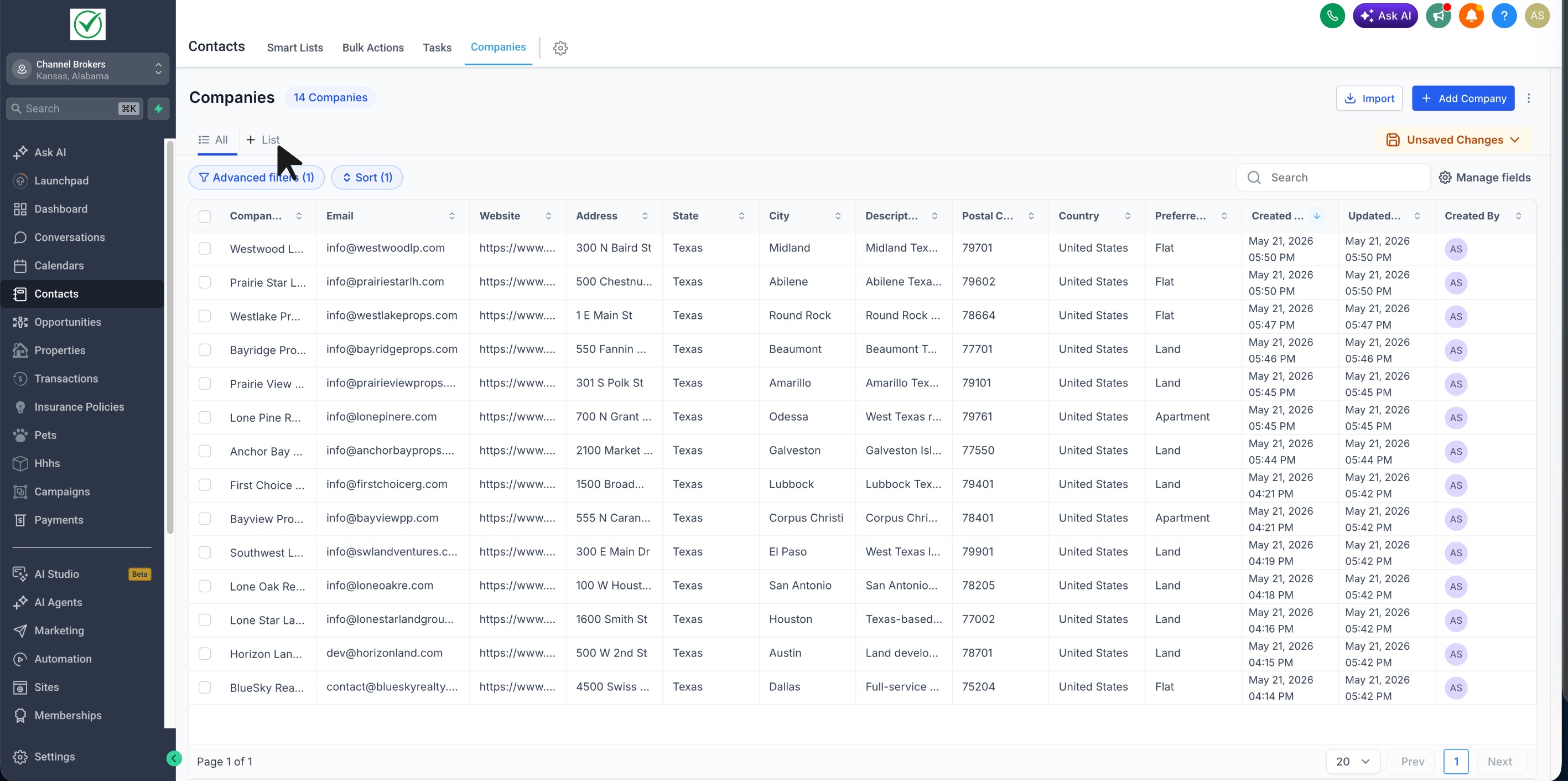
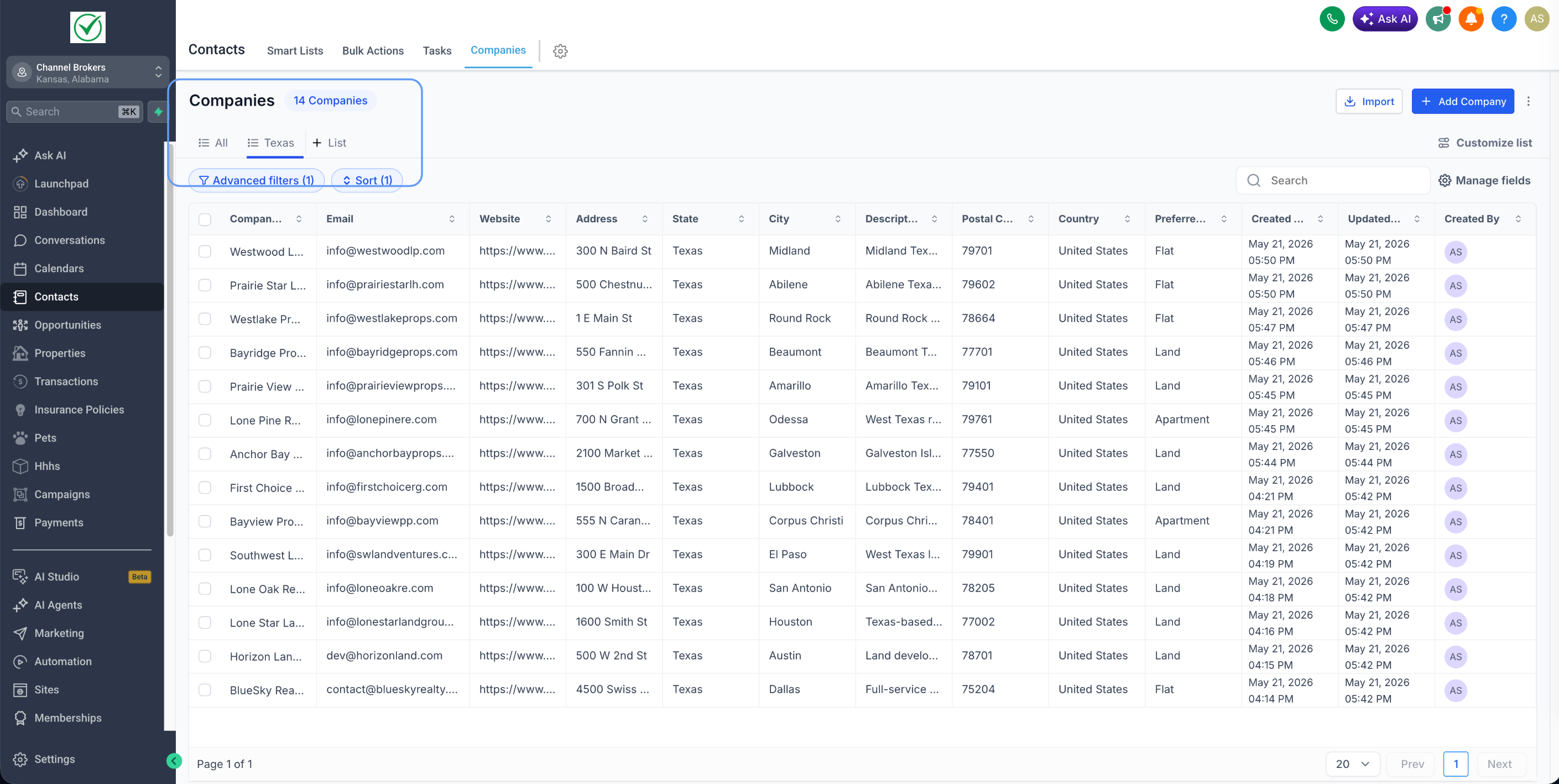
- Go to Contacts → Companies.
- Click on +List
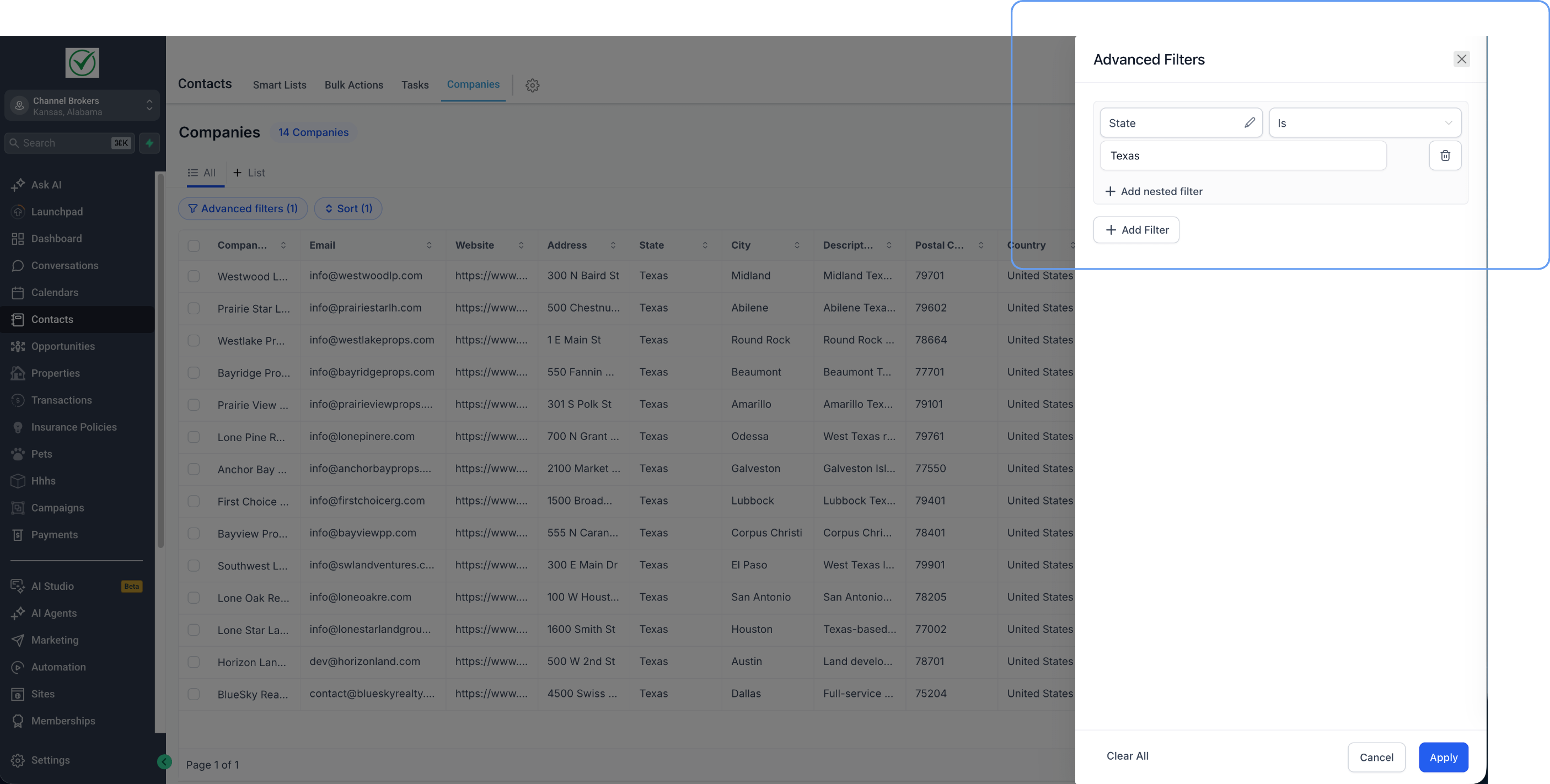
- Apply the setup you want, such as:
- Advanced Filters
- Sort settings
- visible fields / managed fields
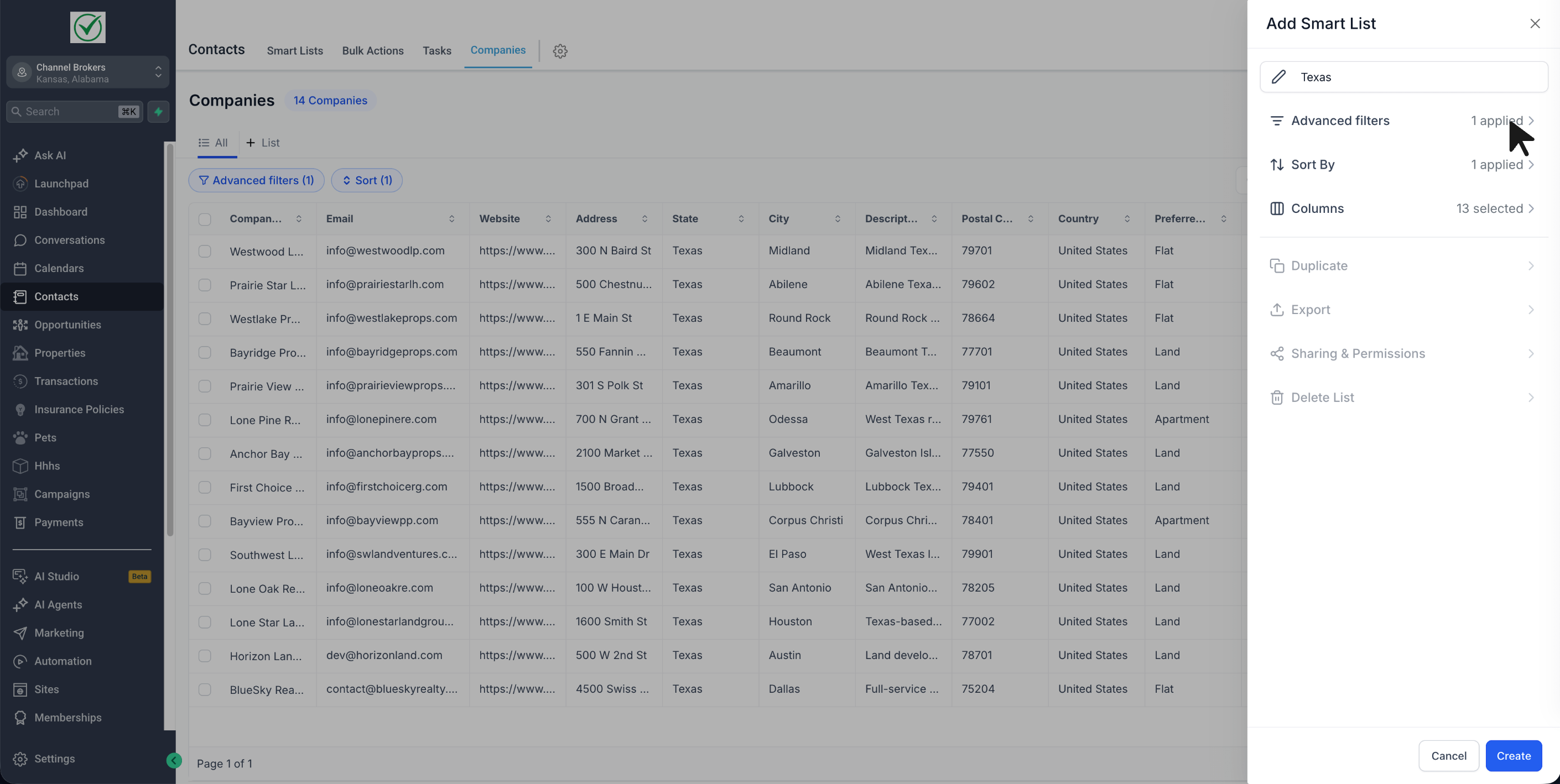
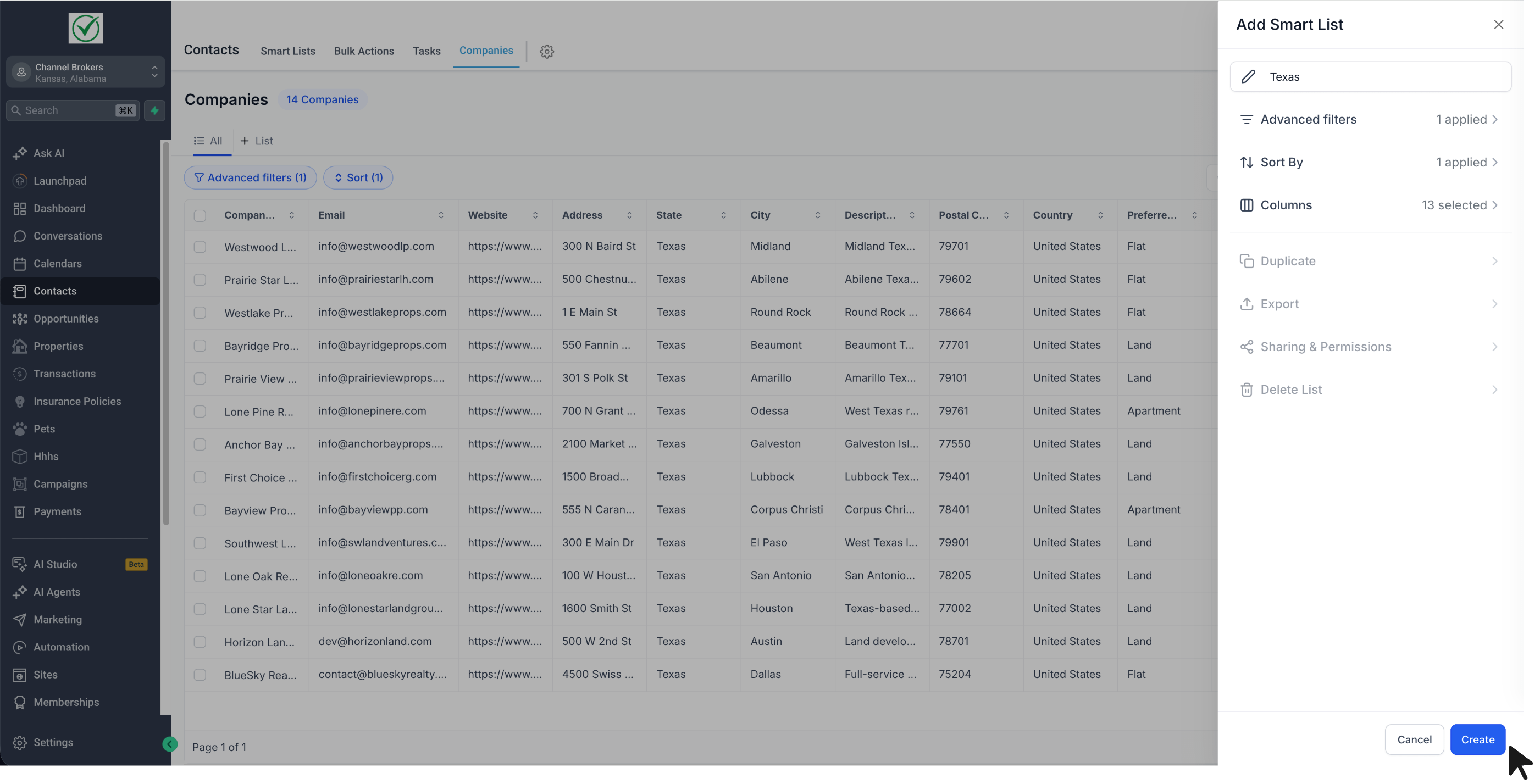
- Enter a name for the Smart List.
- Save it.
The new Smart List will now appear.
What Gets Saved in a Smart List
A Smart List stores the configuration of the list you created.
This includes:
- Advanced Filters
- Sort order
- Selected fields shown in the view
The Smart List preserves the setup so that opening it later gives you the same view, with up-to-date company data.
How to Edit an Existing Smart List
You can update an existing Smart List at any time.
- Open the Smart List.
- Change the filters, sorting, or visible fields.
- Once changes are made, the system will show Unsaved Changes.
- Save – updates the current Smart List
- Save as new smartlist – creates a new Smart List using the updated setup
- Discard Changes – removes the unsaved edits
Use Save when you want to overwrite the current configuration.
Use Save as new smartlist when you want to keep the original and create a new version.
How to Duplicate a Smart List
Duplicating helps you quickly create a similar Smart List without rebuilding everything manually.
To duplicate:
- Open the Smart List.
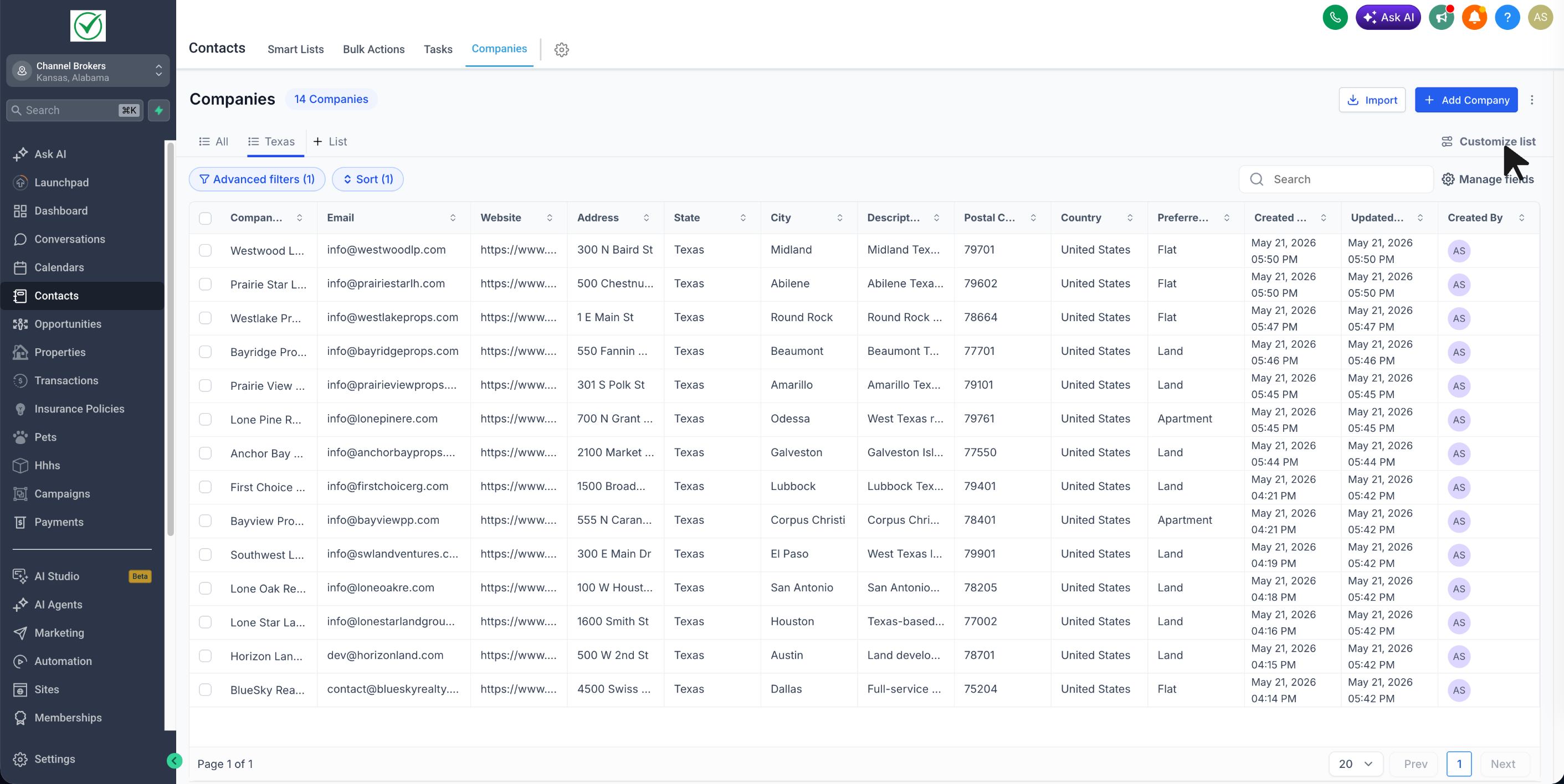
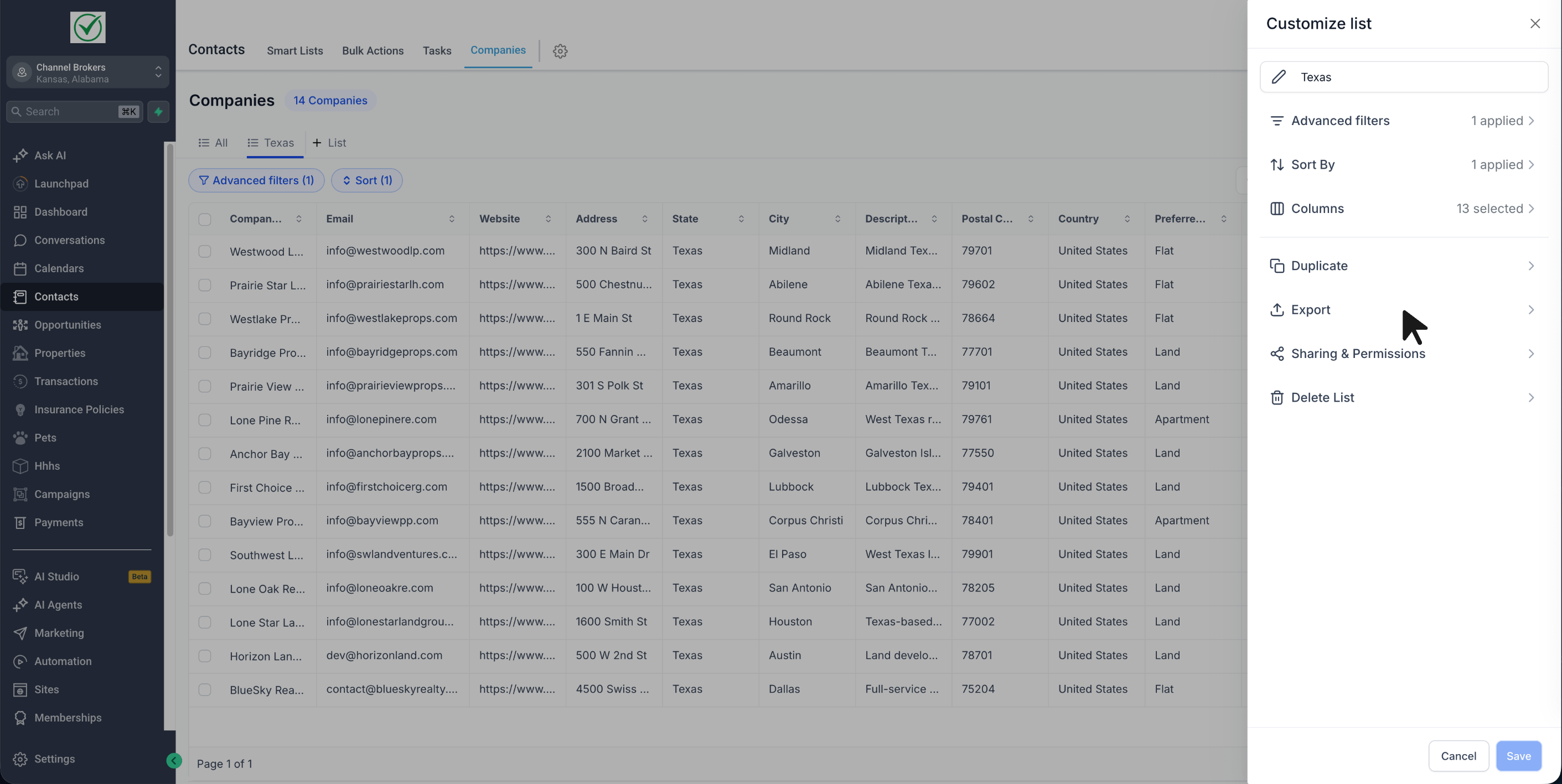
- Click Customize list.
- Select Duplicate.
- Give the duplicated Smart List a new name.
- Save it.
This is useful when creating variations for different teams or use cases — for example, a "Top Accounts – Sales" list and a "Top Accounts – CS" list with slightly different field selections.
How to Export a Smart List
You can export the company records shown in a Smart List.
To export:
- Open the Smart List.
- Click Customize list.
- Select Export.
The exported file contains the companies returned by that Smart List's current setup.
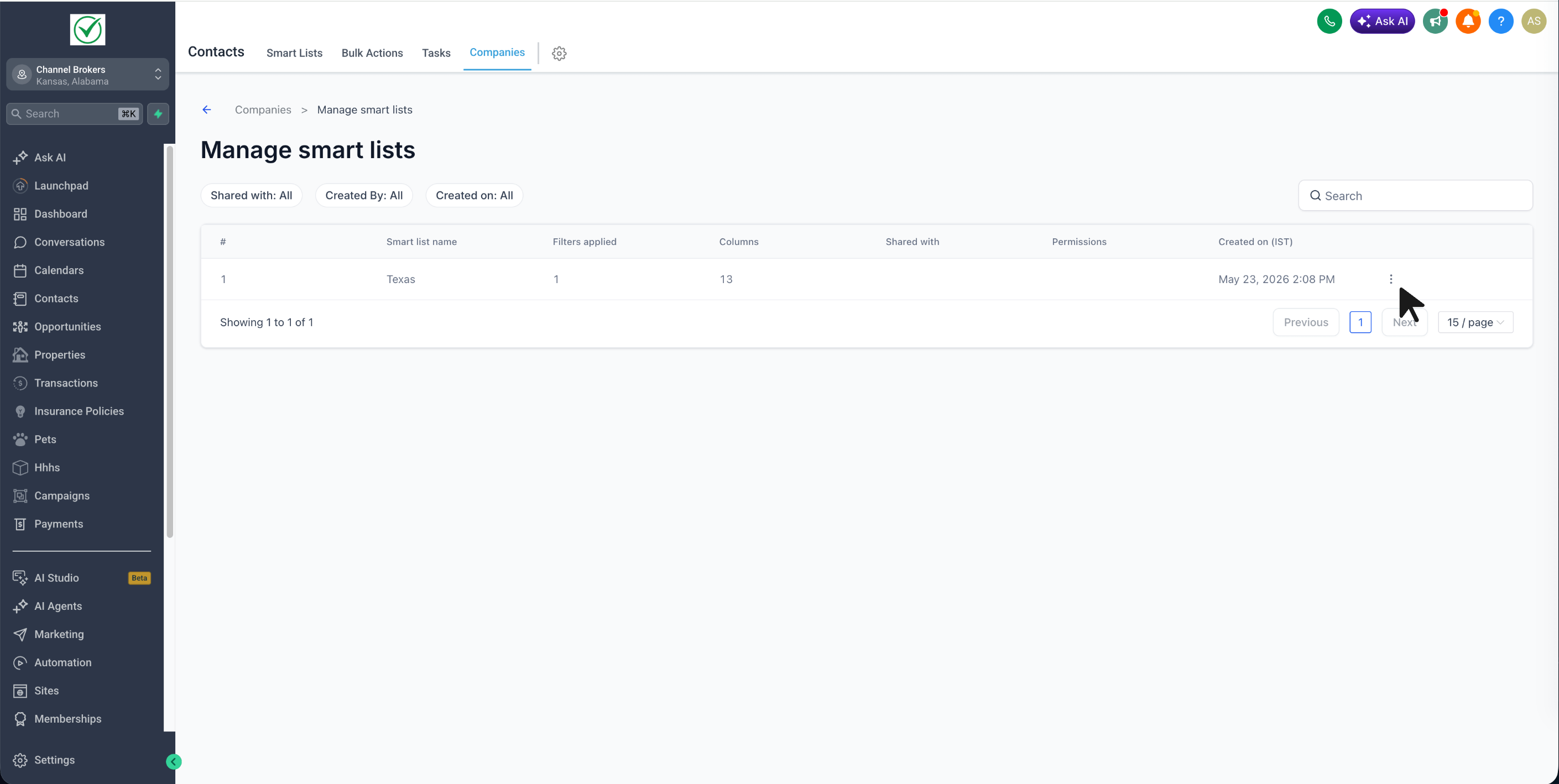
How to Manage All Smart Lists
You can review all Smart Lists from one place using Manage Smart lists.
To access it:
- Go to Companies.
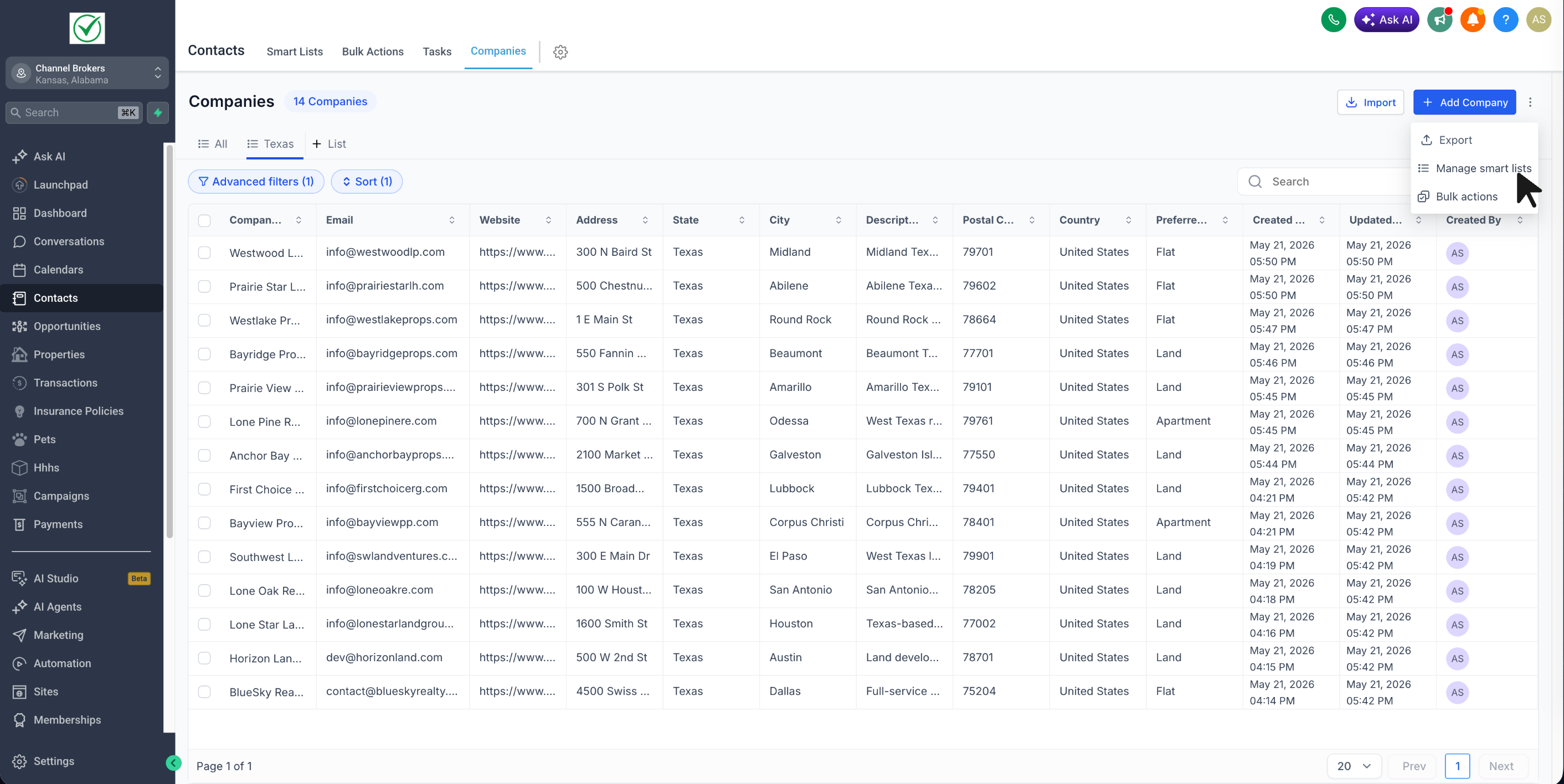
- Click the 3 dot menu on the top right
- Select Manage Smart lists
From this page, you can see details like:
- Smart List name
- which users it is shared with
- who created it
- when it was last updated
This page is useful for cleaning up duplicate views, reviewing sharing, and keeping your Smart Lists organized.
How to Share a Smart List
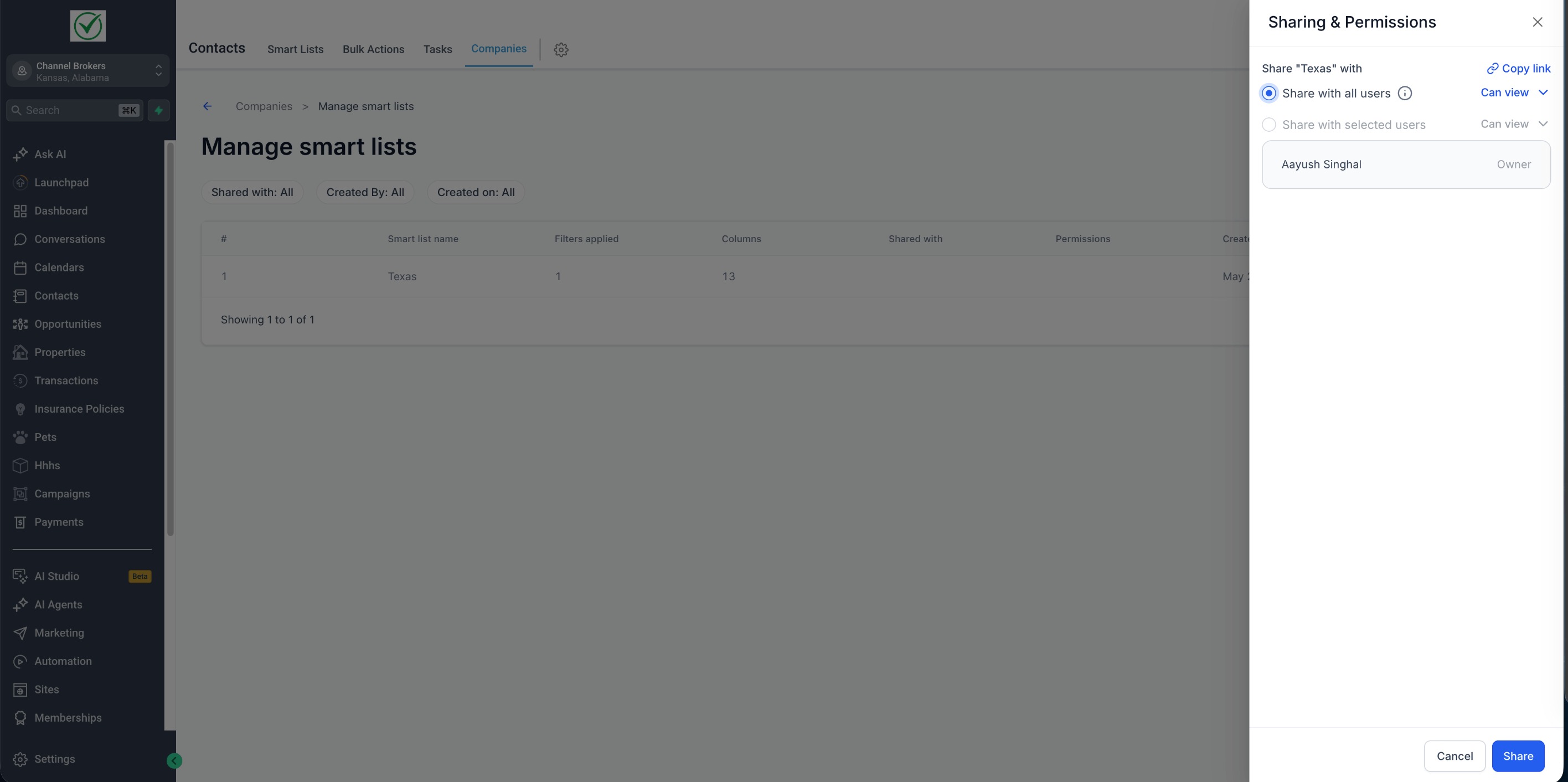
Smart Lists can be shared with users in the sub-account.
To share:
- Open the Smart List.
- Click Customize list.
- Select Sharing & Permissions.
- Choose whether to share with:
- All users
- Selected users
- Assign the access level:
- Can view
- Can edit
- Save the sharing settings.
You can also copy a direct link to the Smart List and share it.
Permission Types
Can view
Users can open and use the Smart List.
Can edit
Users can modify the Smart List configuration.
Be careful when granting edit access, since users with edit permissions can change the Smart List setup and sharin settings.
Delete a Smart List
To remove a Smart List:
- Open the Smart List.
- Click Customize list.
- Select Delete List.
- Confirm deletion.
Only delete a Smart List if it is no longer needed, especially if it is shared with other users.
Frequently Asked Questions
Q. Do I need to enable this feature first?
Yes. Company Smart Lists must be enabled from Subaccount Labs before they can be used.
Q. What settings are saved in a Smart List?
A Smart List saves your filters, sort settings, and visible field configuration.
Q. Can I share a Smart List with other users?
Yes. You can share it with all users or selected users.
Q. What is the difference between Can view and Can edit?
Can view allows users to open the Smart List. Can edit allows them to change it.
Q. Can I duplicate a Smart List instead of building it again?
Yes. Use the Duplicate option from Customize list.
Q. Can I export the companies in a Smart List?
Yes. Use the Export option.
Q. Do Company Smart Lists update in real time?
Yes. Companies are automatically added or removed from a Smart List as their field values change — no manual refresh required.
Q. Where can I see all Smart Lists in one place?
Use Manage Smart lists inside Companies.
Was this article helpful?
That’s Great!
Thank you for your feedback
Sorry! We couldn't be helpful
Thank you for your feedback
Feedback sent
We appreciate your effort and will try to fix the article