The revamped Integration Page in HighLevel introduces a faster, cleaner, and more structured way to manage all your integrations. With a modern card-based layout, improved performance, and enhanced usability, users can now connect, manage, and troubleshoot integrations more efficiently.
This update also brings better scalability and consistency across all integrations. Understanding these changes helps you streamline your workflows and improve overall system performance.
TABLE OF CONTENTS
- What is the Revamped Integration Page?
- Key Benefits of the Revamped Integration Page
- Card Layout & Navigation
- Core Actions: Connect vs Manage
- Integration Options (3-Dot Menu)
- Search & Discovery
- Account Management (Unified Modal)
- Form Mapping & Integration Configuration
- Error Handling & Notifications
- Performance & Reliability Improvements
- How To Set Up the Revamped Integration Page
- Frequently Asked Questions
What is the Revamped Integration Page?
The revamped Integration Page in HighLevel is a redesigned interface that centralizes how users discover, connect, and manage integrations. It replaces the legacy layout with a structured, card-based system that improves usability, consistency, and performance while supporting future scalability.
This update ensures that all integrations follow a unified design and interaction model, making it easier to navigate, manage accounts, and resolve issues without confusion. It also introduces standardized actions, improved error handling, and faster load times to enhance the overall experience.
Key Benefits of the Revamped Integration Page
The redesigned experience focuses on usability, performance, and consistency, making integration management more efficient and reliable.
- Improved User Experience: A clean, card-based layout makes it easier to scan, find, and manage integrations.
- Faster Performance: Reduced load times and optimized APIs provide a smoother experience.
- Simplified Management: Unified actions like Connect and Manage streamline workflows.
- Better Visibility: Clear error indicators and notifications help identify and resolve issues quickly.
- Enhanced Scalability: Standardized design supports future integrations without inconsistencies.
- Stronger Security: Backend improvements reduce risks and improve system reliability.
Card Layout & Navigation
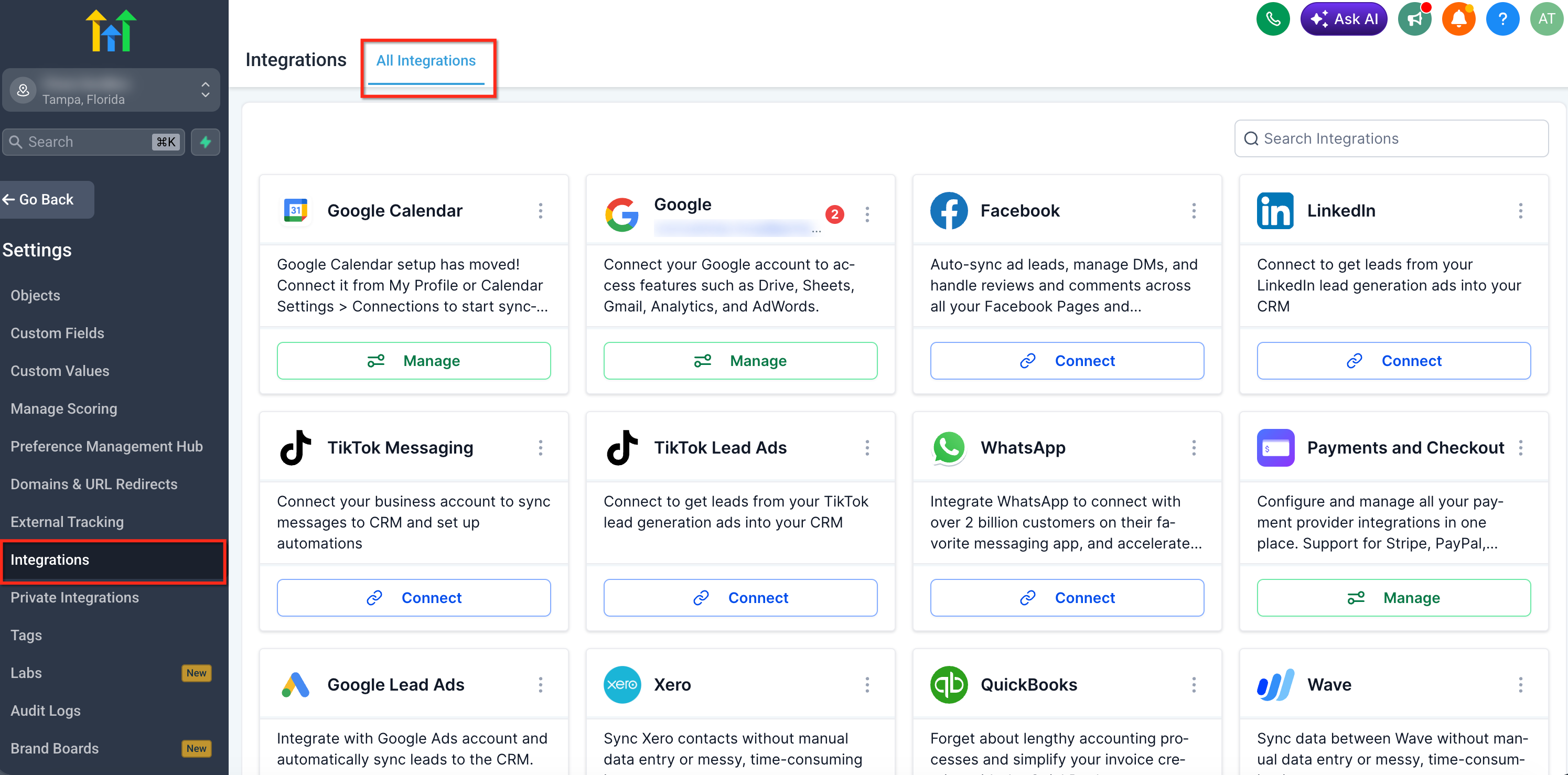
The new card-based layout organizes each integration into a consistent and easy-to-understand format, helping users quickly identify available actions and important details without navigating through complex menus.
Each integration appears as a card with:
- Integration name and logo
- Short description
- Primary action button (Connect or Manage)
- 3-dot menu for additional options
- The layout is fully standardized across all integrations, ensuring a consistent experience
Core Actions: Connect vs Manage
Understanding the difference between Connect and Manage helps users take the correct action based on the current state of an integration, reducing confusion and improving workflow efficiency.
- Connect:
- Used when no account is linked
- Starts the process of connecting a new integration
- Used when no account is linked
- Manage:
- Appears when an integration is already connected
- Redirects to settings or allows management of linked accounts
- Appears when an integration is already connected
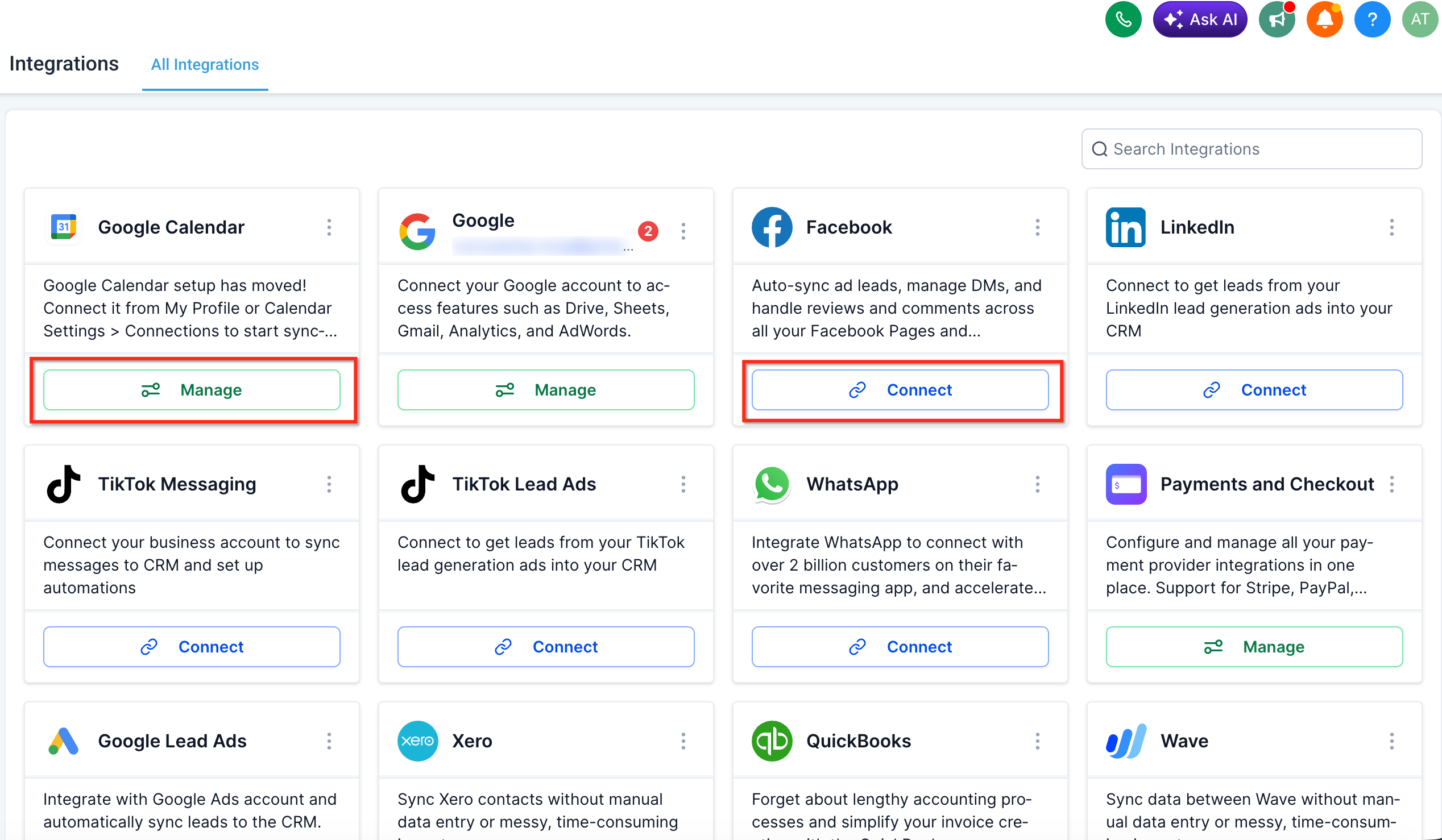
These actions dynamically update based on whether an integration is already configured.
Integration Options (3-Dot Menu)
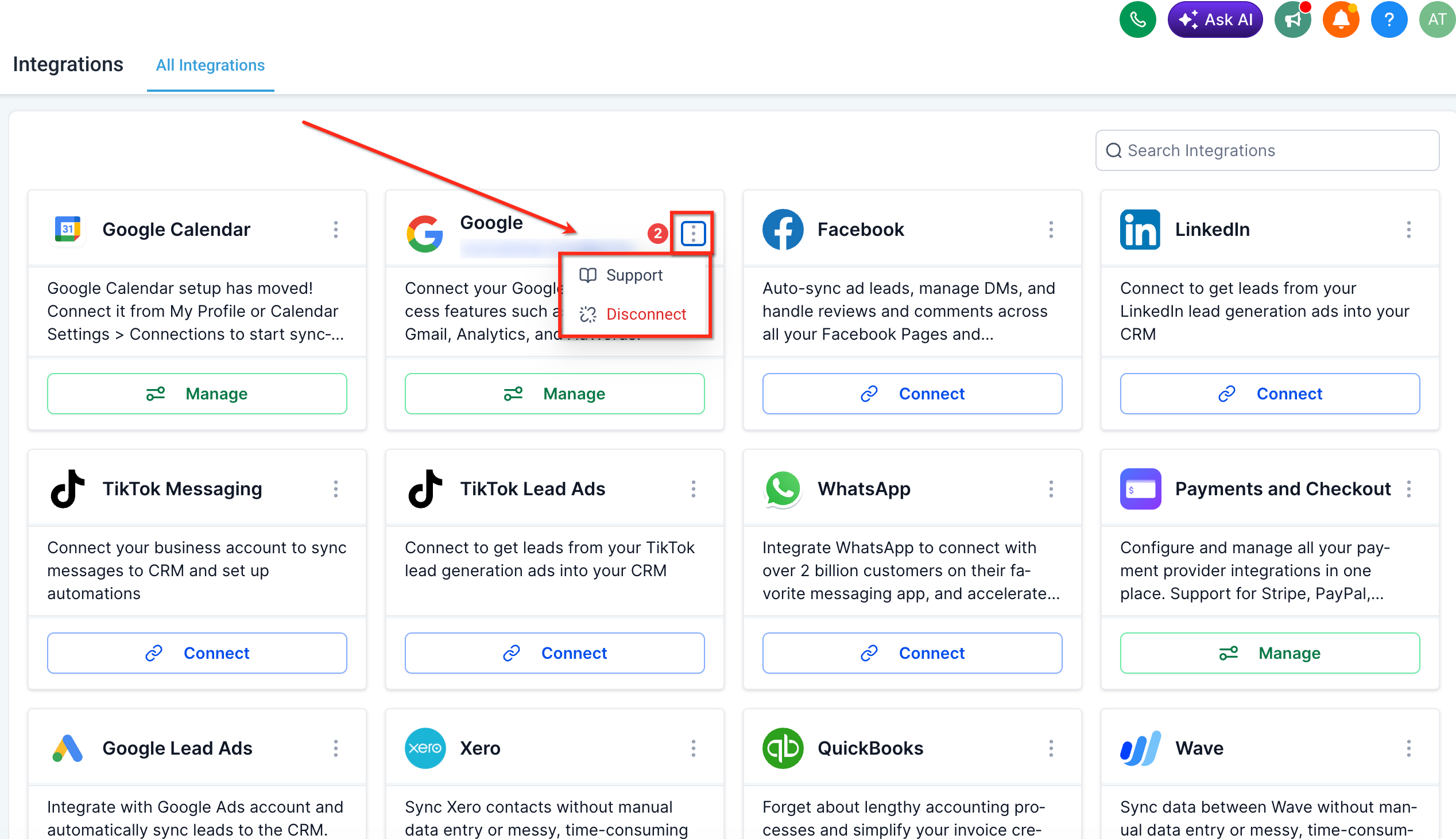
The 3-dot menu provides quick access to integration-specific actions, allowing users to manage settings, troubleshoot issues, and perform advanced configurations without leaving the Integration Page.
Available options may include:
- Support documentation
- Form mapping
- Troubleshooting tools
- Disconnect options (per account or integration)
- Integration settings
Search & Discovery
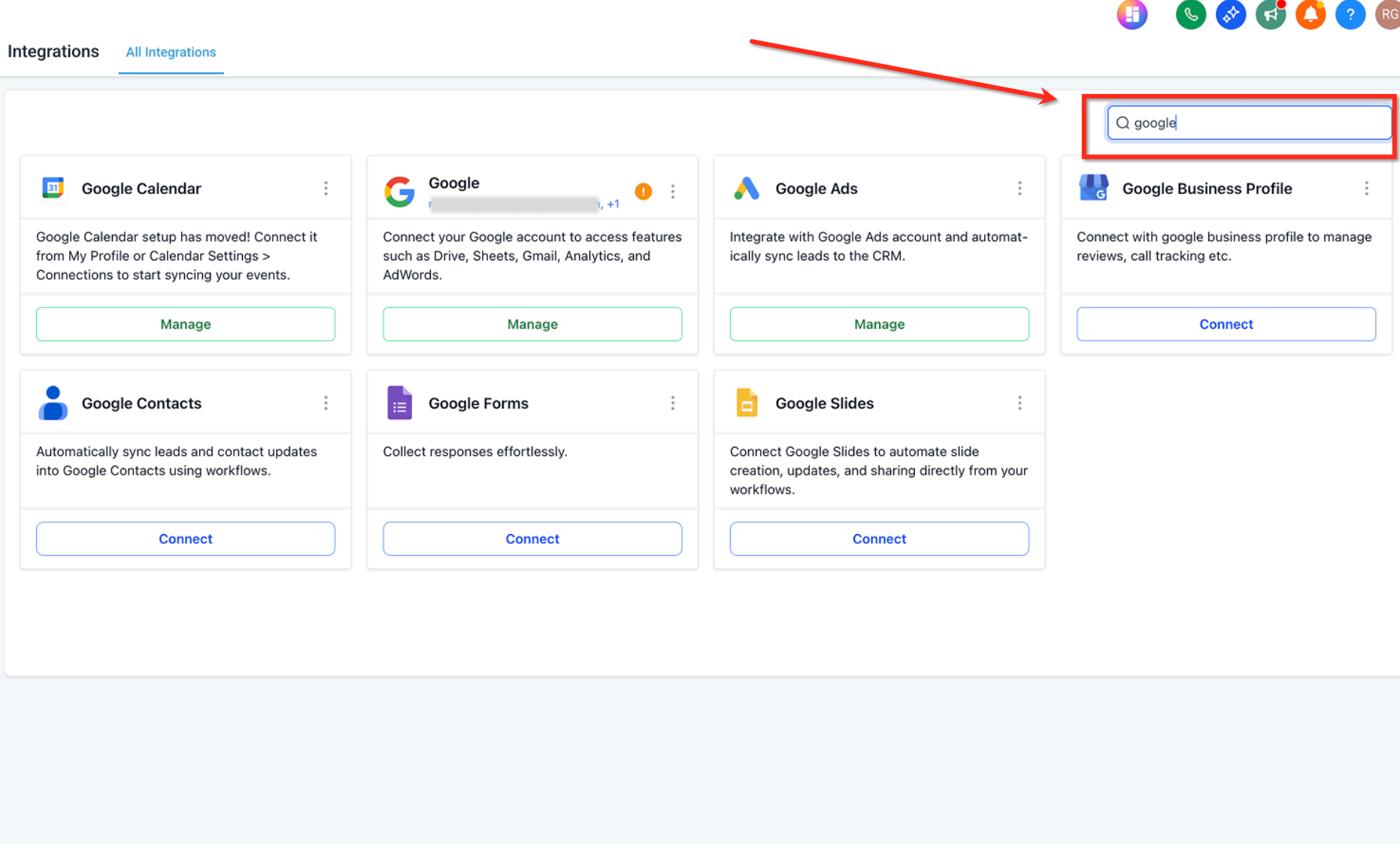
The built-in search functionality allows users to quickly locate integrations, especially useful for accounts with many connected services.
- Search bar located at the top of the page
- Filters integrations in real time as you type
- Helps reduce time spent scrolling through integrations
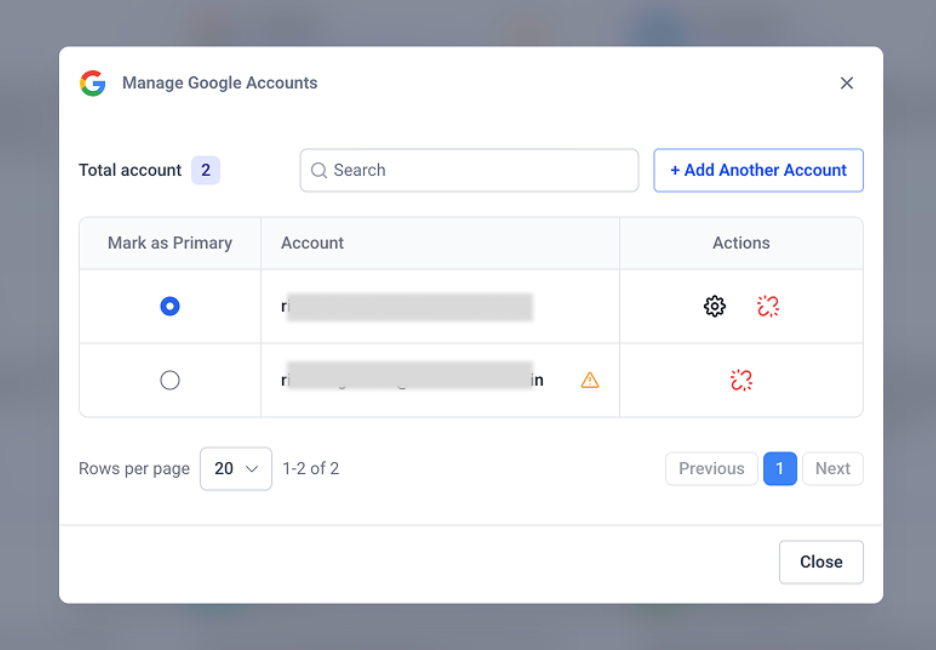
Account Management (Unified Modal)
The unified account management modal centralizes all connected accounts for an integration, making it easier to manage multiple accounts in one place.
- View all connected accounts in a single modal
- Mark a primary account
- Add additional accounts
- Perform account-specific actions (settings, reconnect, remove)
- View error indicators for individual accounts
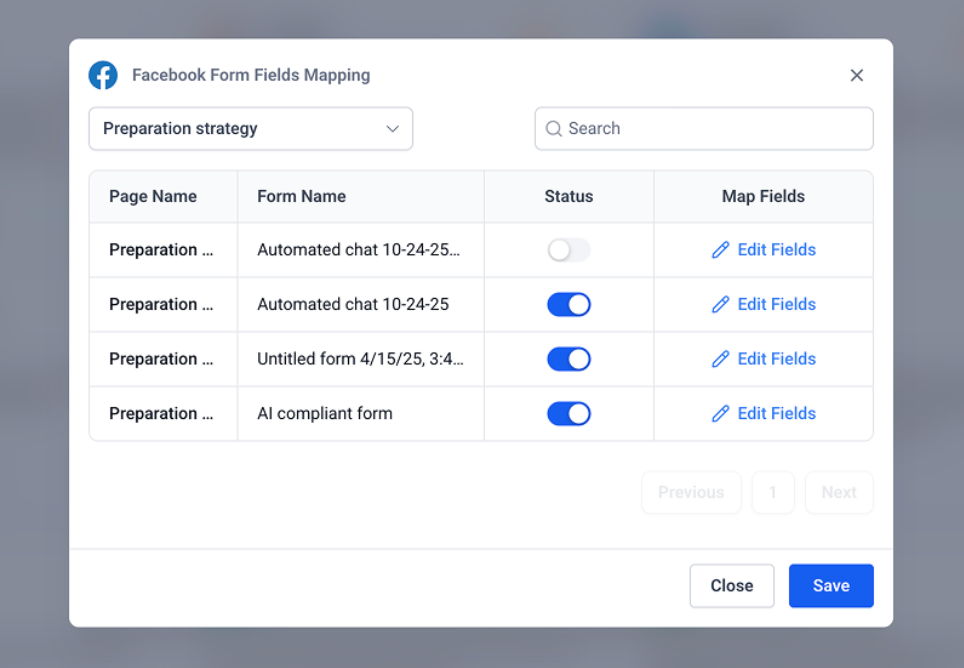
Form Mapping & Integration Configuration
Form mapping enables seamless data transfer between external platforms and HighLevel by aligning form fields with CRM fields, ensuring accurate data synchronization.
- View available forms in a structured list
- Enable or disable forms using toggles
- Map form fields to CRM fields using the “Edit Fields” option
- Save configurations directly within the modal
Error Handling & Notifications
Improved error handling ensures that users can quickly identify and resolve issues without needing complex troubleshooting steps.
- Visual indicators highlight connection issues
- Supports both:
- Connection-level errors (specific account issues)
- Integration-level errors (broader issues)
- Connection-level errors (specific account issues)
- Allows faster diagnosis and resolution directly from the UI
Performance & Reliability Improvements
Behind-the-scenes enhancements significantly improve the speed, reliability, and scalability of the Integration Page, ensuring a smoother experience even as more integrations are added.
- Faster page load times
- Reduced system resource usage
- Improved accessibility and usability
- More reliable API performance
- Consistent experience across all integrations
Frequently Asked Questions
Q: Will my existing integrations be affected by this update?
No, all existing integrations will continue to work as expected. The update only improves the interface and management experience.
Q: What happens if an integration shows an error?
Error indicators will appear on the integration or account level, allowing you to take corrective actions such as reconnecting the account.
Q: How do I disconnect an integration?
You can disconnect integrations or individual accounts using the 3-dot menu or account management modal, with confirmation prompts for safety.
Q: Why do I see “Manage” instead of “Connect”?
“Manage” appears when an integration is already connected, allowing you to configure or update existing settings.
Q: Can I connect multiple accounts for one integration?
Yes, the unified account modal allows you to add and manage multiple accounts for supported integrations.
Was this article helpful?
That’s Great!
Thank you for your feedback
Sorry! We couldn't be helpful
Thank you for your feedback
Feedback sent
We appreciate your effort and will try to fix the article