Advanced Filters in Site Analytics helps you narrow analytics data so you can focus on the traffic segments that matter most. You can refine results using filters such as city, state or province, country, page title, browser, device type, source, and medium. This makes it easier to uncover trends, compare audience segments, and make more informed decisions from your analytics dashboard.
TABLE OF CONTENTS
What are Advanced Filters in Site Analytics?
Advanced Filters in Site Analytics helps you refine analytics results across Funnels, Websites, and Webinars by applying one or more conditions to your data. This makes it easier to isolate specific traffic segments, understand how different audiences behave, and review performance without needing to export data for deeper analysis.
Advanced Filters lets you build targeted views of your analytics by selecting filter dimensions and combining them with logic such as AND and OR. You can also create nested filters to group related conditions together when you need more precise segmentation.
For more information on the Site Analytics dashboard, see: How to Use Site and Funnel Analytics in HighLevel
Key Benefits of Advanced Filters in Site Analytics
Advanced Filters gives you more control over how you analyze performance data, so you can move beyond broad totals and uncover insights that are more actionable for your business.
Segment Your Data More Precisely: Narrow analytics by attributes such as geography, traffic source, page title, and browser.
Analyze Multiple Conditions at Once: Combine filters to review highly specific audience groups and traffic patterns.
Use Flexible Filter Logic: Apply AND and OR conditions to build more accurate analytics views.
Create Deeper Filter Groupings: Add nested filters when you need to organize related conditions together.
Reset or Adjust Filters Easily: Remove individual filters or clear all filters when you want to start over.
Supported Asset Types
You can use Advanced Filters for the following asset types:
- Funnels
- Websites
- Webinars
Where to Access Advanced Filters
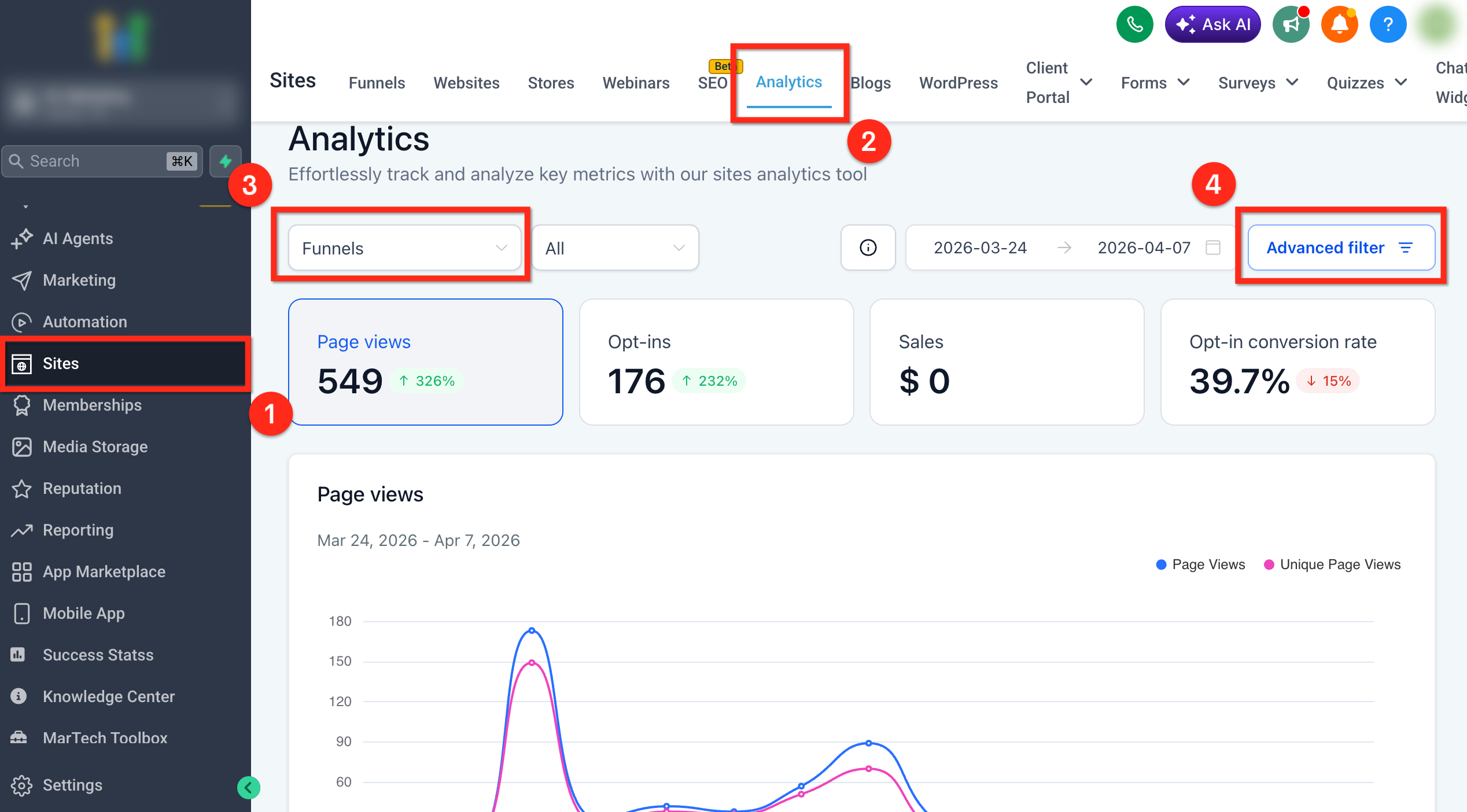
Access starts from the main Site Analytics dashboard, where you first choose a supported asset type and then open the filter builder. You can access Advanced Filters by:
Click Sites in the left navigation menu.
Click Analytics in the top navigation bar.
Select a supported asset type (Funnels, Websites, or Webinars).
Click Advanced Filter in the top-right corner of the analytics dashboard.
How to Use Advanced Filters in Site Analytics
Creating filters correctly helps you narrow analytics to the exact audience segment you want to review. To create and apply advanced filters, follow the steps below.
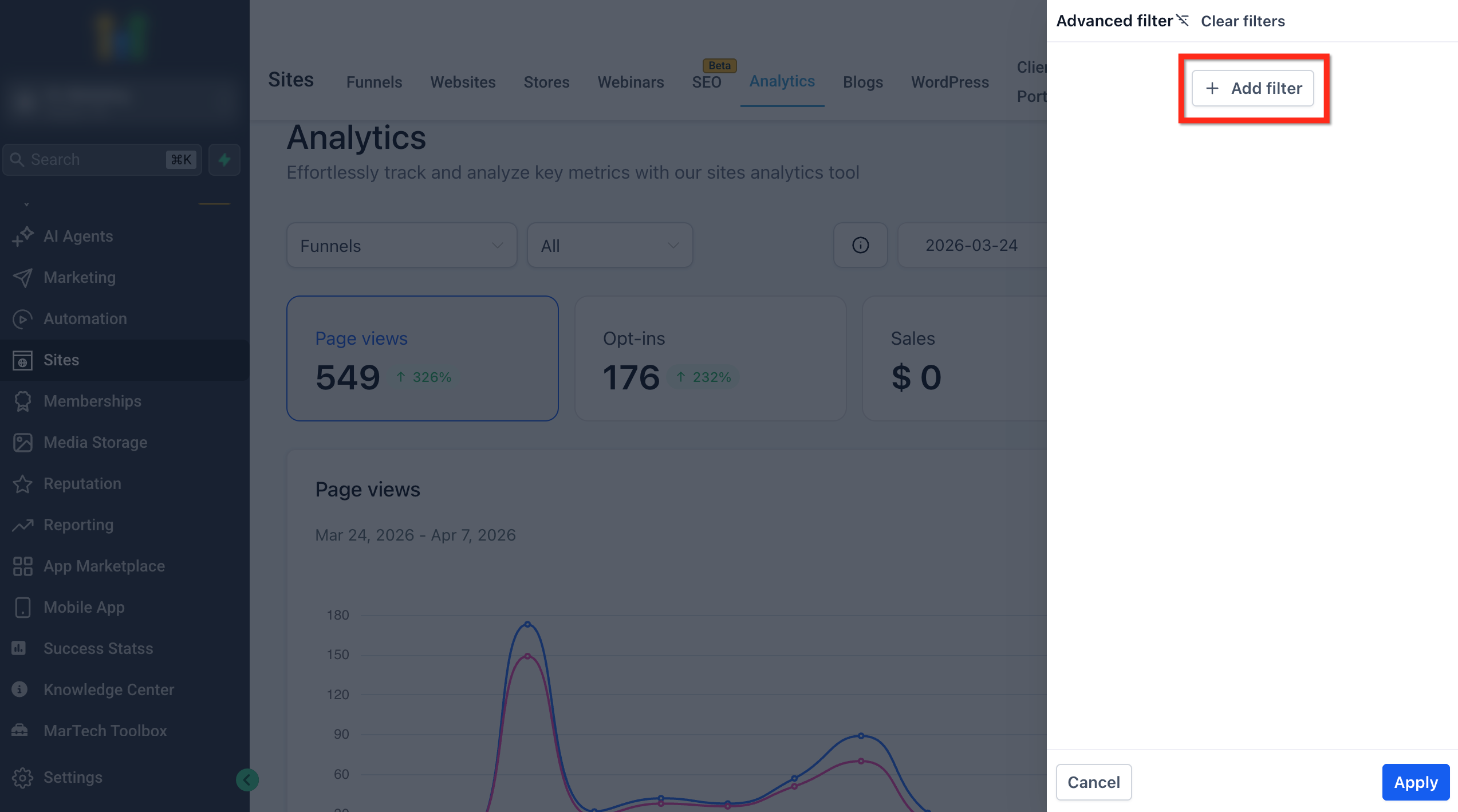
Click + Add Filter.
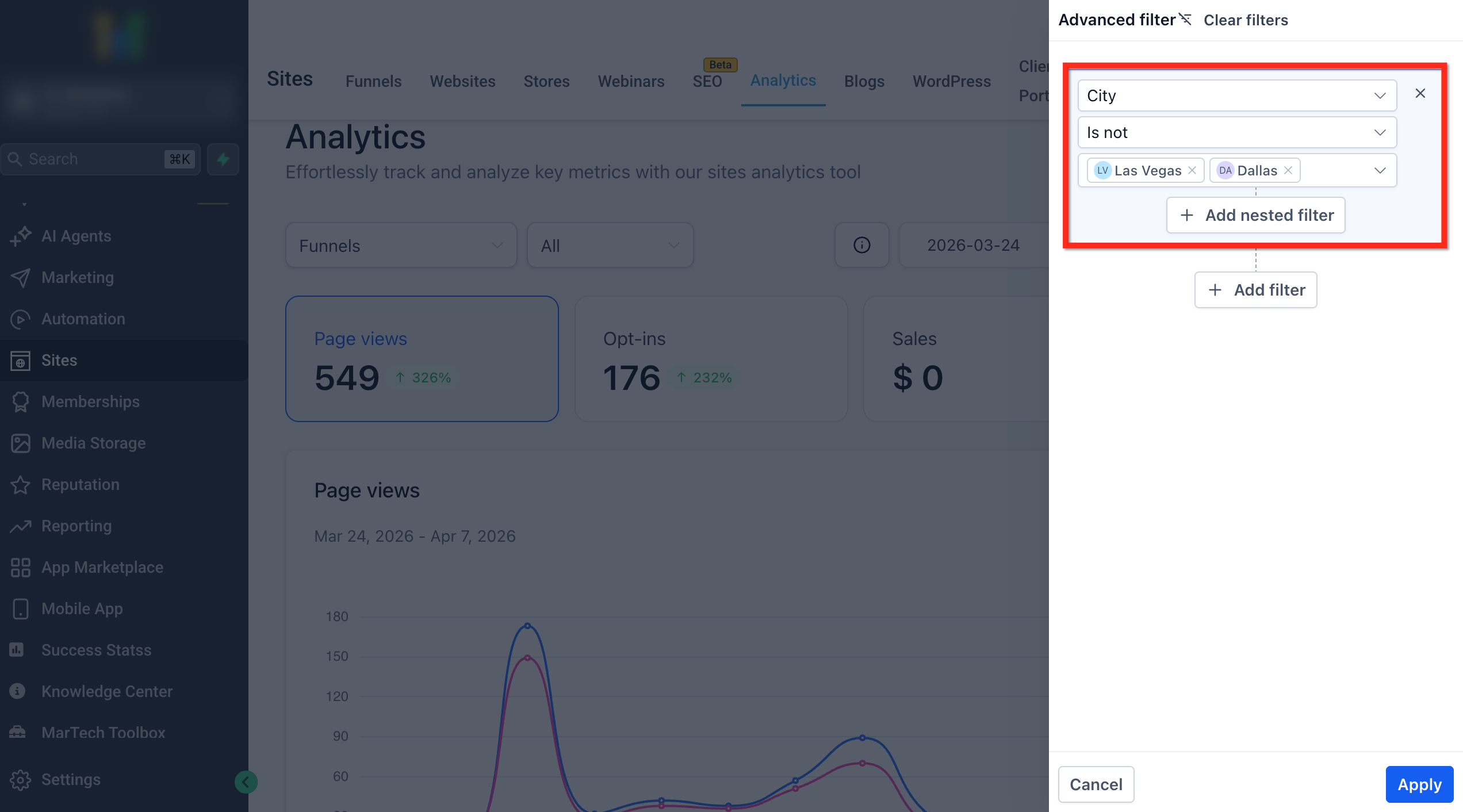
Choose the filter field you want to use, select the condition (Is or Is not), and then choose one or more values you want to include or exclude.
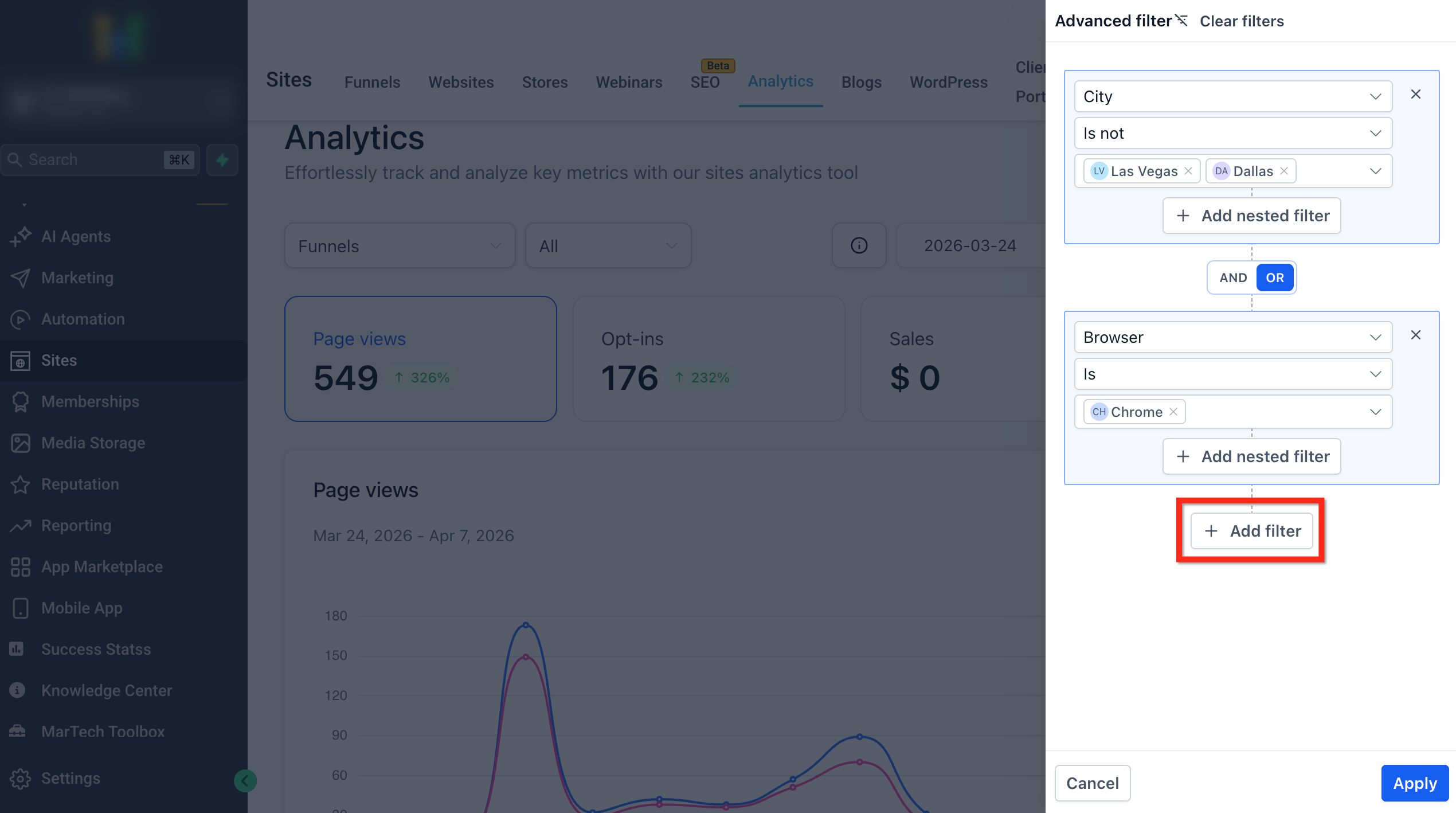
Click Add Filter to add another filter.
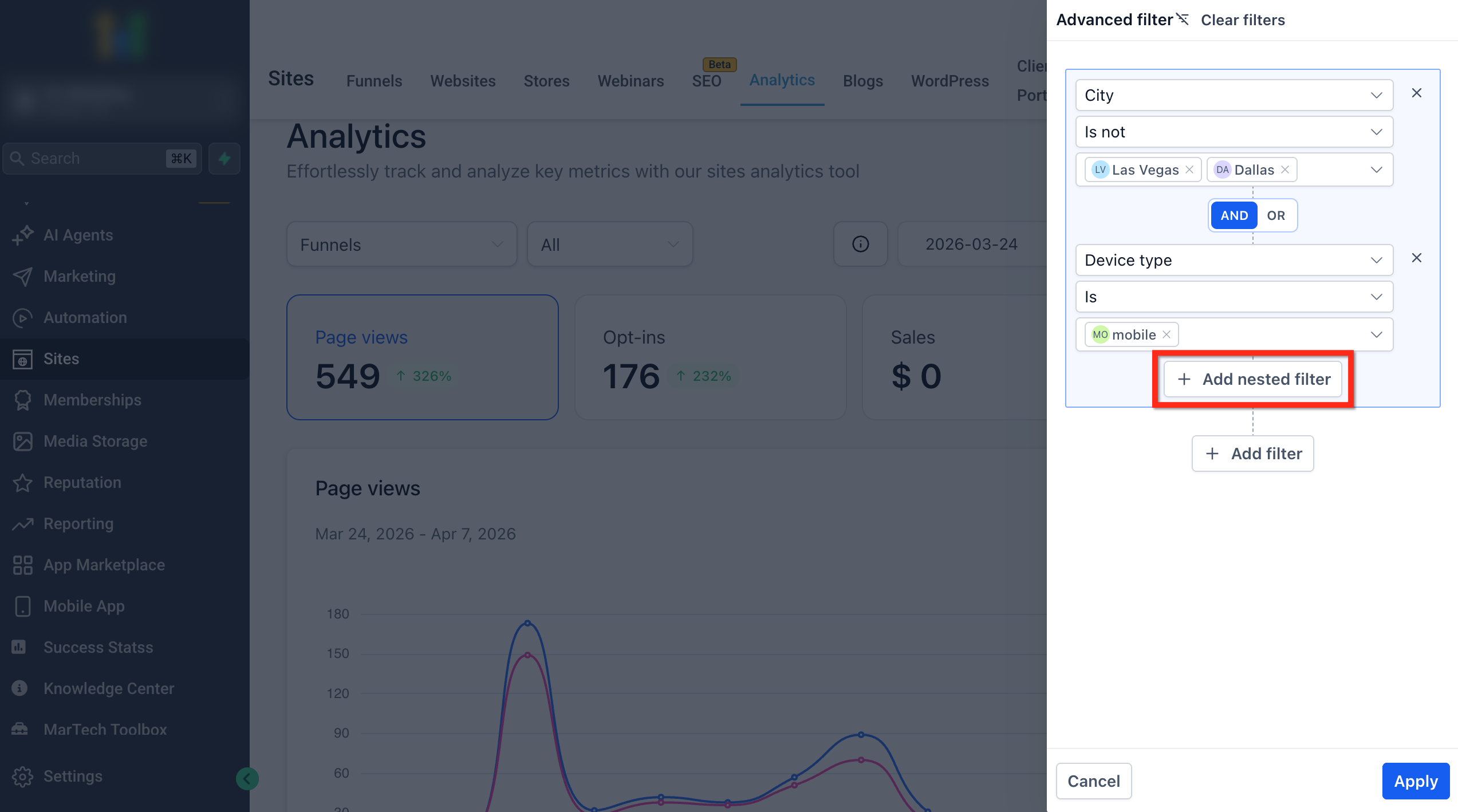
Click Add Nested Filter to create a grouped condition set inside your broader filter logic.
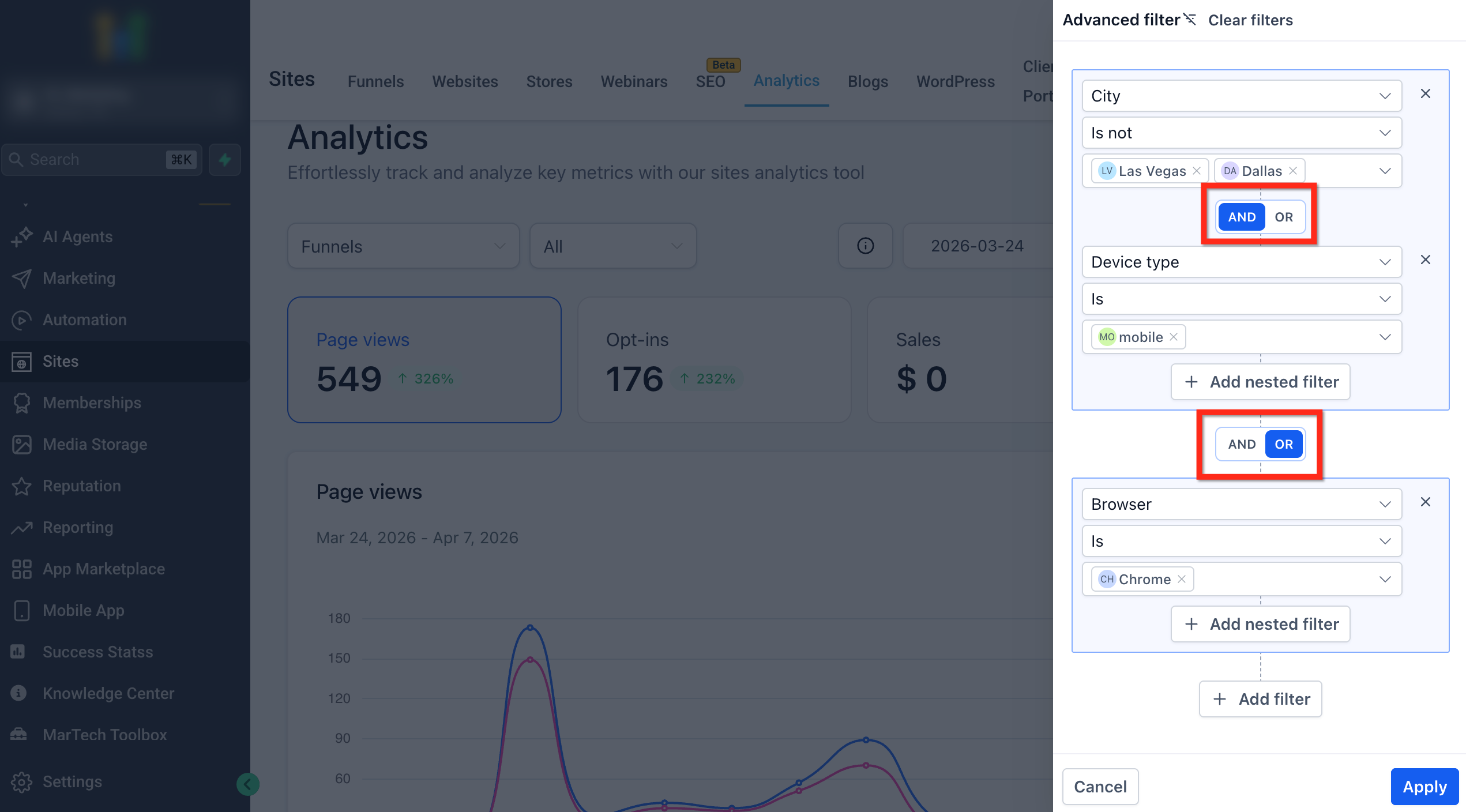
Choose AND or OR to define how your filters should work together.
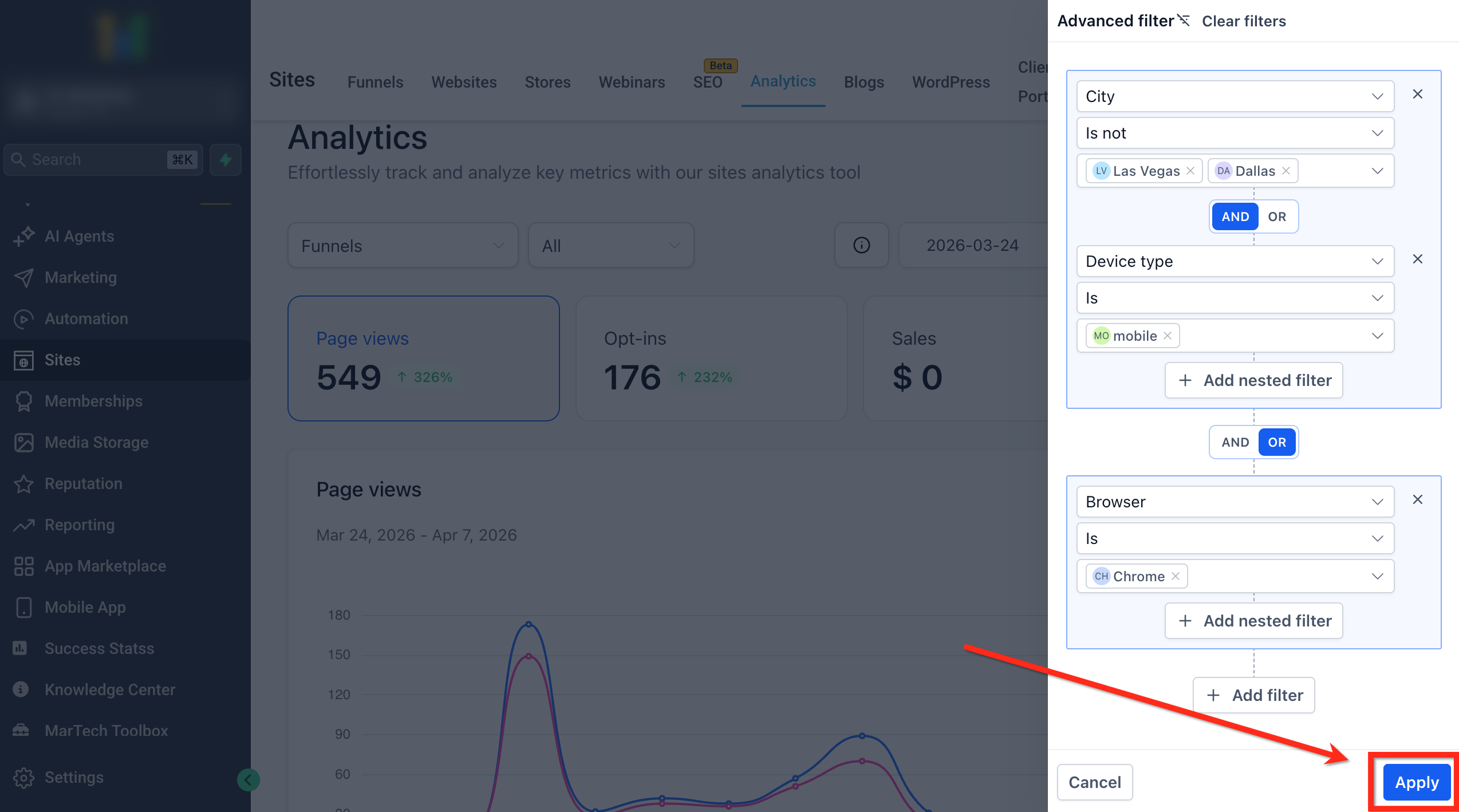
Click Apply to update the analytics dashboard.
Frequently Asked Questions
Q: Do basic filters still apply when Advanced Filters are applied?
Yes. Basic filters such as the selected asset or timeframe still shape the dataset you are viewing. Advanced Filters further narrow those results.
Q: What is the difference between Add Filter and Add Nested Filter?
Add Filter adds another condition to the current level of your filter setup. Add Nested Filter adds more conditions inside a grouped filter so you can control how those conditions work together before combining them with the rest of the logic.
Q: What happens to my Advanced Filters if I refresh the page or leave Site Analytics?
Advanced Filters do not persist after a page refresh or when you leave the analytics page. If you return later, you will need to recreate your Advanced Filters.
Related Articles
Was this article helpful?
That’s Great!
Thank you for your feedback
Sorry! We couldn't be helpful
Thank you for your feedback
Feedback sent
We appreciate your effort and will try to fix the article