This article walks you through how to filter contacts (e.g., by tag) and add them to a workflow in bulk using the Add to Automation feature. You’ll find a step-by-step guide, details on the available scheduling modes, and answers to common questions.
TABLE OF CONTENTS
- What is Bulk Adding Contacts to a Workflow?
- Key Benefits of Adding Contacts to a Workflow in Bulk
- How to Add Contacts to a Workflow in Bulk
- Scheduling Modes
- Tracking Progress
- Frequently Asked Questions
- Related Articles
What is Bulk Adding Contacts to a Workflow?
The Add to Automation feature lets you select contacts from the Contacts page and enroll them into a workflow in bulk. Instead of waiting for contacts to enter a workflow through a trigger, you can manually push a batch of contacts into any published workflow – all at once, at a scheduled time, or in a drip pattern.
The most common use case is filtering your contact list by a specific attribute (such as a tag), selecting the filtered results, and adding them to a workflow for targeted outreach, re-engagement, or batch processing.
Key Benefits of Adding Contacts to a Workflow in Bulk
- Enroll contacts faster: Add multiple contacts to a workflow in one bulk action instead of enrolling them individually.
- Target the right audience: Use Advanced Filters (like tags, fields, and opportunity data) to enroll only the contacts you need.
- Control when contacts enter: Choose to enroll contacts immediately, at a scheduled date/time, or in drip mode batches.
- Reuse segments easily: Save filtered views as Smart Lists so you can repeat the same bulk enrollment anytime.
- Track progress and results: Monitor status, timestamps, and statistics from the Bulk Actions page to confirm what was processed.
How to Add Contacts to a Workflow in Bulk
Step 1: Filter Your Contacts
Tip: You can also filter by any other contact field (email, city, contact source, opportunity stage, etc.) or add multiple filters and nested filters to narrow down exactly which contacts you want to enroll.- Navigate to Contacts > SmartLists.
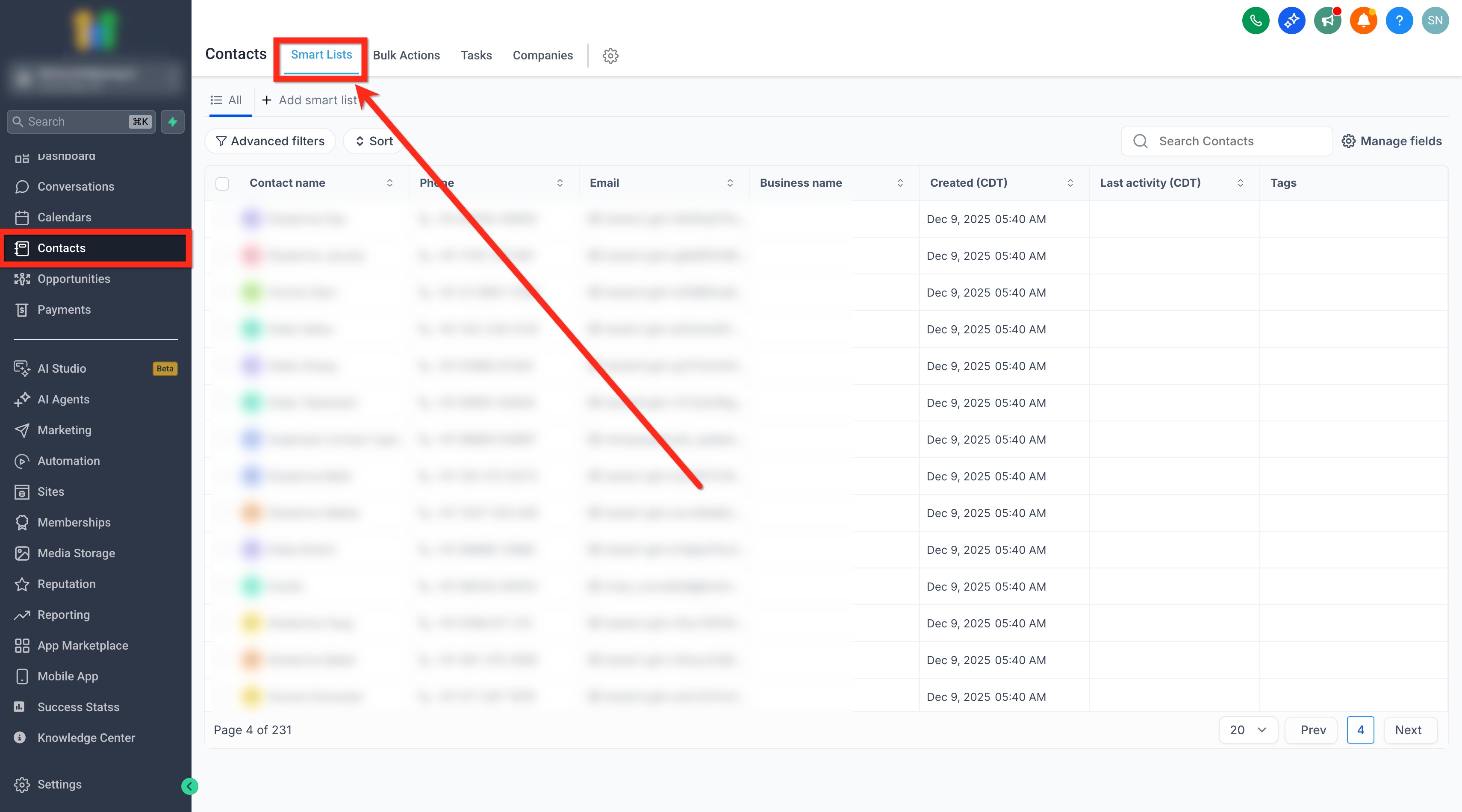
- Click Advanced Filters to open the filter panel. .

- To filter by Tag, search for “Tag” in the filter search bar, then select it.
- Set the operator (e.g., “Is”) and choose the tag value you want to filter by (e.g., “follow-up”). Click Apply to filter the contact list. The page will now show only the contacts that match your filter criteria.
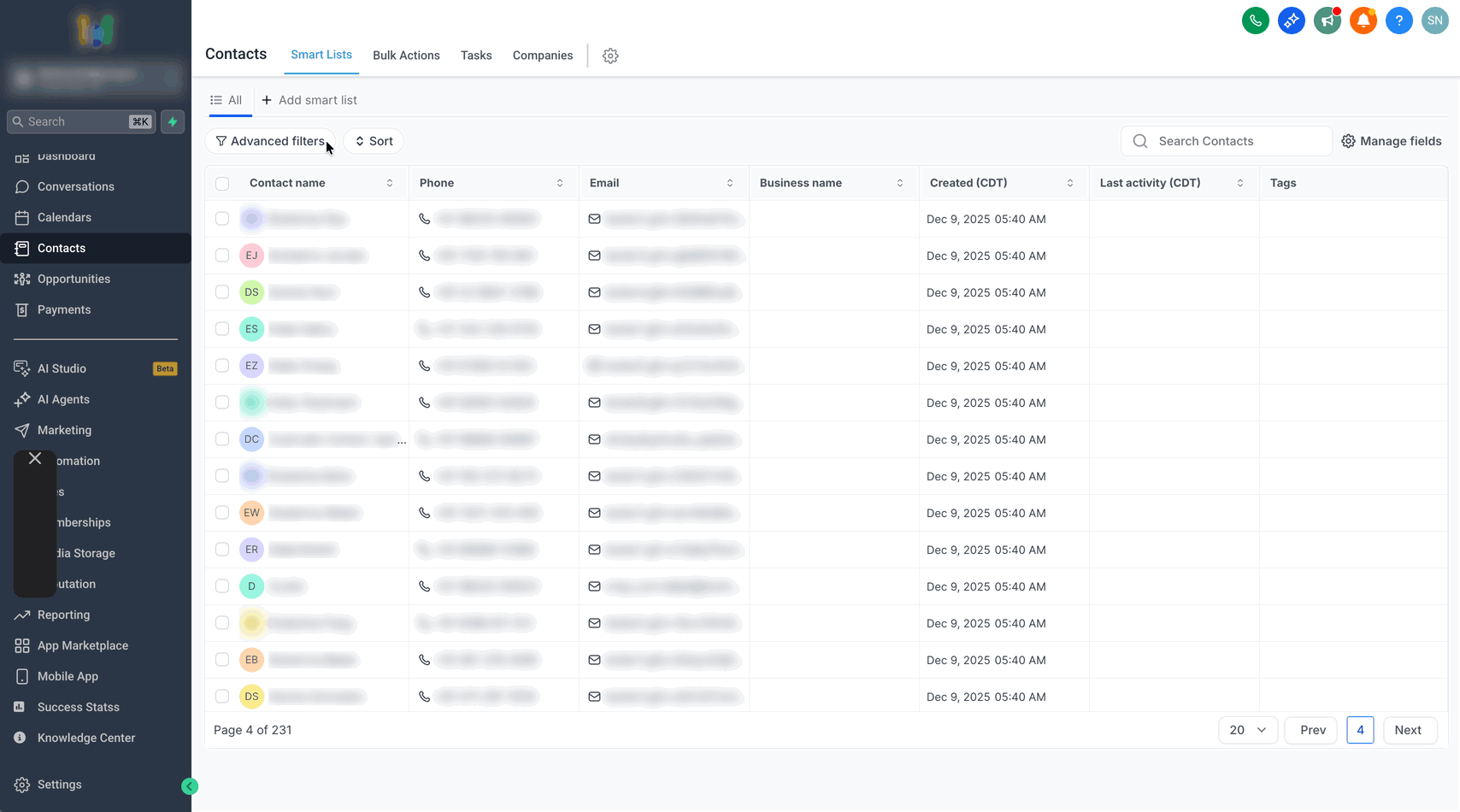
Step 2: Add to Automation
- Select the contacts you want to add to a workflow: You can select individual contacts using the checkboxes, or click Select all at the top to select every contact in the filtered list. The bulk action toolbar appears when at least one contact is selected.
- From the bulk action toolbar, click Trigger automation. This opens the Add to Automation dialog, which displays the selected contacts at the top and the configuration fields below.

Step 3: Configure the Automation
- Fill in the following fields:
Action Name: A name for this bulk action, shown in the tracking report on the Bulk Actions page. For example, “Workflow automation bulk import.”
Automation Type: Select “Workflow” to enroll contacts into a workflow.
Workflow: Choose the workflow you want to add the contacts to. The dropdown lists all published workflows in your account.
Mode: Choose when and how contacts should be enrolled. See the Scheduling Modes section below for details. - Click Add to Automation. A success confirmation appears showing the number of contacts being processed (e.g., “Add to Automation 10 Contacts is in progress/is scheduled”).

- Click Check Progress to go to the Bulk Actions page, or Dismiss to return to the Contacts list.

Scheduling Modes
The Mode setting controls when the selected contacts are enrolled into the workflow. There are three options:
Send All at Once
All selected contacts are added to the workflow immediately. This is the default mode and works well when timing is not a concern.
Additional fields: None.

Send at Scheduled Time
All selected contacts are added to the workflow at a specific date and time that you choose. Useful for aligning enrollment with a campaign launch or business hours.
Additional fields:
| Field | Description |
| Pick a Start Date & Time | The date and time when all contacts will be enrolled. Displayed in your account’s timezone. |

Contacts are enrolled in batches over a period of time rather than all at once. Ideal for large contact lists where you want to stagger enrollment to avoid overwhelming your workflow or to spread out communications.
Additional fields:
| Field | Description |
| Pick a Start Date & Time | The date and time when the first batch of contacts will be enrolled. |
| Number of Messages per Batch | How many contacts to enroll in each batch. |
| Repeat after | The interval between batches. Set the number and unit (Days, Hours, or Minutes). |

Tracking Progress
After submitting, you can track the bulk action on the Bulk Actions page. Navigate to Contacts > Bulk Actions to view all your bulk action requests.
The Bulk Actions page shows:
- Action Label: The name you provided when creating the action.
- Operation: The automation type (e.g., Workflow).
- Status: Whether the action is In Progress, Scheduled, or Complete.
- User: Who initiated the bulk action.
- Created / Completed: Timestamps for when the action was created and completed, shown in your account’s timezone.
- Statistics: Click the statistics icon to view a detailed breakdown of the action’s results.
You can filter the Bulk Actions page by date range, status, action type, and user to quickly find any specific request.
Frequently Asked Questions
Q: Can I filter contacts by other fields besides tags?
Yes. The Advanced Filters panel supports filtering by any contact field (email, city, contact source, created date, opportunity stage, etc.) as well as custom fields. You can combine multiple filters and nested filters to precisely target the contacts you want to enroll.
Q: Does the workflow need to be published?
Yes. Only published workflows appear in the Workflow dropdown. Make sure your workflow is published before using this feature.
Q: What is the difference between Send at Scheduled Time and Send in Drip Mode?
Send at Scheduled Time enrolls all selected contacts at a single chosen date and time. Send in Drip Mode staggers enrollment by sending contacts in batches at regular intervals – useful for spreading out communications over days or hours.
Q: Where can I track the progress of my bulk action?
Navigate to Contacts > Bulk Actions. You’ll see all your bulk action requests with their current status, timestamps, and a statistics breakdown.
Q: Can I save a Smart List filter and reuse it for future bulk imports?
Yes. After applying your Advanced Filters, you can save the filtered view as a Smart List. The next time you need to enroll the same segment, just open that Smart List, select the contacts, and trigger the automation.
Related Articles
Was this article helpful?
That’s Great!
Thank you for your feedback
Sorry! We couldn't be helpful
Thank you for your feedback
Feedback sent
We appreciate your effort and will try to fix the article