Response Style Settings in HighLevel Conversation AI help you control how long and detailed your bot’s replies are. By choosing Concise, Balanced, or Detailed, you can better match your brand voice and the channel you’re replying in. This guide explains how Response Style Settings work, where to find them in Bot Settings, and how to configure them for more consistent customer conversations.
TABLE OF CONTENTS
- What is Response Style Settings?
- Key Benefits of Response Style Settings
- Supported Bot Types
- Enable or Disable Response Style Settings
- Bot-Level Configuration
- How To Setup Response Style Settings
- Frequently Asked Questions
- Related Articles
What is Response Style Settings?
Response Style Settings allow you to set a preferred reply length for a Conversation AI bot. Choosing a response style helps keep responses aligned with your use case: whether you need quick confirmations, helpful context, or more thorough answers without rewriting prompts or rebuilding flows.
Key Benefits of Response Style Settings
Controlling response length helps you deliver a more consistent experience across channels and use cases. The right level of detail can reduce confusion, improve engagement, and keep conversations aligned with your brand.
Channel-friendly replies: Match reply length to SMS, web chat, social DMs, and more.
Better customer clarity: Provide the right amount of detail to reduce back-and-forth questions.
Consistent brand experience: Keep replies aligned with your preferred tone and depth.
Flexible by bot: Use different styles for different bots based on their purpose.
Easy adjustments: Switch styles anytime without changing existing flows or prompts.
Supported Bot Types
Knowing which bots support Response Style Settings helps you apply the feature confidently across your Conversation AI setup. If you manage multiple bot formats, this ensures you’re enabling the setting in the right place.
Response Style Settings are supported for:
Form-Based Bots
Prompt-Based Bots
Flow-Based Bots
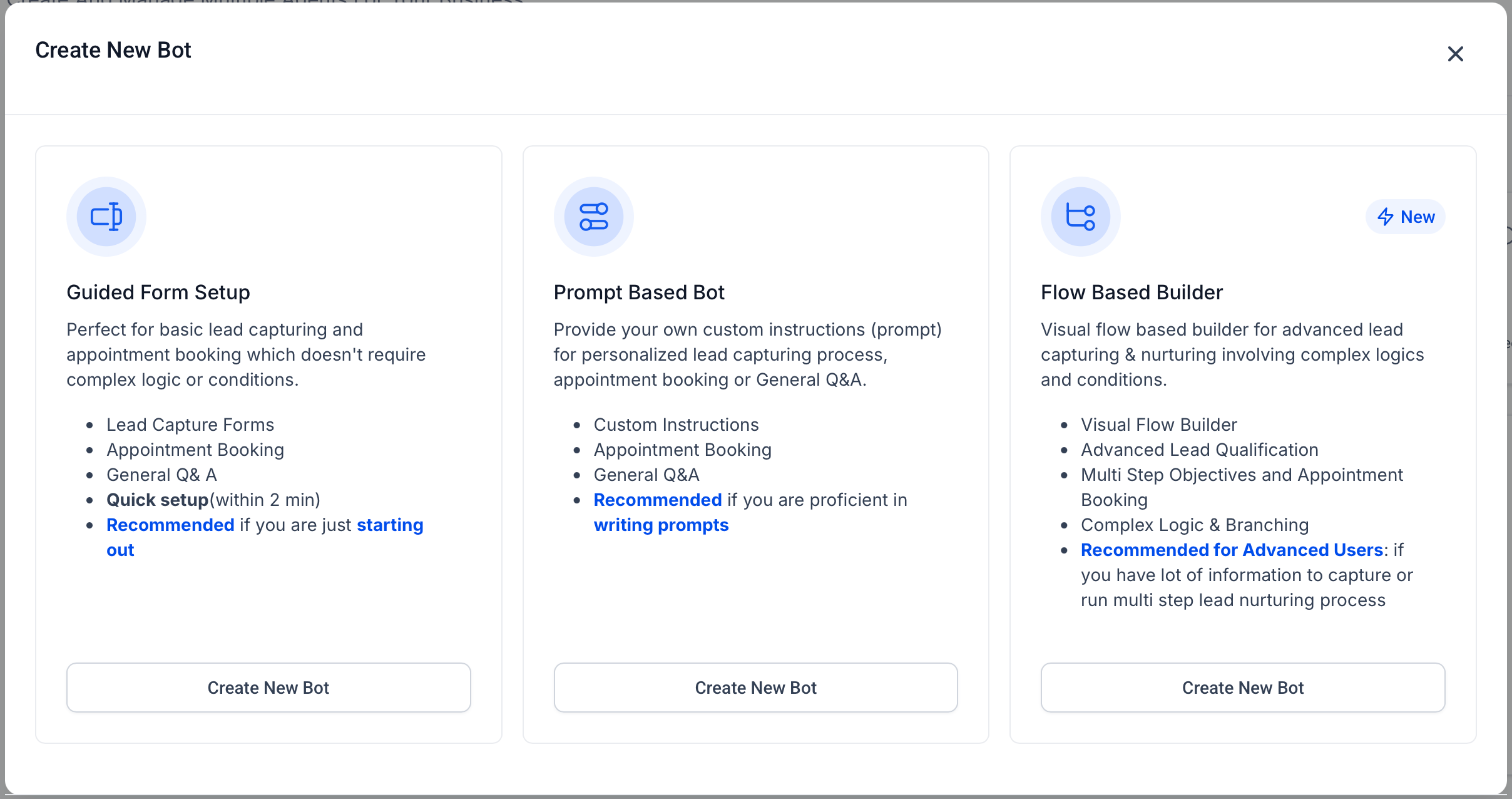
Enable or Disable Response Style Settings
Turning Response Style Settings on or off gives you control over whether a bot should follow a selected verbosity style. This is helpful when testing new behavior or returning a bot to its current/default response behavior.
When enabled: A Response Settings section appears in Bot Settings, allowing you to choose Concise, Balanced, or Detailed.
When disabled: The bot continues responding exactly as it does today (without applying a selected response style).
| Response Style | Approximate Length | Best For | What to Expect |
|---|---|---|---|
| Concise | ~30 words | Quick acknowledgments, simple Q&A, SMS-friendly replies | Direct answers with minimal extra context |
| Balanced | ~80 words | Most general conversations, qualifying questions, basic support | Clear answer plus light context or guidance |
| Detailed | ~200 words | FAQs, troubleshooting, onboarding, step-by-step instructions | More thorough, structured explanations |
Note: Response Style word counts are guidelines, not strict caps. Depending on the conversation, replies may be slightly shorter or longer than the target length.
If your prompt includes conflicting length instructions (example: “always respond in 20 words”), results may be less predictable. For best results, avoid adding separate word-count rules inside your custom prompt when using Response Style Settings.
Bot-Level Configuration
Bot-level settings make it easier to tailor different experiences across channels and purposes. This is especially useful if you run separate bots for sales, support, or different platforms.
Response Style Settings apply to the current bot only, which means you can:
Run one bot in Concise mode for SMS
Run another bot in Detailed mode for support-heavy channels (like web chat or Messenger)
How To Setup Response Style Settings
Correct setup ensures the bot consistently follows your chosen verbosity level. Once enabled, the selected style applies to new replies automatically, making it easy to standardize response length without redesigning your bot.
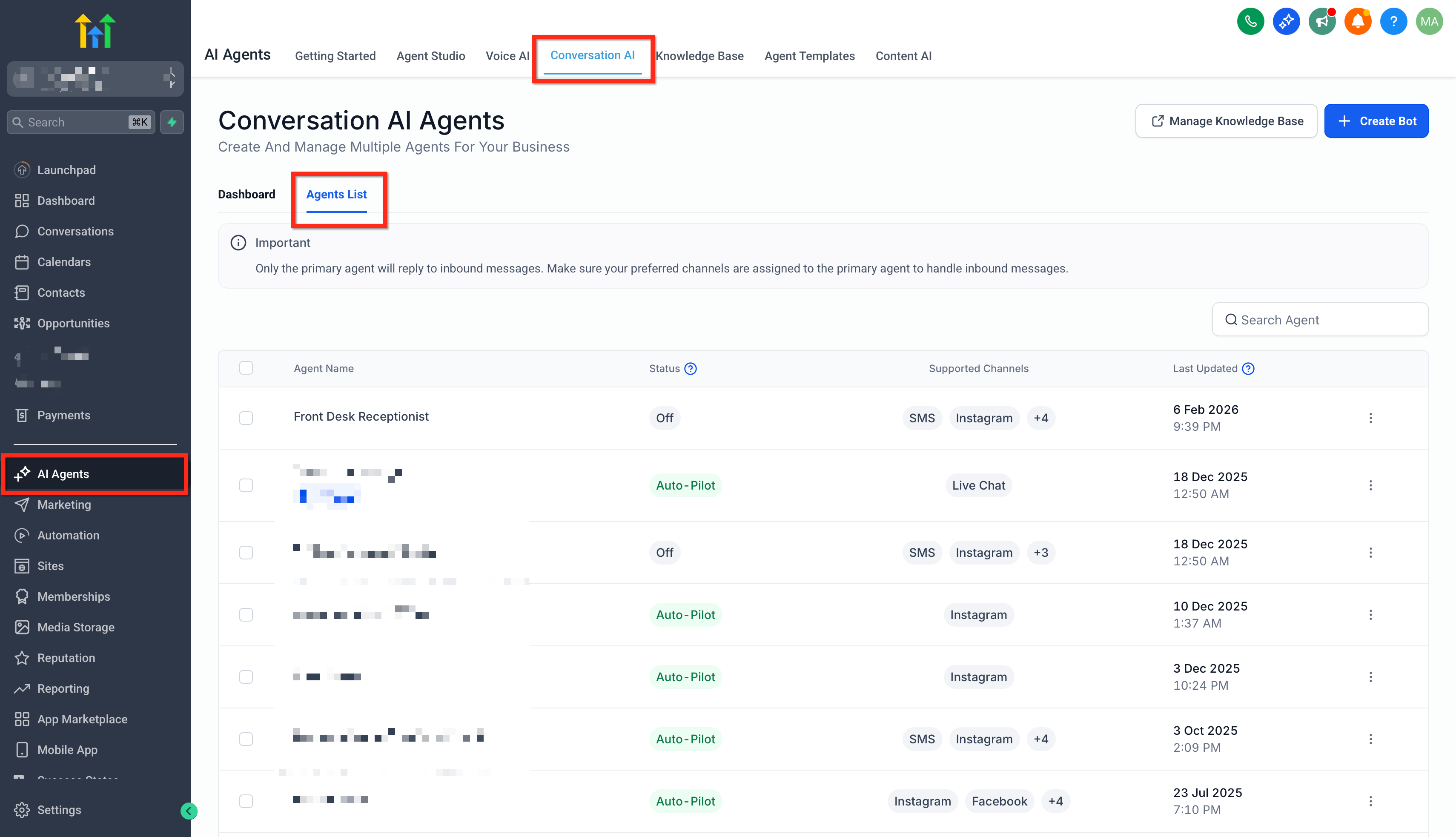
Navigate to AI Agents → Conversation AI → Agents list. Create a new bot or Open an existing bot
Scroll to Response Settings. Toggle ON/Enable for Response Settings.
Select one option from the dropdown: Concise, Balanced, or Detailed.
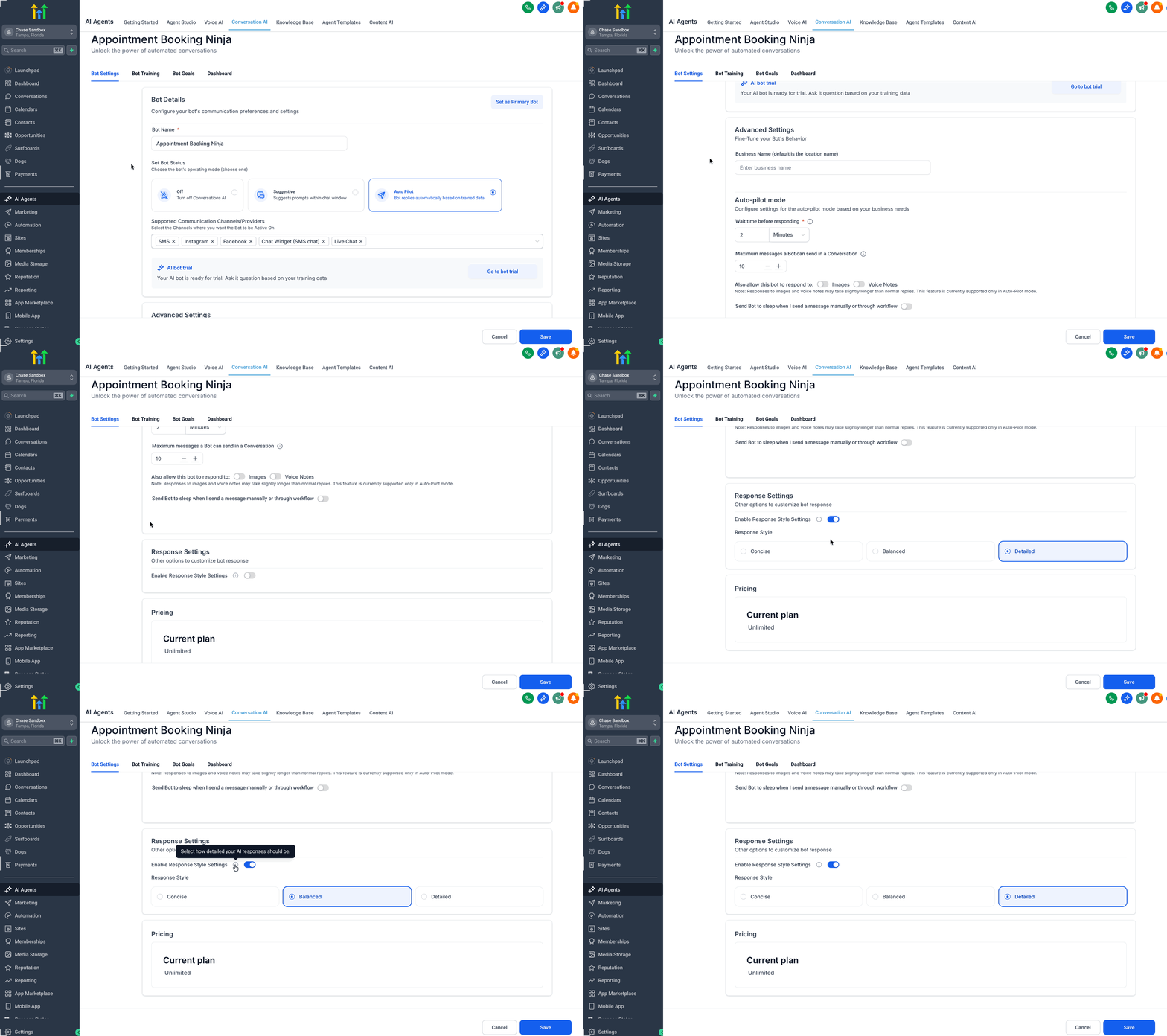
Click Save to apply the change.
Frequently Asked Questions
Q: If I enable Response Style Settings for one bot, do all bots change?
No. Response Style Settings are saved per bot, so each bot can use a different style.
Q: Is the word count a strict limit?
No. The word count is a soft guideline, and replies may vary slightly based on context.
Q: What happens if I disable Response Style Settings?
The bot continues responding exactly as it does today, without applying a selected response style.
Q: Can prompt instructions override the selected style?
They can conflict. For the most predictable results, avoid adding separate word-count or length rules in your prompt when using Response Style Settings.
Related Articles
Was this article helpful?
That’s Great!
Thank you for your feedback
Sorry! We couldn't be helpful
Thank you for your feedback
Feedback sent
We appreciate your effort and will try to fix the article