Google Demand Gen campaigns in HighLevel Ad Manager help you reach potential customers with visually rich ads across Google surfaces like YouTube, Discover, Gmail, and partner inventory. This campaign type is useful when you want to build awareness, drive clicks, or optimize for conversions before someone performs a direct search.
HighLevel brings campaign creation, audience targeting, and ad setup into one workflow so you can launch faster and manage more from one place. It is especially helpful for advertisers who want a simpler way to create Google campaigns without switching between multiple tools.
TABLE OF CONTENTS
- What is Google Demand Gen in HighLevel Ad Manager?
- Key Benefits of Google Demand Gen Campaigns
- Campaign Goals
- Audience Targeting
- Ad Formats and Creative Requirements
- How To Setup Google Demand Gen Campaigns
- Frequently Asked Questions
- Related Articles
What is Google Demand Gen in HighLevel Ad Manager?
Google Demand Gen campaigns help you connect with people earlier in the buying journey using visual ad placements across Google-owned and partner surfaces. In HighLevel Ad Manager, you can create these campaigns, choose a goal, define targeting, add creative assets, and publish from a guided workflow inside the platform. This makes it easier to manage setup while still using Google Ads delivery and optimization behavior behind the scenes.
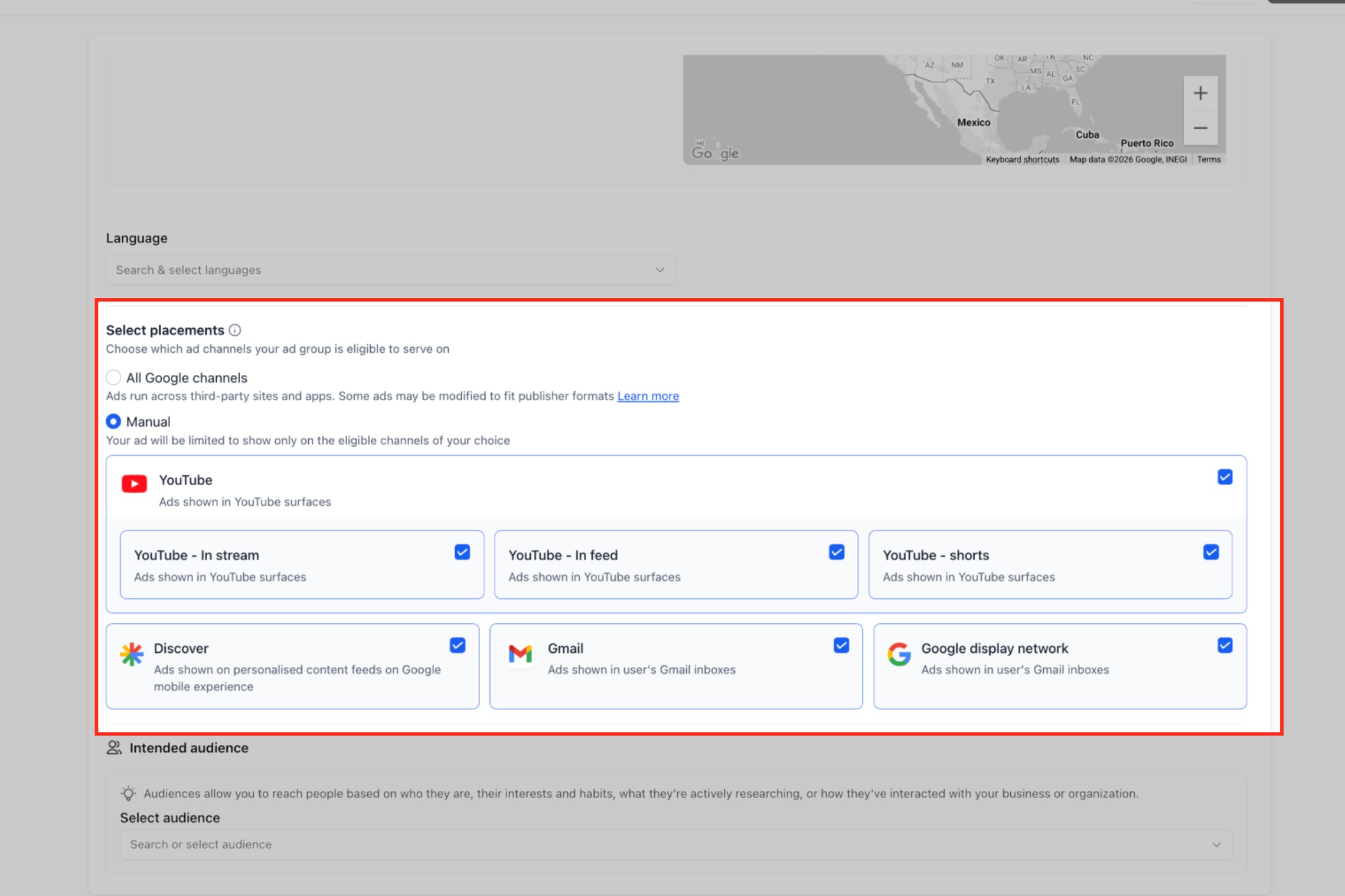
Choose where your ads can appear:
- All Google channels – Allows Google to automatically select eligible channels and inventory.
- Manual channel selection, including:
- YouTube
- In-stream
- In-feed
- Shorts
- Google Discover
- Gmail
- Google Maps
- Google Display Network
- YouTube
Google Demand Gen campaigns in HighLevel Ad Manager help you reach potential customers with visually rich ads across Google surfaces such as YouTube, Discover, Gmail, Maps, and the Google Display Network.
Key Benefits of Google Demand Gen Campaigns
Google Demand Gen campaigns are valuable when you want a campaign type that combines broad reach, strong visual formats, and easier campaign setup inside HighLevel. They can help you attract attention before someone actively searches for your offer, while still giving you control over targeting, budget, and creative setup.
- Visual reach: Run image- and video-led campaigns across YouTube, Discover, Gmail, and other Google partner surfaces to capture attention earlier in the customer journey.
- Flexible optimization: Choose from Conversions, Clicks, or YouTube Engagements based on whether your goal is action, traffic, or video interaction.
- Centralized setup: Build the campaign inside HighLevel Ad Manager instead of managing each part in separate tools.
- Audience control: Use Google audience segment options such as Customer Match, Website Visitors, Interest Segments, and Lookalike Segments to reach more relevant people.
- Creative flexibility: Depending on the selected goal, you can use supported formats such as single image ads, single video ads, or carousel ads.
- Stronger campaign preparation: HighLevel also supports related Google Ads workflows like conversion action setup and campaign-level assets, which can improve readiness before launch.
Campaign Goals
Your campaign goal determines how Google will optimize delivery, so choosing the right objective is one of the most important setup decisions. Picking a goal that matches your business outcome helps the platform focus on the actions that matter most, whether that is traffic, conversions, or engagement.
HighLevel’s Google Demand Gen flow supports these campaign goals:
- Conversions: Best when you want Google to optimize toward conversion actions such as leads or other tracked outcomes. This option requires conversion readiness, so make sure the relevant Google Ads conversion actions are already available before launch. HighLevel also supports creating and managing Google Ads offline conversion actions inside Ad Manager.
- Clicks: Best when your goal is driving traffic to a page, offer, or funnel. This is useful when you want to prioritize visits rather than optimize toward a specific conversion event.
- YouTube Engagements: Best when you want to focus on video interaction. This option is tied to video-based creative, so users should plan for video assets before selecting it.
Audience Targeting
Audience targeting shapes who sees your ads, which directly affects campaign relevance and performance. Strong targeting helps you balance reach with intent so your budget is spent on people who are more likely to care about your offer.
When setting up a Demand Gen campaign in HighLevel Ad Manager, you can work with Google audience segment types that help refine who you reach. HighLevel’s Google Ads audience segment support includes:
- Customer Match: Use first-party customer data to reach people based on existing customer lists. This is useful for remarketing, re-engagement, or audience expansion strategies.
- Website Visitors: Target people who have visited your website. This is often useful for retargeting warm traffic that already knows your brand.
- Interest Segments: Reach users based on interests and buying signals. HighLevel references Affinity and In-Market audience concepts to support broader or more intent-focused targeting.
- Lookalike Segments: Use an existing seed audience to help Google identify additional users who may be relevant to your campaign. Google is transitioning Lookalike segments in Demand Gen toward an audience-suggestion model, where the seed audience can act as a signal and Google may reach qualified users beyond the original similarity thresholds.
For broader planning, location targeting, language targeting, and placements are also part of the ad group setup flow in the Demand Gen campaign article. HighLevel also notes that Google placement behavior follows Google Demand Gen rules, so users should expect Google’s platform behavior to influence how eligible placements are used.
Ad Formats and Creative Requirements
Creative setup is central to Demand Gen performance because this campaign type depends on visual assets to attract attention across Google surfaces. Preparing the right ad format and assets in advance helps prevent setup errors and makes it easier to match your creative to your chosen campaign goal.
HighLevel’s Demand Gen article references these supported ad formats:
- Single Image Ads
- Single Video Ads
- Carousel Ads
Keep these points in mind while preparing creative:
- Goal and format should match: YouTube Engagements is tied to video-focused delivery, so video assets should be ready before choosing that goal.
- Assets should be prepared early: The Demand Gen article recommends having creative assets ready before you begin.
- Campaign-level assets may also support your campaign setup: HighLevel supports Business Logos, Image Assets, Call Extensions, and Sitelinks at the campaign level for Google Ads. These assets are designed to improve visibility and keep assets consistent across ads in a campaign.
- Creative consistency matters: Using the correct logos, images, and destination details helps reduce friction during review and gives your ads a more complete appearance. This is especially helpful when your ads may appear across multiple Google surfaces
How To Setup Google Demand Gen Campaigns
A structured setup process reduces mistakes and makes it easier to publish a campaign that is actually ready to perform. Before building the ad itself, it is important to confirm account access, Google connection, audience readiness, and any conversion tracking requirements tied to your chosen goal.
Confirm Ad Manager access in HighLevel.
Make sure Ad Manager is enabled for the sub-account and visible to the correct user based on agency setup and permissions. Agencies can enable and resell Ad Manager for sub-accounts, and team permissions control who can access it.
Connect your Google account and Google Ads account.
Before publishing Google campaigns, connect Google with Ad Manager. HighLevel’s onboarding flow for Google is required before campaign creation can move forward successfully.
Prepare any required conversion actions.
If you plan to use Conversions as the campaign goal, make sure the needed conversion actions are available. HighLevel supports creating and managing Google Ads offline conversion actions inside Ad Manager, which is helpful for tracking outcomes like qualified leads, booked appointments, or closed deals.
Open Ad Manager and create a new campaign.
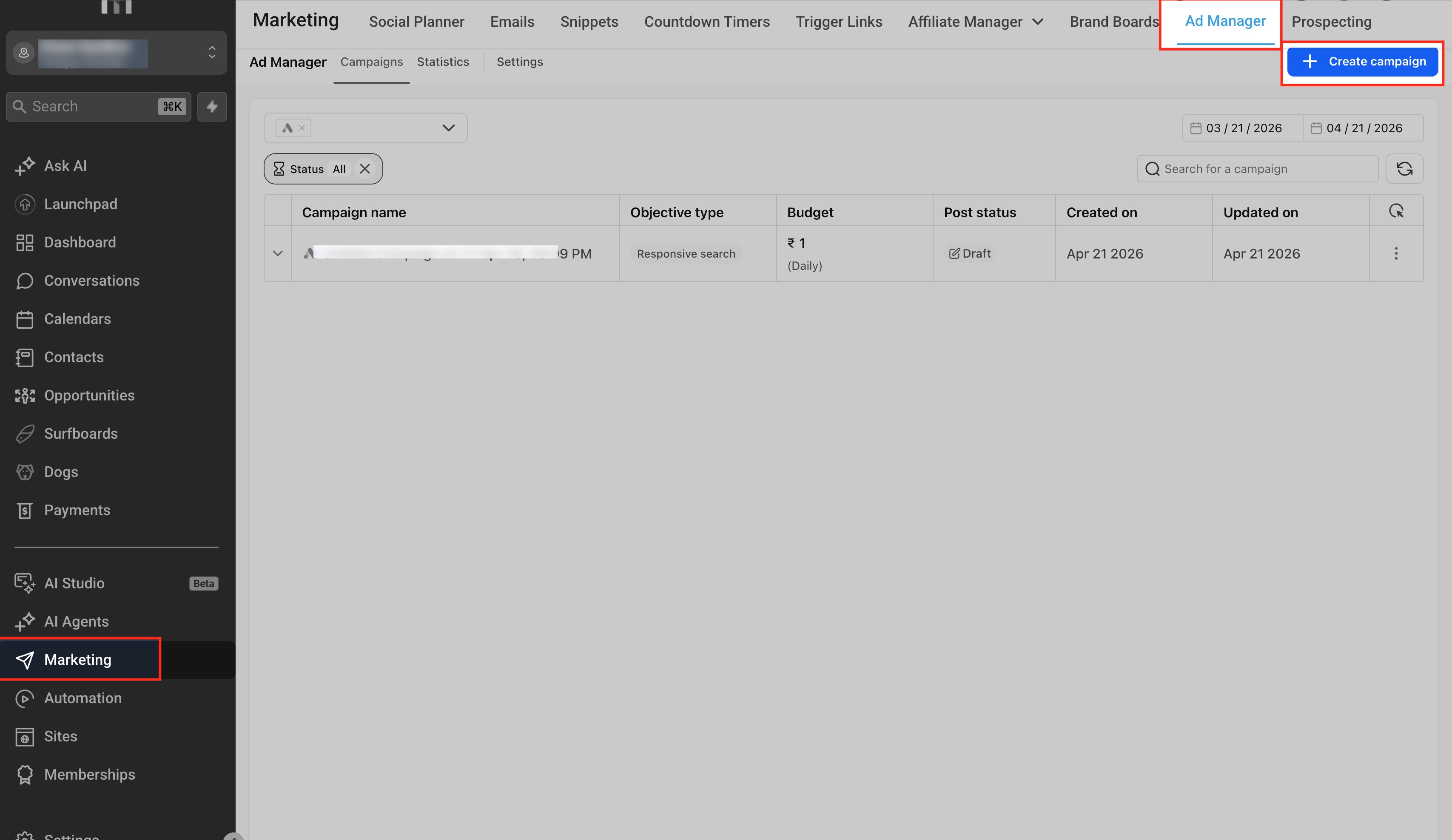
From the Ad Manager home screen, click Create Campaign and choose Google as the platform. Then continue through the campaign creation flow.
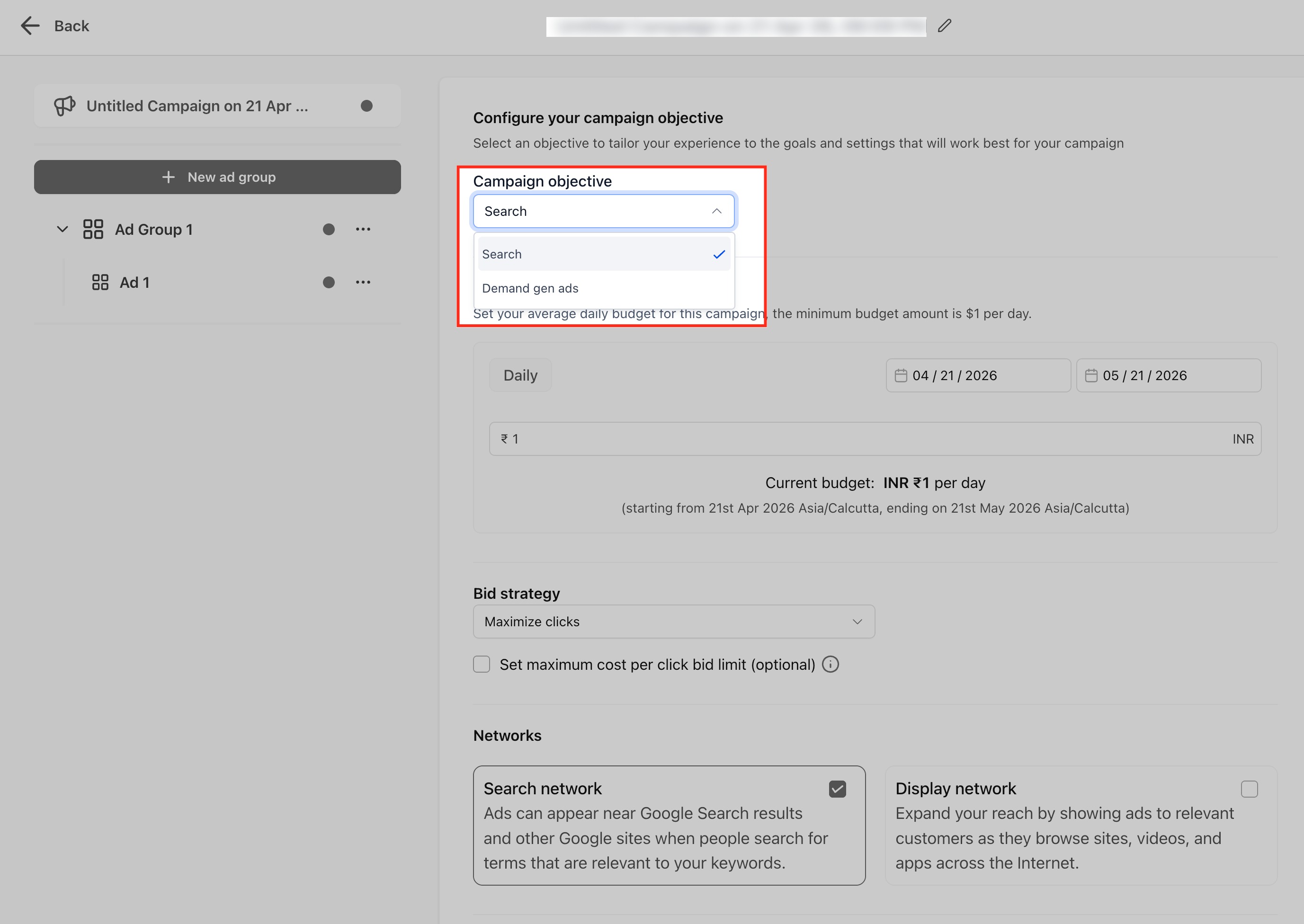
Select Google as the advertising platform. Choose Demand Gen Ads as the campaign objective
Demand Gen campaigns are ideal when you want to:
Reach new audiences before they search
Run visual or video-first campaigns
Support awareness and consideration goals
Build full-funnel Google advertising strategies from a single platform
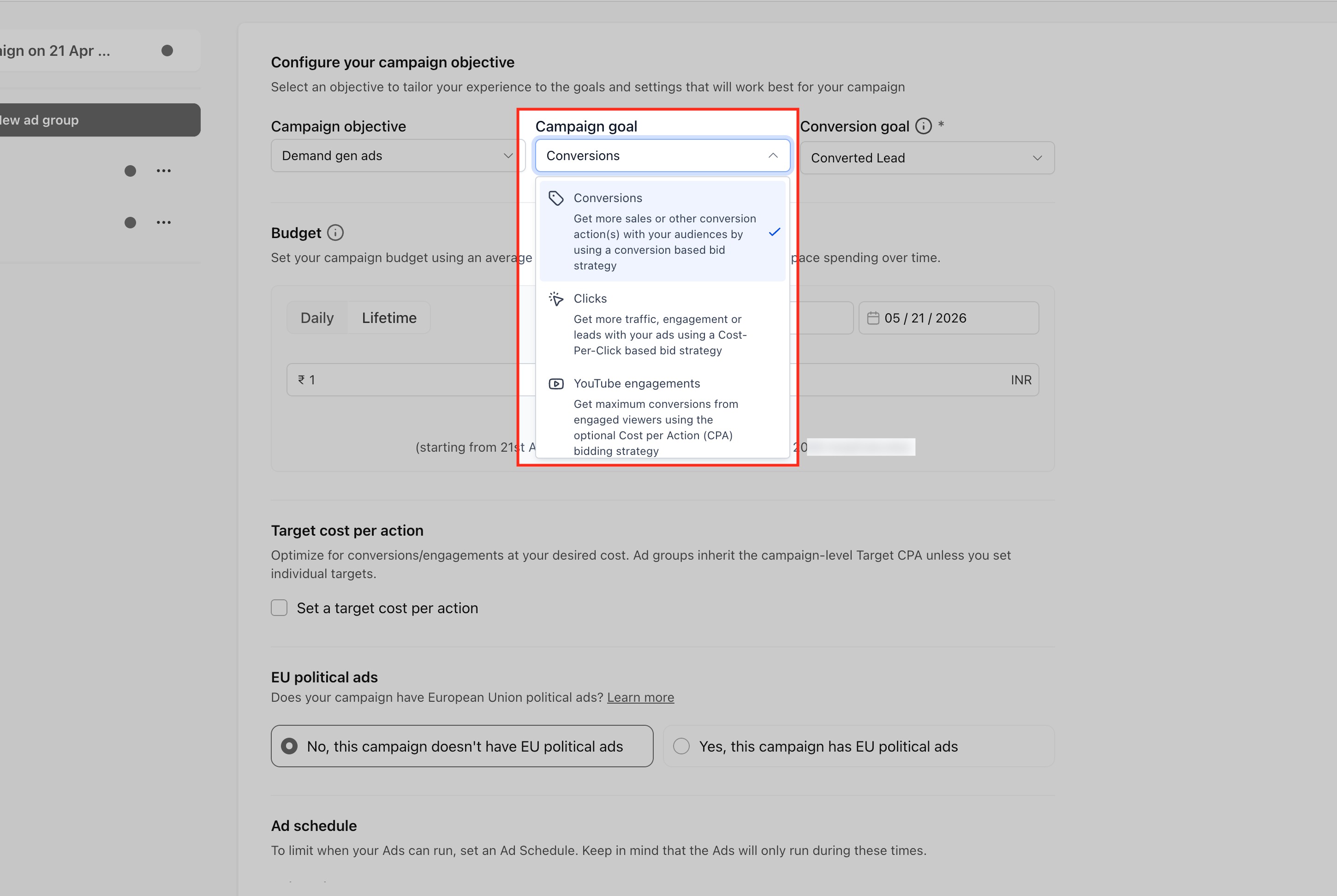
Choose your campaign goal.
Select Conversions, Clicks, or YouTube Engagements based on the outcome you want. Use a goal that matches the main action you want Google to optimize toward.
Conversions
Select an existing conversion goal from your connected Google Ads account
Optionally enable Target CPA to optimize toward a specific cost per conversion
Clicks
Optimizes the campaign for traffic
Optionally enable Target CPC
No conversion goal is required
YouTube Engagements
- Optimizes the campaign for eligible YouTube engagement actions, such as channel subscriptions or follow-on views
- Serves only on YouTube inventory
- Requires video creative
- Supports conversion-focused bidding, including Target CPA when applicable
- The Google Ads account and relevant YouTube channel must be properly linked for YouTube engagement conversion actions
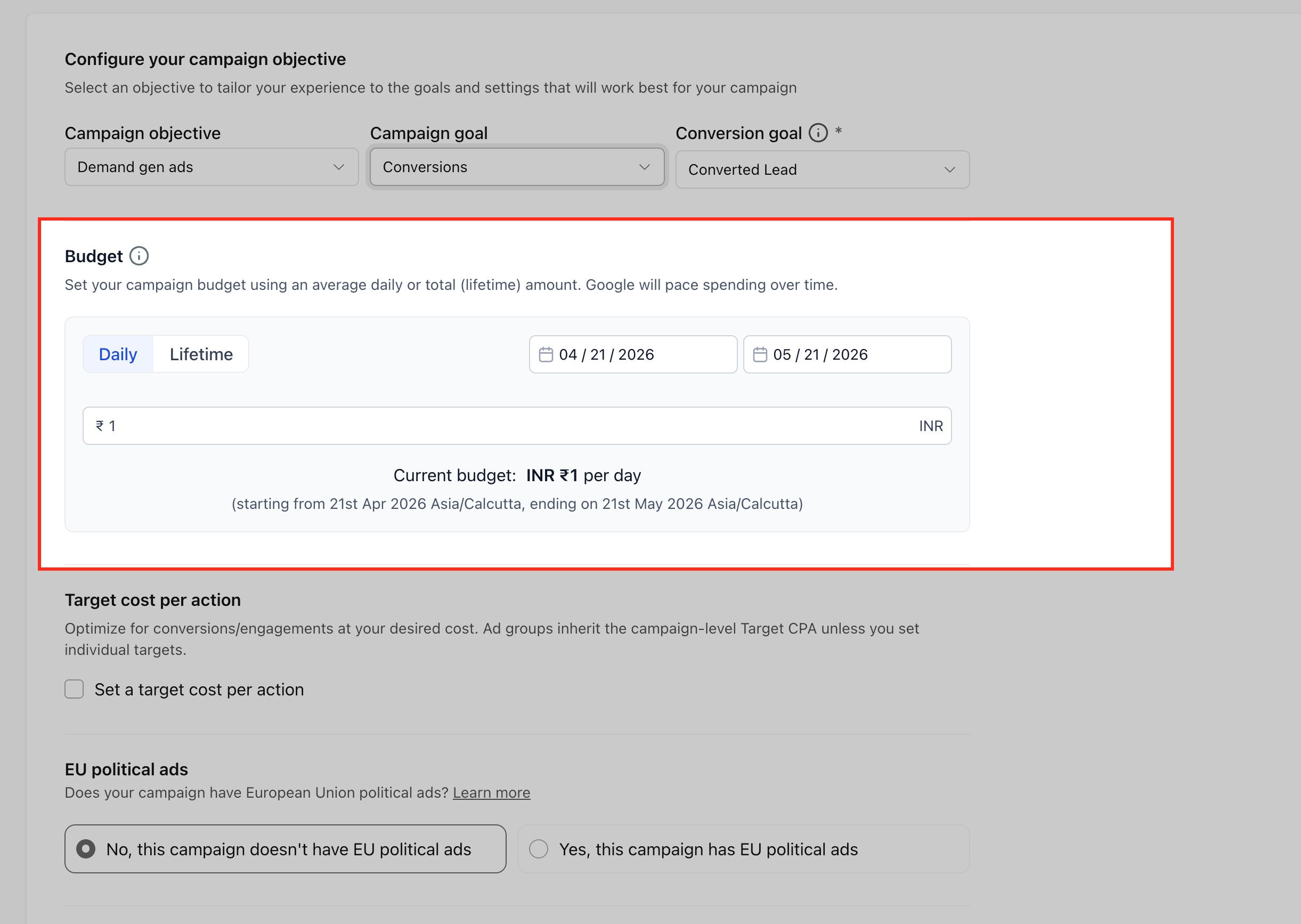
Set budget and schedule.
Enter the campaign budget and define the schedule so the campaign has clear delivery rules from the start. This step controls how your campaign spends and when it becomes active.
Configure ad group settings.
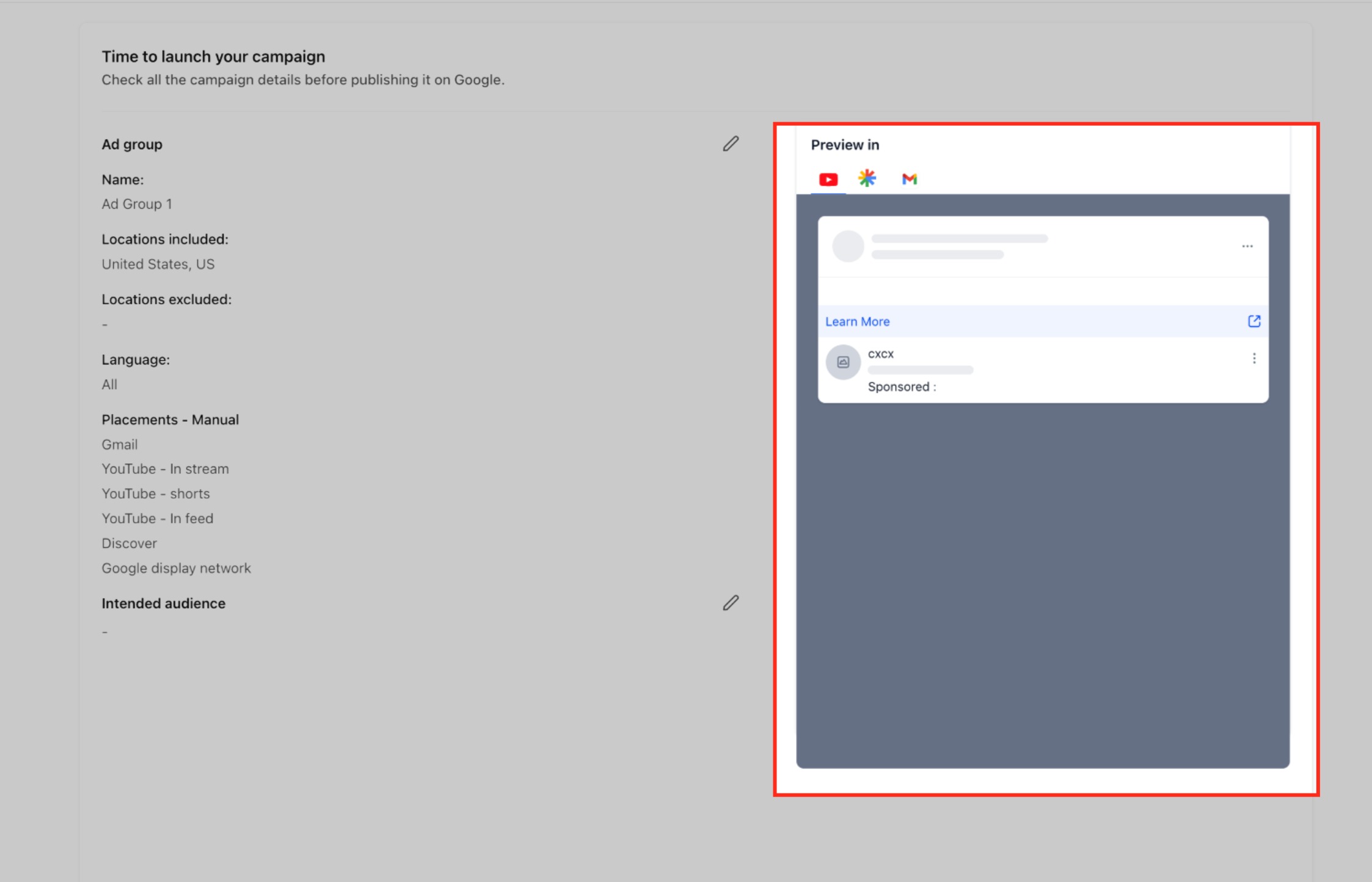
Set up the ad group details, including targeting options such as location targeting, language targeting, and placements. These settings help narrow the campaign to the markets and audiences you want to reach.
Choose where your ads can appear:
All Google channels (automatic placement)
Manual placement selection, including:
YouTube (In-stream, In-feed, Shorts)
Google Discover
Gmail
Google Display Network
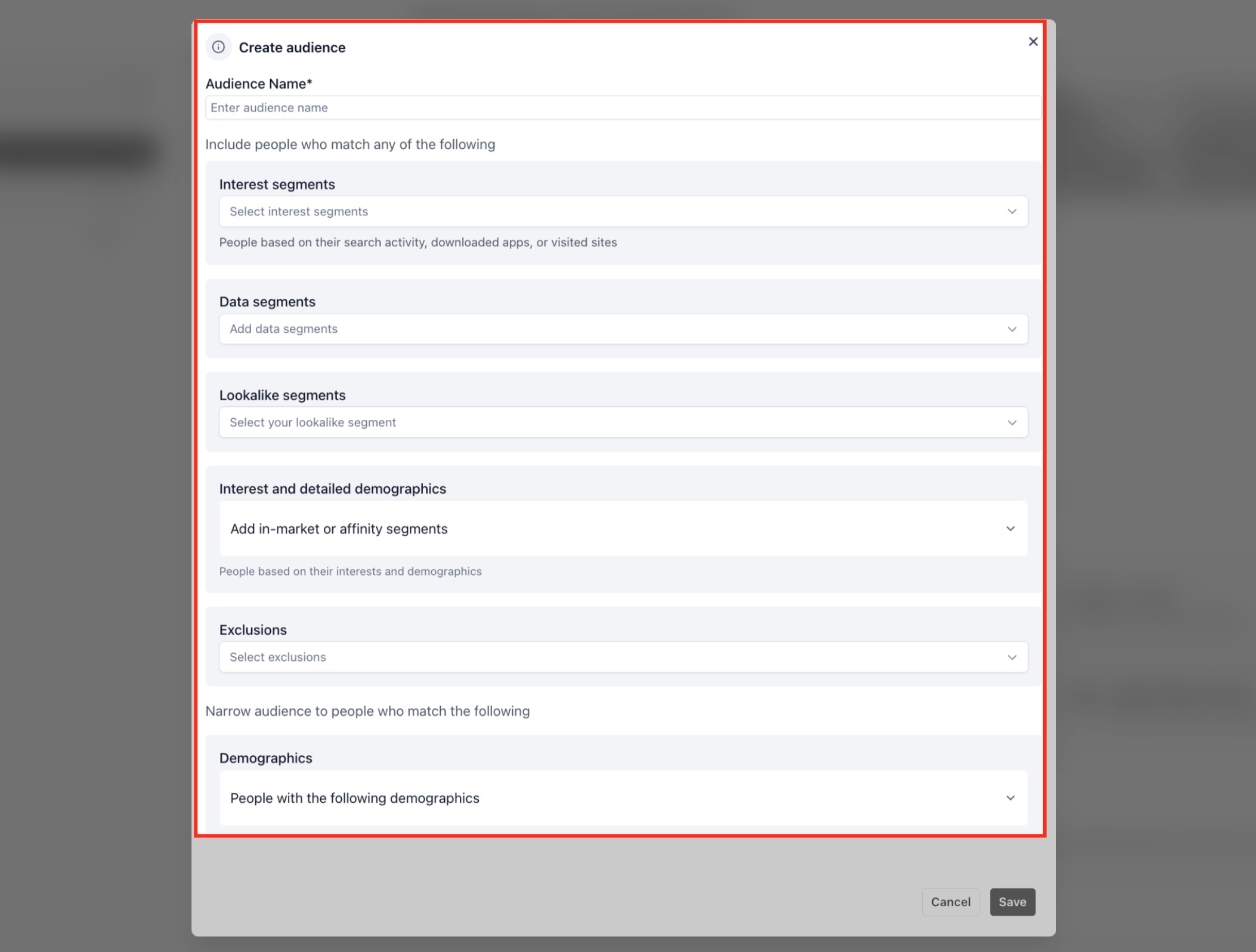
Define the audience.
Choose the audience segment strategy that best fits the campaign, such as Customer Match, Website Visitors, Interest Segments, or Lookalike Segments. Use warmer audiences for re-engagement and broader interest or lookalike audiences for prospecting.
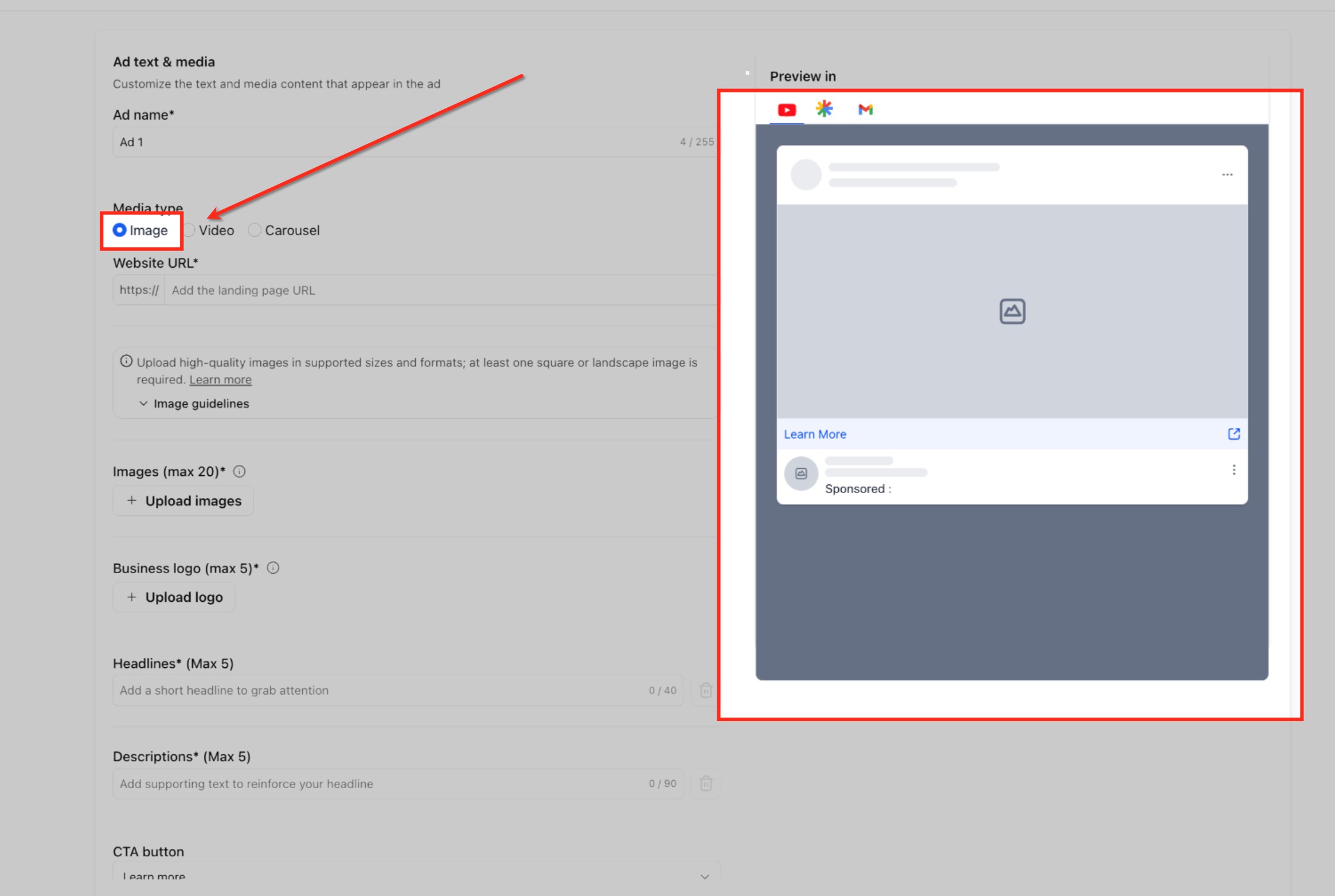
Create the ad using supported creative formats.
Add the creative assets required for your chosen format, such as a single image, single video, or carousel. If you are using YouTube Engagements, make sure the ad uses video assets.
Single Image Ads
Upload up to 20 images
Upload up to 5 business logos (required)
Add up to 5 headlines and 5 descriptions
Choose a CTA and business name
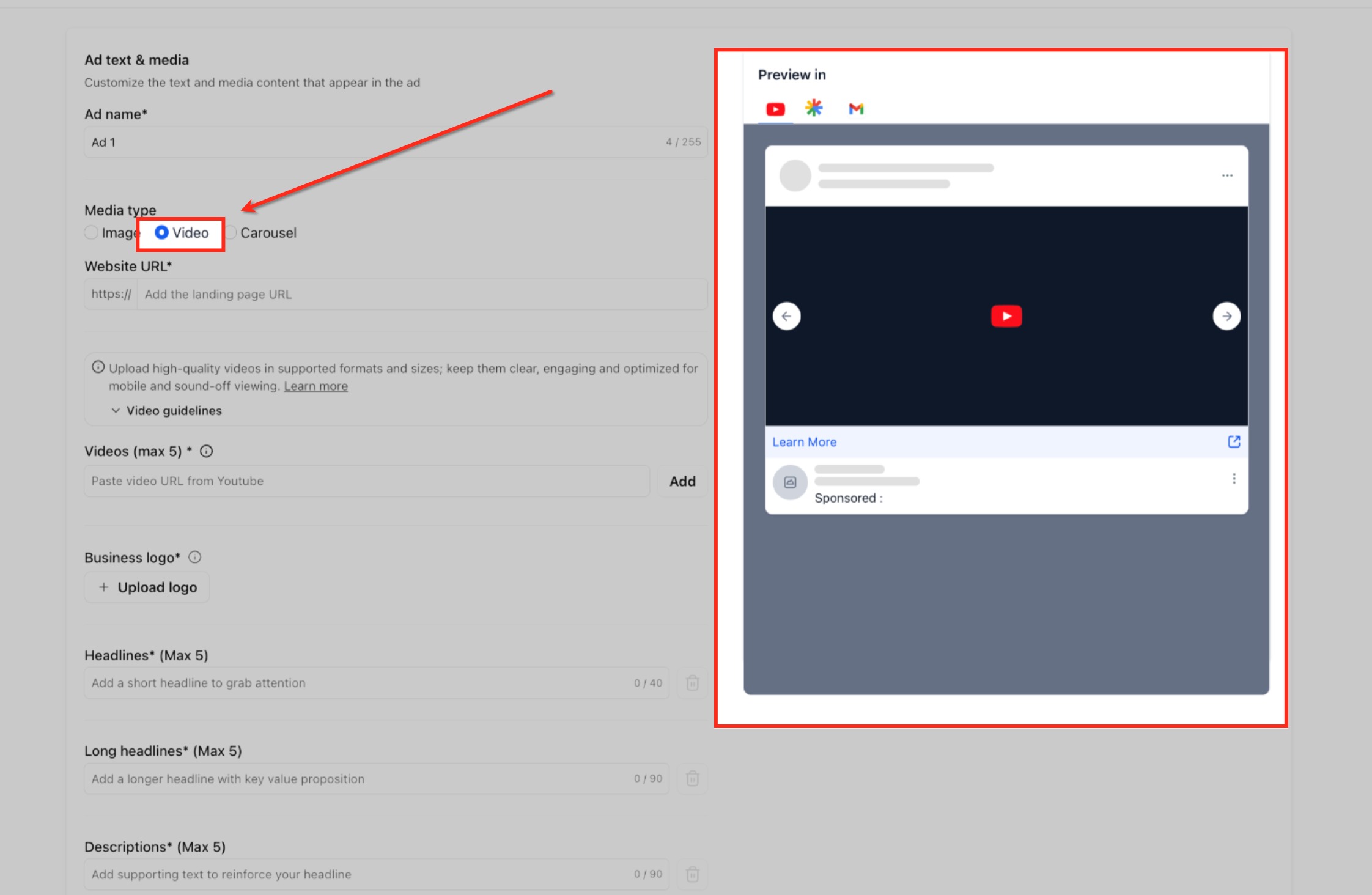
Single Video Ads
Add up to 5 YouTube video URLs
Videos must be at least 10 seconds long
Recommended to include multiple aspect ratios (16:9, 9:16, 1:1)
Upload business logos
Add headlines, long headlines, descriptions, CTA, and business name
Sitelinks are supported (shared at the campaign level)
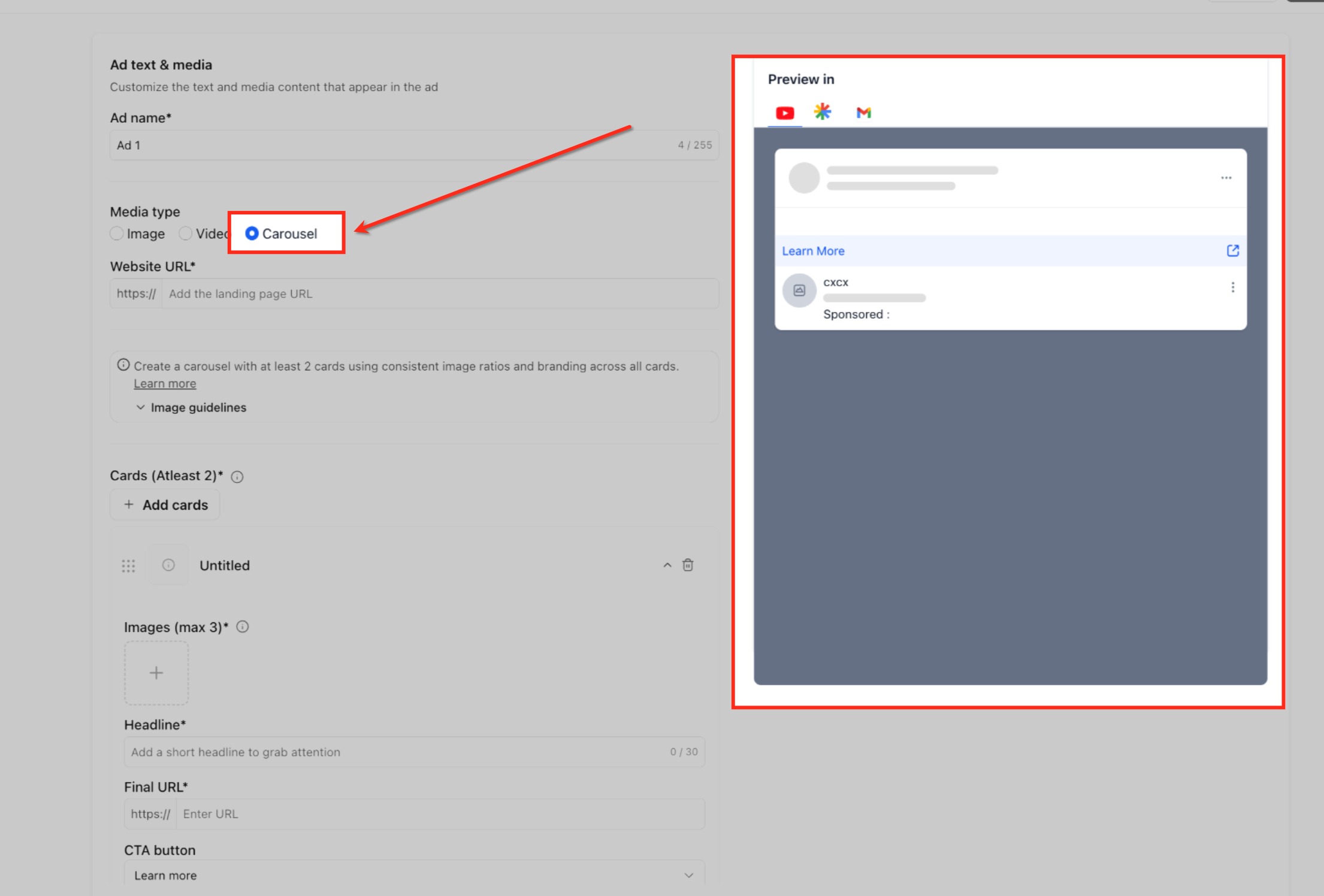
Carousel Ads
- Add a minimum of 2 cards and up to 10 cards
- Each card includes:
- One image
- Headline
- Final URL
- One image
- Keep the image aspect ratio consistent across all cards
- Use consistent branding across the carousel
Review and publish the campaign.
Check the summary carefully to confirm the goal, audience, budget, schedule, and creative are correct. Once everything is complete, publish the campaign from Ad Manager.
Important Notes
- Google account connection is required before you can publish Google campaigns from HighLevel Ad Manager.
- Conversion-based optimization depends on having the correct conversion actions available.
- Creative choice should align with the selected campaign goal, especially when using YouTube Engagements.
- HighLevel also supports Google campaign-level assets such as logos, image assets, call extensions, and site links, which may improve campaign completeness depending on your setup.
Frequently Asked Questions
Q: When should I choose Conversions instead of Clicks?
Choose Conversions when you want Google to optimize for a tracked business outcome, such as a qualified lead or booked appointment. Choose Clicks when your main goal is traffic to a landing page, website, or offer.
Q: Do I need to connect Google before creating a Demand Gen campaign?
Yes. HighLevel’s Google onboarding and account connection flow is a required step before publishing Google campaigns through Ad Manager.
Q: What should I do if no conversion goal appears during setup?
Check whether the required Google Ads conversion actions are already configured and available. HighLevel supports creating and managing Google Ads offline conversion actions inside Ad Manager, which can help when conversion tracking is not ready yet.
Q: Can I use audience segments without leaving HighLevel?
Yes. HighLevel supports Google Audience Segments directly inside Ad Manager, including Customer Match, Website Visitors, Interest Segments, and Lookalike Segments.
Google is transitioning Lookalike Segments in Demand Gen toward an audience-suggestion model during 2026. Depending on your Google Ads account and rollout status, Lookalike audiences may act as signals that help Google identify relevant users beyond the original similarity thresholds.
Q: Which ad format should I prepare before starting?
Prepare the format that matches your goal and campaign strategy. HighLevel’s Demand Gen flow supports single image ads, single video ads, and carousel ads, and YouTube Engagements is tied to video-focused creative.
Q: Are additional campaign assets available for Google campaigns in HighLevel?
Yes. HighLevel supports Business Logos, Image Assets, Call Extensions, and Sitelinks at the campaign level for Google Ads.
Q: Where can Google Demand Gen ads appear?
Demand Gen ads can appear across eligible Google surfaces, including YouTube, Discover, Gmail, Google Maps, and the Google Display Network. Available placements can depend on your campaign settings, ad format, assets, and Google Ads eligibility.
Q: What if I cannot access Ad Manager in my sub-account?
Confirm that Ad Manager has been enabled for the sub-account and that the correct user permissions have been granted. Agency-level setup and staff access control both affect visibility.
Q: Is Demand Gen the same as a Google Search campaign?
No. Demand Gen is a visually driven campaign type built for earlier-stage discovery and engagement across Google surfaces, while Search campaigns focus on keyword-driven search intent. HighLevel documents them as separate campaign workflows.
Q: How do Lookalike Segments work in Demand Gen campaigns?
Lookalike Segments use an existing seed audience to help Google find additional users who may be relevant to your campaign. Google is transitioning Demand Gen Lookalikes toward an audience-suggestion model during 2026, where the seed audience and selected reach level can act as signals rather than strict targeting limits. The exact behavior available may depend on your Google Ads account and rollout status.
Related Articles
Was this article helpful?
That’s Great!
Thank you for your feedback
Sorry! We couldn't be helpful
Thank you for your feedback
Feedback sent
We appreciate your effort and will try to fix the article