HighLevel Ad Manager provides an integrated dashboard for tracking your LinkedIn ad performance alongside Meta and Google campaigns. With LinkedIn Statistics, you can monitor results at every level, from overall campaign groups to individual ads.
This guide explains where to find LinkedIn statistics, the metrics available and how to interpret results for Lead Generation and Website Traffic campaigns.
TABLE OF CONTENTS
- Where to find LinkedIn Statistics
- Statistics Hierarchy
- Metrics Overview
- Metrics by Objective
- How to Interpret the Data
- Best Practices
- Frequently Asked Questions
Where to find LinkedIn Statistics
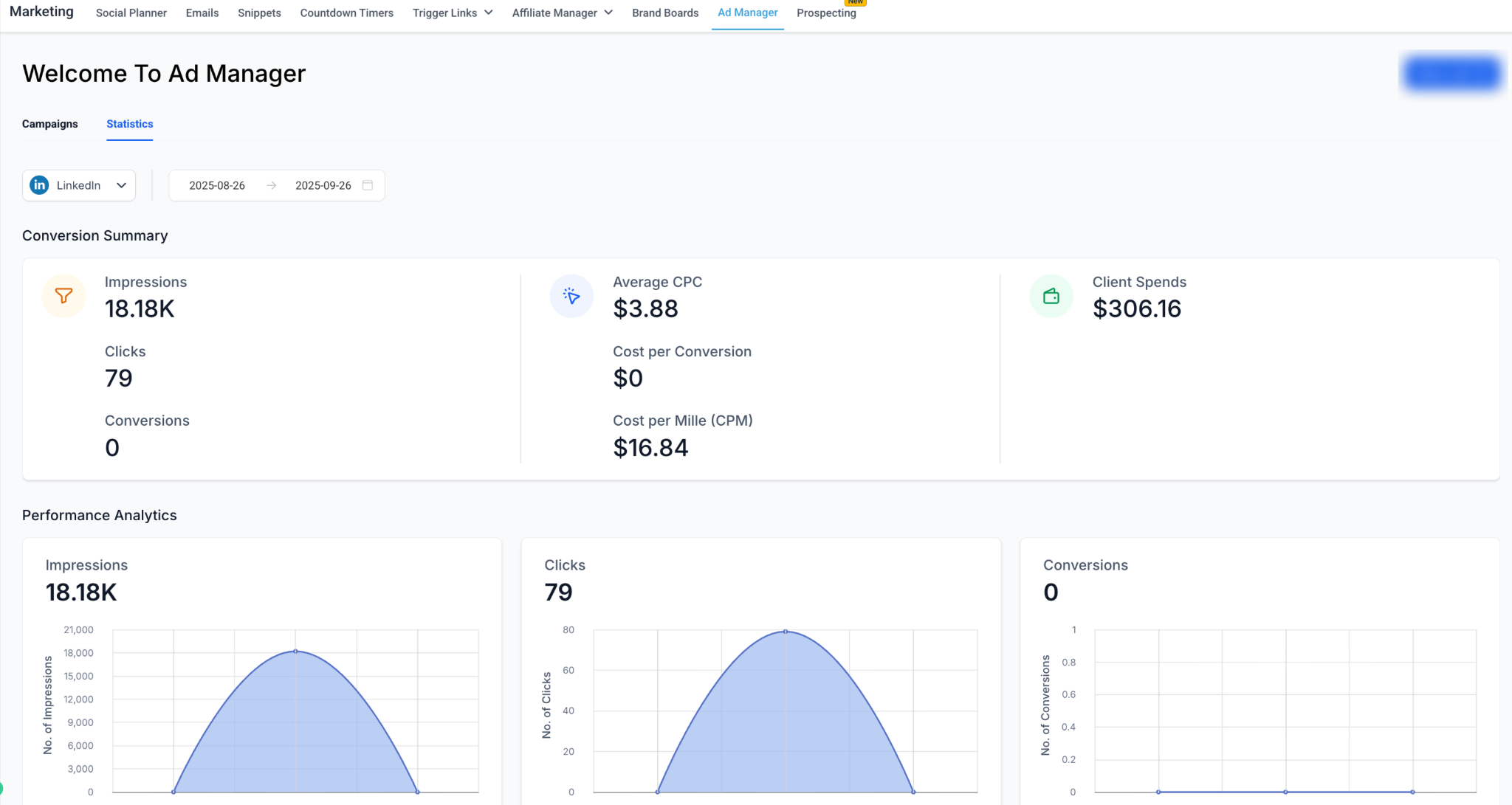
Navigate to Marketing > Ad Manager > Statistics tab on top left.
From the platform dropdown, select LinkedIn.
Choose a date range for the performance window you want to analyze.
Statistics Hierarchy
HighLevel organizes LinkedIn advertising data into the following hierarchy:
- Campaign Group – Top-level container for related campaigns.
- Campaign – Contains targeting, audience, and campaign-level settings.
- Ad – Individual creative shown to the audience.
You can drill down through:
Campaign Group > Campaign > Ad
Note: LinkedIn has updated its Campaign Manager terminology. In LinkedIn Campaign Manager, what HighLevel refers to as a Campaign Group may appear as a Campaign, while a HighLevel Campaign may correspond to a LinkedIn Ad Set. The underlying campaign structure remains the same.
Metrics Overview
The Statistics dashboard can display performance metrics across your LinkedIn campaigns, including:
- Impressions – Number of times your ad was displayed.
- Clicks – Total chargeable clicks based on the campaign objective.
- Conversions – Desired actions attributed to an ad after a click or impression when conversion tracking is configured.
- Spend – Total amount spent on the campaign.
- Average CPC – Average amount spent per click.
- Average CPM – Average amount spent per 1,000 impressions.
- Cost per Conversion – Average amount spent for each attributed conversion.
- Leads – Number of leads collected through LinkedIn Lead Gen campaigns.
- Cost per Lead (CPL) – Average amount spent per lead.
Performance Analytics (Trends Over Time)
Graphs help you identify performance trends over the selected date range:
- Impressions graph – Shows how often your ads were displayed over time.
- Clicks graph – Shows changes in chargeable ad clicks.
- Conversions graph – Shows attributed conversion activity when conversion tracking is available.
Detailed Metrics Tables
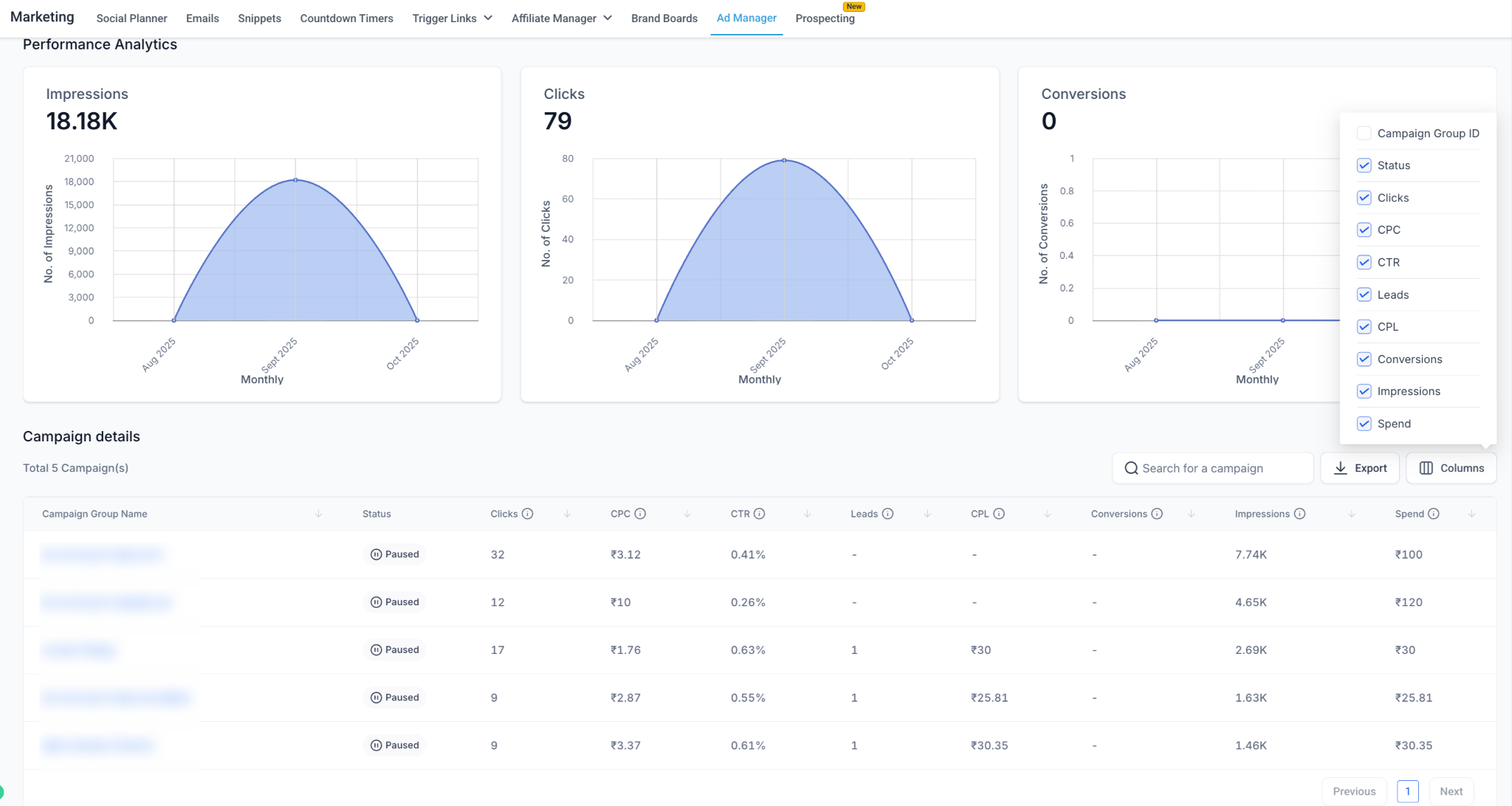
Each level (Group, Campaign, Ad) includes a detailed table with columns:
Status : Active, Paused, In Review.
Spend : Total amount spent.
Impressions : Number of ad views.
Clicks : Number of ad clicks.
CTR (Click-through Rate) : Clicks ÷ Impressions (%).
CPC (Cost per Click) : Spend ÷ Clicks.
CPM (Cost per 1000 impressions) : Spend ÷ Impressions × 1000.
Leads (Lead Gen campaigns only).
CPL (Cost per Lead) : Spend ÷ Leads.
Conversions (Website Traffic campaigns only).
Cost per Conversion : Spend ÷ Conversions.

Metrics by Objective
Lead Generation Campaigns
Lead Generation campaigns focus on measuring LinkedIn Lead Gen Form performance.
Common metrics include:
- Leads – Number of completed lead form submissions.
- Cost per Lead (CPL) – Average amount spent for each lead collected.
- Lead Form Opens – Number of times users opened the Lead Gen Form, when available.
- Lead Form Completion Rate – Percentage of opened forms that were submitted, when available.
- Other performance metrics – Spend, Impressions, Clicks, CTR, CPC, and CPM.
Website Traffic Campaigns
Website Traffic campaigns are designed to drive users to an external website or landing page.
Key performance indicators can include:
- Clicks – Chargeable clicks generated by the campaign.
- CTR – Percentage of impressions that resulted in a chargeable click.
- CPC – Average amount spent per click.
- Impressions – Number of times the ads were displayed.
- CPM – Average cost per 1,000 impressions.
- Spend – Total campaign spend.
If LinkedIn conversion tracking is configured, conversion-related metrics may also be available for website actions attributed to the campaign.
How to Interpret the Data
- Impressions and Clicks – Compare visibility with the number of users interacting with your ads.
- CTR – Helps indicate how effectively the ad creative and targeting are generating clicks.
- CPC and CPM – Help evaluate advertising cost efficiency across campaigns.
- Leads and CPL – Measure lead-generation volume and acquisition efficiency.
- Conversions and Cost per Conversion – Evaluate attributed website actions when conversion tracking is configured.
- Spend – Monitor how much of the campaign budget has been used during the selected period.
Best Practices
Always check Status : Ads in “In Review” will not deliver until LinkedIn approves.
Use drilldowns to compare campaigns within the same group or ads within a campaign.
Customize your view : Use the Columns button to add/remove metrics based on what matters most.
Export reports : Click Export to generate spreadsheets for deeper client reporting.
Monitor spend pacing : Ensure budgets are aligned with campaign goals.
Compare objectives : CPL for Lead Gen vs. Cost per Conversion for Traffic campaigns.
Frequently Asked Questions
Q. Why are my LinkedIn statistics not showing any data?
Statistics may not appear if the campaign has not started delivering, the selected date range does not contain campaign activity, or no reportable activity has occurred yet. Verify the selected date range and campaign status before reviewing the statistics.
Q. What is the difference between impressions and clicks?
Impressions measure how many times your ad was displayed, while Clicks represent chargeable clicks based on the campaign objective. A single user may generate multiple impressions.
Q. Why don't I see conversion metrics for my LinkedIn campaign?
Conversion metrics depend on conversion tracking being properly configured and the campaign generating attributable conversion activity. If conversion tracking is not configured or no conversions have been attributed during the selected period, conversion data may not be available.
Q. What is the difference between CPC, CPM, and CPL?
- CPC (Cost per Click) measures the average amount spent for each click.
- CPM (Cost per 1,000 Impressions) measures the average cost of 1,000 ad impressions.
- CPL (Cost per Lead) measures the average amount spent for each lead generated.
The metrics you prioritize should depend on the objective of your campaign.
Q. Why does the campaign terminology in HighLevel differ from LinkedIn Campaign Manager?
HighLevel currently organizes LinkedIn advertising data using Campaign Group > Campaign > Ad. LinkedIn has updated its Campaign Manager terminology so that a Campaign Group may appear as a Campaign, while what HighLevel calls a Campaign may appear as an Ad Set in LinkedIn. The underlying hierarchy remains comparable even though the terminology differs.
Was this article helpful?
That’s Great!
Thank you for your feedback
Sorry! We couldn't be helpful
Thank you for your feedback
Feedback sent
We appreciate your effort and will try to fix the article