TABLE OF CONTENTS
- What's New in Rentals
- How to Enable Rentals for a Single Sub-Account?
- How to Enable Rentals for Multiple Sub-Accounts?
- Getting Started with Rentals
- Upcoming Features
- Known Issues / Limitations
- How to Provide Feedback
- Frequently Asked Questions (FAQ)
- Related Articles
Overview
Welcome to the public beta of Rentals, our new scheduling and booking system designed for businesses that manage rentals — whether it’s cars, equipment, properties, or other bookable assets. With Rentals, you can efficiently manage availability, inventory, pricing, and multi-day bookings in one seamless platform.
What's New in Rentals
Rentals is built to handle the unique complexities of rental-based scheduling. Here’s what’s Rentals can do:
Multi-Day Booking Support: Book assets across multiple hours, days, weeks, or months, with flexible duration and booking controls.
Listings and Categories: (Help Guide) Create listings for your rentals with detailed information, organized categories, and status management.
Inventory & Variants: (Help Guide) Enable quantity tracking for multiple units and define variants for different versions of the same listing.
Advanced Pricing & Discounts: (Help Guide) Use pricing rules for seasons, days of the week, hour of day, durations, or quantities. Automatically apply discounts for long-term or bulk bookings.
Calendar View: (Help Guide) View all bookings visually using a modern, filterable calendar that supports day, week, and month views. Identify overlaps, blocked slots, and real-time availability.
External Calendar Sync: Connect and sync bookings with third party platforms using Calendar Sync to ensure your availability is consistent across platforms.
Centralized Global Settings: (Help Guide) Control business operating hours, booking defaults, payment preferences, and communication templates from one location.
Built-in Payments and Invoicing: Collect payments directly from the booking flow and generate invoices automatically for each confirmed booking. Setup security deposits per your business needs.
Customer Booking Page: Offer customers a streamlined booking experience with a dedicated public-facing booking page that displays your listings, categories, pricing and availability in real-time.
How to Enable Rentals for a Single Sub-Account?
You can enable Rentals for sub-accounts directly from Agency Settings. Follow these steps to activate Rentals in a single sub-account!
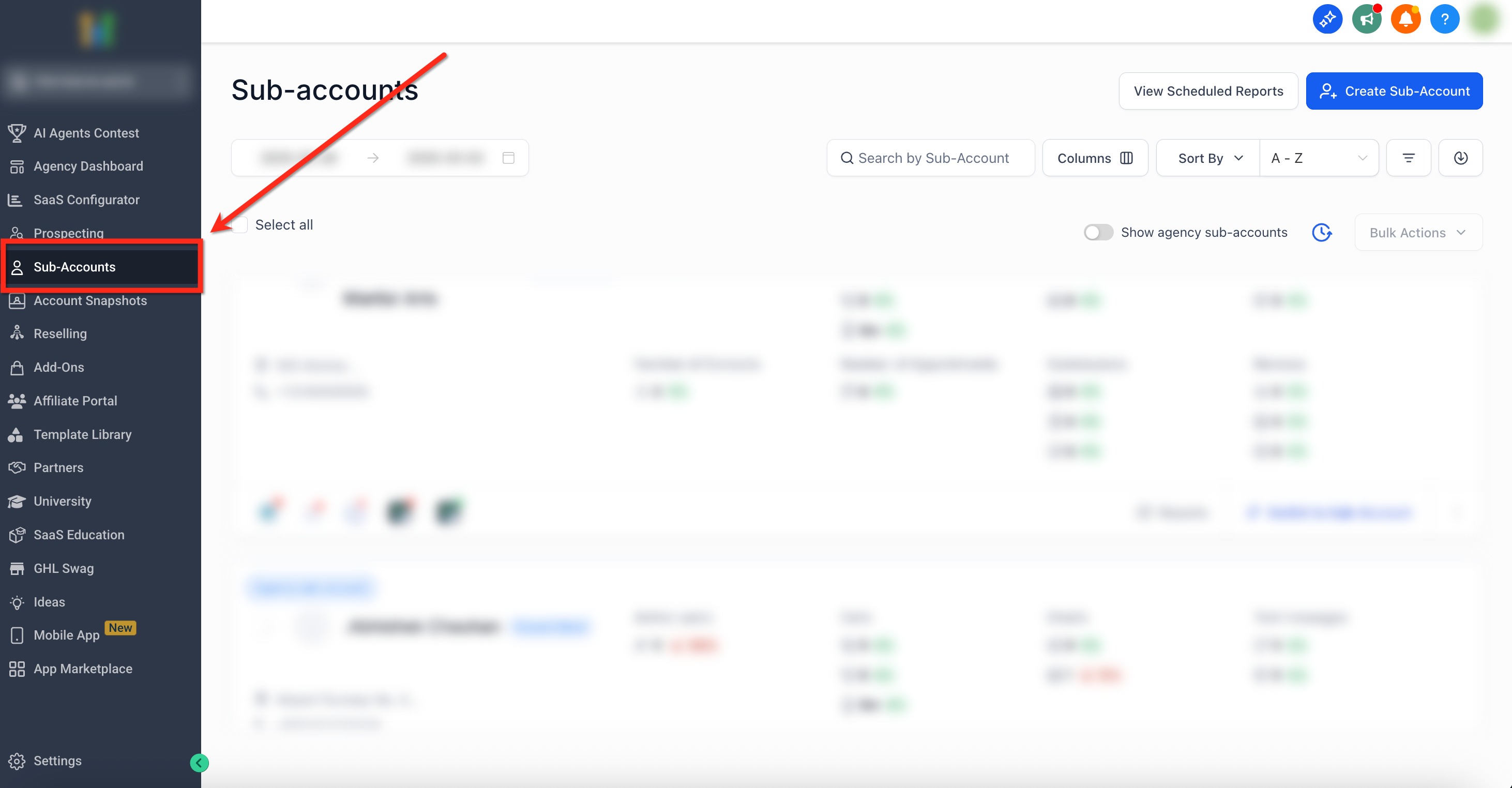
Step 1: Navigate to Sub-Accounts
- From the Agency dashboard, select the Sub-Accounts tab on the left-side navigation bar
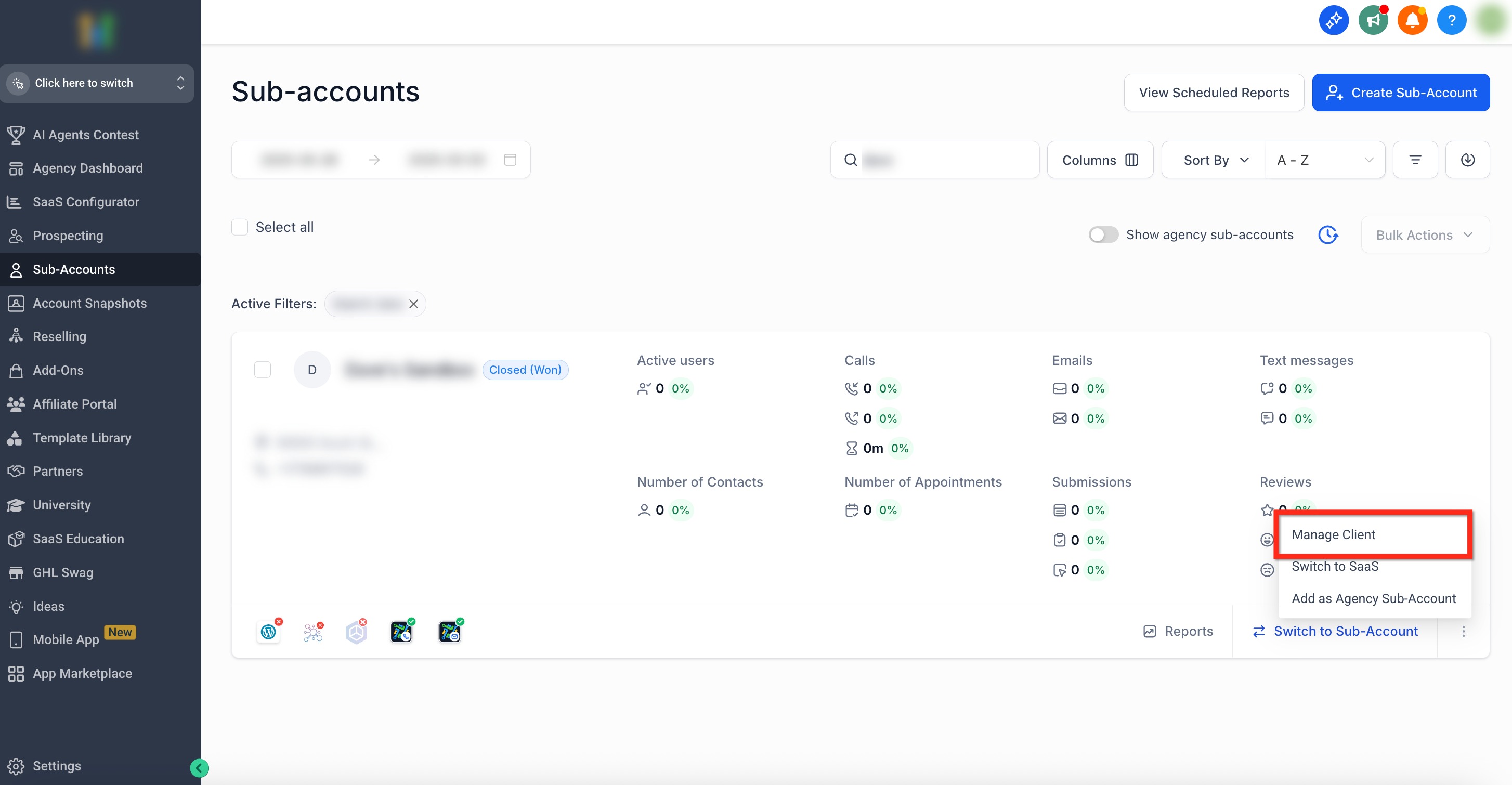
Step 2: Go to Manage Client
- Use the search bar or scroll to locate the sub-account where you would like to activate Rentals
- Click the Three Dots (⋮) icon in the bottom right of the sub-account panel
- Select the Manage Client Option
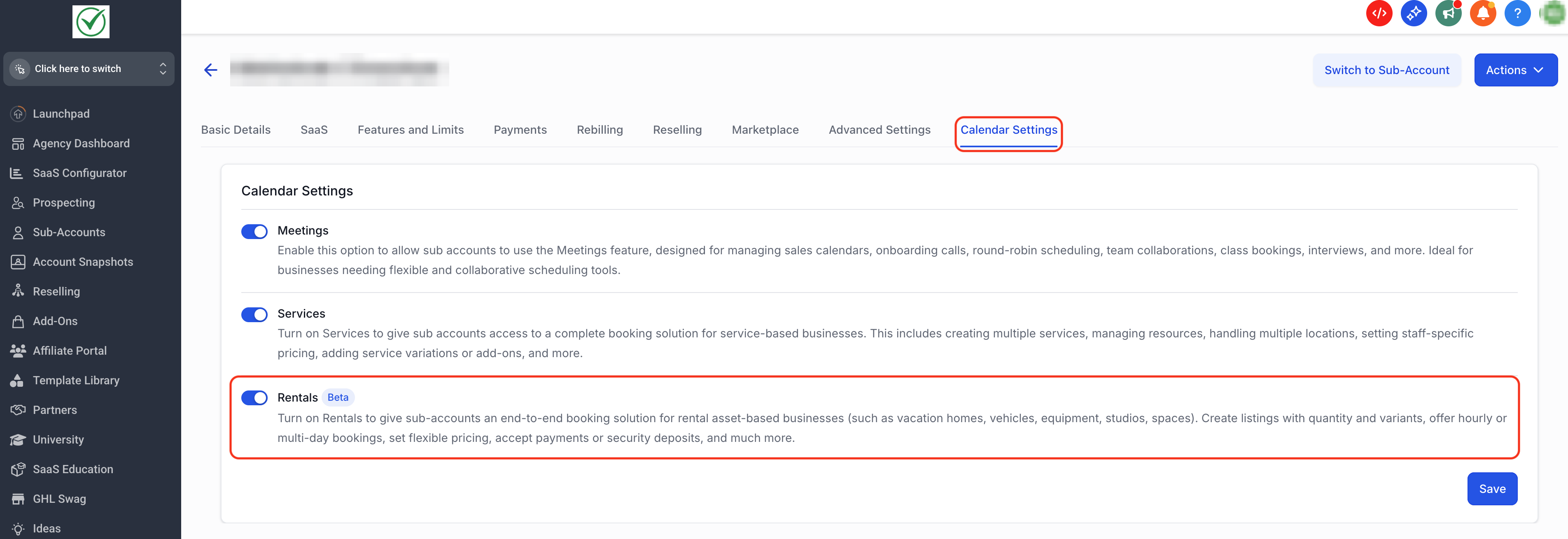
Step 3: Turn on Rentals (Single Sub-Account)
- Select Calendar Settings from the top navigation bar
- Use the toggle to Turn On Rentals
- Click the blue Save button to save your changes
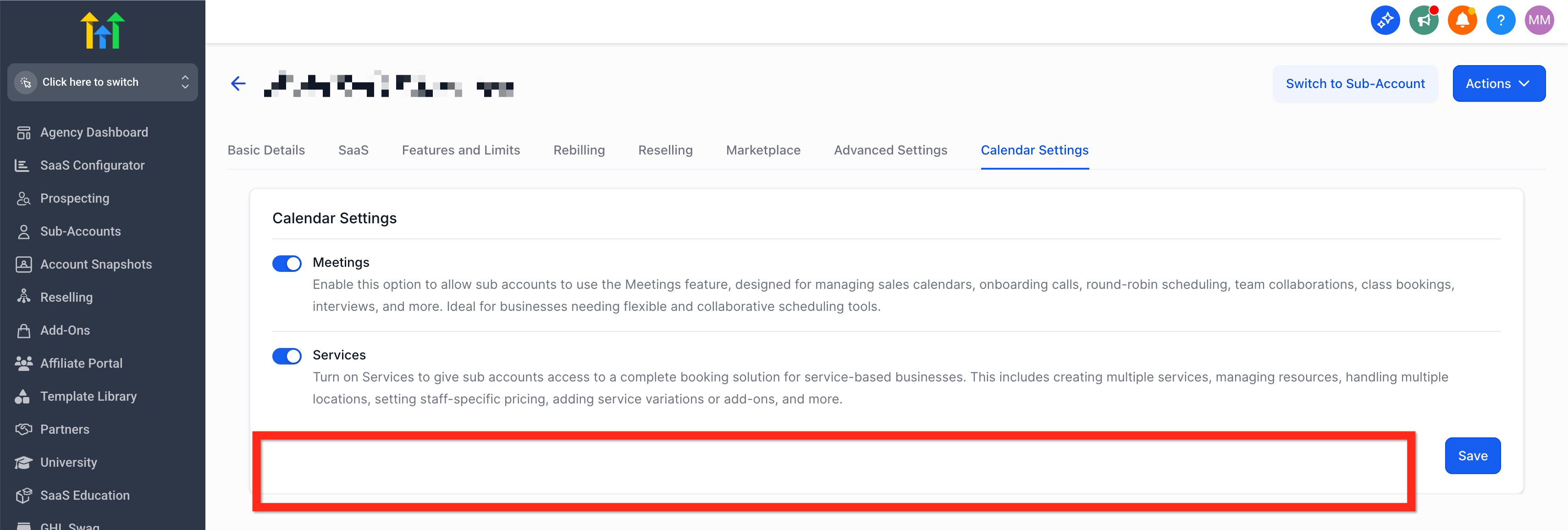
Enable Rentals if Required
If your sub-account calendar settings doesn't have the Rentals toggle, you can enable it using the sub-accounts > bulk actions dropdown instructions for multiple sub-accounts below (by checking only one box).
How to Enable Rentals for Multiple Sub-Accounts?
You can enable Rentals for sub-accounts directly from Agency Settings. Follow these steps to activate Rentals for multiple sub-accounts at once!
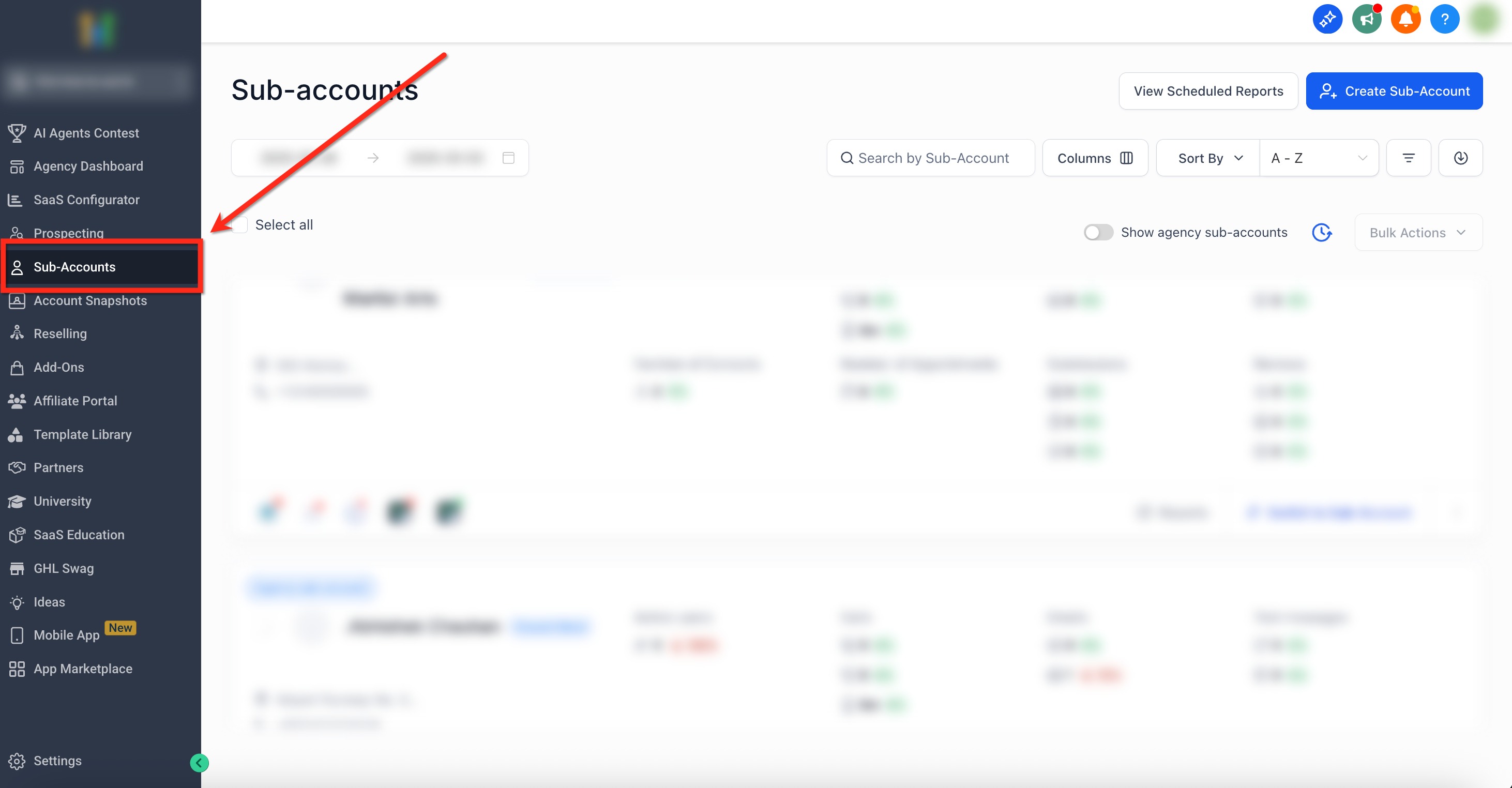
Step 1: Navigate to Sub-Accounts
- From the Agency dashboard, select the Sub-Accounts tab on the left-side navigation bar
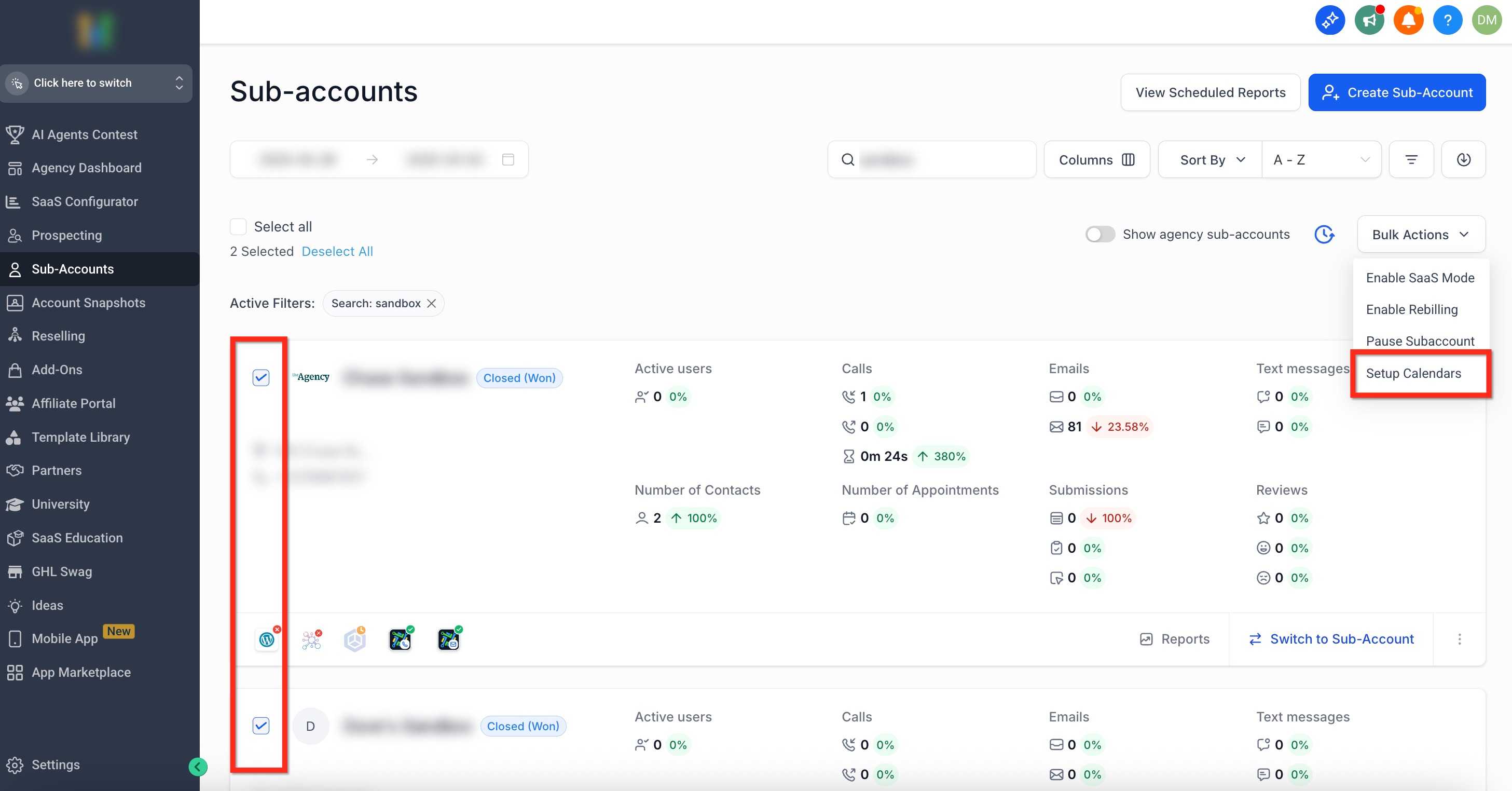
Step 2: Open Setup Calendars
- Select the sub-accounts where you would like to activate Rentals using the checkboxes
- Once sub-accounts are selected, click Bulk Actions in the upper-right corner
- From the drop down menu, pick Setup Calendars
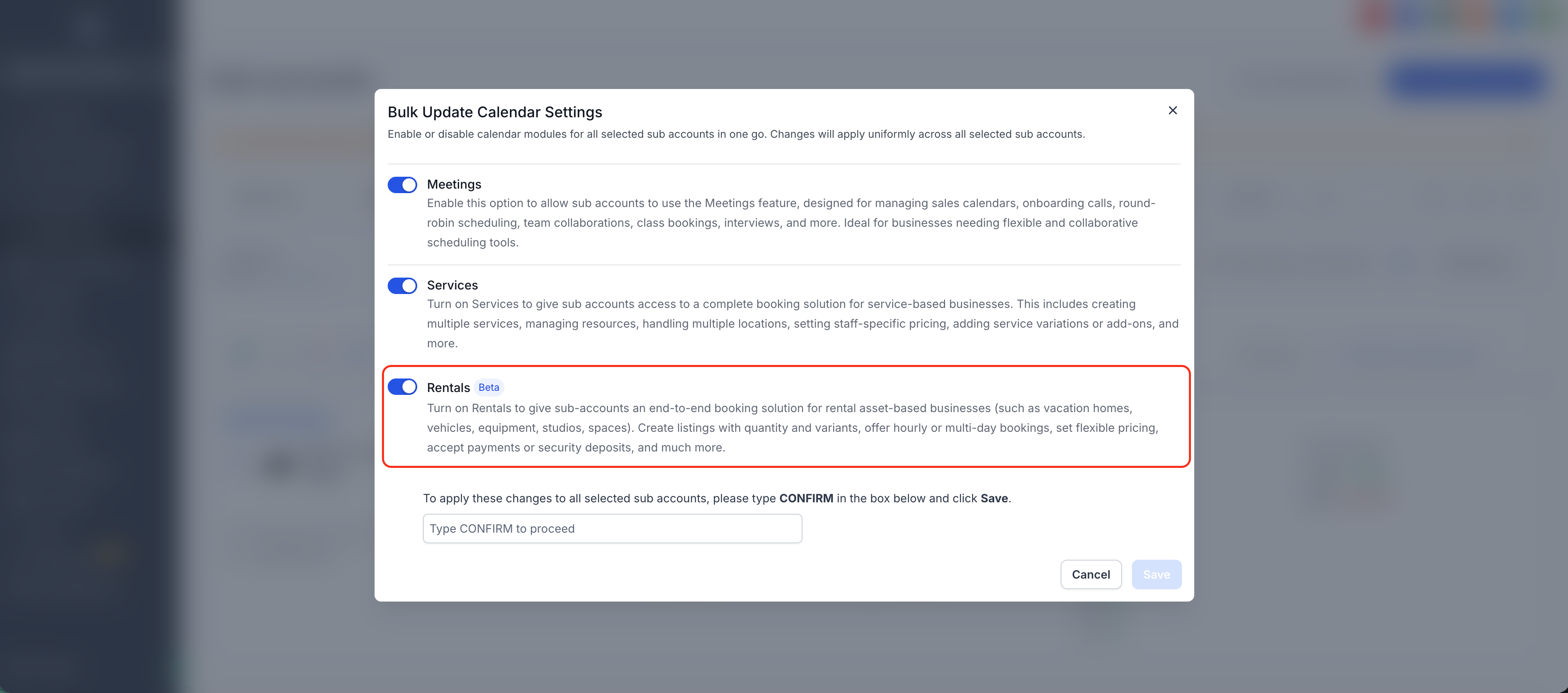
Step 3: Turn on Rentals (Multiple Sub-Accounts)
- Use the toggle to Turn On Rentals
- Type CONFIRM then click the blue Save button to save your changes
Next: Rentals Calendars - Overview & How to Get Started
Upcoming Features
We're constantly working to enhance Rentals. Here’s a sneak peek of what's coming up in the future:
- Snapshots Support ( import and export your rental listings and configuration with snapshots )
- SMS and Whatsapp Notifications
- Blocked off slots
- Reporting (insights into bookings and revenue)
- Mobile App Support (create and view rental bookings from the mobile app)
- Conversation AI and Voice AI support
Known Issues / Limitations
As Rentals is currently in public beta, please be aware of the following:
- Certain features are still a work in progress and will be made available soon.
- You might occasionally experience minor performance or UI inconsistencies as we continue refining the tool.
- Payment summary refresh : After recording a payment, the Payment Summary and Invoices/Transactions may take a moment to update. If totals don’t reflect immediately, refresh the page to see the latest state.
We greatly appreciate your understanding and encourage you to share your feedback to help us quickly address these areas.
How to Provide Feedback
Your feedback is critical to improving Rentals before general release. Here’s how to share it:
Schedule a Feedback Call: Book a time that works for you using this scheduling link.
Fill Out the Feedback Form: Share your thoughts through our quick feedback form.
Email Us — Contact us directly at:
Connect With Us on Facebook Prefer chatting on social? Reach out via our Facebook profiles:
- Mayank Jain– PM, Calendars
Swadha Bhoj – PM, Calendars
Frequently Asked Questions (FAQ)
Q: How can I check if Rentals is activated for any location?
A: Go to Calendars → Calendar Settings to see if the Rentals tab is visible.
Q: Will my data transfer to the general release?
A: Yes. All data created during the beta will remain available when Rentals moves out of beta.
We’re thrilled to have you help shape the future of Rentals! Your participation and feedback are invaluable in refining the experience before full release.
Related Articles
Was this article helpful?
That’s Great!
Thank you for your feedback
Sorry! We couldn't be helpful
Thank you for your feedback
Feedback sent
We appreciate your effort and will try to fix the article