This article introduces email notification capabilities for Invoices, Estimates, and Contracts in the Client Portal. With this feature, both owners and users can customize how they receive document updates and manage all shared documents seamlessly within the Client Portal.
TABLE OF CONTENTS
- What is Invoice, Estimate & Contract Notifications in Client Portal?
- Key Benefits of Client Portal - Invoice, Estimate & Contract Notifications
- How To Enable and Use Notifications (For Owners)
- How To Manage Notifications (For Users)
- Frequently Asked Questions
- Related Articles
What is Invoice, Estimate & Contract Notifications in Client Portal?
The Client Portal’s notification feature enhances communication and document management by automatically sending email notifications when Invoices, Estimates, or Contracts are shared.
This ensures clients and teams stay informed and can easily find and manage important documents — all from one centralized place in the Client Portal.
Key Benefits of Client Portal - Invoice, Estimate & Contract Notifications
- Timely Updates: Ensure clients receive notifications as soon as invoices, estimates, or contracts are shared.
- Personalized Communication: Customize email content and notification preferences for a more tailored experience.
- Centralized Document Management: Manage all invoices, estimates, and contracts in the Client Portal to reduce confusion and streamline workflows.
- User-Controlled Preferences: Empower clients to manage their own notification settings for better engagement.
- Fewer Missed Communications: Reduce missed updates and improve overall document-related interactions.
How To Enable and Use Notifications (For Owners)
Client Portal owners can easily enable and configure notifications for each document type.
- Go to Sites > Client Portal > Settings.

- or Memberships > ClientPortal > Settings.

- Click on Email Settings > Client Portal.
- Turn email notifications on or off as needed for Invoices, Estimates, and Contracts.
Click on the Eye Icon to preview the selected Email Template
Click on the Default Template button to select a new template or edit the default template. Checkout our article on - Client Portal - Edit Default Email Templates.

How To Manage Notifications (For Users)
Manage the types of email notifications you receive from your client portal, communities, and learning activities. Use these settings to control how and when you’re notified about updates that matter to you.
Step 1: Open the Email Notification Settings
To begin managing your notification preferences, navigate through the Client Portal area to access the Email Settings page.
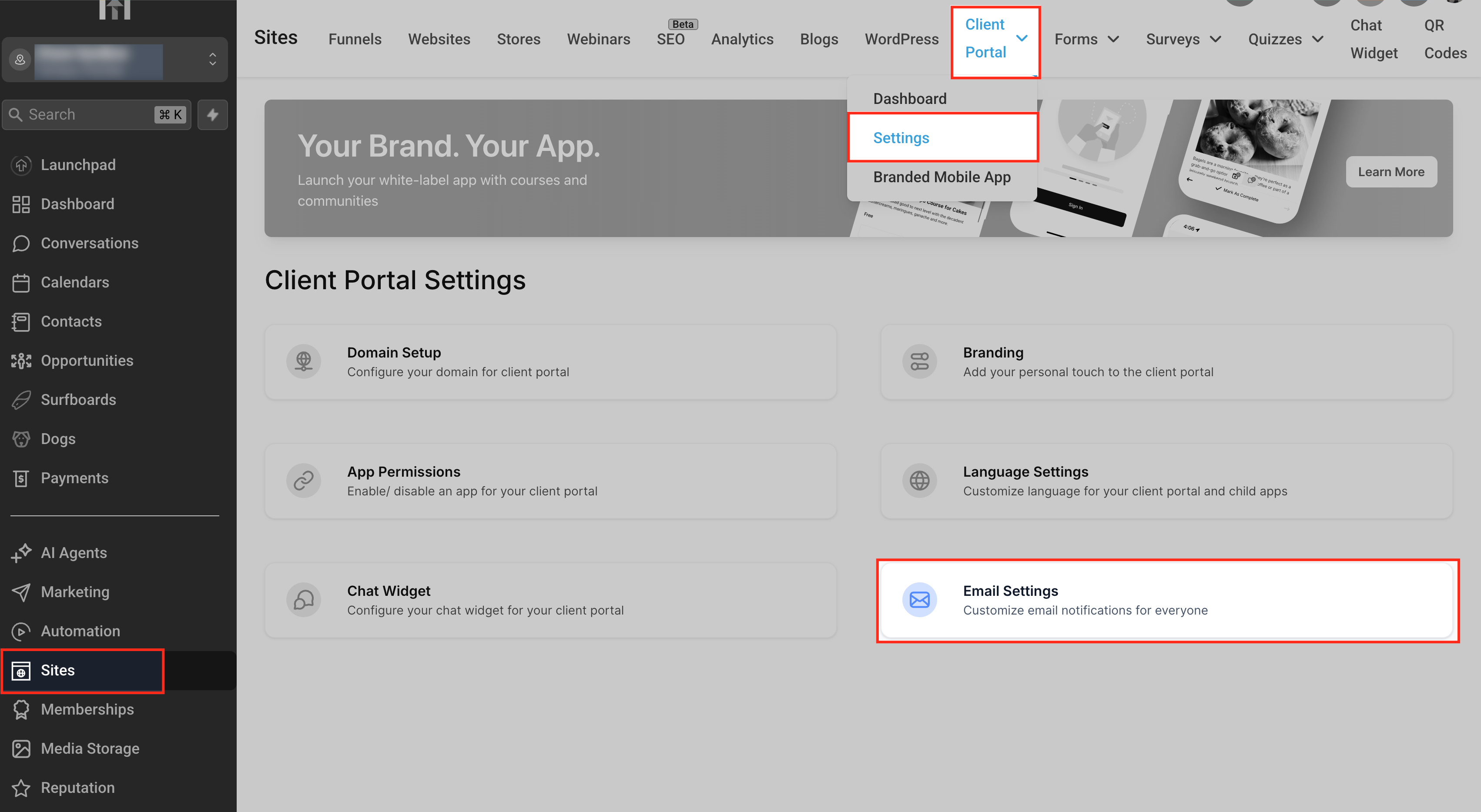
Go to Sites from the left-hand menu.
Hover over the Client Portal tab in the top navigation bar.
Click Settings from the dropdown menu.
In the Client Portal Settings screen, select Email Settings to open the notification options.
Step 2: Customize Your Community Notification Preferences
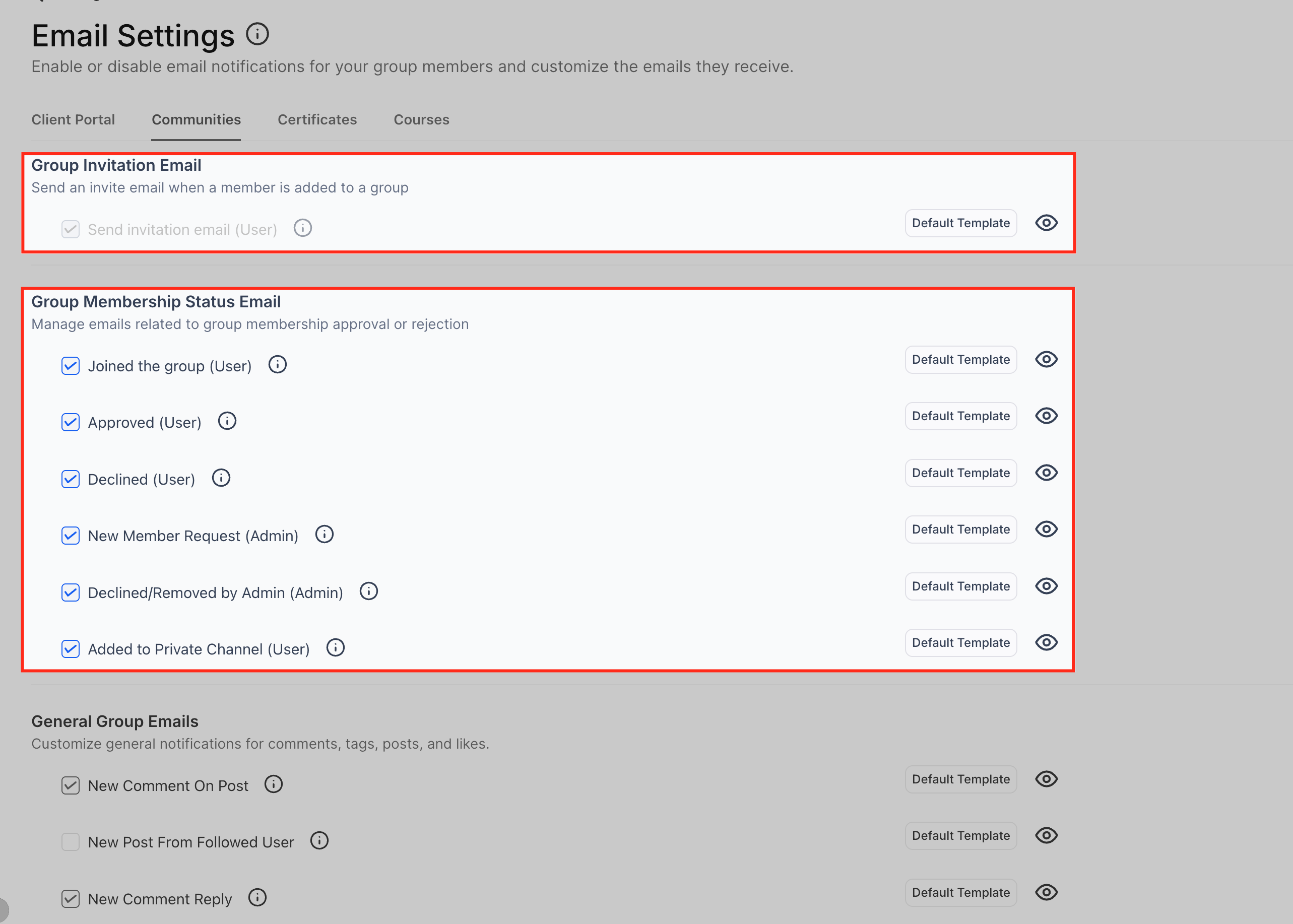
In the Communities tab, you can manage all email notifications related to your group memberships, interactions, and learning activities. This area lets you choose whether you want to receive emails about group invitations, membership approvals, comments, tags, likes, event updates, and course progress inside your community groups. Each option has a checkbox to turn the notification on or off, along with a preview of the email template.
Group Invitation Email
This setting controls whether a user receives an email when they are added to a community group. If enabled, the system sends a simple invitation message informing the user that they have been added and can now access the group. This helps new members quickly identify when they have been included in a group without needing to check manually.
Group Membership Status Email
These notifications keep both users and admins updated about changes in group membership. You can enable or disable emails for actions such as:
Joined the group (User): Sent to users when they successfully join a group.
Approved (User): Sent when a user’s request to join the group is accepted.
Declined (User): Notifies users if their group join request is denied.
New Member Request (Admin): Alerts admins when someone requests access to the group.
Declined/Removed by Admin (Admin): Sent to admins when they take action on a member’s status.
Added to Private Channel (User): Notifies users when they gain access to a private channel within the group.
These options help you stay informed about membership movements, making it easier to manage group participation and stay aware of access changes.
General Group Emails
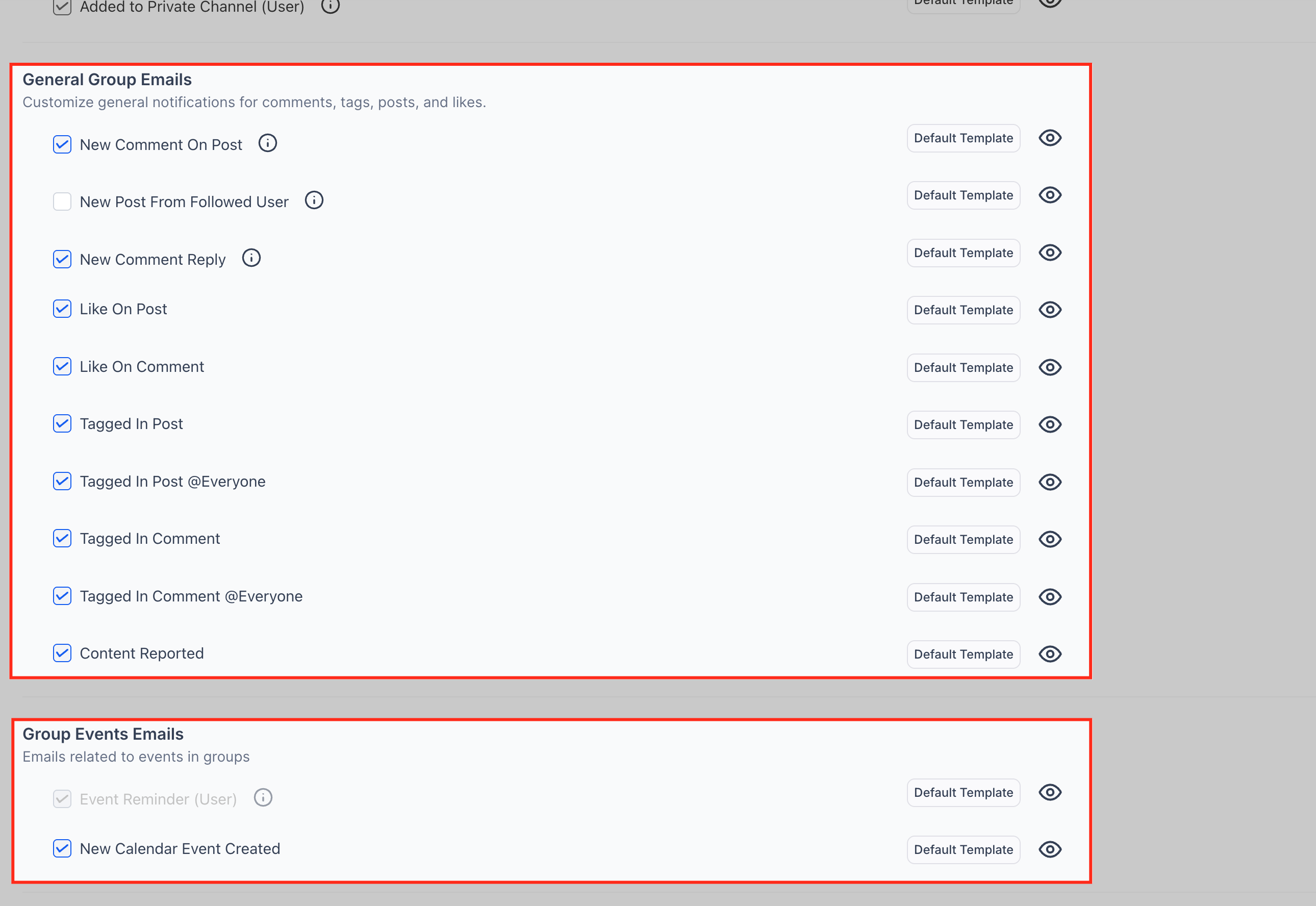
These settings control the notifications you receive for everyday interactions inside your community groups. You can choose to receive alerts when someone comments on your posts, replies to your comments, or engages with your content through likes and tags. This helps you stay updated on conversations and activity that involve you directly.
The available preferences include:
New Comment on Post: Alerts you when someone comments on a post you created.
New Post From Followed User: Notifies you when a user you follow publishes a new post.
New Comment Reply: Sent when someone replies to your comment.
Like on Post / Like on Comment: Lets you know when your posts or comments receive likes.
Tagged in Post or Comment: Notifies you when someone tags you directly or uses the @Everyone tag in a post or comment.
Content Reported: Alerts you when content is flagged within the group.
These notifications help you keep track of discussions and engagement without needing to constantly check the group manually.
Group Events Emails
This section manages notifications related to events happening within your groups. You can choose whether to be notified when new events are created or when reminders are sent out.
Event Reminder (User): Sends a reminder before an upcoming event.
New Calendar Event Created: Notifies you whenever a new group event is added to the calendar.
These alerts ensure you never miss important sessions, meetings, or scheduled activities within your community.
Learning (Courses) Emails
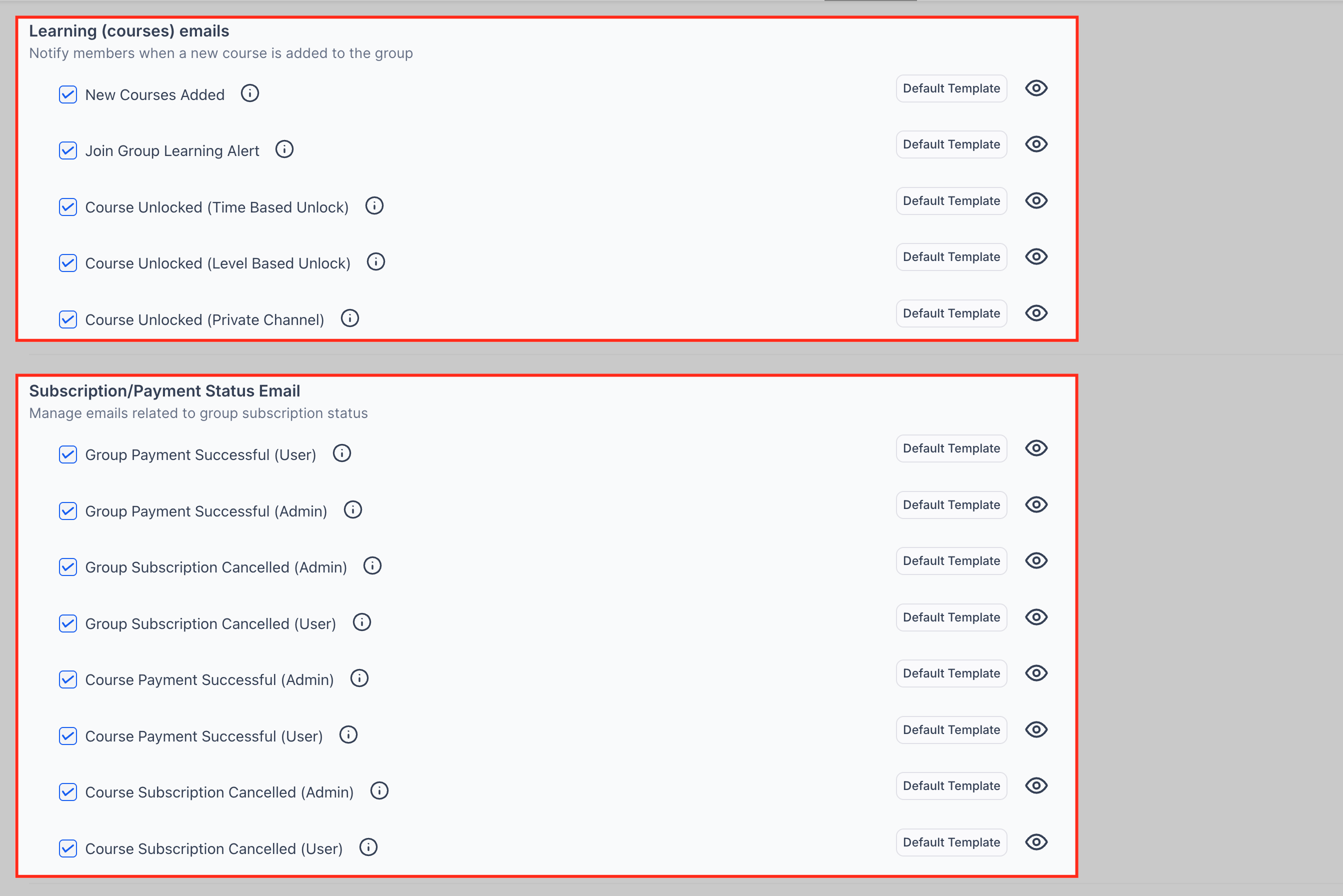
These notification settings keep you informed about new learning content and course progress inside your community groups. You can choose to receive updates when new courses are added or when specific lessons or levels become available to you. This ensures you never miss important learning opportunities or unlocked content.
The available preferences include:
New Courses Added: Notifies you when a new course is added to the group.
Join Group Learning Alert: Alerts you when you can start participating in learning activities.
Course Unlocked (Time-Based Unlock): Sent when a lesson becomes available based on a scheduled unlock time.
Course Unlocked (Level-Based Unlock): Sent when you unlock new content after completing required levels.
Course Unlocked (Private Channel): Notifies you when you gain access to course content inside a private learning channel.
These emails help you stay on top of your learning journey without having to check for updates manually.
Subscription/Payment Status Email
This section manages notifications related to group or course subscriptions and payments. These emails keep both users and admins informed about successful payments, subscription activations, and cancellations. It’s especially helpful for tracking billing activity within paid communities or learning programs.
You can enable notifications for:
Group Payment Successful (User/Admin): Confirms when a group membership payment is completed.
Group Subscription Cancelled (User/Admin): Alerts when a group subscription has been cancelled.
Course Payment Successful (User/Admin): Sent when a course-related payment succeeds.
Course Subscription Cancelled (User/Admin): Notifies you when a course subscription ends.
These updates help users track their purchases and ensure admins stay aware of membership or course-related billing events.
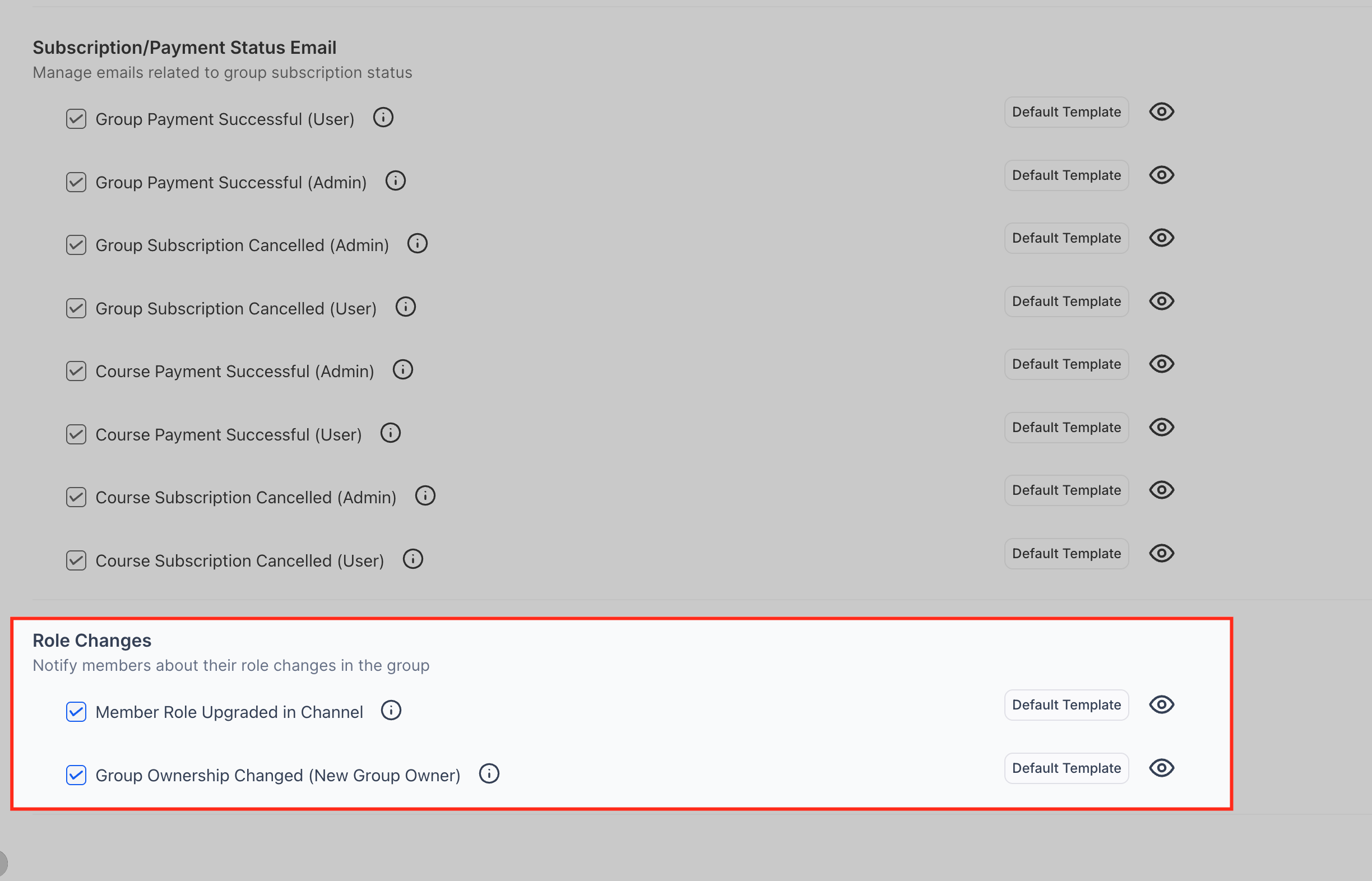
Role Changes
These preferences notify you when your role or responsibilities within a group are updated. Role-related emails ensure you are aware of any new permissions or ownership changes that affect how you interact with the group. This is especially useful in communities where members can be promoted to moderators, admins, or given additional control within specific channels.
You can enable notifications for:
Member Role Upgraded in Channel: Sent when your role is elevated within a channel—for example, becoming a moderator or gaining additional management permissions.
Group Ownership Changed (New Group Owner): Notifies you if you become the new owner of a group, giving you full control over its settings and members.
These alerts help you stay informed about shifts in access and responsibility, ensuring you’re aware of any new capabilities assigned to you inside the community.
Frequently Asked Questions
Q: Can I use custom email templates for each document type?
Yes! Owners can create and use a custom email template for Invoices, Estimates, and Contracts individually.
Q: Do users have to receive notifications?
No. Users can choose to disable notifications in their personal settings if they prefer.
Q: Where do users find shared documents?
All shared documents can be accessed and managed directly within the Client Portal, in the organized documents section.
Q: Can notifications be enabled or disabled globally?
Yes. Owners can enable or disable email notifications for all document types from the Email Settings panel.
Related Articles
Was this article helpful?
That’s Great!
Thank you for your feedback
Sorry! We couldn't be helpful
Thank you for your feedback
Feedback sent
We appreciate your effort and will try to fix the article