Pipelines and opportunities help you organize your sales process and track potential deals from the first interaction through completion. In this guide, you’ll learn how pipelines, stages, contacts, and opportunities work together, create your first pipeline, add opportunities manually or in bulk, and optionally automate opportunity creation with workflows.
By the end of this guide, you’ll have a working pipeline with opportunities that your team can track and manage.
TABLE OF CONTENTS
- Understanding Pipelines and Opportunities
- How They Work Together
- Before You Begin
- Choose How You Want to Add Opportunities
- Create Sales Pipeline
- Import Contacts as Opportunities
- Create Opportunity Manually
- Create Opportunity by Automation
- Frequently Asked Questions
Understanding Pipelines and Opportunities
Before creating your first pipeline, it helps to understand how the different parts of Opportunities work together.
| Term | Description |
|---|---|
| Pipeline | Represents the overall sales process you want to track. |
| Stage | Represents a step within your sales process, such as New Lead, Booked Call, or Closed. |
| Opportunity | Represents a potential deal that moves through your pipeline. |
| Contact | The person associated with an opportunity. |
How They Work Together
Think of the structure as:
Contact → Opportunity → Pipeline → Stage
For example, a contact named John Smith might have an opportunity in your Sales Pipeline currently sitting in the Booked Call stage.
Note: Your pipeline stages should reflect the actual steps in your sales process. The examples used in this article are suggestions only and can be customized based on your business.
Before You Begin
Before setting up Opportunities, consider:
- What sales process you want to track.
- Which stages a lead normally moves through.
- Whether you'll add opportunities manually, import them in bulk, or create them automatically.
- Which team members will manage opportunities.
Choose How You Want to Add Opportunities
| Method | Best For |
| Manual Creation | Adding individual opportunities as they arise. |
| CSV Import | Migrating or bulk-adding existing opportunities. |
| Workflow Automation | Automatically creating or updating opportunities when specific events occur. |
You can use one or a combination of these methods.
Create Sales Pipeline
Setting up a new sales pipeline is a breeze, and it helps you visualize exactly where every lead stands in your sales process. Here’s how easy it is to get started:
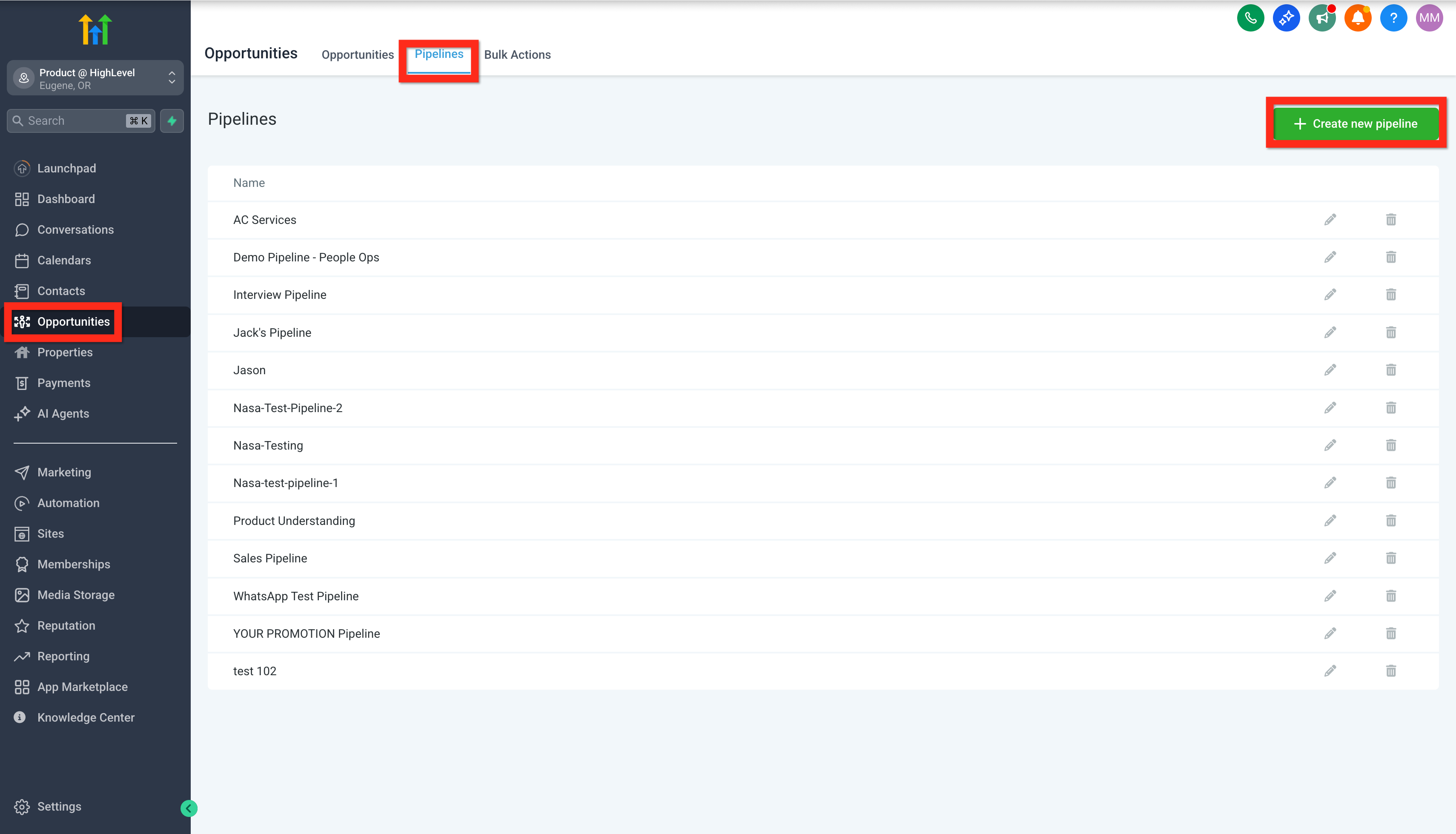
- Navigate to Opportunities.
- Click Pipelines.
- Click Create New Pipeline.
- Fill in the details (name, stages, etc.) and click Save.
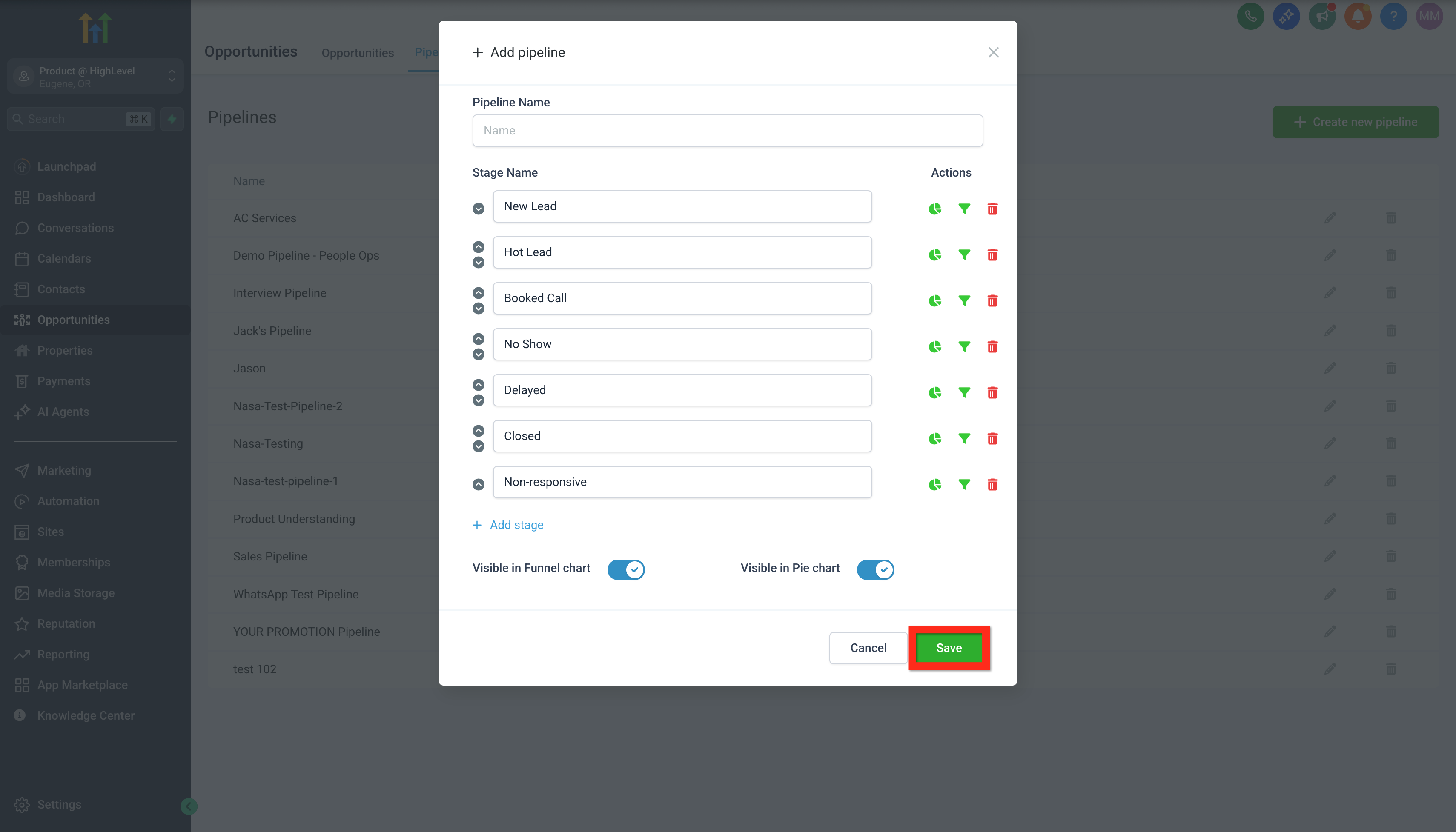
Consider customizing your pipeline stages to match your team's workflow, such as:
- New Lead
- Hot Lead
- Booked Call
- No Show
- Delayed
- Closed
- Non-responsive
Want to dive deeper?
Next, you can import your existing contacts to fill your pipeline.
Import Contacts as Opportunities
Got a list of contacts from an event or another platform? Great news—you can easily import them straight into your sales pipeline and turn those leads into opportunities with just a few clicks:
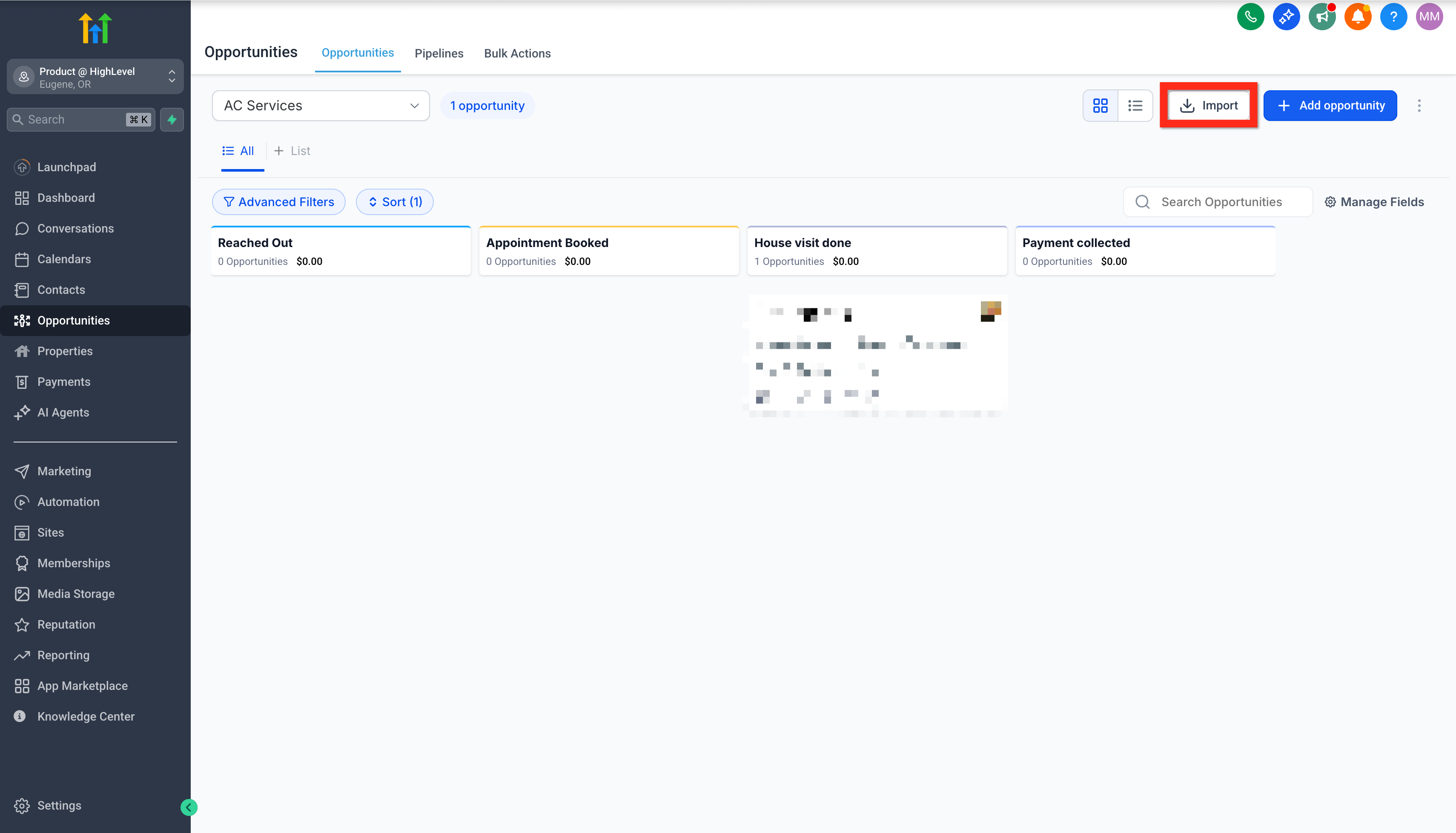
- Navigate to Opportunities.
- Click Import.
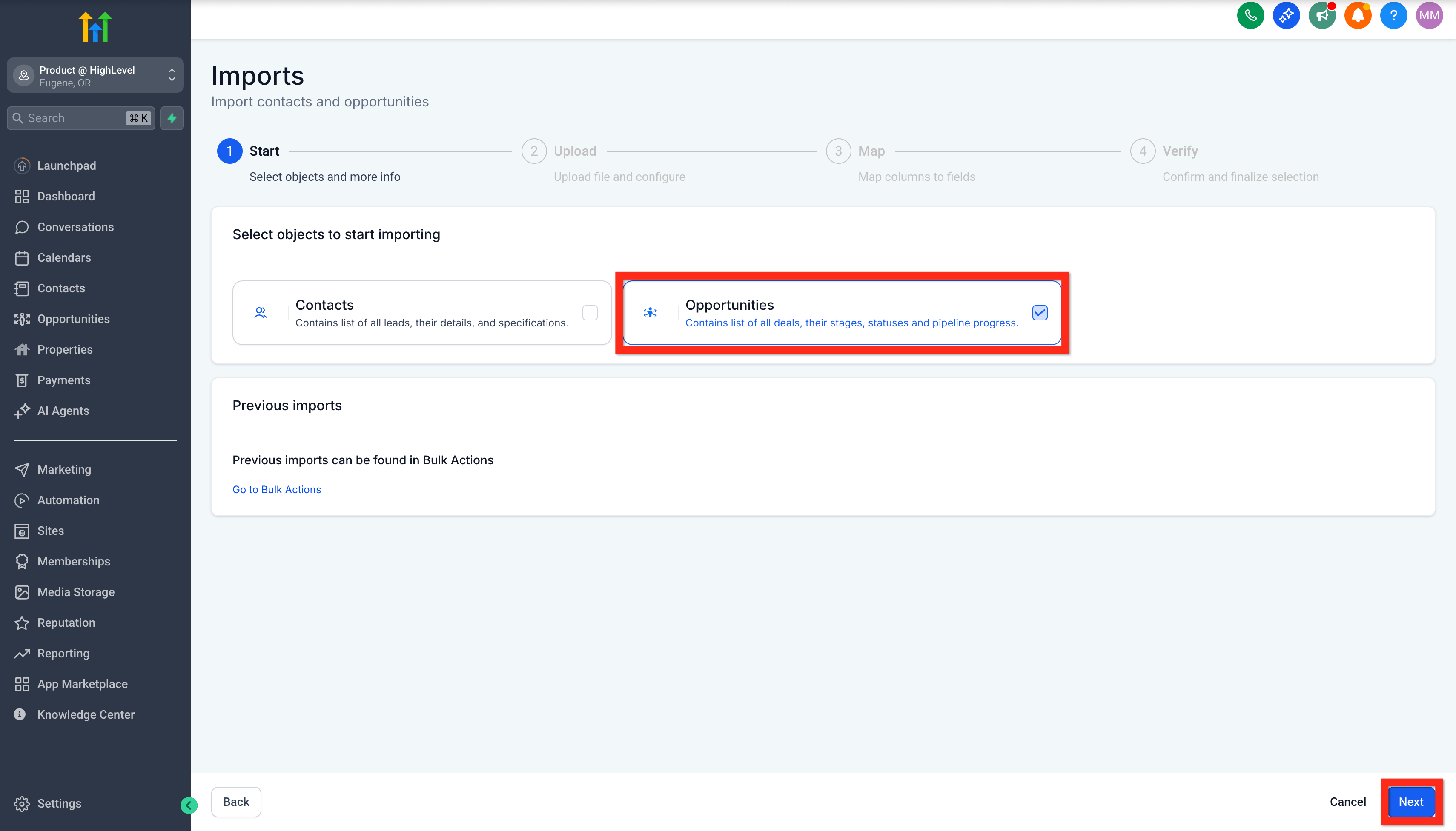
- Select Opportunities.
- Click Next.
- Upload your file.
- Click Next.
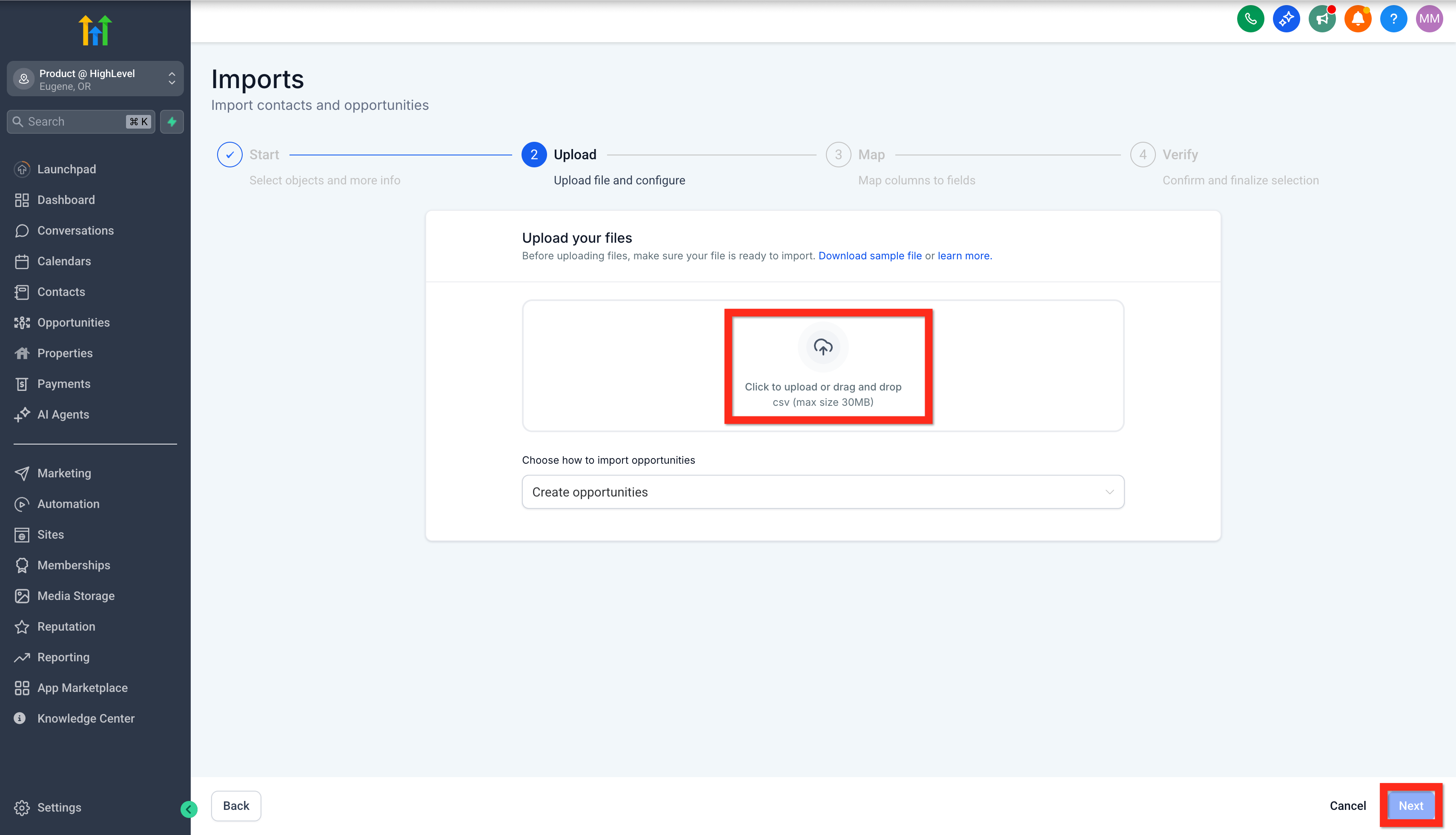
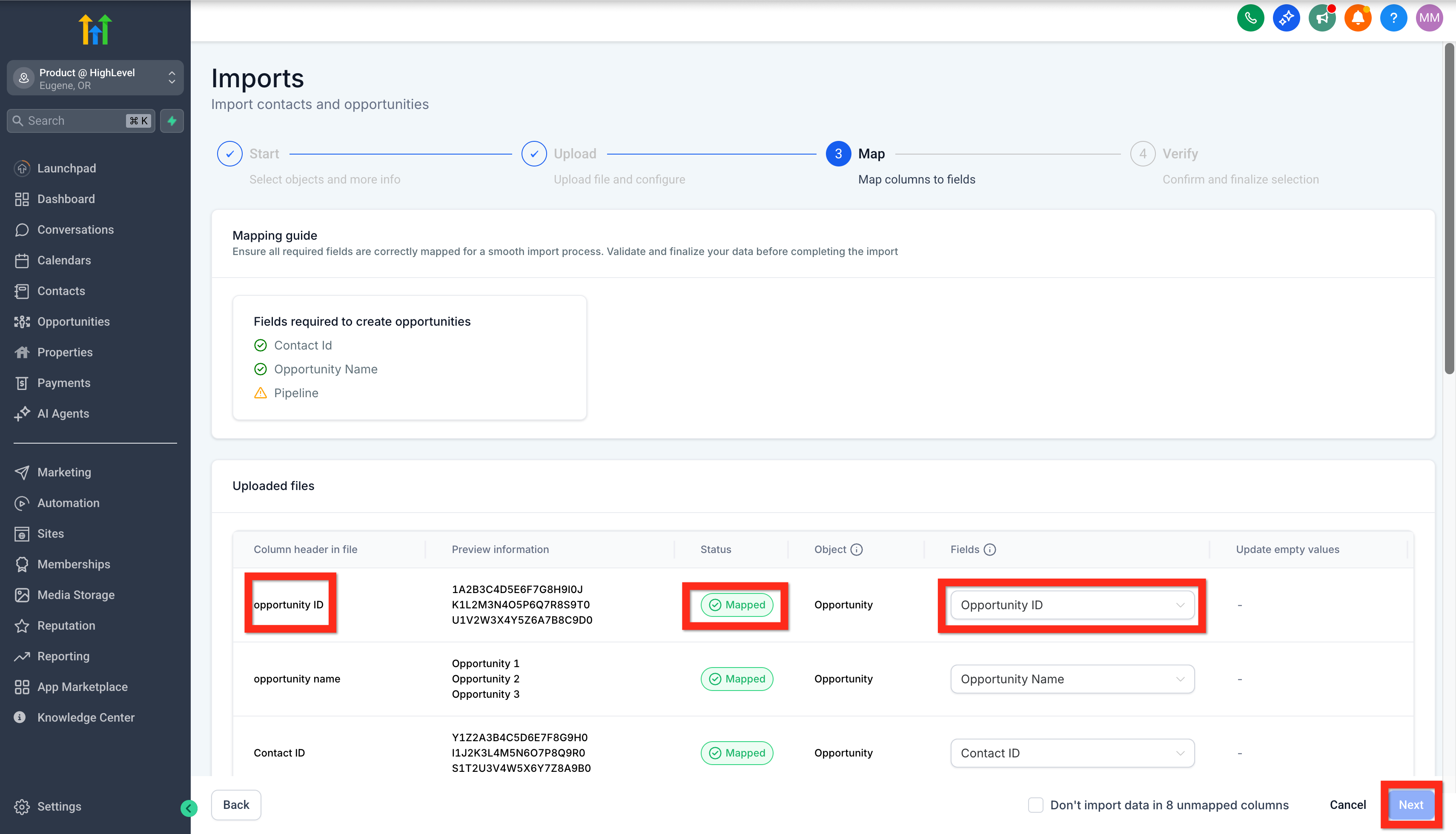
- Map file columns to Opportunity fields.
- Click Next.
- Verify all information and click Start Bulk Import.
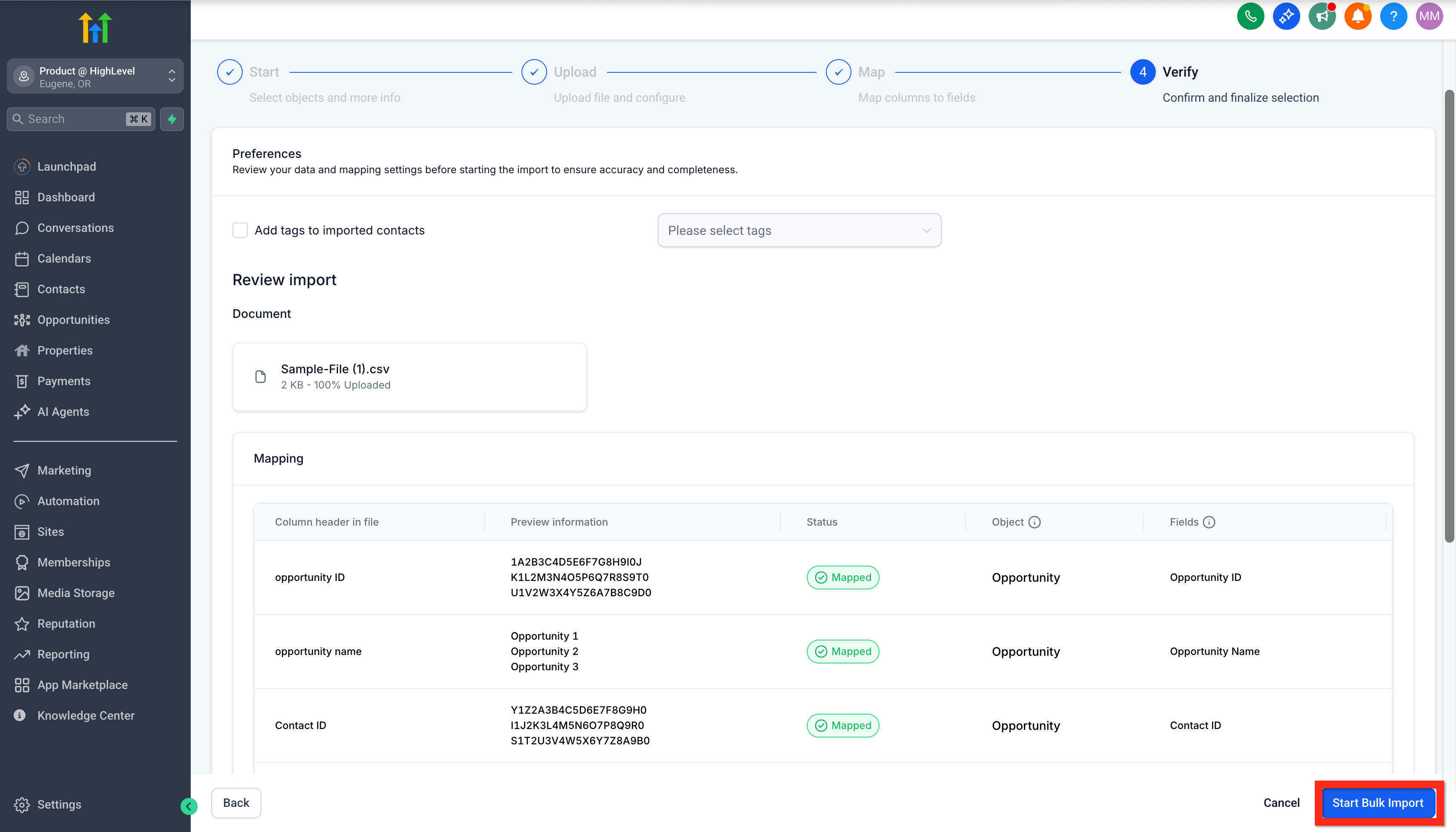
Want more details? Check out our guide on importing contacts and opportunities via CSV.
Next, you might want to manually add opportunities to fine-tune your pipeline.
Create Opportunity Manually
Sometimes, opportunities come in one by one, and adding them manually gives you precise control. Plus, it's quick and intuitive! Here’s how you do it:
- Navigate to Opportunities.
- Click Add opportunity.
- Select an existing contact or enter details for a new contact.
- Fill in the Opportunity details (pipeline name, stage, value, etc.).
- Click Create.
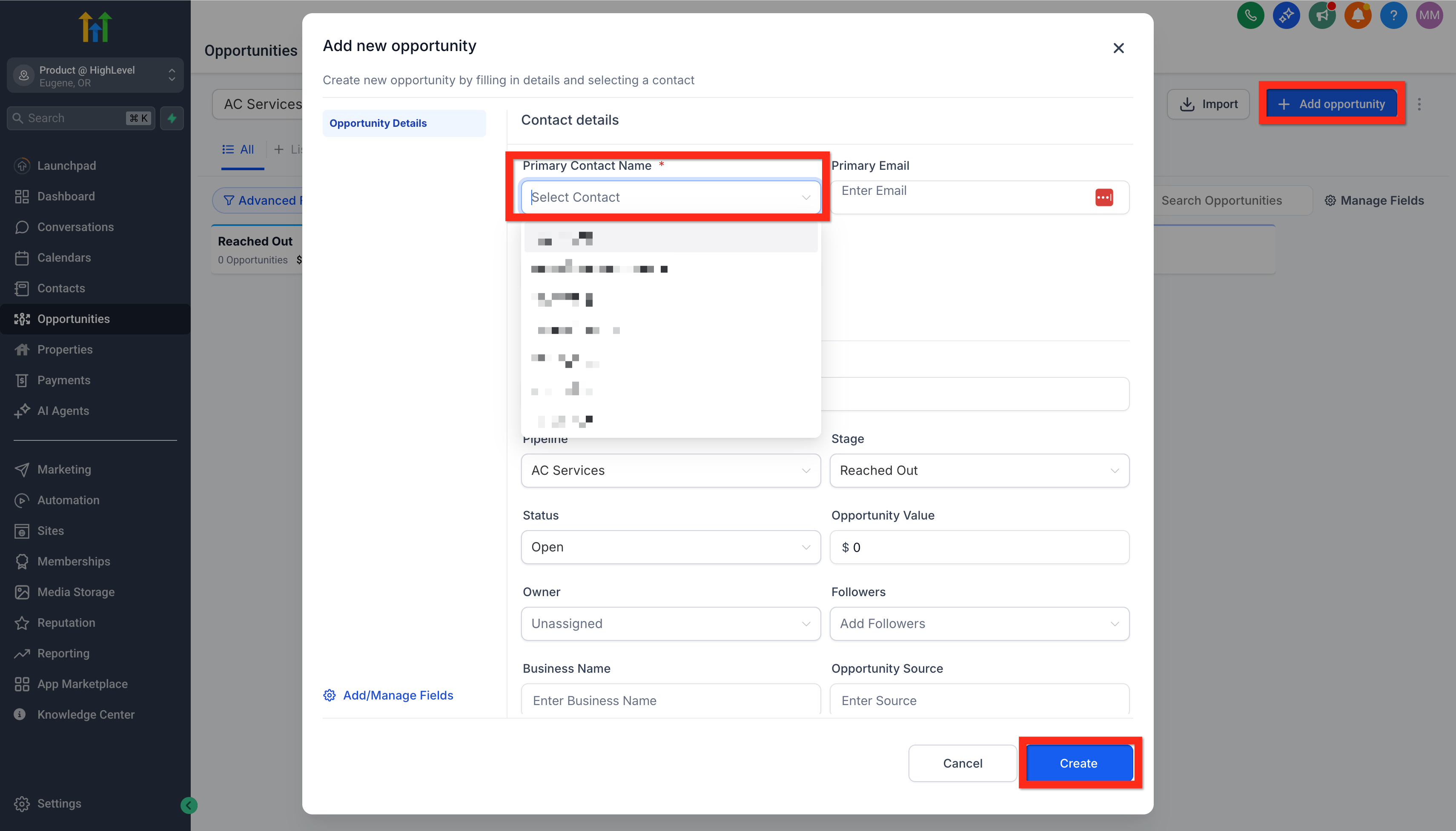
Want a thorough walk-through? See our Step-by-Step Guide to Creating Opportunities.
Create Opportunity by Automation
Automating opportunity creation keeps your pipeline tidy without the extra clicks. Below is a quick-start example that fires whenever someone submits a form—followed by a note on other triggers you can swap in.
Open Workflows
Go to Automation → Workflows in the left menu.
Start a New Workflow
Click + Create Workflow → Start from Scratch (or pick a template you want to use).Add a Trigger – Form Submitted
Click + Add New Trigger and choose Form Submitted.
Select the specific form that captures your lead info.
Hit Save Trigger.
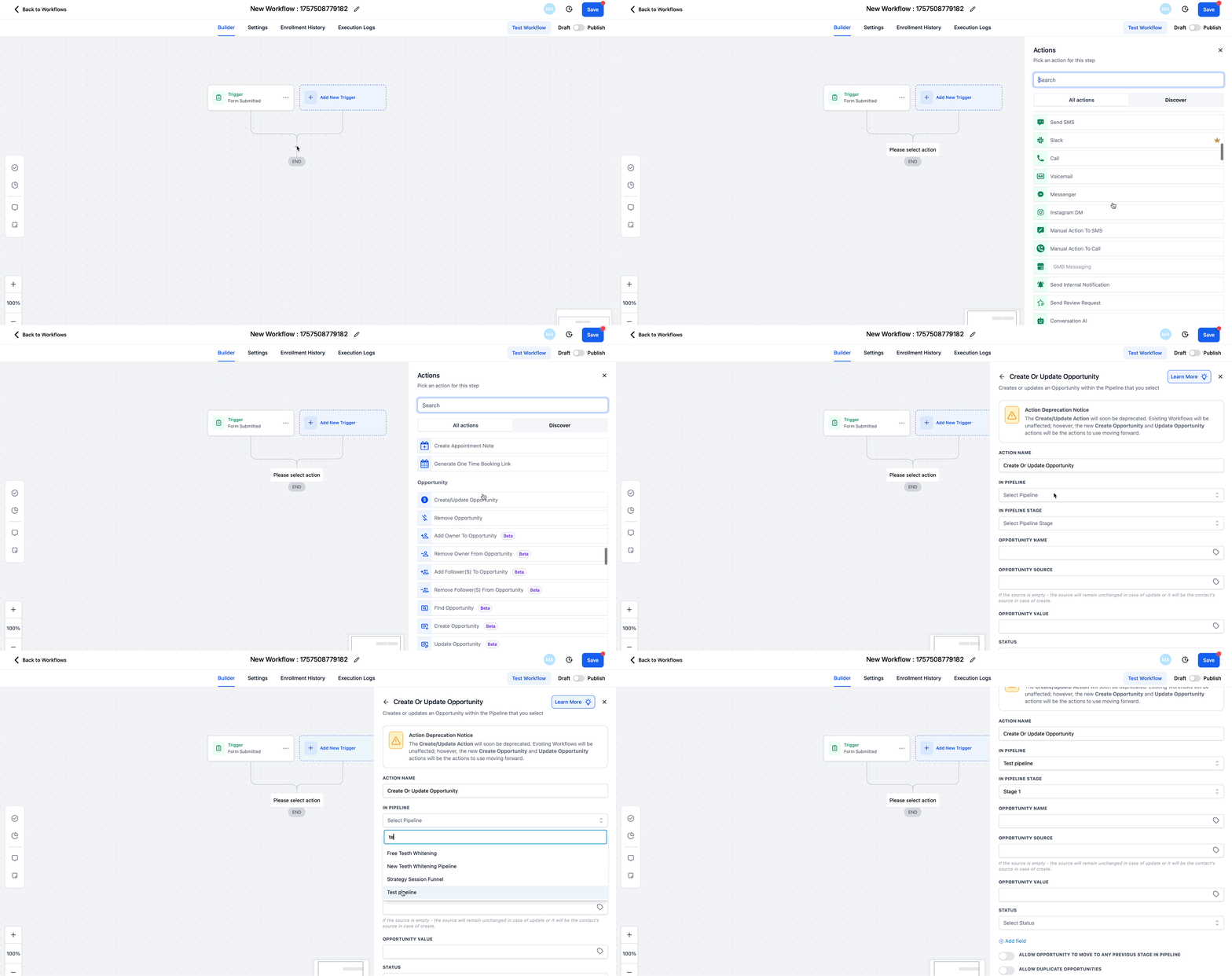
Add an Action – Create/Update Opportunity
Click + (Add action button) below the trigger, choose Opportunity → Create/Update Opportunity.
Pick the Pipeline and Stage you want new form leads to appear in.
Set Status to Open (or another status), enter a Value if known, and toggle Allow Opportunity to Move if you want the record to update when re-entered later.
Click Save Action
Save & Publish
Toggle the Draft → Publish button (top-right). Every future form submission now drops straight into the chosen pipeline stage—hands-free.
Other Common Triggers & Quick Use Cases
| Trigger | One-Line Use Case |
|---|---|
| Customer Booked Appointment | Auto-add prospects to “Consult Scheduled” when they book a call. |
| Contact Tag | Move “Hot Lead” contacts into a closing stage the moment the tag is applied. |
| Facebook Lead Form Submitted | Pipe leads from FB ads into a “New Facebook Leads” stage for rapid follow-up. |
| Payment Received | Create an opportunity in a “Won – Awaiting Onboarding” stage once a purchase is made. |
| Contact Created | Start every brand-new contact in “New Lead” to ensure nothing slips through the cracks. |
| Call Status | Drop answered inbound calls into a follow-up stage for reps to nurture. |
| Survey Submitted | Route completed surveys into a qualification stage for scoring. |
Note: The action Create/Update Opportunity stays the same across workflows; only the trigger changes. Pick the trigger that best matches how (and when) a lead should appear in your pipeline.
Frequently Asked Questions
Q. What is the difference between a pipeline and an opportunity?
A pipeline represents your overall sales process, while an opportunity represents an individual potential deal moving through that process.
Q. What is a pipeline stage?
A stage represents a specific step within your sales process. Opportunities move between stages as they progress.
Q. Do I need to use workflows to create opportunities?
No. You can create opportunities manually, import them in bulk, or automatically create and update them using workflows.
Q. Why isn't my opportunity appearing in the expected pipeline?
Confirm that the correct pipeline and stage were selected when the opportunity was created. If the opportunity was created through a workflow, review the Create/Update Opportunity action configuration.
Q. Why didn't my workflow create an opportunity?
Verify that:
- The workflow is published.
- The contact met the workflow trigger conditions.
- The Create/Update Opportunity action is configured.
- The correct pipeline and stage are selected.
Q. Why didn't my opportunity move to another stage?
If you're using a workflow to update an existing opportunity, review the Create/Update Opportunity configuration and the Allow Opportunity to Move setting.
Q. Can I import multiple opportunities at once?
Yes. Use the Opportunities import option to upload and map opportunity data from a CSV file.
Q.Can I manually create an opportunity for an existing contact?
Yes. When creating an opportunity manually, you can select an existing contact and then assign the opportunity to the appropriate pipeline and stage.
Was this article helpful?
That’s Great!
Thank you for your feedback
Sorry! We couldn't be helpful
Thank you for your feedback
Feedback sent
We appreciate your effort and will try to fix the article