Ad Manager templates let you create supported Google, Meta, and LinkedIn campaigns from reusable campaign configurations instead of starting from scratch. You can browse templates, preview their details, apply one to a new campaign, and customize supported settings before publishing.
Supported existing Ad Manager campaigns can also be uploaded to the Template Library for reuse. This guide explains how to use Ad Manager templates and how to turn an eligible campaign into a reusable template.
TABLE OF CONTENTS
- What are Ad Manager Templates?
- Where is Ad Manager in Template Library?
- Key Benefits of Ad Manager Templates
- How to Create an Ad Campaign Using Templates?
- How to create a template out of an existing campaign?
- Frequently Asked Questions
What are Ad Manager Templates?
Ad Manager templates are reusable campaign configurations available through HighLevel's Template Library. Supported templates can be used to start Google, Meta, and LinkedIn campaigns without rebuilding every campaign setting manually.
After applying a template, review the campaign and update the copy, creative, URLs, targeting, account-specific selections, and other settings required by the selected advertising platform.
Templates do not guarantee that every campaign setting is transferred. Available template content depends on the platform, campaign type, and supported configuration.
Where is Ad Manager in Template Library?
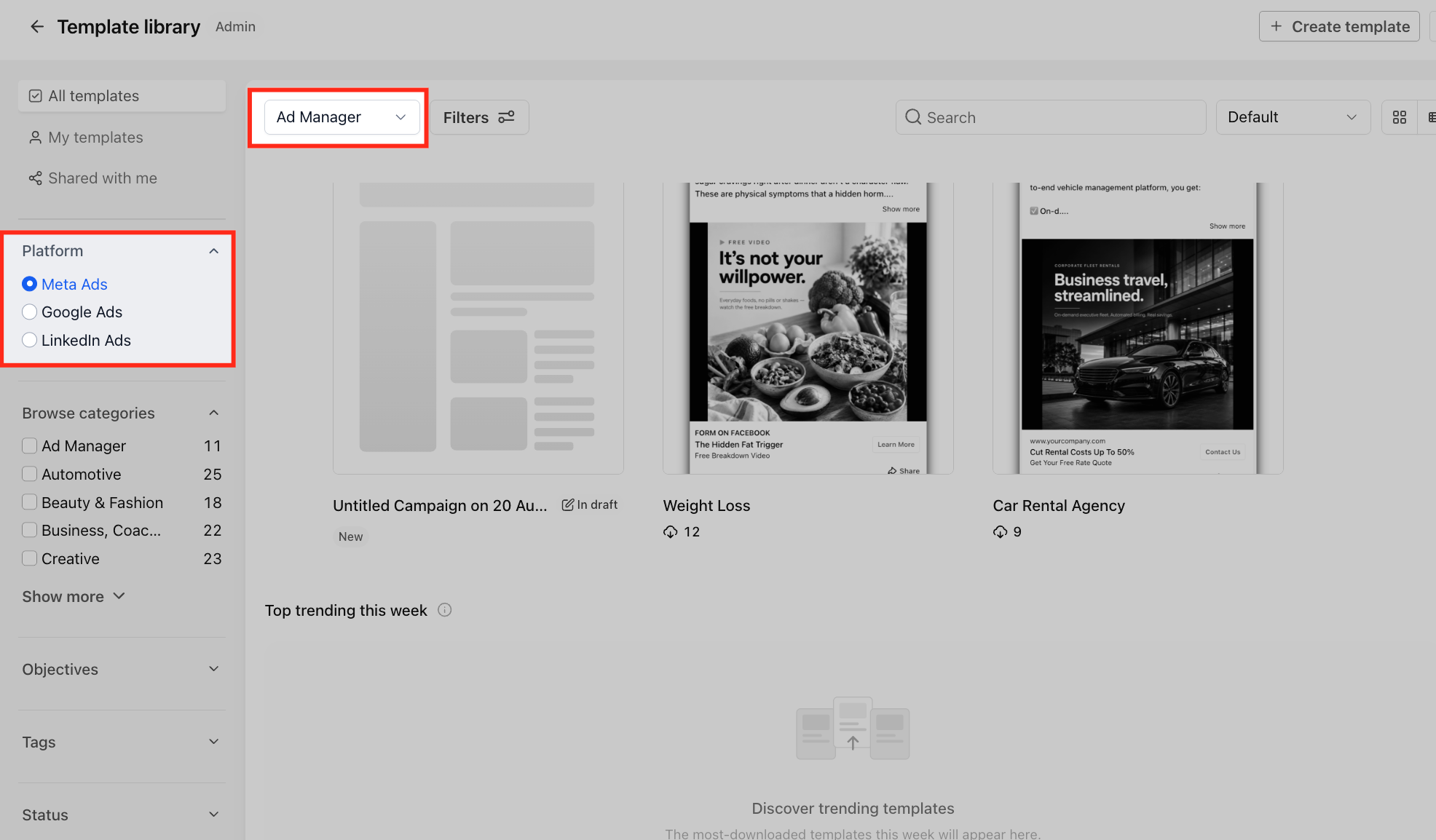
In Agency View, go to Template Library > Ad Manager to view templates for supported advertising platforms, including Google, Meta, and LinkedIn.
Current filters include: -
- Categories
- Objectives
- Engagement
- Lead Generation
- Sales
- Web Traffic
- Tags
Key Benefits of Ad Manager Templates
Ad Manager templates help teams reuse campaign configurations while still allowing campaign-specific changes before publishing.
- Faster setup: Start with an existing campaign structure instead of configuring every supported setting manually.
- Reusable campaign structure: Apply supported template configurations to eligible Google, Meta, and LinkedIn campaigns.
- Template filtering: Find relevant templates using categories, objectives, and tags.
- Preview before use: Review template details and supported placement previews before applying a template.
- Customization: Update campaign copy, creative, URLs, targeting, and other supported settings before publishing.
- Agency consistency: Create reusable templates that eligible Sub-Accounts can access through the Template Library.
How to Create an Ad Campaign Using Templates?
Below mentioned are the steps to be followed in order to create a campaign using Ad Manager templates housed in template library.
Step 1: Open Ad Manager
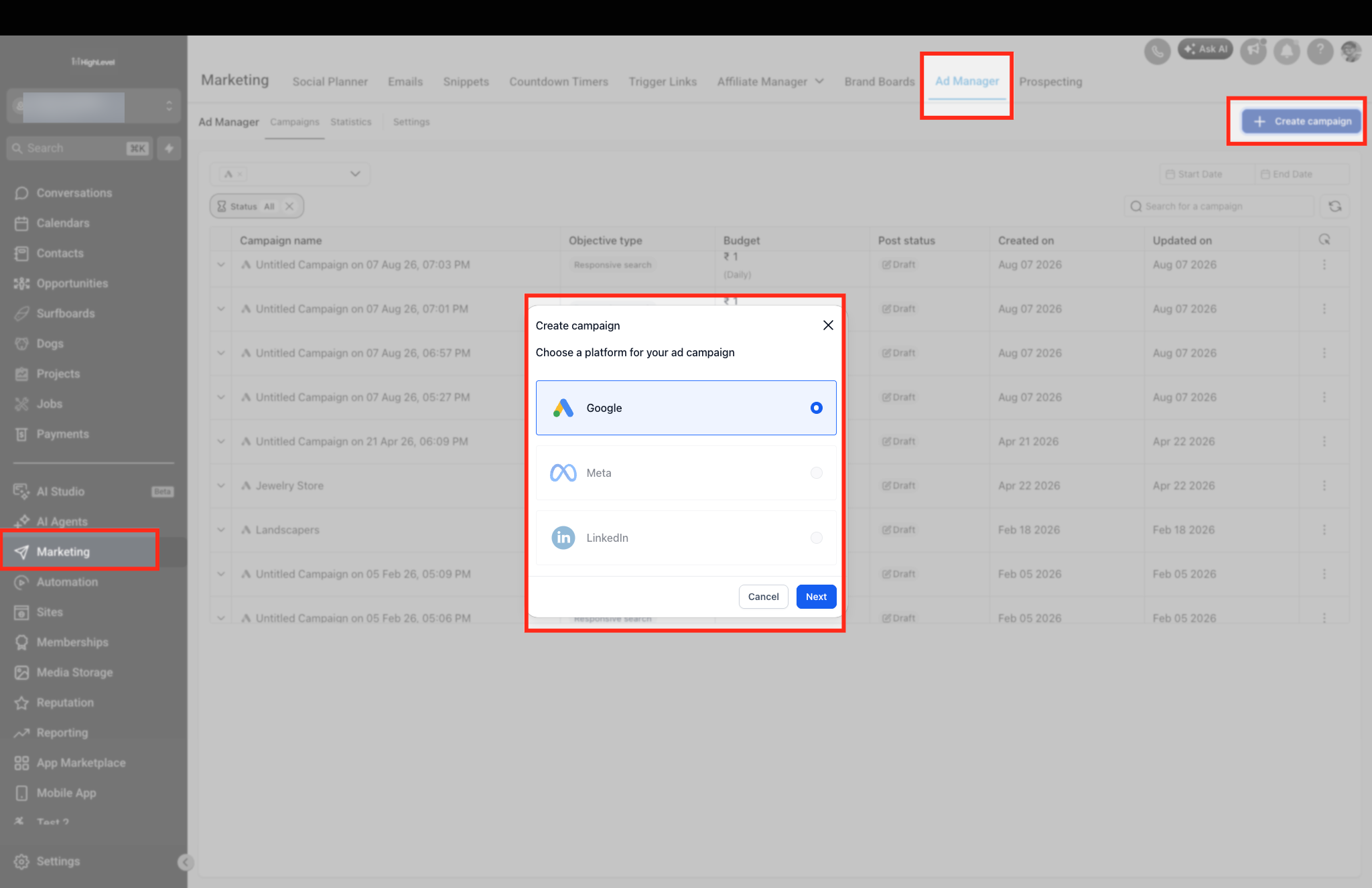
1. From the HighLevel Sub-Account view, select Marketing.
2. Select Ad Manager.
3. Click + Create Campaign.
Step 2: Select the Advertising Platform
1. Select Google, Meta, or LinkedIn.
2. Click Next.
Step 3: Choose Ad Manager Templates
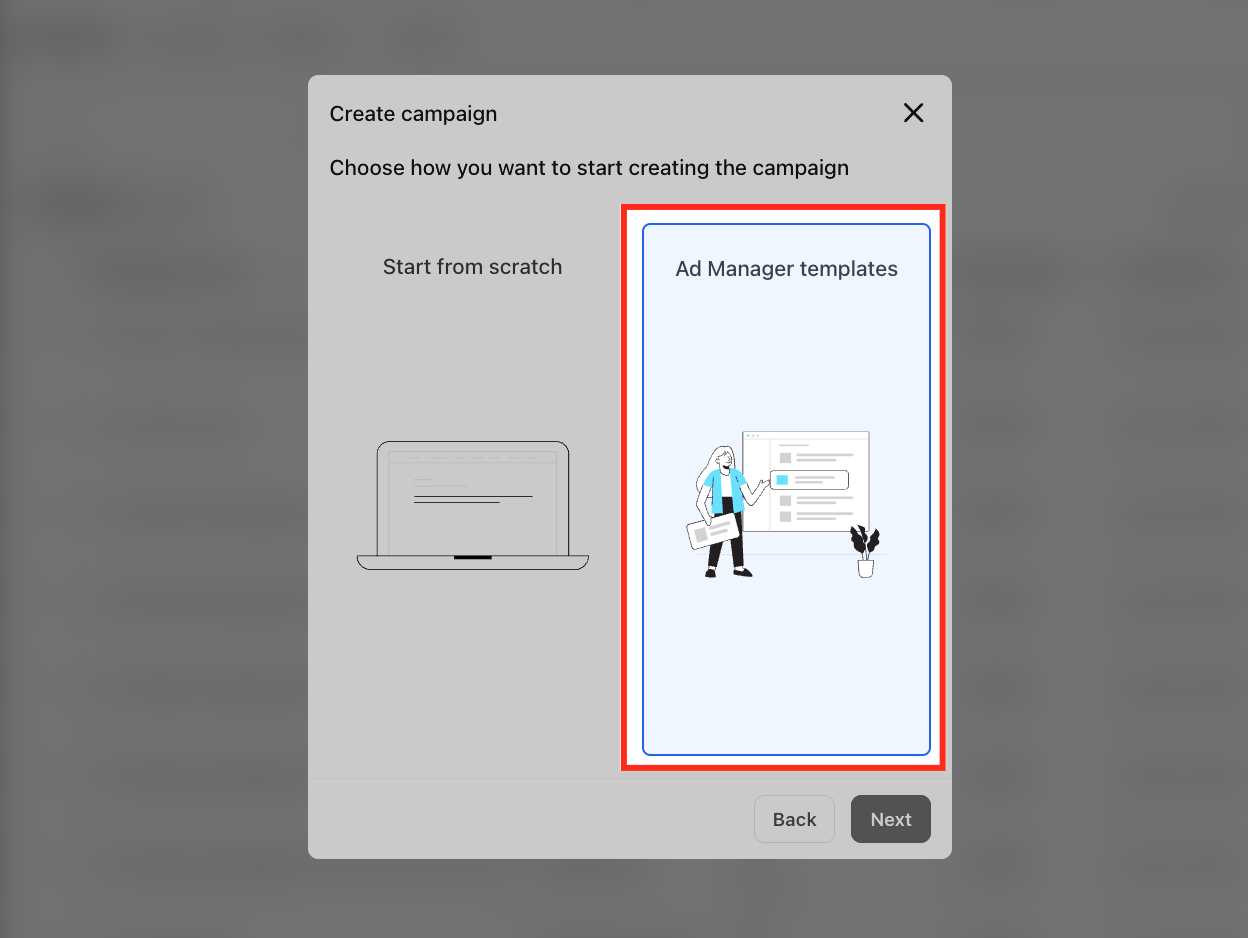
1. On the Choose how you want to start creating the campaign screen, select Ad Manager Templates.
2. Click Next.
If Template Library access is restricted for the Sub-Account, location users do not see Ad Manager Templates. They continue directly with Start From Scratch after selecting the advertising platform.
Step 4: Find and Preview a Template
1. Browse the available templates.
2. Use Categories, Objectives, or Tags to narrow the results when needed.
3. Click the Eye icon to preview how a template appears in supported placements.
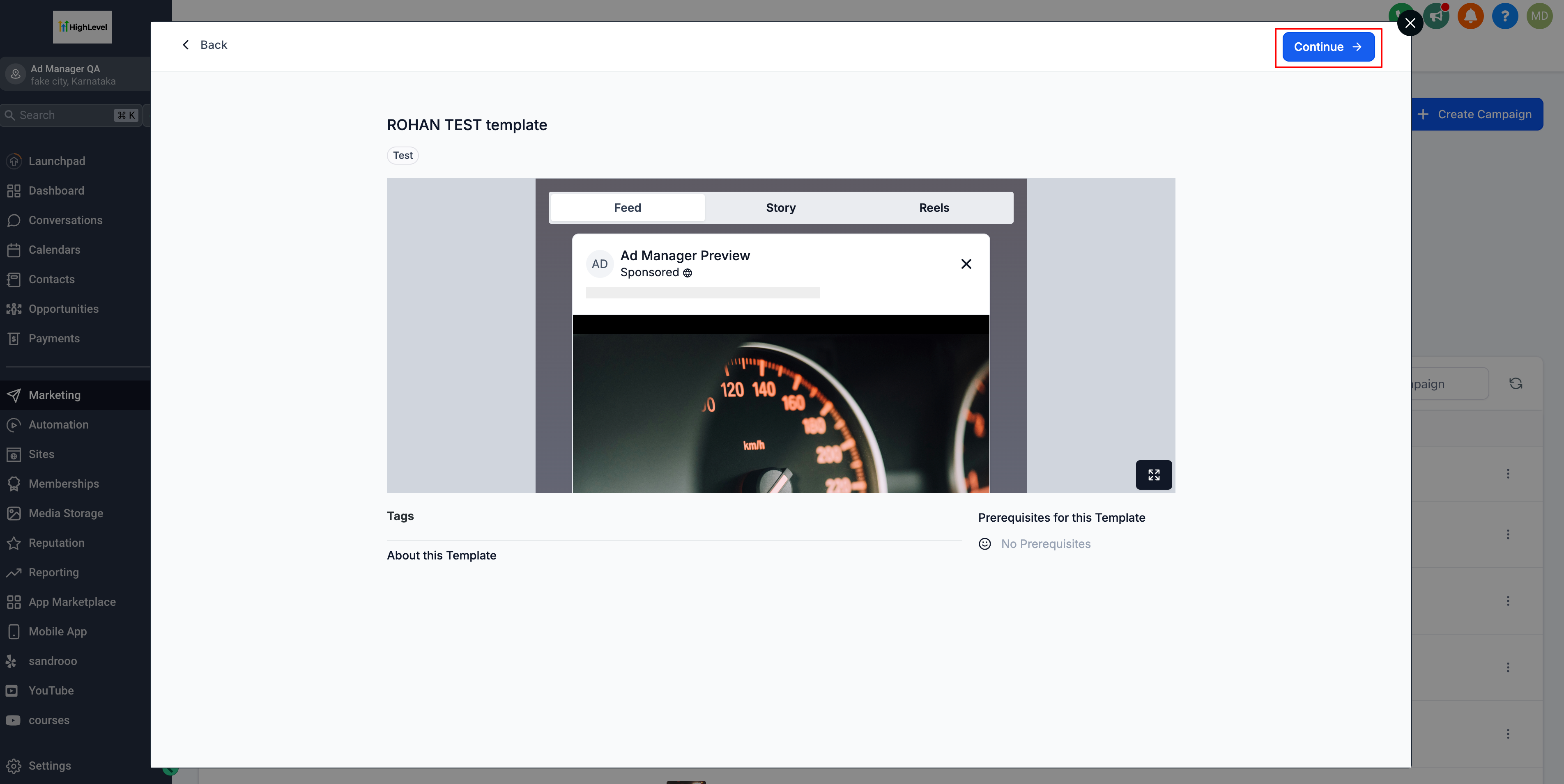
4. Select a template to review its preview and details.
5. Click Continue to use the selected template.
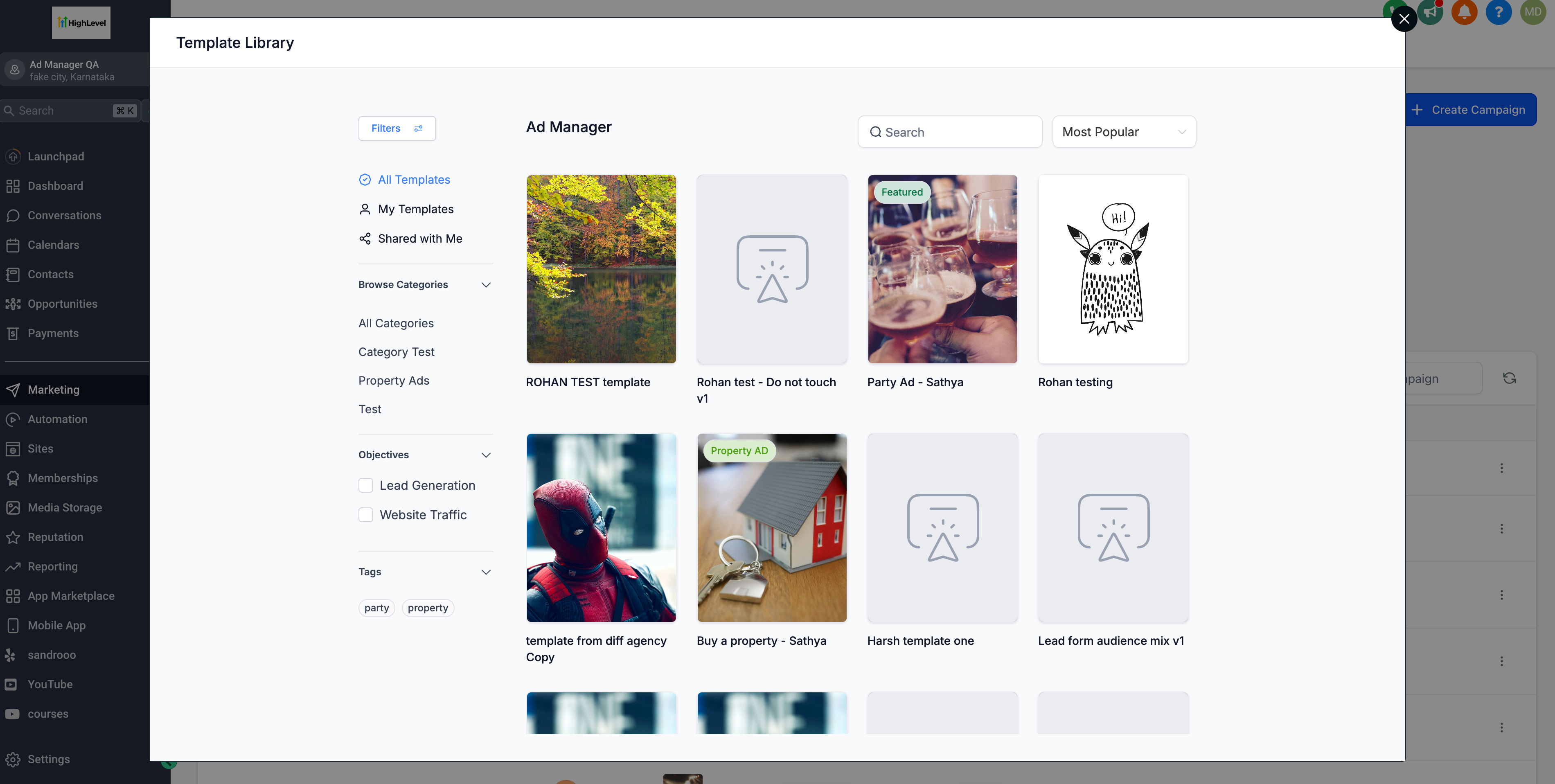
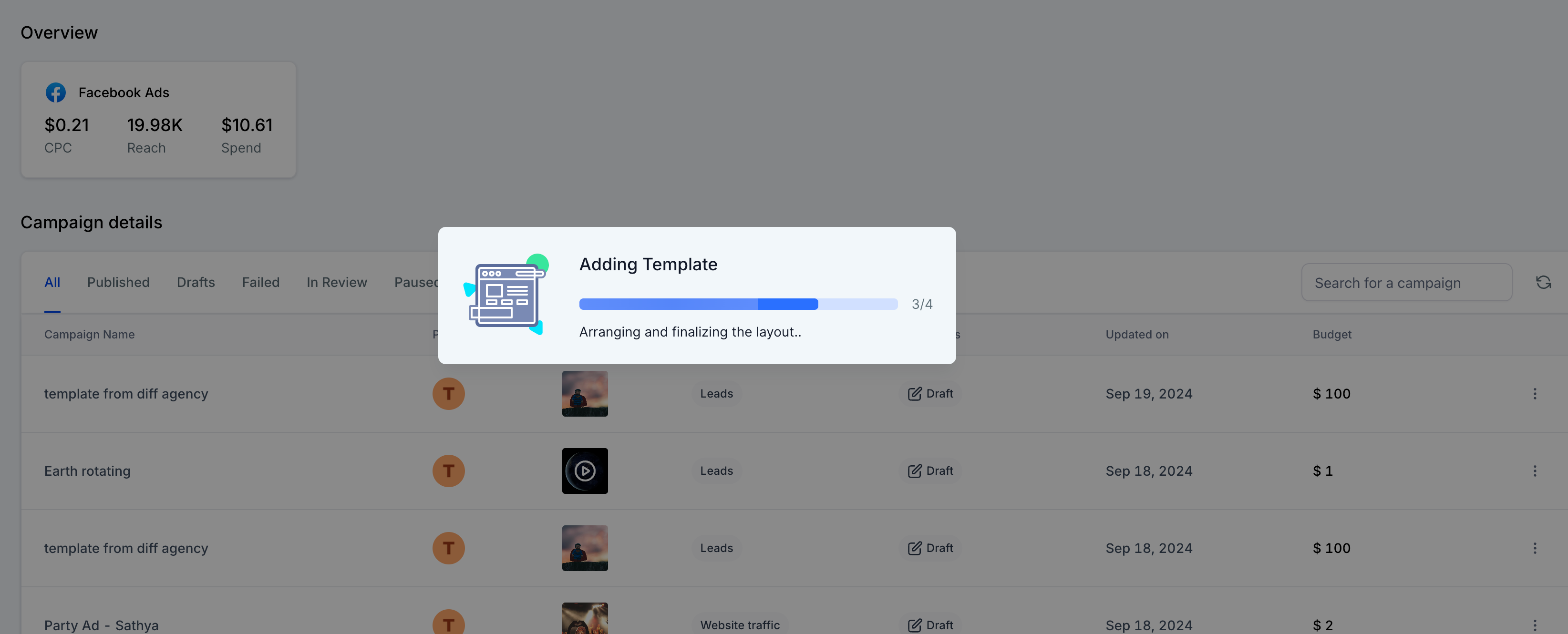
- User selects any one of the template to see a preview of the same and on click of 'Continue' the process of adding the template begins.
Note: Every time a campaign is created using templates, it will not have the following things associated with the campaign and user need to enter it manually before proceeding to publish a campaign:

1. There will be no page associated to the newly created campaign and once user click on edit campaign, the page which is set as the default page will be assigned to this campaign which can be changed by the user if desired.

2. As there will be no page designated to the campaign, it means that the form to be used for 'Lead Generation' objective needs to be selected by the user manually.
How to create a template out of an existing campaign?
Catering to the fact that there might be some exceptional campaigns that have outperformed and deserves to be saved as templates for future campaign creation process or you want to allow users of different sub-account to use the format of this campaign. In order to do that, below is a list of steps to be followed to create a template out of a campaign:
Existing LinkedIn campaigns can be uploaded to the Template Library for reuse across accounts.
From the campaign list, locate the LinkedIn campaign, open the ellipsis (⋮) menu, and select Upload to Template Library. Enter the template name and category, then click Upload.

The template is saved as a draft. You can edit the template, keep it as a draft, or publish it for reuse.
Uploading a Google Demand Gen campaign follows the same Template Library workflow as other supported campaign types. The uploaded campaign is created as a Draft template before it is published.Access note: The template workflow below is available only to users with Template Library access. Restricted sub-account users do not see Ad Manager Templates. After selecting an advertising platform, they go directly to the campaign builder using Start From Scratch.
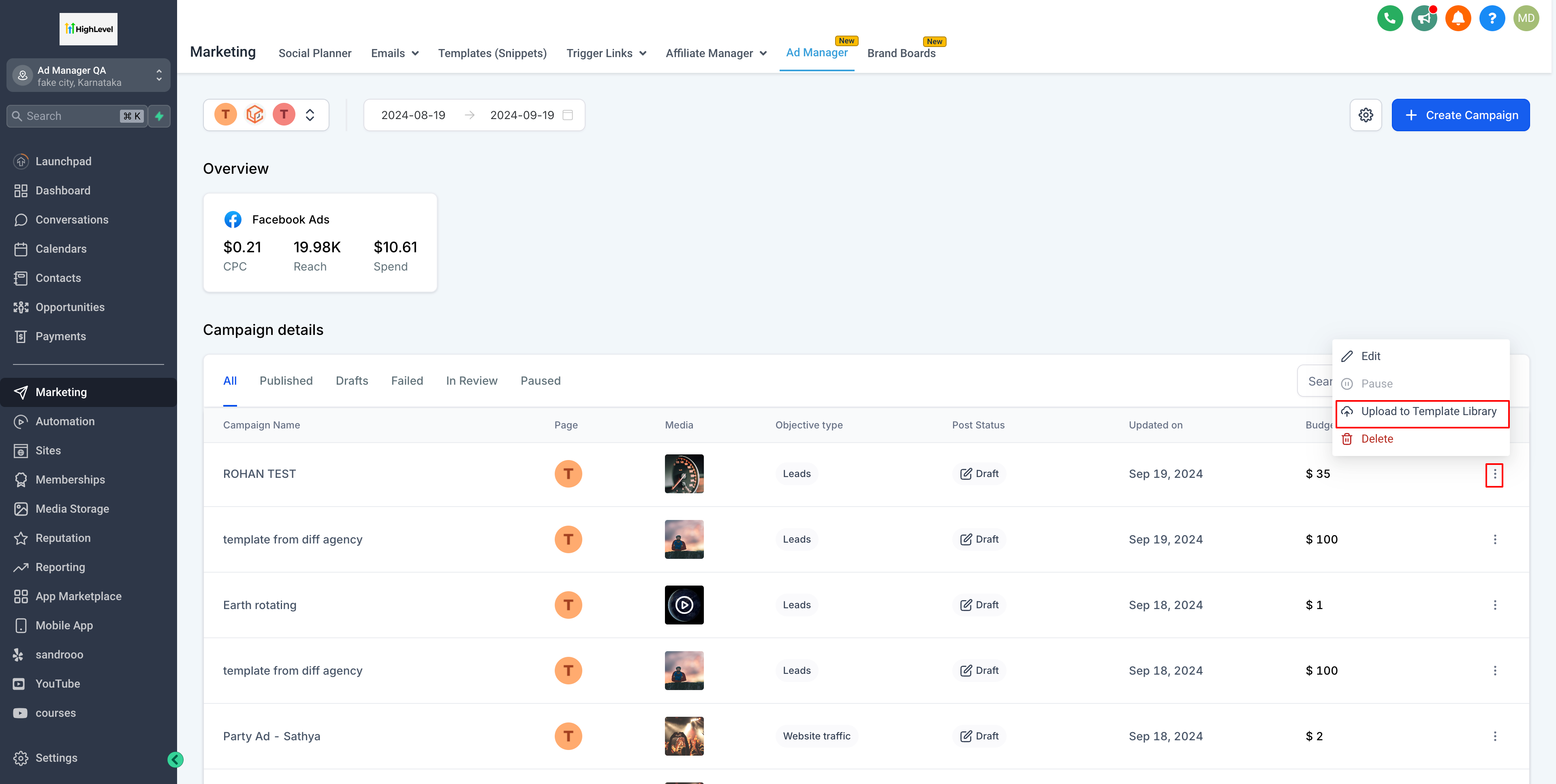
- Out of the list of existing campaigns, user can choose to select any of the campaign to be used as a template by clicking on the ellipses of that campaign and select 'Upload to Template Library'.
- A dialog pops open, fill in the template name and which category this template will belongs. As category is an important step to have distinctive templates, if one doesn't exist, it can be created under Template Library settings.
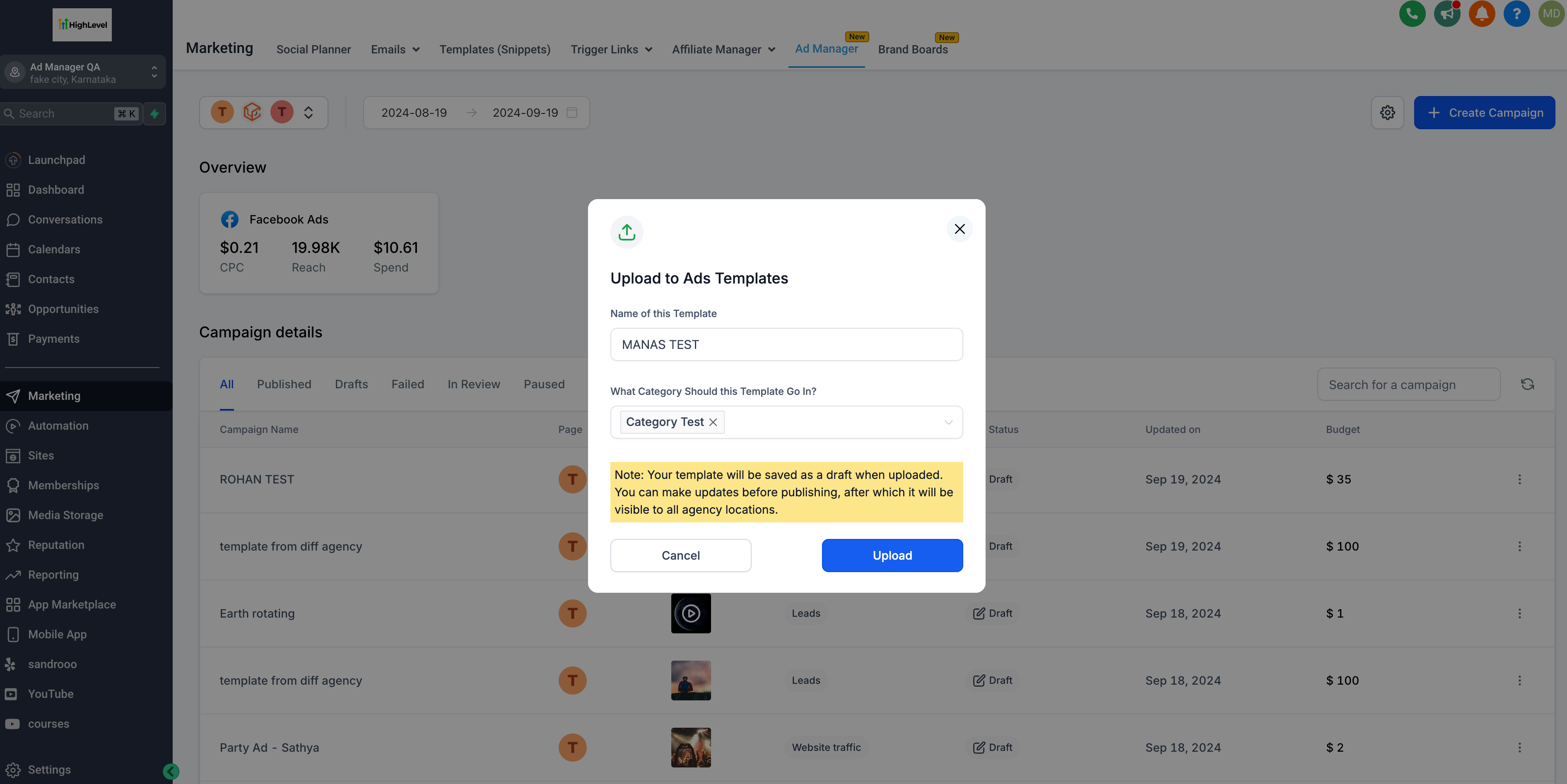
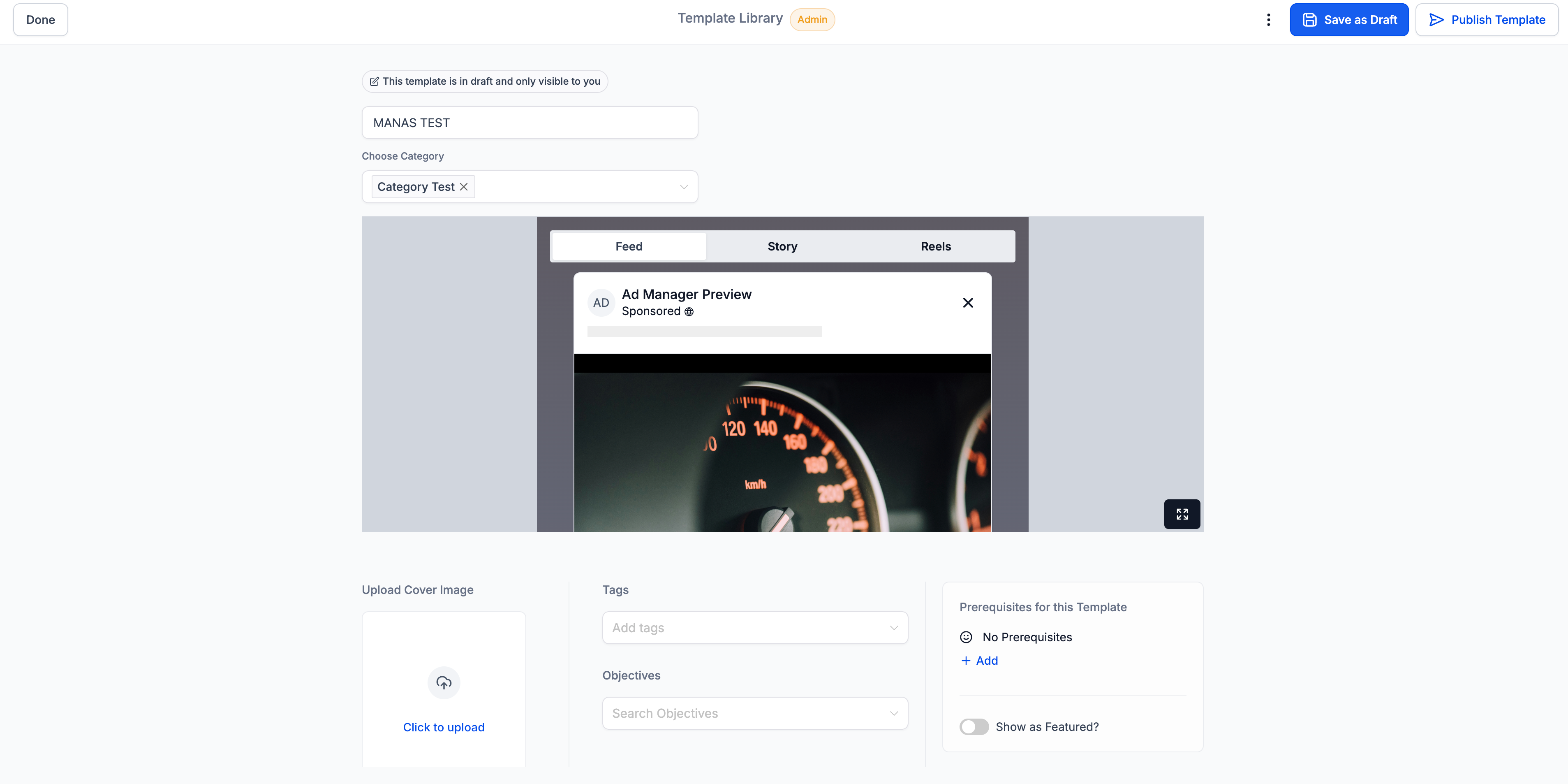
- Click on 'Upload' and the campaign will be saved as a draft template.
- On click of 'Upload', a screen showcasing the draft template opens up which can be modified if needed and saved as draft or can be published as a template.
Note: In order to learn and create templates from Agency admin screen, refer How to Manage and Create Templates from the Admin Screen help article.
Frequently Asked Questions
Q: Which advertising platforms support Ad Manager templates?
Current Ad Manager template documentation supports Google, Meta, and LinkedIn.
Q: Where do I choose an Ad Manager template when creating a campaign?
From the Sub-Account, go to Marketing → Ad Manager → + Create Campaign, select the advertising platform, click Next, then select Ad Manager Templates.
Q: Why don't I see Ad Manager Templates?
Template Library access may be restricted for the Sub-Account. When access is restricted, location users skip the template-selection step and continue with Start From Scratch.
Q: Can I customize a campaign after applying a template?
Yes. Review and update supported campaign copy, creative, URLs, targeting, and other settings before publishing.
Q: Can I upload an existing Ad Manager campaign as a template?
Supported campaigns can expose Upload to Template Library from the campaign's ellipsis menu. Availability can vary by campaign or product type.
Q: What happens after I upload a campaign to Template Library?
The uploaded campaign is created as a Draft template. An eligible Agency Admin can review it, keep it in Draft, or publish it when ready.
Q: Does a template copy every campaign setting?
Do not assume every setting transfers. Review all account-specific and platform-specific fields before publishing the resulting campaign.
Was this article helpful?
That’s Great!
Thank you for your feedback
Sorry! We couldn't be helpful
Thank you for your feedback
Feedback sent
We appreciate your effort and will try to fix the article