Arrangement of products within the Product list page was an issue. Buyers always faced issue with the discoverability of products and as a store owner this was a bottleneck. To tackle this problem, store owners can now add the sort and filter option in the product list page.
TABLE OF CONTENTS
- Mobile Product List Page (PLP)
- Mobile Sort (Bottom Sheet)
- Mobile Filters (Full-Screen Modal)
- Product Count & Result Updates
- Builder Preview & Styling
- How to Use:
- Frequently Asked Questions
- Recent/Related Articles
Mobile Product List Page (PLP)
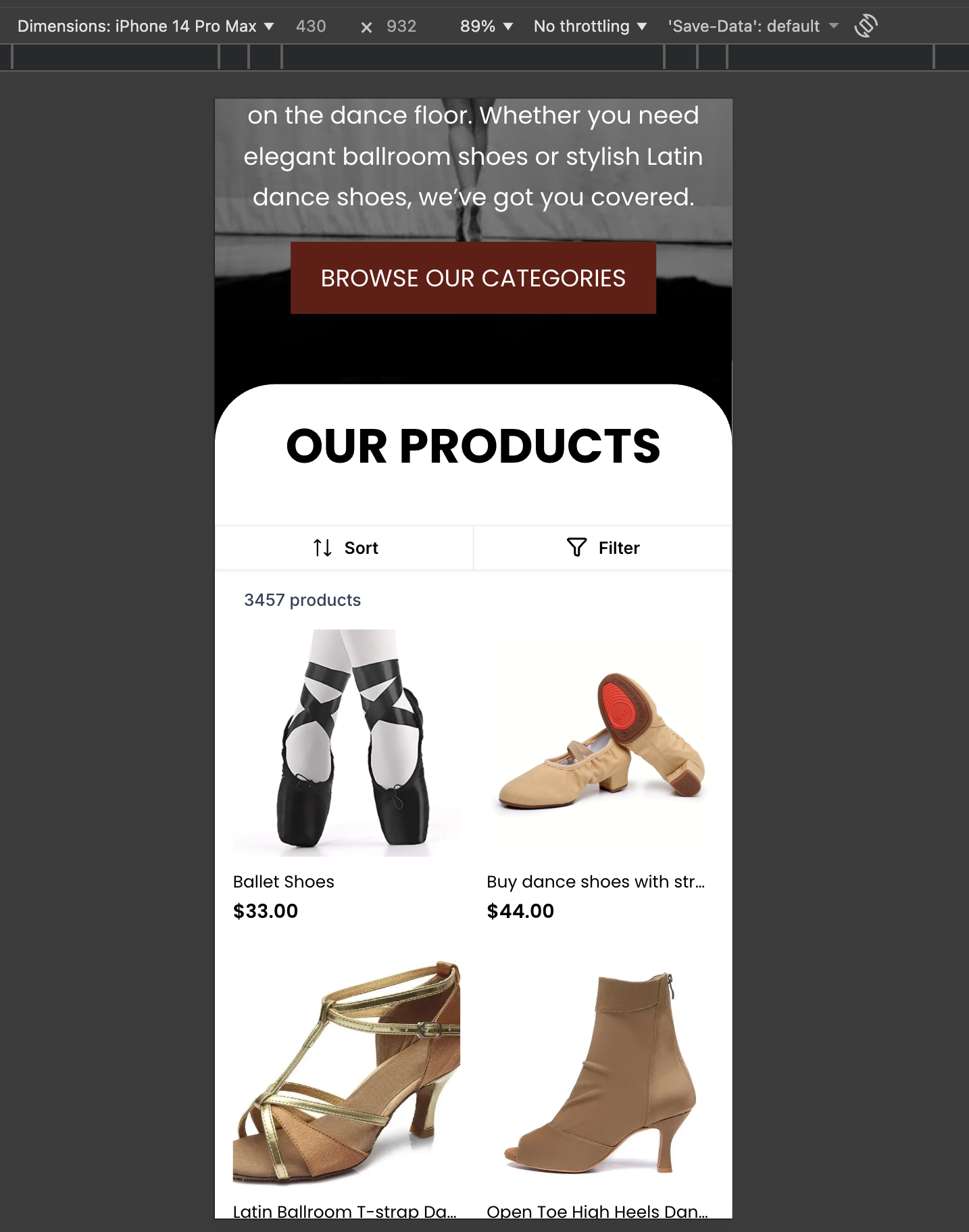
Mobile shoppers need quick ways to narrow large catalogs on small screens. The PLP now includes touch-optimized Sort and Filter controls, a dynamic product count, and builder-side styling so you can match your brand.
Mobile Sort (Bottom Sheet)
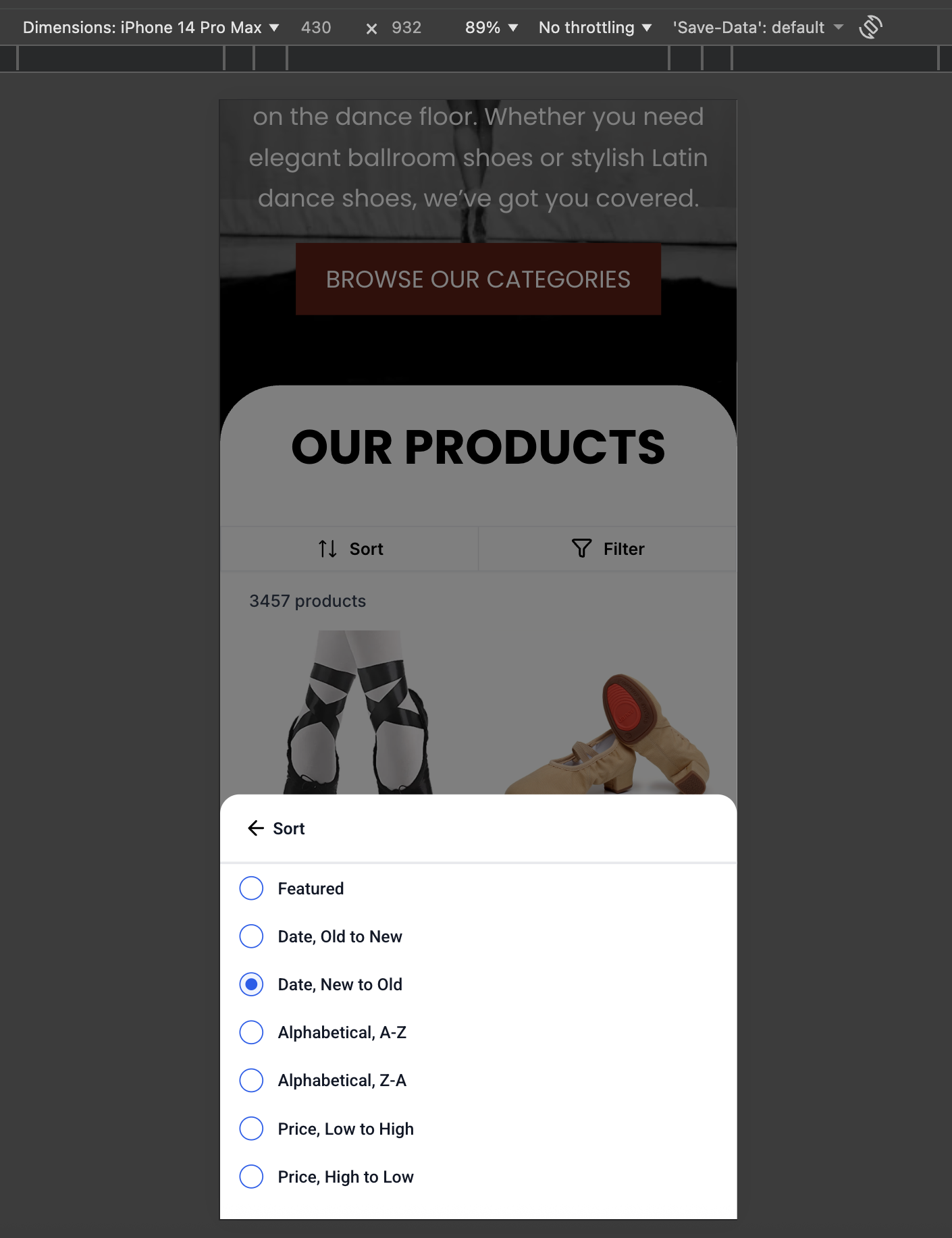
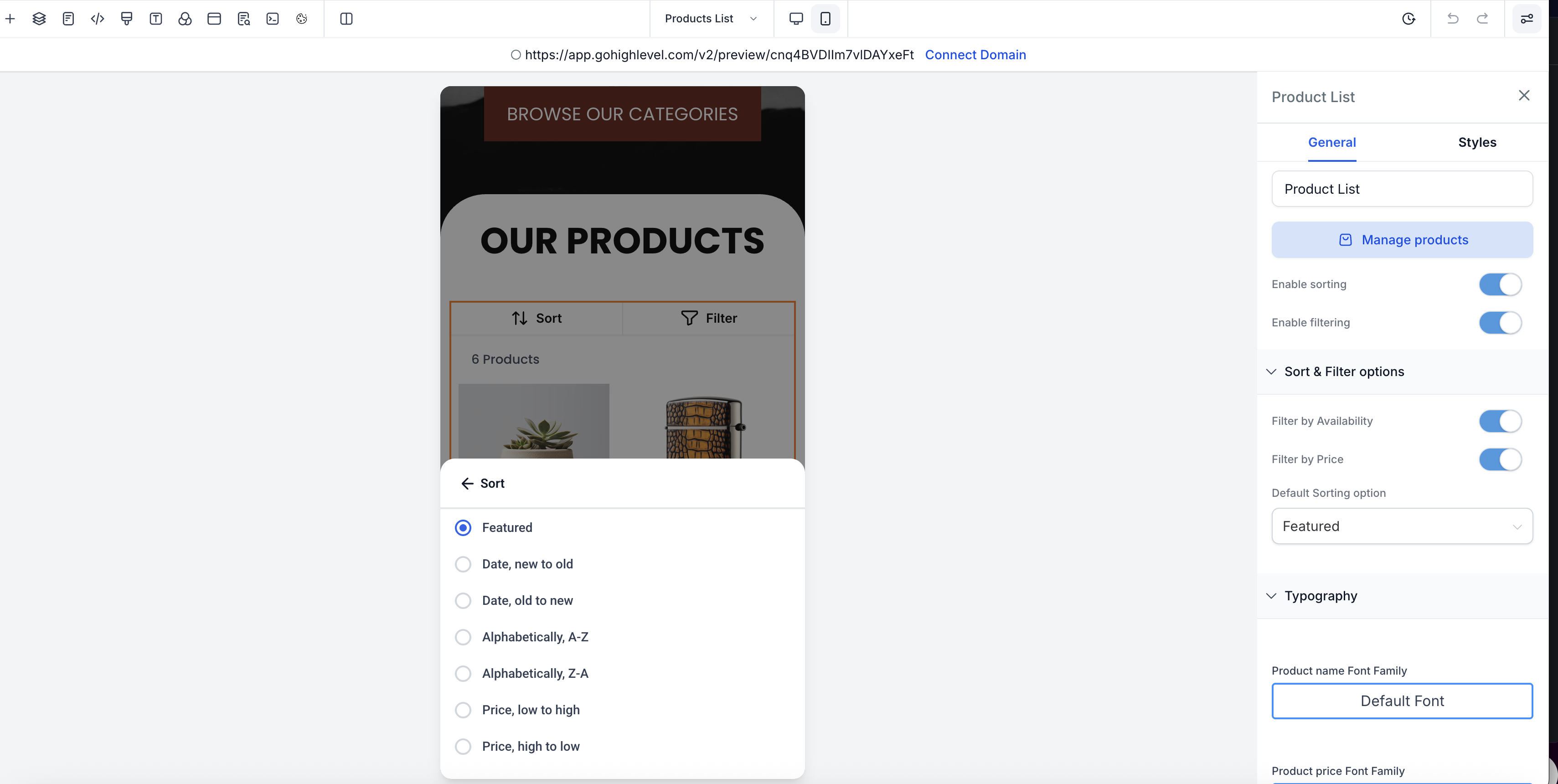
A dedicated Sort button appears in the PLP top bar on mobile. Tapping opens a bottom-sheet modal with common sort choices.
Available Options
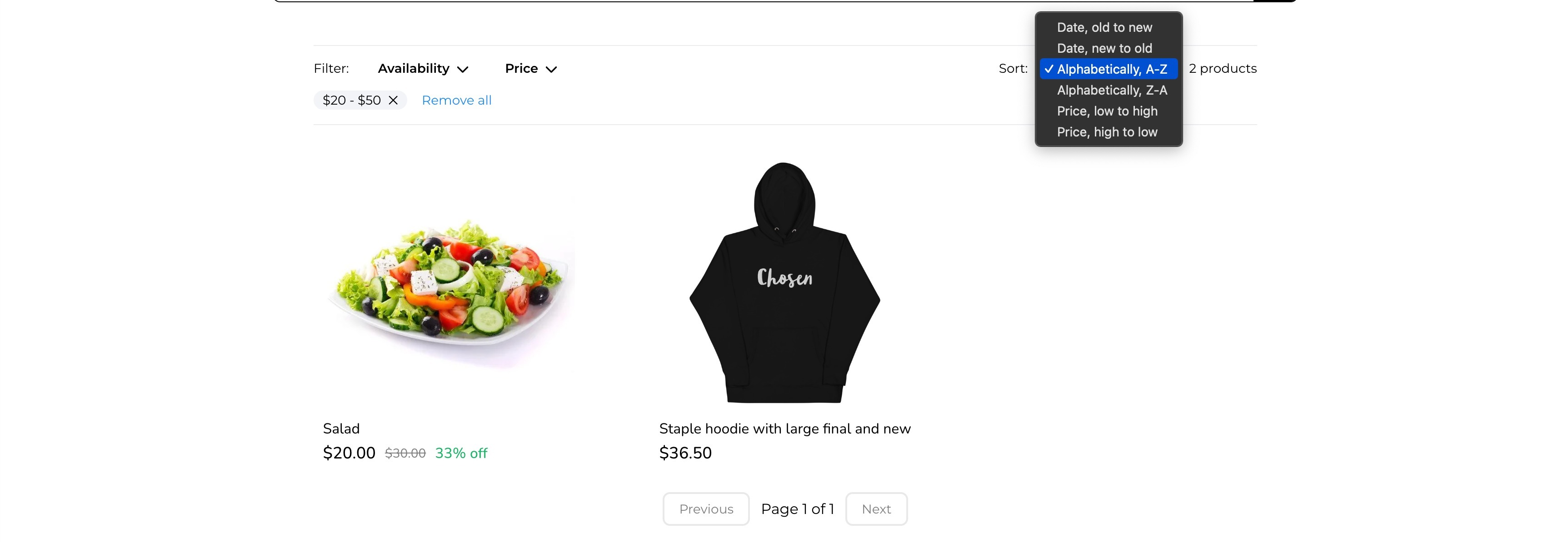
- Date (Old → New, New → Old)
- Alphabetical (A–Z, Z–A)
- Price (Low → High, High → Low)
Tips
- Dismiss the sort sheet by tapping outside or swiping down.
- Set a Default Sorting option in the widget to guide first-load ordering.
Product titles on the Product List Page (PLP) continue to follow the existing truncation behavior (ellipses). Full-title wrapping applies to most other store pages, but not the PLP.
Mobile Filters (Full-Screen Modal)
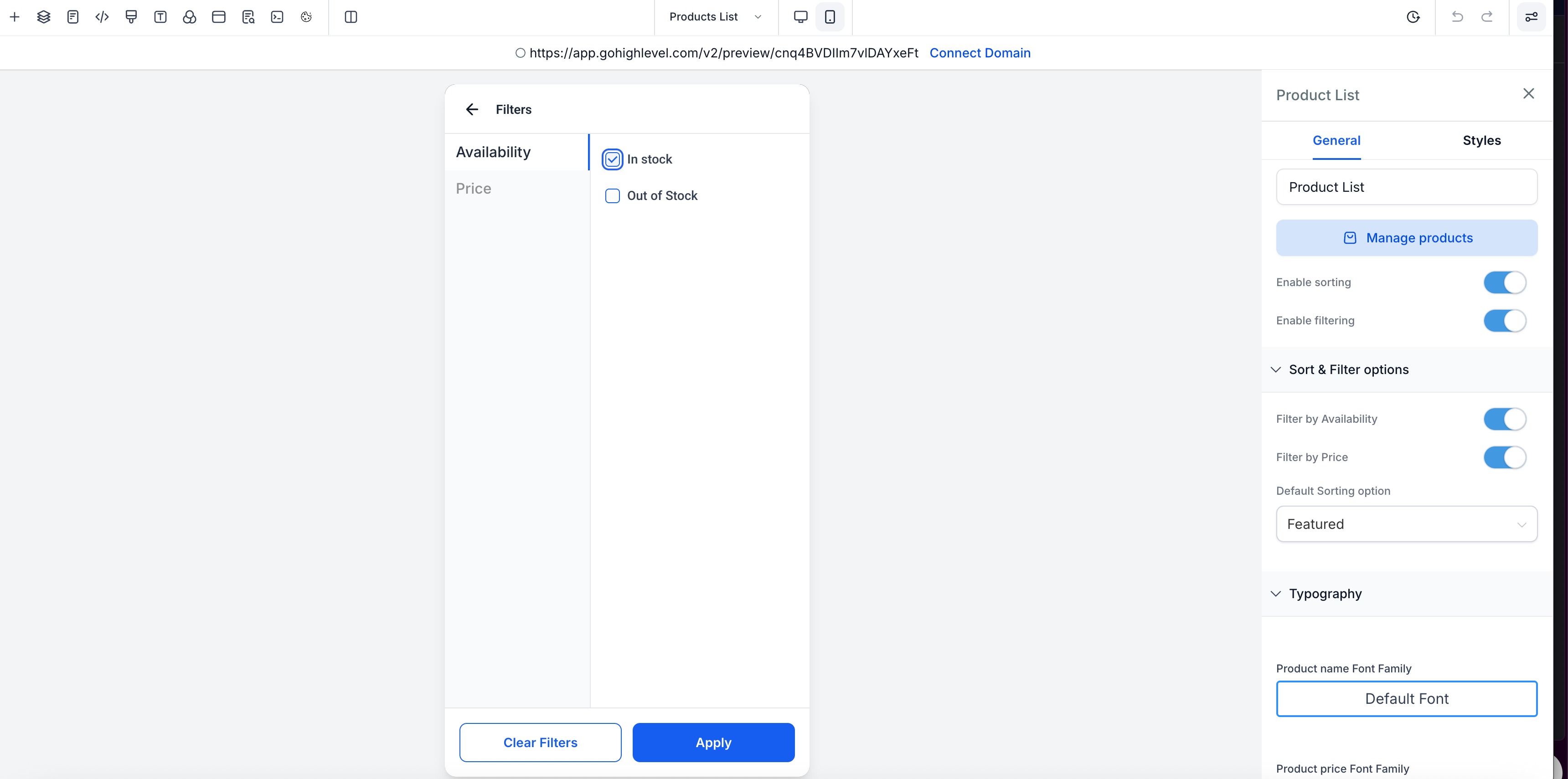
Filtering helps shoppers see only relevant items. On mobile, Filters open in a **full-screen** modal with a sticky footer for easy actions.
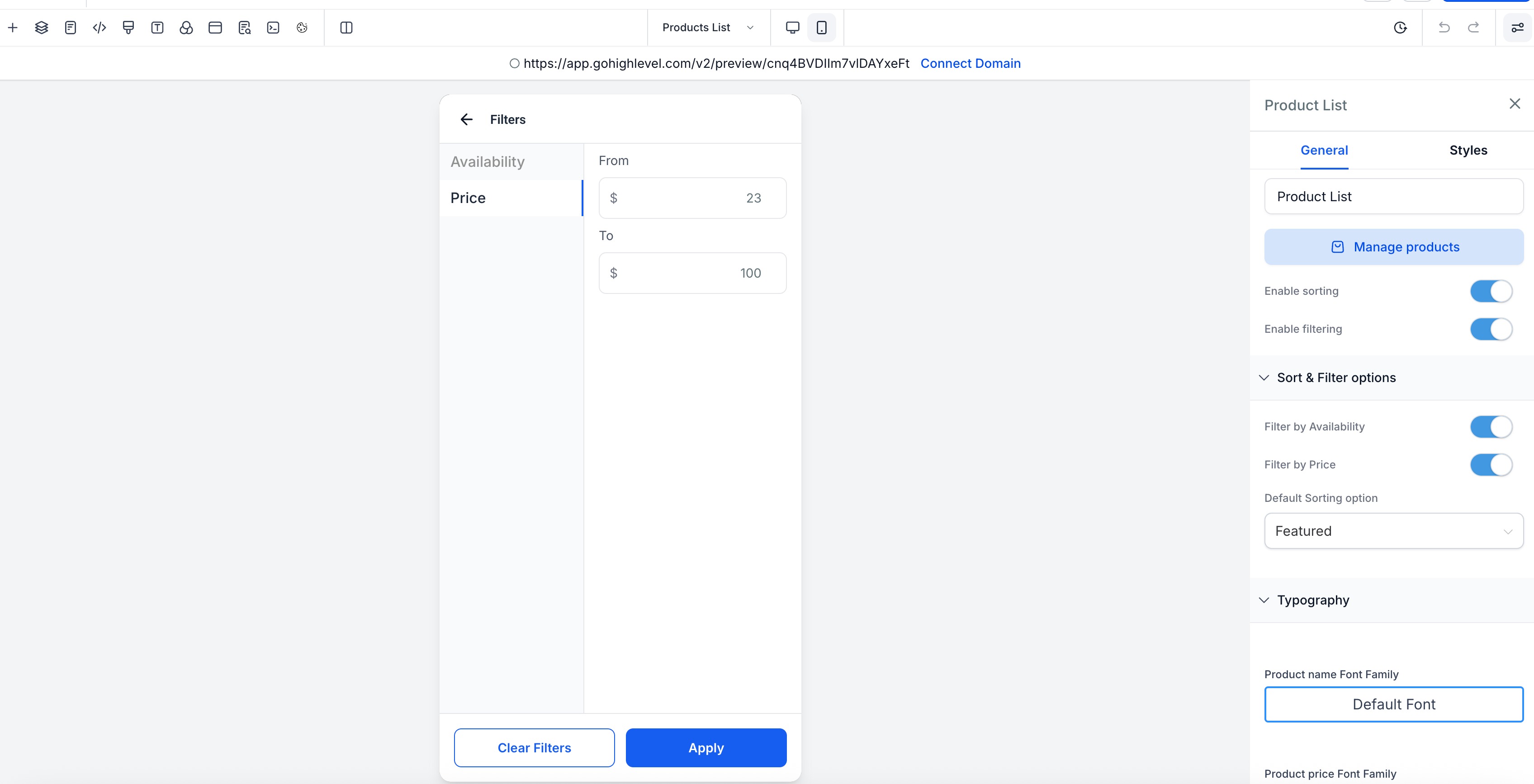
Filter Types
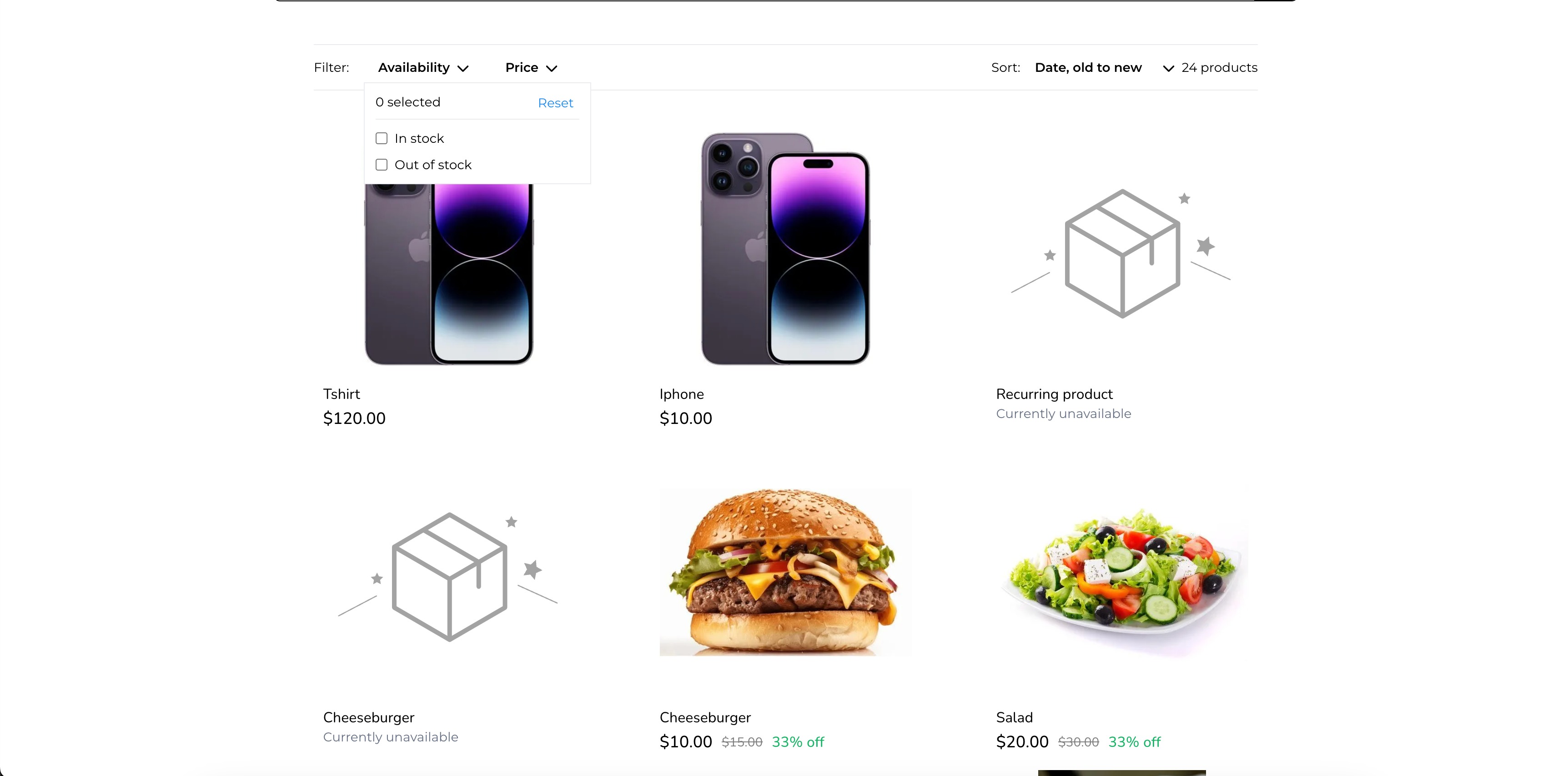
- Availability: In stock / Out of Stock
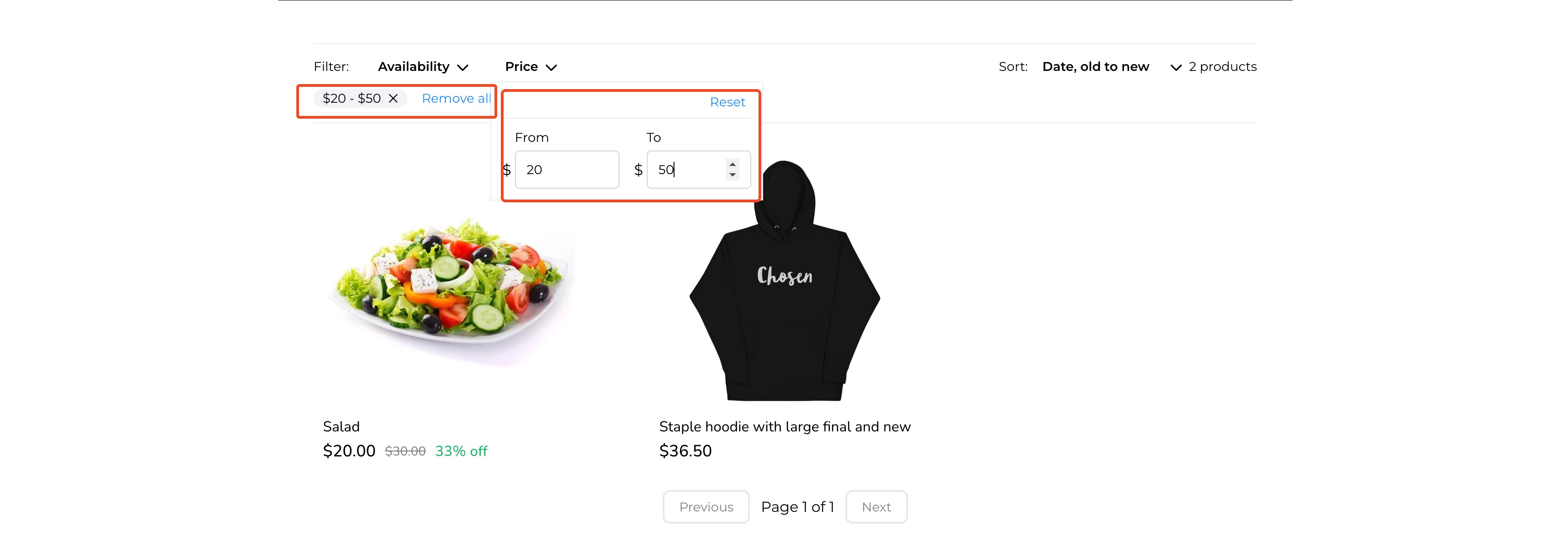
- Price Range: From and To numeric inputs
Behavior
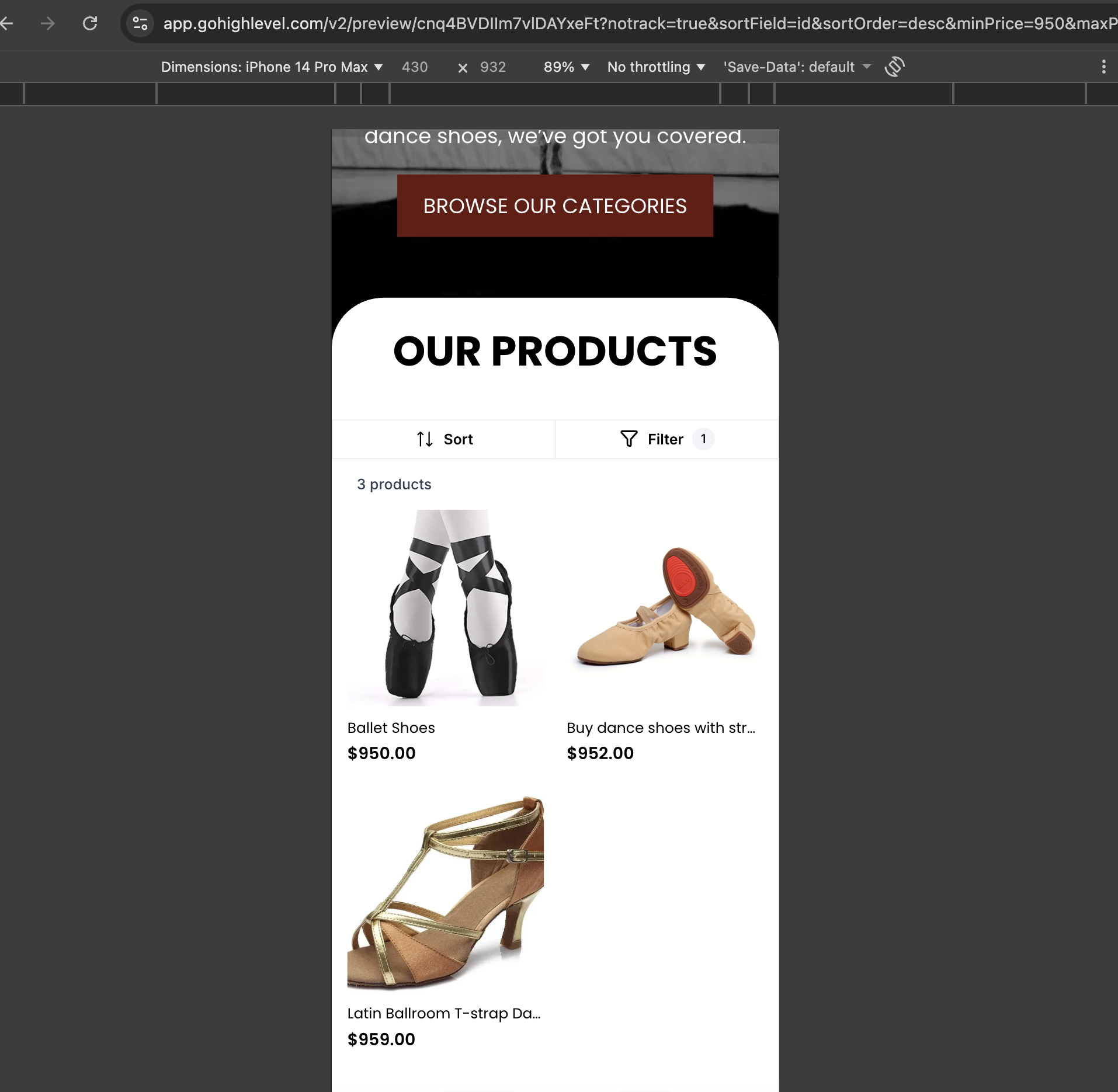
- Apply instantly updates results; Clear Filters resets selections.
- The Filters button shows a badge count for active filters.
Availability defaults (both selected) and price validation behavior follow store settings. If you’ve customized availability rules, only eligible products will surface.
Product Count & Result Updates
A running product count appears at the top of the PLP and updates dynamically as filters are applied or cleared, giving shoppers context while browsing.
Builder Preview & Styling
Preview the exact mobile interactions in the mobile device frame of the builder and style the controls from the widget panel.
You can customize
- Sort/Filter bar background color
- Text color for Sort and Filter buttons
- Apply and Clear Filters button styles
How to Use:
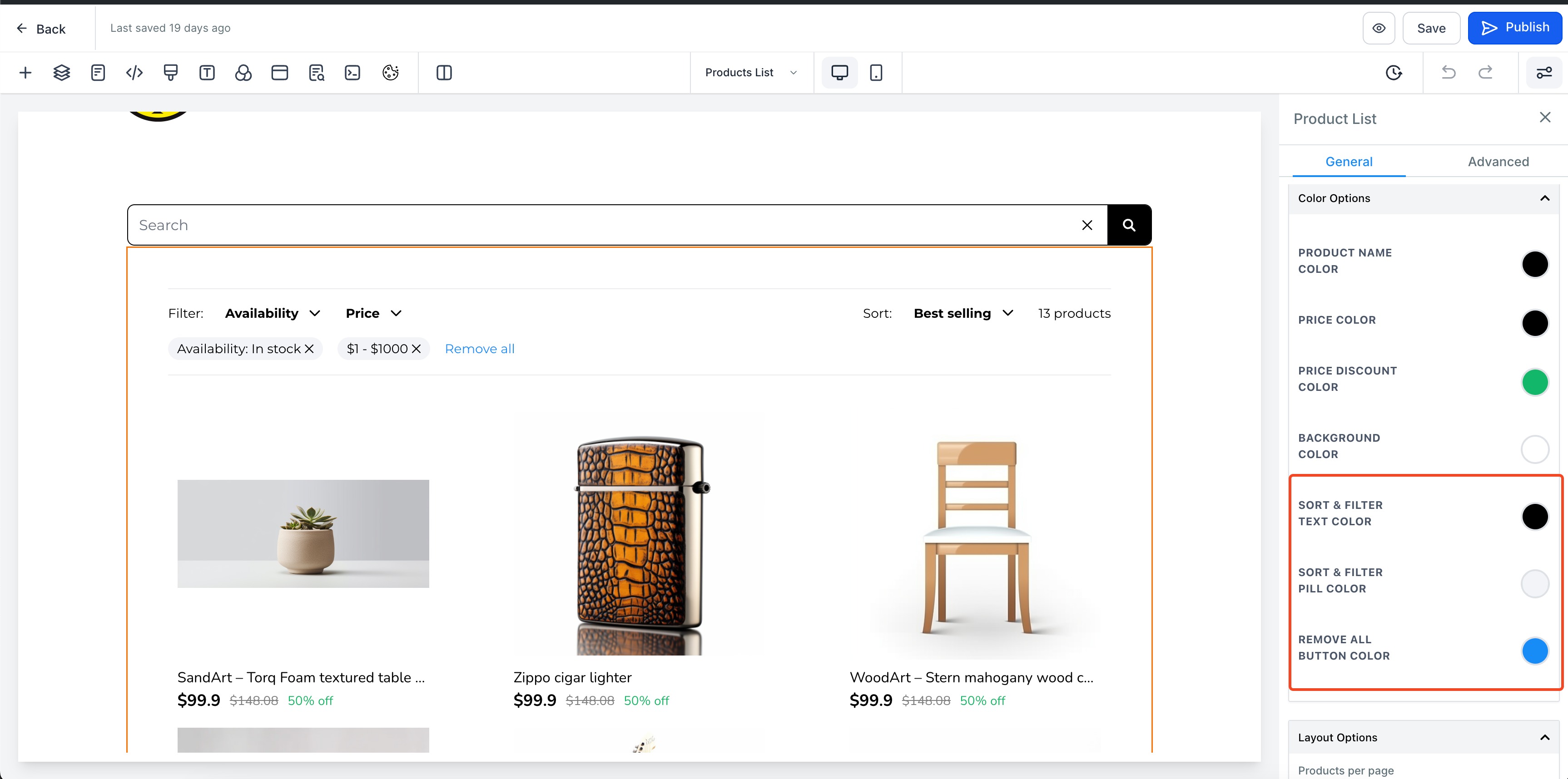
- Navigate to the product list page, and select the product list element. There would now be 2 toggles to enable Sorting and Filtering. Enable them to add Sort & Filter elements to your Product List page. If your store has a large catalog, you can reduce pagination on the Product Listing Page by increasing how many products display per page.
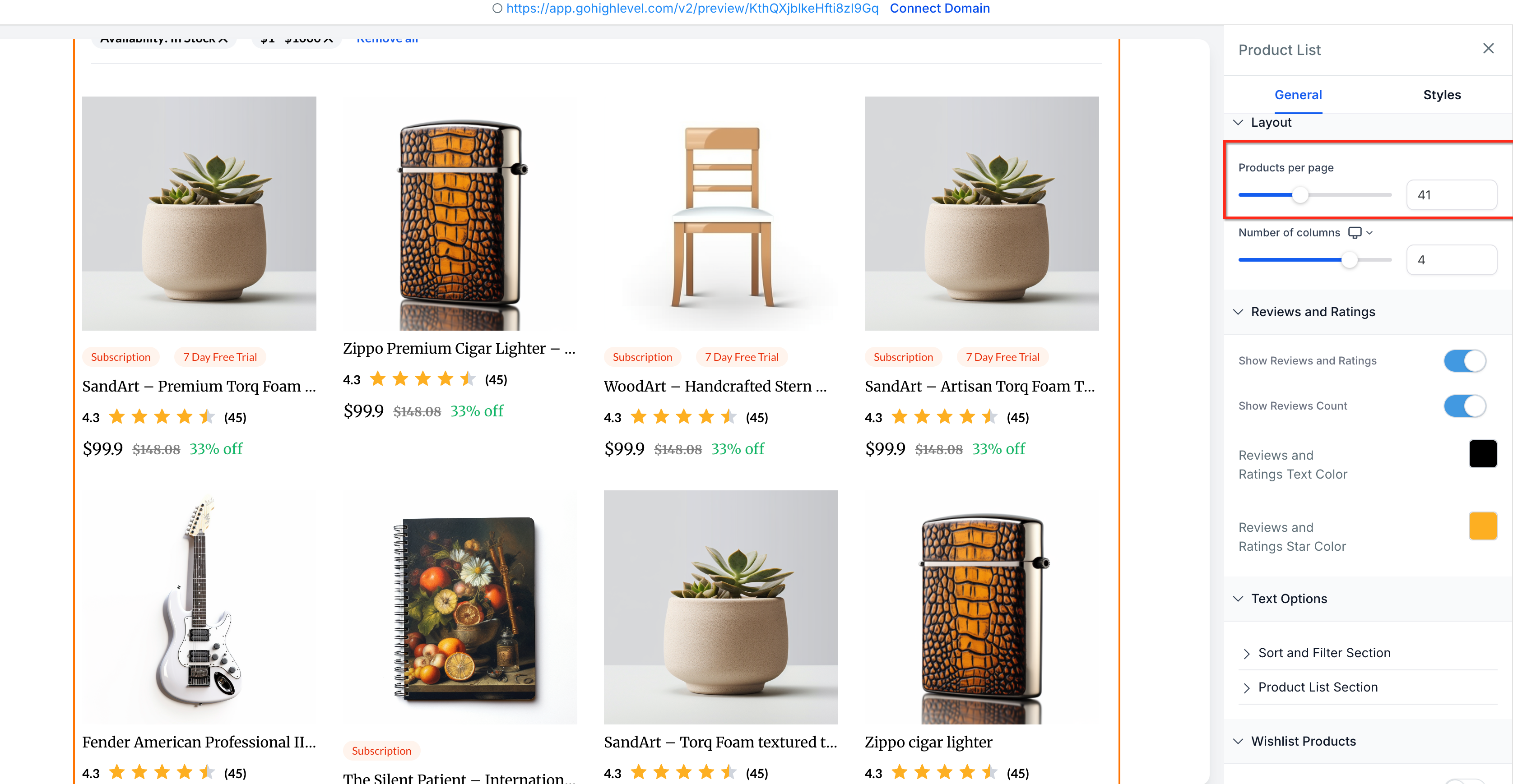
- Configure properties for the sort and Filter. Some of the properties that can be configured are:
- Sort and filter text color
- Sort and filter pill color
- Reset button color|
3. Click on save/Publish to view your changes in your site!
Some Key Aspects:
- Sort and filter options are only available in the product list page
- Default sort order is Date - Old to new
- By default all products will be shown without any filters
Images:
Adding Sort & Filter to your store
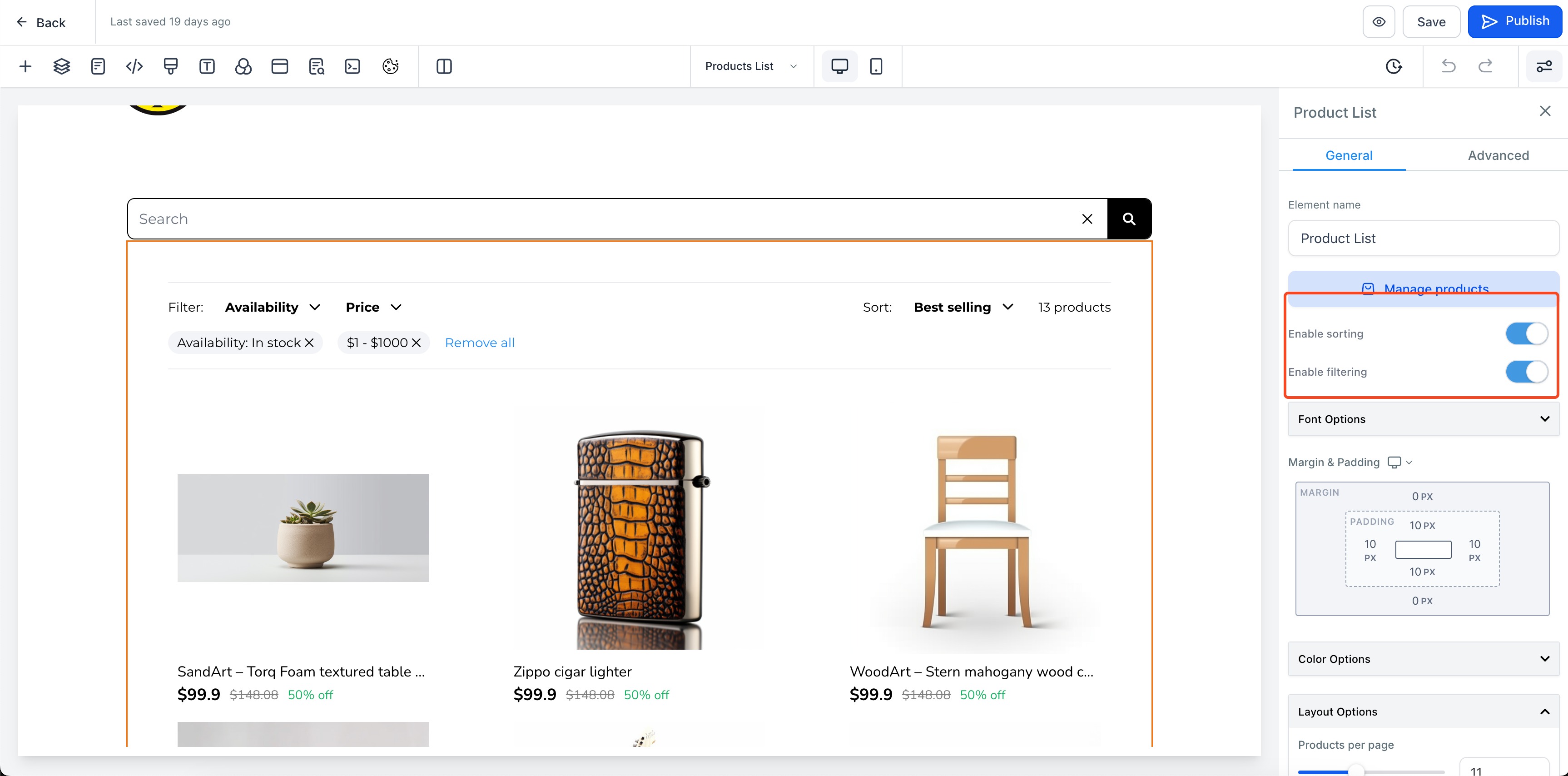
Configure properties of Sort & Filter
Filter option preview in product list page
Applying Filter to products
Sort option preview in product list page
Frequently Asked Questions
Q1: Where do I enable mobile sorting and filtering?
Enable both in the Product List widget → General tab → toggle Enable sorting and Enable filtering.
Q2: Can shoppers change the sort order on mobile?
Yes. Tapping Sort opens a bottom-sheet with Date, Alphabetical, and Price options (each with two directions).
Q3: What filters are available on mobile?
Availability (In stock / Out of Stock) and Price Range (From/To). The Filters modal is full-screen with a sticky Apply/Clear footer.
Q4: Are Availability options selected by default?
By default both are selected so shoppers see all products until they refine. (If your store theme overrides defaults, behavior follows store settings.)
Q5: Does the PLP show how many products match?
Yes. A product count appears at the top and updates dynamically when filters change.
Q6: What does the badge on the Filters button mean?
It shows how many filter criteria are currently active.
Recent/Related Articles
- Manual Product Sorting on Product List Page in Ecommerce Stores
- Search Bar Element in Ecommerce Stores
- Products — Manual & Smart Collections
Was this article helpful?
That’s Great!
Thank you for your feedback
Sorry! We couldn't be helpful
Thank you for your feedback
Feedback sent
We appreciate your effort and will try to fix the article