Agency Admins can create custom templates directly from the Template Library in Agency View without switching between sub-accounts.
To create a template, select the source sub-account and product, preview and optionally rename the template, then save it as a draft or publish it.
Note: Custom template creation requires an eligible Agency Admin account on the Pro plan.
For the complete step-by-step instructions, see Add Custom Templates to Template Library.
?
What we did:
- Direct Create:Templates can now be imported/ created directly from the Admin screen.
- Streamlined Process:Choose sub-accounts, preview templates, and rename them seamlessly.
⭐
Benefits:
- Efficiency:Saves time by consolidating template management into one screen.
- Simplified Workflow:Eliminates complexity across screens and sub-accounts.
?
How It Works:
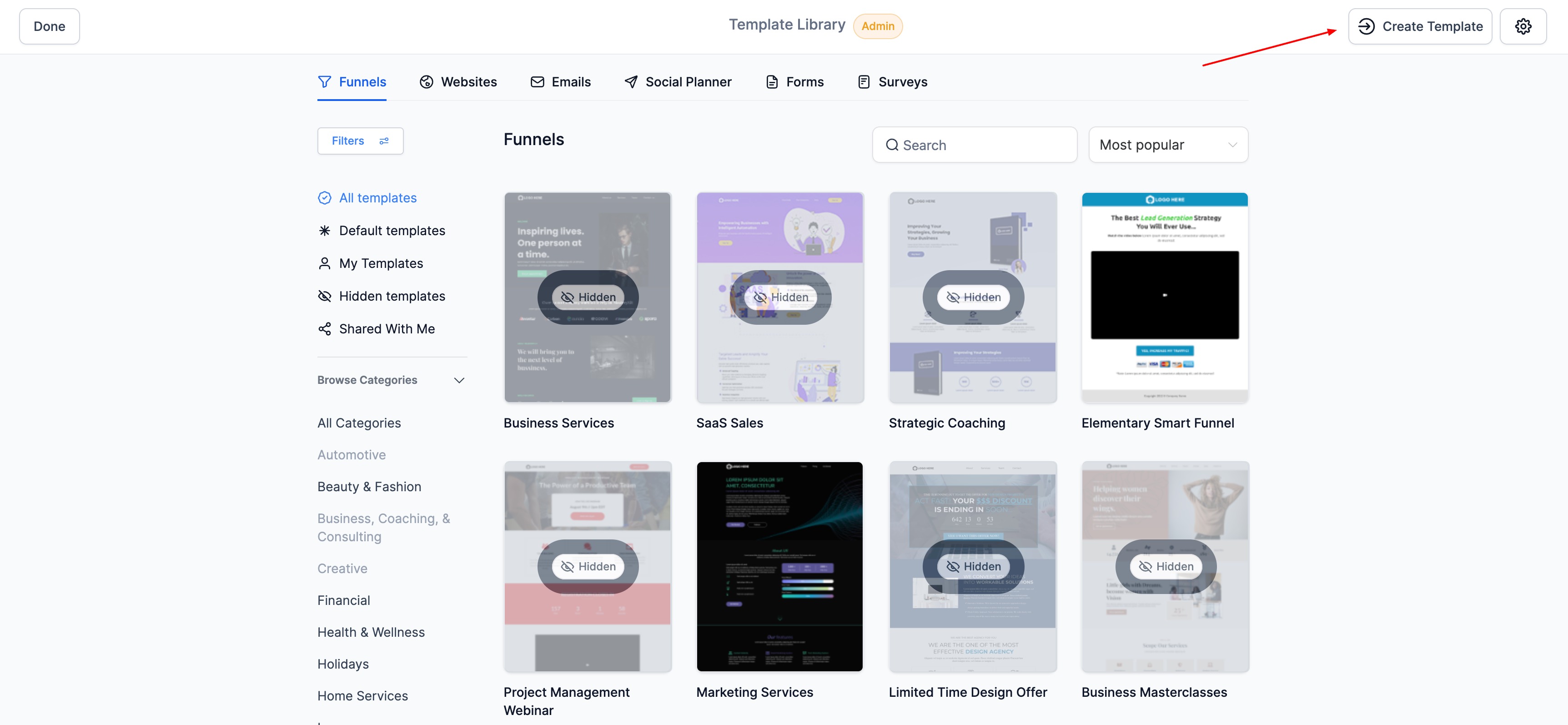
- - Navigate to Template Library - Admin.
- - Click "Create" at the top right.
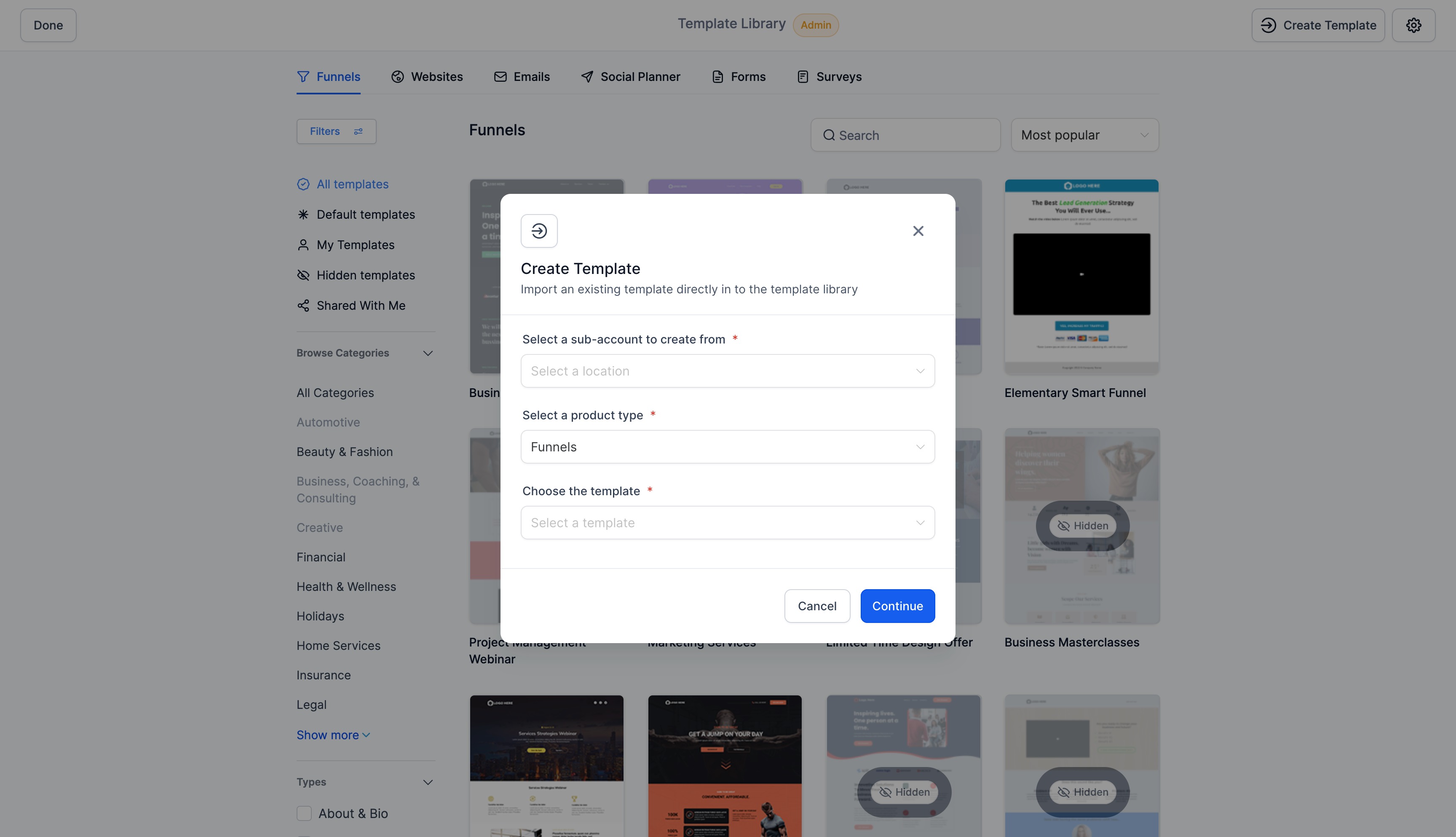
- - Choose the sub-account, product, and template name.

- - Click "Continue" to preview the template thumbnail. Click on the thumbnail to see the entire preview in a different screen
- - Rename the template if needed.
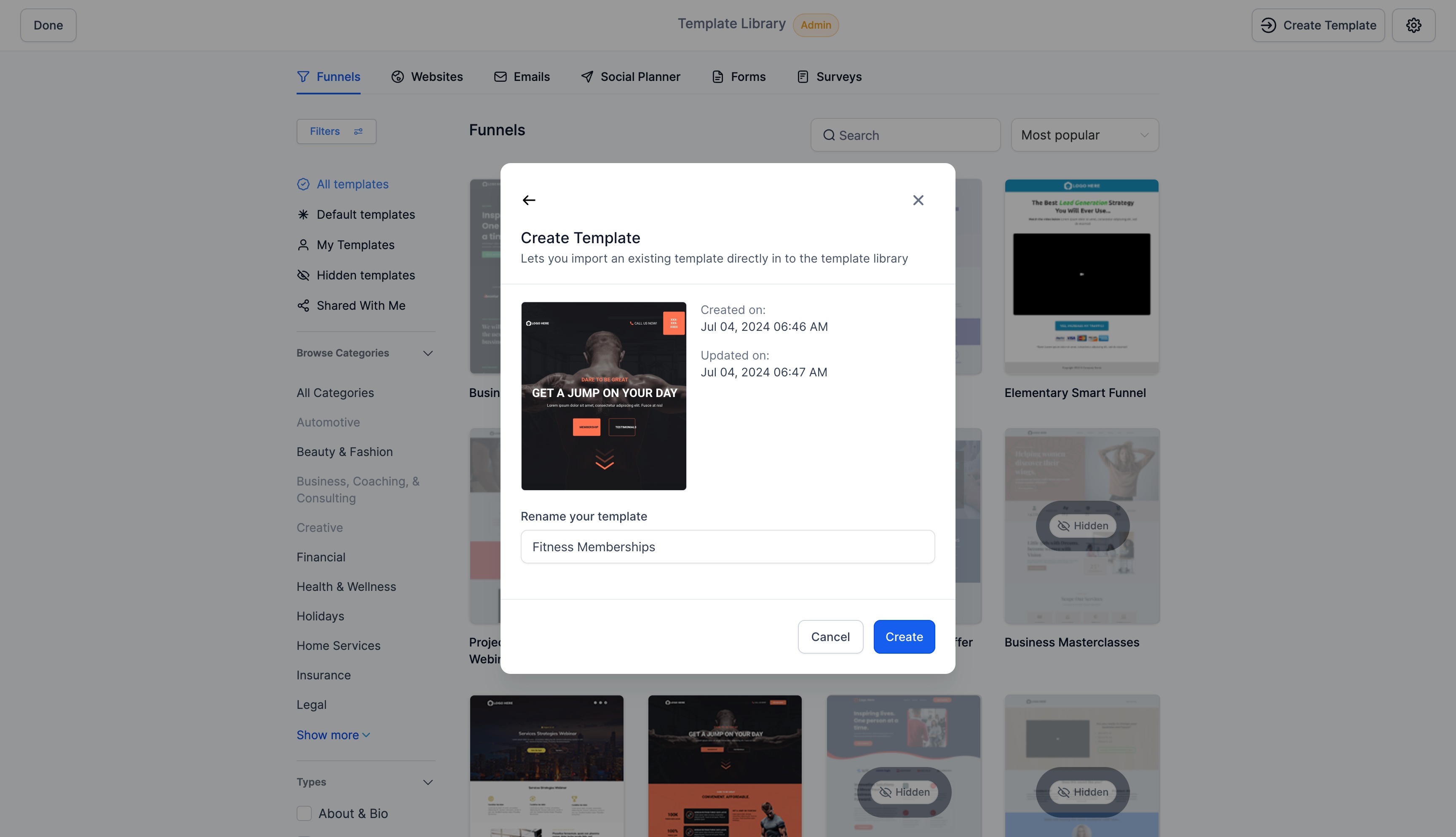
- - Click "Create" to finalize.
- - Update details like description and categories.
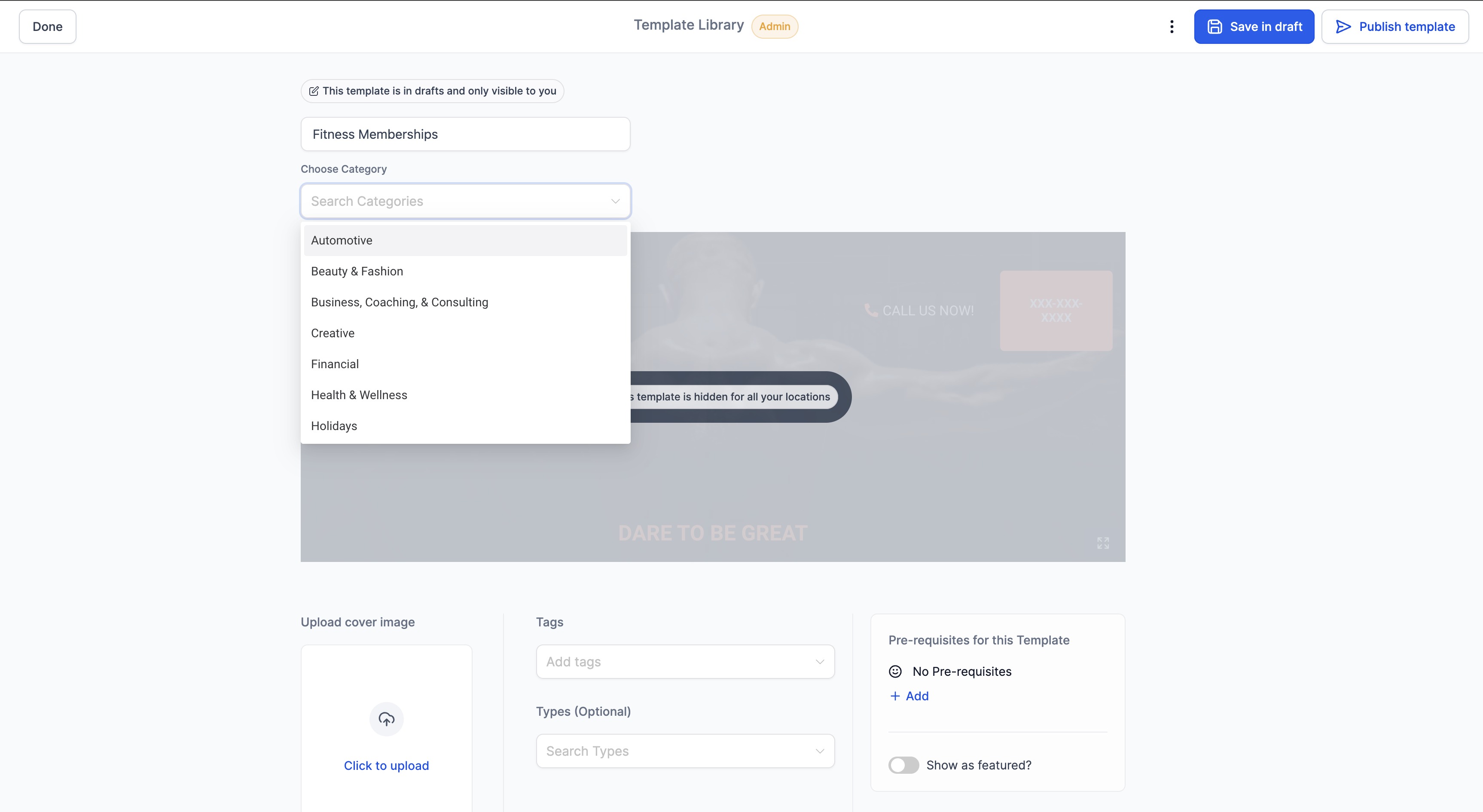
- - Choose to Publish or Save as draft.
Was this article helpful?
That’s Great!
Thank you for your feedback
Sorry! We couldn't be helpful
Thank you for your feedback
Feedback sent
We appreciate your effort and will try to fix the article