Ring Incoming Calls to Multiple Users

Modified on: Thu, 3 Sep, 2026 at 9:23 AM

Phone System

Ring Incoming Calls to Multiple Users

Distribute incoming calls across multiple team members simultaneously to improve response times and ensure no call goes unanswered.
What You'll Learn

This article explains how to configure ring groups in HighLevel to simultaneously ring multiple team members when a call comes in. You'll learn how to set up call distribution, manage ring strategies, and optimize your team's call handling workflow.

Ring groups help businesses improve call coverage, reduce missed opportunities, and ensure customers connect with available team members faster.

1

What is Multiple User Ring?

Multiple User Ring, also known as ring groups or simultaneous ring, is a call distribution feature that rings multiple team members' phones at the same time when an incoming call arrives at your HighLevel phone number.

When a caller dials your business number, the system rings all designated users simultaneously. The first team member to answer the call connects with the caller, while the other phones automatically stop ringing. This ensures faster call pickup times and reduces the likelihood of missed calls.

Ring groups are ideal for sales teams, customer support departments, and any business scenario where multiple people need to be available to handle incoming calls without routing callers through a time-consuming menu system.

2

Key Benefits

Configuring multiple users to receive incoming calls provides several operational and customer experience advantages.

Faster Response Times — Callers connect with an available team member immediately without waiting in queue or listening to hold music.
Reduced Missed Calls — If one team member is unavailable or busy, another can answer the call, minimizing lost opportunities.
Improved Customer Satisfaction — Customers appreciate immediate human connection rather than navigating phone trees or waiting on hold.
Better Team Collaboration — All team members have equal opportunity to engage with incoming leads and customers.
Flexible Coverage — Teams can maintain call coverage during breaks, meetings, or varied schedules without formal call forwarding.
Scalable Distribution — Add or remove team members from ring groups as your business needs change without complex configuration.
3

Ring Strategy Options

HighLevel supports multiple ring strategies to match your team's workflow and call handling preferences. Each strategy determines how incoming calls are distributed among team members.

Strategy 1
Ring All (Simultaneous Ring)

All designated users' phones ring at the same time. The first person to answer connects with the caller. This strategy maximizes speed and minimizes wait time but may create competition among team members for call pickup.

Strategy 2
Round Robin

Calls are distributed sequentially to team members in rotation. Each incoming call rings one person at a time, cycling through the group. If the first person doesn't answer within the specified timeout period, the call moves to the next person in the rotation. This strategy ensures even call distribution across team members.

Strategy 3
Priority Order (Hunt Group)

Calls ring users in a predefined order. The system tries the first person in the priority list, then moves to the second if no answer, then the third, and so on. This strategy is ideal when you have a primary contact person with backup coverage from other team members.

Note

The availability of specific ring strategies may vary based on your HighLevel plan and phone system configuration. Contact your account administrator to confirm which strategies are enabled for your account.

4

How to Set Up Multiple User Ring

Follow these steps to configure ring groups and distribute incoming calls across your team members.

Step 1
Access Phone Settings

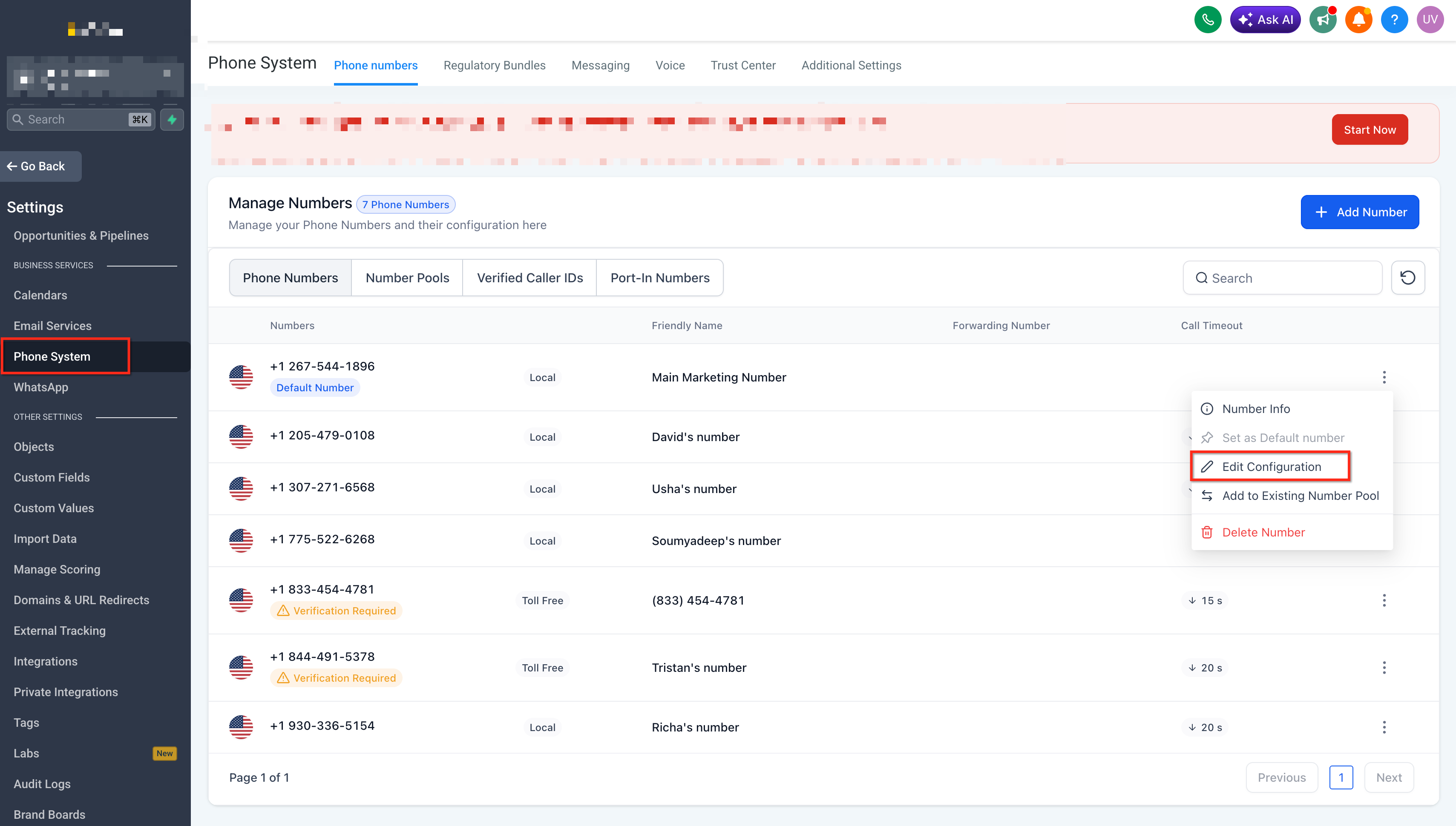
Navigate to Settings > Phone Numbers in your HighLevel account. Locate the phone number you want to configure for ring groups and click the Edit Configuration.
Step 2
Configure Call Forwarding

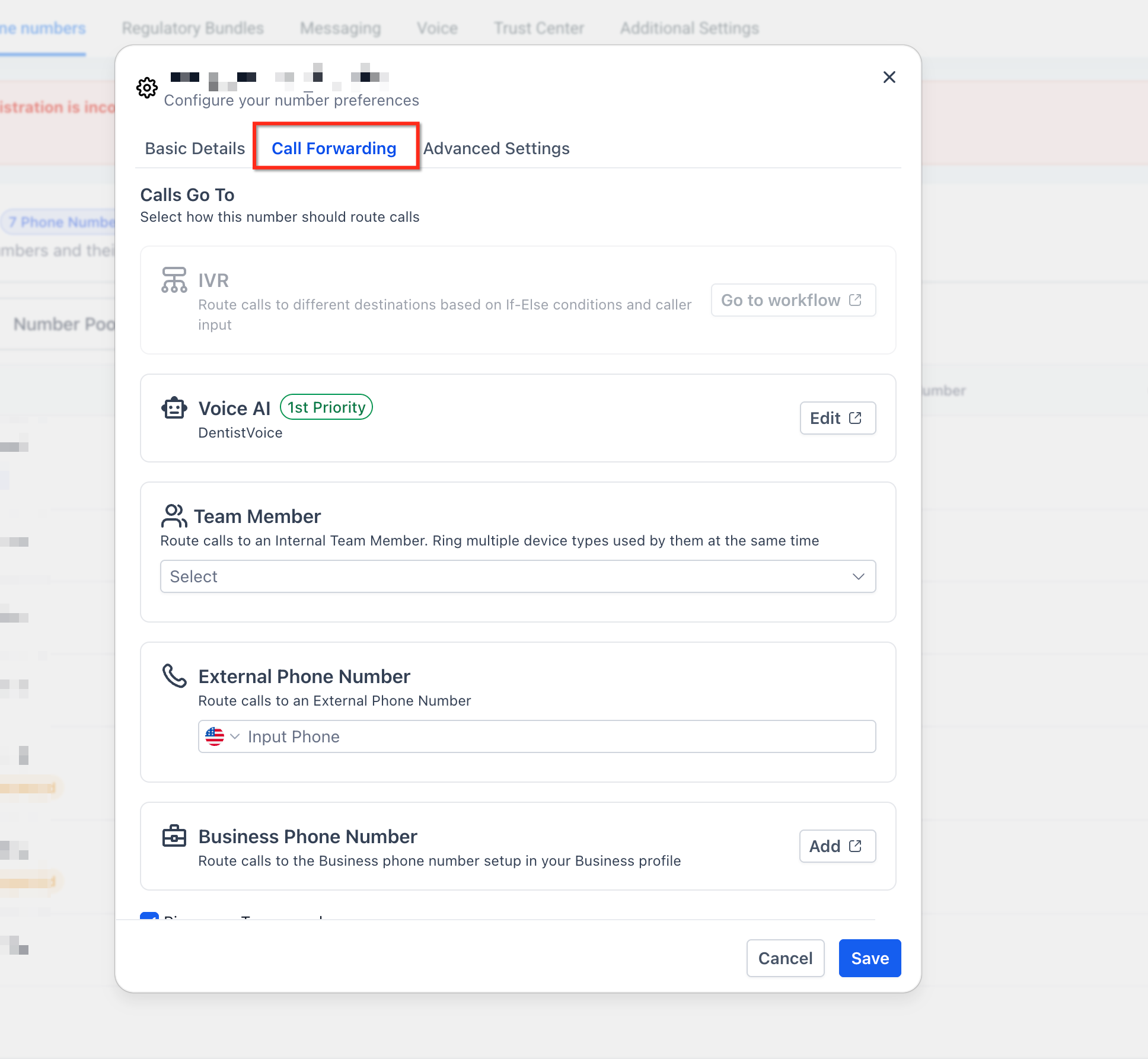
In the phone number settings panel, locate the Call Forwarding section. Select the option to Forward to Multiple Users or Create Ring Group.
Step 3
Select Team Members

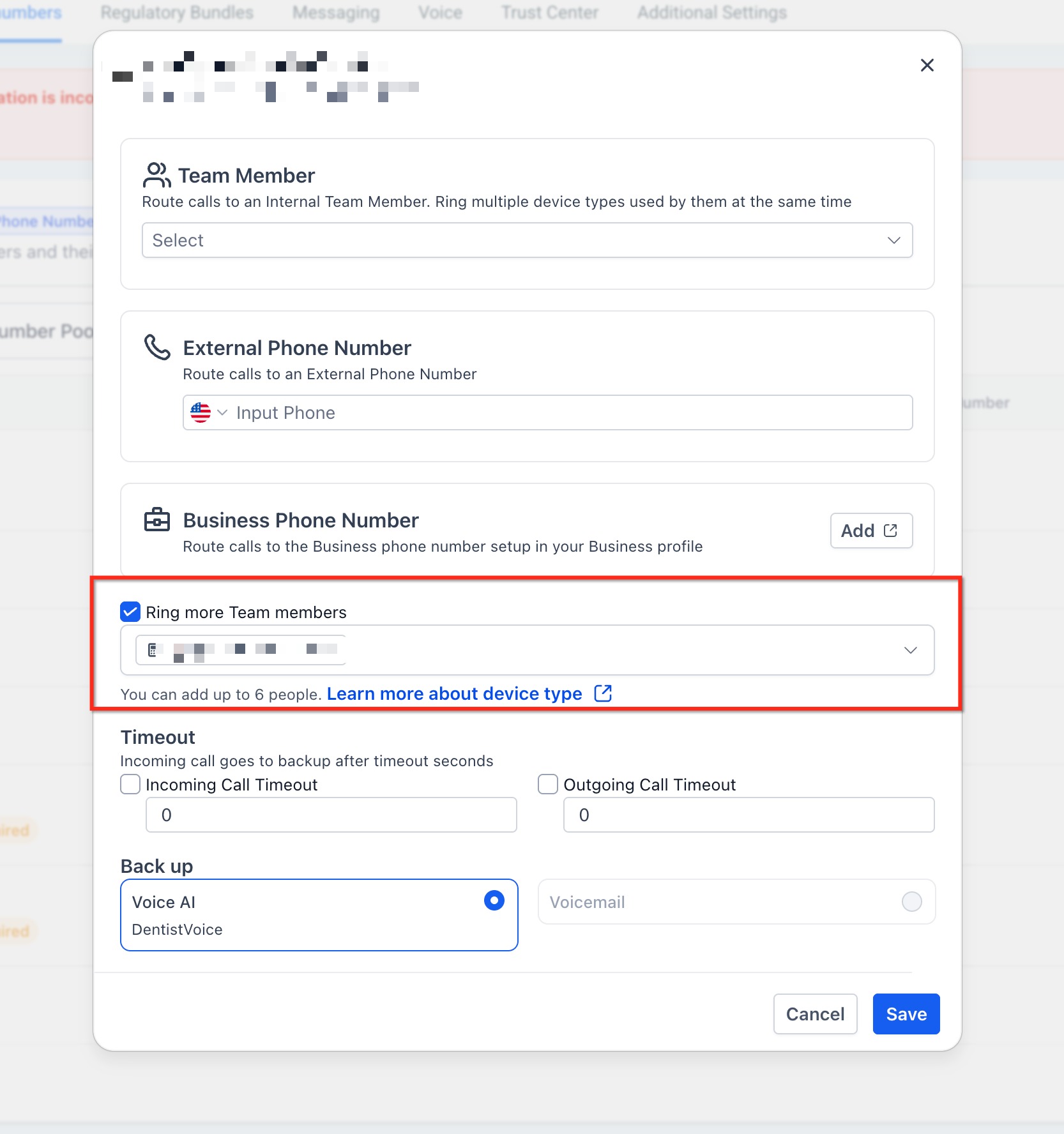
Choose which team members should receive incoming calls by checking the boxes next to their names. You can select as many users as needed. Ensure each selected user has a valid phone number configured in their user profile and has enabled call forwarding in their personal settings.
Step 4
Choose Ring Strategy

Select your preferred ring strategy from the dropdown menu:

  • Ring All for simultaneous ringing
  • Round Robin for sequential rotation
  • Priority Order for hierarchical fallback
Step 5
Set Ring Duration

Configure how long each user's phone should ring before timing out or moving to the next person (for Round Robin or Priority strategies). Typical values range from 15 to 30 seconds. For Ring All strategy, this determines how long all phones ring before going to voicemail.

Step 6
Configure Voicemail Fallback

Specify what happens if no one answers the call. Options typically include routing to a shared voicemail box, a specific user's voicemail, or playing a custom message. This ensures callers always have a way to leave information even when your team is unavailable.

Step 7
Save and Test

Click Save to apply your ring group configuration. Test the setup by calling your HighLevel phone number from an external phone. Verify that all selected team members' phones ring according to your chosen strategy.

Success

Your ring group is now active. Incoming calls to this phone number will be distributed to your team members according to the configured strategy. You can modify the ring group settings at any time by returning to the phone number settings.

Pro Tip
Monitor Ring Group Performance
Review call analytics regularly to identify which team members answer the most calls and adjust your ring strategy or team composition accordingly. Look for patterns in missed calls to optimize ring duration and voicemail settings.
5

Best Practices for Ring Groups

Optimize your ring group configuration with these proven strategies to improve call handling efficiency and team coordination.

Verify User Phone Numbers — Ensure all team members have valid, working phone numbers configured in their user profiles before adding them to ring groups.
Set Appropriate Ring Duration — 20-25 seconds is usually optimal. Too short and users miss calls; too long and callers hang up.
Limit Ring Group Size — Keep ring groups between 3-7 users. Larger groups can create confusion and reduce individual accountability.
Match Strategy to Team Structure — Use Ring All for small, collaborative teams; Round Robin for even distribution; Priority Order when you have designated primary contacts.
Create Multiple Ring Groups — Set up different ring groups for different phone numbers or departments (sales vs. support) to route calls to the appropriate specialists.
Configure Business Hours — Pair ring groups with business hours settings to automatically route after-hours calls directly to voicemail or an answering service.
Test Regularly — Conduct monthly test calls to verify the ring group functions correctly and all team members receive calls as expected.
Document Call Handling Procedures — Create team guidelines for answering ring group calls, including greeting scripts and escalation protocols.
Tip

Enable call recording for ring group calls to maintain quality standards and provide training material. Review recorded calls during team meetings to identify improvement opportunities and share successful call handling examples.

6

Frequently Asked Questions

Q: Can I add users from different locations or time zones to the same ring group?
Yes. Ring groups work across locations and time zones. However, be mindful of time zone differences when configuring business hours settings. You may want to create separate ring groups for different regions or implement time-based routing rules to avoid ringing users outside their working hours.
Q: What happens if all users in the ring group are on other calls?
If all ring group members are busy on other calls, the system handles the incoming call according to your configured fallback behavior. Typically, this means the call will ring for the specified duration and then route to voicemail. Some configurations may allow call queuing, where callers hear hold music until a user becomes available.
Q: Can users temporarily remove themselves from a ring group without admin intervention?
Users can typically enable Do Not Disturb mode in their personal settings to temporarily stop receiving ring group calls without being removed from the configuration. This is useful for users in meetings or needing focused work time. Alternatively, users can update their personal forwarding settings, though this may affect all incoming calls to their user number, not just ring group calls.
Q: Does the caller know they're calling a ring group versus a single person?
No. From the caller's perspective, they're simply calling your business phone number. They won't hear multiple ring tones or any indication that multiple people are being contacted. The experience is identical to calling a standard phone number.
Q: Can I see which team member answered a ring group call in the call logs?
Yes. HighLevel call logs record which user answered each ring group call, along with the call duration, time, and recording (if enabled). This data helps you analyze team performance and call distribution effectiveness. You can access these reports in the Phone section under Analytics or Reports.
Q: Can I use ring groups with workflow automations?
Yes. You can trigger workflow automations based on ring group call events, such as missed calls, completed calls, or voicemails. For example, you might send a follow-up text message when a ring group call goes unanswered or create a task for the team member who answered the call.
Q: Is there a limit to how many ring groups I can create?
Ring group limits vary by HighLevel plan. Most accounts can create multiple ring groups, with each HighLevel phone number supporting one ring group configuration. If you need more advanced call routing with multiple simultaneous ring groups, contact HighLevel support to discuss your plan options and potential custom configurations.
Q: What types of phones can receive ring group calls?
Ring group calls can be forwarded to any phone number type, including mobile phones, landlines, VoIP phones, or the HighLevel desktop/mobile app. Each user specifies their preferred forwarding number in their user profile settings. The system supports both domestic and international phone numbers based on your account configuration.

Was this article helpful?

That’s Great!

Thank you for your feedback

Sorry! We couldn't be helpful

Thank you for your feedback

Let us know how can we improve this article!

Select at least one of the reasons
CAPTCHA verification is required.

Feedback sent

We appreciate your effort and will try to fix the article