The Client Portal is a one-stop digital hub designed to offer your customers an easy, streamlined, and interactive engagement with your business. This guide will walk you through the ins and outs of how your customers can make the most of the Client Portal. Dive in to learn about the sign-up and login processes and the enriched customer experience that the portal promises.
TABLE OF CONTENTS
What is the Client Portal?
The Client Portal is a centralized platform where customers can conveniently engage with your business and access various features. By utilizing the Client Portal, you can provide your customers with a more personalized and contemporary experience when they review their interactions with your business. It offers a comprehensive overview of all their past and present engagements, allowing them to gain insights into their history with your business. Customers can effortlessly monitor their affiliate commissions and payouts within the Client Portal, access their membership courses, and join community groups.
How can my customers use the Client Portal?
Signup process
Step 1: Who needs to go through the Client Portal Signup?
Clients only need to sign up for the Client Portal if they cannot access child apps (Membership Courses, Affiliate Manager, Communities).
If they have been granted access to child apps before, they can log in to the Client Portal directly, thus skipping the redundant sign-up process. They can use the same credentials they have for their Membership portal to log in to the Client Portal.
Please Note:
This is designed to streamline the user experience and prevent the need for multiple registrations.Step 2: Account Creation & CRM Restrictions
In the unified Client Portal, members who have duplicate contact records with the same Client Portal login email within a sub-account can access their associated resources through one login.
Courses, Communities, memberships, and other assigned resources are available without switching between duplicate profiles.

Important: The unified experience does not automatically merge duplicate contact records in the CRM. Those records remain separate until an authorized user merges them.
For details, see Unified Client Portal: Login, Migration, and Duplicate Contacts.
If an existing member selects Sign up using an email address associated with their Client Portal account, the portal sends a verification code to that email address. After the member verifies the code, the portal signs them in to their existing account instead of creating a second account. Members are no longer stopped by a "user already exists" error when they attempt to sign up with an existing account.
Please Note:
Know your CRM settings and their implications on client account creation for the Client Portal.Step 3: Registration Process
When using the standard sign-up form, clients provide their full name and email address and choose a password.
After they submit these registration details, the system will send a verification code to the provided email address.

Please Note:
Ensure the clients know to check their email (including spam/junk folders) for the verification code. The Verification codes expire after 15 minutes.Register using secure-code login
New members can also register for the Client Portal by selecting Sign in with a secure code on the login page. This allows new members to create an account without navigating to a separate sign-up page.
To register using a secure code:
- Open the Client Portal login page and enter your email address.
- Click Generate secure code to receive a verification code by email.
- Enter the verification code to verify your email address.
- After successful verification, enter your name and password on the same screen.
- Complete registration to access the Client Portal.
The portal verifies the secure code before requesting the remaining registration details. If the member enters an incorrect code, the portal prevents them from proceeding until they provide a valid code.
New members are no longer stopped by a "user not found" error when they attempt to register through secure-code login.
Step 4: Account Verification
Clients must enter the verification code sent to their email address to authenticate their account.
After successful verification through the standard sign-up process, clients can log in to the Client Portal using the password selected during registration. Members who register through secure-code login are signed in after verifying their code and completing their registration details.
Please Note:
The verification process is critical for maintaining the security and authenticity of client accounts.Tip:
Advise your clients to keep their login details secure and remind them not to share this sensitive information with others.Login
Clients can access the Client Portal using a password or a secure code sent to their email address. Google sign-in is also available when the business enables it.
Password Login: Clients who already have a password can use it to log in directly to the client portal.
Email Verification: Alternatively, clients can authenticate their identity using a secure code sent to their registered email address. Upon selecting this method, an email containing a unique, time-limited secure code is sent to the client. This code must be entered on the login page to verify the client's identity and grant access to the client portal.
Google Sign-In: When the business enables Google sign-up and login, members can use their Google account to sign up for or log in to the Client Portal.
The business can choose whether members see the secure-code login screen or password login screen first. Members can still select another available login method.
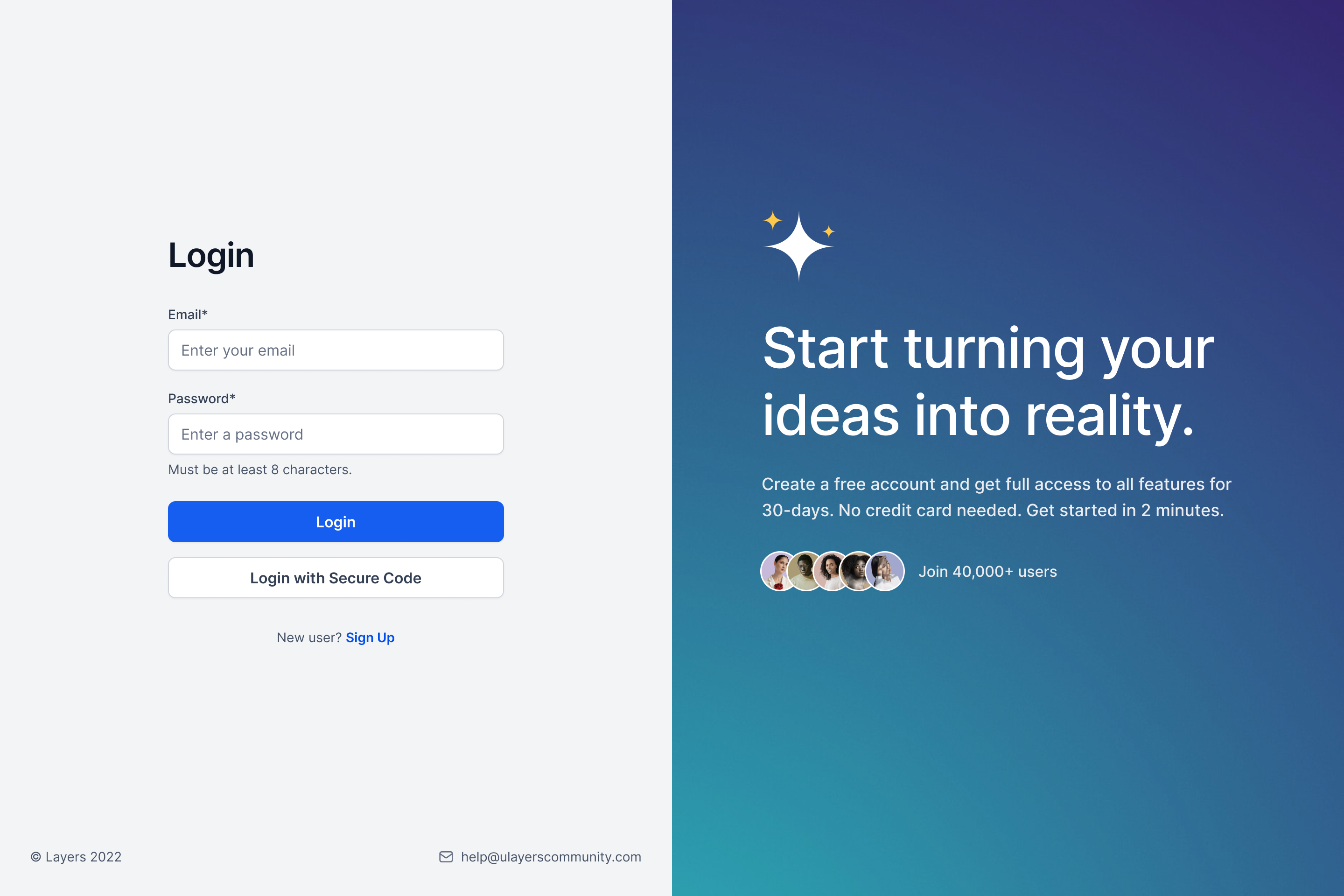
In the unified Client Portal, members can sign in once to access resources associated with duplicate contacts that share the same Client Portal login identity within a sub-account.
Members no longer need to switch between those duplicate profiles to access their assigned Courses, Communities, memberships, or billing information.
Note: Duplicate CRM contact records remain separate. The unified login experience does not automatically merge them.
For more information, see Unified Client Portal: Login, Migration, and Duplicate Contacts

Please Note:
In case of multiple accounts tied to one email, always double-check the account you select to ensure you're accessing the right information.Set a password from account settings
Members who do not have a password can create one directly from their Client Portal account settings. This option is available after they have accessed their account using another supported login method.
To set a password:
- Log in to the Client Portal.
- Open Account Settings.
- Select Account.
- Click Set Password.
- Check the email address associated with your account for a password setup link.
- Open the email and follow the link to create your password.
The password setup link is sent to the email address associated with the member's Client Portal account.
The Client Portal Experience
The Client Portal is a comprehensive hub where leads and clients can interact with your business through various child apps. This includes access to membership courses, participation in community groups, and managing affiliate relations.
To fully engage with these services, leads, and clients must complete their profile details. This information helps customize and enhance their individual experience and ensures smooth operation across all child apps. Completing the profile involves providing necessary information such as name, email address, contact details, and preferences.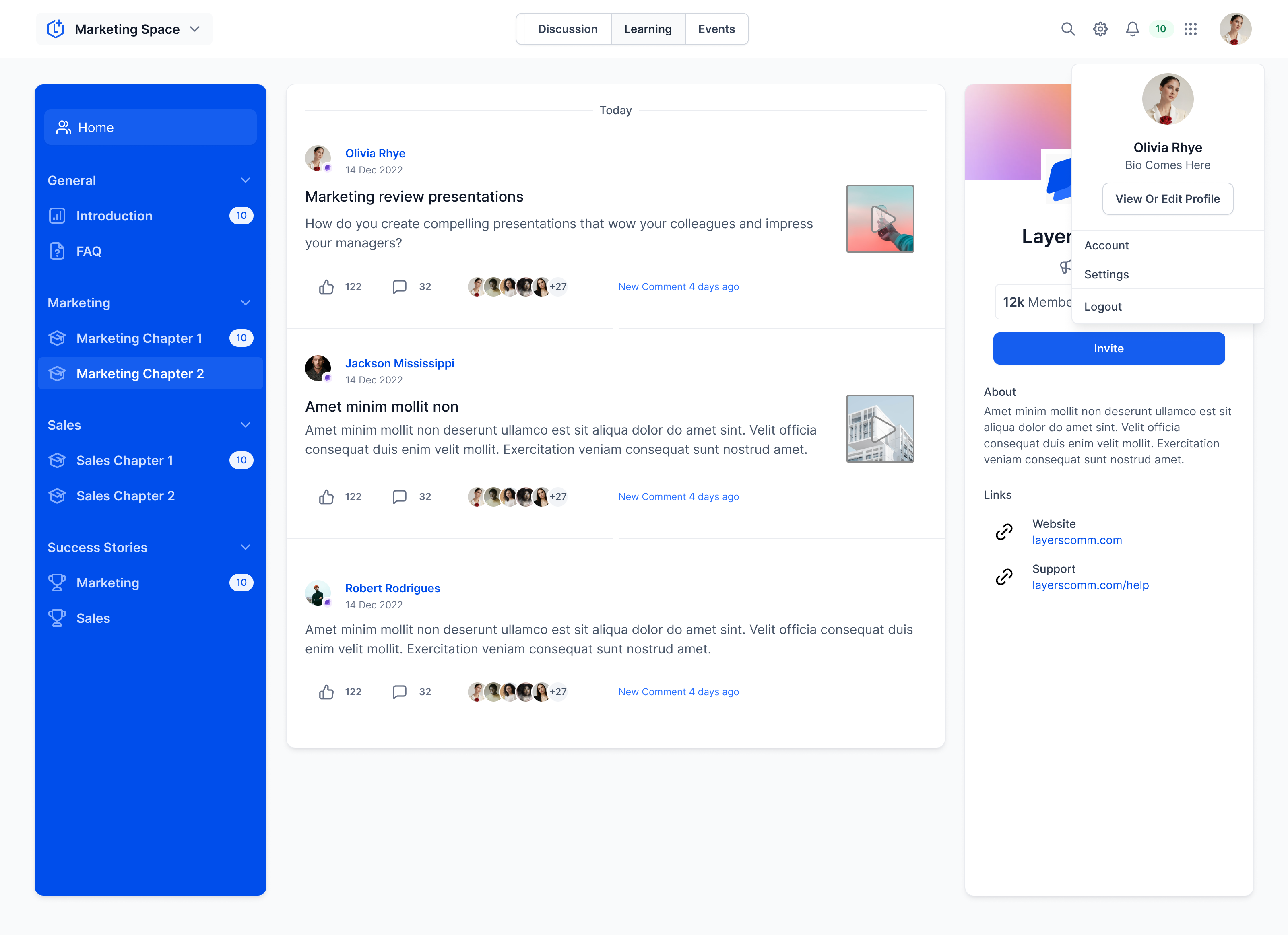
Please Note:
Newly created locations currently do not support the use of magic links within the Client Portal. However, this functionality is under development and will be available in the near future. Please be aware that existing locations will continue to have access to magic links as usual.The Client Portal Experience
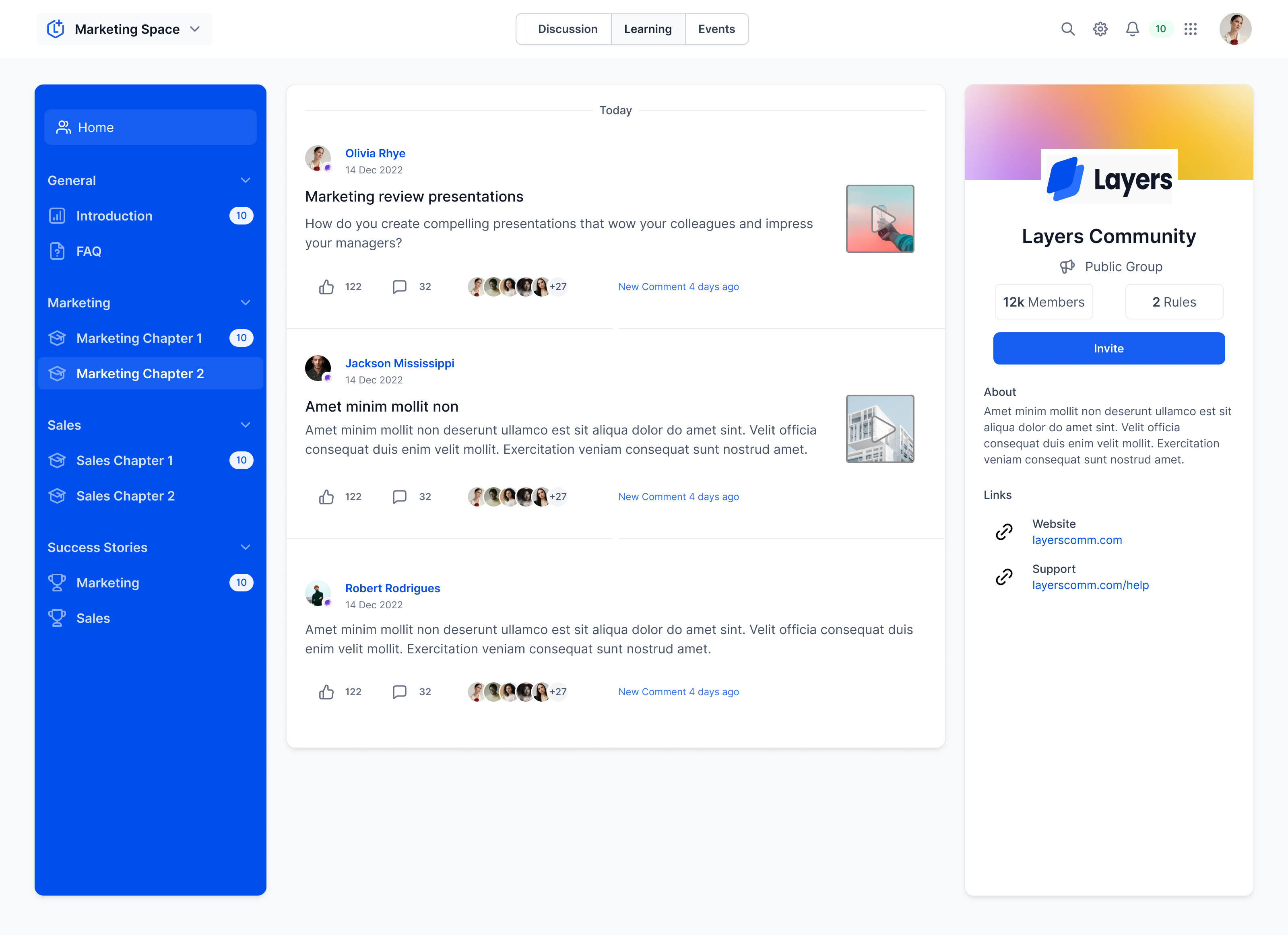
The unified Client Portal brings your available customer resources into one connected experience.
Use the left navigation menu to access the sections available to you, such as:
- Dashboard: View your learning progress, community activity, billing information, and shared files.
- Communities: Access your communities and participate in discussions.
- Courses: Open your courses and continue learning.
- Invoices: View invoices and available payment actions.
- Estimates: View estimates and their current status.
- Contracts: View contracts and their status.
- Shared Files: Access files shared through the Client Portal.
- Affiliates: Access available affiliate information.
You can move between these sections without using the previous app switcher.
Please Note:
Completion of profile details is mandatory for the best user experience and seamless operation across all apps.Always ensure your profile information is up-to-date and accurate, as it influences your interactions across all child apps.Use the app switcher for quick and easy navigation between the different apps. It's there to enhance your user experience; make sure to make the most of it.FAQs
Can members with duplicate contacts access their resources through one login?
Yes. In the unified Client Portal, resources associated with duplicate contacts sharing the same Client Portal login identity within a sub-account are available under one login.
The original CRM contact records remain separate unless they are manually merged.
Q: Is it necessary for clients to complete their profile details?
Yes, completing profile details is necessary as these details are utilized across all child apps. It helps provide a seamless and personalized experience across all platforms.
Q: How do members navigate between Courses, Communities, and other portal sections?
Members use the left navigation menu in the unified Client Portal to open the resources available to them.
They can access Courses, Communities, billing, Shared Files, and other available sections without using the legacy app switcher.

Q: What if a client forgets their password? Is there a way to still access the Client Portal?
Clients can still access their accounts using a secure code sent to their email. This feature allows clients to log into their accounts without remembering their password.
Was this article helpful?
That’s Great!
Thank you for your feedback
Sorry! We couldn't be helpful
Thank you for your feedback
Feedback sent
We appreciate your effort and will try to fix the article