HighLevel now lets recipients and business users decline documents so teams can capture structured feedback when an agreement does not move forward. Instead of losing visibility when a document goes unsigned, you can collect decline reasons, store additional notes, automate follow-ups, and review the full decline history later. This helps teams improve sales processes, refine offers, and respond more effectively when a deal is lost.
TABLE OF CONTENTS
- What is Decline Documents?
- Key Benefits of Decline Documents
- Recipient Decline Flow
- Business User Decline Flow
- Use Declined Status in Workflows
- Use Decline Reasons in Email Templates
- Track Declined Documents and View History
- How To Setup and Use Decline Documents
- Frequently Asked Questions
- Related Articles
What is Decline Documents?
Decline Documents is a Documents & Contracts feature that allows recipients to formally decline a document instead of leaving it unsigned. When a document is declined, HighLevel records the decline as a status, captures the selected reasons or notes, and makes that information available for tracking, reporting, and automation.
This feature gives businesses more clarity into why documents are not being completed. It also creates operational value by allowing teams to trigger workflows, personalize follow-up emails, and review document history with more context than a simple unsigned status provides. Declined documents are tracked separately and can be reviewed later from the archived area of Documents & Contracts.
Key Benefits of Decline Documents
Decline tracking is valuable because it turns lost opportunities into actionable insight. Instead of guessing why a document was not completed, teams can collect direct feedback and use it to improve future follow-up, reporting, and conversion strategies.
Structured feedback: Captures predefined decline reasons and optional notes so your team can understand why a document was not accepted.
Clearer status tracking: Adds Declined as a document status so teams can separate lost opportunities from unsigned or pending documents.
Workflow automation: Lets you trigger automations when a document is declined so you can send follow-ups, assign tasks, or notify internal teams.
Personalized communication: Supports decline-related custom values in email templates so your follow-up messages can reference decline reasons and notes.
Better visibility into lost deals: Stores decline history, including who declined, when it happened, and why, so teams can review trends and improve strategy.
Recipient Decline Flow
Giving recipients a formal way to decline a document improves the user experience and creates a cleaner process for both sides. It helps contacts communicate their decision directly while giving your team useful information for follow-up or reporting.
Open the document you received.
Click the top-right m enu in the document.
Select Decline Document.
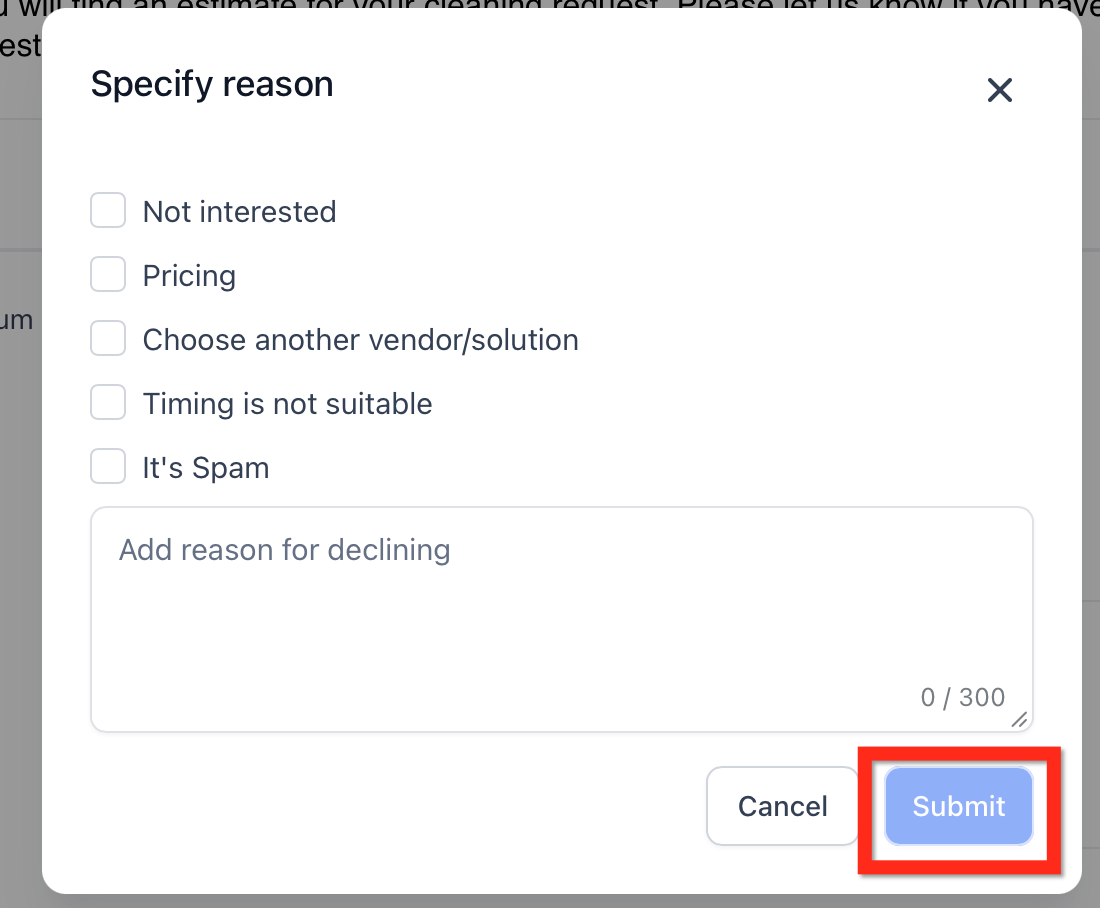
Choose one or more decline reasons, if available.
Add additional notes if needed.
Click Submit to complete the decline action.
Once submitted, the document is marked as Declined, moved to Archived, and can no longer be signed. This creates a clear end state for the document and preserves the decline details for future review.
Business User Decline Flow
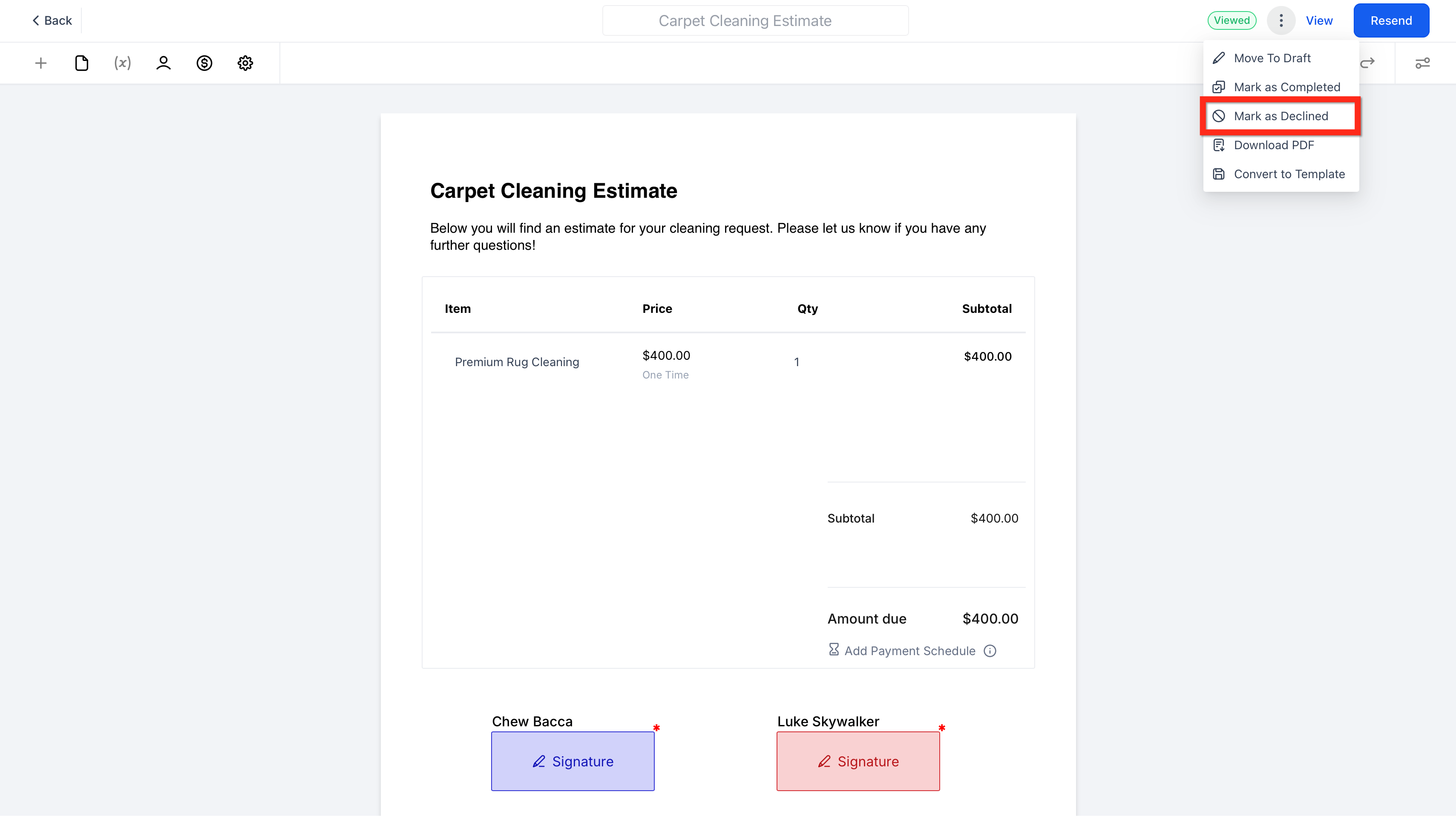
Business users may also need to stop a document from moving forward when a deal no longer applies or when a sender wants to formally record that the document should not continue. Having a business-side decline action keeps document management cleaner and more intentional.
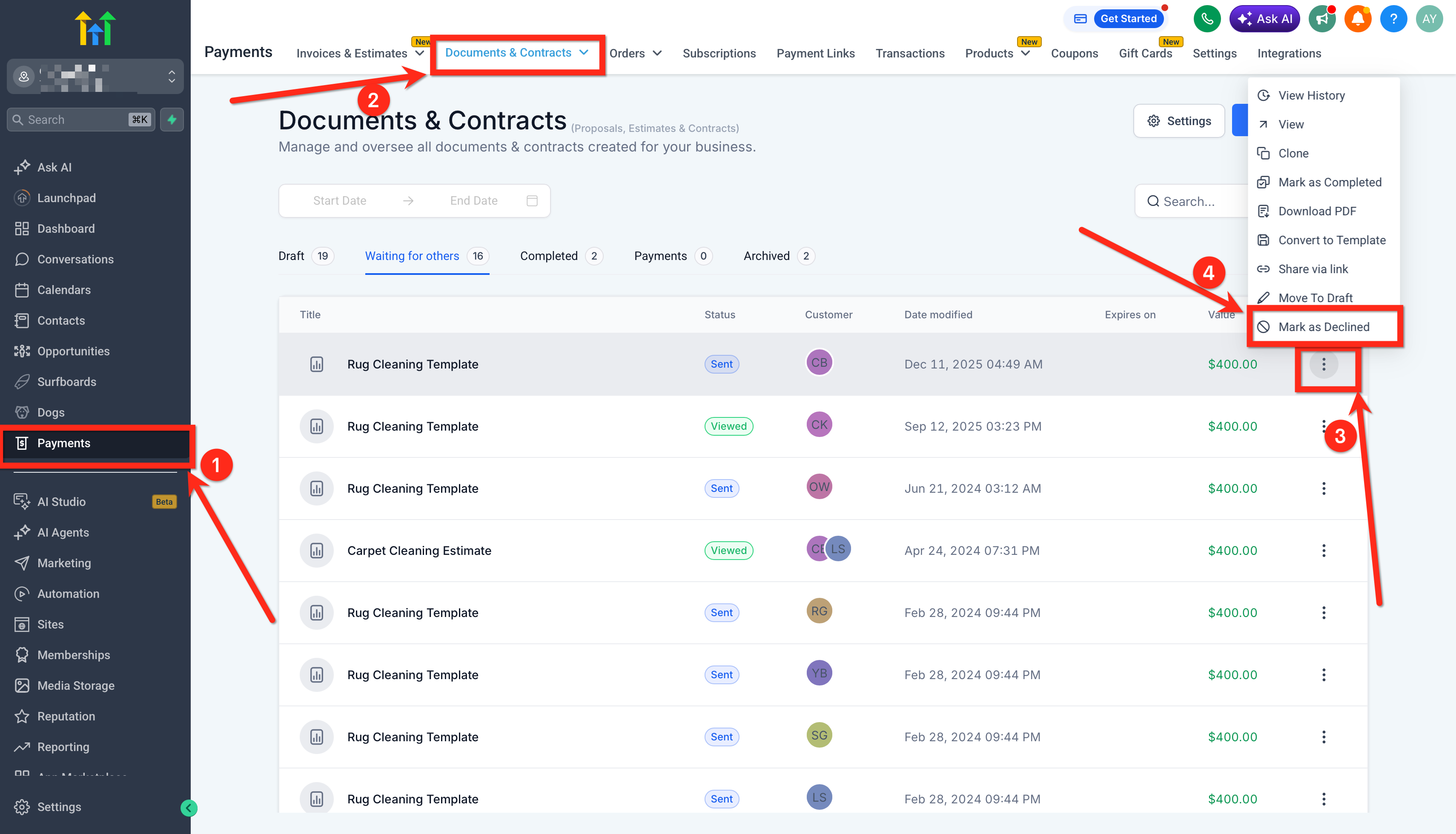
Open the document from Documents & Contracts.
Use the available decline action after the document has been sent.
Confirm the decline so the document status updates accordingly.
After a business user declines the document, it follows the same decline-based lifecycle behavior in the system, including status tracking and archived visibility.
Use Declined Status in Workflows
Automating next steps after a decline helps teams respond quickly and consistently when a deal is lost. This is especially useful for sending internal notifications, creating follow-up tasks, launching nurture sequences, or routing declined opportunities for review.
Go to Workflows.
Add a new trigger.
Select Documents & Contracts.
Choose the document Status filter.
Set the status to Declined.
Add the actions you want, such as emails, internal notifications, task creation, or pipeline updates.
Use Decline Reasons in Email Templates
Decline-related custom values help teams send more contextual follow-up messages after a document is declined. This makes it easier to acknowledge feedback, tailor the next conversation, and keep internal or client communication relevant to the actual decline reason.
HighLevel supports these decline-related custom values in email templates:
Document Decline Reasons: Returns a comma-separated list of the selected decline reasons.
Document Decline Reasons Body: Returns the detailed feedback or notes entered by the recipient.
You can use these values in decline follow-up emails, internal notification emails, or other document-related communication where understanding the reason behind the decline is helpful.
Track Declined Documents and View History
Tracking decline history is important because it gives your team a record of what happened and why. This makes it easier to review individual documents, support internal accountability, and identify broader patterns behind lost agreements.
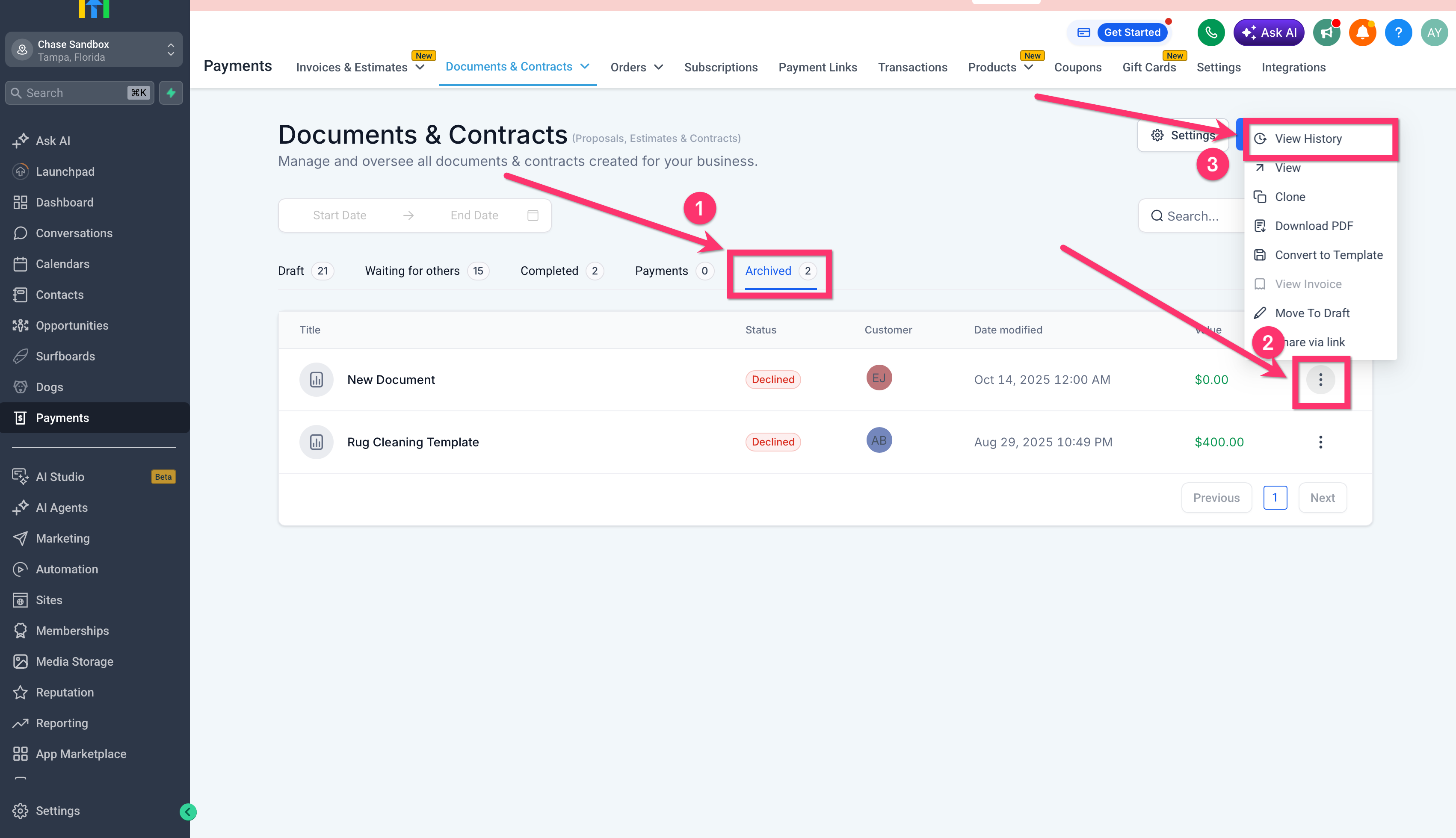
Go to Documents & Contracts.
Open Archived to find declined documents.
Select the document you want to review.
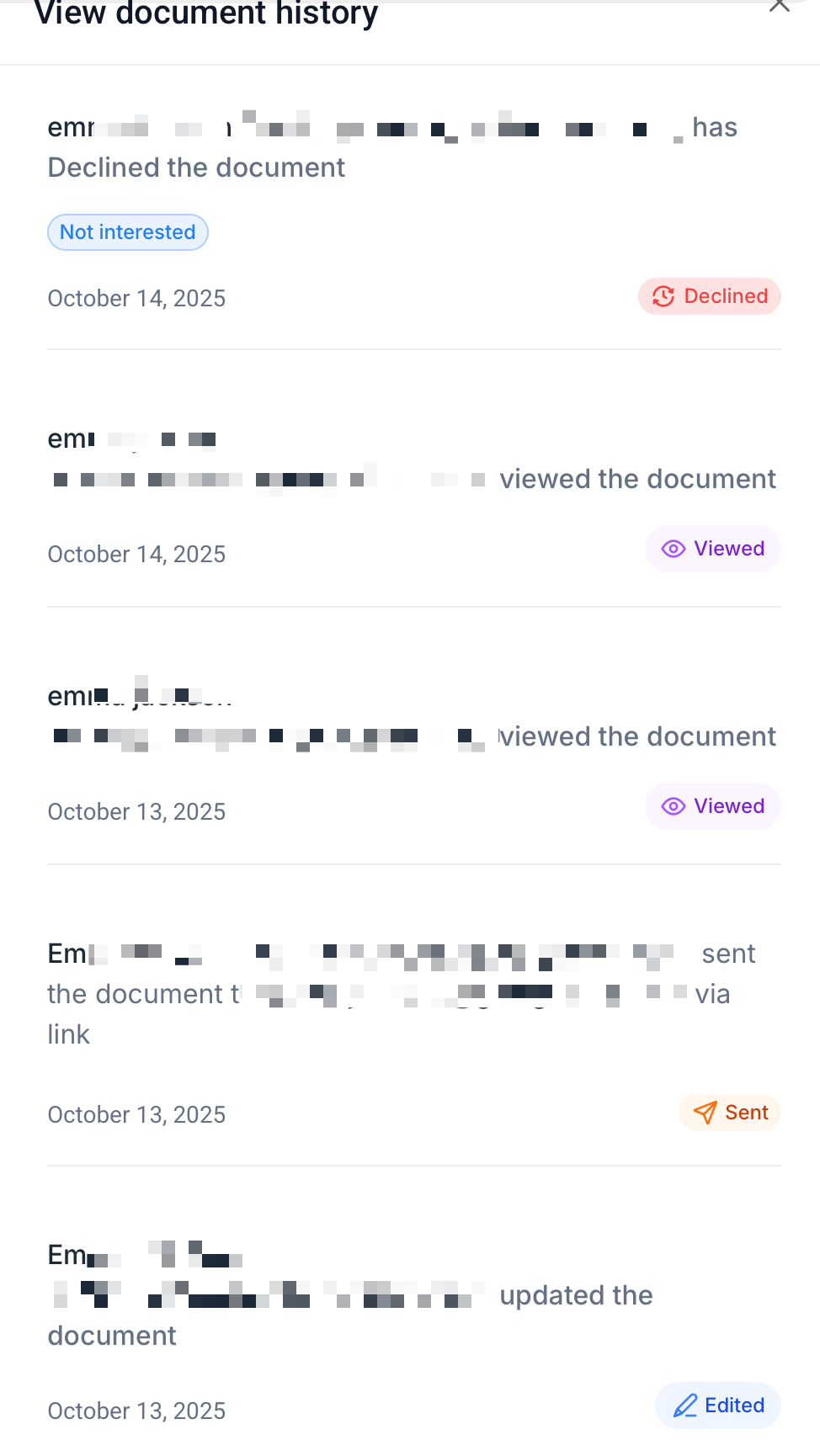
Open View History to see the decline timeline and details.
The history view can include:
the person who declined the document
the date and time of the decline
the selected decline reasons
any additional notes entered during the decline flow
How To Setup and Use Decline Documents
Using Decline Documents effectively means more than enabling the feature. It also means connecting the decline status to your workflows, emails, and reporting process so your team can respond consistently whenever a document is lost.
Send a document through Documents & Contracts in HighLevel.
Allow the recipient to open the document and use the Decline Document option from the top-right menu if they do not want to sign.
Review the resulting Declined document status in Documents & Contracts.
Open Archived to confirm the document has been moved there after decline.
Open View History to review who declined it, when it happened, and what reasons or notes were submitted.
Create a workflow using Documents & Contracts → Status → Declined if you want to automate follow-ups or internal action items.
Add Document Decline Reasons and Document Decline Reasons Body to email templates if you want decline-aware messaging.
Review decline patterns over time to improve your offers, follow-up strategy, and close process.
Frequently Asked Questions
Q: What happens when a recipient declines a document?
A: The document is marked as Declined, moved to Archived, and can no longer be signed. HighLevel also stores the decline reasons and any notes that were submitted.
Q: Can business users also decline a document?
A: Yes. Business users can decline a document after sending it.
Q: Where can I find declined documents later?
A: Go to Documents & Contracts → Archived to review declined documents.
Q: Can I automate follow-ups after a document is declined?
A: Yes. You can create a workflow trigger using Documents & Contracts with the status set to Declined.
Q: Can I use decline reasons in email templates?
A: Yes. HighLevel supports Document Decline Reasons and Document Decline Reasons Body as custom values for email personalization.
Q: What does Document Decline Reasons return?
A: It returns a comma-separated list of the decline reasons selected by the recipient.
Q: What does Document Decline Reasons Body return?
A: It returns the detailed feedback or notes entered during the decline flow.
Q: Where can I see who declined the document and why?
A: Open the declined document from Archived, then use View History to review the decline details, including the identity of the recipient, timestamps, reasons, and notes.
Related Articles
Was this article helpful?
That’s Great!
Thank you for your feedback
Sorry! We couldn't be helpful
Thank you for your feedback
Feedback sent
We appreciate your effort and will try to fix the article