Managing your sales and billing doesn't have to be tedious! Think of invoices as your business calling cards—they represent your professionalism and set clear expectations with your customers. Let's dive in and see how easily you can customize and send invoices right from your dashboard.
TABLE OF CONTENTS
Create Invoice
Ready to send your first invoice? Great! Here's the simplest way to create one:
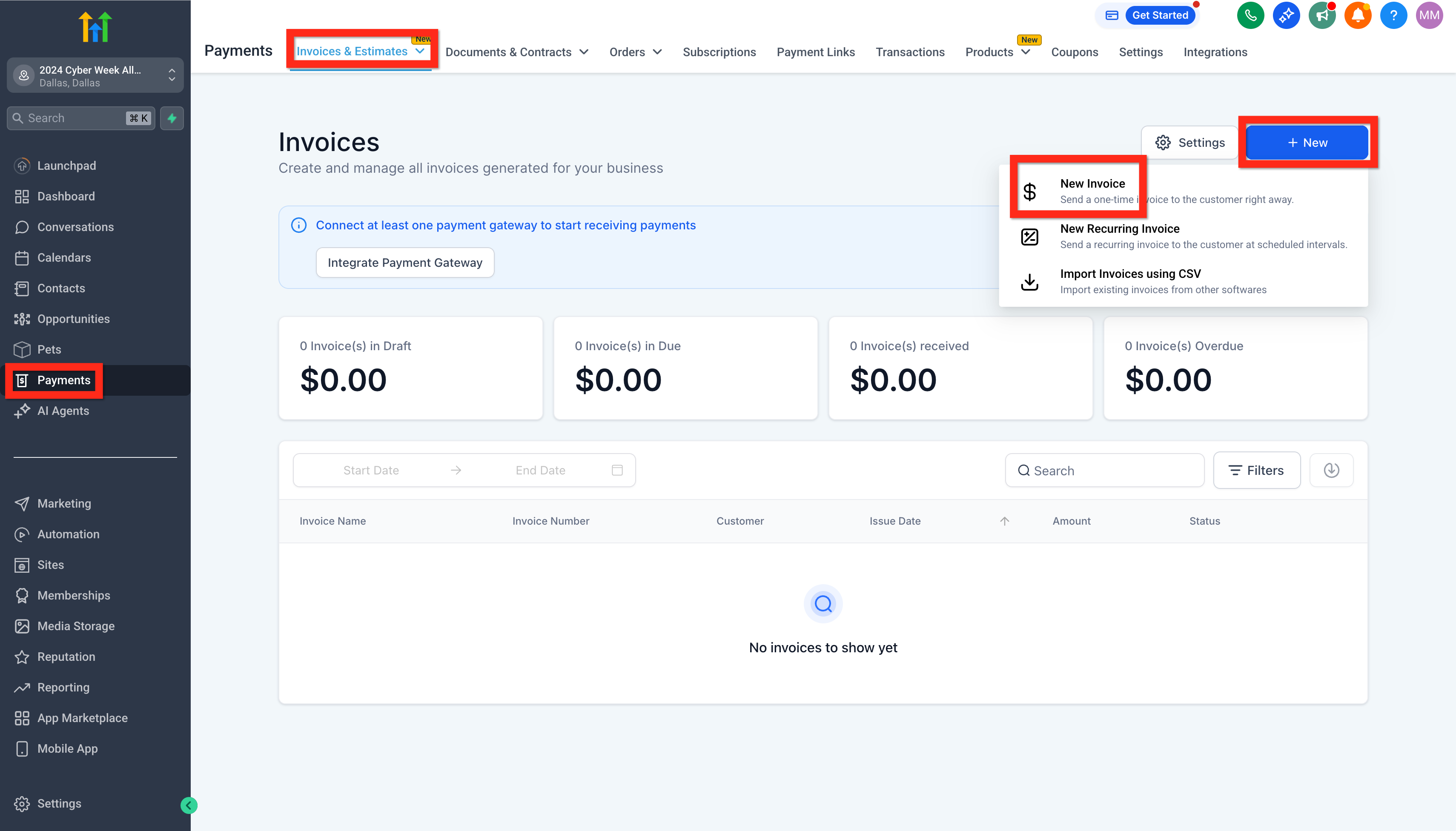
- Navigate to Payments > Invoices & Estimates.
- Click New > New Invoice.
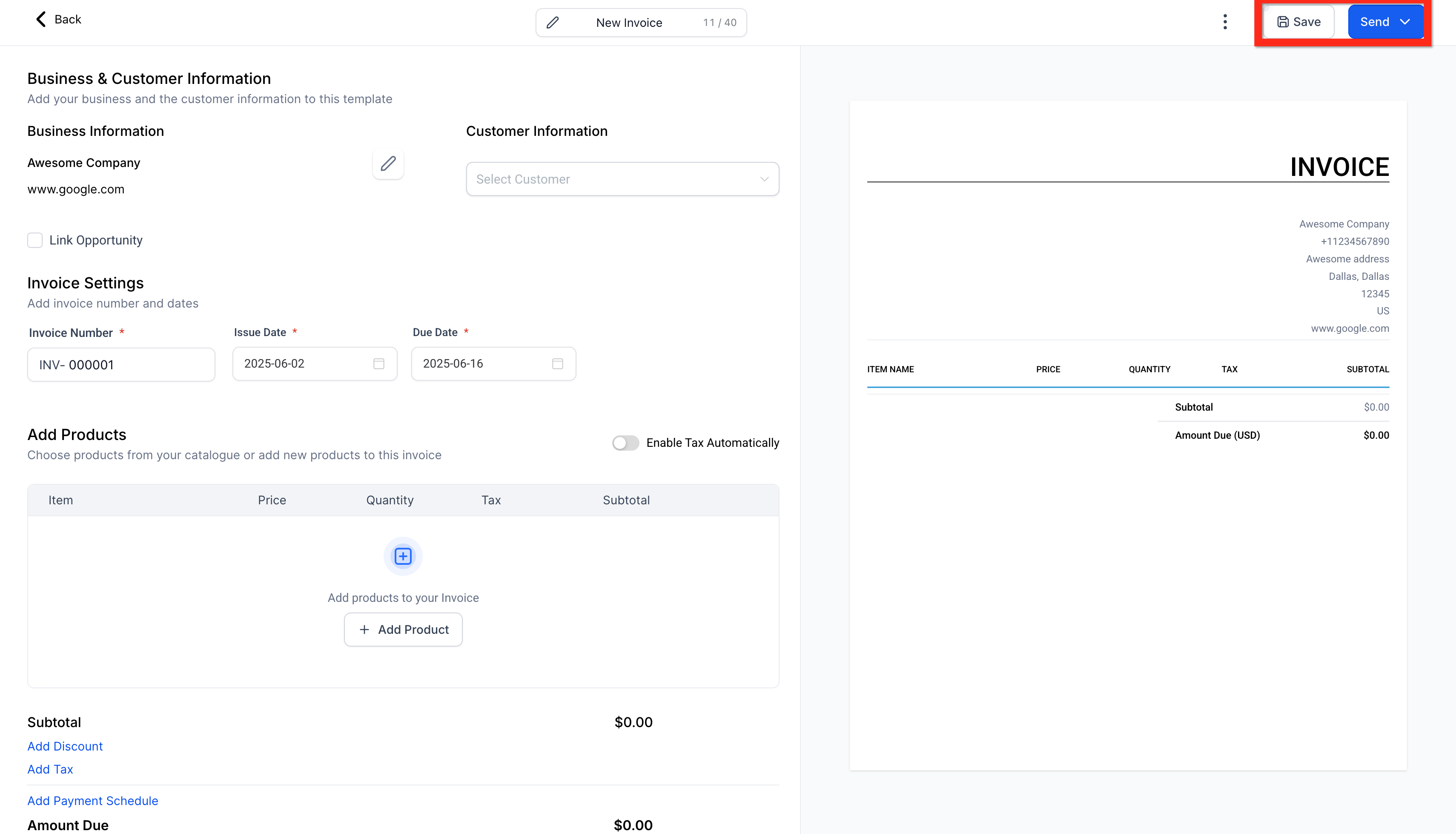
- Configure your invoice with details (items, prices, customer info).
- Click Save.
- Finally, click Send.
Next, you can:
- Explore adding payment plans to help your customers.
- Set up recurring invoices for ongoing services.
Learn More
- How to create invoices in HighLevel
- How to add Payment Plans to your Invoices?
- How to create recurring Invoices
- How to create invoices in HighLevel (Mobile App)
Edit General Invoice Settings
Customizing your invoices makes your brand stand out and ensures clarity. Here's how to make your invoices uniquely yours:
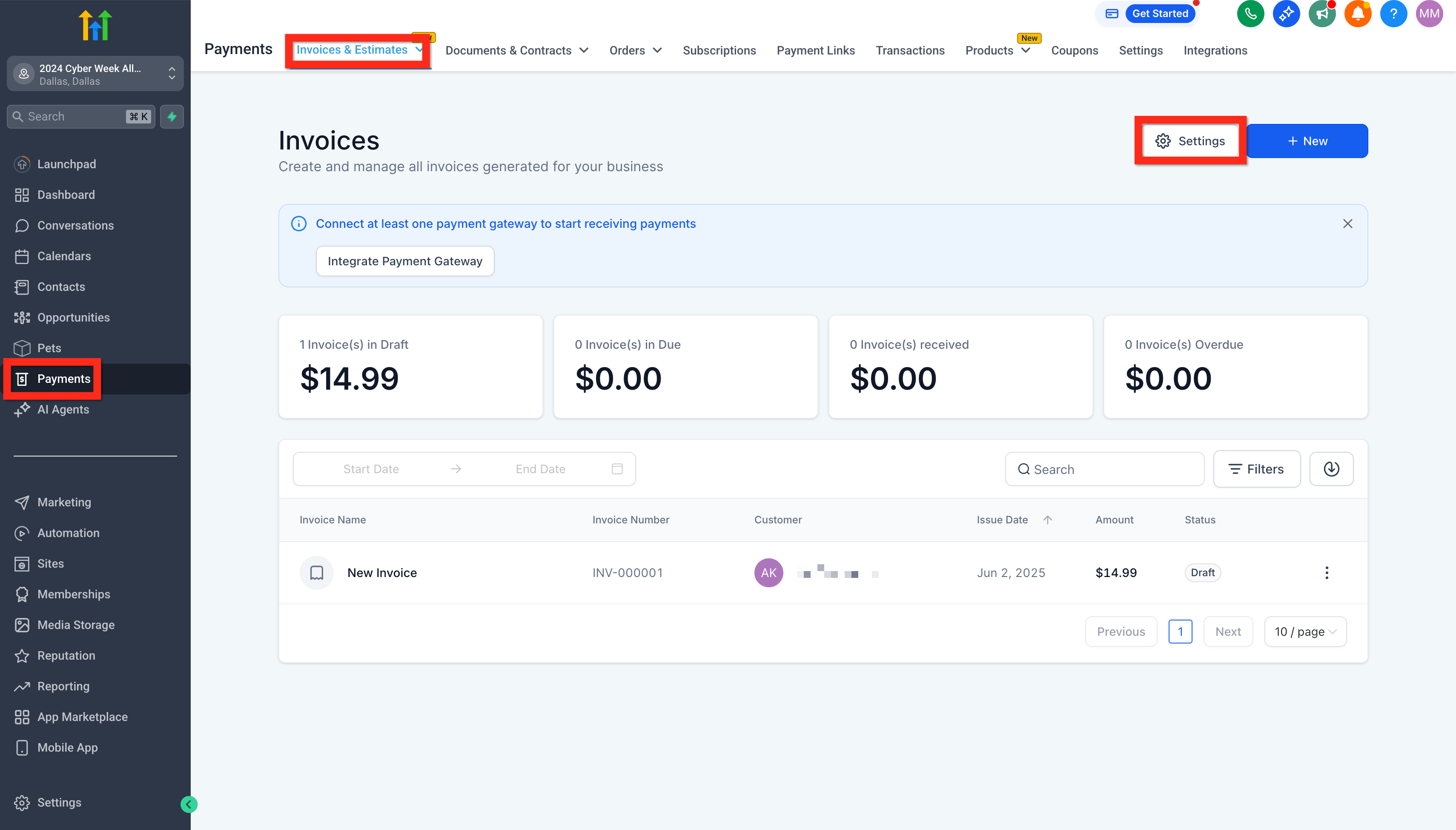
- Navigate to Payments > Invoices & Estimates.
- Click the Settings (gear icon).
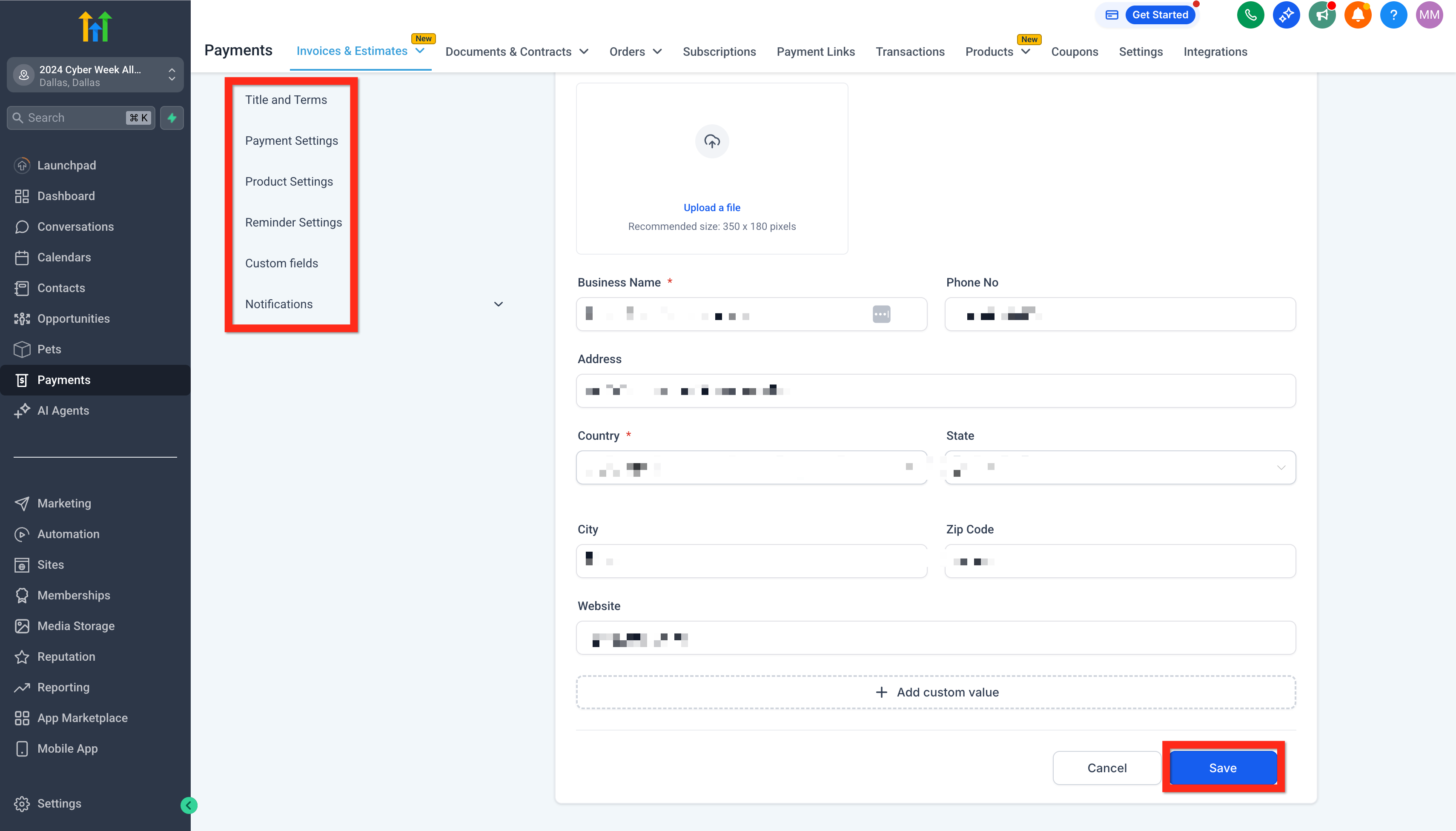
- Adjust your general settings (add your logo, company info, default payment terms).
- When you're satisfied, click Save.
Next, you can:
- Set up recurring invoices to streamline regular billing.
- Adjust your payment schedules to manage partial payments smoothly.
Learn More
- How to Edit Recurring Invoices
- Editing of Payment Schedules and Partially Paid Invoices
- How to Use Invoices in the Mobile App
Manage Invoice
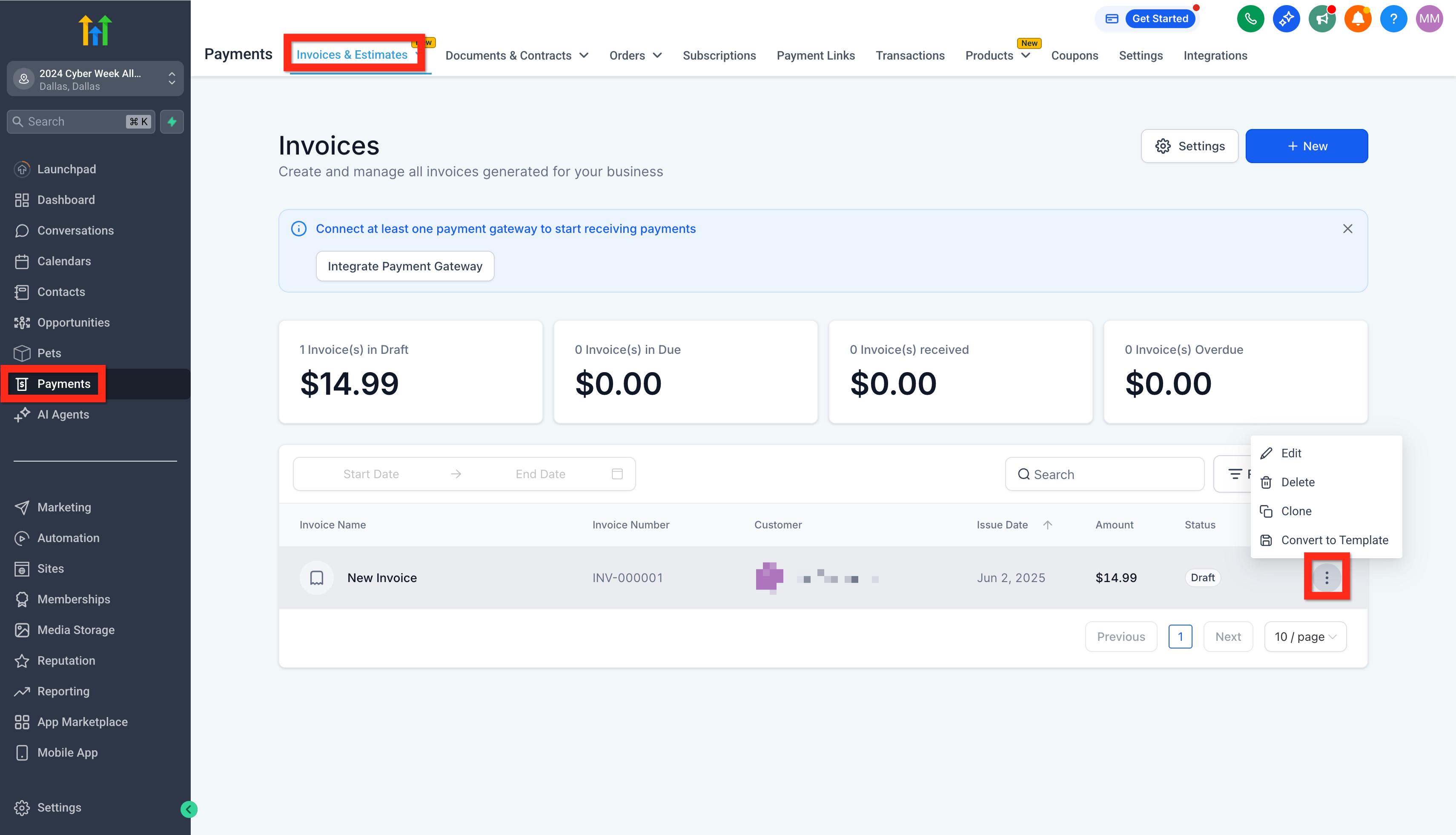
Keeping track of your invoices helps you stay organized and ensures timely payments. Here's how to quickly manage your existing invoices:
- Navigate to Payments > Invoices & Estimates.
- Find the invoice you're looking for in the invoice list.
- Review its status (e.g., Draft, Sent, Paid).
Next, you can:
- Follow up with customers directly from the invoice view.
- Create new estimates or invoices based on previous ones.
Happy invoicing!
Frequently Asked Questions
Q: Why is my logo missing on older invoices, but shows up on new ones?
Your logo is missing because the original image file was deleted from your Media Library.
Invoices pull the logo from its original file location. If you delete that file, the link breaks for all existing invoices.
How to Fix It:
For New Invoices: The system is fine; it's using the current logo from your settings.
For Unpaid Invoices: Upload a new logo to your Media Library and make sure your Business Details are updated with this new image. The logo will reappear on these.
For Paid Invoices: The logo cannot be fixed because paid records cannot be edited. You would have to manually add the logo to the PDF if you need to resend a receipt.
Reference: Business Profile Settings - General Information
Q: I'm unable to enter text for my Terms & Conditions or notes in the invoice editor; only the formatting toolbar (Bold, Italic, etc.) is displayed. How do I fix it?
This issue is a local browser error that happens when the text editor fails to load correctly, usually due to a conflict with old data (cache and cookies) stored in your web browser.
To fix the missing text box:
Fully clear the cache and cookies in your web browser.
Close all tabs, then log back into your HighLevel account.
The text editor should now load correctly, allowing you to input your terms and conditions.
Q: My invoice says "Sent," but the client or agent never got it. What's wrong and how do I fix it?
Issues with email sending often stem from browser-related problems rather than system malfunctions. Specifically, outdated cached data and cookies in your web browser can create errors, leading to a false indication that an email has been sent.
To resolve this:
Instruct the team member to clear their browser's cache and cookies.
Have them log out and then log back into their account.
Attempt to resend the estimate.
If the problem persists, please contact support, as it may indicate a more significant issue with your email sending domain.
Was this article helpful?
That’s Great!
Thank you for your feedback
Sorry! We couldn't be helpful
Thank you for your feedback
Feedback sent
We appreciate your effort and will try to fix the article