The Agency Dashboard – Rebilling tab provides a centralized view of your agency’s rebilling activity in HighLevel. It helps you track revenue, monitor vendor costs, and review overall financial performance across sub-accounts and services.
You can filter data by sub-account, product category, and date range to analyze performance and trends.
TABLE OF CONTENTS
- What is the Agency Dashboard
- Before You Begin
- Accessing the Rebilling Dashboard
- Main Dashboard Overview
- Filtering Your Data
- Filters and Controls
- Key Metrics and Reporting Widgets
- Include Only Rebilled Transactions
- Reselling Reporting Layout
- Understanding Financial Metrics
- Distribution Reports
- Growth Reports
- Example Walk-Through
- Understanding Exported Data and Profit Breakdown
- Understanding Auto-Recharges vs. Cost and Revenue
- Troubleshooting
- Need more help?
- Frequently Asked Questions
- Related Articles
What is the Agency Dashboard
The Agency Dashboard for Rebilling provides a centralized view of your agency's rebilling performance, helping you monitor revenue, costs, profits, and usage across all eligible sub-accounts.
Use the dashboard to:
- Track rebilling revenue and costs
- Analyze profit across services
- Monitor usage trends
- Export transaction data for reconciliation
- Filter data by date, product, and sub-account
Note: The dashboard displays data for the most recent six months.
Negative revenue may appear due to cancellations, refunds, or prorated adjustments
Before You Begin
Before using the dashboard, keep the following in mind:
- The dashboard displays the most recent six months of data.
- Metrics are based on your rebilling configuration and available transaction data.
- Some financial values may differ from external payment processors or exported reports depending on filters, refunds, fees, and transaction timing.
Accessing the Rebilling Dashboard
Log in to Agency View
Click Agency Dashboard from the left navigation
Select the Rebilling tab
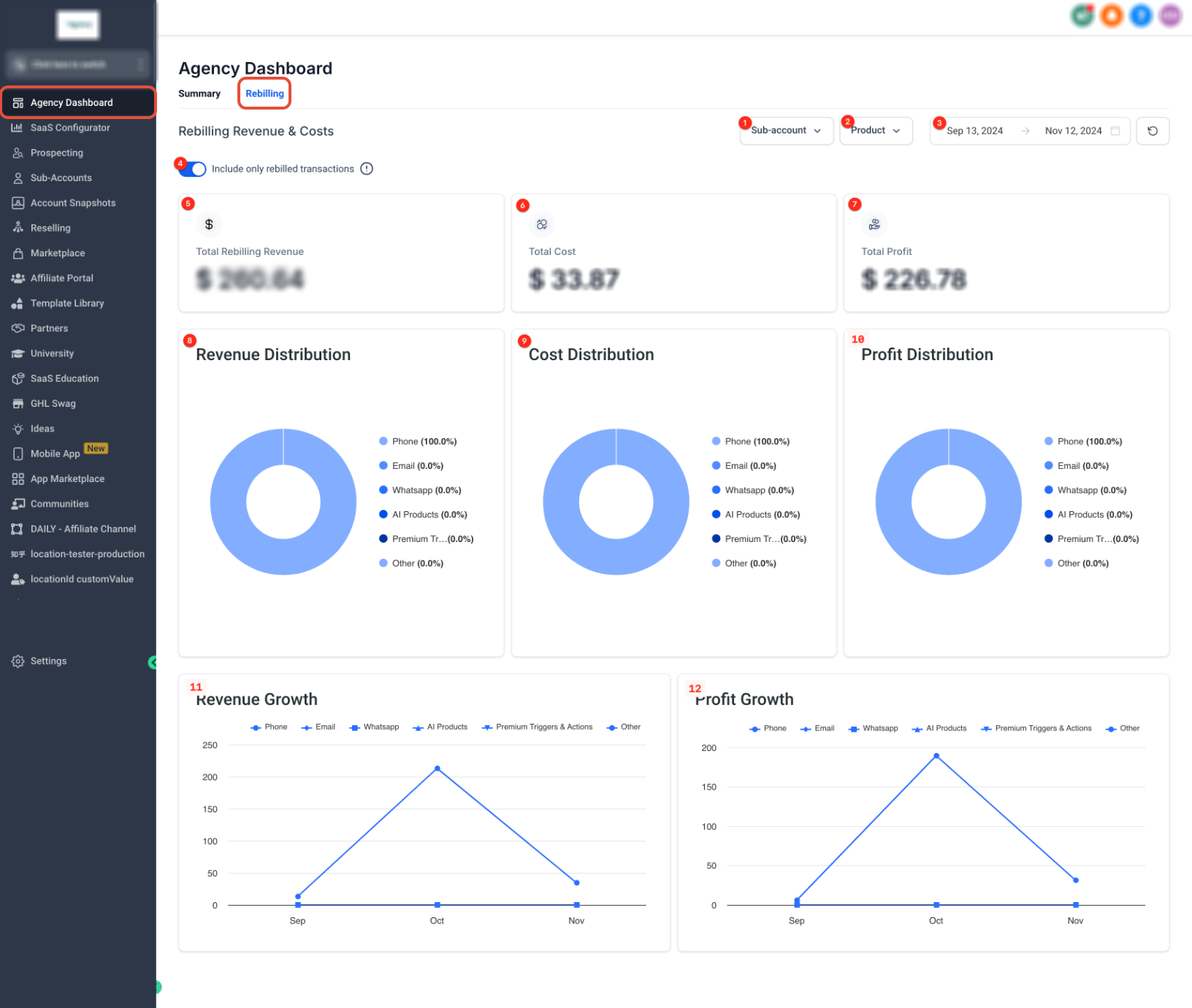
Main Dashboard Overview
The Rebilling Dashboard provides a high-level summary of your financial performance.
At the top:
Sub-account filter
Product filter
Date range selector
“Include only rebilled transactions” toggle
Below:
Summary cards for Revenue, Cost, and Profit
Distribution charts
Growth charts
Filtering Your Data
Filtering allows you to refine results by account, product, or time period.
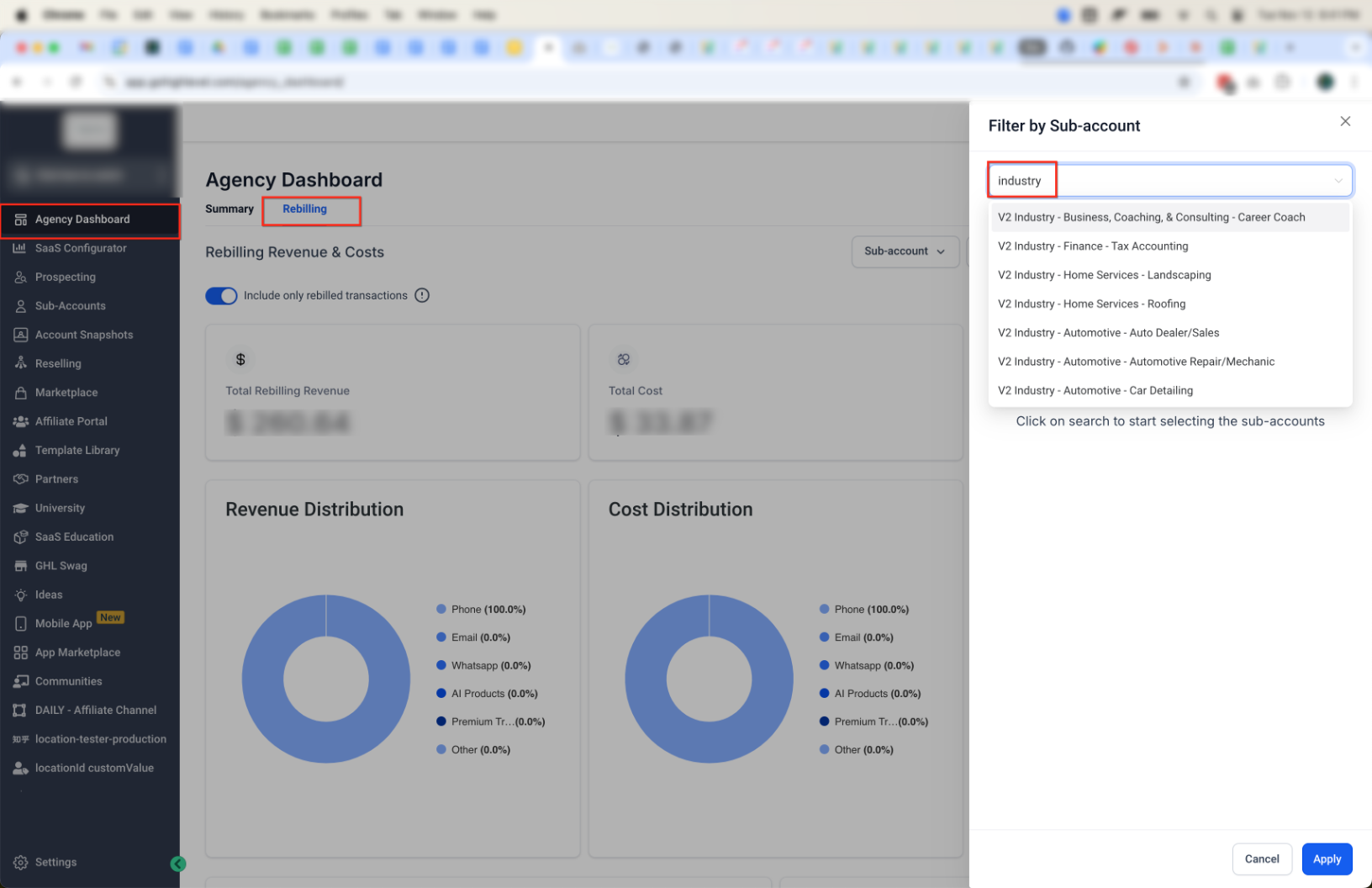
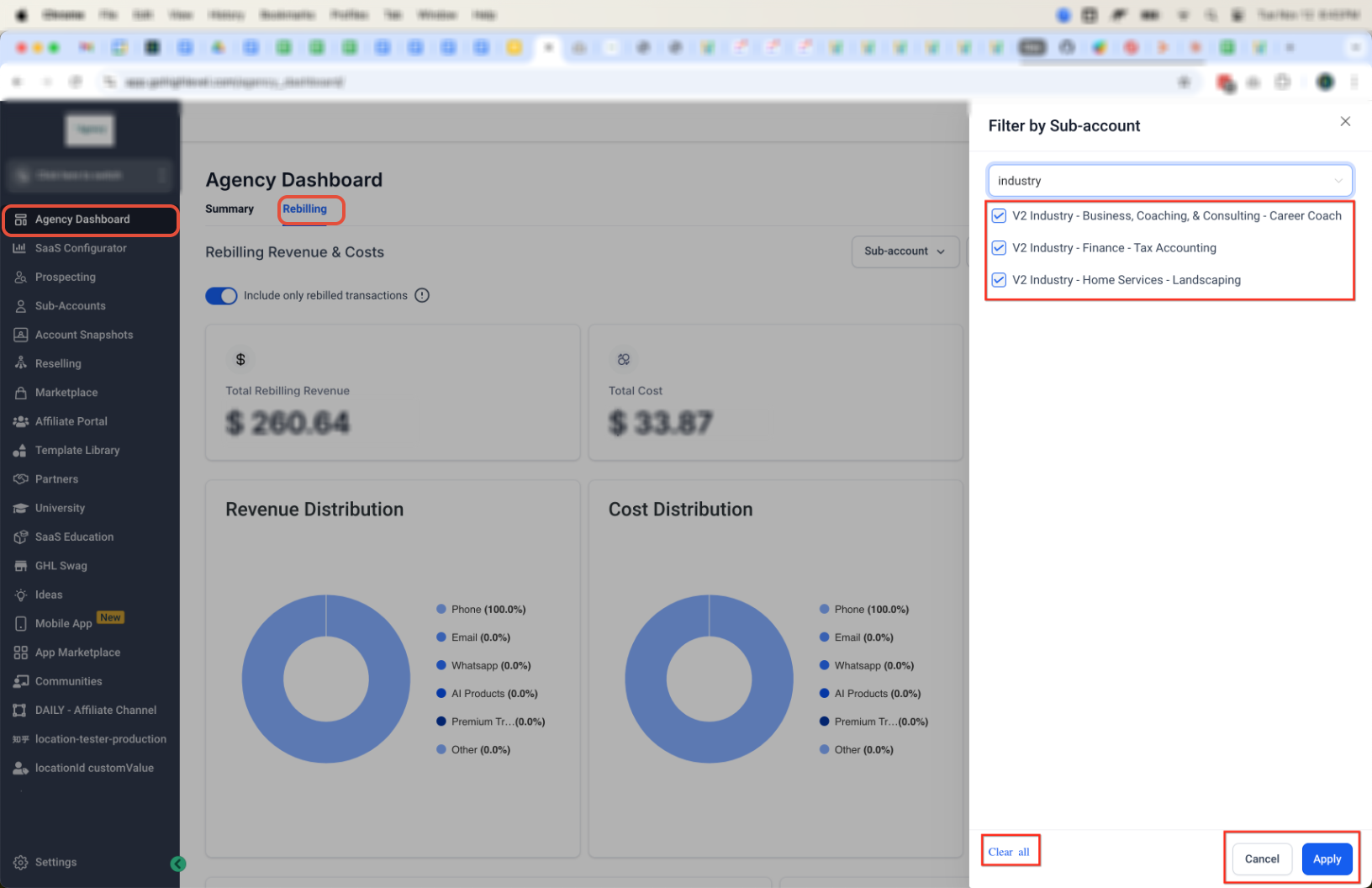
Sub-account Filter
Search and select one or more sub-accounts
Apply or clear selections as needed
Multiple selections combine data across accounts
Product Filter
Filter by service category such as:
Phone
Email
WhatsApp
LC Premium Triggers & Actions
AI Products
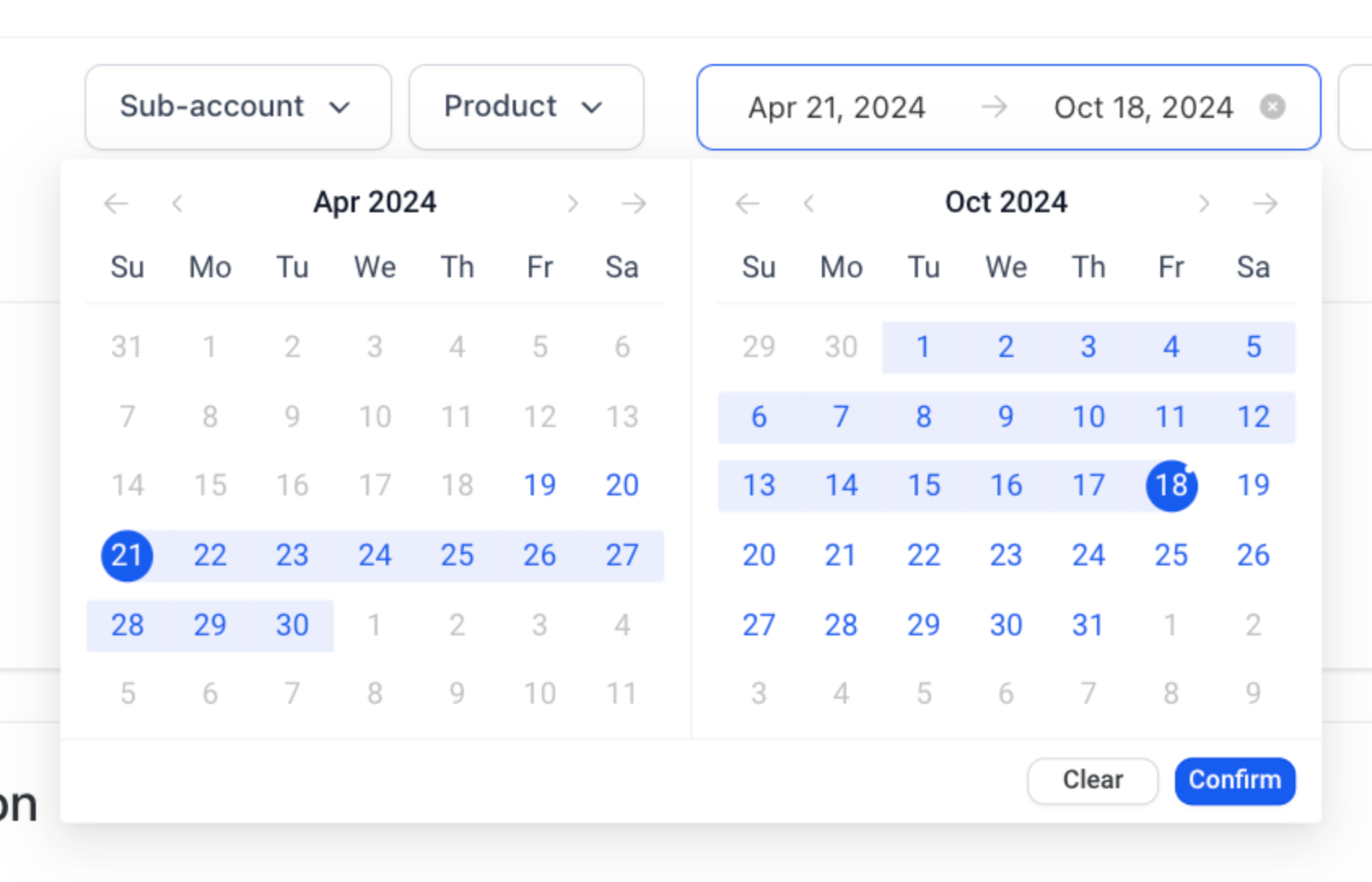
Date Range Filter
Select a custom date range
Click Confirm to apply
Filters and Controls
Use the following controls:
Sub-account filter
Product filter
Date range
Include only rebilled transactions toggle
Export
Refresh
These controls directly impact how totals are calculated and displayed.
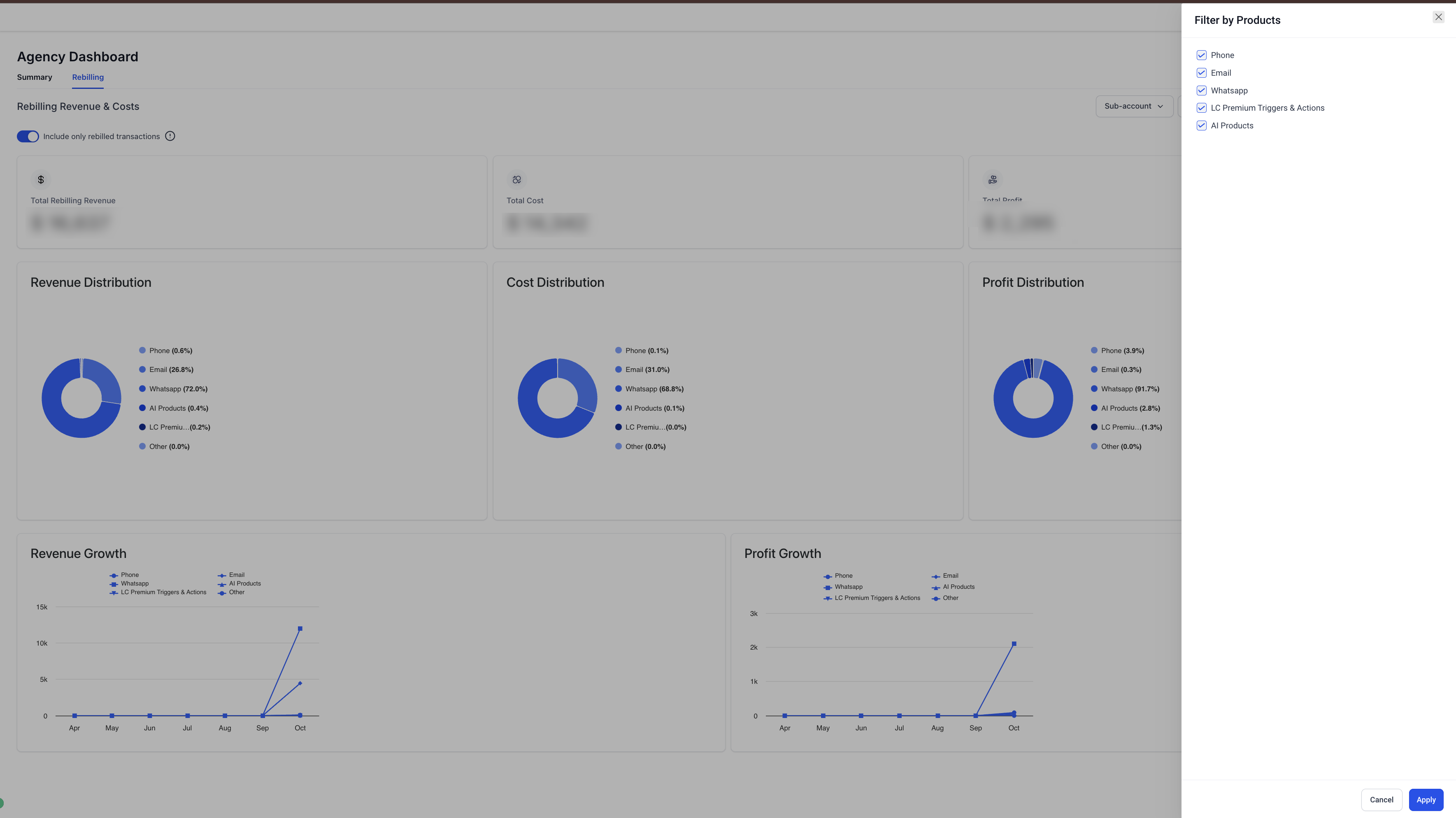
Key Metrics and Reporting Widgets
Summary Cards
Total Rebilling Revenue
Total Cost
Total Profit
Charts
Revenue Distribution
Cost Distribution
Profit Distribution
Trends
Revenue Growth
Profit Growth
Include Only Rebilled Transactions
When enabled:
Only successfully charged transactions are included
When disabled:
Costs that were not rebilled may appear
For accurate profit analysis, keep this enabled.
Reselling Reporting Layout
The dashboard separates:
Usage Products → Pay-as-you-go services
Subscription Products → Recurring services
Understanding Financial Metrics
Revenue: Amount charged to clients
Cost: Amount charged by vendors
Profit: Revenue minus Cost
Profit = Revenue – Cost
Distribution Reports
These charts show how revenue, cost, and profit are distributed across products.
They help identify:
High-performing services
High-cost services
Growth Reports
Growth charts track performance over time.
Revenue Growth → income trends
Profit Growth → margin trends
Example Walk-Through
Example scenario:
Revenue: $15,000
Cost: $11,000
Profit: $4,000
Understanding Exported Data and Profit Breakdown
The dashboard shows aggregated data, while exports contain raw transaction-level data. This difference can make exported files harder to interpret.
Why Exported Data Feels Generalized
Data is not pre-grouped
Profit may not appear as a column
Multiple rows may exist per client or service
Key Fields in Exported Data
Charge (Revenue)
Usage Cost (Cost)
Location (Sub-account)
Service/Product
Date
How to Calculate Profit
Open the CSV in Excel or Google Sheets
Locate Charge and Usage Cost
Add a new column: Profit
Profit = Charge – Usage Cost
How to Analyze Profit
Use a Pivot Table:
Rows → Location
Columns → Service
Values → Charge and Cost
Then calculate profit from totals.
Important Limitations
Profit is not always pre-calculated
Data may require grouping
Export totals may differ from dashboard if filters differ
| Metric | Recommended Definition |
|---|---|
| Revenue | Amount charged to clients for the services they have consumed. |
| Cost | Actual charges billed by HighLevel for services consumed by your clients and deducted from your agency wallet. |
| Profit | Revenue − Cost |
Understanding Auto-Recharges vs. Cost and Revenue
Auto-Recharges should not be compared directly with the Cost or Revenue shown in the Agency Dashboard.
- Cost represents the actual charges billed by HighLevel for services your clients have used. These charges are deducted from your agency wallet.
- Revenue represents the amount your clients are charged for the services they have consumed.
- Auto-Recharges are funds added to a client's wallet to maintain its balance. They are wallet top-ups and do not represent service usage.
Because funds added through an Auto-Recharge may not be used immediately, Auto-Recharge amounts are not expected to match the Cost or Revenue shown in the Agency Dashboard.
The Agency Dashboard reflects actual usage-based charges and revenue for the selected reporting period, while wallet funds may be consumed during the current or a future billing period.
Troubleshooting
If the data displayed in your Agency Rebilling Dashboard doesn't look as expected, review the following common scenarios.
1. My dashboard totals don't match my exported report
The dashboard displays aggregated financial data, while exported reports contain transaction-level records.
Differences can occur if:
- The dashboard and export use different date ranges.
- Different filters (such as product or sub-account) are applied.
- Multiple transactions are grouped together in the dashboard but appear as separate rows in the export.
To compare totals accurately, ensure you're using the same filters and date range in both the dashboard and the exported report.
2. My dashboard doesn't match Stripe
The Agency Rebilling Dashboard and Stripe may display different totals because they track different aspects of your transactions.
Differences may occur due to:
- Stripe processing fees
- Refunds processed directly in Stripe
- Timing differences between transactions and settlements
When comparing data, remember that the Rebilling Dashboard reflects rebilling activity, while Stripe reflects payment processing activity.
3. Why is my revenue negative?
Negative revenue can occur when refunds, cancellations, or prorated adjustments are applied to previously billed transactions.
Review recent account activity and refunds to understand the adjustment reflected in the dashboard.
4. Why doesn't the exported CSV include a Profit column?
The dashboard calculates Profit by comparing revenue and cost.
Exported reports provide transaction-level data rather than calculated dashboard metrics. If needed, Profit can be calculated by comparing the exported revenue and cost values.
5. I only see six months of data
The Agency Rebilling Dashboard currently displays the most recent six months of rebilling data.
This is the current system limitation for dashboard reporting.
6. My profit looks lower than expected
Before reviewing profit calculations, verify that:
- The correct date range is selected.
- The appropriate product and sub-account filters are applied.
- The Include Only Rebilled Transactions setting matches the data you want to analyze.
Changing these filters may affect the revenue, cost, and profit values shown in the dashboard.
7. I'm missing transactions
If expected transactions aren't appearing:
- Verify that the correct filters are selected.
- Confirm you're viewing the appropriate date range.
- Review whether the transaction falls within the dashboard's six-month reporting window.
- Check whether the Include Only Rebilled Transactions filter is enabled or disabled, depending on the transactions you're trying to review.
Need more help?
If you've reviewed the above scenarios and your dashboard still doesn't display the expected data, contact HighLevel Support for further assistance.
Frequently Asked Questions
Q: How is Total Profit calculated?
Profit = Revenue – Cost
Q: Why does my dashboard show negative revenue?
Due to refunds, cancellations, or adjustments
Q: Why don’t numbers match Stripe payouts?
Stripe fees, timing, and external refunds are not included
Q: Why only six months of data?
This is a system limitation
Q: What happens if I disable “Include only rebilled transactions”?
Non-rebilled costs may be included
Q. Why don't Auto-Recharge amounts match the Cost or Revenue in the Agency Dashboard?
Auto-Recharges add funds to a client's wallet, while the Agency Dashboard reports actual service usage and the associated Cost and Revenue.
Funds added through an Auto-Recharge may remain in the client's wallet and be used later. Therefore, Auto-Recharge totals are not expected to match the Cost or Revenue shown in the Agency Dashboard for the same date range.
Related Articles
Was this article helpful?
That’s Great!
Thank you for your feedback
Sorry! We couldn't be helpful
Thank you for your feedback
Feedback sent
We appreciate your effort and will try to fix the article