The Wait action in HighLevel workflows helps control when the next step in a workflow should happen. It can pause a contact for a fixed duration, wait until a specific date, follow a recurring schedule, wait around an appointment or booking, hold for a reply from the contact or from a member of your team, wait for a contact action, or continue only when custom conditions are met. This updated guide explains each Wait option, how to configure it, and when to use it so your workflow timing stays accurate, relevant, and easy to manage.
TABLE OF CONTENTS
- What is the Wait Action in Workflows?
- Key Benefits of the Wait Action in Workflows
- Wait Action Details
- When Should You Use the Wait Action?
- How To Set Up the Wait Action
- Configure a Set Period of Time
- Configure a Specific Date and Time
- Configure a Recurring Schedule
- Configure an Upcoming Appointment or Booking
- Configure the Contact to Reply
- Configure the Contact to Take an Action
- Configure Specific Conditions to be Met
- Examples of the Wait Action
- Frequently Asked Questions
- Related Articles
What is the Wait Action in Workflows?
The Wait action gives you control over timing inside an automation. Instead of sending every message or running every workflow step immediately, you can pause contacts until the timing, event, reply, action, or condition makes sense for the customer journey.
The Wait action holds a contact in the workflow for:
A specified amount of time, such as 1 day, 1 hour, or 5 minutes.
A specific date and time, such as December 4 at 9:00 AM, either entered directly or pulled from a contact field.
A recurring schedule, such as every Tuesday, the 15th of each month, or January 1 every year.
An upcoming appointment, service booking, or invoice due date, such as 1 hour before a scheduled appointment.
Until a condition is met, such as a contact replies or a specific event occurs.
Until a member of your team replies to the contact, with an optional timeout so the workflow can escalate if no one responds.
During a specified time window, such as between 9:00 AM and 5:00 PM on weekdays.
This helps ensure your communication and workflow steps happen at the right moment, improving efficiency and creating a better experience for contacts.
Key Benefits of the Wait Action in Workflows
Improved timing: Pause contacts until the right moment before sending messages, assigning tasks, updating records, or continuing workflow steps.
More relevant communication: Send follow-ups based on replies, trigger link clicks, email engagement, appointment times, invoice due dates, or custom conditions.
Flexible scheduling: Use fixed delays, specific dates, recurring schedules, appointment-based timing, reply waits, action waits, or condition-based waits.
Dynamic personalization: Use custom variables so dates, times, units, or durations can change based on each contact’s record.
Controlled delivery windows: Resume contacts only on selected days, during selected hours, or when additional date filters are met.
Better workflow organization: Name each Wait step clearly so timing logic is easier to review, test, and maintain.
AI-assisted editing: Use Workflow AI Builder to update time delays, window settings, reply conditions, timeout branches, and supported wait configurations through conversation.
Wait Action Details
This table contains all of the settings available in the Wait action.
| Wait For | Description | Advanced |
|---|---|---|
| A set period of time | Holds the contact for a fixed duration before continuing. | 1.Time period and Unit: seconds, minutes, hours, days. 2.Standard or Dynamic value: Dynamic accepts a custom variable. 3.Advance Window: Resume on selected days, Resume between hours, Additional filter. |
| A specific date and time | Holds the contact until an exact date and time. The date can be a fixed value or pulled dynamically from a custom variable. | 1.Date and time: This follows the account’s date format preference. 2.Standard or Dynamic value 3. When should the Contact proceed: On this date and time, Before this date, After this date. 4. If this date has already passed: Continue to next action, Exit Contact from automation, Go to specific step, or Skip all outbound communication actions till next wait or event start date action. |
| A recurring schedule | Holds the contact until the next occurrence of a repeating date pattern, such as every Tuesday, the 15th of each month, or January 1 every year. | 1. Frequency: Weekly, Monthly, or Yearly 2. Weekly: On these days, Sunday through Saturday, and Time 3. Monthly: On a specific day of the month or the Nth weekday of selected months, plus Time 4. Yearly: On this date every year, plus Time 5. When should the Contact proceed: On this date and time, Before this date, After this date- Live preview of the next 5 scheduled recurrences. |
| An upcoming appointment or booking | Holds the contact until before, at, or after a scheduled appointment, service booking, or invoice due date. | 1. Type: Appointment / Calendar Event, Service Booking, or Invoice Due Date 2. When should the Contact proceed: At the scheduled time, Before, or After- Before / After duration in months, days, hours, and minutes 3. If this date has already passed: Continue to next action, Go to specific step, Exit Contact from automation, or Skip all outbound communication actions till next wait or event start date action |
| The contact to reply | Holds the contact until they reply on a selected channel, such as SMS or Email. | 1. Reply To channel: SMS, Email, etc. 2. Timeout on/off with duration |
| The contact to take an action | Holds the contact until they click a trigger link or interact with a sent email. | 1.What action: Clicks a trigger link, or Email event such as open, click, bounce, etc. 2.Trigger link or email step selection: Timeout on/off with duration |
| Specific conditions to be met | Holds the contact until a custom segment built from any of your fields evaluates as true. | 1. Segments with Conditions joined by AND/OR logic 2. Add Segment / Add Condition controls 3. Timeout on/off with duration |
| A user to reply | Holds the contact until a member of your team replies to them on a selected channel. Best placed after the contact has messaged in, to check whether a rep responds. | 1. Reply channel: SMS, Email, etc. 2. Which user (optional): the contact's assigned user or specific users. 3. Timeout on/off with duration. |
When Should You Use the Wait Action?
The Wait action is useful whenever workflow timing should depend on a delay, schedule, appointment, customer behavior, or custom qualification logic. These use cases help automation feel timely, intentional, and aligned with each contact’s journey.
Use the Wait action for:
Timely follow-ups: Quickly respond to customer inquiries or send an email or SMS at an appropriate time.
Conditional triggers: Hold a contact until a specific condition is met, such as completing a form or making a payment.
Controlled scheduling: Avoid sending messages during off-hours or weekends by resuming the workflow only during specified times.
Date-driven reminders: Hold a contact until a specific calendar date, such as a renewal date, contract expiration, or anniversary, pulled directly from a custom variable on the contact.
Recurring touch-points: Reach contacts on a repeating cadence, such as every Monday morning, the 1st of each month, or once a year on a holiday.
Pre-appointment nudges: Send a reminder a set duration before a scheduled appointment, service booking, or invoice due date.
AI-assisted workflow editing: If you use Workflow AI Builder, you can edit Wait actions through conversation. You can update time delays, window settings, and reply conditions, add or remove timeout branches, and convert between wait types without switching to manual configuration.
Response-time SLAs: Hold until a member of your team replies to the contact, then branch to an escalation, such as notifying the owner, if no one responds within the timeout.
How To Set Up the Wait Action
A well-configured Wait action helps contacts pause and resume exactly when intended. Naming the action clearly, selecting the correct wait type, configuring fallback behavior, and testing the workflow help prevent timing issues before the automation is published.
Go to Automation.
Click on Workflows.
Click + Create Workflow in the top-right corner.
Select + Start from scratch.

Set up the trigger for the workflow. For example, use Contact created as the trigger.
Click the + icon to add a new workflow step.
From the actions menu, scroll down or search for Wait.
Select the Wait action.
Name the action with a clear, descriptive label, such as Wait - 1 Day After Sign-Up. This helps you identify the Wait step when reviewing the workflow.
Select what the contact should wait for. The Wait action opens a selection screen with seven plain-language options:
A set period of time: Example: 2 days, 6 hours, or 30 minutes.
A specific date and time: Example: December 4 at 9:00 AM.
A recurring schedule: Example: Every Tuesday or the 15th of each month.
An upcoming appointment or booking: Example: 1 hour before a scheduled appointment.
The contact to reply: Wait for a reply on SMS, Email, or another supported channel.
The contact to take an action: Example: Clicks a link or opens an email.
Specific conditions to be met: Build a custom segment using any of your fields.
A user to reply: Wait until a member of your team replies to the contact on a supported channel.
Configure the option you selected.
Publish and Save the workflow.

Tip: When the Wait action is placed directly after a Send action, such as SMS, Email, or WhatsApp, The contact to reply moves to the top of the list to make it easy to find.
Tip: When your workflow trigger is appointment-based, An upcoming appointment or booking shows an info banner referencing the trigger appointment.
Configure a Set Period of Time
Fixed delays are best for simple pauses where every contact should wait the same amount of time, or where the wait duration should be calculated dynamically from a custom variable.
Select A set period of time.
Enter the Time period, such as 1, 5, or 30.
Select the Unit, such as seconds, minutes, hours, or days.
Use the three-dot menu next to Time period or Unit to switch between:
Standard: A fixed value entered manually.
Dynamic: A custom variable resolved at runtime.
To limit when contacts can resume, toggle on Advance Window.
Configure the Advance Window options as needed:
Resume On: Choose specific weekdays.
Resume Between Hours: Define a window or exact start time.
Additional Filter: Add granular date conditions, such as a specific day, month, or year.
Save the Wait step.

Configure a Specific Date and Time
Specific date waits are best for reminders, renewals, anniversaries, contract dates, or any workflow step that should happen around a known date.
Select A specific date and time.
Choose the exact Date and time the contact should wait for. The picker follows the account’s date format preference.
Use the three-dot menu next to the field to switch between:
Standard: A fixed date you choose.
Dynamic: A custom variable that reads the date from a contact field at runtime.
If using Dynamic, enter a custom variable that resolves to a valid date at runtime.
Under When should the Contact proceed?, choose:
On this date and time
Before this date
After this date
If choosing Before this date or After this date, enter the duration for when the contact should proceed.
Under If this date has already passed, choose:
Continue to next action
Exit Contact from automation
Go to specific step
Skip all outbound communication actions till next wait or event start date action
Save the Wait step.

Configure a Recurring Schedule
Recurring schedules are best for repeated touch-points that should happen on an ongoing weekly, monthly, or yearly cadence without creating separate workflows for each occurrence.
Select A recurring schedule.
Choose a Frequency:
Weekly
Monthly
Yearly
For Weekly, select one or more days under On these days, then choose a time.
For Monthly, choose either:
A specific day of the month, such as Day 1 or Day 15.
The 1st, 2nd, 3rd, 4th, or Last weekday of selected months.
For Monthly, select the month or months the schedule should run in and choose a time.
For Monthly, stack multiple ordinals if needed, such as 1st and 3rd Tuesday.
For Yearly, choose the month and day under On this date every year, then choose a time.
Under When should the Contact proceed?, choose:
On this date and time
Before this date
After this date
Review the Next 5 scheduled recurrences preview at the bottom of the screen to verify the schedule.
Save the Wait step.

Configure an Upcoming Appointment or Booking
Appointment and booking waits are best for reminders, follow-ups, due-date workflows, and customer communication that should happen relative to a scheduled event.
Select An upcoming appointment or booking.
Choose the Type:
Appointment / Calendar Event
Service Booking
Invoice Due Date
Remember that Service Booking is hidden if Service Booking is disabled for the location.
Under When should the Contact proceed?, choose:
At the scheduled time
Before
After
If choosing Before or After, enter the duration in months, days, hours, and minutes.
Under If this date has already passed, choose:
Continue to next action
Go to specific step
Exit Contact from automation
Skip all outbound communication actions till next wait or event start date action
Save the Wait step.

Configure the Contact to Reply
Reply-based waits are best when the next workflow step should depend on whether a contact responds to a message.
Select The contact to reply.
Choose the Reply To channel, such as SMS or Email. (A Send Email/SMS Action needs to be present before the wait step)
Toggle Timeout on if the contact should move forward after a set duration even without a reply.
Configure the timeout duration when Timeout is enabled.
Save the Wait step.

Configure the Contact to Take an Action
Action-based waits are best when the workflow should react to engagement, such as a trigger link click or an email open, click, or bounce.
Select The contact to take an action.
Choose the action:
Clicks a trigger link
Email event, such as open, click, bounce, or another supported email event
Select the trigger link or email step.
Toggle Timeout on to move the contact forward after a set duration if the action does not occur.
Configure the timeout duration when Timeout is enabled.
Save the Wait step.

Configure Specific Conditions to be Met
Condition-based waits are best when contacts should continue only after matching specific rules, qualification criteria, engagement behavior, or field values.
Select Specific conditions to be met.
Use Add Condition to create individual rules.
Use Add Segment to create grouped logic blocks.
Join conditions using AND/OR logic.
Add as many segments and conditions as needed.
Remember that the contact moves forward as soon as any one segment evaluates as true.
Toggle Timeout on to release the contact after a set duration if no segment is satisfied.
Configure the timeout duration when Timeout is enabled.
Save the Wait step.

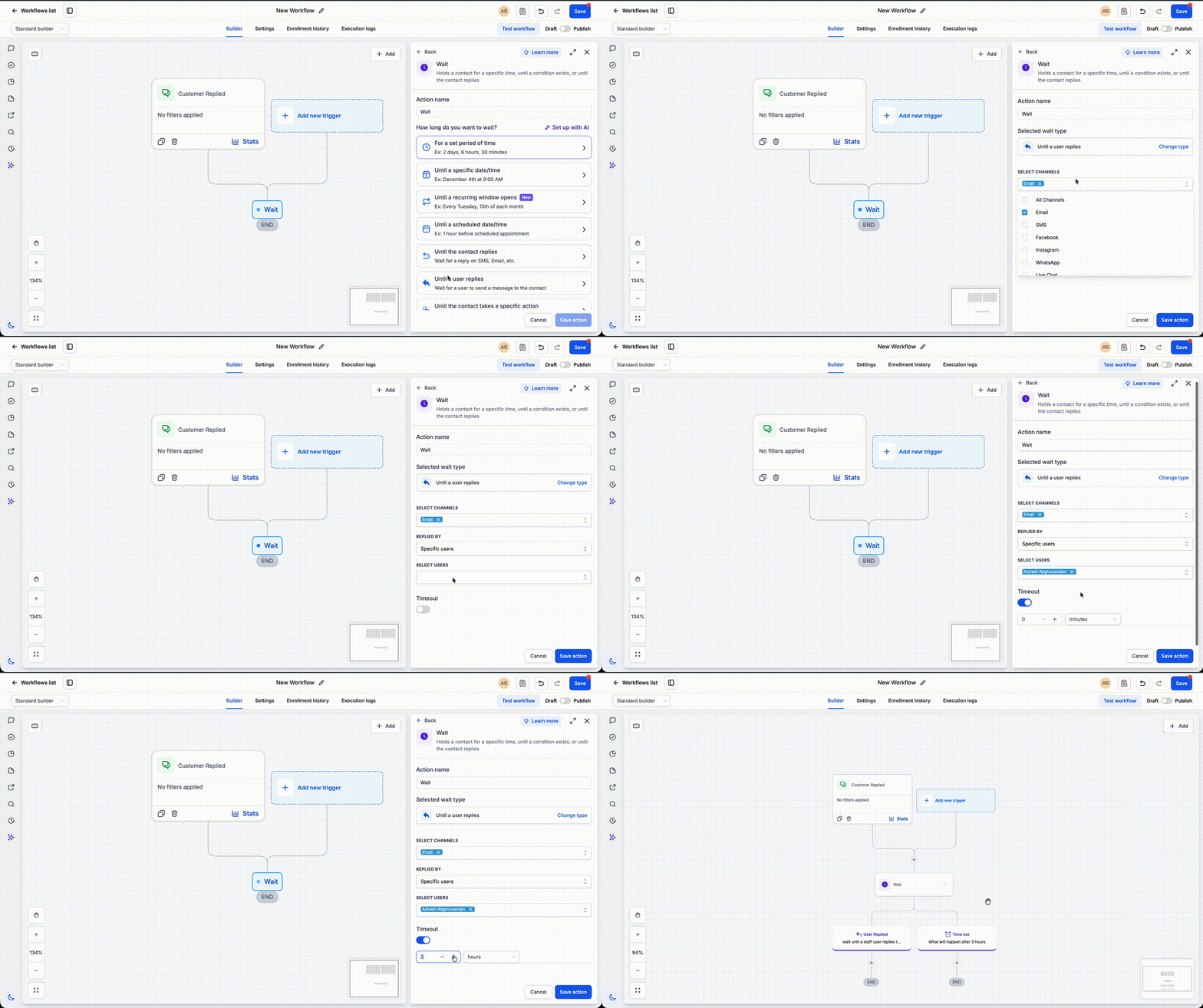
Configure a User to Reply
User-reply waits are best when the next step should depend on whether a member of your team responds to the contact, for example to track a response-time SLA and escalate if no one replies.
- Select A user to reply.
- Choose the Reply channel, such as SMS or Email.
- Optionally choose which user should count: the contact's assigned user or specific users. Leave this open to accept a reply from any user.
- Toggle Timeout on so the contact moves forward after a set duration even if no user replies. This is the branch you use to escalate.
- Configure the timeout duration when Timeout is enabled.
- Save the Wait step.
Note: The wait resolves when the user's reply is delivered, not the moment it is sent.
Examples of the Wait Action
Real-world examples make it easier to choose the correct Wait option for your automation. These examples show how fixed delays, recurring schedules, and timed follow-ups can support common customer communication workflows.
Example 1: Welcome Email After Sign-Up
Scenario: A new customer signs up on your website.
- Trigger: The automation starts when a new contact is added.
- Wait: Add a 1 hour delay before sending the email.
- Action: Send a personalized welcome email.
Result: The delay gives the new customer a moment to explore your brand before receiving the email, making the interaction feel thoughtful and intentional.

Example 2: Thank You Mail After a Course Sign-Up
Scenario: A lead signs up for your newsletter.
- Trigger: The automation begins when a New Signup happens for your course.
- Wait: Hold for 2 minutes before sending the first email.
- Action: Send a “Thank You for Signing Up” email with a link to your latest newsletter.
Result: The brief delay ensures your email doesn’t appear robotic or instant, creating a more humanized experience.

Example 3: Abandoned Cart Recovery
Scenario: A customer adds items to their cart but doesn’t complete the purchase.
- Trigger: A cart is abandoned for 20mins.
- Wait: Pause for 10 minutes to give the customer time to reconsider.
- Action: Send a gentle reminder email with a discount offer.
Result: The strategically timed follow-up increases the likelihood of conversion.
Example 4: Monthly Membership Renewal Reminder
- Scenario: A membership site wants to remind active members on the 1st of every month.
- Trigger: A contact is added to the Active Members tag.
- Wait: Use A recurring schedule set to Monthly > Day 1 of the month at 9:00 AM.
- Action: Send a monthly summary email and SMS reminder.
Result: Members receive a consistent, predictable touchpoint on the same day every month without managing separate workflows for each cycle.
Example 5: Escalate if No Rep Replies (SLA)
- Scenario: A contact messages in and you want a member of your team to respond within five minutes.
- Trigger: The automation starts when the contact messages in, for example with Customer Replied.
- Wait: Add A user to reply with Timeout set to five minutes.
- Action: On the timeout branch, notify the owner or manager and create a follow-up task.
Result: A rep gets a short window to respond, and anything unanswered is escalated automatically.
Frequently Asked Questions
Q:What happens if I edit a workflow while contacts are already in a Wait action?
Contacts already in the Wait action keep their existing wait. Changing the Wait action does not update the wait for contacts already in that step.
Changes to steps after the Wait action can apply when those contacts continue through the workflow. This includes updates to existing actions and newly added actions.
Q: What’s the difference between Segments and Conditions in a Wait action? How should I use them?
Conditions are individual rules, such as Contact’s Job Title is CEO or Contact is in the High-Value tag. Segments are groups of these conditions evaluated together using AND/OR logic. A contact exits the Wait step when any one segment is satisfied.
For example, you may want the workflow to continue if a contact is highly engaged or meets specific criteria. Segment 1 might check if the contact opened a proposal email and is a decision-maker, while Segment 2 checks if they attended a strategy call and have an approved budget. If either segment is satisfied, the wait ends, allowing your automation to adapt to different but equally qualified user behaviors.
Q: What happens if a contact reaches an Event/Appointment-based Wait step but the event time is already in the past?
If the event or appointment time has already passed when the contact reaches the Wait step, the workflow uses your selected If this date has already passed option:
Continue to next action: Skips the wait and continues to the next action.
Go to specific step: Jumps to a step you choose.
Exit Contact from automation: Removes the contact from the workflow.
Skip all outbound communication actions till next wait or event start date action: Bypasses Email, SMS, Call, and Voicemail actions until the next wait or event start date action.
Q: How does the Wait action behave if multiple Segments contain conflicting conditions? Which segment takes priority?
All segments in a Specific conditions to be met step are evaluated independently, and no segment has priority. The workflow moves forward as soon as any one segment becomes true, even if the segments contain conflicting conditions. Because segments use an OR relationship, the first segment that evaluates to true ends the wait.
Example:
Segment 1: Tag = VIP
Segment 2: Tag does not equal VIP AND Email Opened = True
If the contact matches either segment, the wait ends.
Q: When should I use Standard vs. Dynamic for a date or duration?
Use Standard when the same fixed value should apply to every contact, such as holding every contact for 2 days or releasing every contact on December 4 at 9:00 AM. Use Dynamic when the value should be read from a contact field at runtime, such as releasing each contact on the renewal date stored on their record or waiting for a number of days that varies by plan. Dynamic accepts any custom variable that resolves to a valid date, time, or number.
Q: How does A recurring schedule decide which occurrence to wait for?
When a contact reaches a recurring schedule Wait step, the system looks at the schedule you configured, whether Weekly, Monthly, or Yearly, and releases the contact at the next matching occurrence. The Next 5 scheduled recurrences panel inside the action shows exactly which dates will be used in the workflow’s timezone so you can confirm the schedule before saving.
Q: What’s the difference between Appointment / Calendar Event, Service Booking, and Invoice Due Date under An upcoming appointment or booking?
Appointment / Calendar Event: Waits relative to a scheduled appointment or calendar event linked to the contact.
Service Booking: Waits relative to a service booking. This option is hidden if Service Booking is disabled for the location.
Invoice Due Date: Waits relative to the due date on the contact’s invoice, which is useful for pre-due reminders or post-due follow-ups.
Q: Why does the order of options change sometimes?
The selection screen surfaces the most relevant option first based on context. When the Wait action is placed directly after a Send action, such as SMS, Email, or WhatsApp, The contact to reply moves to the top so it is easy to find. The full set of options is always available regardless of order.
Q: Can I edit a Wait action with Workflow AI Builder?
Yes. Workflow AI Builder supports conversational edits for Wait actions, including updates to wait settings, timeout branches, and supported wait configurations. For AI-based editing steps, see Workflow AI Builder.
Q: What is the difference between "The contact to reply" and "A user to reply"?
"The contact to reply" waits for the contact to respond to you. "A user to reply" waits for a member of your team to respond to the contact. Use "A user to reply" for response-time SLAs and escalations, where you need to know whether someone on the team answered.
Related Articles
Was this article helpful?
That’s Great!
Thank you for your feedback
Sorry! We couldn't be helpful
Thank you for your feedback
Feedback sent
We appreciate your effort and will try to fix the article