Company Bulk Import in HighLevel allows you to create or update multiple Company records using a CSV file. Instead of adding Companies individually, you can upload business information, map fields, handle duplicates, and track import results through a guided process.
TABLE OF CONTENTS
- What Is Company Bulk Import?
- Prerequisites and Labs Enablement
- How to Prepare Your CSV File
- How to Bulk Import Companies
- How to Track Import Progress and Results
- Frequently Asked Questions
- Related Articles
What Is Company Bulk Import?
Company Bulk Import allows you to create or update multiple Company records in HighLevel by uploading a CSV file.
A Company record stores business information such as Company Name, Phone, Email, Website, and Address.
Instead of entering this information manually for each Company, you can upload multiple records at once using a guided four-step process:
Start → Upload → Map → Verify
This feature is useful when moving Company information from another CRM, adding several businesses, or updating existing Company details.
Prerequisites and Labs Enablement
Before importing Companies, ensure the feature is enabled in your HighLevel account.
How to Enable Company Bulk Import
Open your HighLevel sub-account.
Navigate to Labs.
Locate Company and Custom Object Import.
Enable the feature.
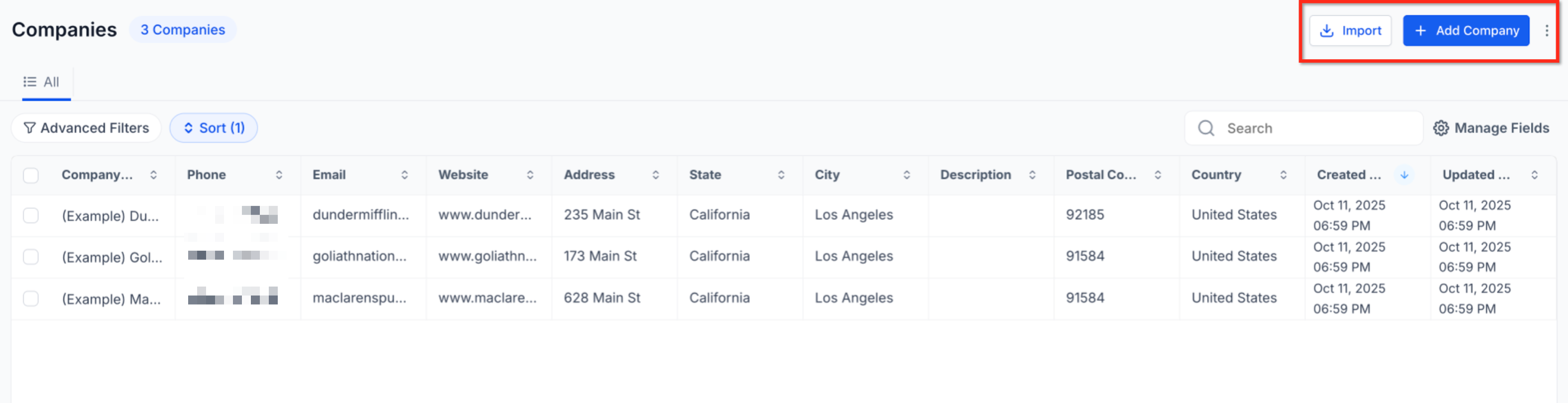
Navigate to Contacts → Companies and confirm the Import button is available.
Note: According to the feature release, Company Bulk Import is available through Labs. If you cannot find the option, contact your account administrator.
How to Prepare Your CSV File
A CSV file stores information in rows and columns. Each row represents a Company, while each column contains information such as its name, email, phone number, or address.
Before importing, ensure that:
Your file is saved in .csv format.
The first row contains column headers.
Required Company fields are included.
Company information is correctly formatted.
The appropriate Company ID is included when updating existing records.
Any custom Company fields you want to import already exist in HighLevel.
For example, your CSV file may contain the following columns:
| Company Name | Phone | Website | |
|---|---|---|---|
| Acme Technologies | 1415555198 | contact@acmetech.com | www.acmetech.com |
| BluePeak Marketing | 44207946958 | hello@bluepeak.com | www.bluepeak.com |
Tip: Review your CSV file carefully before importing. Test with a small number of records first, and keep a backup of existing Company information before making bulk updates.
How to Bulk Import Companies
HighLevel provides a four-step import process to help you upload, map, and verify Company data.
Step 1: Start — Select Companies
Navigate to Contacts → Companies.
Click Import in the upper-right corner.
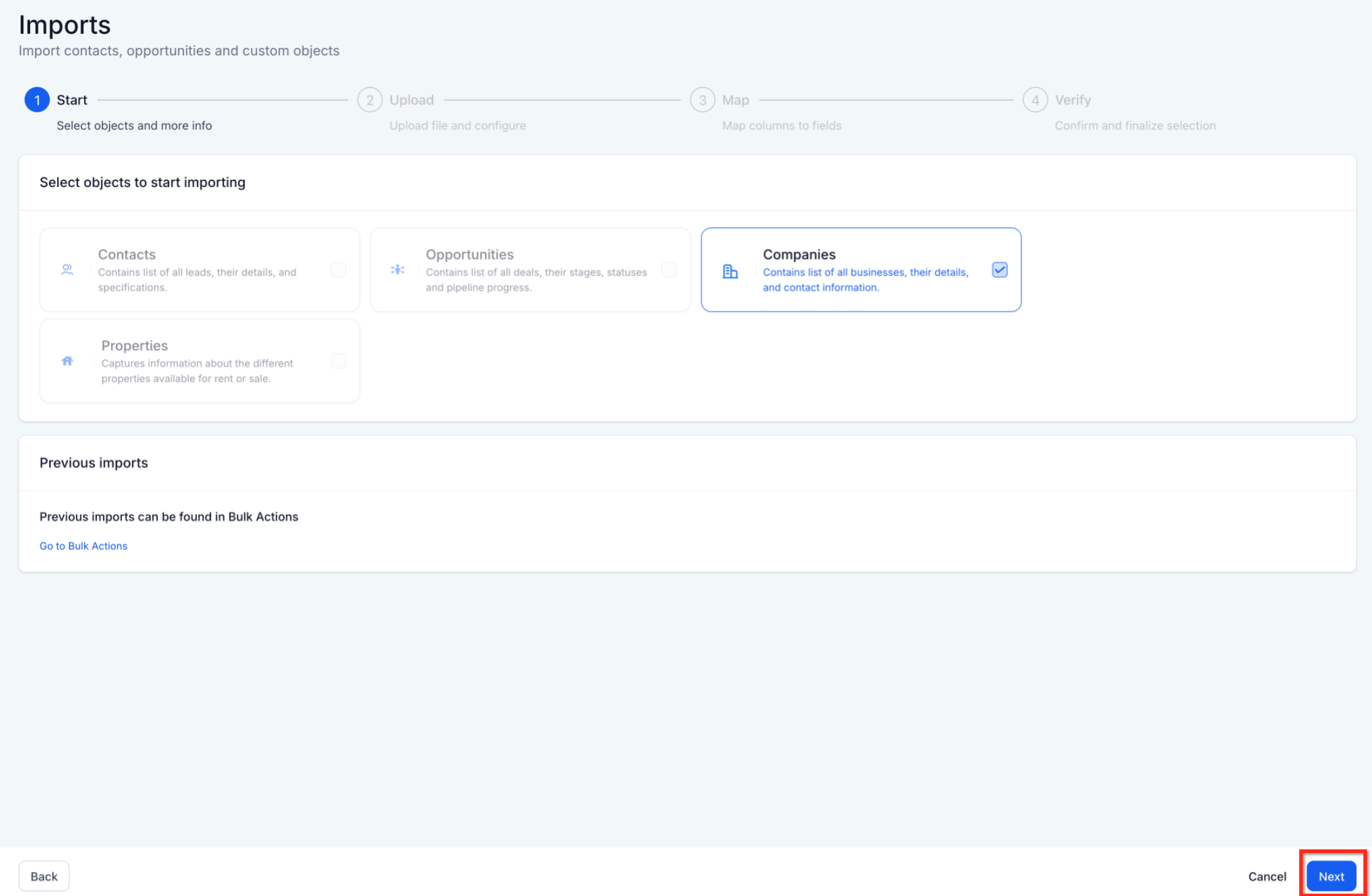
Select Companies from the available import options.
Click Next.
This opens the Company Bulk Import process.
Step 2: Upload — Add Your CSV File
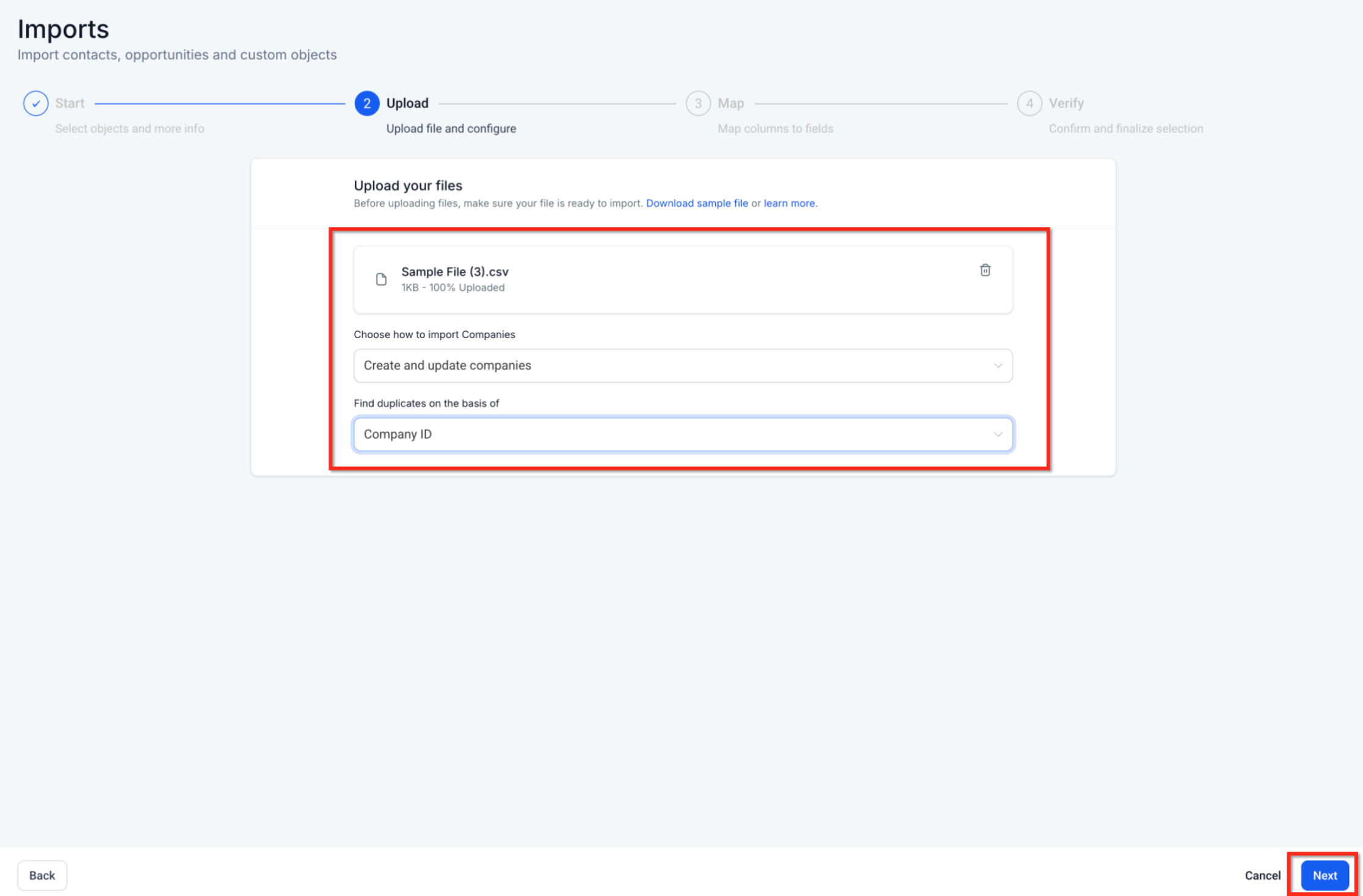
Upload your CSV file and choose how HighLevel should handle the imported records.
Upload your prepared CSV file.
Select the preferred import option:
Create companies: Create new Company records.
Update companies: Update matching existing Company records.
Create and update companies: Update matching records and create new Companies when no match is found.
Select the duplicate detection criteria, such as Company ID.
Click Next.
Note: Company ID is used to identify existing Company records during updates. Make sure the correct identifier is included when matching existing Companies.
Step 3: Map — Match CSV Columns to Company Fields
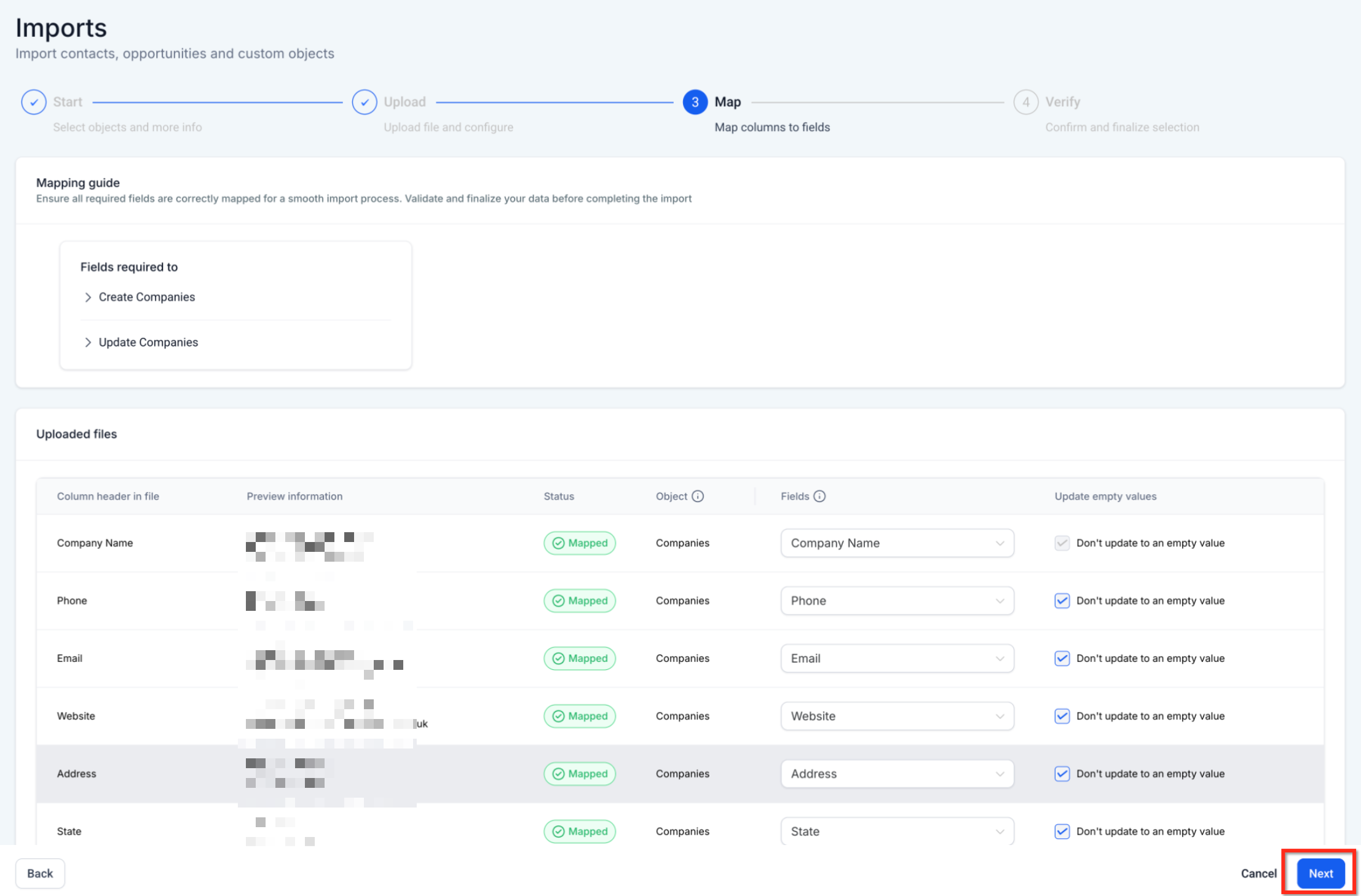
Field mapping determines where information from your CSV file will be saved in HighLevel.
For example, the Phone column in your CSV should be mapped to the Phone field in Companies.
Review the uploaded CSV columns.
Check the automatically suggested field mappings.
Use the dropdown menus to correct any mappings.
Ensure all required fields are mapped.
Review the Don't update to an empty value option.
Click Next.
Don't update to an empty value
Enable this option to prevent blank cells in your CSV file from replacing information already stored in existing Company records.
For example, if an existing Company has a phone number but the corresponding CSV cell is empty, enabling this option helps preserve the existing phone number.
Step 4: Verify — Review and Start the Import
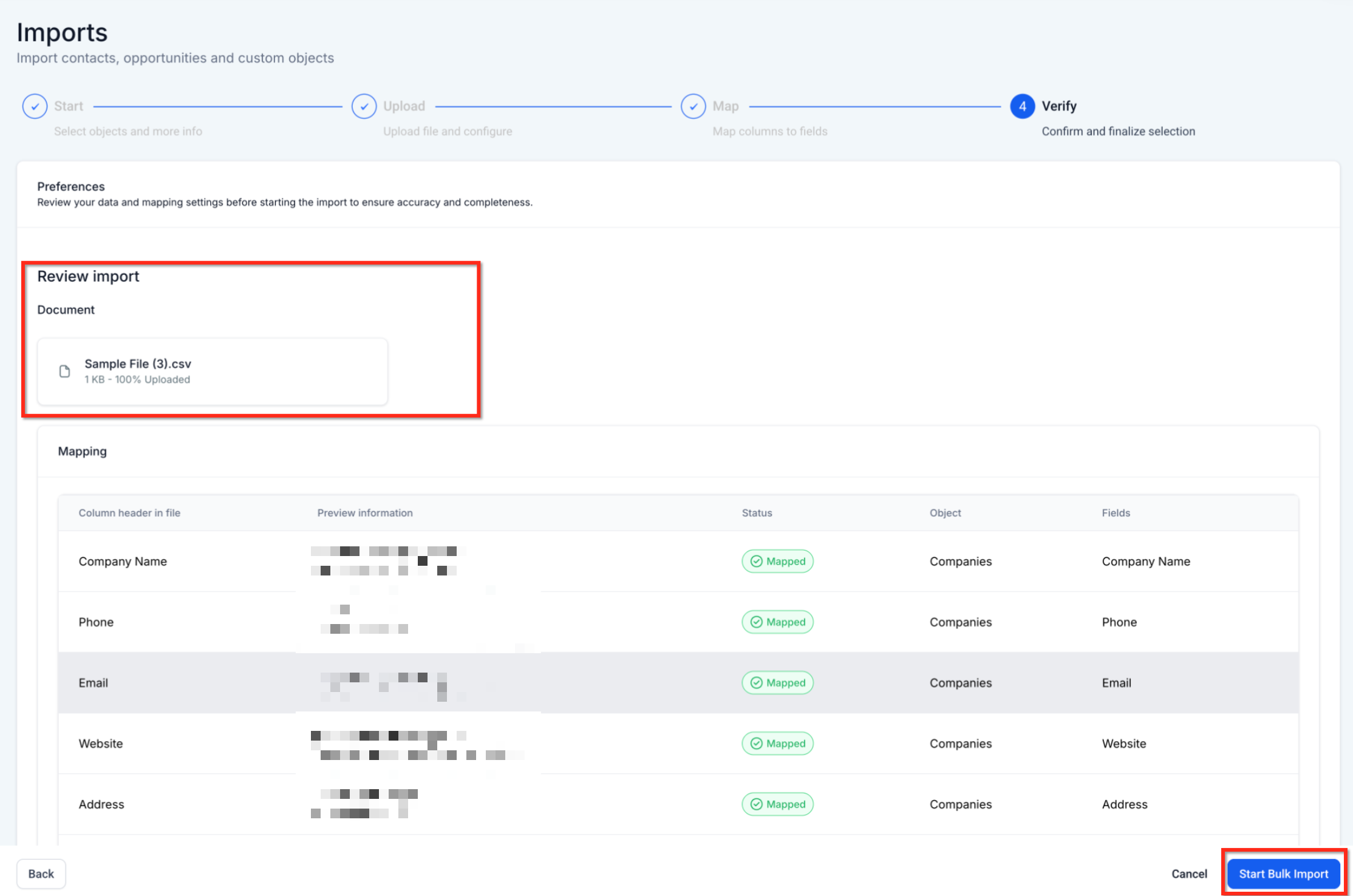
The Verify step allows you to review your import information before processing begins.
Review the uploaded CSV file.
Confirm that the field mappings are correct.
Check the import and duplicate handling settings.
Click Start Bulk Import.
HighLevel will begin processing your Company records.
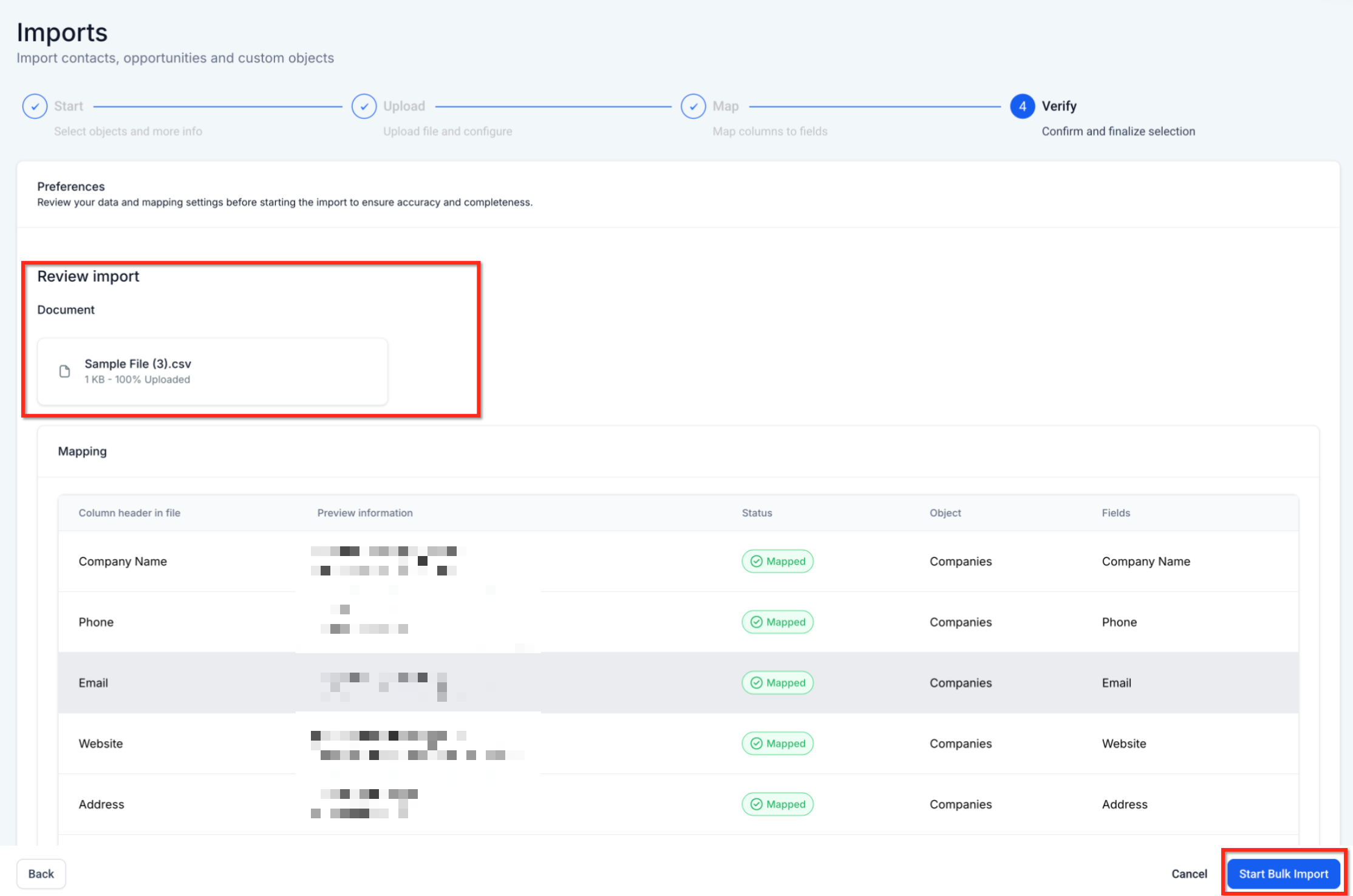
Important: Review your import settings carefully before submission because completed imports cannot be automatically undone.
How to Track Import Progress and Results
After starting the import, you can monitor its progress and review the results through Bulk Actions.
Step 1: Open Bulk Actions – Companies
Navigate to Bulk Actions – Companies.
Find your import using the file name, date, or status.
Review its current status and completion details.
The page displays information such as:
Import file name.
Operation.
Status.
User.
Created and completed dates.
Statistics.
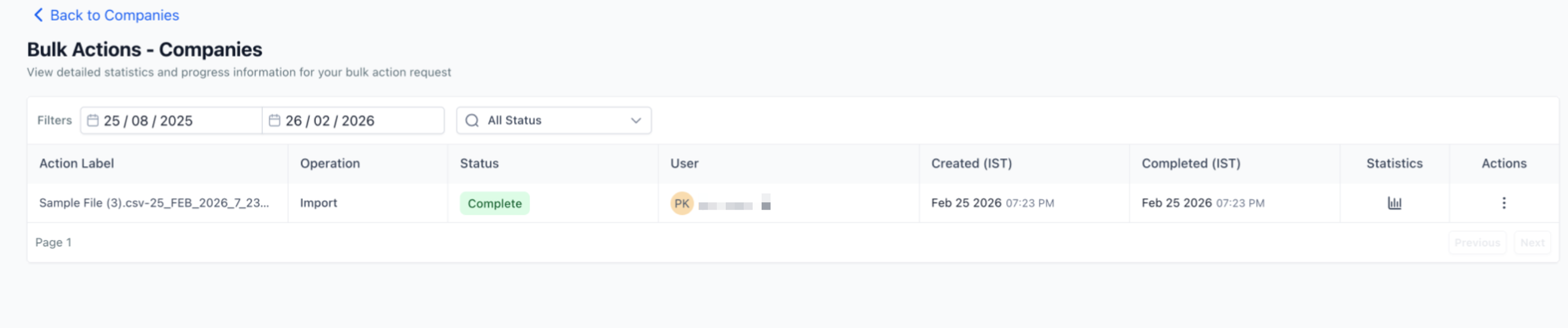
Step 2: Review Bulk Import Statistics
Click the Statistics icon for your import.
The Bulk Import Stats window displays:
All: Total records processed.
Success: Successfully processed records.
Error: Records that could not be imported.
Warning: Records that require attention.
You can also review individual record results and click Download to save the import report.
If any records fail, review the errors, correct the affected CSV rows, and import those records again.
Step 3: Verify Your Imported Companies
Once the import is complete:
Return to Contacts → Companies.
Search for the imported Companies.
Open the records to verify their details.
Confirm that new Companies were created or existing Companies were updated correctly.
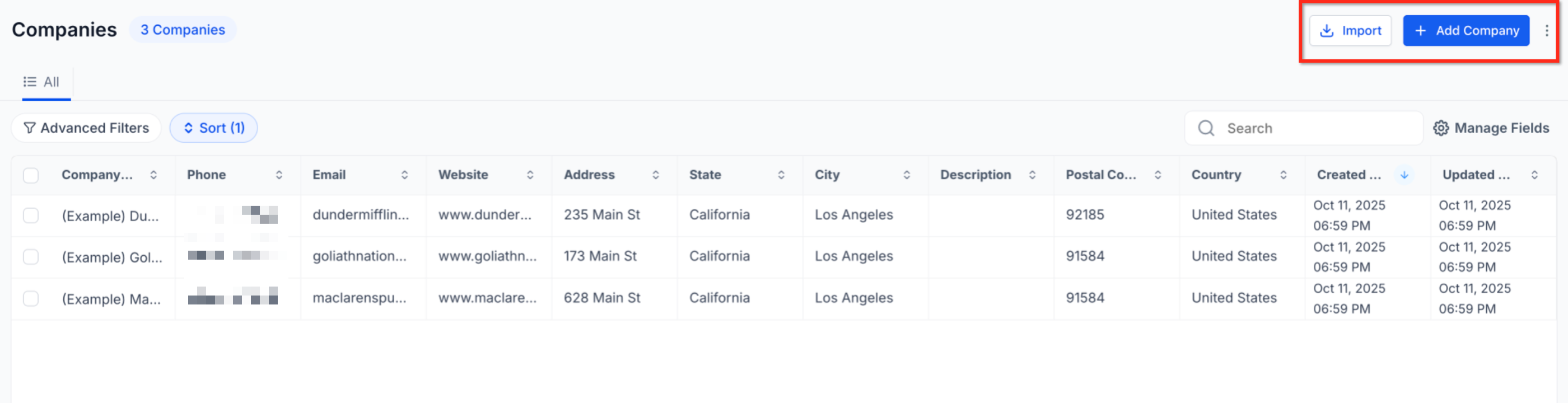
For example, if your account had three Companies and two additional Companies were successfully imported, the Companies list would now show five records.
Your Company Bulk Import Is Complete!
You can now manage the imported Company records directly from your HighLevel CRM.
Frequently Asked Questions
Q: Why can't I see the Import button in Companies?
Verify that Company and Custom Object Import is enabled in Labs and that you have permission to import Company records.
Q: Can I create and update Companies in the same import?
Yes. Select Create and update companies during the Upload step.
Q: How does duplicate detection work?
HighLevel uses the selected matching criteria, such as Company ID, to identify existing Company records during the import.
Q: Can I prevent empty CSV values from replacing existing data?
Yes. Enable Don't update to an empty value during field mapping to preserve existing information when the corresponding CSV cells are blank.
Q: Can I import custom Company fields?
Yes. Ensure the custom fields already exist in HighLevel and map the corresponding CSV columns to those fields.
Q: Where can I check my import results?
Open Bulk Actions – Companies and click the Statistics icon for your import.
Q: What should I do if some records fail?
Download the import report, review the errors, correct the affected CSV rows, and import those records again.
Q: Can I undo a completed Company import?
No. Completed imports cannot be automatically reversed. Review your file and field mappings carefully before starting an import.
Related Articles
- Bulk Import Companies
- Import Companies (Custom Objects) Using a CSV File
- HighLevel Knowledge Base – CRM and Import/Export Resources
Was this article helpful?
That’s Great!
Thank you for your feedback
Sorry! We couldn't be helpful
Thank you for your feedback
Feedback sent
We appreciate your effort and will try to fix the article