Move workflows, rename workflows and folders, change folder colors, and save the shared layout.
TABLE OF CONTENTS
- Who can organize and save the map
- Steps for moving a workflow
- Rename a workflow or folder
- Change a folder color
- Steps for adding a folder
- Undo, redo, and review recent changes
- Rearrange the map with Rearrange layout
- Frequently Asked Questions
Who can organize and save the map
Agency admins can move items and save the layout. Saving updates the layout for everyone in the sub-account.
Organizational changes made on the map also update the Workflows list. Moving a workflow to another folder is an organizational change, and renaming changes its name.
Steps for moving a workflow
- Open Automation → Workflows → Workflow Maps.
- Find the workflow you want to move.
- Drag it into the destination folder.
- Review the placement.
- Click Save to keep the change.
Rename a workflow or folder
Double-click the workflow or folder name and enter the new name.
Choose names that explain the purpose of the workflow or folder. Review the change before clicking Save.
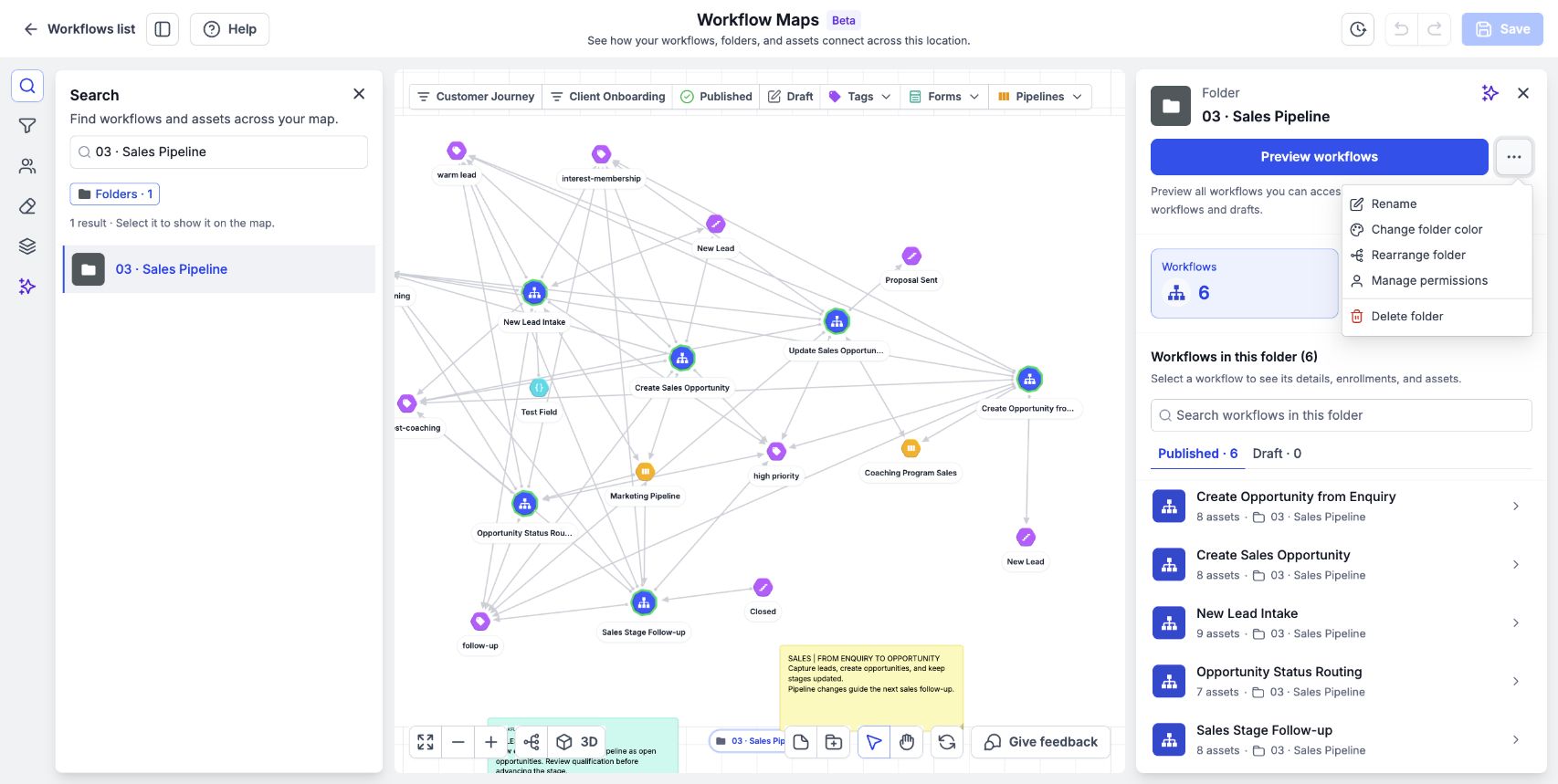
Open More folder actions to rename the folder or choose Change folder color.
Change a folder color
Hover over the folder label and choose a color.
Use colors to make related folders easier to identify. Click Save to retain your layout changes.
Steps for adding a folder
- Use the Add folder control in the bottom toolbar.
- Name the folder.
- Drag the workflows you want to organize into it.
- Review the layout.
- Click Save.
Undo, redo, and review recent changes
Use Undo to step back through layout changes and Redo to reapply them.
Open Recent changes to review the list of layout changes and undo or redo them. Review this list before saving a shared layout.
Rearrange the map with Rearrange layout
Rearrange layout rearranges the map from scratch. Save your current layout and clear active filters before using it.
If you want to reverse the rearrangement, use Recent changes to undo it. Click Save when you are satisfied with the arrangement.
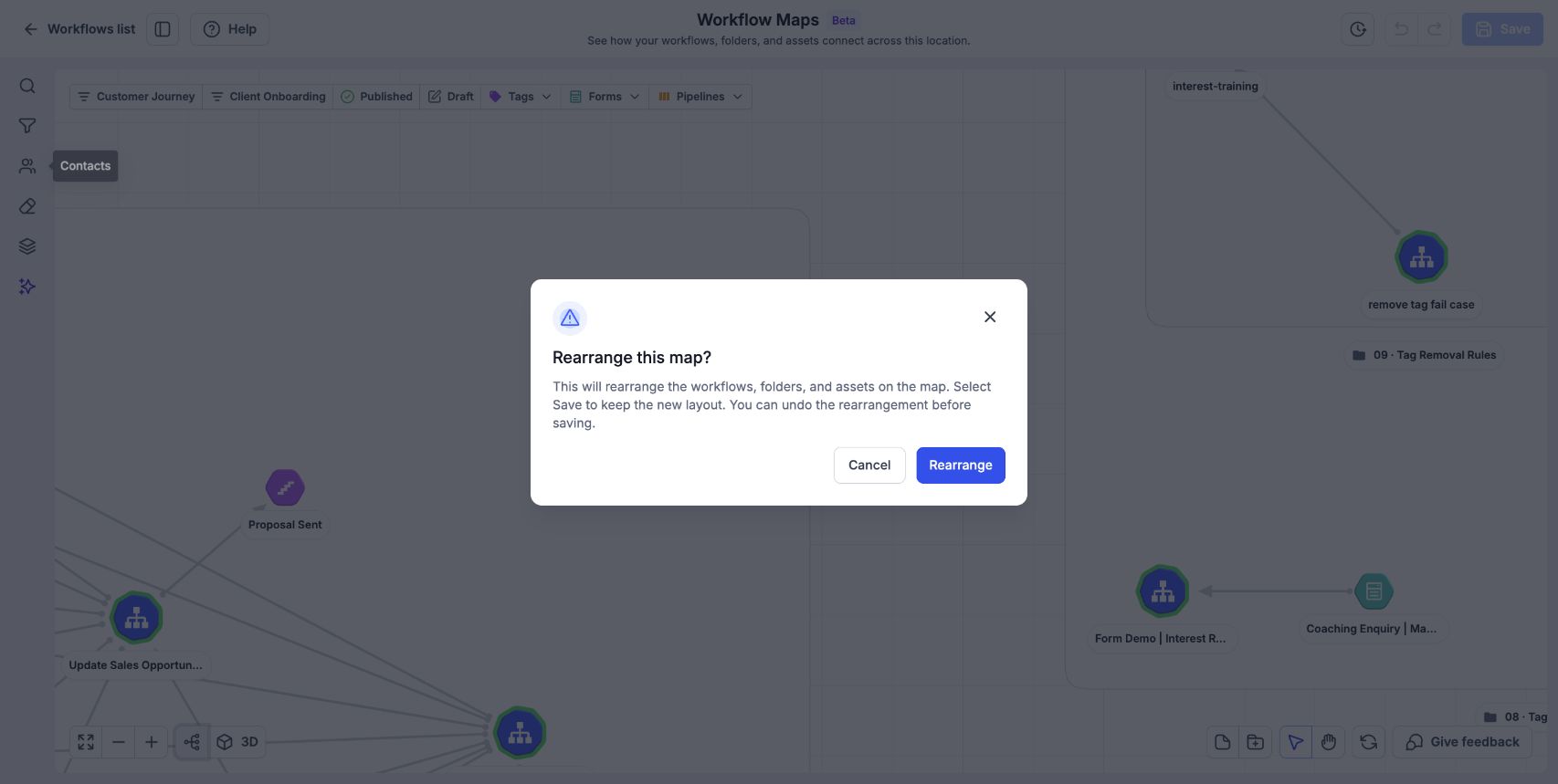
Review the rearrangement confirmation before applying a new layout. Save keeps the resulting layout.
Frequently Asked Questions
Q: Who can save the layout?
Agency admins.
Q: Is the saved layout personal to me?
No. The saved layout applies to everyone in the sub-account.
Q: Will moving or renaming a workflow affect the Workflows list?
Yes. Organizational changes on the map also update the list.
Q: Can I undo a layout change?
Use Undo, Redo, or Recent changes to work through layout changes.
Q: Does organizing the map change a workflow’s steps?
To edit triggers, actions, or logic steps, open the workflow in the builder.
Next article
Was this article helpful?
That’s Great!
Thank you for your feedback
Sorry! We couldn't be helpful
Thank you for your feedback
Feedback sent
We appreciate your effort and will try to fix the article