Move around the map, switch views, find a workflow or asset, and narrow the map with filters.
TABLE OF CONTENTS
- Pan, zoom, and fit the map
- Switch between 2D and 3D
- Steps for searching the map
- Steps for filtering the map
- Refresh map data
- Troubleshoot a missing workflow or a slow map
- Frequently Asked Questions
Pan, zoom, and fit the map
Drag the map to move around it. Use + to zoom in and − to zoom out.
Click Fit to bring the whole map back into view. This is useful after exploring one folder or when you lose track of where you are.
Switch between 2D and 3D
Use 2D / 3D to switch views.
- 3D shows the map with depth.
- 2D shows a flat view from above and can be easier to read on large accounts or in screenshots.
Try 2D when a very large map is difficult to navigate.
Steps for searching the map
- Open Search. On Mac, you can also press ⌘K.
- Enter a workflow, asset, or trigger name, such as a tag or form name.
- Review the matching results.
- Click a result to move to it on the map.
Search can identify the exact trigger, action, or if/else where an asset is used. This helps you investigate a reference without opening workflows one by one.
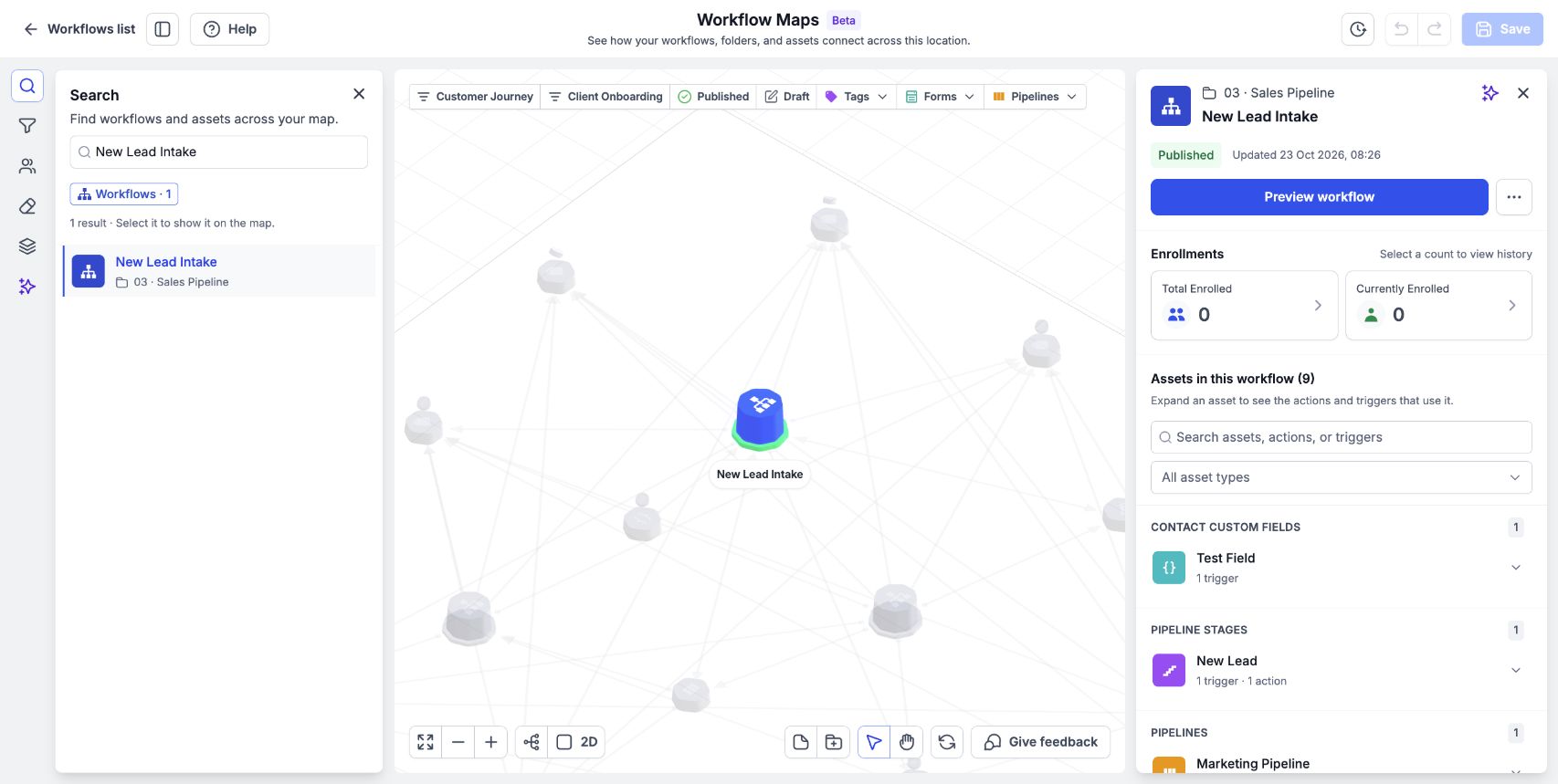
Search by name, then select a result to locate it and open its details.
Steps for filtering the map
- Use the quick filters along the top to show published workflows, draft workflows, or one asset type.
- Open the filter panel in the left rail when you need more options.
- Adjust the filters to focus on the workflows or assets you need.
- Clear the filters when you want to review the full map again.
Use Has issues when you want to focus on workflows flagged with errors.
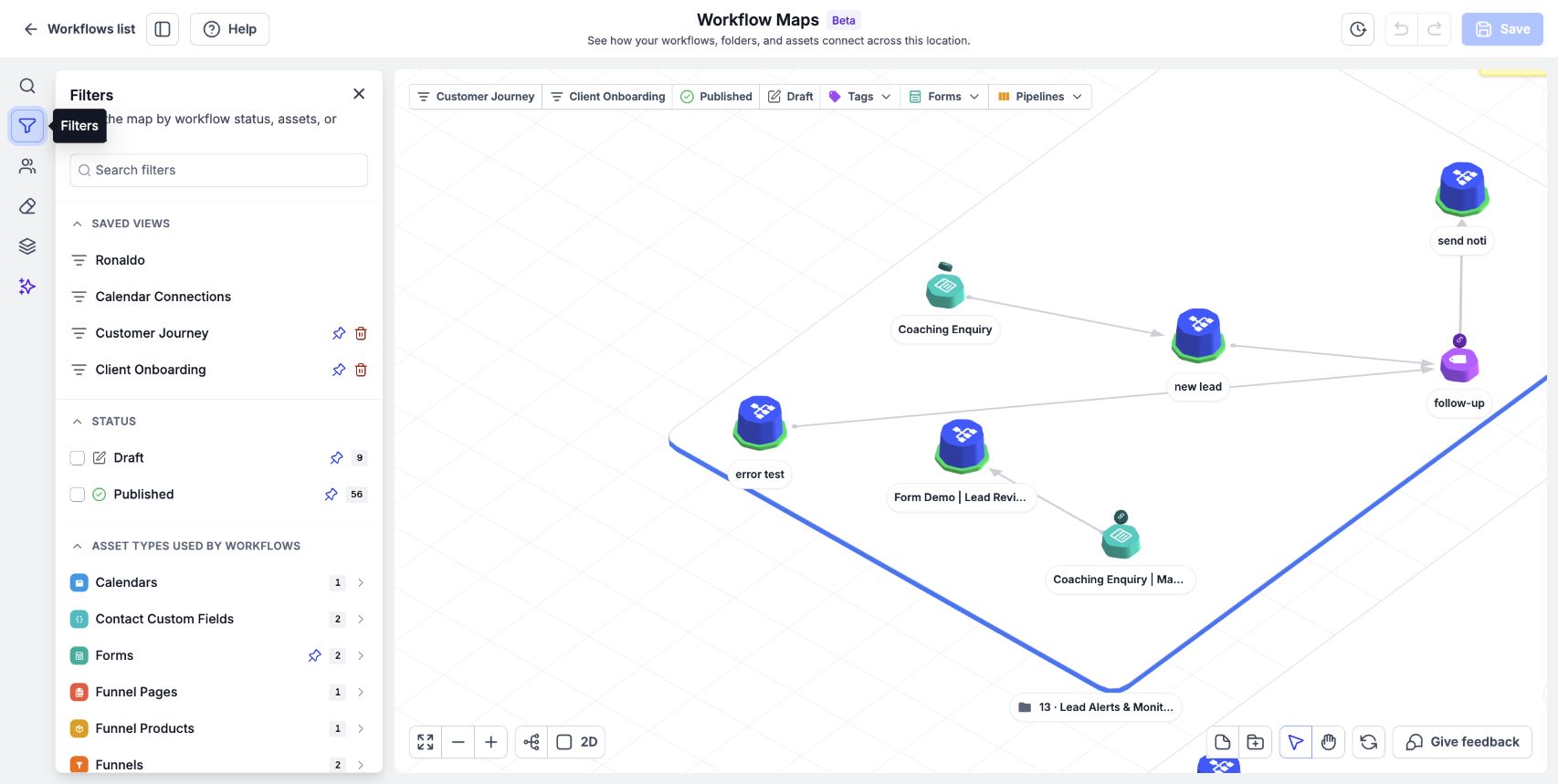
Use the Filters panel to narrow the map by workflow status, asset type, or folder.
Refresh map data
Use Refresh map data to reload the map data. The control also shows when the data was last updated.
If you are investigating a workflow that does not appear, check the active filters first.
Troubleshoot a missing workflow or a slow map
A workflow is missing
- Check the active filters and clear any that might hide the workflow.
- Search for the workflow by name.
- If it is still missing, use Give feedback and include the workflow name.
A connection will not open
Zoom in, then click the line again. Lines cannot be selected at the widest zoom level.
The map is slow or does not load
Large accounts need graphics acceleration enabled in the browser. Check that setting, and try 2D for very large accounts.
Frequently Asked Questions
Q: How do I get back to the full map?
Click Fit. If workflows are hidden, also check and clear your filters.
Q: Can I search for an asset used inside an if/else?
Yes. Search can find those references even though the map does not display internal logic steps as map nodes.
Q: Where can I see when the map data was updated?
Use Refresh map data, which shows the last update information.
Next article
Was this article helpful?
That’s Great!
Thank you for your feedback
Sorry! We couldn't be helpful
Thank you for your feedback
Feedback sent
We appreciate your effort and will try to fix the article