HighLevel lets you offer more than one meeting length from a single calendar. Instead of creating separate calendars for 30-minute, 45-minute, and 60-minute appointments, you can add up to three duration options in one place. Bookers can choose the meeting length that works best for them, and HighLevel updates the available times automatically.
TABLE OF CONTENTS
- What are Multiple Meeting Durations?
- Key Benefits of Multiple Meeting Durations
- How the Default Duration Works
- How Available Time Slots Change by Duration
- What Bookers See on the Booking Page
- What Happens to Existing Appointments?
- How Multiple Durations Work When Rescheduling
- Supported Calendar Types
- Supported Booking Experiences
- How To Set Up Multiple Meeting Durations
- Frequently Asked Questions
- Related Articles
What are Multiple Meeting Durations?
Multiple meeting durations let you offer different appointment lengths from the same calendar. This gives bookers more flexibility while helping you avoid creating and managing several calendars for the same type of meeting.
A meeting duration is the amount of time reserved for an appointment.
For example, you can offer:
30 minutes
45 minutes
60 minutes
You can add up to 3 duration options to one supported calendar.
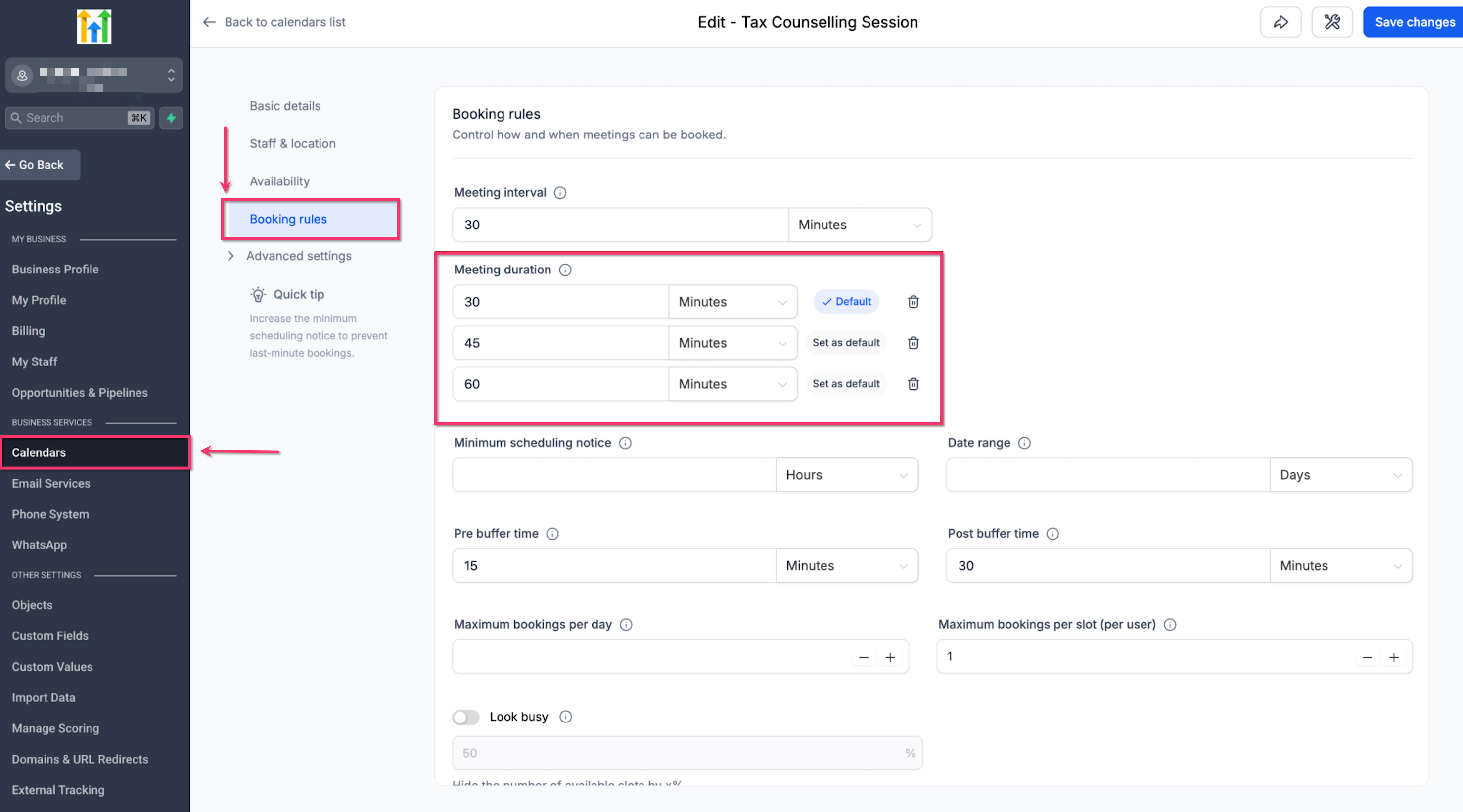
One duration is marked as the default. This is the option selected first when the booking page opens, but bookers can choose another available duration before selecting a time.
Key Benefits of Multiple Meeting Durations
Offering multiple durations from one calendar makes booking easier for customers and reduces the amount of calendar setup you need to maintain.
One calendar for several meeting lengths: Offer different appointment lengths without creating separate calendars.
Up to three choices: Add as many as three meeting duration options.
Flexible booking: Let bookers choose the meeting length that works best for them.
Automatic time updates: Available time slots refresh based on the selected duration.
Easy default selection: Choose which duration should appear selected first.
Simple calendar management: Add or remove duration options later without affecting existing appointments.
Works during rescheduling: Bookers can choose from the currently available durations when rescheduling.
How the Default Duration Works
The default duration is the meeting length selected first when someone opens the booking page. It gives bookers a starting option while still allowing them to choose another available duration.
For example, if your calendar offers:
30 minutes
45 minutes
60 minutes
and 30 minutes is set as the default, the booking page opens with 30 minutes selected.
The booker can then choose 45 minutes or 60 minutes before choosing a time.
You can change the default duration from the calendar's Booking rules.
How Available Time Slots Change by Duration
Different meeting lengths need different amounts of open time on your calendar. HighLevel checks the selected duration and shows only the time slots that can fit that meeting length.
For example:
A 30-minute meeting may be available at 10:00 AM.
A 60-minute meeting may not fit at 10:00 AM if another appointment starts at 10:30 AM.
When the booker selects 60 minutes, HighLevel refreshes the page and removes times that cannot fit a full 60-minute meeting.
This helps prevent bookings from overlapping with existing appointments or falling outside your configured availability.
What Bookers See on the Booking Page
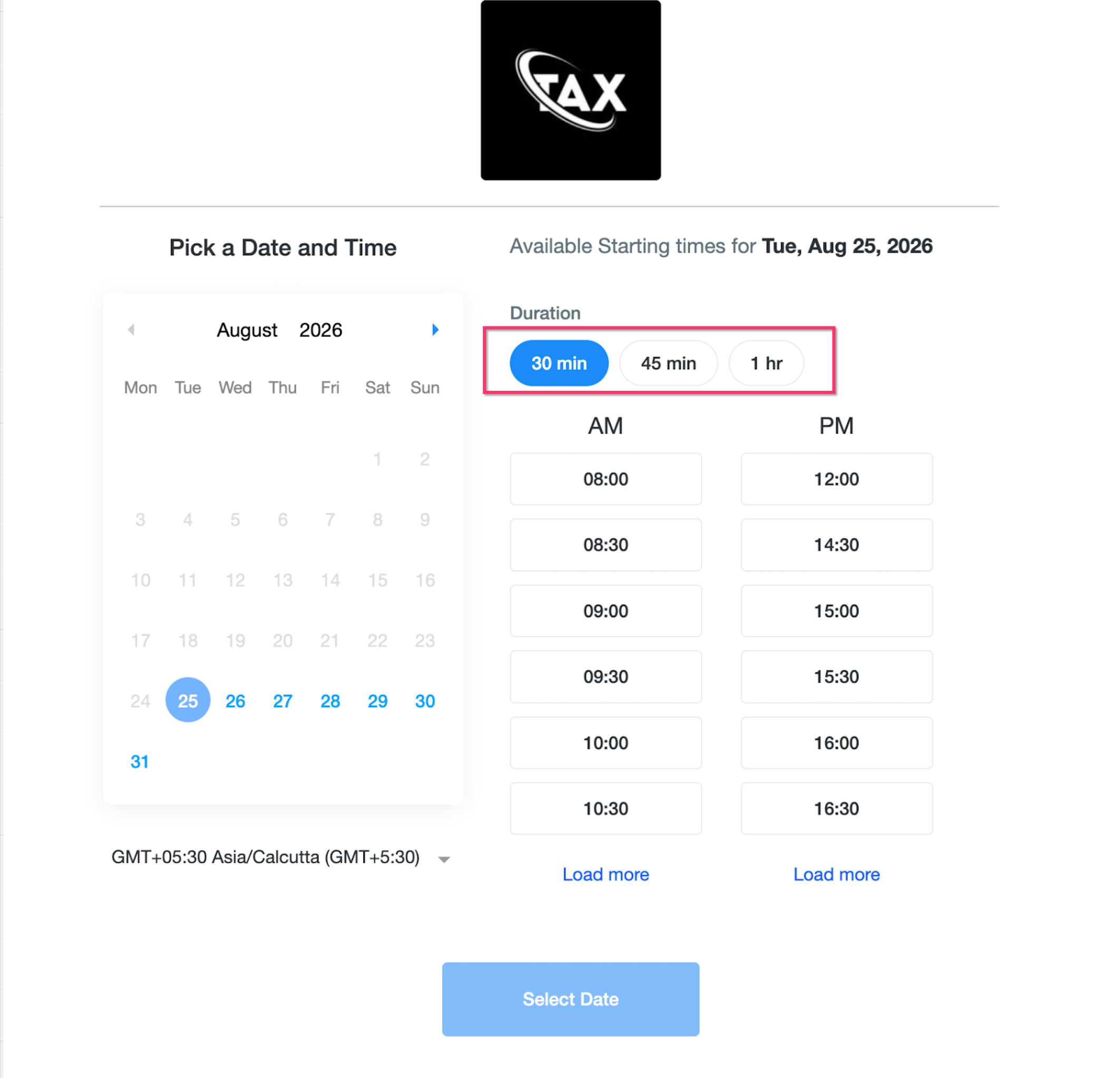
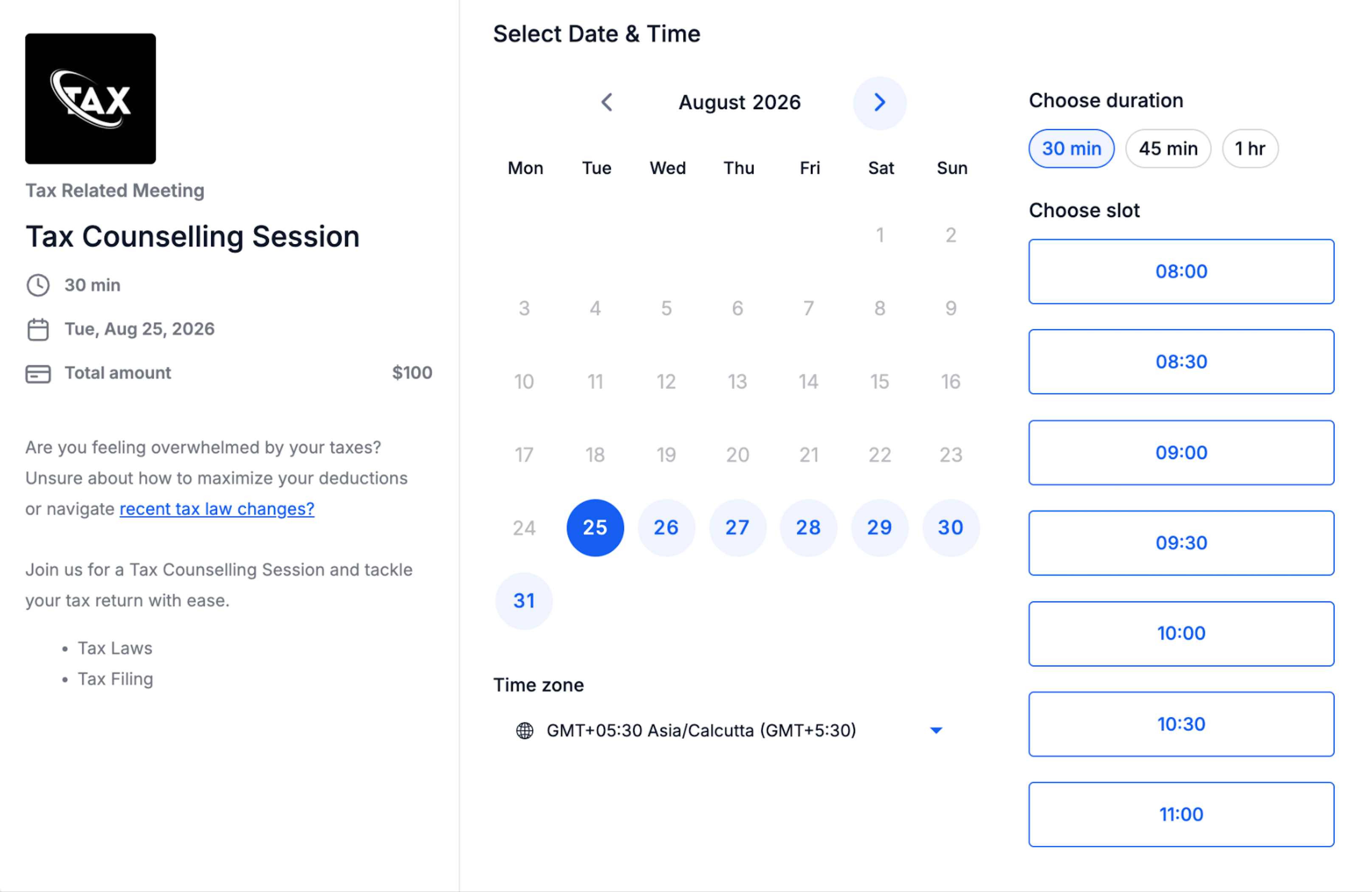
When more than one meeting duration is configured, bookers can choose their preferred meeting length before selecting a time. The booking page updates automatically when they select a different duration.
Depending on the booking experience, users may see options such as:
30 min
45 min
1 hr
After a duration is selected, the available times shown on the page update to match that meeting length.
If only one meeting duration is configured, the booking experience stays the same as before.
What Happens to Existing Appointments?
Changing your calendar's duration options does not change appointments that have already been booked. This lets you update future booking choices without affecting customers who already have appointments scheduled.
For example, if you remove the 30-minute option while future 30-minute appointments already exist, those appointments remain unchanged.
Existing appointments keep:
their original meeting duration
their calendar event
reminders
notifications
Only new appointments use the duration options currently available on the calendar.
How Multiple Durations Work When Rescheduling
Bookers can also choose from the calendar's current duration options when rescheduling an appointment. This gives them the option to change the meeting length along with the date or time.
When rescheduling:
The current duration options for the calendar are shown.
The booker can choose another available duration.
Available time slots refresh based on the selected duration.
If the original meeting duration is no longer offered, the booker must choose one of the currently available durations before completing the reschedule.
Supported Calendar Types
Multiple meeting durations are available on supported calendar types where flexible appointment lengths can improve the booking experience.
The feature is available for:
Personal Calendars
Round Robin Calendars
Collective Calendars
Event Calendars
For team calendars, available time slots still depend on the calendar's normal staff availability rules.
Supported Booking Experiences
Multiple durations are available across the main booking experiences, so bookers can choose their meeting length whether they are scheduling from a web page or mobile device.
Supported booking experiences include:
Web booking pages
Mobile booking pages
Neo booking widgets
Classic booking widgets
In-app appointment booking on web
Mobile app
How To Set Up Multiple Meeting Durations
Setting up multiple durations only requires a few changes to your calendar's Booking rules. You can add up to three options and choose which one should be selected first on the booking page.
Step 1: Open the Calendar
Go to Calendars.
Open Calendar Settings.
Find the calendar you want to update.
Click Edit.
Open Booking rules.
Step 2: Add Another Duration
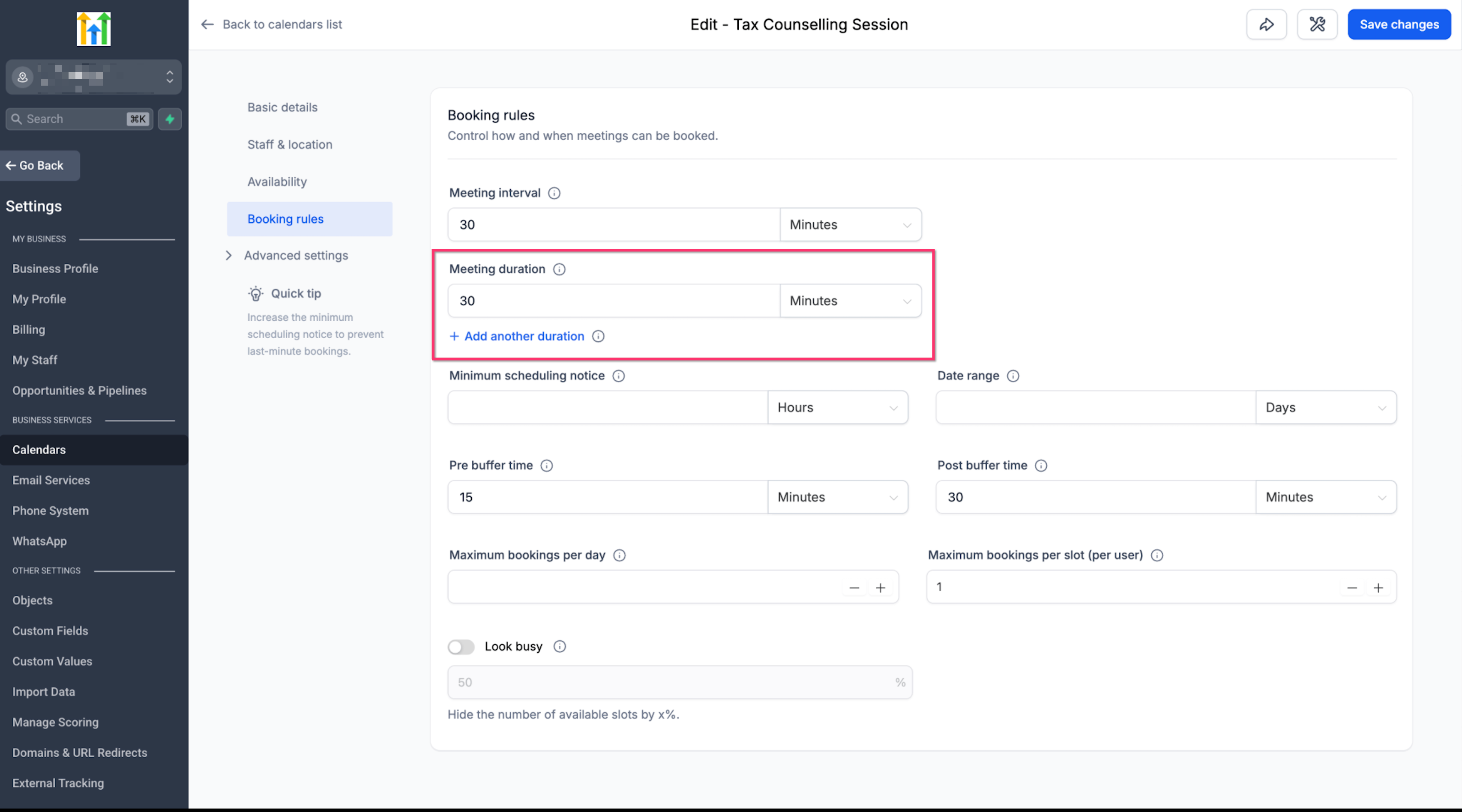
Find Meeting duration.
Review the current meeting length.
Click Add another duration.
Enter the new duration.
Choose the time unit if needed.
Repeat the process to add another option.
You can configure up to 3 meeting durations.
Step 3: Choose the Default Duration
Review the duration options you added.
Find the duration you want selected first on the booking page.
Click Set as default beside that duration.
Confirm that the selected option is marked Default.
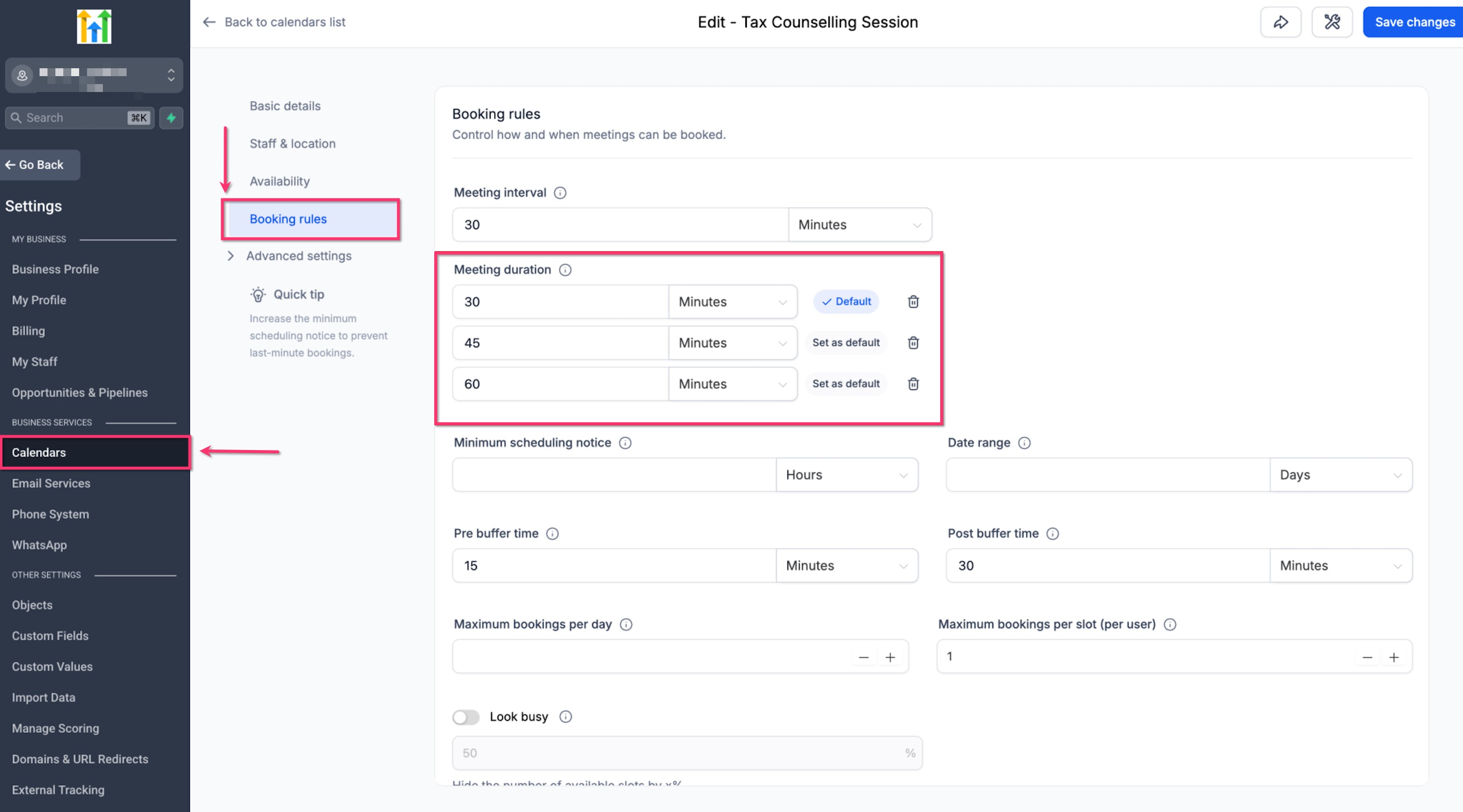
Step 4: Save Your Changes
Review all configured durations.
Remove any duration you no longer want to offer.
Confirm the correct default duration.
Click Save changes.
New bookings can now use the meeting duration options you configured.
Frequently Asked Questions
Q: How many meeting durations can I add to one calendar?
A: You can add up to 3 duration options to one supported calendar.
Q: Which duration appears first on the booking page?
A: The duration marked Default is selected first.
Q: Can bookers choose a different duration?
A: Yes. When multiple durations are configured, bookers can choose any available option before selecting a time.
Q: Why do available times change when I select a different duration?
A: HighLevel only shows time slots that can fit the full meeting length. A longer meeting may require more open time than a shorter one.
Q: What happens if I remove a duration that already has future appointments?
A: Existing appointments remain unchanged. Only new bookings stop using the removed duration.
Q: Will reminders and notifications change for existing appointments?
A: No. Existing appointments keep their original duration, calendar event, reminders, and notifications.
Q: Can a booker change the meeting duration while rescheduling?
A: Yes. The current duration options are available during rescheduling.
Q: What happens if the original duration is no longer available during rescheduling?
A: The booker must choose one of the meeting durations currently offered by the calendar.
Q: Does this work on mobile?
A: Yes. Multiple durations are supported on mobile booking pages and in the mobile app.
Q: What happens if I only configure one duration?
A: The booking experience stays the same as before, with no extra duration choice shown.
Related Articles
Round Robin Calendars: Setup, Distribution & Availability Explained
Calendar Availability — Weekly Working Hours & Date-Specific Hours
Was this article helpful?
That’s Great!
Thank you for your feedback
Sorry! We couldn't be helpful
Thank you for your feedback
Feedback sent
We appreciate your effort and will try to fix the article