Add a complete E-commerce Store experience directly to a HighLevel Funnel so customers can move from your marketing content to product discovery and checkout within one flow. Store-embedded Funnels combine standard Funnel steps with product browsing, product details, cart, checkout, and order confirmation. You can also add Store elements to Funnel steps and manage which products appear in the Store without creating a separate shopping journey.
TABLE OF CONTENTS
- What is an E-commerce Store in a Funnel?
- Key Benefits of Adding an E-commerce Store to a Funnel
- Store Steps in Funnels
- Store Elements in Funnel Steps
- Managing Products With the Store Products Tab
- Store-Embedded Funnel Behavior and Limitations
- How To Setup an E-commerce Store in a Funnel
- Frequently Asked Questions
What is an E-commerce Store in a Funnel?
An E-commerce Store in a Funnel combines the conversion-focused structure of a Funnel with HighLevel's E-commerce Store shopping experience. This gives merchants a way to use regular Funnel steps alongside dedicated Store pages for browsing products, reviewing product details, managing a cart, completing checkout, and confirming an order.
When you add a Store to a Funnel, HighLevel automatically creates five required Store steps:
Product List
Product Details
Cart
Checkout
Thank You
You can also convert an existing Funnel into a Store-embedded Funnel by adding a Store element to one of its Funnel steps. HighLevel creates the five required Store steps as part of the conversion.
This experience is different from the traditional Funnel e-commerce workflow, where products are added to a Funnel and sold through an order form. A Store-embedded Funnel provides the broader E-commerce Store journey, including product browsing and cart functionality.
Key Benefits of Adding an E-commerce Store to a Funnel
Combining E-commerce Stores and Funnels lets you build marketing and shopping experiences within the same Funnel structure. Customers can interact with your Funnel content while also accessing the Store functionality needed to discover products and complete purchases.
- Complete shopping experience: Add product browsing, product details, cart, checkout, and order confirmation to a Funnel.
- Flexible Funnel design: Combine regular marketing or conversion steps with dedicated Store steps.
- Store elements on Funnel steps: Add e-commerce components such as Featured Product, Upsell, Collection List, Search Bar, and other supported Store elements to Funnel pages.
- Automatic Store setup: Adding a Store or Store element creates the five required Store steps automatically.
- Centralized product management: Use the Store Products tab to control product visibility and priority for the Store.
- Easier Store identification: Store-enabled Funnels and their associated Stores receive tags that help distinguish them from standard assets.
Store Steps in Funnels
Store steps provide the essential pages customers need to move through an E-commerce Store purchase journey. HighLevel creates these steps together so the Store can support product discovery through order confirmation without requiring you to manually build each Store page.
Adding a Store to a Funnel creates the following five steps:
- Product List: Displays products customers can browse.
- Product Details: Provides information about an individual product.
- Cart: Lets customers review the products they intend to purchase.
- Checkout: Provides the Store checkout experience for completing the purchase.
- Thank You: Provides the post-purchase confirmation page.
The five Store steps maintain a fixed internal order. You cannot rearrange the Store steps individually, but you can move the group of Store steps together relative to other steps in the Funnel.
For example, a Funnel could contain:
Landing Page → Promotional Page → [Store Steps] → Follow-Up Page
Within the Store group, the order remains:
Product List → Product Details → Cart → Checkout → Thank You
Important: Deleting any one of the five Store steps removes all five Store steps and disables the Store for that Funnel.
Store Elements in Funnel Steps
Store elements let you introduce e-commerce functionality directly into Funnel pages instead of limiting product discovery to dedicated Store steps. Adding a Store element to a standard Funnel also converts that Funnel into a Store-embedded Funnel so the required Store infrastructure is available.
Supported Store elements include options such as:
Featured Product
Upsell
Collection List
Search Bar
Other supported Store elements available in the builder
For example, a Featured Product can highlight a specific item on a marketing-focused Funnel page, while a Search Bar can help shoppers search for products.
HighLevel also supports Store-specific elements such as Collection List and Search Bar in its E-commerce Store builder. Collections are managed through Payments → Products → Collections, while the Search Bar helps customers find products available through the Store.
Adding a Store element to a Funnel that does not already have a Store automatically converts the Funnel into a Store-embedded Funnel and creates the five required Store steps.
Managing Products With the Store Products Tab
The Store Products tab gives you control over which eligible products appear in a Store-embedded Funnel and how products are prioritized. Managing these settings helps you keep the Store focused on the products most relevant to the Funnel's audience or campaign.
After a Funnel is converted to include a Store, a new Store Products tab appears on the Funnel step list page.
Use this tab to:
- Exclude products you do not want displayed in the Store.
- Change product priority to influence the order in which products appear.
HighLevel E-commerce Stores also support Store-specific product visibility and display priority. Products are created and managed under Payments → Products, while Store-level controls determine which eligible products appear in a particular Store.
Store-Embedded Funnel Behavior and Limitations
Store-embedded Funnels contain special Store functionality that differs from ordinary Funnel steps. Understanding these behaviors before editing, testing, deleting, or cloning a Funnel can help prevent unintended changes to its Store experience.
Keep the following rules in mind:
- One Store per Funnel: A Funnel can contain only one Store.
- Fixed Store-step order: Product List, Product Details, Cart, Checkout, and Thank You remain in a fixed internal sequence.
- Store steps move together: The five Store steps can be moved as a group relative to regular Funnel steps.
- Clone Step is not supported: Individual Store steps cannot be cloned using Clone Step.
- A/B split testing is not supported: Store steps cannot be used for A/B split testing.
- Deleting one Store step removes the Store: Deleting any of the five Store steps removes all five and disables the Store for the Funnel.
- Full Funnel cloning is supported: Cloning the entire Funnel also clones its Store setup and Store steps.
- Products are not duplicated when cloning: Products associated with the Store remain existing products rather than being duplicated as new products.
- Store-enabled assets are tagged: Converted Funnels display a Store tag in Funnels, while the corresponding Store displays a Funnel store tag in Stores.
How To Setup an E-commerce Store in a Funnel
Setting up the Store correctly creates the required e-commerce pages and connects them to the Funnel experience. You can start by adding a complete Store or convert an existing Funnel by adding a Store element, depending on how you want customers to encounter your products.
Option 1: Add a Store to a Funnel
Adding a Store directly is useful when you want the complete E-commerce Store experience available as part of the Funnel. HighLevel creates the required Store steps so you can focus on configuring products and customizing the customer experience.
Go to Sites → Funnels.
Open the Funnel where you want to add the Store.
Add a Store from the Store section.
Select the Store theme you want to use.
Complete the Store setup when prompted.
Confirm that HighLevel has created the five Store steps:
Product List
Product Details
Cart
Checkout
Thank You
Customize the generated Store pages as needed.
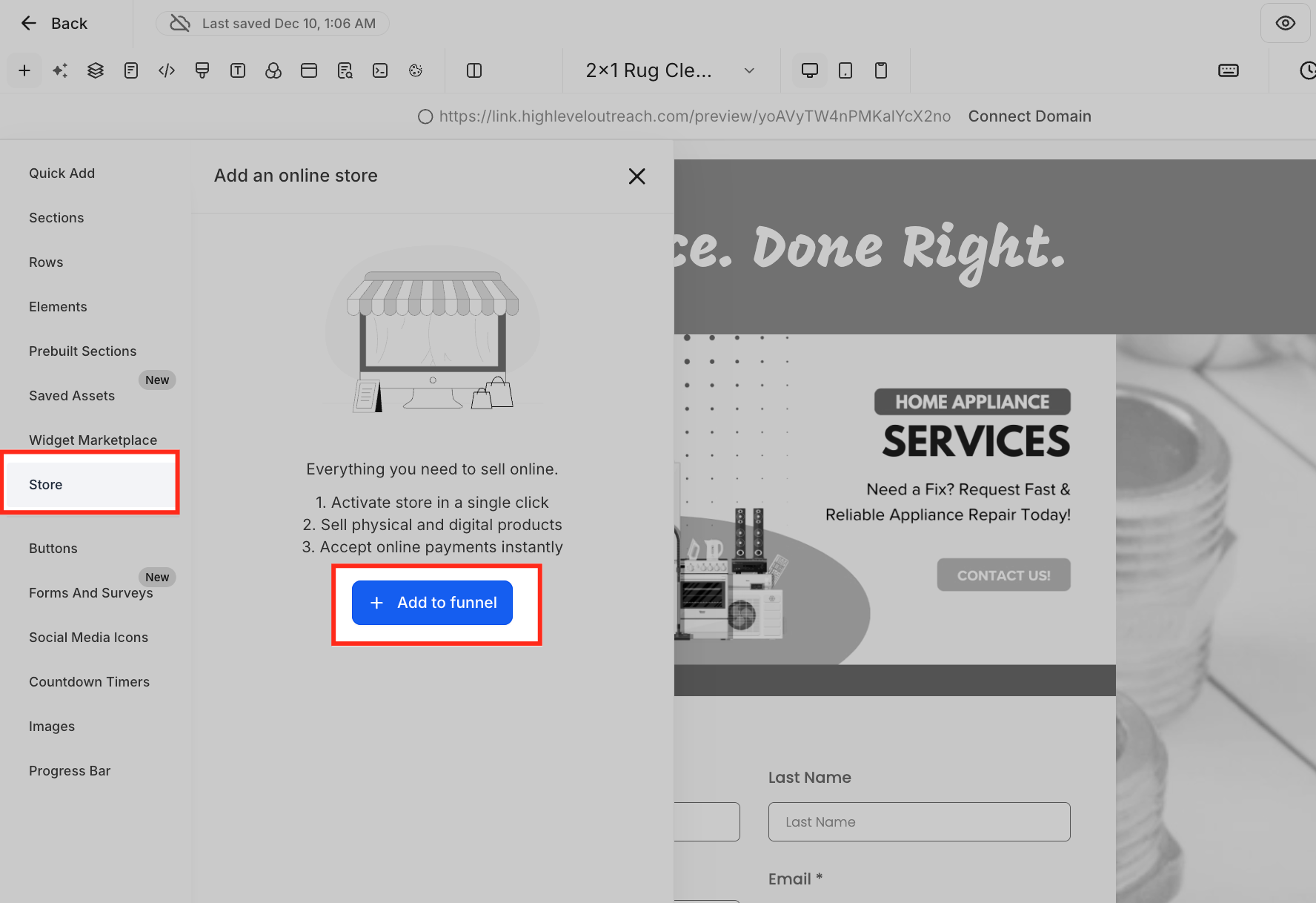
Option 2: Add a Store Element to an Existing Funnel Step
Adding a Store element is useful when you want e-commerce content directly on an existing Funnel page. If the Funnel does not already contain a Store, adding the element converts it into a Store-embedded Funnel and generates the required Store steps.
Go to Sites → Funnels and open the Funnel.
Edit the Funnel step where you want to add e-commerce content.
Open the element panel in the builder.
Locate the Store elements.
Add the appropriate Store element, such as Featured Product, Upsell, Collection List, or Search Bar.
Select a theme and configure the Store when prompted.
Confirm that the five required Store steps were created.
Configure the Store element for the experience you want to create.
Save your changes.
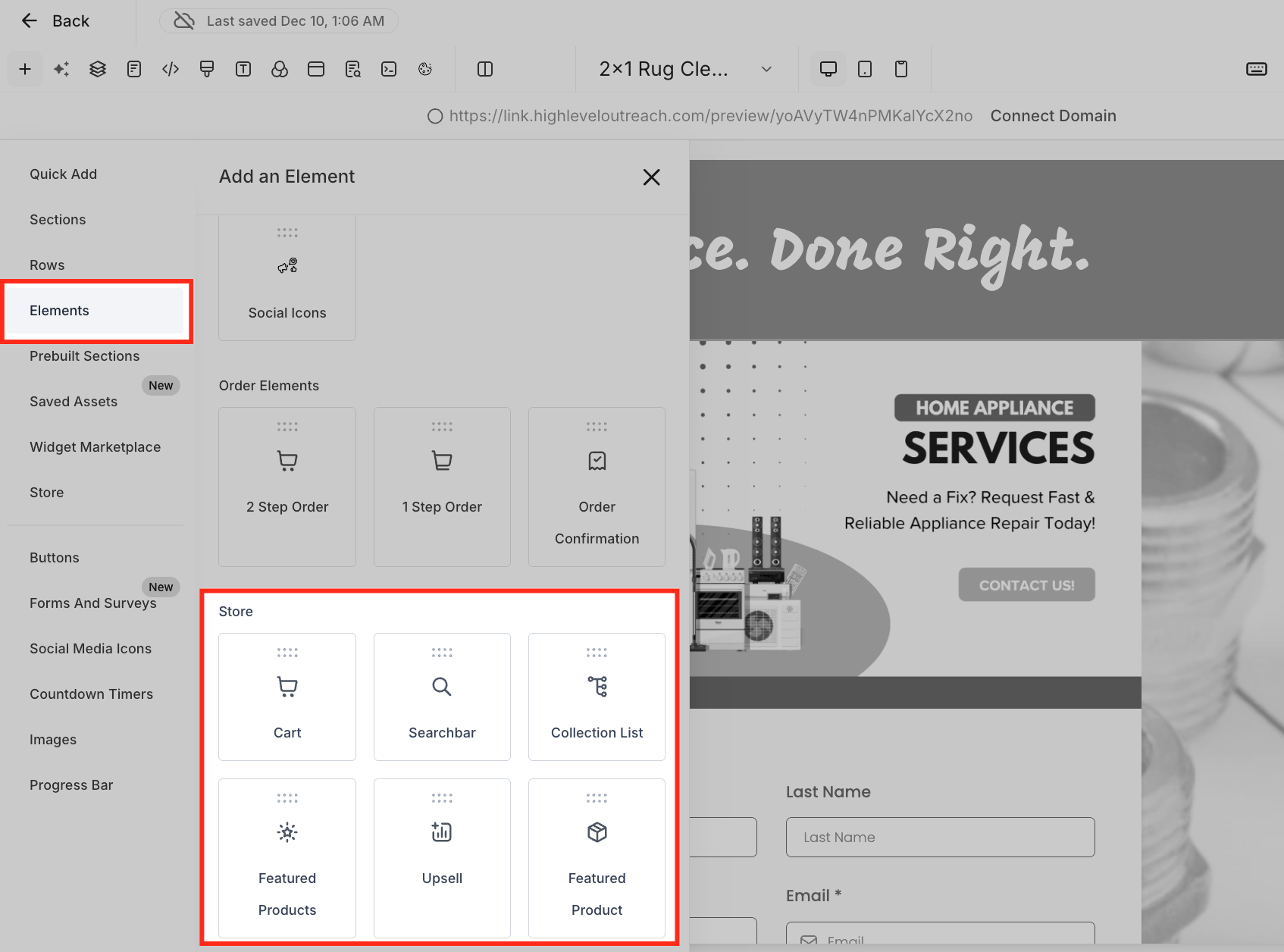
Manage Store Products
Choosing the right products and their priority helps align the Store experience with the purpose of your Funnel. After the Store is added, use its dedicated product controls to determine what customers can browse.
Return to the Funnel step list page.
Open the Store Products tab.
Review the products available to the Store.
Exclude products you do not want displayed.
Adjust product priority as needed.
Save your changes.
Products themselves are managed from Payments → Products. Existing HighLevel E-commerce Store controls also allow merchants to manage product inclusion and display priority for individual Stores.
Customize the Store Steps
The generated Store steps provide the required shopping journey, but their design can be customized to fit the rest of your Funnel. Keeping branding and messaging consistent helps create a more cohesive transition between marketing and e-commerce content.
Open each generated Store step.
Customize its available design and content settings.
Keep the five Store steps in their required internal order.
Preview the customer journey from product discovery through the Thank You page.
Save your changes.
Do not delete an individual Store step unless you intend to remove the Store from the Funnel, because deleting one Store step removes all five.
Preview and Publish the Funnel
Reviewing the complete flow before publishing helps confirm that regular Funnel content and Store pages work together as intended. Test the shopping journey from product discovery through checkout and confirmation before directing customers to the Funnel.
Preview the Funnel.
Review the regular Funnel steps.
Browse the products displayed in the Store.
Open a product and review its Product Details experience.
Verify the Cart and Checkout experience.
Review the Thank You page.
Make any necessary adjustments.
Publish the Funnel when the experience is ready.
Frequently Asked Questions
Q: Is a Store-embedded Funnel the same as adding products to a traditional Funnel?
No. A traditional E-commerce Funnel can sell products through Funnel product settings and an order form. A Store-embedded Funnel adds the broader E-commerce Store experience, including Product List, Product Details, Cart, Checkout, and Thank You Store steps.
Q: Can I add more than one E-commerce Store to the same Funnel?
No. Only one Store can be added to a Funnel.
Q: Can I change the order of the five Store steps?
The five Store steps maintain a fixed internal order. You can move the Store steps together relative to other Funnel steps, but you cannot rearrange their internal sequence.
Q: What happens if I delete one of the Store steps?
Deleting any Store step removes all five Store steps and disables the Store for that Funnel. Only delete a Store step when you intend to remove the Store experience.
Q: Can I run an A/B split test on a Store step?
No. A/B split testing is not supported on Store steps. Standard Funnel steps can continue to use supported Funnel testing functionality where applicable.
Q: Can I clone an individual Store step?
No. Clone Step is not supported for Store steps.
Q: What happens to the Store if I clone the entire Funnel?
Cloning the Funnel also clones its Store setup and Store steps. The products themselves are not duplicated.
Q: How can I tell whether a Funnel already contains a Store?
Converted Funnels display a Store tag in Funnels. The corresponding Store displays a Funnel store tag in Stores.
Q: Can I control which products customers see in a Store-embedded Funnel?
Yes. Use the Funnel's Store Products tab to exclude products and manage product priority. Product availability can also depend on the product's Ecommerce Store configuration.
Related Articles
Was this article helpful?
That’s Great!
Thank you for your feedback
Sorry! We couldn't be helpful
Thank you for your feedback
Feedback sent
We appreciate your effort and will try to fix the article