The Count available days only setting helps keep booking windows focused on days when your business is actually available. Instead of using weekends, closed days, or other unavailable days to fill the booking window, HighLevel can skip those days and continue to the next available ones. The setting is available for Meeting Calendars, Services, and Rentals.
TABLE OF CONTENTS
- What is Count Available Days Only?
- Key Benefits of Count Available Days Only
- How Available Days Are Counted
- What Happens When a Day Is Fully Booked?
- How Minimum Scheduling Notice Works with Available Days
- How Date-Specific Hours Affect the Booking Window
- How It Works with Team Calendars
- Count Available Days Only for Meeting Calendars
- Count Available Days Only for Services
- Count Available Days Only for Rentals
- How To Set Up Count Available Days Only
- Frequently Asked Questions
- Related Articles
What is Count Available Days Only?
The Count available days only setting changes how HighLevel decides which days are included in a booking window. It is useful for businesses that do not operate every day of the week and want customers to see the full number of available booking days.
A booking window controls how far into the future a customer can book. Normally, HighLevel counts every calendar day, including weekends and days when you are closed.
When Count available days only is turned on, HighLevel skips days that are not part of your availability schedule and continues counting until it reaches the number of available days you configured.
Simple Example
Suppose your business is open Monday through Friday and your booking window is set to 2 days.
If a customer visits your booking page on Friday:
With the setting off, Saturday and Sunday can count as the two days, even though you are closed.
With the setting on, Saturday and Sunday are skipped, so the customer can see Monday and Tuesday instead.
This helps prevent booking pages from appearing empty when you actually have availability just a few days later.
Key Benefits of Count Available Days Only
Using available days instead of every calendar day creates a booking window that better matches the days your business actually works. This is especially helpful for businesses with weekends off, alternating schedules, or only a few working days each week.
Show more useful booking dates: Customers see days when your business is scheduled to be available instead of having closed days use up the booking window.
Support flexible schedules: The setting works with schedules such as Monday/Wednesday/Friday or other non-standard workweeks.
Work with advance notice: HighLevel first applies your Minimum Scheduling Notice and then begins counting available days.
Support team calendars: For round robin and collective calendars, a day counts when at least one assigned team member has availability.
Respect one-time schedule changes: Days added or blocked using date-specific hours are included or skipped automatically.
Work across booking types: The feature is available for Meeting Calendars, Services, and Rentals.
How Available Days Are Counted
An available day is based on the availability schedule connected to the calendar, service, or rental. Understanding this is important because the setting looks at whether the day is scheduled as available, not whether every appointment time is still open.
When the setting is turned on, HighLevel looks ahead and skips days that are outside your availability schedule.
For example, if you are available only on Monday, Wednesday, and Friday and the booking window is set to 5 days, HighLevel continues looking forward until it finds five scheduled available days.
Important: Make sure your availability schedule is configured before turning this setting on. If no availability is configured, the booking page may show no available dates.
What Happens When a Day Is Fully Booked?
A fully booked day can still count as an available day.
The setting checks whether the day belongs to your availability schedule. It does not check whether every appointment time on that day has already been booked. A fully booked day may therefore count toward the booking window but show no available time slots.
How Minimum Scheduling Notice Works with Available Days
Minimum Scheduling Notice controls how much advance notice customers must give before making a booking. HighLevel applies this waiting period first and then begins counting available days for the booking window.
Minimum Scheduling Notice always uses regular calendar time, even when Count available days only is turned on. Weekends and closed days can therefore count toward the notice period.
For example:
Today is Thursday.
Minimum Scheduling Notice is 2 days.
Your business is open Monday through Friday.
Your booking window is 3 days.
Count available days only is turned on.
The 2-day notice period is applied first. If that period ends during the weekend, HighLevel finds the next available day and then begins counting your three available booking days.
How Date-Specific Hours Affect the Booking Window
Date-specific hours let you change your normal schedule for one particular date. The Count available days only setting uses these changes when deciding which days should count.
For example:
If you are normally closed on Saturday but add hours for one specific Saturday, that Saturday can count as an available day.
If you normally work on Monday but mark one specific Monday as unavailable, that Monday is skipped.
You do not need to turn the setting off and back on after changing your availability. HighLevel uses the updated availability when calculating the booking window.
How It Works with Team Calendars
Team calendars can have different availability for different staff members. HighLevel considers a day available when at least one assigned team member is scheduled to accept bookings that day.
This behavior applies to round robin and collective calendars. If no assigned team member has availability on a particular day, HighLevel skips that day when Count available days only is enabled.
For example, if one team member works Monday and Wednesday while another works Tuesday and Thursday, all four days can count toward the booking window because at least one team member is available on each day.
Count Available Days Only for Meeting Calendars
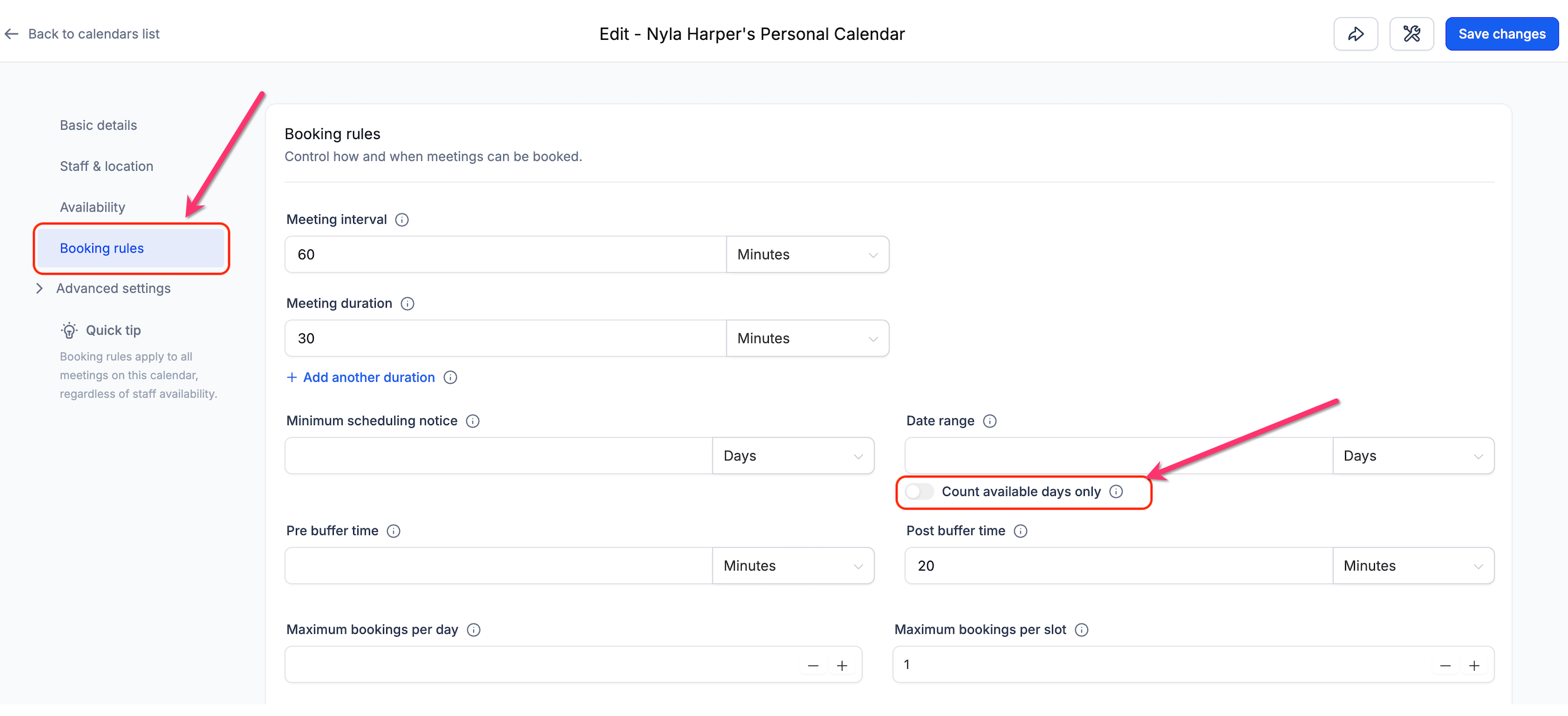
Meeting Calendars use the Date Range setting to control how far into the future customers can book. Turning on Count available days only makes that range count days from your availability schedule instead of every calendar day.
Count Available Days Only for Services
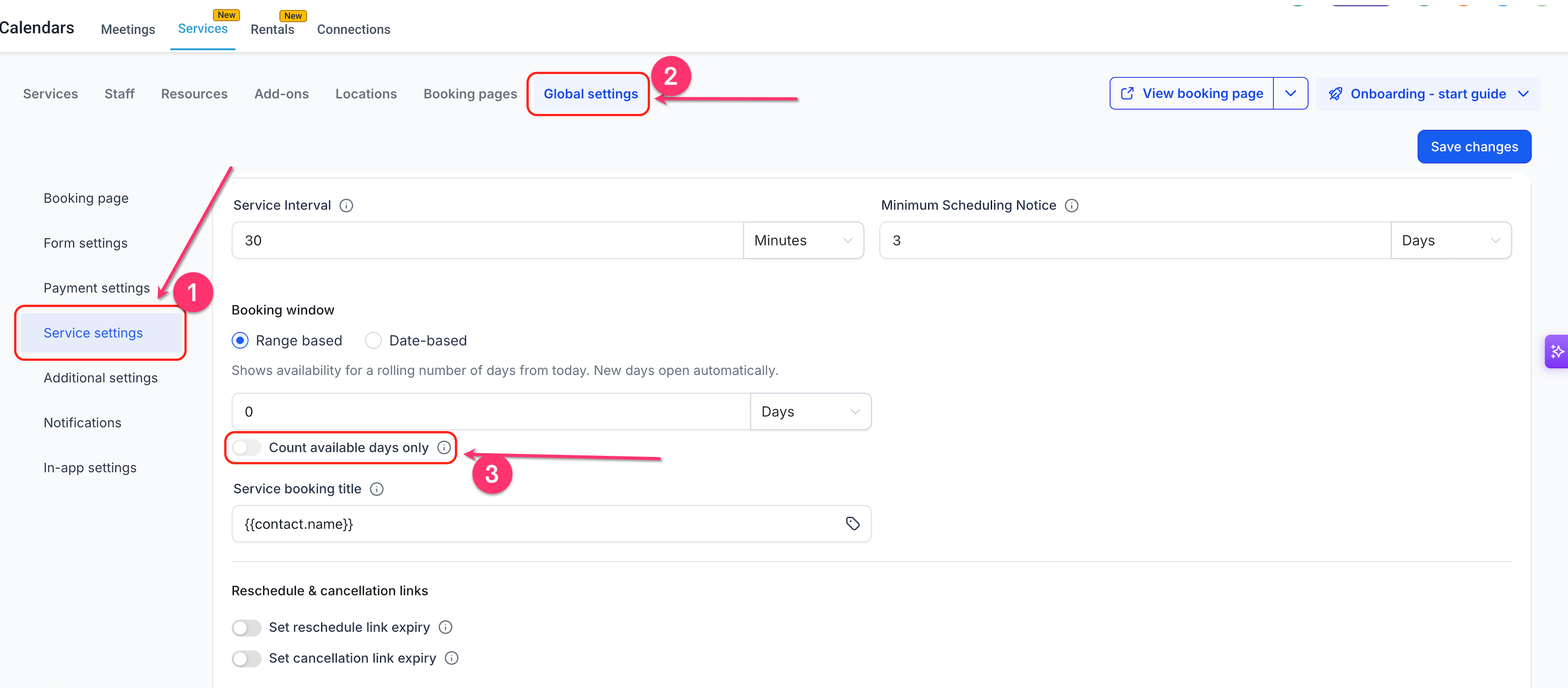
Services use a Booking Window to control how far ahead customers can schedule. When using a Range based booking window, you can turn on Count available days only to skip days when the service is not staffed or available.
Note: For Services, Count available days only works with Range based booking windows. It does not apply when Date-based is selected because Date-based booking uses fixed start and end dates.
Count Available Days Only for Rentals
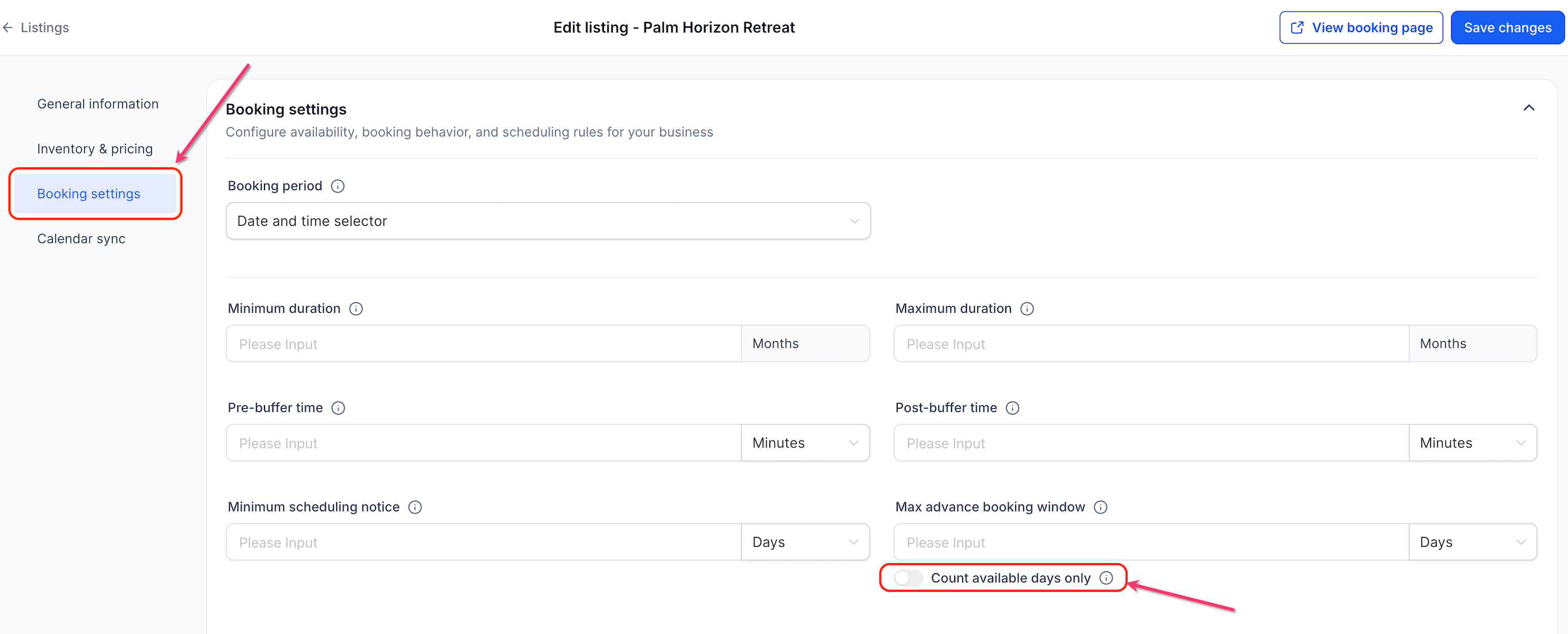
Rentals use the Maximum Advance Booking Window to control how far into the future customers can start a rental booking. When Count available days only is turned on, HighLevel counts only days when the rental listing is available.
The counting begins after the Minimum Scheduling Notice period, helping customers receive the full number of available days configured for the rental.
How To Set Up Count Available Days Only
Turning on this setting takes only a few steps, but the location is different for Meeting Calendars, Services, and Rentals. Make sure availability has already been configured before enabling it.
For Meeting Calendars
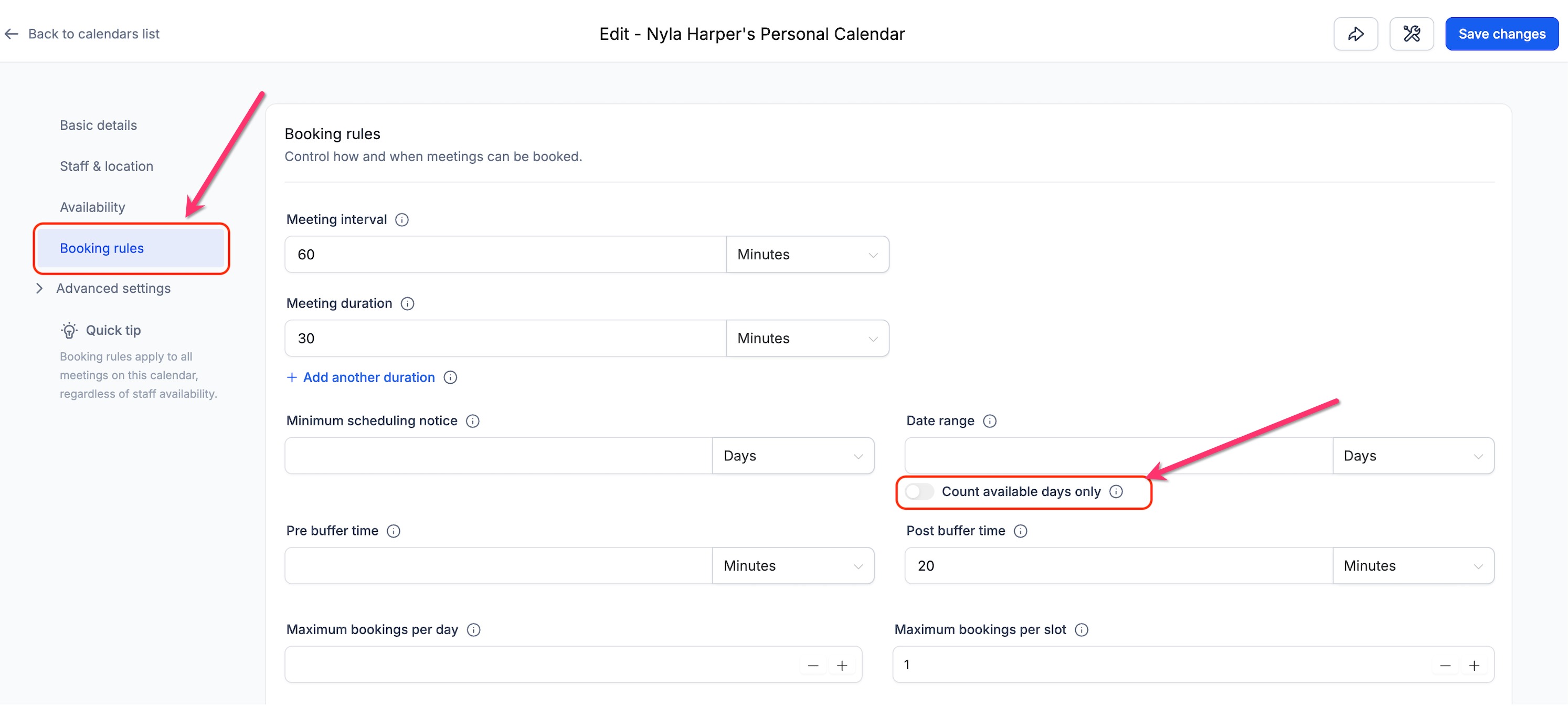
Go to Calendars > Calendar Settings.
Find the calendar you want to change and click Edit.
Select Booking rules.
Find Date range.
Turn on Count available days only.
Click Save changes.
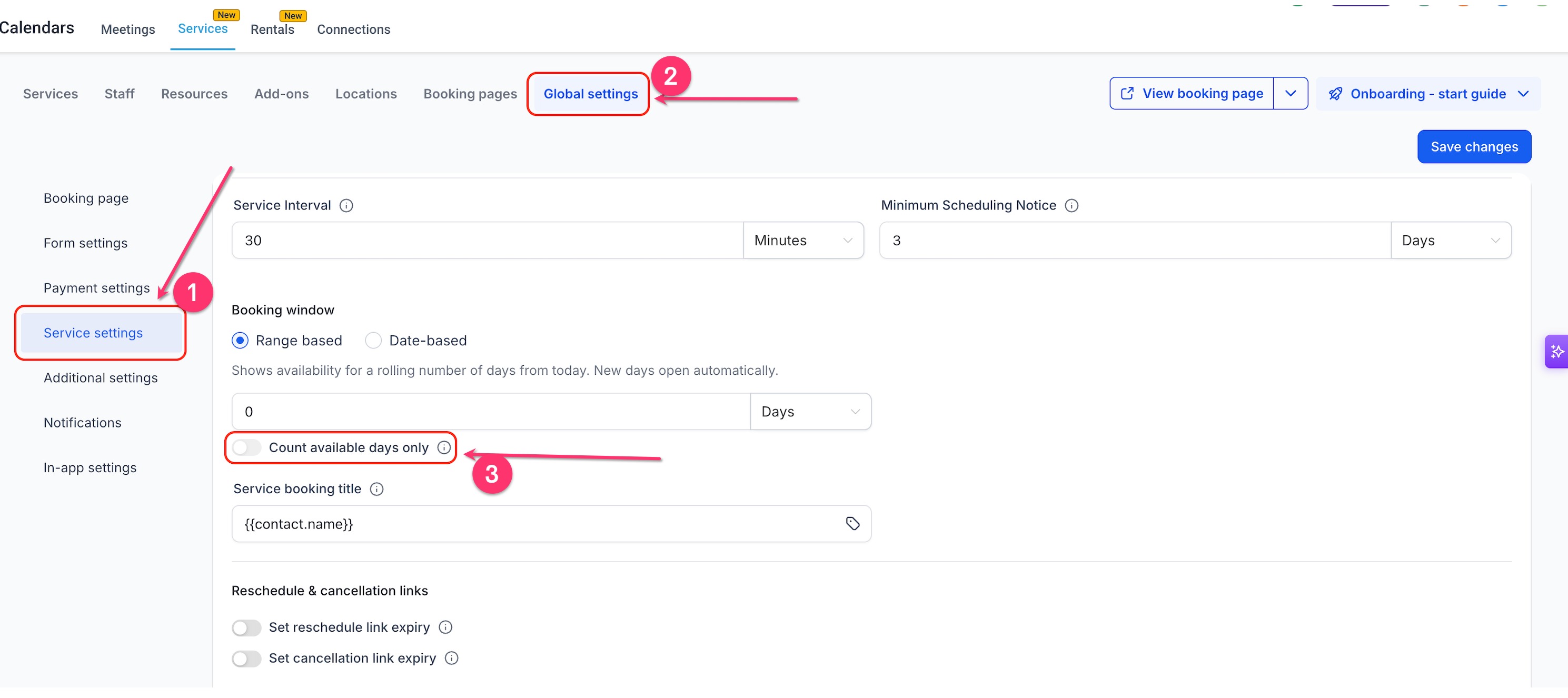
For Services
Go to Calendars > Services.
Open Global settings.
Select Service settings.
Under Booking window, select Range based.
Set the number of days customers should be able to book ahead.
Turn on Count available days only.
Click Save changes.
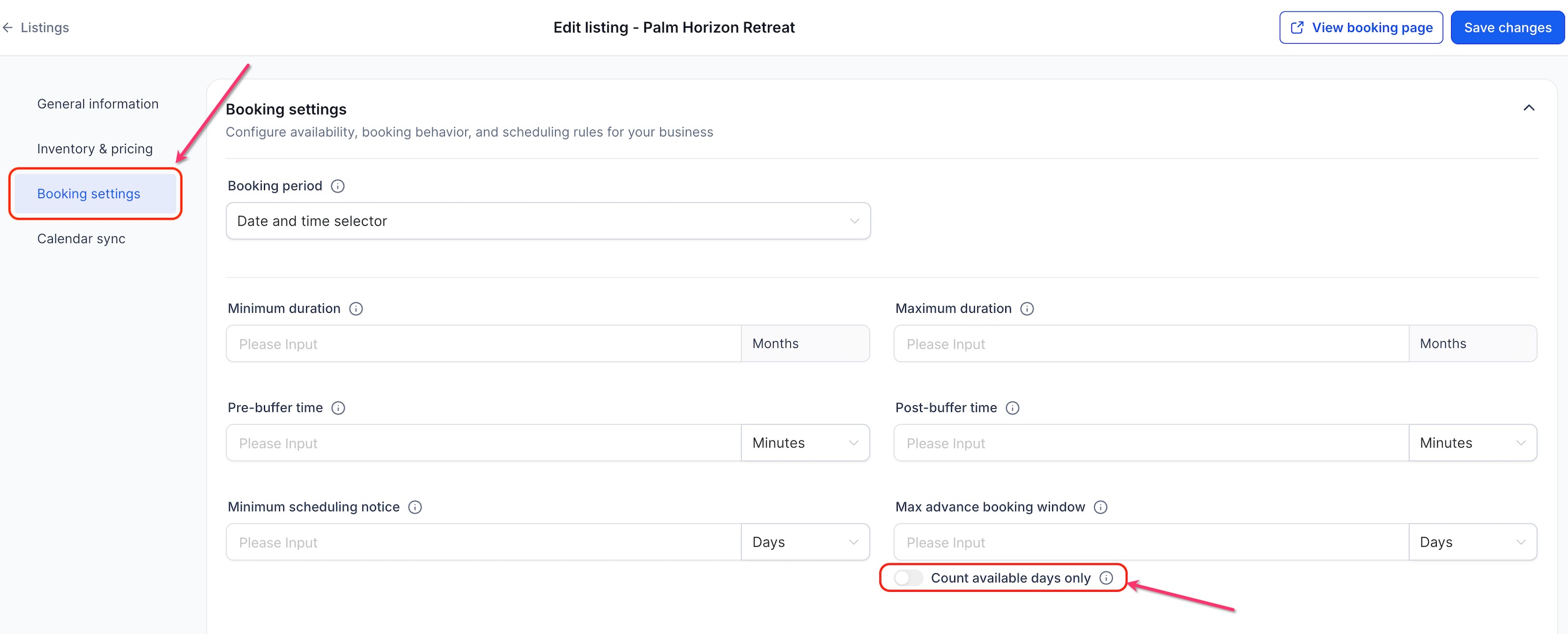
For Rentals
Go to Calendars > Rentals.
Open the listing you want to update.
Select Booking settings.
Find Max advance booking window.
Set how far ahead customers should be able to book.
Turn on Count available days only.
Click Save changes.
Frequently Asked Questions
Q: Does turning on Count available days only change the number I entered for the booking window?
A: No. If your booking window is set to 5 days, it remains 5 days. HighLevel simply counts five available days instead of five calendar days.
Q: Why am I not seeing any dates after turning the setting on?
A: Check your availability settings. The feature uses your availability schedule to decide which days count. If no availability is configured, the booking page may not show any dates.
Q: Does a fully booked day still count as an available day?
A: Yes. A day that is part of your availability schedule still counts even if all of its appointment times have already been booked.
Q: Does Minimum Scheduling Notice count only available days too?
A: No. Minimum Scheduling Notice continues to count normal calendar time. HighLevel applies the notice first, then begins counting the available days in your booking window.
Q: What happens if I change my availability after turning the setting on?
A: HighLevel automatically uses your updated availability when calculating which days count. You do not need to enable the setting again.
Q: Does this work with round robin and collective calendars?
A: Yes. A day counts as available when at least one assigned team member has availability on that day.
Q: Does Count available days only work with Date-based booking windows in Services?
A: No. In Services, the setting only works with Range based booking windows.
Q: What happens when the toggle is turned off?
A: HighLevel returns to counting every calendar day in the booking window, including weekends and days with no availability.
Related Articles
Was this article helpful?
That’s Great!
Thank you for your feedback
Sorry! We couldn't be helpful
Thank you for your feedback
Feedback sent
We appreciate your effort and will try to fix the article