TikTok Channel Support in Conversations AI
Conversations AI supports TikTok as a communication channel, enabling AI-driven responses directly within TikTok messages. This capability brings the full power of automated conversation handling to one of the fastest-growing social platforms.
This article covers how TikTok channel support works, what capabilities are available, and how to configure Conversations AI to handle TikTok conversations automatically.
What is TikTok Channel Support?
TikTok channel support enables Conversations AI to engage with customers directly through TikTok messages. This integration brings AI-driven automation to TikTok conversations, allowing businesses to respond instantly, qualify leads, answer questions, and guide customers toward desired outcomes without manual intervention.
All supported Conversations AI capabilities that work on other channels are available for TikTok, providing consistent automation across your entire messaging ecosystem. The AI bot handles eligible TikTok conversations automatically based on your configuration, ensuring no customer message goes unanswered.
TikTok appears alongside other supported channels like SMS, WhatsApp, Instagram, Facebook, Live Chat, Email, and Chat Widget in your bot configuration, giving you centralized control over how Conversations AI operates across all connected platforms.
Key Benefits
TikTok channel support delivers powerful automation capabilities that help businesses scale their social media engagement without increasing team workload.
Supported AI Capabilities for TikTok
All existing Conversations AI capabilities that work on other channels are available for TikTok. This ensures consistent automation behavior regardless of which platform your customers use to reach you.
Conversations AI responds to incoming TikTok messages using natural language understanding, providing contextually relevant answers based on customer intent.
The AI bot uses configured bot knowledge to answer business-related questions, ensuring accurate and helpful responses based on your specific business information.
Conversations AI qualifies leads by collecting relevant information during TikTok conversations, helping you identify high-value prospects automatically.
The AI bot guides conversations toward appointment booking, allowing customers to schedule meetings directly within TikTok messages.
Conversations AI takes configured actions based on conversation context, such as updating contact information, adding tags, or triggering workflows.
When a conversation requires human intervention, Conversations AI seamlessly transfers the TikTok conversation to a team member while preserving full context.
Conversations AI continues engaging customers on TikTok even when your team is unavailable, ensuring no opportunity is lost due to timing.
Prerequisites
Before you can enable TikTok channel support in Conversations AI, ensure the following requirements are met:
How to Enable TikTok in Conversations AI
Follow these steps to enable TikTok channel support for your Conversations AI bot:
Go to the AI Agents section in your HighLevel account by clicking AI Agents in the left navigation menu. Navigate to the Conversation AI tab to access your bot configurations.
You will see a list of existing Conversation AI agents or the option to create a new one.
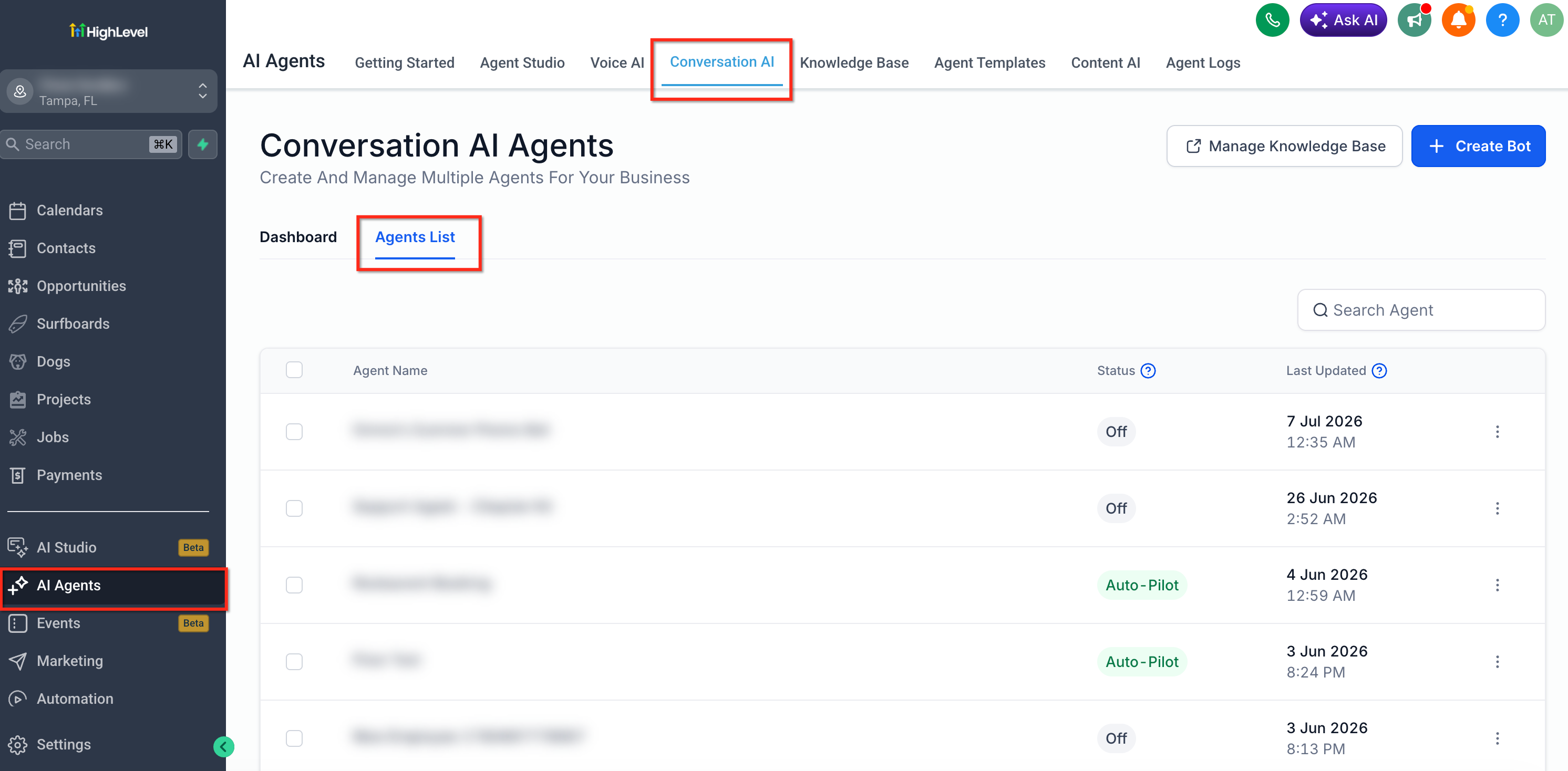
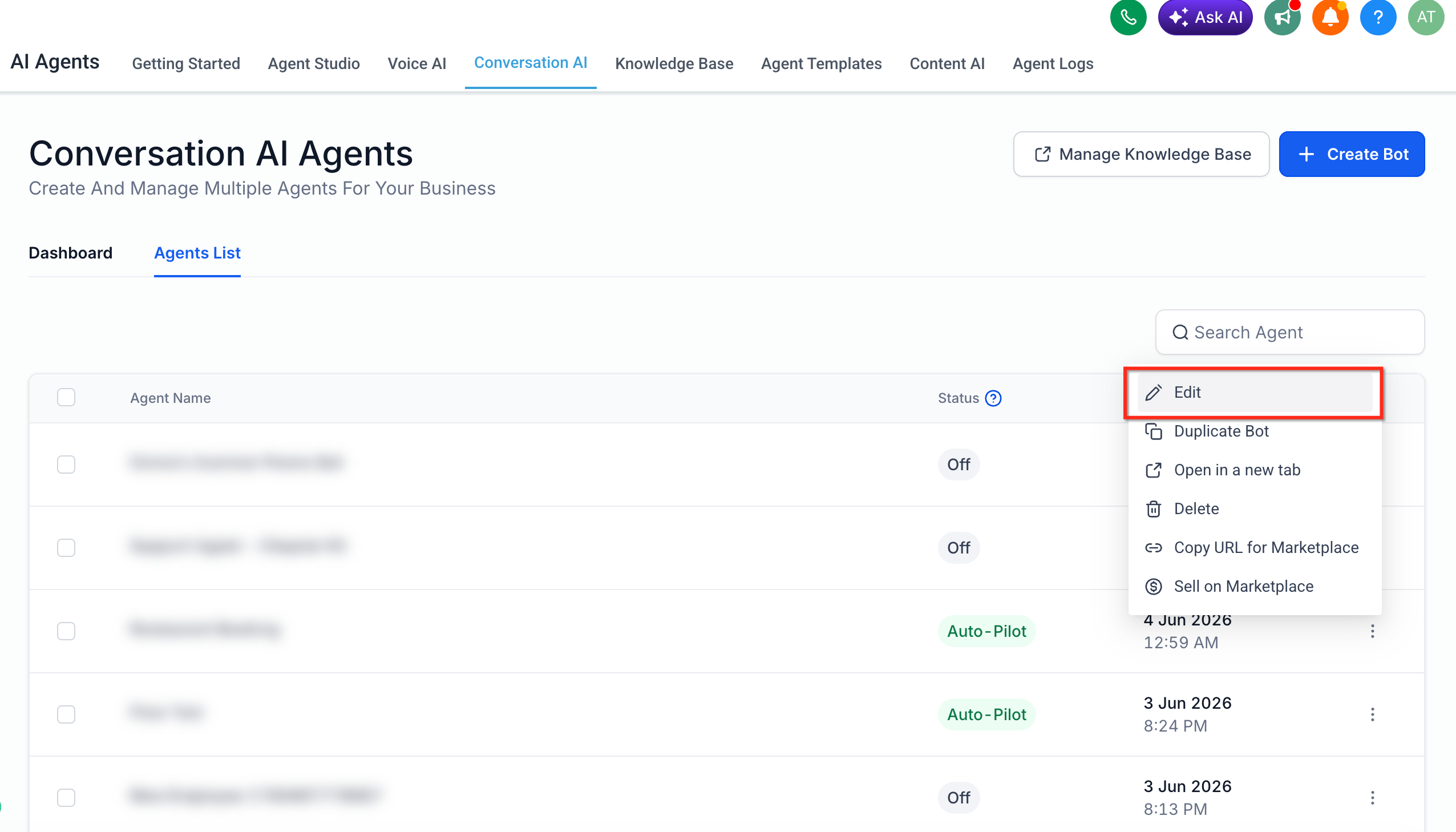
From the Agents List view, select the existing bot you want to use for TikTok conversations by clicking the Edit option from the three-dot menu next to the bot name, or create a new bot if needed.
Ensure your bot has the appropriate knowledge base, personality settings, goals, and conversation behavior configured before proceeding.
Once you've opened your bot for editing, you'll see the bot configuration interface with multiple tabs including Build and Deploy.
Click on the Deploy tab to access channel configuration options. This is where you'll enable TikTok as a supported channel for your bot.
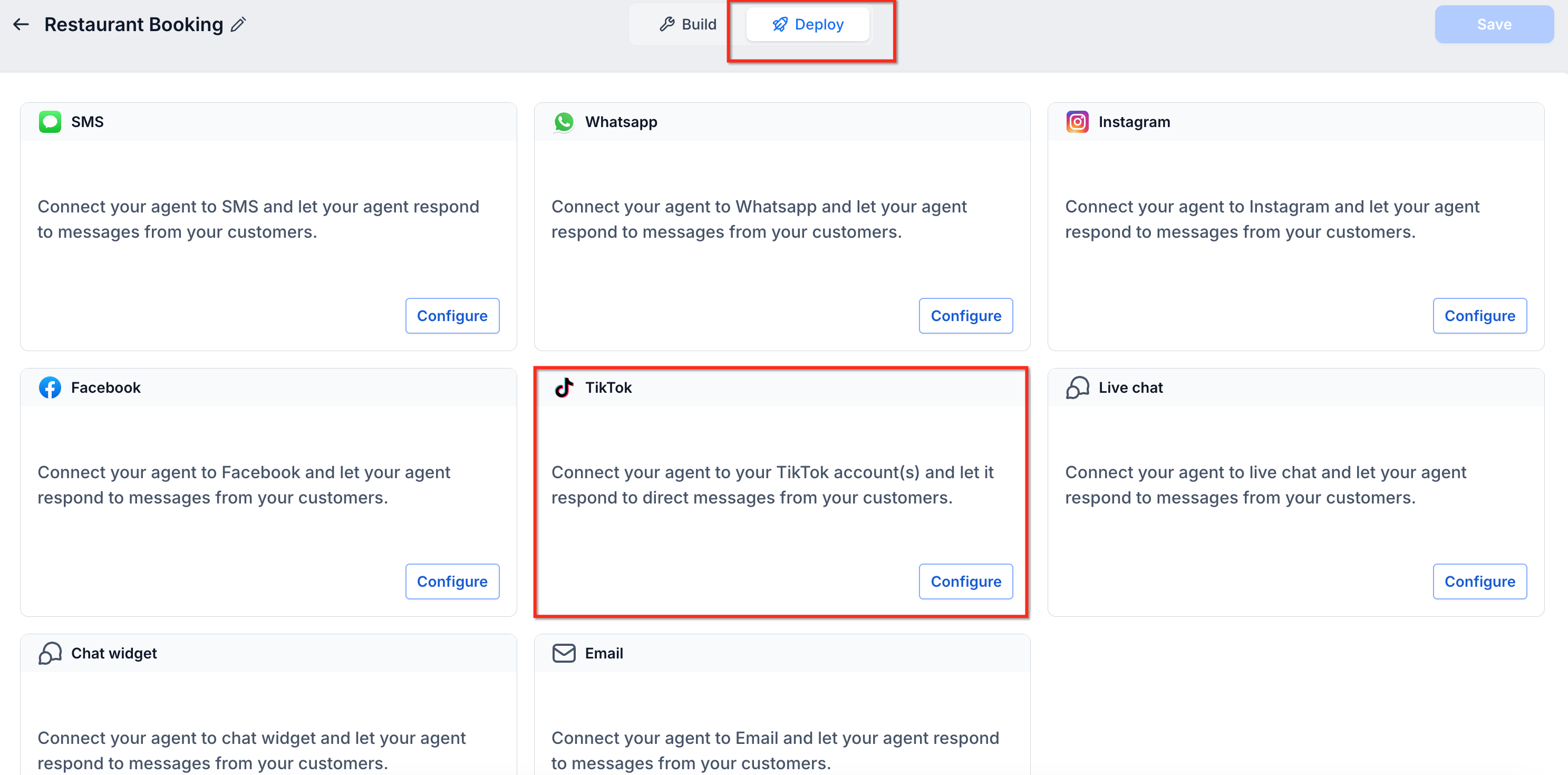
In the Deploy section, you'll see channel cards for all available communication platforms including SMS, WhatsApp, Instagram, Facebook, TikTok, Live Chat, Chat Widget, and Email.
Each channel card displays the channel name, icon, a brief description, and a Configure button.
Find the TikTok channel card, which displays the TikTok icon and the description "Connect your agent to your TikTok account(s) and let it respond to direct messages from your customers."
Click the Configure button on the TikTok channel card to open the TikTok channel configuration modal.
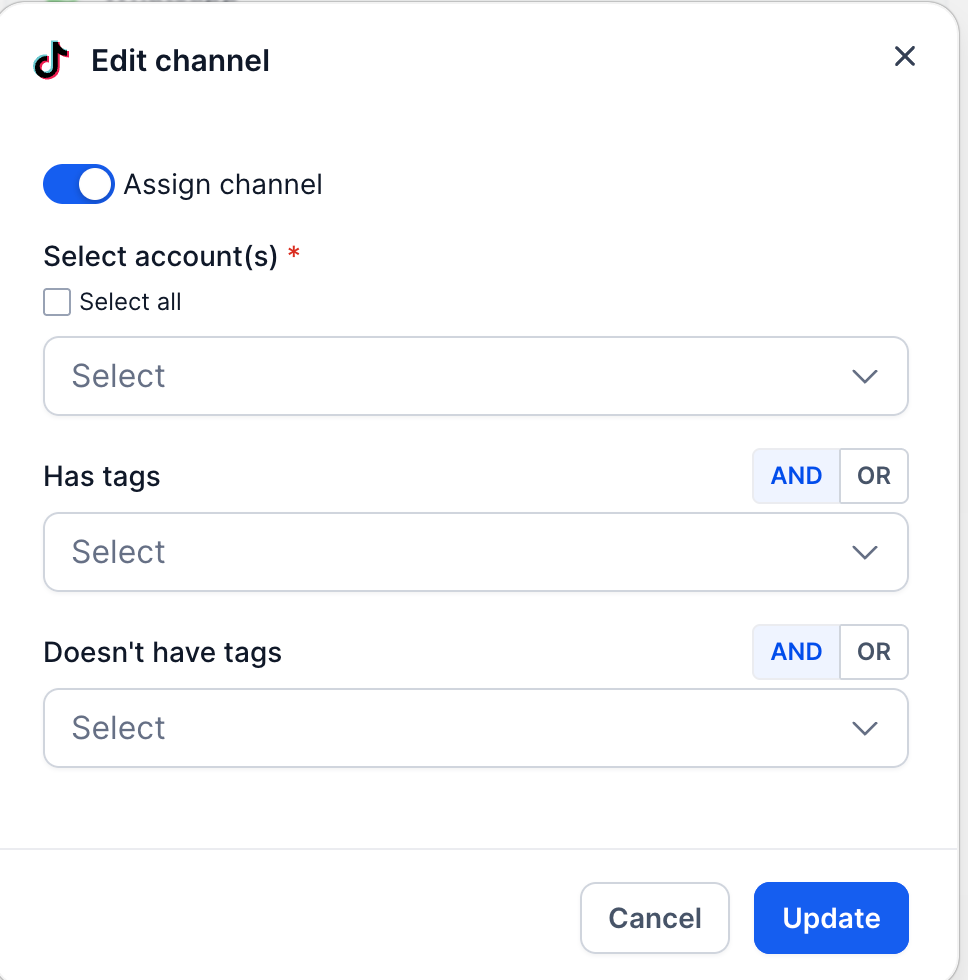
In the Edit channel modal that opens, you'll see the TikTok icon at the top and an Assign channel toggle switch.
Toggle the Assign channel switch to the on position (blue/enabled state) to activate TikTok for this bot.
After enabling the toggle, you'll see a Select account(s) dropdown field marked as required (indicated by a red asterisk).
Click the dropdown and select which TikTok account(s) you want this bot to handle. You can select individual accounts or use the Select all checkbox to apply the bot to all connected TikTok accounts.
The dropdown displays all TikTok accounts that are connected and available in your HighLevel instance.
Below the account selection, you'll see optional filtering options including Has tags and Doesn't have tags sections.
These filters allow you to control which TikTok conversations the bot handles based on contact tags. You can configure the bot to only engage with conversations where contacts have specific tags (using the Has tags filter) or exclude conversations where contacts have certain tags (using the Doesn't have tags filter).
Each filter section includes AND / OR logic options, allowing you to create sophisticated filtering rules.
If you don't configure tag filters, the bot will handle all eligible TikTok conversations from the selected accounts.
Once you've selected your TikTok account(s) and configured any desired tag filters, click the Update button at the bottom right of the modal to save your TikTok channel configuration.
You can click Cancel if you want to discard changes and close the modal without saving.
After closing the TikTok channel configuration modal, click the Save button in the top-right corner of the bot configuration interface to apply all changes to your bot, including the newly enabled TikTok channel.
TikTok is now enabled for Conversations AI. The bot will automatically engage with eligible TikTok conversations from the selected accounts based on your configuration. You can view and manage TikTok conversations in your unified Conversations inbox alongside messages from all other channels.
Frequently Asked Questions
Was this article helpful?
That’s Great!
Thank you for your feedback
Sorry! We couldn't be helpful
Thank you for your feedback
Feedback sent
We appreciate your effort and will try to fix the article