AI Browser Control Extension
Discover how the Ask AI Browser Control extension transforms your AI assistant from an advisor into an automation agent that navigates the web, interacts with pages, and completes multi-step workflows on your behalf.
Learn how the extension maintains security with tab isolation, credential protection, and on-demand connections while providing full transparency through live screenshot previews.
What is AI Browser Control?
AI Browser Control is a browser extension that allows Ask AI to operate your web browser autonomously. Instead of providing instructions for manual steps, Ask AI performs tasks directly—navigating pages, clicking buttons, filling forms, and reading content—all within a secure, isolated environment.
The extension supports Chrome-based browsers including Chrome, Edge, and Brave. It connects seamlessly with your Ask AI assistant in both text and voice conversations, transforming natural language requests into executed browser actions.
All automation runs in a dedicated tab group that remains completely separate from your personal browsing tabs, ensuring your existing sessions and data remain untouched.
Key Benefits
AI Browser Control transforms how you interact with web-based tasks, providing hands-free automation with built-in transparency and security.
How Browser Control Works
The extension operates through a sophisticated coordinate-based interaction system that reads and acts on web pages like a human user.
Ask AI takes screenshots of web pages and analyzes them to identify clickable elements, form fields, buttons, and navigation options—understanding the page layout like a human would.
The AI executes batched actions including clicking coordinates, typing text, scrolling, dragging elements, and sending keyboard commands. An animated cursor shows exactly where the AI is interacting.
The extension handles all browser navigation: opening new pages, using back and forward buttons, reloading pages, switching between tabs, and closing completed tasks. Each navigation action automatically captures a fresh screenshot.
Ask AI reads page text, monitors browser console logs, and tracks network requests to verify that actions completed successfully and determine next steps in complex workflows.
Browser Control works identically whether you're typing in text chat or speaking in a voice conversation. Simply describe the task you want completed, and Ask AI determines when browser automation is needed.
Security & Privacy
The Browser Control extension implements multiple layers of security to protect your data, credentials, and browsing privacy while automating tasks.
All automation runs in a managed session tab group completely separate from your personal tabs. The AI cannot see, access, or interact with any of your existing browser tabs, windows, or sessions.
When forms require credentials, payment information, or personal data, the extension prompts you locally on your device. Values are filled directly in the browser and never transmitted to the backend or exposed to the AI model.
The extension authenticates using your already-logged-in HighLevel session and verifies with the backend before executing any commands—no second login or separate credential management required.
The socket connection opens only when a browser task is actively running and closes immediately after completion. If a connection drops mid-task, automatic recovery mechanisms restore the session without data loss.
Your browsing data, personal tabs, and sensitive credentials remain on your device. The AI receives only the information necessary to complete the specific task you requested.
How to Install and Use Browser Control
Get started with AI Browser Control in minutes by installing the extension and connecting it to your Ask AI assistant.
Visit the Chrome Web Store or your browser's extension marketplace and search for "Ask AI Browser Control." Click Add to Chrome (or your browser's equivalent) to install.
[Screenshot: Browser Control extension in Chrome Web Store with "Add to Chrome" button highlighted]
Navigate to your HighLevel account and ensure you're logged in. The extension uses your active session to authenticate automatically without requiring separate credentials.
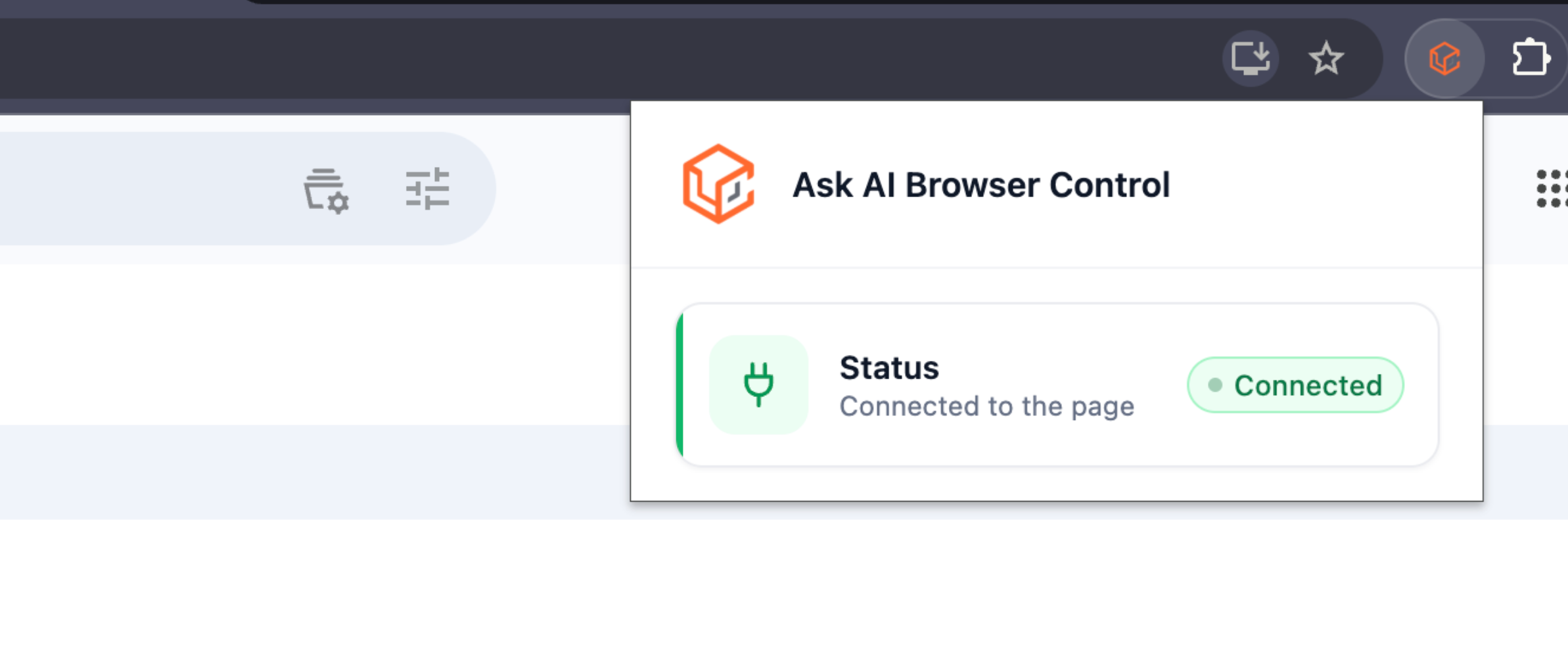
Click the Browser Control extension icon in your browser toolbar. A popup will display the connection status. If you're logged into HighLevel, the status will show Connected to the page.
Open Ask AI in text chat or start a voice conversation. Describe the task you want completed. For example: "Create a new event site for my upcoming webinar" or "Fill out the hosting sign-up form for me."
Ask AI will recognize when browser automation is needed and begin executing steps automatically.
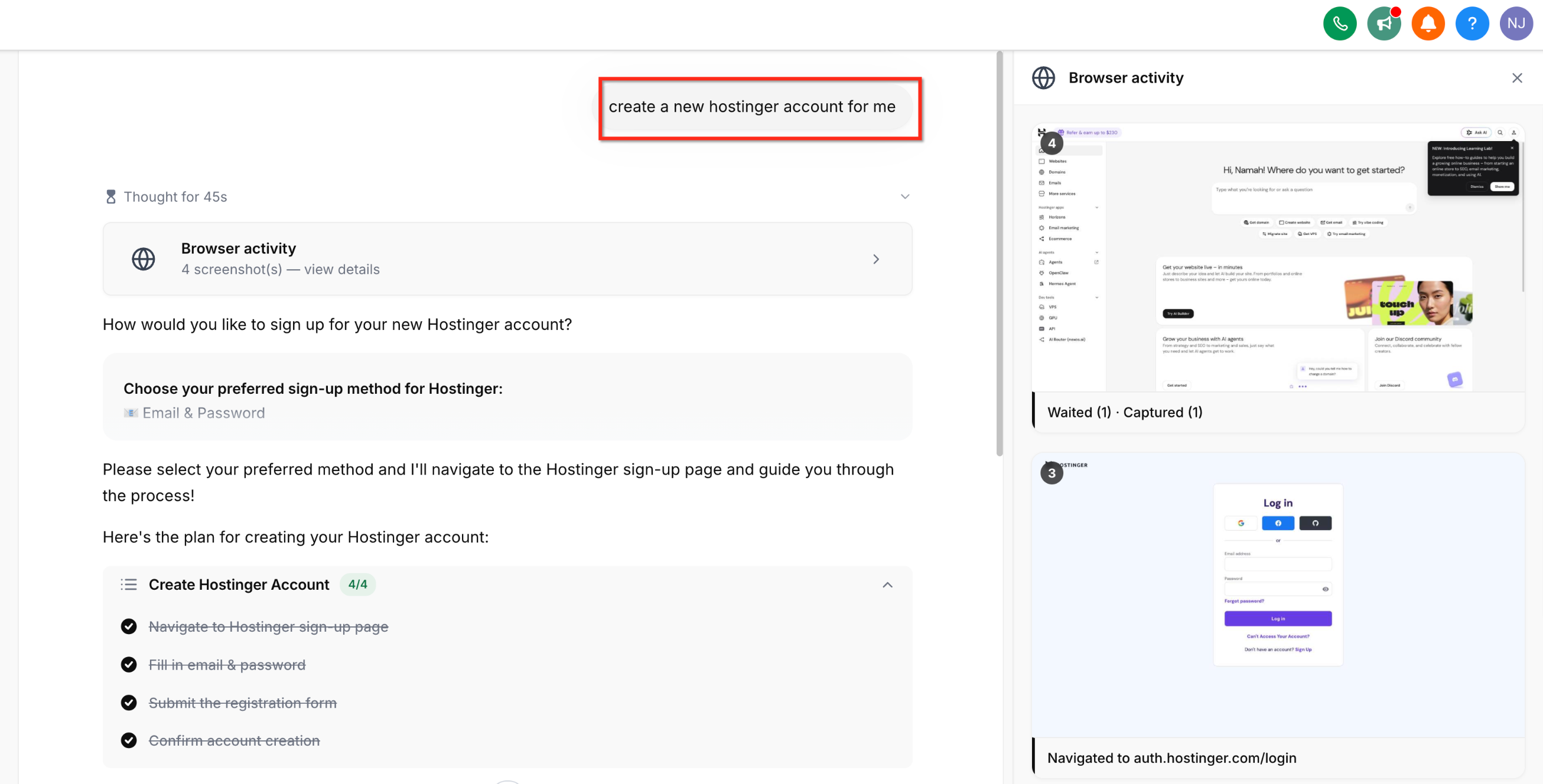
As Ask AI works, screenshots of each step appear in the chat preview panel. You can watch the AI navigate pages, click elements, and fill forms. The animated cursor shows exactly where the AI is interacting on each page.
The extension only opens connections when actively running a task. Once the task completes, the connection closes automatically to minimize network exposure and browser resource usage.
Frequently Asked Questions
Was this article helpful?
That’s Great!
Thank you for your feedback
Sorry! We couldn't be helpful
Thank you for your feedback
Feedback sent
We appreciate your effort and will try to fix the article